Top 7 Best Professional Services Time Tracking Software in 2026

The best time tracking software for professional services are Productive, Kantata, Deltek Replicon, Harvest, Toggl Track, Clockify and Timely. We ranked them by how directly logged hours reach budgets, invoices and profitability reports.
Each tool gets key features, pros and cons from user reviews, and who should skip it. We compare them on budgets, invoicing and approvals, then add a five-step selection test and a weekly timesheet routine.
What’s the Best Time Tracking Software for Professional Services in 2026?
In 2026, the best professional services time tracking software is Productive, since logged hours feed budgets and invoices.
Kantata and Deltek Replicon are the stronger picks for large consultancies and firms with compliance or payroll rules. Harvest, Toggl Track, Clockify and Timely suit teams that mainly need accurate billable hours.
Which Tool Fits Which Team
How the Tools Compare on Budgets, Invoicing and Approvals
| Tool | Who should use | Who should skip | Ways to log time | Hours against budget | Profit and utilization reports | Invoices from tracked hours | Approvals and locking | Free plan or trial |
|---|---|---|---|---|---|---|---|---|
| Productive | Service Firms Billing Hours Against Budgets | Freelancers needing only a timer | Timer, timesheet, AI calendar conversion | Live, per service, with caps | Cost-rate profit, billable utilization | Uninvoiced hours by date range | Approvals, submissions, locking | Free trial |
| Kantata | Large Consultancies Staffing Across a Portfolio | Firms needing to launch within weeks | Timer, weekly timesheet, mobile | Project budgets with financials | Utilization, scheduled vs actual | Invoices linked to projects | Submit, approve, reject time | Free demo on request |
| Deltek Replicon | Firms With Compliance and Payroll Rules | Firms with no compliance rules | Mobile, offline, AI timesheet | Costs compared with budgets | Utilization and cost reports | Project billing and invoicing | Flexible approval workflows | Free trial |
| Harvest | Small Teams Invoicing From Hours | Firms scheduling people alongside logged hours | Timers, timesheet, desktop, mobile | Real-time budget alerts | Profitability and utilization reports | Hours become payable invoices | Built-in approval workflow | Free plan and trial |
| Toggl Track | One-Click Timers Across Your Apps | Firms needing detailed budgets and invoices | Extension, desktop, mobile, calendar | Estimates, fixed-fee budgets, alerts | Labor-cost profitability, utilization | PDF invoices from tracked time | Approvals and locked entries | Free plan and trial |
| Clockify | Starting Free and Adding Controls Later | Teams needing profit data for free | Timer, weekly timesheet, mobile, GPS | Budgets and estimates, paid plans | Labor cost and profit, paid | Invoices on paid plans | Approvals and locking, paid plans | Free plan |
| Timely | Automatic Capture of Fragmented Workdays | Teams working mostly away from computers | Memory tracker, AI timesheet, timer | Project budgets | Cost rates, capacity, utilization | Built-in invoices | Locked time | Free trial |
How We Chose These Tools?
We looked for time tracking for professional services firms that carries logged hours into budgets, invoices and margin reports. In October 2026, we ranked each tool on that chain and checked its features in vendor docs.
Pros and cons come from real user reviews. Productive is listed first because it is our product, built for exactly this chain.
1. Productive – Best for Service Firms Billing Hours Against Budgets
Productive is an agency and professional services platform that runs projects, people, time and money in one place. Each hour logged against a budget counts toward that budget and can later become an invoice line.
Track time with Productive
Turn Calendar Meetings Into Logged Hours
Meetings and client calls fill your week, and nobody logs them as they happen. By Friday, you rebuild five days from memory, and short calls never reach a budget.
With Productive’s AI time tracking, a connected Google or Outlook calendar shows events beside logged hours. One button converts that day’s events into time entries, so you edit instead of retyping. The same AI can create, edit or approve entries from a plain-language request.
Logging suggestions also list pinned services, services you’re scheduled for in resource planning, and recently tracked work. A timer and a desktop timer cover the rest.
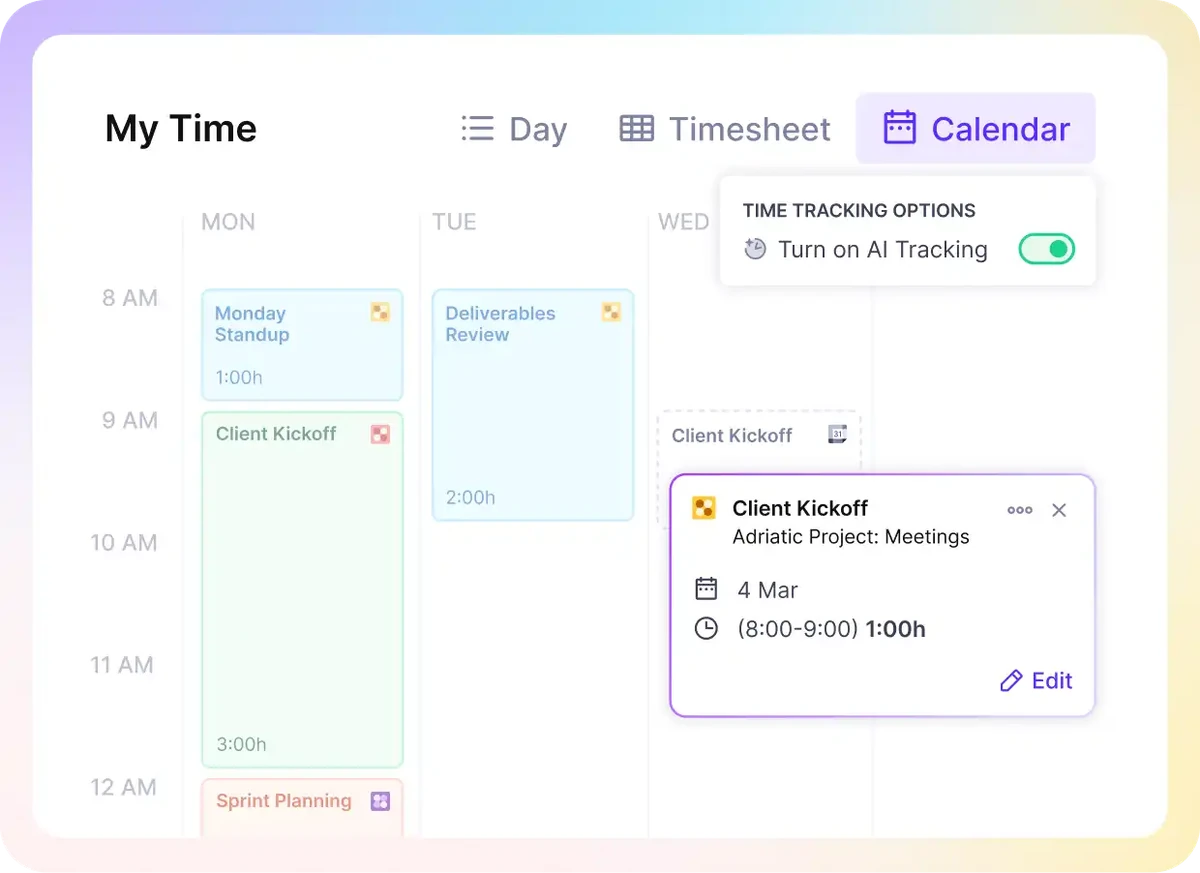
Productive’s Calendar view turns a day’s meetings into logged hours with AI.
See Budget Burn as Soon as Hours Are Logged
Overruns often surface at month-end, after the budget is spent. By then, the extra hours are too late to raise with the client.
In Productive, the remaining budget recalculates as each hour is logged. Billable rates can sit on a person, a service or the whole budget. Because hours land on a named service, service time tracking shows which line of work is using the money.
Each person’s hourly cost rate then turns the same hours into project profitability while the work is still running.
Productive’s budgeting tools let one budget mix fixed-fee, time-and-materials and non-billable services. A service can also block new hours once it reaches its cap.
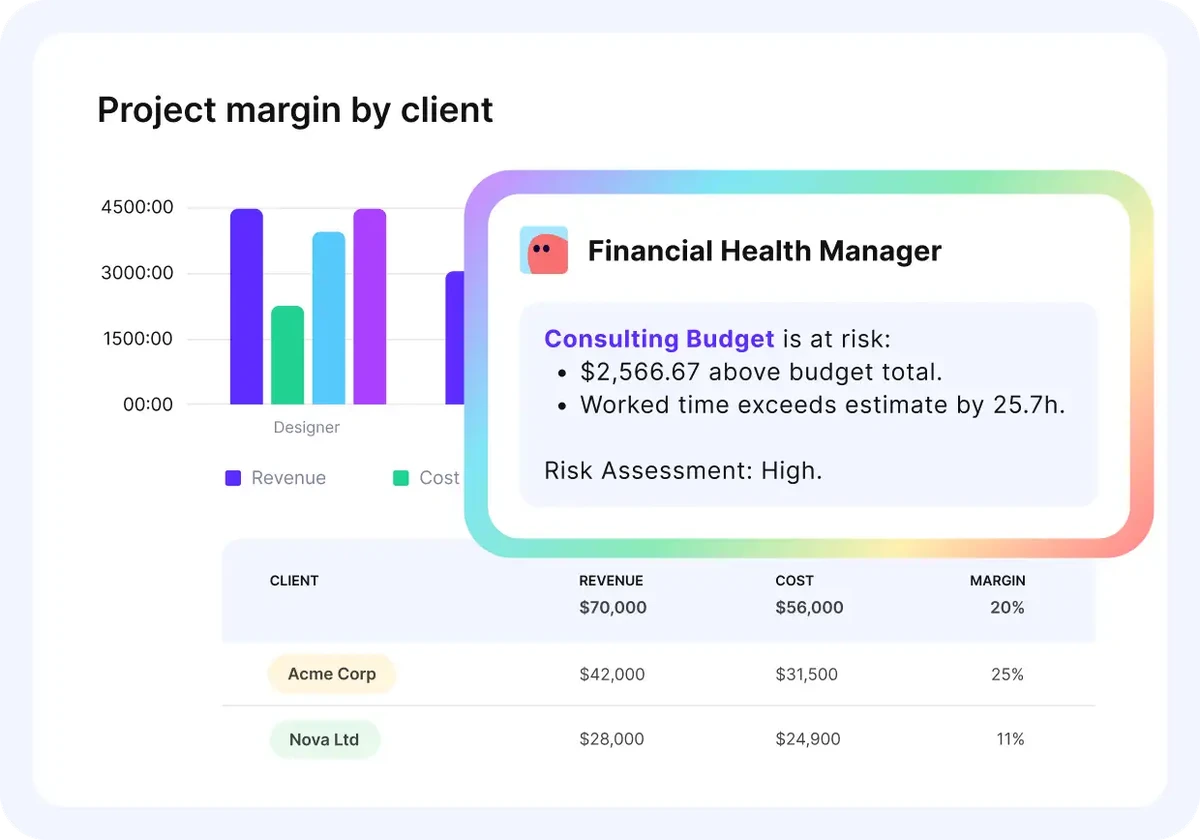
Productive flags budgets at risk and shows margin by client as hours come in.

That’s a key thing that we get out of the reports that really feeds into our utilization and resourcing. If we know we’re doing 30% on internal projects, then we know we’ve got the capacity to take on more client work.
Approve Hours Before They Reach an Invoice
A wrong hour reaches a client invoice, the client questions it, and you fix it with a credit note. That costs time and some trust.
Time approvals in Productive let an approver review hours before they count in budgets, reports or invoices. Unapproved hours don’t touch the budget total. Your team can submit a whole timesheet for review, and reminder emails go out daily or weekly.
Timesheets can also lock after a set period, so past weeks stop changing.
Approved hours then turn into invoice lines. Uninvoiced hours for any date range go onto the invoice, with the timesheet report attached. Each hour stays traceable to the invoice it went on.
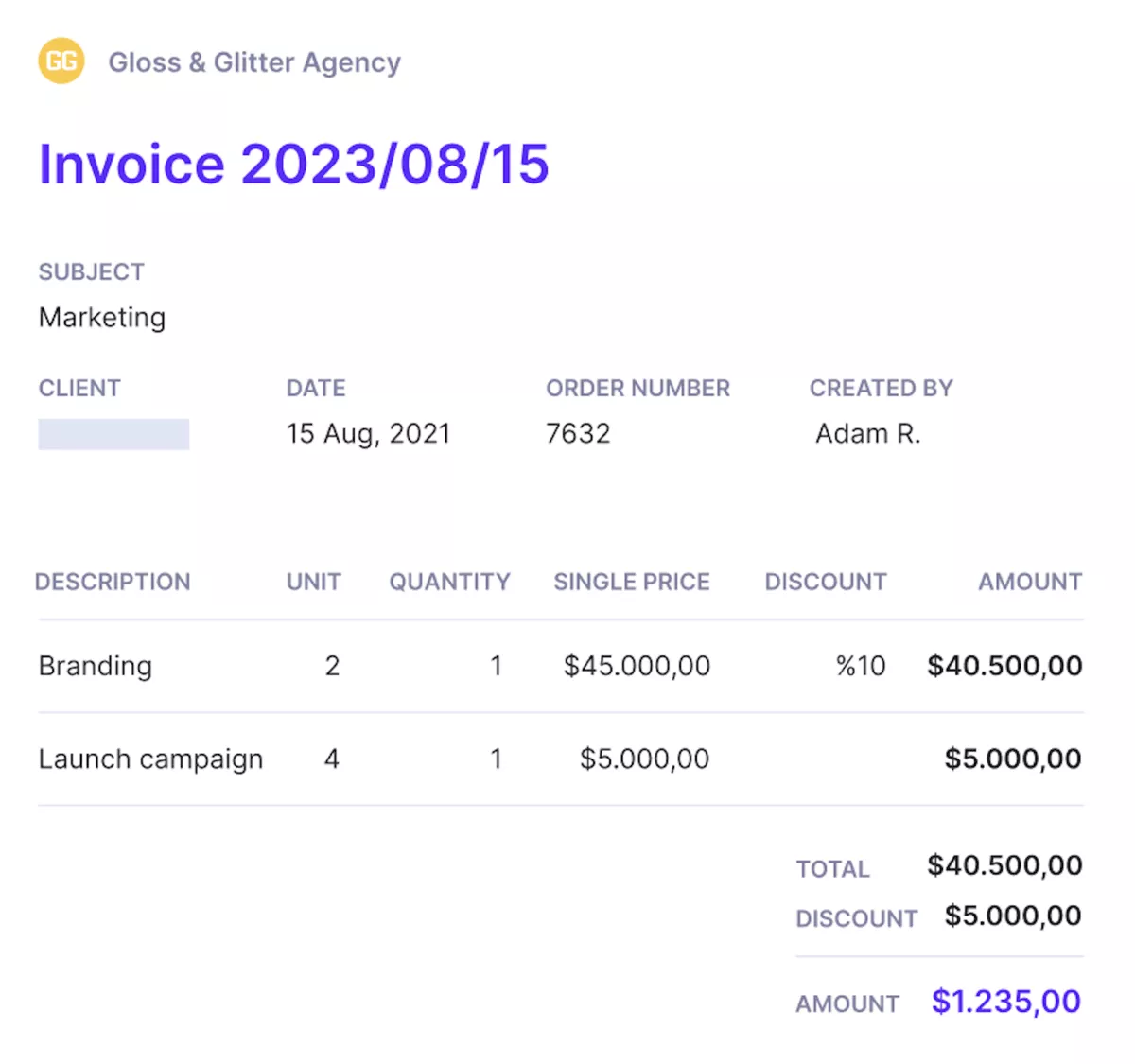
Use the AI agent to create and send invoices from tracked hours.
Who Should Skip Productive?
Productive fits consultancies and agencies that sell hours against budgets and invoice from them. Freelancers and very small teams needing only a timer and simple invoices should pick Toggl Track, Clockify or Harvest. Teams that track time for payroll or attendance rather than client budgets are better served by Deltek Replicon.
Buying anyway means setting up and paying for budgets, resourcing and billing you’ll never use.
Pricing
- Plans start with the Essential plan at $10 per user per month, which includes essential features such as budgeting, project & task management, docs, time tracking, expense management, reporting, and time off management.
- The Professional plan includes custom fields, recurring budgets, advanced reports, billable time approvals, and much more for $25 per user per month.
- The Ultimate plan has everything that the Essential plan and Professional plan offer, along with the HubSpot integration, advanced forecasting, advanced custom fields, overhead calculations, and more. Book a demo or reach out to our team for the monthly price per user.
You can also try out Productive with a 14-day free trial.
Turn Logged Hours Into Budgets and Invoices with Productive
Productive connects every hour your team logs to a budget, a margin report and an invoice line, with no retyping.

2. Kantata – Best for Large Consultancies Staffing Across a Portfolio
Kantata is a professional services automation platform (one system for projects, staffing and finances) for mid-size and large firms. Logged hours flow into utilization reports and forecasts of revenue, margin and capacity, so managers see staffing gaps early.
Key Features
- One-click timer, including on mobile
- Weekly timesheets with time approvals
- Utilization reports, scheduled versus actual
- Revenue, margin and capacity forecasting
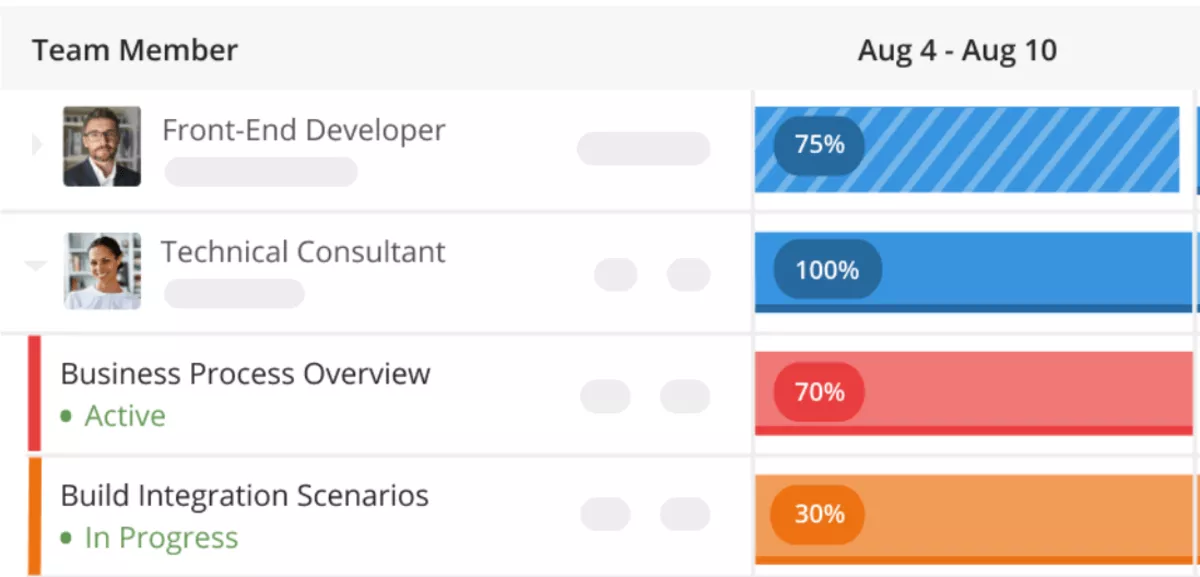
Source: Kantata
Pros
- Capacity sits next to logged time. Capacity is easy to track, and the reports let one senior scientist’s team drop some meetings.
- Time entry and approval stay simple. A business analyst calls the timesheet process streamlined, so new staff start with little training.
- Margins show up while work runs. Immediate visibility into invoiced margin replaces month-end reporting, according to a credit risk manager.
Cons
- Setup takes months, not weeks. Implementation averages about four months across reviews, and a PMO calls the learning curve steep.
- Navigation means a lot of clicking. Reaching one detail often takes several screens and filters, the same senior scientist notes.
- The resource center needs manual upkeep. For more than 20 consultants, a strategy consulting director finds it cumbersome to manage.
Who Should Use Kantata?
If you staff consultants across many engagements and want capacity planning software with timesheets built in, choose Kantata. A firm that must go live within weeks will stall, since setup can take months before the first report.
3. Deltek Replicon – Best for Firms With Compliance and Payroll Rules
Deltek Replicon (formerly Replicon) handles time tracking, attendance and labor compliance for project-based firms. Its AI drafts timesheets from connected work apps, and preset rules flag overtime and leave issues before payroll.
Key Features
- AI-drafted timesheets from connected work apps
- Flexible approval workflows
- Labor rules for overtime, breaks and leave
- Project costs compared with budgets

Source: Deltek Replicon
Pros
- Staff pick up time entry quickly. Employees find logging hours and requesting time off easy to learn, per a payroll and accounting specialist.
- Billable time splits cleanly by client. One technical solutions reviewer separates billable from non-billable work for every client.
- Project time and billing sit together. Project tracking, hours and billing live in one place, so a security analyst stopped switching apps.
Cons
- Admin fixes take several steps. Correcting a wrong timesheet setup means deleting the sheets, editing the profile and regenerating them, a payroll specialist writes.
- Settings and reports are hard to find. A resource manager can’t always find the right setting, and a delivery lead finds reports hard to navigate.
- Pages can load slowly. Slow loading is the main drawback for a daily user of many years.
Who Should Use Deltek Replicon?
Firms that prove hours for payroll or audits under labor rules in several regions need Deltek Replicon’s depth. Without those rules, lighter Replicon alternatives spare your admins settings nobody needs.
4. Harvest – Best for Small Teams Invoicing From Hours
Harvest combines a one-click timer with invoicing and online payments for teams that bill by the hour. Tracked billable hours become invoices, and budget alerts warn you before a project runs over.
Key Features
- One-click timer on desktop, browser and mobile
- Real-time project budget alerts
- Invoices with integrated online payments
- Profitability and team utilization reports

Source: Harvest
Pros
- Tracking starts inside Jira. A software-company reviewer logs time from Jira tickets through Harvest’s built-in integration.
- Invoices come straight from tracked time. One services company created projects, tracked team time and generated invoices from those hours.
- Teams start with almost no setup. Onboarding needed no training class, one reviewer reports.
Cons
- Recent price changes hit long-time customers. Bills multiplied for several customers after the 2025 acquisition, and some are now weighing options for teams outgrowing Harvest.
- Project management stays thin. Project features are limited, and team scheduling needs Forecast, a separate sister app.
- Some reports feel clunky. A small-business owner finds parts of the reporting awkward, even though daily tracking is easy.
Who Should Use Harvest?
Small teams that want a timer and invoices with almost no setup will get the most from Harvest. Scheduling people where you log hours means running a second app, so look elsewhere if you need that.
5. Toggl Track – Best for One-Click Timers Across Your Apps
Toggl Track puts a start button in your browser, desktop and phone apps, and inside tools like Jira. Logged entries roll into reports by client and project, with rates, estimates and budget alerts on paid plans.

Source: Toggl Track
Key Features
- Browser extension timer inside other web apps
- Calendar sync with Google and Outlook
- Project estimates, budgets and alerts
- Labor-cost profitability reports
Pros
- Reports show where time goes. A marketing reviewer calls the reports strong, with a clear visual view of where hours went.
- Client time stays organized. An enterprise account manager sorts hours across many clients and projects without extra admin work.
- The phone app keeps working offline. When Wi-Fi drops, timers still start and pause, and reports export cleanly for clients.
Cons
- Budgets and invoicing stay light. Advanced budgeting features need workarounds, per that account manager, and another reviewer misses built-in invoices.
- Back-filling missed time is fiddly. Forgotten entries can land on the wrong day unless you double-check the date and AM or PM.
- Device switching can lag. Timers sometimes start or stop late when you move between devices, a researcher notes.
Who Should Use Toggl Track?
For consultants living in browser tools, Toggl Track makes timing work almost effortless. Detailed budgets and polished invoices are another matter, and firms needing both end up rebuilding them elsewhere.
6. Clockify – Best for Starting Free and Adding Controls Later
Clockify gives teams a free way to start tracking hours, with paid plans adding approvals, invoices and profit reports. Hours from the timer, timesheet or phone land on projects, and set rates turn them into cost and revenue.

Source: Clockify
Key Features
- Timer, weekly timesheet and phone apps
- Approvals and timesheet locking
- Cost and billing rates per project
- Labor cost and profit reports
Pros
- Setup is quick. An owner had it running in about 30 minutes, with dashboards that show his team’s tasks at a glance.
- Projects and clients aren’t capped. A project manager tracks unlimited projects, clients and hours without hitting a paywall early.
- Rates show margin as work happens. The same manager sets cost and client rates per task to watch budgets and margins in real time.
Cons
- Free-plan limits keep tightening. Free reports offer little customization, and some once-free features moved to paid plans in 2026.
- The web app can drop you. In Chrome, the web app sometimes logs that project manager out and won’t let her back in.
- Payouts happen elsewhere. The same owner wishes he could pay team members and expenses straight from Clockify.
Who Should Use Clockify?
Start with Clockify when you want to track hours without a budget conversation and add controls as you grow. Margin reports sit on paid plans, so free-plan teams calculate profit in spreadsheets or switch to a Clockify alternative.
7. Timely – Best for Automatic Capture of Fragmented Workdays
Timely records what you work on in the background, so nobody has to remember to start a timer. As professional services time capture software, it drafts entries from the recorded activity for you to approve.
Key Features
- Automatic time tracking on desktop
- AI suggestions you approve before logging
- Project budgets and internal cost rates
- Capacity and utilization dashboards
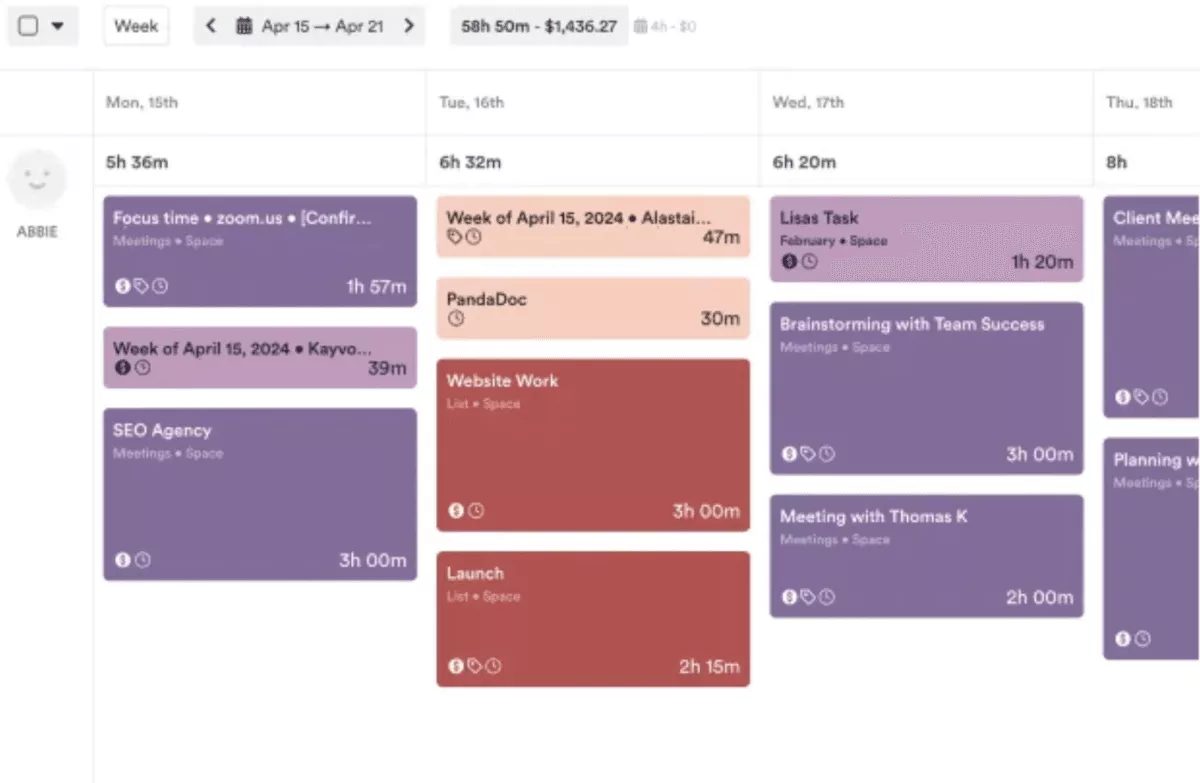
Source: Timely
Pros
- Short tasks stop slipping through. Activity tracking logs the apps, files and sites one QA specialist uses, so the week never needs rebuilding.
- Interrupted days still land on the right client. Calls from other clients still get allocated correctly, and daily reports prove the work to a marketer’s clients.
- Projects show up from several angles. A business owner uses the AI views to see each project by people, projects and dates.
Cons
- The AI needs correcting while it learns. It often misclassifies activity, so someone still reviews and reassigns entries by hand.
- Mobile stays manual. Automatic recording runs on desktop only, and the phone app can’t track offline.
- Task management is a paid add-on. Task features cost extra on top of the base plans, which are already pricier than most trackers.
Who Should Use Timely?
When your desk day splinters into short tasks you forget to time, Timely recovers them. Field and client-site teams gain little, since recording only happens on desktop and the app sits unused.
Do You Need a Standalone Time Tracker or a Connected Platform?
You need a standalone time tracker when hours only have to reach an invoice. You need a connected platform when those hours must also update budgets, margin and staffing as work runs.
Every billable hour travels the same chain. It gets logged, approved, counted against a budget, invoiced and finally reported as profit and utilization. With a standalone timer app, each step after logging is manual. Someone exports a timesheet, retypes the hours into an invoice and rebuilds the budget view in a spreadsheet.
Revenue leakage (hours worked but never invoiced) happens at exactly those handoffs. Hours get skipped while someone retypes them, or they arrive after the invoice has gone out. Platforms that run the PSA whole chain move the same hours forward without anyone copying them.
Plenty of time tracking for service businesses stops at the invoice, and a standalone timer app handles that well. It’s enough when you bill one or two rates, build invoices straight from hours and sell no fixed-fee work. It also holds up when nobody asks mid-project whether a budget will last, since clients simply pay for hours.
The picture changes once your work mixes billing models and people. Watch for hourly and fixed-fee work sold in the same quarter. Another sign is cost rates that differ by person, which means margin stops tracking revenue.
If someone checks budgets weekly, project profitability has to update from logged hours, not from a month-end export.
Once people are scheduled across several projects, capacity planning starts depending on those same hours too. That is where matching people to project demand comes in, and it only works when logged hours are current.
Harvest, Toggl Track, Clockify and Timely sit on the standalone side, with strong tracking features and lighter budget control. Timely adds automatic time tracking for people who forget to start timers.
Several of them also plug into a project management tool, so hours can start where tasks already live. Productive, Kantata and Deltek Replicon are connected platforms, where hours feed budgets, invoicing and reports without an export.
How to Choose Time Tracking Software in Five Steps
Run five trial tests: retyped numbers, billing models, a live budget, an approval cycle and your busiest week. Each has an owner, an artifact and a pass or fail, so your own data decides.
Run them in a trial workspace with real data, because sample projects hide the problems that matter.
Step 1: Mark Every Number You Retype From Last Month
Pull last month’s invoices, the timesheet export behind them and any budget spreadsheet. Your finance lead highlights every number someone typed by hand from hours, and marks which hours were non-billable time.
In the trial, every highlighted number must come straight from logged hours, with non-billable work kept off the invoice. One number that still needs retyping is a fail.
If your team blurs the line, see how to split billable from non-billable work before you start. The count also gives you a baseline to compare against after rollout.
Step 2: List Every Billing Model You Sold This Quarter
Your account lead gathers every proposal or statement of work signed this quarter. Sort them into hourly work at agreed hourly rates, fixed-fee projects and retainers. Then set up one budget per model in the trial, with the real rates from those documents.
- Pass: every model fits inside the tool, invoicing included.
- Fail: any model needs a spreadsheet running beside it. Recurring budgets deserve extra care, since unused hours may roll over or expire on a set date.
Step 3: Track One Live Project Against Its Budget
The project owner picks one active project with a known budget. They log one real week of billable hours in the trial, against that budget. A week is long enough to catch rates applied to the wrong person or service.
- Pass: the remaining budget matches the owner’s current sheet to the hour.
- Fail: the two differ, and nobody can explain why from inside the tool.
Step 4: Run One Approval Cycle With Your Real Approvers
Name one approver per team and put the approval day in their calendar. Submit one week of hours, then reject one deliberately wrong entry. Pick an entry with the wrong service or client, since that is the error approvers most need to catch.
- Pass: the rejected hour stays out of the budget and the invoice draft.
- Fail: unapproved hours still show up in reports.
Step 5: Have Your Busiest Person Log One Full Week
Pick the person with the most meetings, the one whose week is hardest to reconstruct. They log one week using whatever the trial offers: calendar import, the mobile app and the timer.
- Pass: their week is complete by Friday noon without anyone rebuilding it from memory.
- Fail: more than one meeting is missing. This test shows whether time capture and tracking features fit real work, not a demo account.
How to Get Your Team Tracking Time Accurately?
Your team tracks time accurately with five habits: same-day logging, quick capture, weekly approvals, automatic reminders and locked weeks. Each one has an owner and a check you can run on Monday.
Before switching anything on, tell the team why the hours matter. Logged hours show who is overloaded and which budget is running out.
Framed that way, tracking time protects workloads and budgets instead of watching people. If a consultant logs far more hours than scheduled, that is a staffing problem, not a personal failing.
Start with one team for two weeks before rolling out firm-wide. Use those weeks to fix project names, service lists and the reminder time, then copy the setup.
- Log the same day. Hours go in by the end of each working day, or by 10:00 next morning on client sites. Team leads own the deadline, and the check is simple: nobody has an empty yesterday by 10:30. If people are unsure what counts, share a method for logging billable hours.
- Make capture take seconds. Connect calendars so meetings arrive as suggestions, and keep a timer one click away for focused work. Allow manual entries from the mobile app for offline work, so a site visit never waits until Friday. Operations sets this up once for everyone.
- Approve every Monday. Each team’s approver clears last week’s time entries before noon, sending back anything logged to the wrong budget. When approval is late, the invoice is late, so book approval in the calendar like a client meeting.
- Let reminders do the chasing. An automatic reminder goes out mid-afternoon on deadline day to anyone with an empty day. Nobody has to chase colleagues by message, and the reminder lands while the work is still fresh. Keep reminders to one a day, because more than that teaches people to ignore them.
- Lock approved weeks. Once a week is approved, it locks, and any correction goes through the approver. Set the lock a few days after approval day, so late fixes still have a window. Locked timesheets mean the hours on an invoice match what was approved.
- Check the week against the schedule. Every Friday, the operations owner compares each person’s timesheets with the hours they were scheduled for. Any day with nothing logged gets a direct follow-up, which keeps data collection steady instead of a month-end scramble.
- Handle repeat gaps privately. If the same person misses the deadline three weeks running, the team lead asks what gets in the way. Often the cause is a missing project, a confusing service name or meetings that never reach the calendar.
Final Thoughts: Shorten the Path From Logged Hours to a Paid Invoice
For most service firms, the smartest choice is one system where hours, budgets, approvals and invoices share one record. Every export between separate tools is a point where hours go missing, arrive late or get retyped wrong.
A standalone timer app costs less on day one, but the gap moves into spreadsheets and month-end admin. With one system, the budget you check on Wednesday already includes Tuesday’s approved hours.
Start with the numbers you highlighted in Step 1, and count how many invoices needed one. If most did, the handoffs are the problem, and a connected platform removes them. If you want that chain in one system, see hours flow into budgets and invoices in a Productive demo.
One System From Logged Hour to Paid Invoice
Replace the timer, the spreadsheet and the billing export with one connected platform for professional services.

Frequently Asked Questions
Is Free Time Tracking Software for Consultants Enough?
Yes, free time tracking works for a solo consultant or small team that invoices straight from hours. Free time recording software for consultants falls short once you need approvals, budgets or cost rates on paid plans. Before tracking time on a free plan, compare time tracking setups for solo consultants with next year’s needs.
Should You Track Time on Fixed-Fee Work?
Yes, track time on fixed-fee work, because a fixed fee hides overruns until the project loses money. Logged hours show the effective hourly rate you actually earned, which tells you what to reprice next time. Compare hours across a few similar projects, and your next fixed-fee quote rests on data instead of memory.
Can You Keep Your Project Management Tool and Still Track Budgets?
Yes, if an integration pulls hours from your task tool into budgets, or a tracker runs inside that tool. Productive, for example, lets people track time on Productive projects from inside Jira. If your task tool is the real problem, compare full project management platforms before adding another integration.