Top 7 Best Harvest Alternatives (Paid & Free) in 2026

Since Bending Spoons bought Harvest in 2025, usage fees on top of seat prices raised many renewal bills.
We price Harvest’s current plans and compare the top Harvest alternatives against them. You get prices, free plans, where each tool beats or trails Harvest, a comparison table and a data-move plan. We also added a link to a special Harvest migration discount.
What Harvest Costs in 2026
Harvest costs a seat price plus usage fees, but only the seat price is published. Harvest’s pricing page lists each paid plan “starting from” a seat price. For usage, it says only that extra invoices, projects, clients and tasks “are billed based on what you use.”
That’s the catch: the price you see is only the floor of your bill.
| Plan | Per seat a month, billed yearly | Per seat a month, billed monthly | What you get |
|---|---|---|---|
| Free | $0 | $0 | 1 seat, 2 projects, time tracking, invoicing, expenses |
| Teams | $9 | $11 | Unlimited seats, team reports, invoicing, accounting and payment integrations; usage fees apply |
| Enterprise | $14 | $17.50 | Adds profitability reports, timesheet approvals, unlimited custom reports and SSO; usage fees apply |
| Enterprise Plus | Custom | Custom | Custom integrations, a dedicated manager, assisted migration |
How Harvest’s Usage Fees Work
Harvest’s usage fees cover active projects, clients, tasks and invoicing beyond a free allowance in the previous billing period. Harvest’s help center explains what counts toward usage fees: only items with time tracked in that period.+
- The article doesn’t say how big the free allowance is or what each extra item costs. The pricing calculator returns a total estimate with no per-item rates. Inside an account, admins see projected charges under Settings, Billing
- Unlimited billing swaps these charges for one fixed fee. New accounts pay usage from their second paid renewal. A Xero app store reviewer says Harvest’s prices “will fluctuate based on number of projects, tasks and invoice history.”
- In Harvest’s own example, a seats-only bill of $44 can jump to $404 once usage is added. The first invoice covers seats only, because usage is billed on the period before it. So the jump shows up at your first renewal, not at sign-up.
We collected renewal stories and Harvest cost tables in a separate guide.
What Harvest Does Well and Where It Falls Short?
Harvest still invoices well: invoices build from tracked hours, and clients pay from the invoice by Stripe or PayPal.
- Scheduling needs Harvest Forecast, which has its own pricing page: $5 per person a month yearly, $6.25 monthly.
- Harvest has no task boards, Gantt charts or dependencies. Profitability reports and timesheet approvals come only with Enterprise.
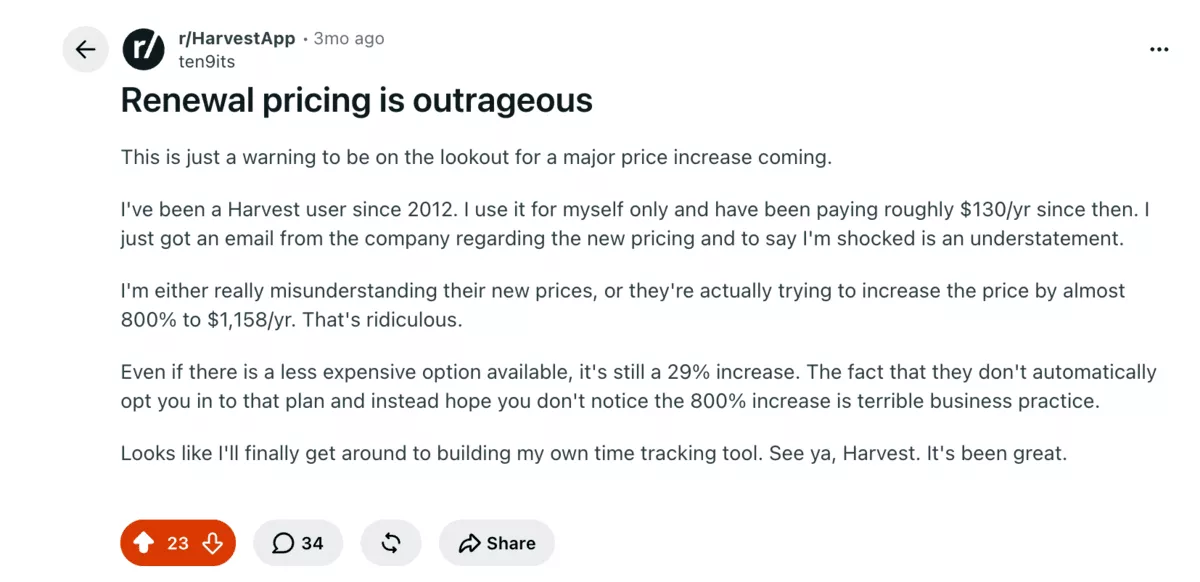
In the Harvest renewal pricing thread on Reddit, people say they moved to Clockify, Keito and Kimai. Several also had trouble pulling historical data out of Harvest, so plan your export before you cancel.
What Are the Best Harvest App Alternatives in 2026?
The best Harvest alternatives in 2026 are Productive, Clockify, Toggl Track, TimeCamp, Everhour, Hubstaff and QuickBooks Time.
List of Top Harvest Alternatives
Click any Harvest alternative to jump to its review.
Harvest Alternatives Price Comparison
| Tool | Starting price, billed yearly | Free plan | Usage fees | Profitability reports and approvals | Best for |
|---|---|---|---|---|---|
| Harvest | $9 per seat, Teams | 1 seat, 2 projects | Yes | Enterprise only, $14 | Time tracking and invoicing only |
| Productive | $9 per user, Essential | No, 14-day trial | No | Profitability from Essential, $9; approvals on Professional, $24 | Agencies and services teams that also need projects, resourcing and budgets |
| Clockify | $3.99 per seat, Basic | Up to 5 users | No | Approvals from Standard, $5.49; profit reports on Pro, $7.99 | Cheapest flat pricing |
| Toggl Track | $9 per user, Starter | Up to 3 users | No | Both on Premium, $16 | Simple tracking, flexible reports |
| TimeCamp | $3.99 per user, Starter | Unlimited users | No, but the AI tracker is billed by usage | Labor costs and approvals on Ultimate, $9.99 | Lowest price, automatic tracking |
| Everhour | $8.50 per seat, Team, 5-seat minimum | Up to 5 seats, no integrations | No | Approvals and budgets included on Team | Teams working inside Asana, ClickUp, Jira, Trello |
| Hubstaff | $4.99 per seat, Starter, 2-seat minimum | 1 seat | Paid add-ons for GPS and Insights | Budgets from Grow, $7.50; approvals from Team, $10 | Field and remote teams that need proof of work |
| QuickBooks Time | $20 a month base + $10 per user, Premium, billed monthly | No | No | Approvals included; project estimates against actuals on Elite | Teams already on QuickBooks payroll |
How Did We Choose These Tools?
We read every price and plan limit on each vendor’s own pricing page in September 2026. We judged each tool against Harvest’s weak spots: usage fees, a one-seat free plan and top-plan-only reports. Each quote comes from a verified Capterra review.
1. Productive – Best for Agencies That Bill Clients and Plan Resources
Productive runs projects, resourcing, budgets and billing for agencies in one platform, so Harvest and Forecast become one tool. It doesn’t replace your accounting software, since invoices go to Xero or QuickBooks.
Pricing
Productive’s pricing page lists Essential at $9 per user a month billed yearly, or $10 monthly. Professional costs $24 yearly or $25 monthly, and Ultimate pricing is custom. Every plan needs at least 3 seats, there’s a 14-day trial, and there’s no free plan.
Essential covers budgeting, resource planning, time tracking and reporting. Professional adds billable time approvals, recurring budgets and invoicing integrations.
Compared With Harvest
- Usage fees. Productive charges per user with no limits on projects, tasks, clients or budgets; Harvest adds usage fees.
- Free plan. Harvest gives one seat and two projects free; Productive offers a 14-day trial instead.
- Profitability and approvals. Budget profitability starts on Essential at $9 and approvals on Professional at $24; Harvest keeps both on Enterprise.
- Client payments. Harvest does this better: its clients pay from the invoice by Stripe or PayPal. On Professional, Productive syncs invoices to Xero or QuickBooks, where clients pay, and syncs payments back.
- Project management. Harvest has no task boards or Gantt charts; Productive plans work in Gantt, Kanban, calendar and list views.
Move Your Harvest Data Without Retyping It
You don’t want to retype Harvest data into a new tool before your renewal date. Productive’s direct import pulls your projects, people, rates and recent time straight from Harvest.
Expenses and invoices stay in Harvest, so export them first; the data-move steps cover the rest.
Replace harvest with Productive
See Budget Burn Before the Invoice Goes Out
You often find a margin problem after the invoice goes out, when the hours are already spent. In Productive, every hour tracked against a budget updates its revenue, cost and profit as the work happens.
Custom alerts flag a budget before it runs over. Forecast charts use booked hours to show when burn will pass the agreed total.

Get alerts for budget overruns and use forecasts for course corrections.
What Users Say?
Aljosa K., a key account manager, left one of the Productive reviews on Capterra in June 2026. “You have everything in one place, easy to navigate,” Aljosa wrote. The catch: “some aspects of budgeting and invoicing can be a bit tricky at first.”
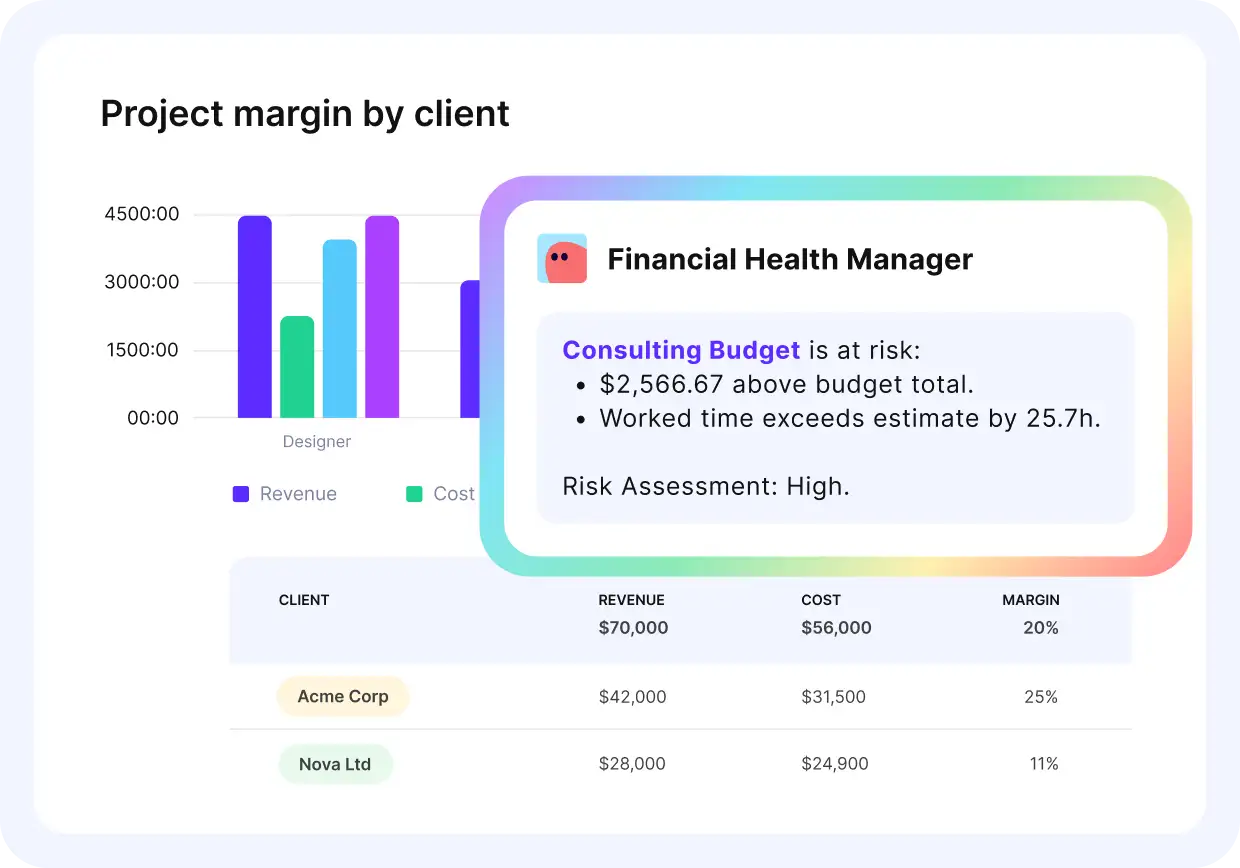
Ask Productive’s assistants for project updates in plain language.
Who Should Choose Productive?
Choose Productive if you run client work and want time, budgets, resourcing and billing in one tool. Skip it if you work alone, since every plan bills at least 3 seats.
Ready to leave Harvest? Get 10% off Productive.
Productive replaces Harvest, Forecast, your resourcing tool, and your profitability dashboard in one subscription with zero usage fees. Essential starts at $9/seat with the migration discount.

2. Clockify – Best for Small Teams That Want Flat Per-Seat Pricing
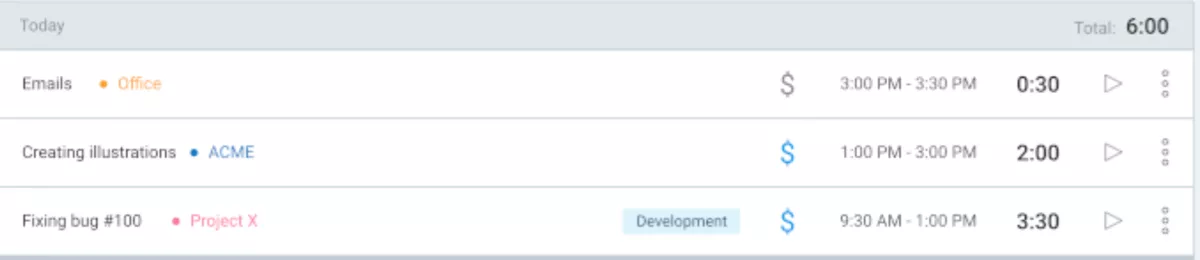
Clockify is a time tracker for small teams on a budget; it doesn’t replace project management or resourcing.
SOurce: clockify
Pricing
Clockify’s pricing page lists a free plan for teams of up to 5 people. Billed yearly, Basic costs $3.99 per seat a month, Standard $5.49, Pro $7.99 and Enterprise $11.99. Monthly billing raises them to $4.99, $6.99, $9.99 and $14.99.
Invoicing and approvals start at Standard, and labor cost and profit reports at Pro. Harvest data comes in by CSV, and time entries need a paid plan.
Compared With Harvest
- Usage fees. Harvest bills projects, clients, tasks and invoicing on top of seats; Clockify charges per seat only.
- Free plan. Clockify is free for 5 people, against Harvest’s one seat and two projects.
- Reports and approvals. Standard adds approvals at $5.49 and Pro adds profit reports at $7.99, under Harvest’s $14 Enterprise.
- Client payments. Harvest clients can pay from the invoice by Stripe or PayPal; Clockify invoices have no payment step.
What Users Say?
Jyll S., a CEO, called Clockify “an excellent value for the money” in July 2026. “Tracking projects and then generating reports are where it excels,” the review adds.
Radha S., a legal assistant, flagged the catch in April 2026 among the Clockify reviews on Capterra. Detailed reporting, invoicing and customization “are limited unless you upgrade to a paid plan.”
Who Should Choose Clockify?
Choose Clockify if you want a low flat per-seat price and a plain timer. Skip it if you need client payments or project planning in the same tool.
3. Toggl Track – Best for Freelancers Who Bill by the Hour
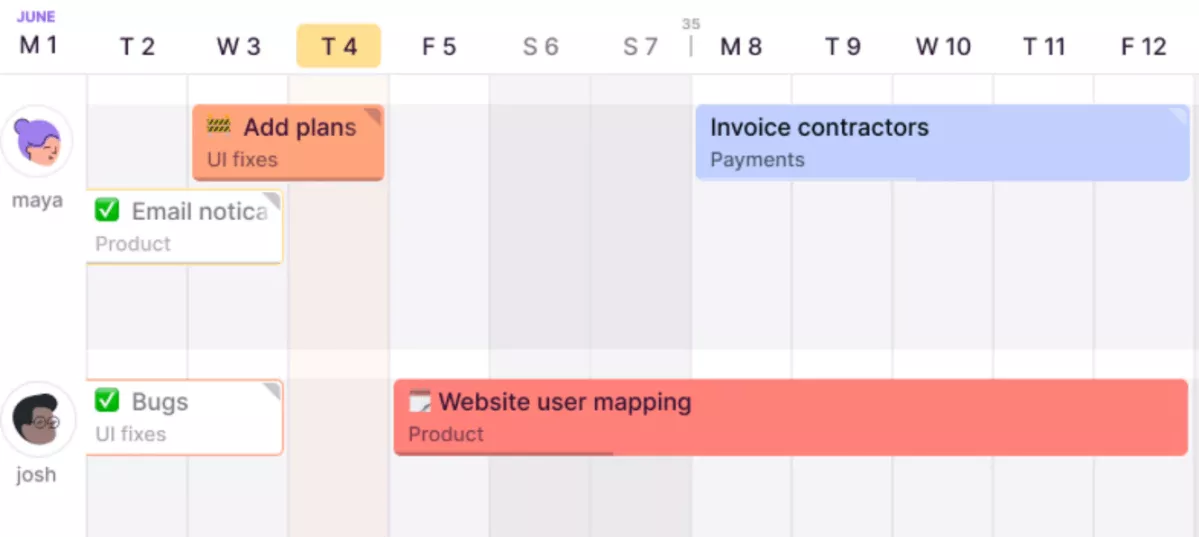
Toggl Track gives freelancers a one-click timer and reports, though it won’t replace resourcing or billing tools. New signups now get Toggl, which adds planning, and Toggl Track accounts stay supported.
SOurce: toggl track
Pricing
Toggl is free for up to 3 people, per the FAQ on Toggl’s pricing page. Starter costs $9 per user a month billed yearly, or $12 monthly. Premium costs $16 yearly or $24 monthly.
Premium adds labor cost and profitability reports, fixed-fee projects, timesheet approvals and SSO. Starter and Premium both come with a 30-day trial, and Enterprise pricing is custom.
Compared With Harvest
- Usage fees. Toggl prices per user, so more projects or clients don’t add Harvest-style usage fees.
- Free plan. The free plan fits 3 people, two more than Harvest’s single seat.
- Reports and approvals. Both come with Premium at $16, which costs more than Harvest’s Enterprise at $14.
- Client payments. Toggl turns reports into CSV or PDF invoices; only Harvest takes Stripe or PayPal payments.
- Project management. Tasks, boards and timeline views cover planning that Harvest leaves to other tools.
What Users Say?
In October 2025, Dakota L., an e-commerce developer, described Toggl’s free version as “incredibly generous” after two years. Dakota had not hit “a paywall that matters,” per the Toggl Track reviews on Capterra.
Who Should Choose Toggl Track?
Choose Toggl Track if you track hours alone or with two teammates and bill by the hour. Skip it if you want profitability and approvals for less than Harvest’s $14 tier.
4. TimeCamp – Best for Budget Teams That Want Automatic Tracking
TimeCamp tracks time automatically by recording the apps and websites you use, which cuts manual entry. It suits teams on a budget; for planning, TimeCamp points you to a separate product, TimeCamp Planner.
SOurce: timecamp
Pricing
TimeCamp’s pricing page lists a free plan with no user limit. Billed yearly, Starter costs $3.99 per user a month, Premium $6.99 and Ultimate $9.99. Monthly billing raises them to $5.49, $9.99 and $13.99, and Enterprise pricing is custom.
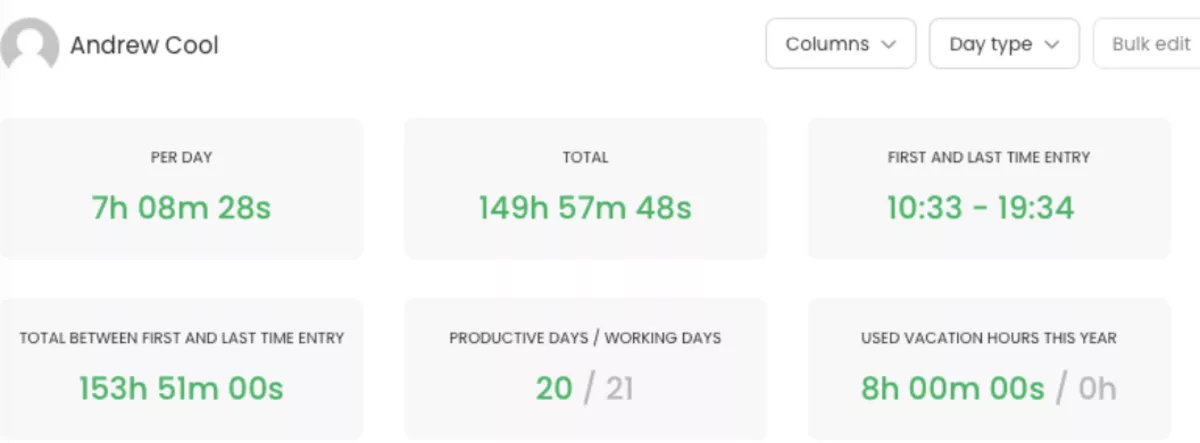
Starter includes invoicing, and Premium adds budgets plus app and website tracking. Ultimate adds timesheet approvals, labor costs and billing rates. The AI Time Tracker is billed by usage, which TimeCamp puts at about $6 per user a month.
Compared With Harvest
- Usage fees. Plans carry none, and only the optional AI tracker bills by usage, unlike Harvest’s per-item fees.
- Free plan. Harvest’s free plan stops at one seat; TimeCamp’s has no user cap.
- Reports and approvals. Ultimate at $9.99 brings approvals and labor costs, still cheaper than Harvest’s $14 Enterprise.
- Client payments. Like Harvest, TimeCamp lets clients pay from the invoice, through PayPal.
What Users Say?
Dominic Y., a consultant, credits TimeCamp’s automatic tracking in one of the TimeCamp reviews on Capterra. That November 2025 review says it meant “far less time asking ‘what did I work on this morning?'”
The downside was mobile: “timers hanging, geofencing or offline entries being a bit unpredictable.”
Who Should Choose TimeCamp?
Choose TimeCamp if you want automatic desktop tracking for less than Harvest’s Teams price. Skip it if your team logs time mostly on phones, away from a desk.
5. Everhour – Best for Teams That Run Projects in Asana or ClickUp
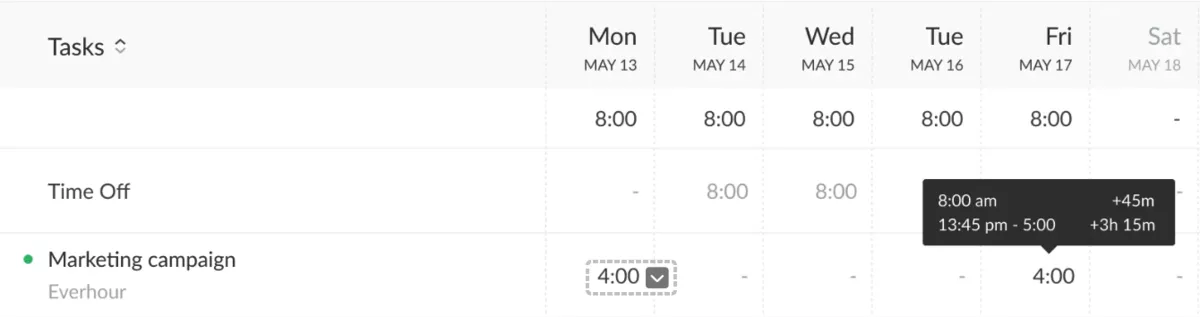
Everhour adds a time tracker to tasks in Asana, ClickUp, Jira and Trello. It tracks time against tasks you plan in those tools, so it won’t replace them.
SOurce: everhour
Pricing
Everhour’s pricing page lists a free plan for up to 5 seats, without integrations. The free plan also leaves financial metrics out of reports. Team costs $8.50 per seat a month billed yearly, or $10 monthly, with a 5-seat minimum.
Every feature comes with Team, custom pricing starts at 50 seats, and the trial lasts 14 days.
Compared With Harvest
- Usage fees. Everhour has none, but its 5-seat minimum means 3 people pay for 5; Harvest adds usage fees.
- Free plan. Everhour’s covers 5 seats but cuts integrations, while Harvest’s covers one seat and two projects.
- Approvals and budgets. Team at $8.50 includes both; Harvest saves approvals for Enterprise at $14.
- Client payments. Everhour sends invoices to Xero or QuickBooks for payment and syncs status back; Harvest collects directly.
What Users Say?
Everhour’s Asana integration felt “even better than Asana’s own native integration with Harvest” to Skyler R., a CEO. The review, one of the Everhour reviews on Capterra, dates from October 2021, before Harvest’s pricing changed.
Who Should Choose Clockify?
Choose Everhour if your projects already run in Asana, ClickUp, Jira or Trello. Skip it if you need a free plan, since the free tier drops the integrations that make Everhour useful.
6. Hubstaff – Best for Remote and Field Teams That Need Proof of Work
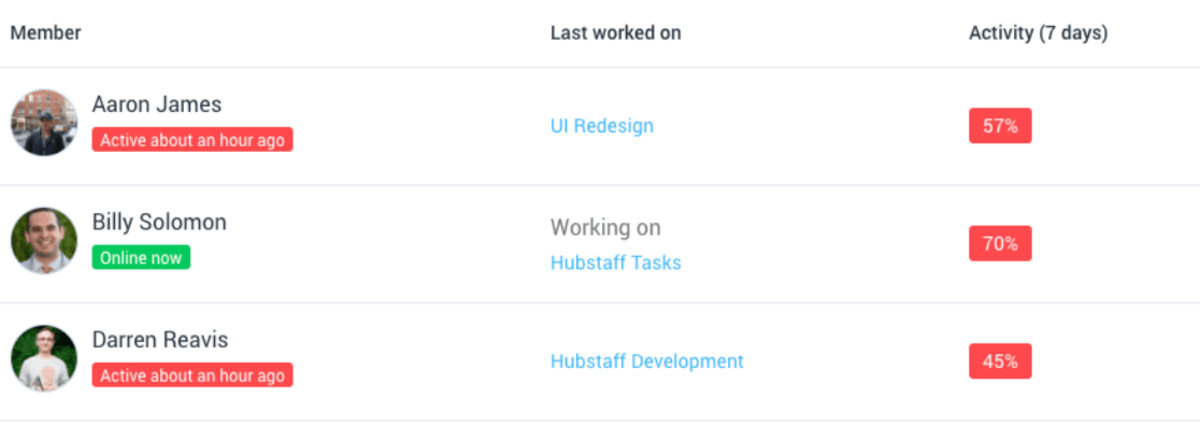
For remote and field teams, Hubstaff pairs time tracking with activity monitoring, screenshots and GPS. Agencies that plan resources months ahead will still need a separate planning tool.
SOurce: hubstaff
Pricing
Hubstaff’s pricing page prices four plans per seat, billed yearly: Starter $4.99, Grow $7.50, Team $10 and Enterprise $25. Paid plans bill at least 2 seats, while the free plan covers one seat, the owner’s. Trials last 14 days.
Insights, Hubstaff’s productivity analytics, costs $2.50 per seat on Starter and Grow and comes with Enterprise. GPS needs the Locations add-on, $3.33 per seat on Team and included on Enterprise.
Compared With Harvest
- Usage fees. No usage charges; Insights and GPS are per-seat add-ons, while Harvest charges for projects and invoices.
- Free plan. Harvest’s and Hubstaff’s free plans both stop at one seat; Hubstaff’s covers the owner only.
- Budgets and approvals. You need Grow at $7.50 for budgets and Team at $10 for approvals, against Harvest’s $14.
- Client payments. Hubstaff has client invoices on every paid plan, but no online payment like Harvest’s.
- Project management. Hubstaff Tasks, included from Grow, adds task boards that Harvest lacks.
What Users Say?
Remote work is where Hubstaff earned praise from Aditya R., an AI analyst, in February 2026. The review credits “the automatic time tracking, activity monitoring, and detailed reports” with better accountability. Aditya’s catch, from the Hubstaff reviews on Capterra: “Some advanced features are only available in higher-priced plans.”
Who Should Choose Clockify?
Choose Hubstaff if you need screenshots, activity levels or GPS as proof of remote or field work. Skip it if your team would push back on screenshots and activity tracking.
7. QuickBooks Time – Best for Teams Already Running QuickBooks Payroll
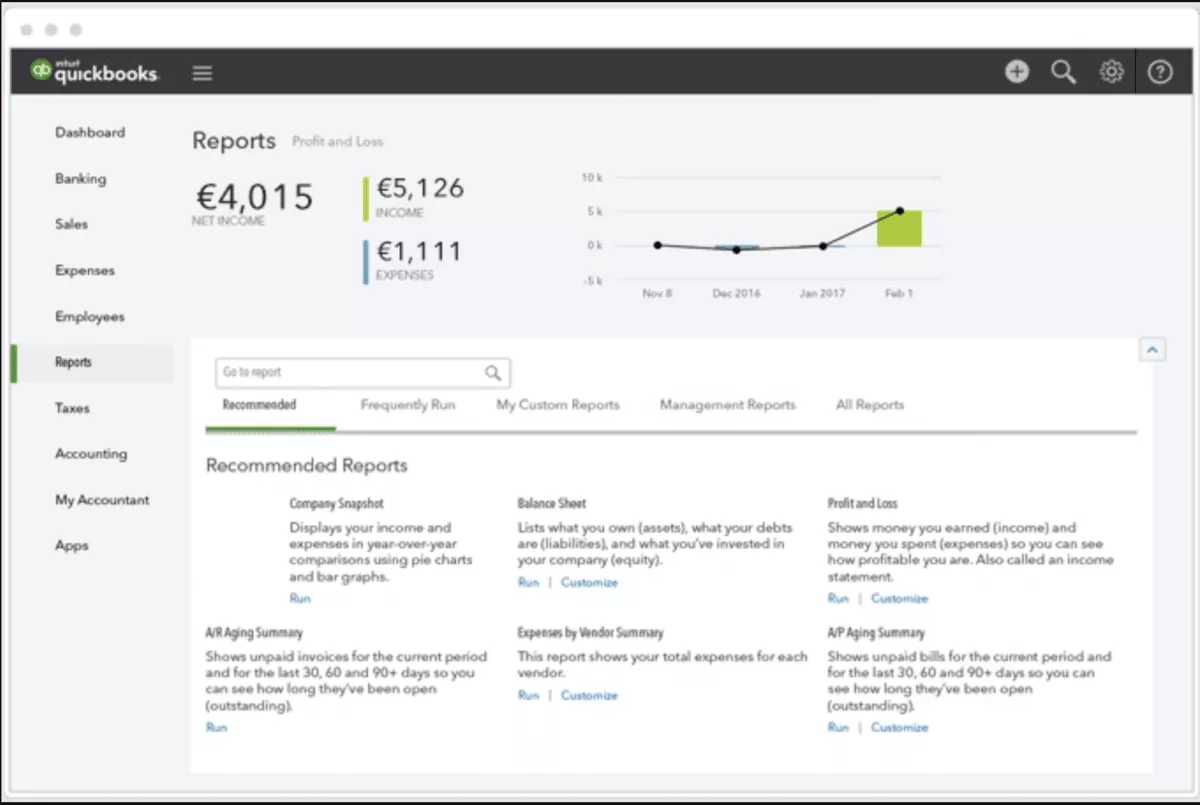
Intuit sells QuickBooks Time, formerly TSheets, as a time tracker for hourly and field teams on QuickBooks payroll. It needs a QuickBooks Online account and won’t run project delivery.
SOurce: QuickBooks Time
Pricing
The QuickBooks Time pricing page lists Premium and Elite, each a monthly base fee plus a per-user price. Premium costs $20 a month plus $10 per user, and Elite $40 plus $12 per user.
Right now, the base fee is 50% off for the first 3 months; per-user fees are not discounted. Intuit rotates this offer, so check it before you buy.
Compared With Harvest
- Usage fees. Harvest meters usage; QuickBooks Time adds a flat monthly base fee to its per-user price instead.
- Free plan. Harvest has a one-seat free plan; QuickBooks Time has none.
- Reports and approvals. Premium includes approvals and Elite adds project estimates against actuals; Harvest puts both on Enterprise.
- Client payments. QuickBooks Time sends hours to QuickBooks Online invoices, where clients pay, while Harvest takes Stripe or PayPal.
What Users Say?
Nathan H. and Hallye N. split on QuickBooks Time in the QuickBooks Time reviews on Capterra. Nathan, an owner, found “tracking hours and syncing it with invoices simple” in February 2026. Hallye, an operations manager, flagged “high per-user pricing” and “single-level timesheet approvals” in March 2026.
Who Should Choose QuickBooks Time?
Choose QuickBooks Time if your payroll runs in QuickBooks and your crews clock in from the field. Skip it if you don’t use QuickBooks Online, since the app requires it.
Best Harvest Alternative by Team Type
By team type, Productive fits agencies, consultancies and architecture firms; freelancers do best on free plans.
- Agencies and professional services firms get projects, resourcing, budgets and billing in one place with Productive. If you pay for Forecast today, that’s one bill gone, and invoices still sync to Xero or QuickBooks.
- Architecture firms that bill by phase can split each Productive budget into phases and plan staff against them. If your projects already run in Asana or Trello, Everhour adds the timer without a new platform.
- Consulting firms billing retainers and fixed fees get recurring budgets and margin tracking in Productive. Scoro and Kantata will show up on your shortlist too, as heavier options.
- Freelancers and teams of 1 to 3 can stay free on Clockify, Toggl Track or TimeCamp. Pick by what you need next: Clockify for cheap upgrades, Toggl Track for reports, TimeCamp for automatic tracking.
- Billing-first teams on QuickBooks should look at QuickBooks Time, since hours sync into QuickBooks Online invoices. Without QuickBooks, Productive builds invoices from tracked time and budgets, then sends them to your accounting tool.
- Free options run from Hubstaff’s one seat to TimeCamp’s no-cap plan, with Clockify, Toggl Track and Everhour in between. Their limits differ, so compare them in the FAQ before you commit.
How To Choose a Harvest Replacement?
Choose a Harvest replacement by testing it against your own invoices, reports and team habits before renewal. Below we break down this process in practical steps.
Step 1: List Your Non-Negotiables
Open last month’s Harvest reports and invoices, list every feature they needed, and drop any tool missing one. Put each one on a single page: task-level time, billable rates, expenses, approvals, your invoice layout.
Mark each line keep or cut, then add what Harvest never did for you, such as resourcing. Cap the must-haves at five; a longer list stops ruling tools out.
Step 2: Confirm Your Core Workflows
Run your core workflows on one live project in the trial; it passes if a week needs no workaround. Pick a project with real deadlines, at least 3 people and a budget you track.
Log every step that needs a spreadsheet, a second tool or a message to support. One workaround on a daily task fails the tool; one on a monthly task goes on a watch list.
Step 3: Test the Money Path
Test the money path by recreating your last Harvest invoice from tracked time; it must match to the cent. Use the same time entries, rates and expenses, so any gap comes from the tool.
Mismatches often come from rate priority, rounding or tax; check which rate wins when two apply. Push the test invoice to Xero or QuickBooks and check it arrives as one entry, with the right tax.
Step 4: Check Reporting Depth
Check reporting depth with the three reports you rebuild in spreadsheets monthly; each must run without an export. Typical ones are budget burn by project (spend against budget), billable utilization by person and profit by client.
Build each one in the trial with last month’s data and compare the totals with your spreadsheet. Save each as a view your managers can open without asking you.
Step 5: Decide on Capture Style
Give the teammate who logs time least reliably a trial week; keep the capture style that leaves no gaps. The three styles are timers, weekly timesheets and automatic tracking that records apps and websites.
Compare that person’s logged hours with their calendar at the end of the week. A gap of more than an hour a day means the style doesn’t fit your team. Monitoring tools like Hubstaff also take screenshots, so ask your team before you trial one.
Step 6: Run a Short Pilot
Pilot with 3 to 5 people for one billing cycle, starting 30 days before renewal. Pick people from different roles: a designer, a project manager and whoever sends invoices. The tool passes if their hours and billable totals come within 1% of Harvest’s.
Starting 30 days out leaves time to fix a gap and still cancel before Harvest renews.
How To Move Your Data Out of Harvest
Productive can pull your data straight out of Harvest through its direct import. Productive’s Harvest import guide lists what comes over: people, projects, tasks, cost rates, time entries, companies and contacts. Harvest tasks arrive as services, and people arrive without access until you invite them.
The import takes only projects edited in the last 365 days and time entries from the last three months. Expenses and invoices stay behind, and you can undo an import for 14 days.
Budgets need a check: task hourly rates import cleanly, but person-rate budgets lose total project hours. Fixed-fee budgets go into one “Project Fees” service, as the guide on how Harvest budgets map to Productive explains.
Before you cancel Harvest:
1. Export everything first: from Settings, Import/Export, admins can download all time as a CSV. Invoices and estimates come out as zipped PDFs, as Harvest’s guide to exporting data shows. Keep the files, since Productive imports only recent time.
2. Close open billing cycles in Harvest, so every billable hour is invoiced before you switch.
3. Run both tools side by side for one billing cycle, then compare invoice totals.
Free Harvest Migration Checklist
Use this checklist to move off your current tracker without losing data, breaking billing, or confusing the team.
- Set the cutover date and owners. Pick the week you will stop logging hours in your current tracker (avoid month-end if you invoice monthly). Assign one owner for the migration and one for billing and reporting sign-off.
- Map your current setup in one page. List what your current tracker covers (time, expenses, invoicing, approvals, reporting) plus every connected tool (project tool, scheduling, accounting).
- Clean your data. Archive closed projects, remove duplicates, and standardize names before importing.
- Define mapping rules and must-have reports. Decide how clients, projects, tasks, billable rates, and cost rates map over. Set rules for billable vs. non-billable time and leave, such as vacation and sick days. Lock the reports you need to match after migration (budget burn, utilization, profitability, WIP, invoice status).
- Configure the new tool with guardrails. Set teams, roles, permissions, time entry rules, and timesheet lock rules. Recreate the workflows your team relies on, such as Kanban boards, Gantt charts, recurring tasks, and task dependencies.
- Import in the right order and validate. Import clients and active projects first (with rates), then history for the smallest useful period (often the current quarter). Spot check totals against your export before you move on.
- Rebuild billing and accounting, then test. Recreate your invoicing workflow (tracked time, fixed fees, milestones) and connect accounting (Xero or QuickBooks). Generate a test invoice and confirm the sync behaves as expected.
- Cut over. Freeze edits in the old system on cutover day.
Harvest Alternatives FAQ
Is There a Free Version of Harvest?
Yes, Harvest has a free version: 1 seat and 2 projects, with time tracking, invoicing and expenses. Harvest’s free plan limits apply to active people and projects, not to your past data. Past that, Teams costs $9 per seat a month billed yearly, plus usage fees.
What Is the Best Free Harvest Alternative?
For a free Harvest alternative, Clockify covers 5 people, Toggl Track 3 and TimeCamp any number. Everhour’s free plan drops integrations, and Hubstaff’s covers only the account owner. Productive has no free plan, only a 14-day trial.
Which Harvest Alternative Is Cheapest?
The cheapest Harvest alternatives are TimeCamp and Clockify, both $3.99 per user a month billed yearly. Neither adds usage fees, while Harvest Teams starts at $9 per seat before usage. Hubstaff’s Starter is close at $4.99, but it bills at least 2 seats.
Why Did Harvest’s Price Go Up in 2026?
Harvest’s price went up because Bending Spoons, which bought Harvest in July 2025, added usage fees to seat prices. Projects, clients, tasks and invoicing beyond a free allowance now cost extra. Most customers first saw the change at renewal.
Which Harvest Alternative Lets Clients Pay From the Invoice?
Among Harvest alternatives, only TimeCamp lets clients pay from the invoice, through PayPal. Harvest itself takes Stripe or PayPal. QuickBooks Time bills through QuickBooks Online. Productive and Everhour send invoices to Xero or QuickBooks, where clients pay, and sync the payment back. Clockify, Toggl Track and Hubstaff have no payment step.
Can I Import My Harvest Data?
Yes, you can import your Harvest data into Productive directly: people, projects, tasks, cost rates, time entries and contacts. The import keeps recent history only, so export older records first. Clockify takes a CSV export from Harvest, though time entries need a paid plan.
Conclusion: Are These Alternatives Worth the Switch?
Yes, switching is worth it for most teams, since every alternative here drops Harvest’s usage fees. Flat per-seat pricing means a new client or project never raises your bill. If you only need a timer, Clockify or TimeCamp covers it from $3.99 per user.
If you want projects, budgets and billing in one tool, book a personalized demo of Productive.
Connect With Agency Peers
Access agency-related Slack channels, exchange business insights, and join in on members-only live sessions.
