Top 5 Time and Expense Tracking Software: Prices & Ratings

The best time and expense tracking software in 2026 is Productive, Harvest, Clockify, BigTime and FreshBooks. Each tracks hours and expenses in one product. For each tool, we cover key features, user-based pros and cons, pricing and who should choose or skip it.
A comparison table follows, then a check on whether you need one tool or two. We added a selection process that uses your own invoices and receipts.
What Are the Best Time and Expense Tracking Software Tools in 2026?
The top picks for time and expense tracking software in 2026 are Productive, Harvest, Clockify, BigTime and FreshBooks.
Productive suits agencies and service firms that need hours and costs on the same project budget and invoice. Harvest and Clockify are simple trackers with expenses added. BigTime bills from approved timesheets, and FreshBooks includes accounting.
Quick List of the Top Picks
How We Chose These Tools
In November 2026, we picked time and expense management software that tracks both sides in one product. Expense-only apps and QuickBooks Time didn’t qualify, because each covers only one side.
We compared each time and expense tracking software option on product pages, help docs, pricing and recent G2 reviews. Productive comes first because it’s our product, and its section still says who should skip it.
Compare Each Time and Expense Tracking Platform at a Glance
| Tool | Best for | Expense approvals | Mileage tracking | Accounting sync | Free option | Starting price | G2 rating |
|---|---|---|---|---|---|---|---|
| Productive | Teams that bill hours and track project costs | Yes, by approval policy per budget | Not listed | Xero, QuickBooks Online | 14-day free trial | $10/seat/mo, billed yearly | 4.7 (110 reviews) |
| Harvest | Small teams with simple hourly billing | Not listed | Not listed | Accounting integrations on Teams and up | Free plan, 1 seat and 2 projects | $9/seat/mo, billed yearly | 4.3 (846 reviews) |
| Clockify | Low-cost tracking with budget visibility | Yes, on Pro | Not listed | QuickBooks, Standard and up | Free plan, no expenses | $7.99/seat/mo for expenses (Pro), billed yearly | 4.5 (206 reviews) |
| BigTime | Professional services firms billing from approved timesheets | Yes, up to three approval levels | Yes | QuickBooks | No free plan | $20/user/mo (Essentials) | 4.4 (1,841 reviews) |
| FreshBooks | Small businesses that want accounting built in | Not listed | Yes, on every plan | Built-in accounting | No free plan | $23/mo (Lite) plus $11 per team member | 4.5 (983 reviews) |
1. Productive – Best for Teams That Bill Hours and Track Project Costs
Productive is time and expense tracking software for agencies and service firms that also runs projects, budgets and invoicing. Hours and expenses log against the same budget lines, so approved entries become cost, billable amount and invoice lines.
Track hours and expenses on the same budget
See What Each Project Really Costs, Expenses Included
When expenses run in a separate app, the budget shows billable hours but not what the project spent. The margin then looks healthier than it is.
In Productive’s expense management, each expense goes on a service line of the budget your team tracks time against. An approved expense adds both a cost and a billable amount.
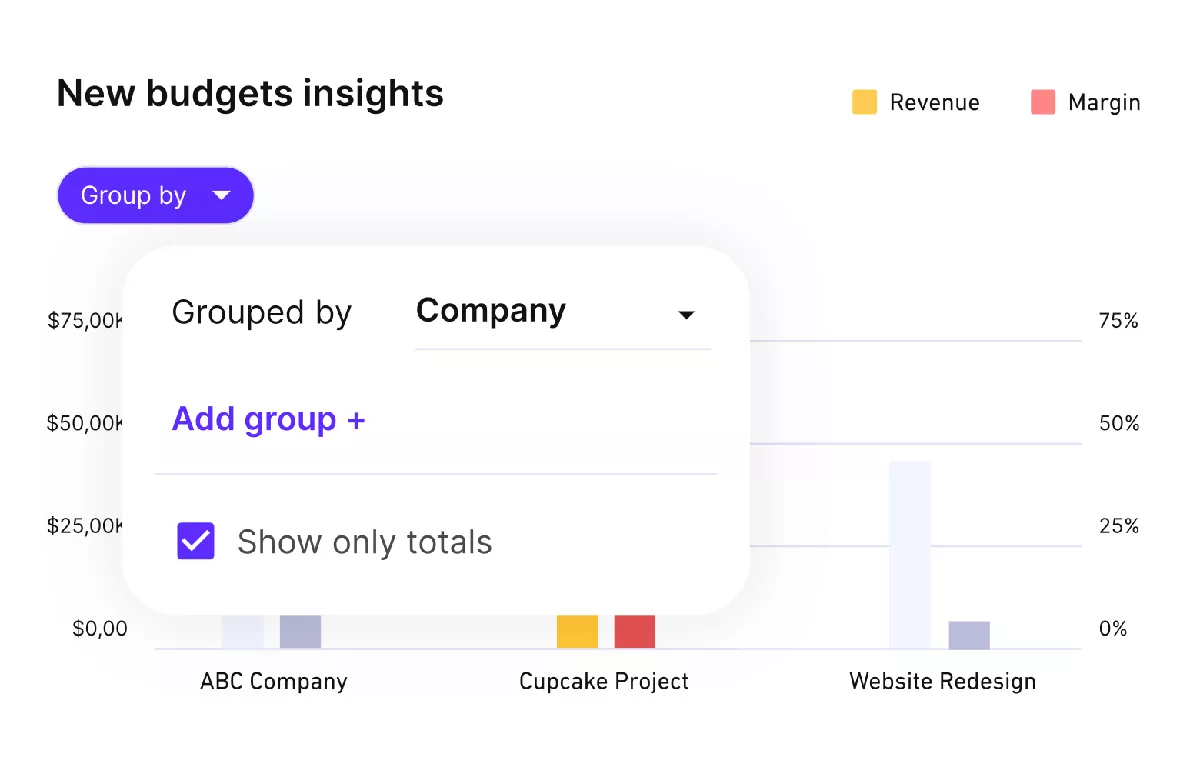
Check costs against the budget before you send the invoice.
One still waiting for approval already counts as cost, so budget burn shows up before anyone signs off. Profitability reports then read from the same numbers as your project budgets.
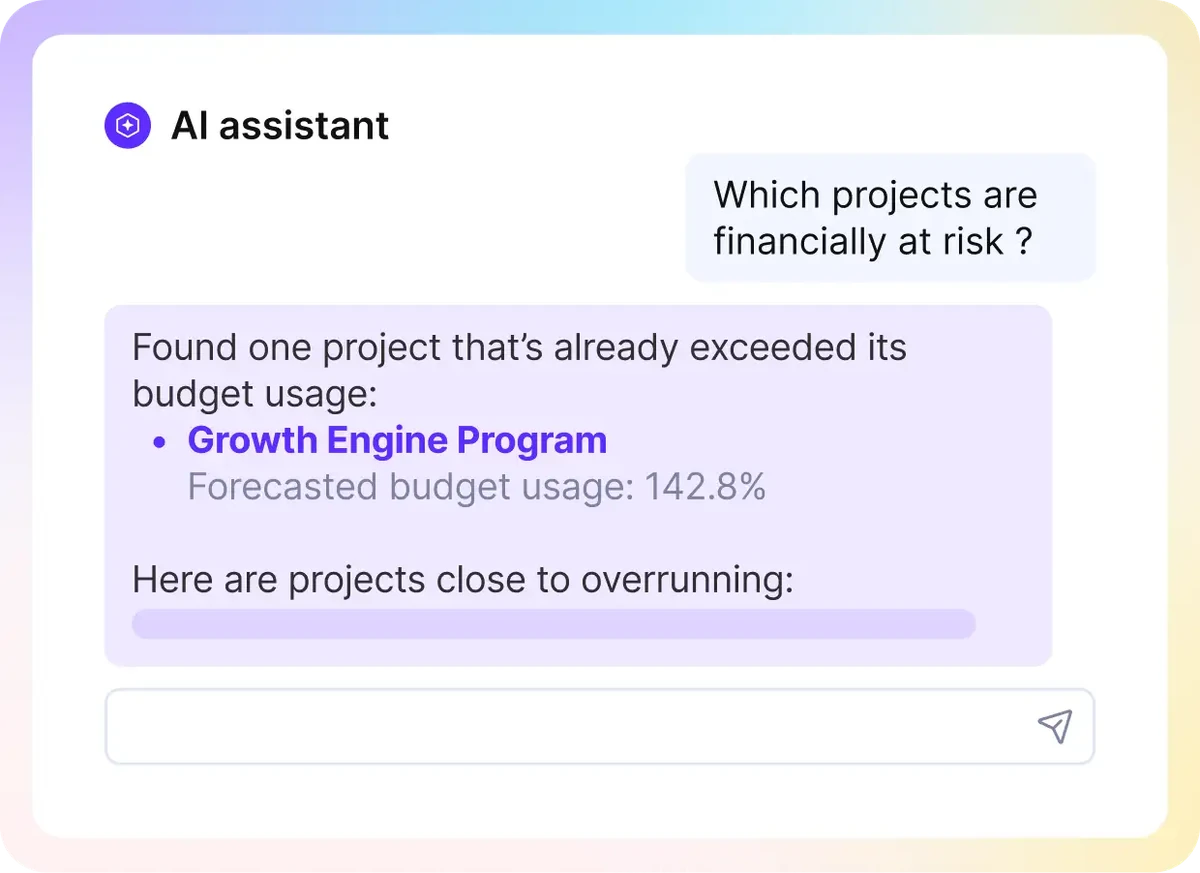
Ask the AI assistant in plain language for instant profitability updates.
Bill Pass-Through Costs With Markup Instead of Retyping Them
Subcontractor, travel and production costs get rebilled to clients, usually retyped from an expense report into an invoice.
Productive adds a markup to each rebilled cost, as a percentage or fixed amount, with an editable default. If a vendor charges the client directly, you log a zero-cost expense and set the amount you bill.
- Expenses in another currency convert to the budget currency, and tax rates follow the budget’s company entity (subsidiary).
- Upload to Autofill reads a receipt or invoice and fills in the date, currency, total, description and tax rate.
- An expense can be marked reimbursable, so expense reimbursement is tracked without a separate app.
- A multi-currency trip stays on one budget instead of in a spreadsheet.
Approve Hours and Expenses Under One Policy Before Invoicing
Timesheets often get approved in one place and expense claims in another, so unapproved costs slip through.
Time and expense approval policies name who approves time entries and expenses on each budget. Approvers work from one approval inbox, and entries waiting for sign-off stay off the invoice.
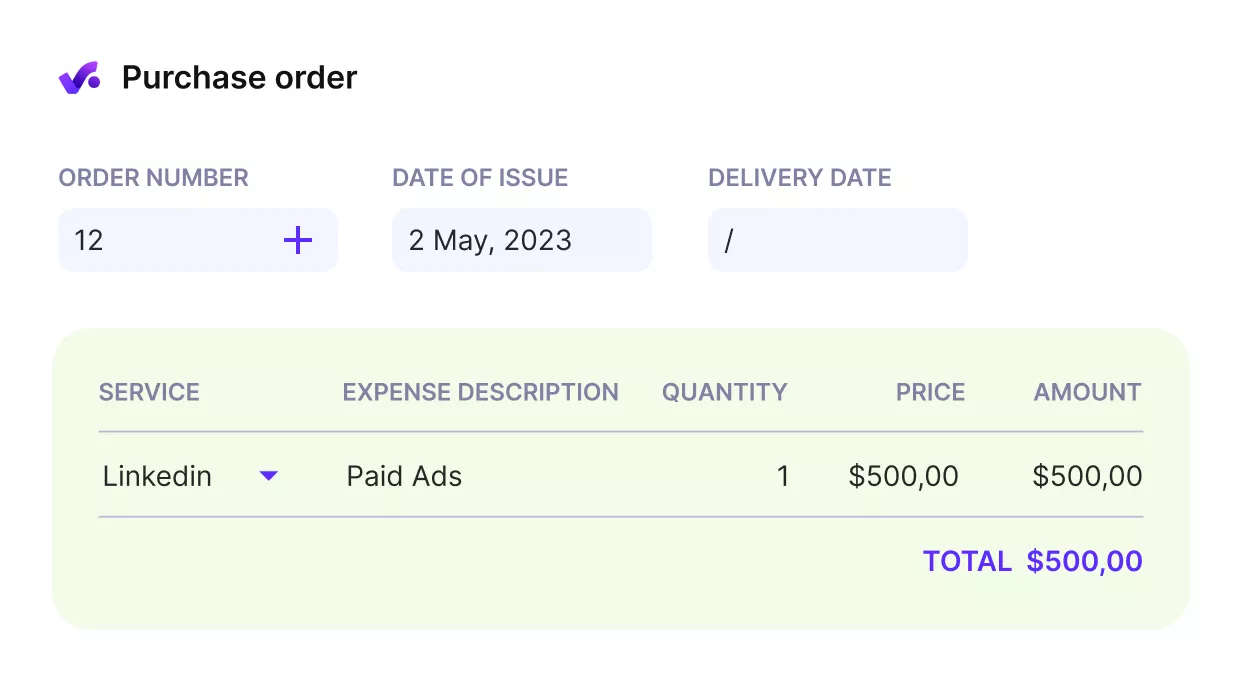
Add and approve expenses.
Approved expenses can then be copied to Xero or QuickBooks Online, and the paid status syncs back to Productive. Hours come from Productive’s time tracking, so both sides of the invoice follow the same approval rule.
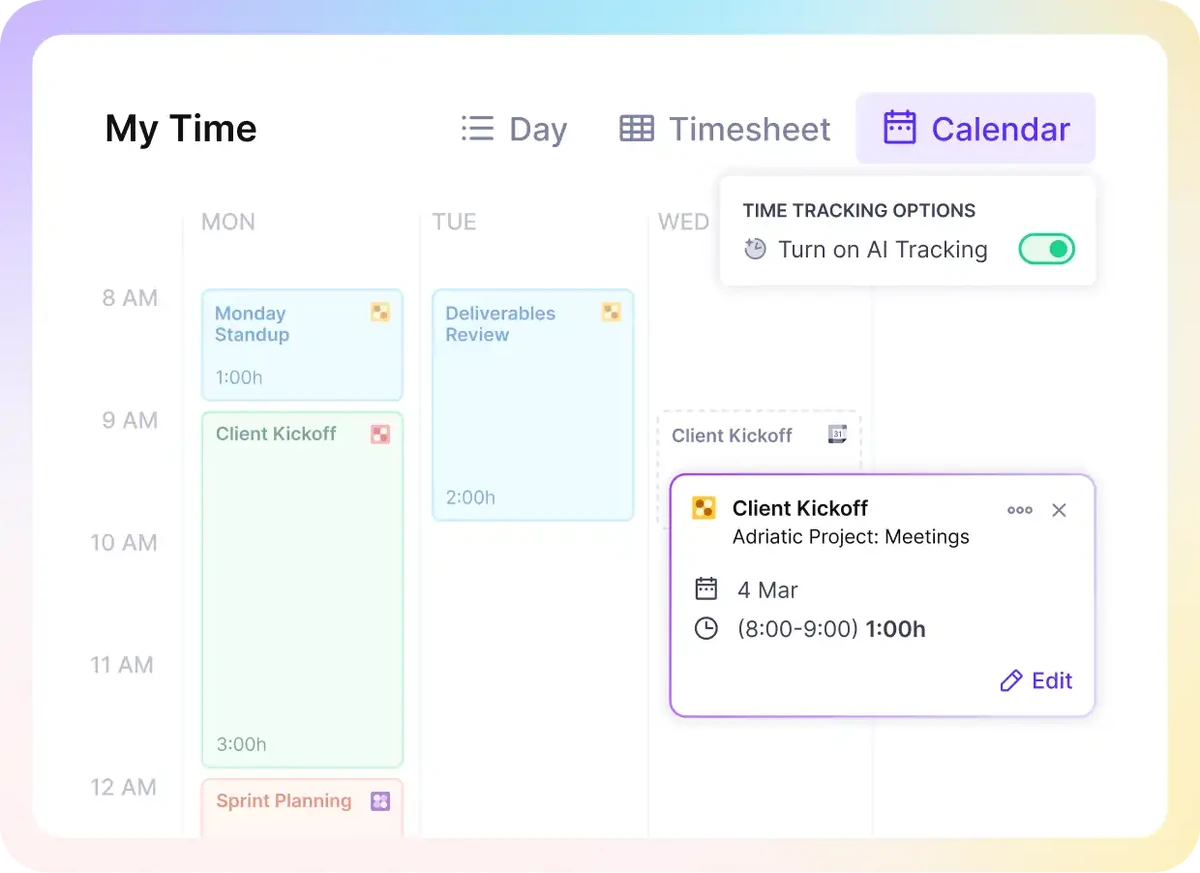
A screenshot of Productive’s time and expense tracking software calendar with AI time tracking turned on
Pros
- It replaces several separate apps. One time and expense software covers projects, time, budgets and billing, so numbers stop moving between tools.
- Workloads and assignments are clear at a glance. Each person sees their own workload and project assignments first thing in the morning.
- Setup adapts to how your firm works. Budgets, rates and approval rules can be shaped around your own billing models.
Cons
- The mobile app is lighter than the web app. Pulling detailed reports on the go still works best from a computer.
- Every plan needs at least three seats. A solo consultant pays for seats nobody uses.
G2 Rating
4.7/5 (110 reviews)
Who Should Skip Productive?
If your company only reimburses staff expenses and never bills clients for project work, Productive is the wrong fit. You would pay for budgets, rates and invoicing that nobody on your team opens.
Pricing
- Plans start with the Essential plan at $10 per user per month, which includes essential features such as budgeting, project & task management, docs, time tracking, expense management, reporting, and time off management.
- The Professional plan includes custom fields, recurring budgets, advanced reports, billable time approvals, and much more for $25 per user per month.
- The Ultimate plan has everything that the Essential plan and Professional plan offer, along with the HubSpot integration, advanced forecasting, advanced custom fields, overhead calculations, and more. Book a demo or reach out to our team for the monthly price per user.
Hours and Expenses on One Project Budget
Log time and expenses against the same budget, approve both under one policy, and invoice them with markup.

2. Harvest – Best for Small Teams With Simple Hourly Billing
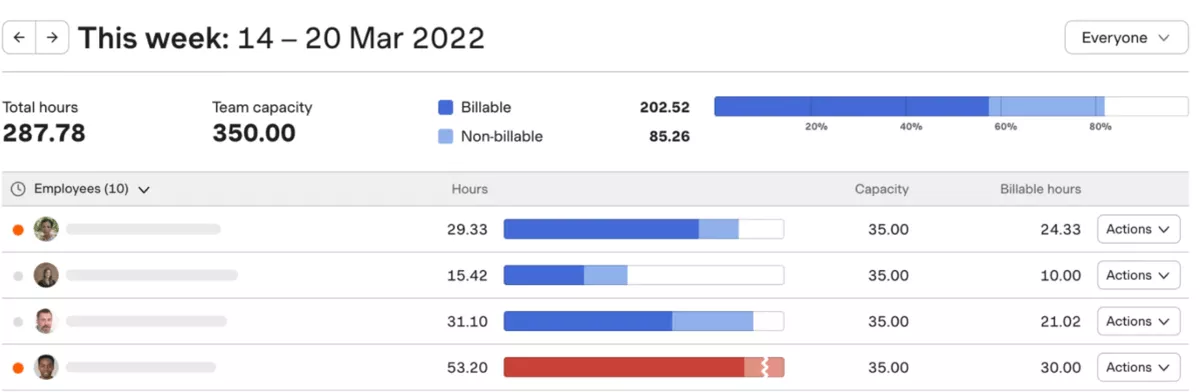
Harvest is a time and expense tracking app for small teams that bill clients by the hour. You track time against projects, track expenses with uploaded receipts, then pull both into a client invoice.
Key Features
- Timer and timesheet entry
- Expense reports with receipt uploads
- Client invoicing from tracked time and expenses
- Project budgets and capacity reports
Source: Harvest
Pros
- Getting started takes very little setup. A small team can add projects and start tracking without outside help.
- Invoices come straight from tracked time. Project tracking and billing share the same entries, so nobody retypes hours.
Cons
- 2026 price changes raised costs sharply for long-time customers. Some small firms saw their bills rise four to ten times, as covered in Harvest’s 2026 price increase.
- Reporting stays basic. Deeper analysis usually means exporting to Excel and building it there.
Pricing
Harvest has a Free plan for 1 seat and 2 projects. Teams costs $9 per seat per month billed yearly, or $11 monthly. Enterprise costs $14 per seat per month billed yearly, and Enterprise Plus is priced on request. Timesheet approval and profit reports are on Enterprise only.
G2 Rating
4.3/5 (846 reviews)
Who Should Choose Harvest?
Harvest suits a small team that bills hourly and wants a timer, expenses and invoices without much setup. Expect to move to Enterprise if you need managers to approve timesheets before billing.
3. Clockify – Best for Low-Cost Tracking With Budget Visibility
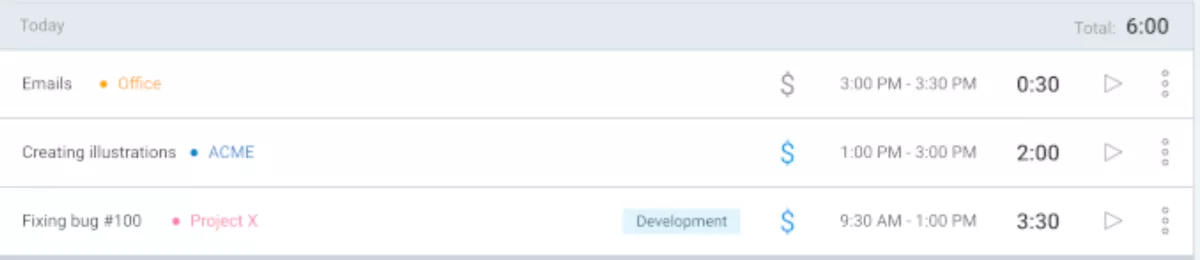
Clockify, a time and expense tracking tool built around timesheets, has a time-only free plan. On Pro, you attach receipts to expenses, send them for approval and add billable ones to invoices.
Key Features
- Timer, timesheets and calendar time entry
- Tracking expenses with receipt attachments (Pro)
- Cost and billable rates per task
- Invoices that import billable hours and expense items
Source: Clockify
Pros
- Time reports are ready to send to clients. Filters by client and period turn hours into a summary you can share.
- Rates show budget burn as you go. Cost and billable rates per task show whether a project is staying within budget.
Cons
- The apps sometimes log out or fall out of sync. The web app can log you out, and the mobile app may not match the desktop app.
- Project management stays light. Tasks, progress and collaboration usually need a second tool.
Pricing
Clockify’s Free plan covers time tracking for up to 5 people, without expenses. Basic costs $3.99, Standard $5.49 and Pro $7.99 per seat per month billed yearly. Expenses and receipts start on Pro, and invoicing and approvals start on Standard.
G2 Rating
4.5/5 (206 reviews)
Who Should Skip Clockify?
Teams hoping to track expenses for free should look past Clockify, because expenses start on the Pro plan. If you need time and project costs together on a small budget, compare Clockify alternatives first.
4. BigTime – Best for Professional Services Firms Billing From Approved Timesheets
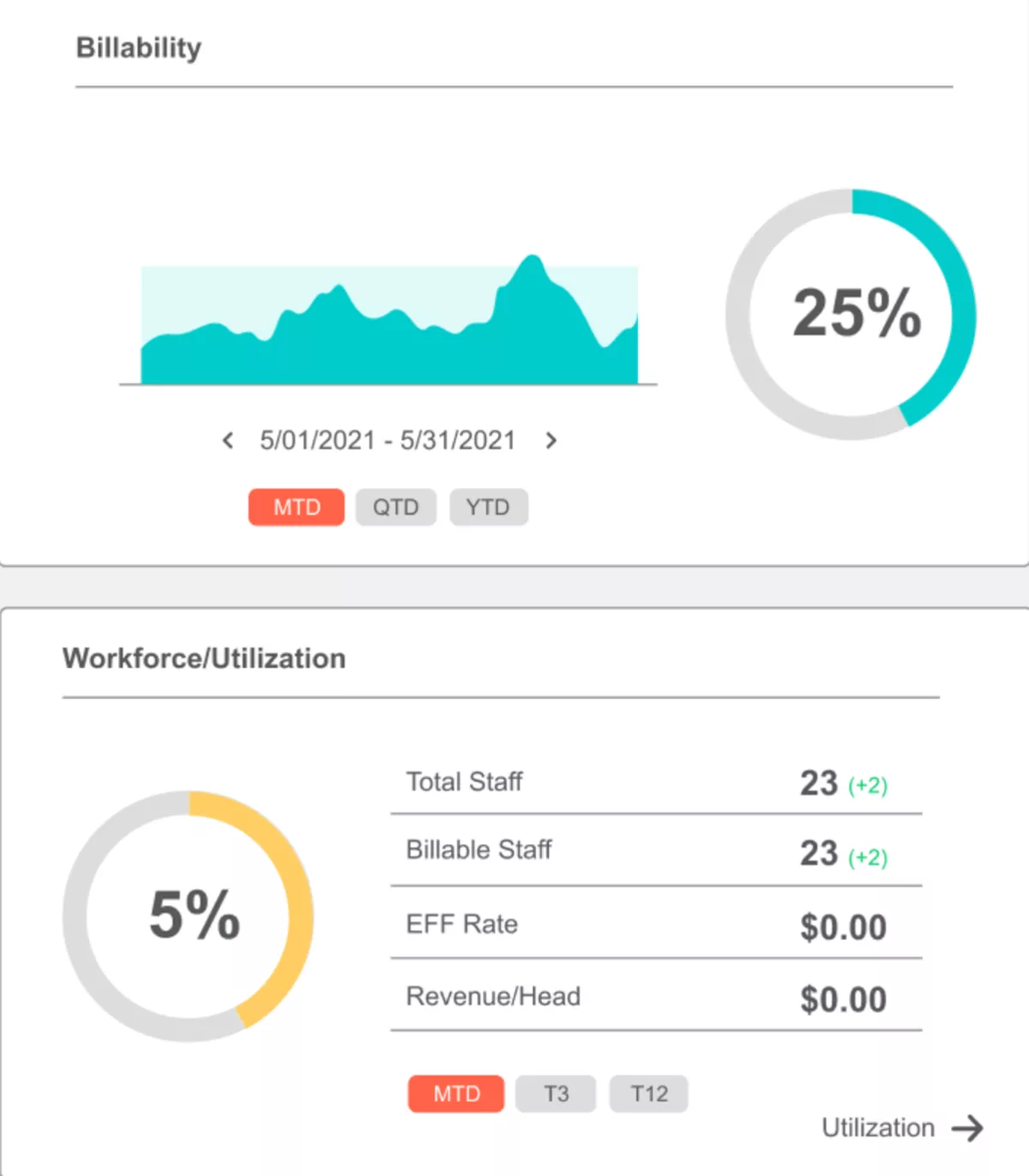
BigTime gives professional services firms a time and expense tracking solution that bills clients from approved entries. Expenses are captured alongside time entries with receipts attached, and approved time and expenses flow into invoices.
Key Features
- Weekly timesheets on web and mobile
- Expense approval with up to three approver levels
- Mileage as a per-unit expense
- QuickBooks integration
Source: BigTime
Pros
- Logging time is quick on a computer or a phone. Staff can fill weekly lines quickly from either device.
- Timekeeping and billing run from the same entries. Approved hours become invoice lines without a handoff between systems.
Cons
- Weekly timesheets need manual tidying. Old projects carry into each new week. The week view’s columns can also drift out of line with the dates.
- Advanced features cost more. Multi-level approvals need the Premier plan, and some functions come only as add-ons.
Pricing
BigTime Essentials starts at $20 per user per month and includes time tracking, invoicing, expenses and approvals. Advanced, Premier and Enterprise pricing comes through BigTime’s sales team.
G2 Rating
4.4/5 (1,841 reviews)
Who Should Choose BigTime?
Choose BigTime when a partner or project manager must sign off on time and expenses before billing. Plan for setup time, because approval tiers and reports take some trial and error to configure.
5. FreshBooks – Best for Small Businesses That Want Accounting Built In
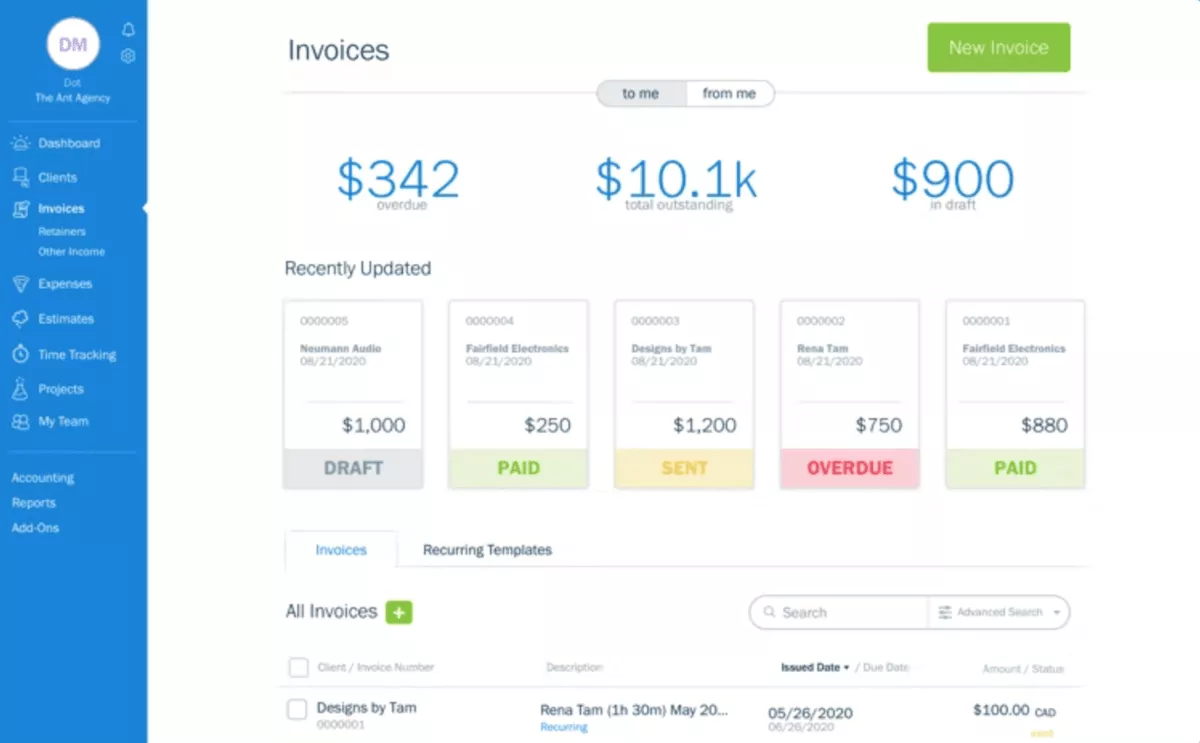
FreshBooks is accounting and invoicing software for small businesses that also works as a time and expense management tool. Time tracking, receipt scanning and mileage feed invoices that pull in logged hours and costs automatically.
Key Features
- Built-in time tracking
- Expense receipt scanning (Plus and up)
- Mobile mileage tracking
- Invoices with online payments
Source: FreshBooks
Pros
- You can send a first invoice within minutes. Branding and the first client details take a few minutes to set up.
- Time tracking feeds invoices directly. Logged hours attach to the client record, so totals don’t need copying.
Cons
- Costs climb as the team grows. Each team member adds $11 a month, and Lite caps you at 5 billable clients.
- It covers the basics, not complex operations. Firms with many projects and approval steps tend to outgrow it.
- Receipt scanning isn’t on the cheapest plan. It starts on Plus, at $43 a month.
Pricing
Lite costs $23, Plus $43 and Premium $70 per month, and Select is priced through a consultant. Team members cost $11 per user per month on every plan. Project profit reports start on Premium.
G2 Rating
4.5/5 (983 reviews)
Who Should Skip FreshBooks?
A firm running several client projects at once, each with its own budget, will outgrow FreshBooks quickly. Per-person fees add up, and project profit reports need the $70 Premium plan.
Do You Need One Tool for Time and Expenses, or Two?
You need a single tool for time and expenses once you rebill any cost to a client. Until then, a time tracker plus a separate expense app works fine.
- Two tools hold up when expenses are staff reimbursements and company card spend that never reach a client invoice. Each tool syncs to your accounting software, and nobody needs the two datasets side by side.
- They break as soon as a cost gets passed on to a client. Someone exports the expense report, retypes the amount onto the invoice and adds the markup by hand. Meanwhile, the project budget shows hours but not the hotel, the subcontractor or the print run.
Expense Tracking Test
Open last month’s client invoices and count the lines that carry a rebilled cost. If even one invoice has such a line, put time and expenses in the same tool. If none do, keep the expense app for reimbursements and put your effort into time tracking.
Some firms keep both. Card spend stays in the expense app, and rebilled costs get logged on the project before invoicing. That works only if a named person owns the handoff each week.
How to Choose Time and Expense Tracking Software?
To choose time and expense tracking software, map billing, price plans, test a receipt, rebuild an invoice and pilot. Each step uses your own invoices and receipts, so every tool gets a clear pass or fail.
Step 1: Map How You Bill Clients for Expenses
Open the last three months of client invoices and your latest company card statement or expense reports. List every expense type you rebill, such as travel, subcontractors and software. Next to each, note whether it’s billed at cost or marked up, the markup percentage and any contract cap.
Then decide how billable expenses get told apart from internal costs at entry. Match your expense categories to the ones your accounting tool already uses, so nothing needs remapping later. Our guide on how to calculate expense markups helps you set the percentage.
- Pass: the tool applies your markup rule per project and marks each expense billable or internal at entry.
- Fail: it can’t apply your markup per project, so it’s out before any trial starts.
Step 2: Price the Plan That Covers Time and Expenses
On each pricing page, find the cheapest plan with time tracking, receipts, invoicing and approval workflows for both sides. Multiply its per-user price by everyone who logs time or expenses, not just managers. Add any seat minimum or base fee.
Example: 12 people on a plan at $8 per user per month, billed yearly, cost $1,152 a year. If approvals or expense invoicing are on a higher plan, that plan is your real price.
- Pass: the yearly cost at that plan fits your budget figure.
- Fail: the yearly cost goes over your budget figure, so the tool is out.
Step 3: Push One Real Expense From Receipt to Invoice
Take one receipt from last month that you rebilled and run it through each trial from start to finish. Do the receipt capture by phone or upload, log it to the project, then approve it as a manager. Then add it to a draft invoice.
Example: a $480 hotel stay rebilled at a 10% markup should appear as a $528 invoice line. The project budget should show $480 of cost and $528 billable.
- Pass: the invoice line and the budget both show those figures, with nothing typed twice.
- Fail: you retype the amount anywhere, or the cost never reaches the project budget.
A time and expense tracker that passes this step covers the part most teams still run in spreadsheets. For the wider process, see our project expense tracking guide.
Step 4: Rebuild Last Month’s Messiest Invoice
Pick last month’s invoice with the most moving parts. A good test has billable hours from two roles at different rates, one marked-up expense and one at cost. Rebuild it in each trial and generate the invoice.
Mixed rates and internal hours are where tools usually fail. Non-billable time must stay off the invoice yet count against the budget, as in billable vs non-billable hours. Simpler tools also struggle with billing time at two rates on one project.
- Pass: the total matches the invoice you sent, to the cent, with no manual line edits.
- Fail: any line has to be typed because the time and expense management system can’t produce it.
Step 5: Run a One-Week Pilot With Written Rules
Before the pilot, write a one-page expense policy with four rules. Define what counts as billable, and the amount above which a receipt is required. Name who approves time and who approves expenses. Set the approval deadline, for example Monday 12:00 for the previous week.
Run it for five working days with the two people who log the most hours or travel most. They produce the most entries to check.
- Pass: every timesheet and expense is approved by the deadline. Each shows up once in Xero or QuickBooks via the accounting integration.
- Fail: anyone asks whether an entry is billable, someone re-enters an expense by hand, or an entry appears twice.
A pass shows the employee time and expense tracking software works for the people who use it every day.
Final Thoughts: Keep Rebilled Costs on the Project Budget
Lean toward one tool that holds time, expenses, budgets and invoices. When a rebilled cost misses the project budget, the invoice can be right while the margin report is wrong.
Time and expense tracking software that keeps both sides on one budget shows that gap before the month closes. If you want to see hours and expenses on the same project budget, book a Productive demo.
See Real Project Margins Before You Invoice
Unapproved expenses already count as cost, so budget burn shows on each project before the invoice goes out.

Frequently Asked Questions
Is There a Free Time and Expense Tracking App?
Yes, Harvest’s Free plan tracks time and expenses for 1 seat and 2 projects. Clockify’s free plan covers time only, because expenses start on Pro. Neither free plan includes approvals, so plan on paid time and expense tracking software if managers sign off.
Can QuickBooks Track Time and Expenses in One Tool?
QuickBooks can’t track time and expenses inside a single product. QuickBooks Time tracks hours and requires QuickBooks Online, where expenses are recorded. Together they work as a time and expense management app sold as two subscriptions. If you’d rather keep projects in one place, Productive’s QuickBooks integration sends approved expenses there.