Top 10 Everhour Alternatives (Paid & Free) – Buyer’s Guide 2026

Browsing trough tons of Everhour alternatives for employee time tracking and basic project management can get frustrating. We get that.
Lucky for you, in this buyer’s guide, we’ll compare 10 Everhour alternatives, with their key features, pros and cons, and the tradeoffs based on real-user reviews.
As a nice bonus, you’ll also get a comparison table, a copy-paste Everhour checklist migration and a step-by-step process you can replicate to pick timesheet solutions that fit your workflow.
What Are the Best Everhour Alternatives in 2026?
The best Everhour alternatives in 2026 are Productive, MyHours, Toggl Track, Clockify, TimeCamp, Timely, Time Doctor, Hubstaff, TMetric, and Kimai.
Start with the comparison table to narrow it down fast, then jump to the tool that matches how you track time.
It also flags which tools have a free plan, so you can shortlist faster.
Everhour Competitors Comparison Table
| Tool | Choose this tool if… | Skip this tool if… | Best for | Free version available |
|---|---|---|---|---|
| Productive | You are tired of stitching together Everhour + PM tool + spreadsheets for retainers, budgets, and resourcing. You want time tracking connected to retainer rollover, budget alerts, capacity planning, and invoicing in one place. | You only need a lightweight timer inside your existing PM tool and do not care about budgets, resourcing, or billing handoffs. | Agencies and professional services teams managing retainers, budgets, and team capacity | No |
| MyHours | You want simple time entry and clean basics without a steep learning curve. | You need deep reporting or complex billing. | Small teams that want straightforward tracking | Yes |
| Toggl Track | You want a fast timer experience and simple reports. | You need deeper project structure and fewer sync checks. | Teams that prioritize ease of use | Yes |
| Clockify | Cost is the priority and you need a free option to get started. | You need refined approvals and tailored reporting. | Teams that want basic and budget-friendly time tracking software | Yes |
| TimeCamp | You want more automation in how time is captured. | You want minimal setup and a simple timer-only flow. | Teams that want automated tracking options | Yes |
| Timely | You want automatic capture and are okay with a short daily review. | You want a pure timer-first workflow. | Knowledge work teams that want auto-capture-first | No |
| Time Doctor | You need monitoring-first oversight and detailed activity controls. | Your culture will not accept monitoring. | Monitoring-heavy environments with employee time trackers. | No |
| Hubstaff | You need location logs or monitoring signals alongside time. | You want minimal oversight and no screenshots. | Field and remote teams | No |
| TMetric | You want approvals and basic invoicing in a standalone tracker. | You rely on strong mobile tracking every day. | Teams that want more structure than a timer-only app | Yes |
| Kimai | You want a self-hosted, open source tracker with exports. | You want low-admin SaaS and built-in integrations. | Teams that want ownership and control | Yes |
How We Chose These Tools?
This list is built from three inputs: recurring review patterns on G2 and Capterra, real-world usage discussions on Reddit, and workflow context from YouTube walkthroughs.
We use reviews to surface the trade-offs that emerge after the honeymoon period, not to claim there’s a single best tool for everyone.
1. Productive – Best for Teams That Want Time Tracking Tied to Delivery and Financials
Everhour can work well as a tracker, but many teams hit the same wall: time lives in one place, while retainers, budgets, resourcing, and invoicing are done somewhere else.
Productive is designed to remove those handoffs by keeping projects, tasks, time tracking, resource planning, budgets, and invoicing connected in one system.
Try the best all-in-one Everhour replacement
Time Tracking That People Actually Stick With
Productive’s My time view is built for fast daily entry in Productive time tracking. Team members can log time in a clean timesheet, use a built-in timer, or track time directly from tasks.
Because time tracking is native to where work happens, you do not need to jump between tools just to log hours.
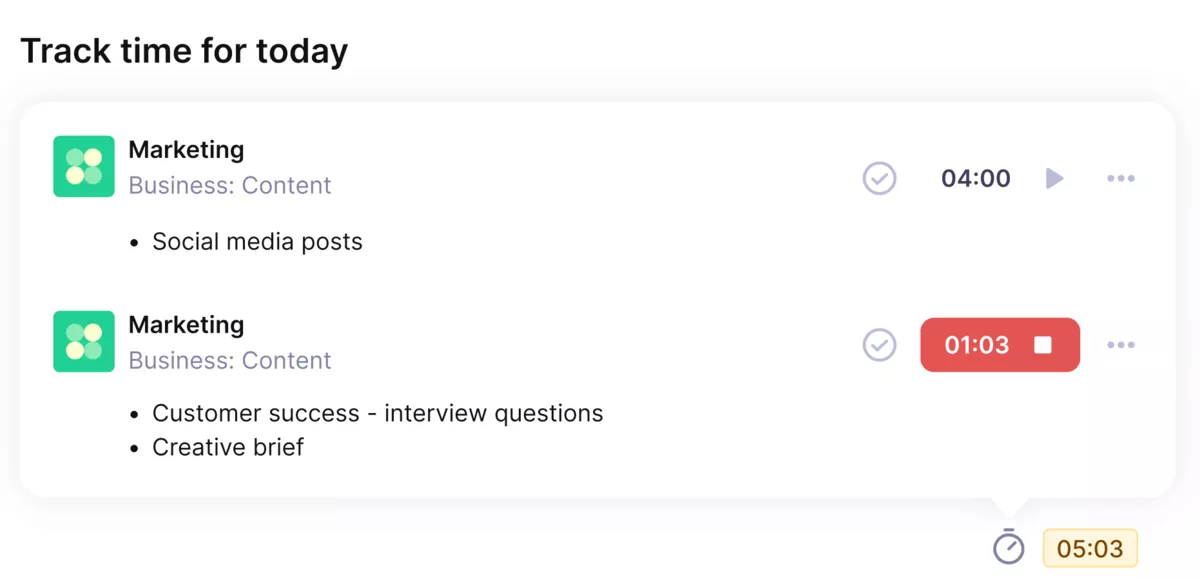
Use Productive’s automatic time tracker for smooth and easy time tracking.
Retainer Rollover Without Monthly Spreadsheet Math
If you run retainers, Productive supports Retainer Hours Rollover for recurring budgets. Unused or overused hours can carry into the next period automatically, so you are not recalculating what rolls over by hand every month.
That keeps retainer conversations consistent and reduces billing confusion.
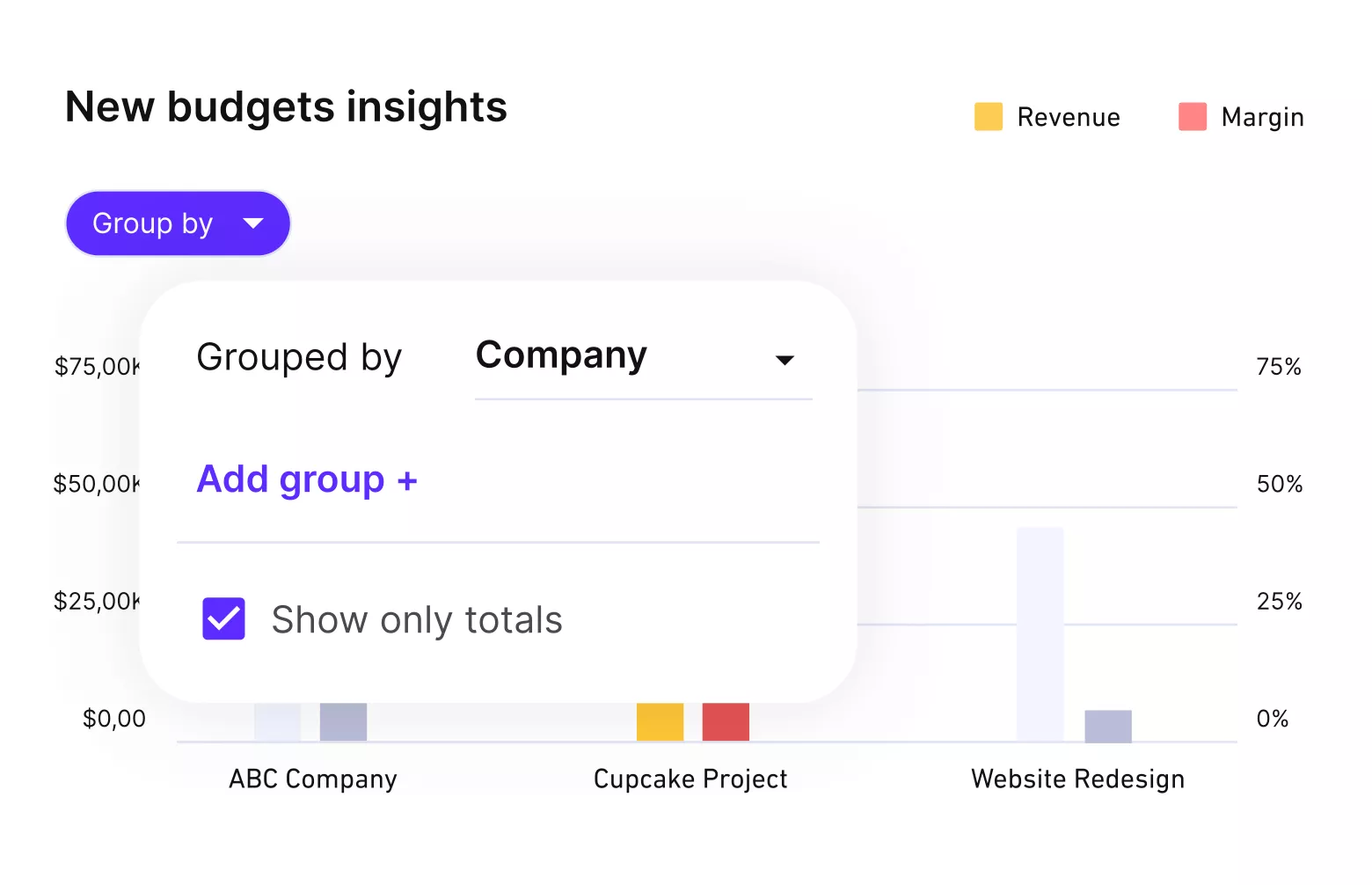
Get automated, real-time budget updates.
Budget Milestones That Show Up Before You Overservice
Productive includes configurable budget alerts as part of its project budgeting features that can trigger at the threshold you choose.
It also supports proactive controls like Budget Overrun Limitations, which can block further time tracking once a service limit is reached and notify the budget owner.
This makes budget oversight part of the workflow, not a manual check.
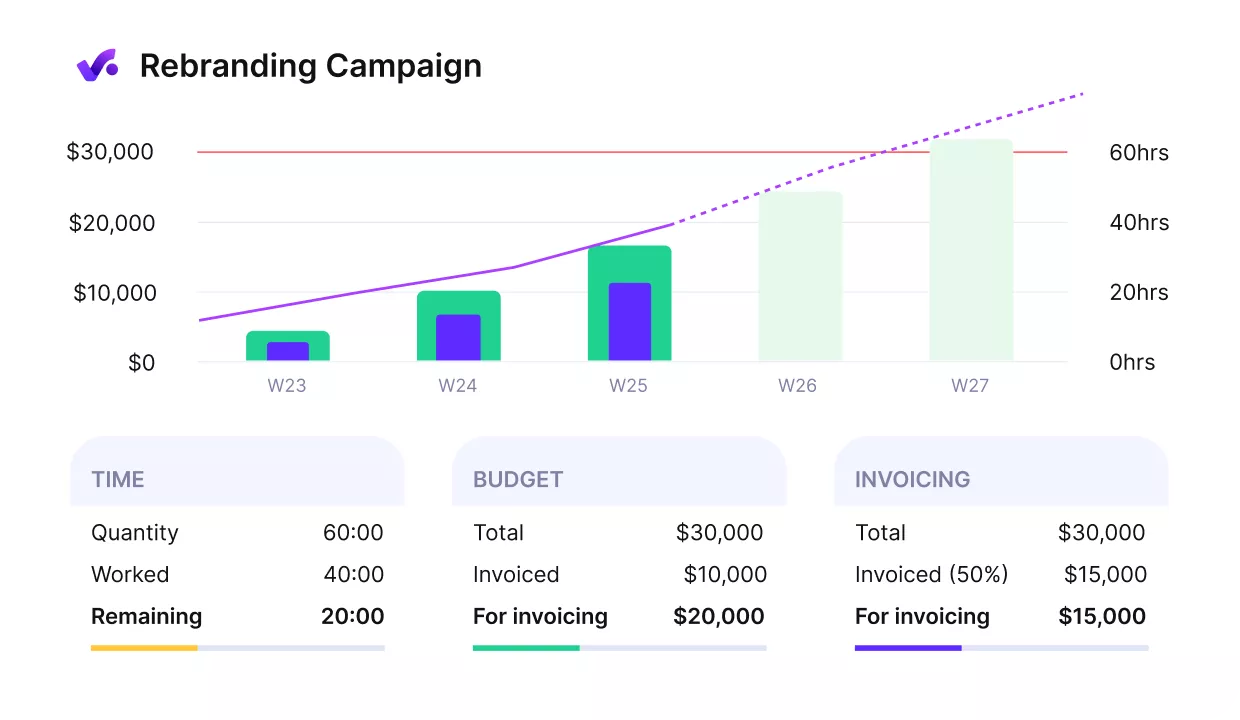
Get early warnings of budget overruns.
Resource Availability, Not Just a History of Hours
Everhour tells you what happened. Productive also helps you plan what is about to happen. The Resource Planner in Productive’s resource planning shows capacity across weeks and months, helps you spot overallocation early, and lets you filter by person or role.
It also supports day-to-day resource management for managers who schedule work week to week. Planned hours can be compared to actuals, so scheduling decisions stay tied to reality.
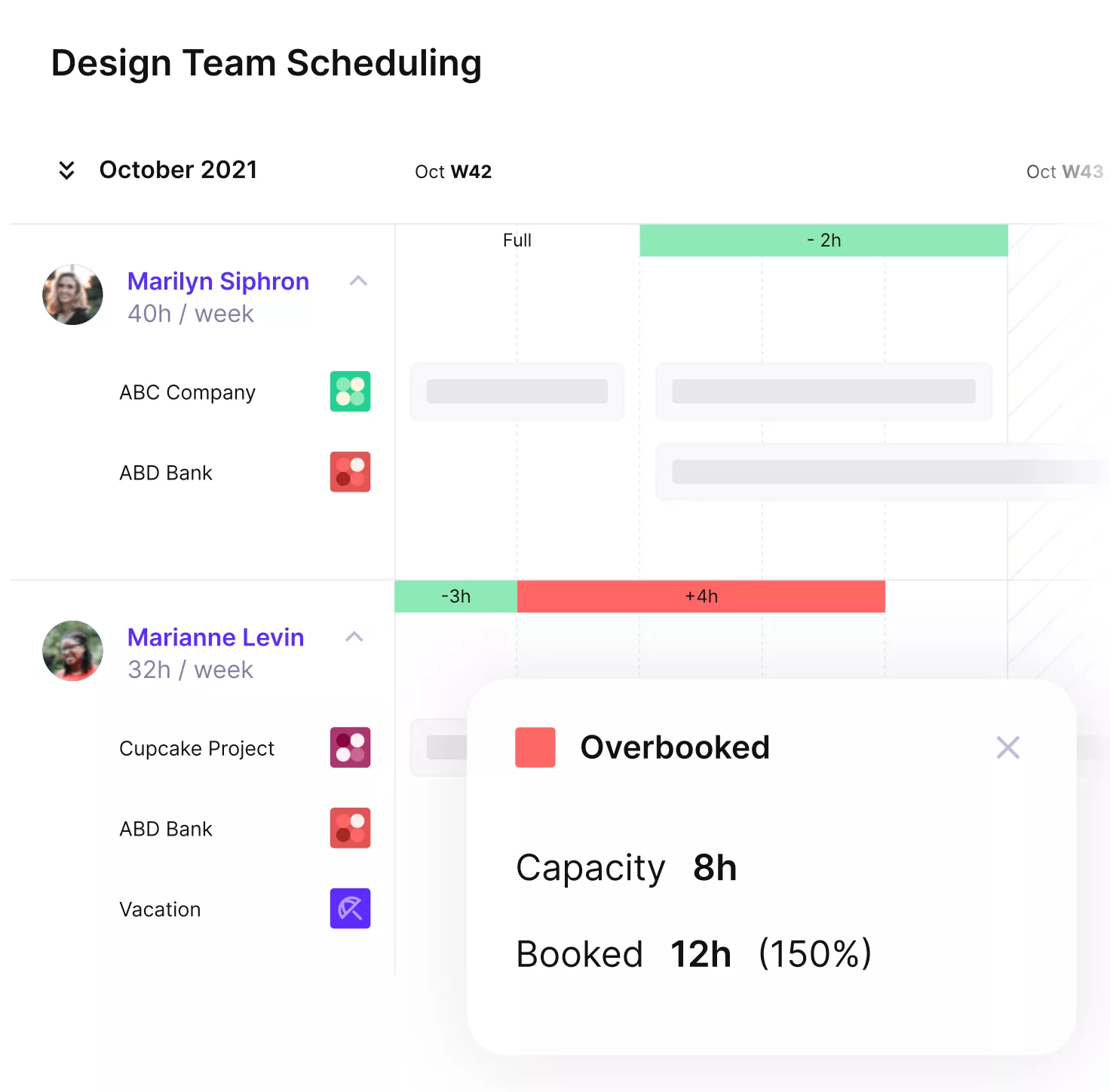
Schedule team members in real time.
Tentative Projects and Pipeline Capacity
Productive’s Deals pipeline works with the Resource Planner, so you can tentatively book people on potential work before it is confirmed. When a deal is won, it can convert into a project with the resource plan already attached.
That gives operations a way to sanity-check capacity before commitments are made.
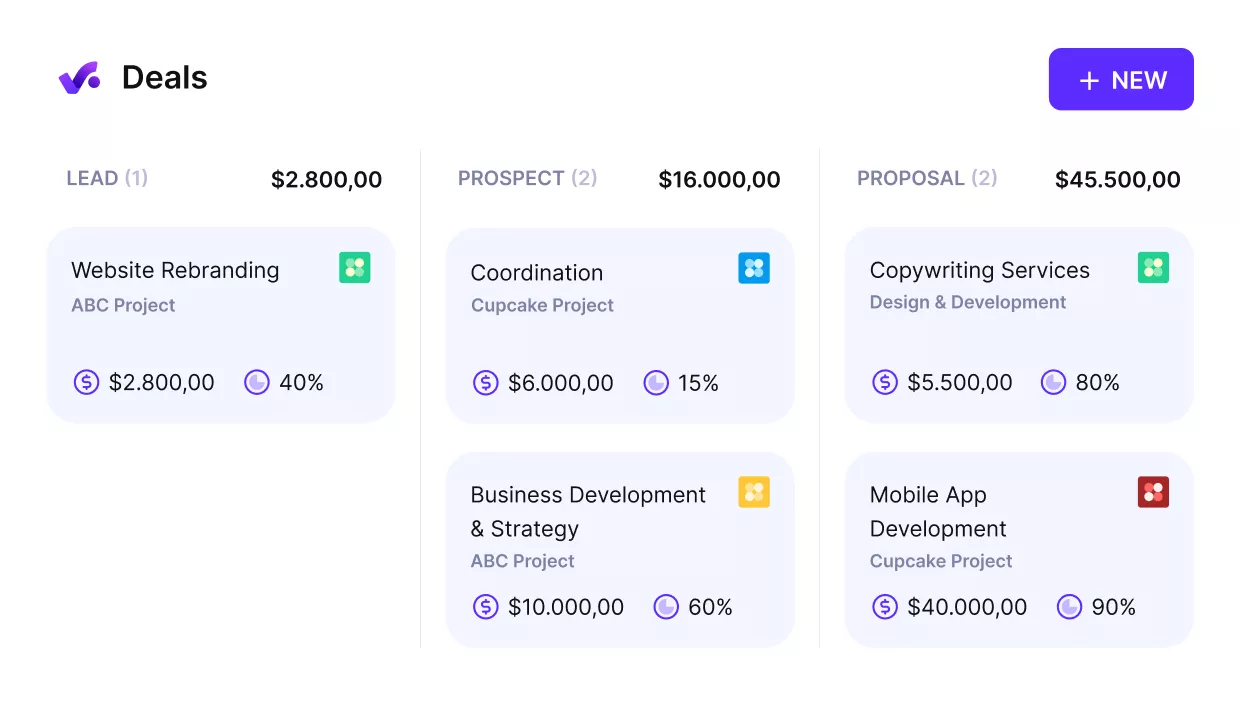
Tie project management with your deal pipeline.
Less Reconciliation Between Time, Budgets, and Invoicing
In Productive, time tracking, budgets, and invoicing live inside the same project. That creates a single source of truth, making handoffs smoother and reducing duplicate data entry.
Productive integrates with accounting tools like QuickBooks and Xero, and invoices can be generated from tracked hours and budget data instead of rebuilt from exports.
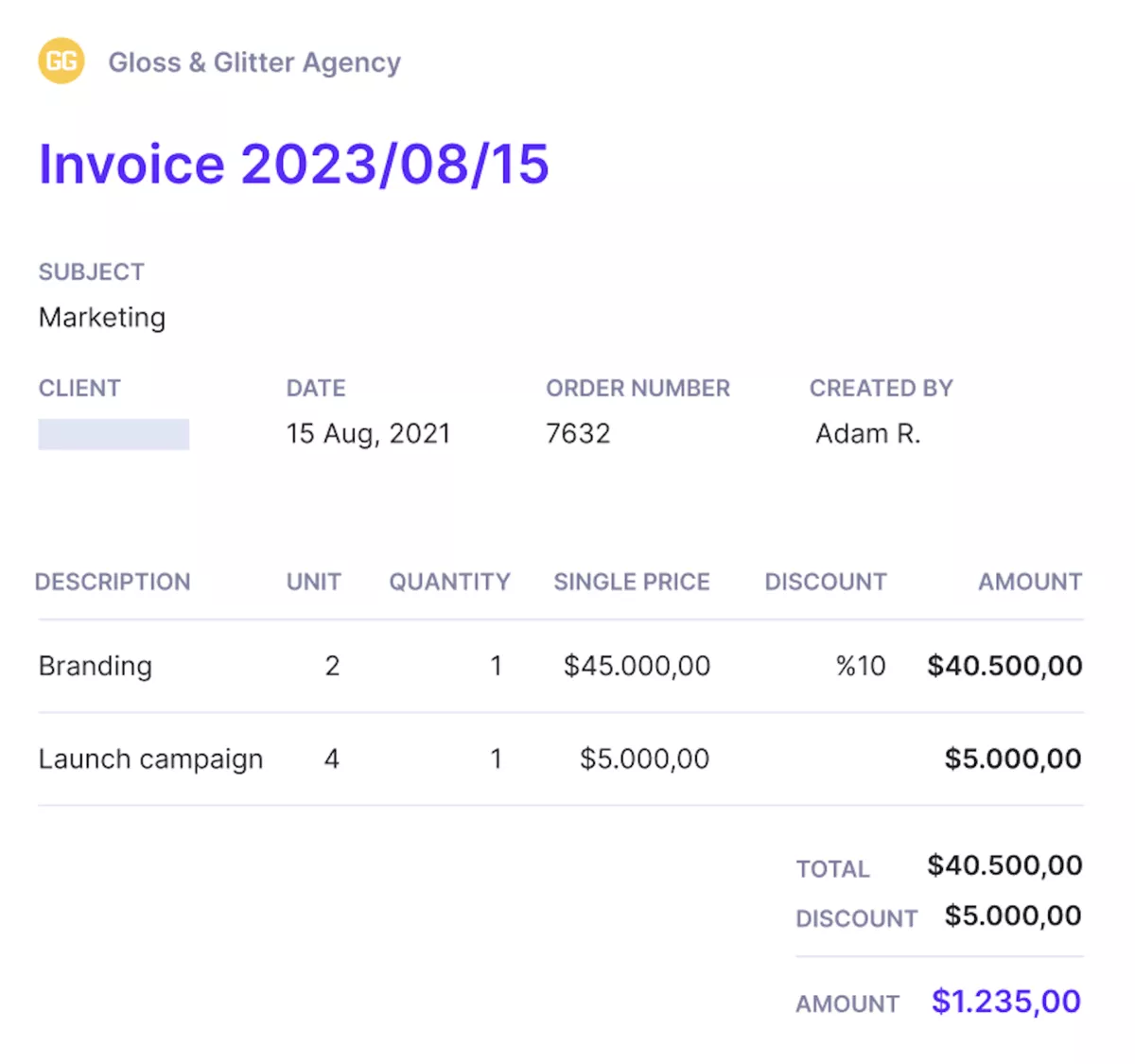
Send invoices from the same platform where work is delivered.
Profitability and Client-Facing Transparency Without Exposing Internal Costs
Because Productive connects cost rates, billing rates, tracked hours, and budgets, profitability reporting can be viewed in real time at the project, client, or service level.
For client visibility, Productive supports a client portal and client-facing reports for budget usage and progress, with granular permissions so clients see what they need without seeing internal cost details.
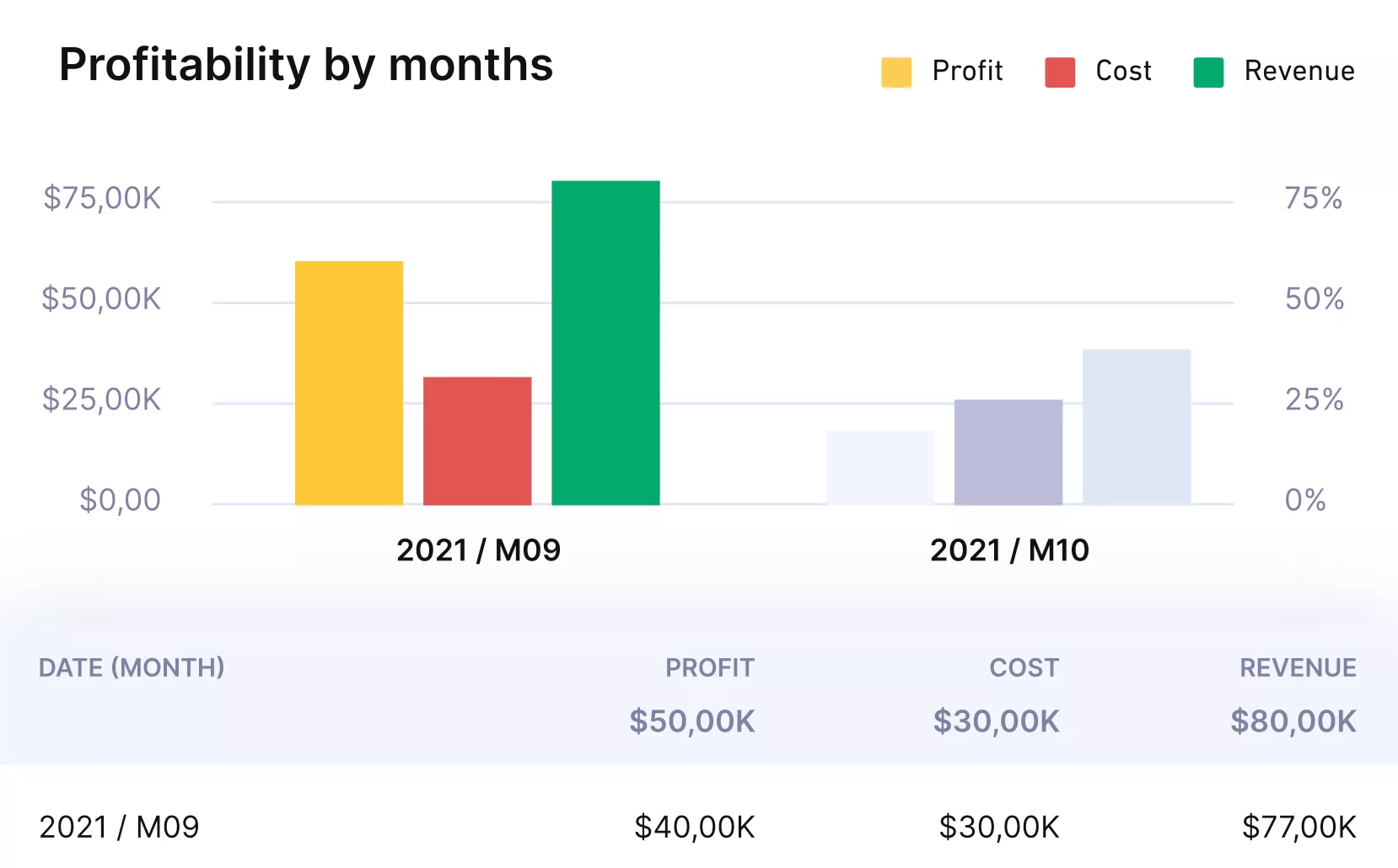
Get automatic profitability updates.
Pricing
- Plans start with the Essential plan at $10 per user per month, which includes essential features such as budgeting, project & task management, docs, time tracking, expense management, reporting, and time off management.
- The Professional plan includes custom fields, recurring budgets, advanced reports, billable time approvals, and much more for $25 per user per month.
- The Ultimate plan has everything that the Essential plan and Professional plan offer, along with the HubSpot integration, advanced forecasting, advanced custom fields, overhead calculations, and more. Book a demo or reach out to our team for the monthly price per user.
You can also try Productive with a free trial.
Replace Everhour with One Connected System
Productive runs projects, time tracking, budgets, invoicing, and capacity in one place, so you stop stitching reports together.

2. MyHours – Best for Small Teams That Want a Simple Tracker
MyHours is a lighter alternative to Everhour when you just need clean time entry and weekly timesheets without adding another layer of complexity. Keep in mind that deep invoicing workflows and granular reporting will feel out of reach.
Key Features
- Track time with a timer or manual entry
- Build weekly online timesheets
- Group time by client and project
- Export reports for billing
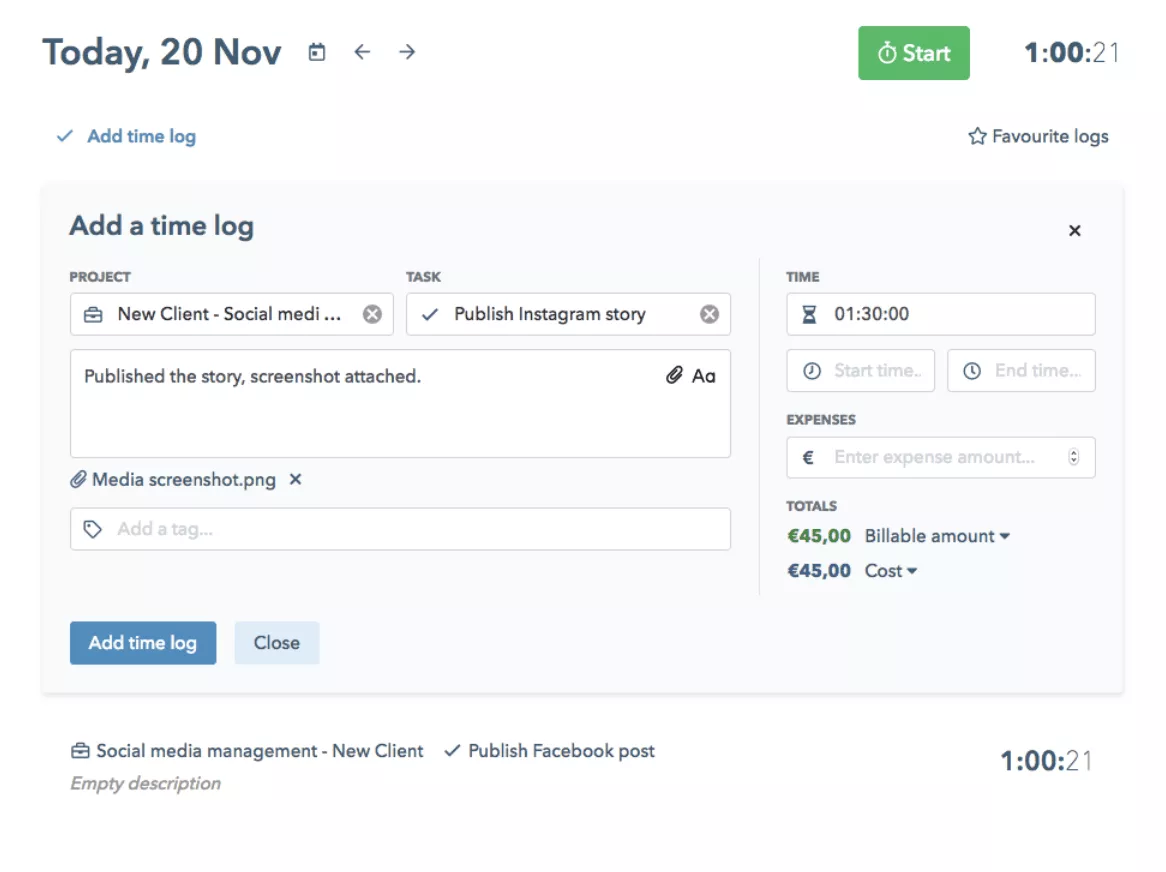
SOurce: myhours
Pros
- Easy adoption: most teams can start logging time right away without training or heavy setup
- Smooth day-to-day tracking: quick entries and simple navigation make it easier to keep timesheets complete
- Simple weekly reporting: enough filters to pull client totals and share a clean summary without spreadsheet work
- Helpful customer support: issues get resolved faster when you can get a clear answer
Cons
- Limited billing depth: fine for basic time-to-bill, but restrictive when invoices need more detail or customization
- Shallow reporting for growing teams: you may miss deeper breakdowns once you need more views by task, person, or category
- Integration friction: some workflows still require manual checks or cleanup when data does not flow the way you expect
- Scale messiness: client and project lists can get noisy without strict naming and hygiene
Final Verdict
MyHours is great until invoicing gets complicated, then you end up patching the gaps outside the tool. This tool isn’t a fully fledged project management software, so you should only pick it if you need weekly timesheets and a basic client-hours report, and you invoice outside the tool.
For billing basics and common pitfalls, see how to track billable hours.
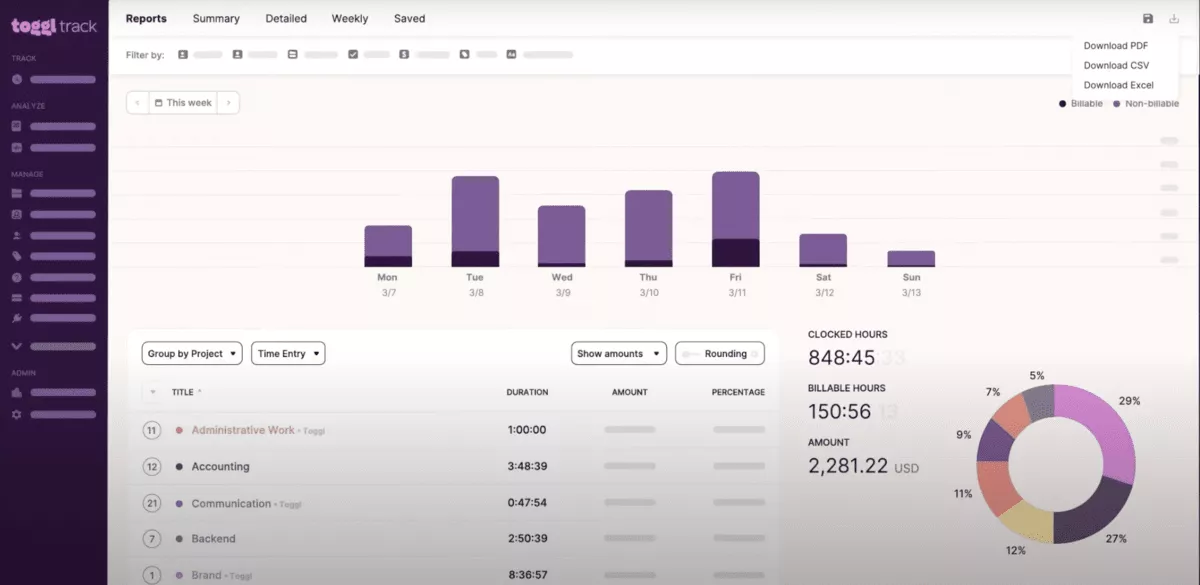
3. Toggl Track – Best for Teams That Want a Fast Timer and Simple Reporting
Toggl fits teams that want time tracking that takes seconds, not a separate workflow to manage, and it is one of the quickest ways to move on from Everhour. Occasional sync hiccups and shallow project breakdowns get frustrating once you need more structure without upgrading.
Key Features
- Start and stop a one-click timer on web, desktop, and mobile, with manual edits when you forget
- Organize entries by client, project, and tags so billing reports are easier to filter
- Use built-in reports to pull totals by client or project for weekly billing
- Track across apps, including a browser extension and a running timer indicator
SOurce: toggl track
Pros
- Low friction for daily use, so people are more likely to keep tracking consistently
- Clean interface that makes it easy to start, stop, and switch between projects
- Reports are easy to scan for client totals and time distribution across projects
- Flexible enough for mixed days, especially when work moves between tasks and tools
Cons
- Occasional sync lag between devices can lead to double-checking entries, especially when switching from desktop to mobile
- Some teams find the interface bulky or less intuitive until they adjust their setup
- Deeper project or task-level insights can feel gated behind higher plans
- Changes to apps or dashboards can frustrate long-time users who prefer a lightweight tracker
Final Verdict
Toggl is excellent when you want a timer that stays out of your way and reports you can pull in minutes. The moment you are double-checking timers across devices, or you need deeper project breakdowns, it is time to look elsewhere.
If you want more timer-first picks, see our Toggl alternatives.
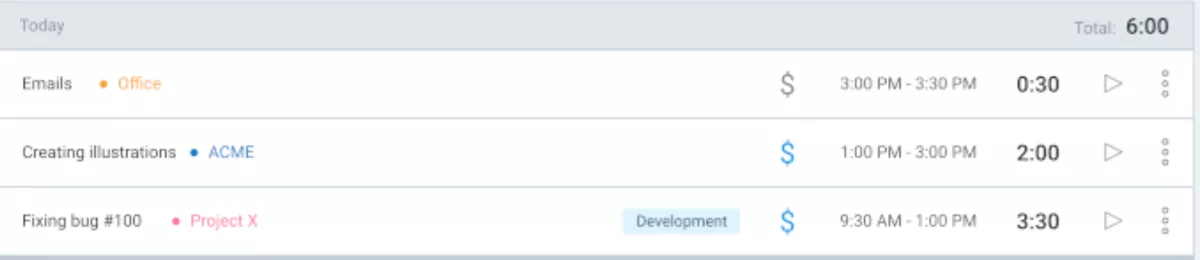
4. Clockify – Best for Teams That Need a Free Option for Basic Timesheets
Clockify is often the first Everhour alternative teams try when cost is the main constraint, because the free plan can cover a full team without forcing an immediate upgrade.
The rough edges show up fast once you need polished, highly customizable reports and smoother month-end approvals.
Key Features
- Track time with a timer or manual entry, then submit weekly timesheets
- Organize work with clients and projects so reporting is easier to filter
- Export reports for billing handoffs, payroll, or internal reviews
- Track across web, desktop, mobile, and an extension
SOurce: clockify
Pros
- Strong value for money: the free plan can cover real work without feeling like a demo
- Easy adoption: most people understand the timer and timesheet flow quickly
- Enough reporting for basics: client totals and weekly breakdowns are easy to pull
- Convenient capture options: desktop, web, and extensions help reduce missed time
Cons
- Limited reporting flexibility: once you need deeper cuts or custom dashboards, the free tier can feel restrictive
- Month-end friction: approvals, reminders, and manager workflows can take more effort than expected
- UI feels dated for some teams, especially when projects and clients scale up
- Small bugs can pop up in syncing or reports, which means you may need spot checks
Final Verdict
Clockify earns its spot because you can put a whole team on it for free and still get usable timesheets. When you need manager approvals and reports sliced by client, role, or project phase, Clockify starts to feel rough.
If you want more options in the same category, see our Clockify alternatives.
For a broader overview of tools that handle time entry and billing together, see our best time and billing software.
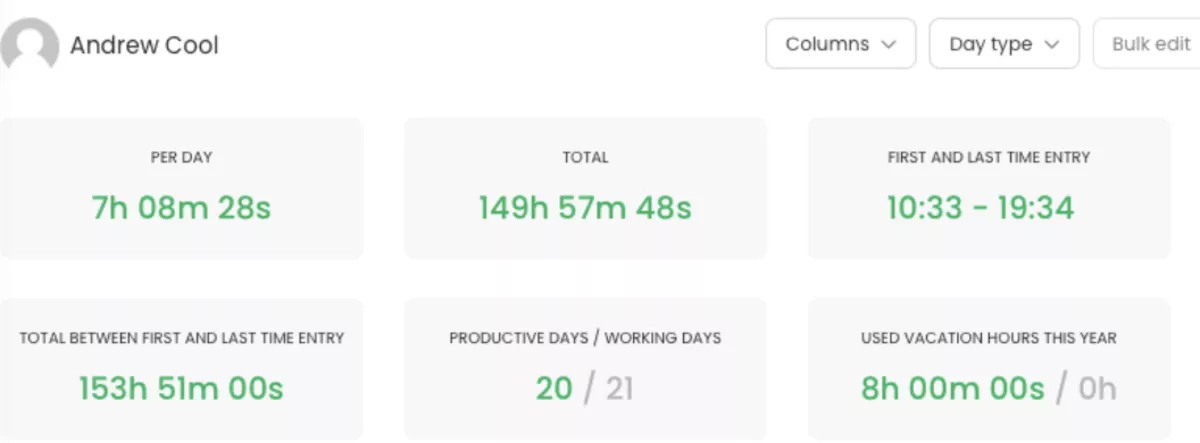
5. TimeCamp – Best for Teams That Want More Automated Tracking
TimeCamp is a practical Everhour alternative when you want automatic tracking and stronger reporting without changing your whole workflow.
Mobile-heavy workflows and timer quirks are the common dealbreakers.
Key Features
- Automatic tracking that helps you reconstruct work when you forget to start a timer
- Timesheets that roll daily tracking into a weekly view
- Client and project reporting for billable vs non-billable time
- Integrations that let you connect tracking to the tools you already use
SOurce: timecamp
Pros
- Automatic tracking can fill gaps when people forget to start and stop timers
- Reporting is strong enough for billing integrity, not just personal visibility
- Plenty of integration options, so tracking can stay tied to real project work
- Good value for teams that want more than a basic timer without paying for a full ops suite
Cons
- Mobile app experience can feel clunky, and some users report device-related faults
- Sync and timer reliability can be inconsistent, especially across desktop and phone
- Reporting filters can still feel limited when you need very specific slices
- Free plan limits can be a blocker for teams, especially around roles and export options
Final Verdict
TimeCamp is worth it when automatic tracking would actually save your team from missed hours, and you want stronger reports than Everhour. Phone-first teams should expect more cleanup when the app or syncing acts up.
For terminology and examples you can reuse internally, start with this billable hours guide.
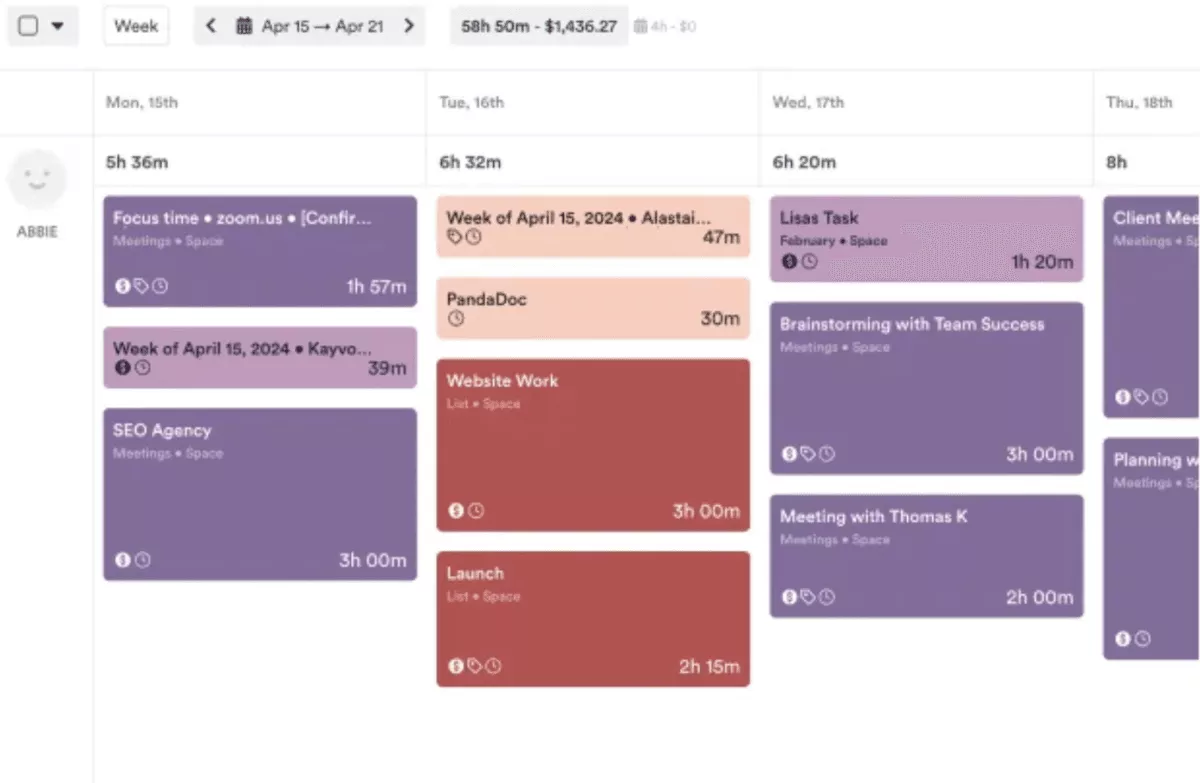
6. Timely – Best for Teams That Want Automatic Capture Instead of Manual Timers
Timely flips the Everhour workflow on its head by using automatic tracking to capture what you do first, then letting you turn that activity into time entries later.
A timer-first habit and zero interest in a timeline review make it a poor fit.
Key Features
- Automatic tracking captures work activity, then you turn it into time entries when you are ready
- Drag tracked activity into projects so timesheets take minutes, not a memory game
- Use reports to understand where time goes across projects and clients
- Share reports with stakeholders when you need client-facing visibility
SOurce: timely
Pros
- Saves time on timesheets when people forget to start and stop timers
- Helpful for multi-client work because it makes it easier to see where the week actually went
- Friendly UI and reporting that feels easy to share outside the team
- Setup is simple enough that most teams can start using it quickly
Cons
- You may need to add small tasks manually when the tracker misses short items like quick meetings
- Some teams dislike having to download and run a tracking app
- Manual overrides can feel limited when you need to correct or reclassify entries
- AI-powered time tracking features can be hit or miss, and a few users report stability issues after enabling them
Final Verdict
Timely makes timesheets easier when your biggest problem is forgetting to run a timer. Anyone who will not spend 5 minutes a day sorting captured activity into projects will hate it.
7. Time Doctor – Best for Monitoring-Heavy Teams That Need Accountability Signals
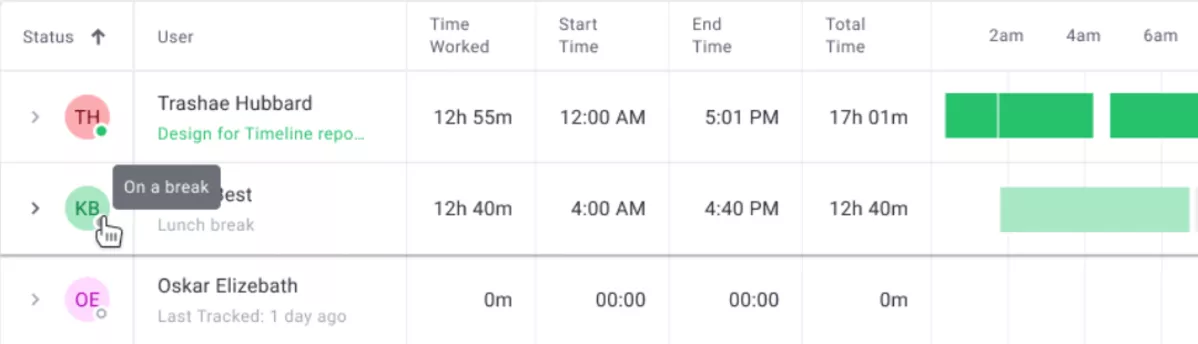
Time Doctor is an Everhour alternative for teams that want more than timesheets, because it pairs time tracking with activity monitoring and optional screenshots for employee monitoring.
It is built for employee productivity tracking, not just billing totals. If you have monitoring pushback from your team, skip this tool.
Key Features
- Track time by task, project, or client
- Capture app and website usage, with optional screenshots for employee monitoring
- Use idle reminders and distraction alerts to reduce untracked time
- Export detailed reports and productivity analytics for oversight, payroll, or client billing
SOurce: time doctor
Pros
- Strong visibility for remote teams when managers need proof of work, not just totals
- Productivity insights help coaching and workload conversations because activity and app data show patterns over time
- Reporting goes beyond simple timesheets, which can reduce end-of-week guesswork
- Works well when you need consistent tracking across a distributed team
Cons
- Employee monitoring can feel invasive, especially when screenshots are enabled
- Some teams report trust and morale issues if the rollout is not handled carefully
- Admin workflows can feel slower than a lightweight timer-only tool
- Customer support can be slow when you need help fast
Final Verdict
Time Doctor only works when your team accepts monitoring as part of the job, not as a surprise. When all you need are approved hours for invoices, the monitoring features add conflict without improving the output.
8. Hubstaff – Best for Field and Remote Teams That Need Location Logs
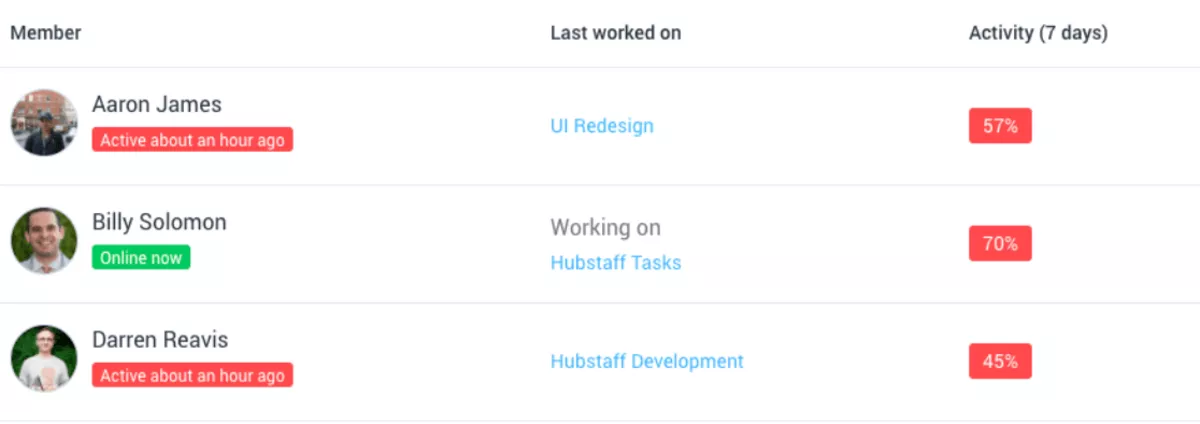
Hubstaff is closer to workforce management than Everhour. It is a workforce management-style tracker with employee monitoring options like screenshots and activity levels, plus location logs for people in the field.
Key Features
- Track time with a timer or manual entry on web, desktop, or mobile
- Use optional screenshots, app, and URL tracking for employee monitoring
- Use GPS tracking on mobile to log where work happened
- Export reports and basic productivity analytics for payroll, billing, or manager oversight
SOurce: hubstaff
Pros
- Strong visibility when managers need more than a weekly timesheet
- Useful for field work because location logs pair with time entries
- Activity signals provide quick productivity insights and help spot gaps in tracking before billing goes out
- Setup is straightforward once roles and tracking rules are agreed upon
Cons
- Screenshot monitoring can feel invasive, especially in knowledge work teams
- Per-seat pricing can add up quickly as the team grows
- The tracker can stop unexpectedly after updates or connectivity issues
- Mobile app use can drain battery for people tracking on the go
Final Verdict
Screenshots are the dealbreaker here, because they can poison trust fast.
Choose it when you need location logs for field staff, or you want screenshots and activity records alongside time entries.
9. TMetric – Best for Teams That Want Approvals and Invoicing on a Budget
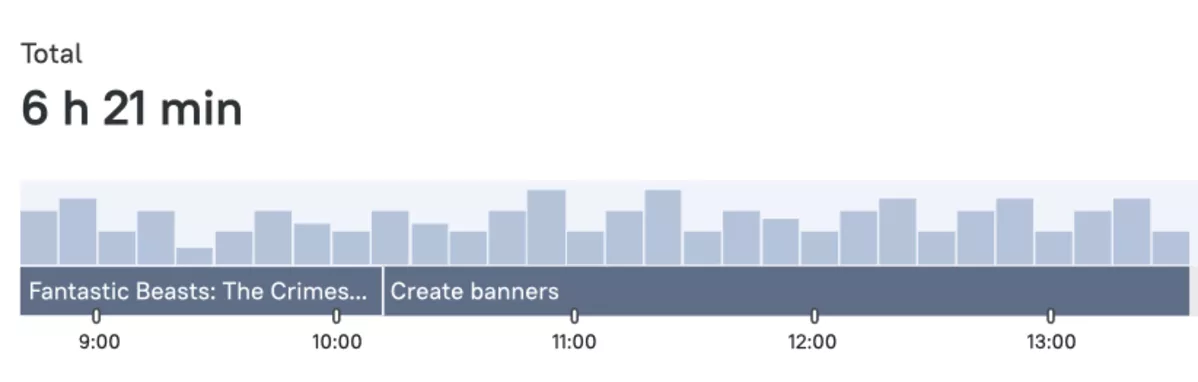
TMetric is closer to an Everhour-style setup than most tools here, but it adds timesheets, timesheet approvals, and invoicing in a standalone tracker.
The interface takes a bit of setup to feel clean, and the phone app is the weak spot.
Key Features
- Track time with a timer or manual entry, plus reminders, so fewer hours go missing
- Submit weekly timesheets and run timesheet approvals for managers
- Set billable rates and send invoices, or mark time as invoiced after export
- Track time inside tools like Asana, Jira, or Trello using integrations
SOurce: tmetric
Pros
- Covers tracking, approvals, and basic invoicing without forcing a bigger system
- Reports make it easy to pull client totals and billable vs non-billable splits
- Integrations reduce tab switching when you already live in a project tool
- Good value for teams that want more structure than a timer-only app
Cons
- Mobile tracking limitations show up fast when people track on the go
- Reporting and dashboards can feel less flexible once you want custom views
- Some settings take trial and error before the workflow feels natural
- Small UI quirks can slow you down until you build habits around them
Final Verdict
The mobile app is the dealbreaker, so field-heavy tracking gets annoying fast.
Choose TMetric when you need manager approvals and simple time-to-invoice in one place.
10. Kimai – Best for Teams That Want a Self-Hosted, Open Source Time Tracker
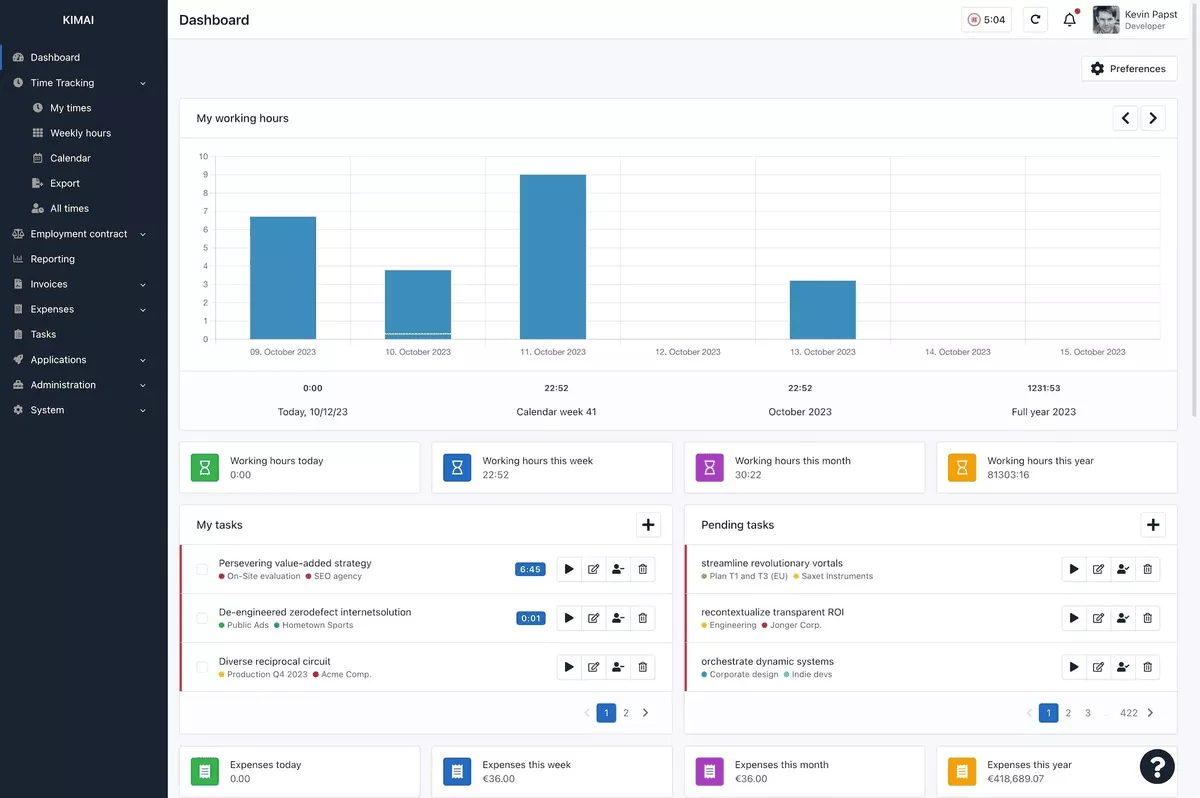
Kimai is an open-source alternative to Everhour that you can self-host when data ownership matters more than polish. Expect more admin work and a clunkier UI, plus fewer out-of-the-box integrations than a SaaS tool.
Key Features
- Track time against customers, projects, and activities in a browser-based UI
- Export timesheets in formats like CSV, Excel, or PDF using export templates
- Add features with plugins from the Kimai ecosystem
- Keep data on your own infrastructure instead of a vendor’s cloud
SOurce: kimai
Pros
- Full control over hosting and data, which matters in regulated or privacy-sensitive work
- Exports are strong, so you can feed invoices or client reports without rebuilding spreadsheets
- Flexible plugin ecosystem for extending the core tracker
- Solid choice for small teams that want an open source baseline
Cons
- Setup, updates, and backups are on you, even when the product itself is simple
- The customer, project, and activity structure is rigid and can feel limiting
- UI can feel old-school compared to Everhour
- Integration convenience depends on plugins, not built-in connectors
Final Verdict
Kimai is the right call when self-hosting and exports matter more than a slick UI. Most teams that want a low-admin Everhour replacement will not find the overhead worth it.
Why Do Teams Look for Everhour Alternatives?
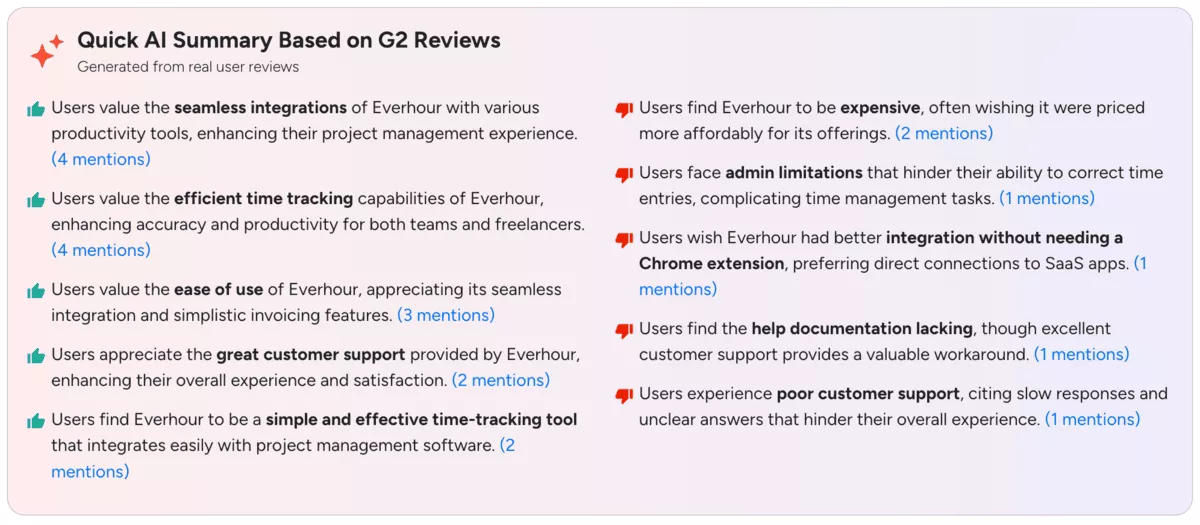
Teams look for Everhour alternatives because integrations are limited, multi-client setups get messy, reporting stays basic, and pricing stops feeling worth it once you compare options.
- Lack of integrations: teams run into “almost there” connections, or they rely on an extension and still end up double-checking how time tracking entries map to tasks in a project management tool.
- Problems with multi-client setups: some workflows assume a single workspace, which gets painful if you track across multiple client environments.
- Basic reporting support: weekly exports are fine, but deeper breakdowns can require manual cleanup or extra spreadsheets.
- Pricing misalignment: teams compare what they pay to what they actually use and decide that a simpler or more complete tool makes more sense.
SOurce: Everhour G2 reviews
How to Choose an Everhour Alternative? (Step-by-Step Process)
Choose an Everhour alternative by mapping your workflow, shortlisting by constraints, running a pilot on real work, and validating billing and reporting with real data across your project management stack.
Done properly, this takes one to two weeks and saves you from picking a tool that looks great in a demo but fails in delivery. It also helps you compare time tracking tools as actual timesheet solutions, not feature lists.
Step 1: Write Down the Workflow You Need to Protect
Open a doc and write the workflow as it happens in a real week. List roles first (contributors, approvers, finance), then list where time gets entered today (inside your project management software, an extension, or a separate app).
Finish with the outputs you cannot break: invoices, client reports, internal utilization, or profitability analysis.
Step 2: Decide Whether You Need a PM Add-On or an All-in-One System
Make the category call before you look at features. Everhour is often used as time tracking attached to task management tools, so the first question is whether you want to keep that add-on model or move to an all-in-one system that also covers resource management.
If employee scheduling is part of your workflow, decide whether you want it in the same system or in a separate tool before you shortlist options. An add-on is fine when you mainly need a smoother timer. An all-in-one makes more sense when the problem is handoffs between projects, time, budgets, and reporting.
If employee monitoring is part of your requirement, decide what you will track (screenshots, app, and URL activity) and what you will not before you shortlist tools. Time Doctor is the obvious example of a monitoring-first approach. Shortlist Time Doctor only if your team is comfortable with that level of oversight.
For a deeper walkthrough of capacity planning and staffing decisions, see our human resource planning guide.
Step 3: Shortlist Tools by Integrations and Reporting Outputs
Build a shortlist of three tools using constraints, not wishlists. Confirm the integrations you need (your PM tool, billing, and exports), then write down the exact report you must be able to produce without reformatting.
If you need employee scheduling, include it as a hard requirement in the shortlist, not a nice-to-have. For each tool, write one sentence that explains why it made the shortlist.
Step 4: Run a Two-Week Pilot on Real Work
Pilot with one active project, one approver, and a small group of people who actually do the work. Track time for a full week, run approvals, and try to build the same client report or invoice you ship today.
If you are testing automatic tracking, compare the auto-captured entries to what your team would have logged manually. Keep a running list of friction points as they happen, not from memory.
Step 5: Validate Billing, Exports, and Rollout Ownership
Before you commit, validate the downstream steps that usually get ignored. Export a billing report in the format finance expects, confirm timesheet approvals and edits leave a clear trail, and check whether managers can run the reports without you.
During the pilot, message customer support once and see how fast you get a useful answer. If profitability analysis matters to you, make sure you can produce it without rebuilding everything in a spreadsheet.
Then assign one owner for the routine so the tool does not die after week one.
How to Migrate From Everhour?
Migrate from Everhour by exporting your time tracking data to CSV, cleaning it up, mapping it to the new tool’s structure, then piloting on one live project before you cut over.
Everhour Migration Checklist
1. Migration prep
- Name an owner for cutover week (approvals, reminders, reporting)
- List what must carry over: clients, client projects, people, tags, billable rules, and approvals
- Decide how much history you need for client bills and internal reporting; archive the rest
2. Export and cleanup
- Export clients, projects, and time entries to CSV
- Before you touch the data, check what the new tool’s CSV importer expects (columns, date format, IDs)
- Standardize client and project names, remove duplicates, and fix obvious typos
- Clean billable vs non-billable flags and rates so totals do not change after import
- Export expense reports only if you bill expenses, then align categories so finance can match them later
3. Mapping and setup
- Recreate your structure in the new tool: clients and projects, and the minimum tags or tasks you need for reporting
- Set approvals and permissions so time is reviewed the same way it is today
- Build one billing-ready report that matches how you send client bills, then save it as your default
4. Pilot and cutover
- Pilot on one live project with one approver and a small group of contributors
- Run a full week: log time, approve it, export the report, and compare totals to Everhour
- Fix mapping issues, then set a cutover date and stop entering time in Everhour after that day
Conclusion: Should You Make the Switch?
Yes, when Everhour is no longer giving you trustworthy time tracking outputs for billing and reporting, and your timesheet solutions are held together with exports and manual fixes.
If the real issue is handoffs between projects, time, budgets, and reporting, an Everhour replacement that combines those parts in one place will reduce the manual glue work.
If you want to see what that looks like in an agency or professional service team, book a quick product demo.
Connect With Agency Peers
Access agency-related Slack channels, exchange business insights, and join in on members-only live sessions.
