Top 5 Workload Management Software (Paid & Free) 2026 Review

Workload management software helps team members and managers see who has room, who is overloaded, and where work needs to move before deadlines slip.
Since choosing the right one is hard, we wrote this guide that compares the top five tools for managing workloads in PM platforms.
It’s written to help you spot the trade-offs fast. You’ll also get a buyer-friendly comparison table, practical how-to-choose advice, and a rollout checklist you can use with your team.
What Are the Best Workload Management Tools in 2026?
The best workload management tools in 2026 are Productive, Runn, Float, Resource Guru, and Teamhood. Each one solves a different workload problem.
Below is a breakdown with jump-links and “best for” fits.
A Shortlist of the Top Tools for Managing Workloads
A Comparison of the Best Tools for Managing Workloads
| Tool | Choose this tool if | Skip this tool if | Best for | Free version |
|---|---|---|---|---|
| Productive | You need planning tied to resource planning, time tracking, project management, budgets, and utilization in one system. | You only need a lightweight scheduler and do not need commercial visibility. | Service businesses that need workload visibility plus delivery and financial control | No free plan |
| Runn | You need forward-looking capacity planning, scenario planning, and a clearer view of demand before work lands. | You want deep project delivery, task management, or broader operational workflows in the same tool. | Capacity forecasting and scenario planning | No free plan |
| Float | You want a clean scheduling tool for day-to-day team availability, allocations, and quick workload balancing. | You need deeper financial visibility, broader project operations, or a more connected delivery workflow. | Day-to-day resource scheduling and team availability | No free plan |
| Resource Guru | You need simple booking visibility, leave tracking, and a fast way to see who is available. | You need more advanced project context, deeper forecasting, or all-in-one workload and delivery management. | Resource scheduling and booking visibility | No free plan |
| Teamhood | You want a visual workload planner with a free version and more planning flexibility than a barebones scheduler. | You need workload management tied closely to commercial control, service operations, or heavier forecasting depth. | Smaller teams that want visual workload planning with a free version | Free version available |
How We Chose These Tools?
We built this shortlist by reviewing official product pages, user reviews on Capterra, G2, and other review sites. We also compared workload-management-specific capabilities, and checked how each tool handles planning, availability, forecasting, and resource allocation.
1. Productive – Best for All-in-One Workload Management
Productive is a strong fit if you need workload management software that connects team capacity, project management, task delivery, time tracking, and commercial visibility in one place.
It works best for companies that have outgrown spreadsheets and disconnected planning tools, and need a clearer way to balance workloads before delivery issues hit margin.
Manage workloads with Productive
See Who Has Capacity Before Deadlines Start Slipping
Productive gives you a live workload planning view across the team, so you can see booked hours, open capacity, and over-allocation before the week goes off track. Availability reflects approved time off, public holidays, and existing bookings.
You can also filter by team, role, or skill, which makes it easier to assign the right work without relying on memory or side conversations.
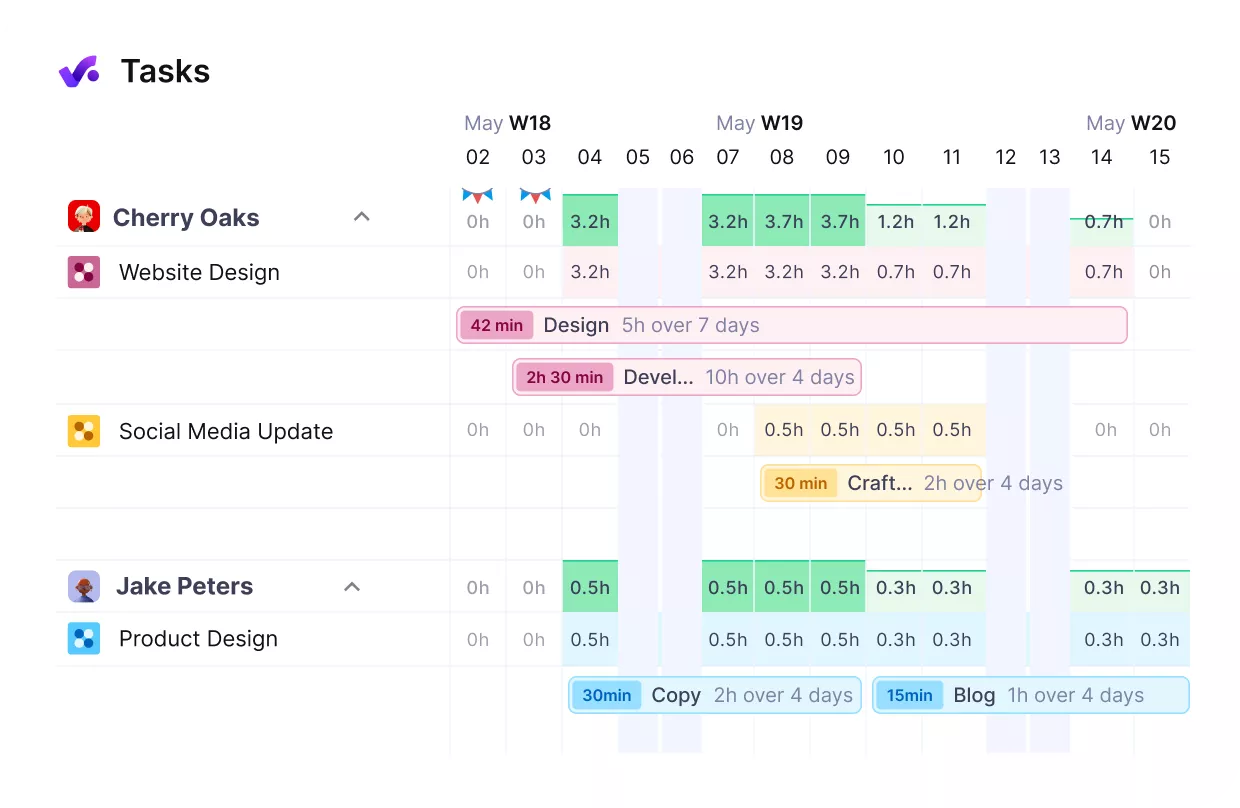
Get real-time updates on your team’s workload.
Planning is connected to day-to-day delivery, so workload data updates with the work instead of relying on someone to patch the plan back together manually.
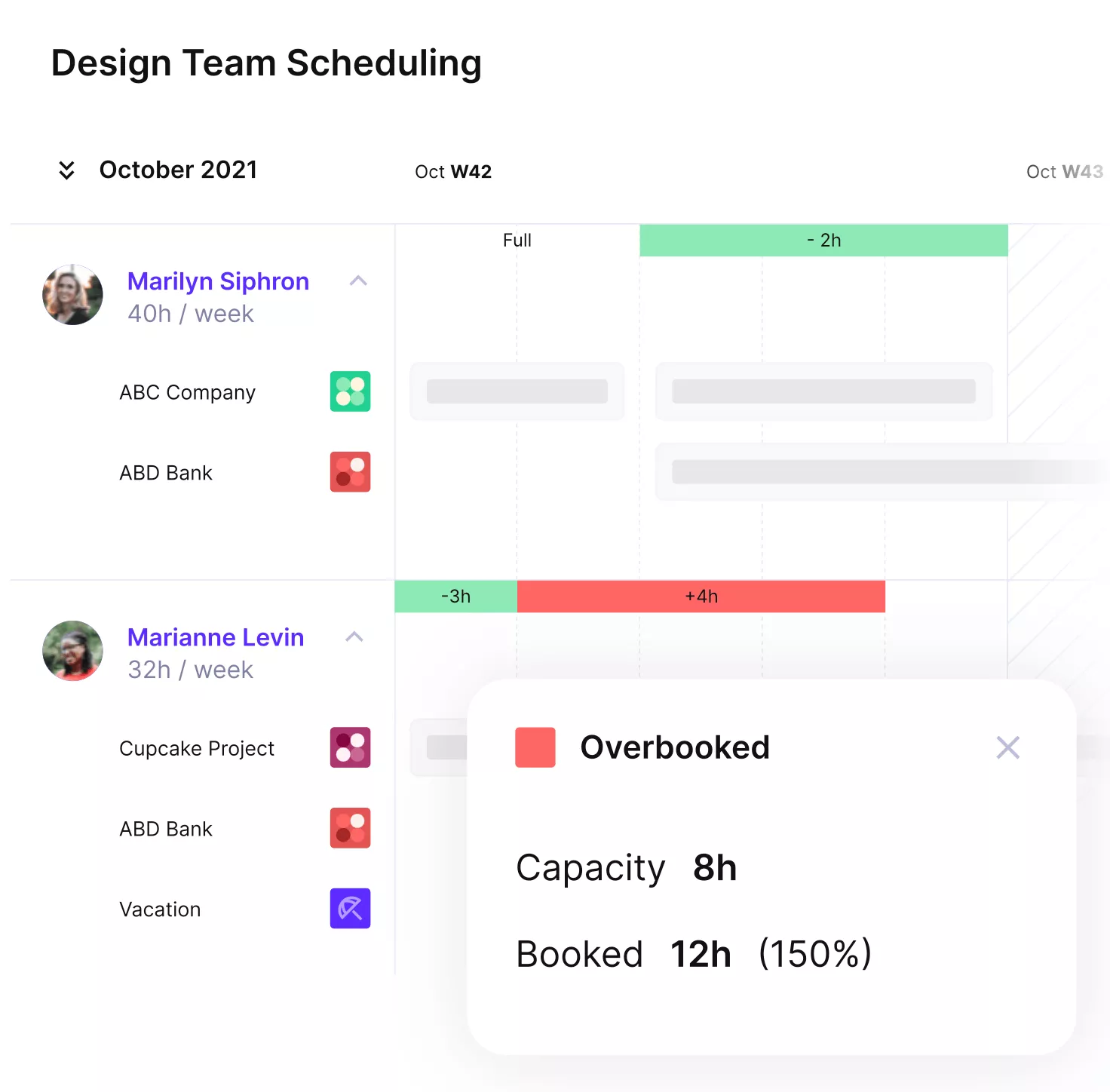
Easily spot overbooking and idle hours.
Run Resource Planning and Delivery in the Same System
Productive connects tasks, bookings, time entries, projects, and budgets in the same system through its resource planning module. That means a project manager is not jumping between a task board, a planning sheet, and a separate logging tool to understand whether a project is still on course.
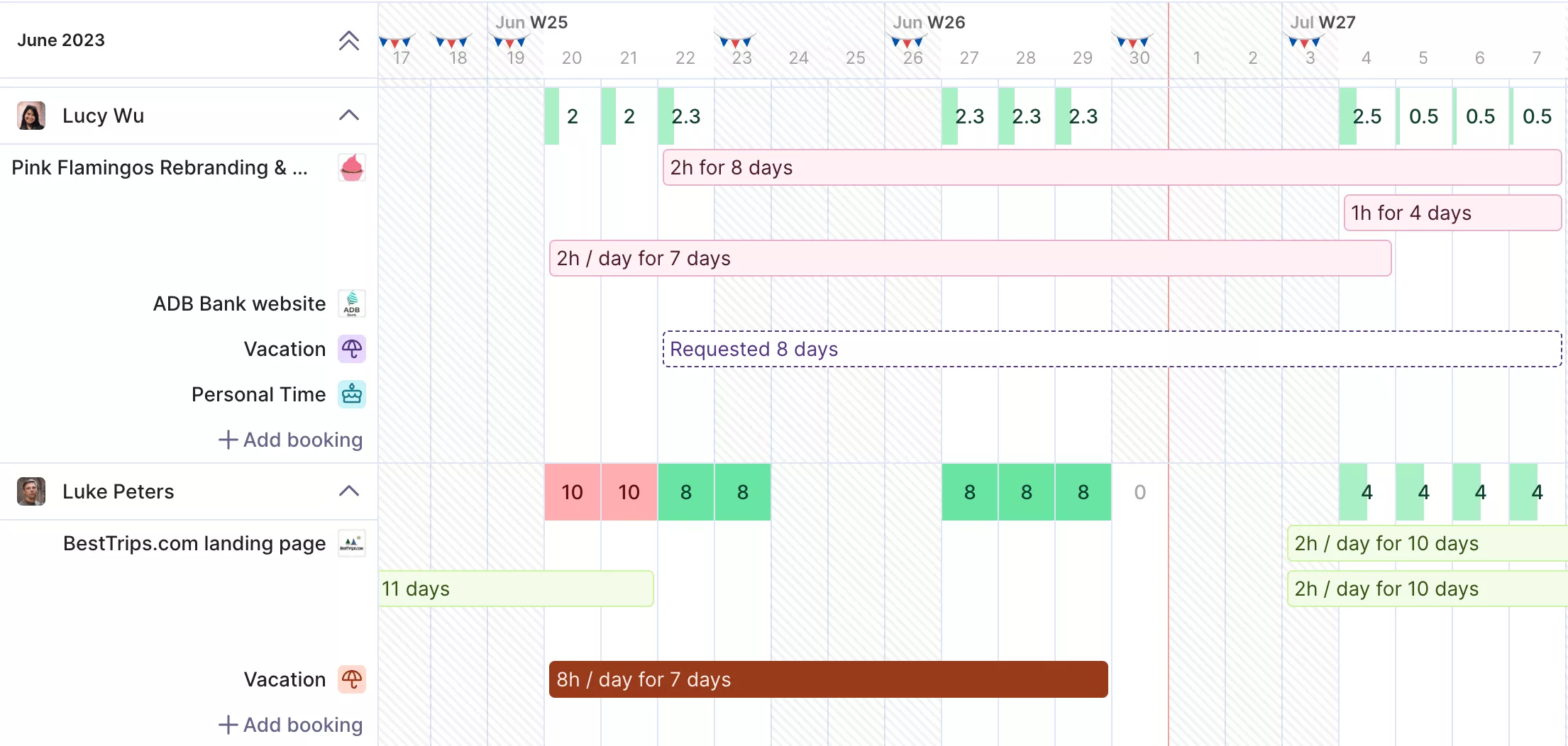
Plan your resources in the same place you deliver and manage finances.
Teams can log time from tasks, and changes in delivery are easier to spot because the operational views are connected. If a task slips, scope expands, or one person hands work to someone else, the knock-on effect is easier to see.
Forecast Workload Earlier and Make Better Staffing Calls
Many teams do not struggle because they cannot see far enough ahead to act on it. By the time under-utilization or overload becomes obvious, the financial damage is already done.
Productive helps prevent this in with its forecasting tools for service teams. Teams can create tentative bookings on pipeline deals, so likely work shows up in the plan before it is fully confirmed.
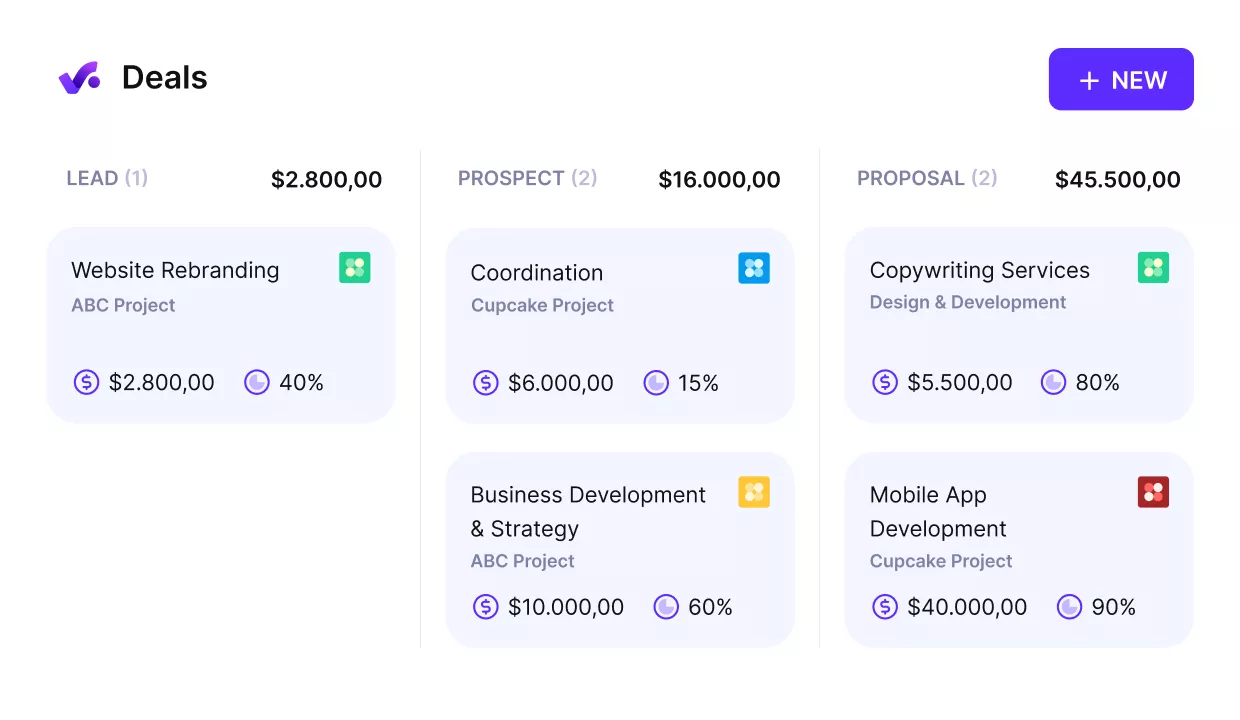
Convert won deals into started projects.
When a deal closes, those bookings can be converted instead of rebuilt. Utilization can also be tracked against scheduled capacity, with billable and non-billable time separated, so the picture is more useful.
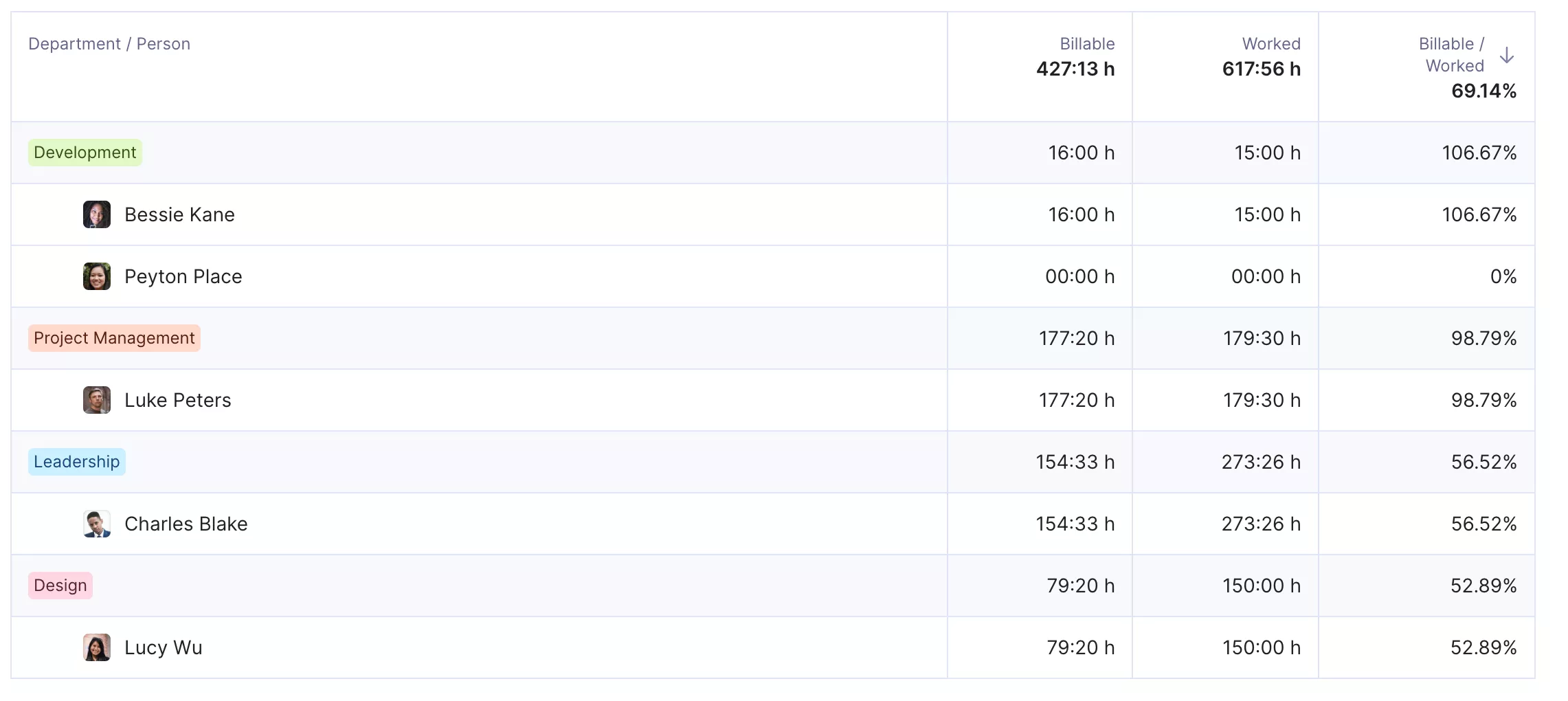
Get real time updates on your team’s utilization.
Forecasting gives your workload planning a way to spot hiring pressure, identify bench time earlier, and see whether under-utilization is just a scheduling issue or a margin issue.
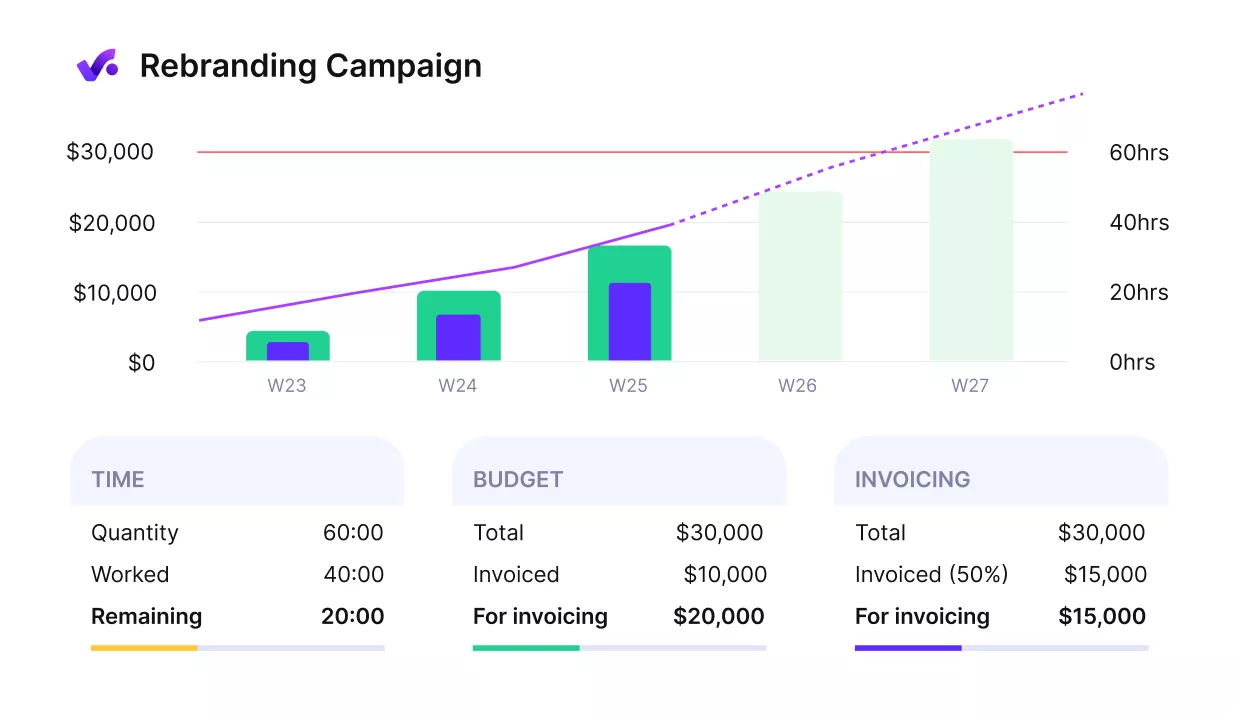
Get early warnings of budget overruns.
Reassign Work Without Losing Sight of the Impact
Someone goes on leave, priorities change, or a more experienced person needs to step in. In many teams, that means updating the task, changing the plan, and rebuilding the numbers separately.
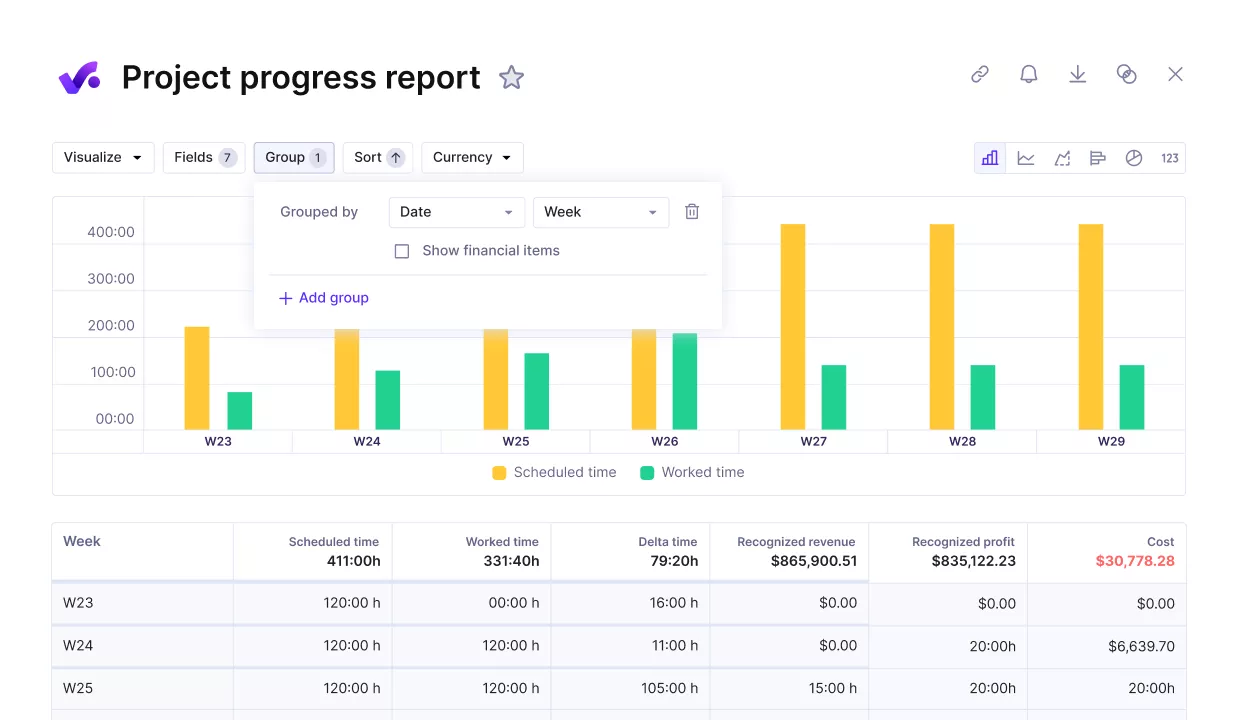
Compare progress against key performance or financial metrics.
In Productive, bookings can be moved in the resource planner, and project profitability updates are based on the person now doing the work.
That gives operations and delivery leads a faster way to rebalance workload while keeping an eye on margin, utilization, and the real cost of the resourcing decision.
Pricing
- Plans start with the Essential plan at $10 per user per month, which includes essential features such as budgeting, project & task management, docs, time tracking, expense management, reporting, and time off management.
- The Professional plan includes custom fields, recurring budgets, advanced reports, billable time approvals, and much more for $25 per user per month.
- The Ultimate plan has everything that the Essential plan and Professional plan offer, along with the HubSpot integration, advanced forecasting, advanced custom fields, overhead calculations, and more. Book a demo or reach out to our team for the monthly price per user.
Productive offers a 14-day free trial, so you can see what it can do for your project’s financial health.
Try a clearer way to manage workloads across your whole team
Productive helps service teams plan workloads, rebalance capacity, and connect those decisions to utilization, budgets, and project progress without relying on separate tools.

2. Runn – Best for Capacity Forecasting and Scenario Planning
Runn is best for services teams that need stronger forward planning and a clearer way to model future demand before it turns into delivery risk.
It is a weaker fit when you want workload management to sit inside a broader delivery system, because it is built around forecasting, resource planning, and future workload capacity rather than full project execution.
Key Features
- Shared planner for live workload, availability, and assignments
- Scenario planning with tentative projects and what-if views
- Capacity and utilization charts across teams and people
- Preset and custom reports for resourcing and performance tracking
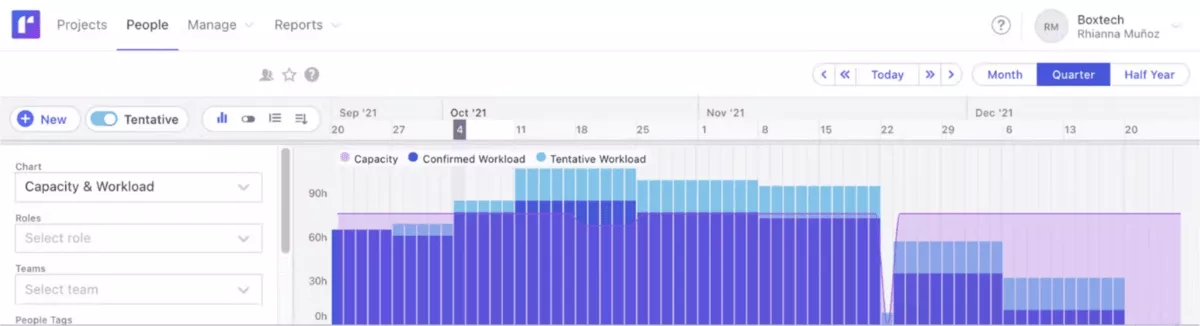
SOurce: runn
Pros
- Easy to navigate and quick to set up
- Strong global view of people, projects, and availability
- Clear at-a-glance visibility into budgets and planned work
- Responsive support and useful API connectivity
Cons
- Excel exports can be difficult to work with
- API call limits can be frustrating for some teams
- Reporting options and report depth can feel limited
- Permission levels and user-role access may need workarounds
Final Verdict
Runn falls short when the real jobs are project management and execution, not forecasting. It shines in scenario planning, but it will feel too detached if you need tasks (or task prioritization), budgets, and day-to-day delivery in the same place.
If capacity is the main issue you are trying to solve, this guide to planning team capacity is a useful companion.
3. Float – Best for Day-to-Day Resource Scheduling and Team Availability
Float works best for teams that want a fast, visual way to handle day-to-day assignments, team availability, and workload balancing across active projects.
It is less convincing when you need workload management to cover deeper project controls too, because its sweet spot is scheduling clarity rather than broader delivery management.
Key Features
- Live schedule for workload, availability, and assignments
- Capacity planning with over-capacity warnings and utilization indicators
- Work allocation by hours or percentage of capacity
- Drag-and-drop scheduling, reassignments, time off, and public holidays
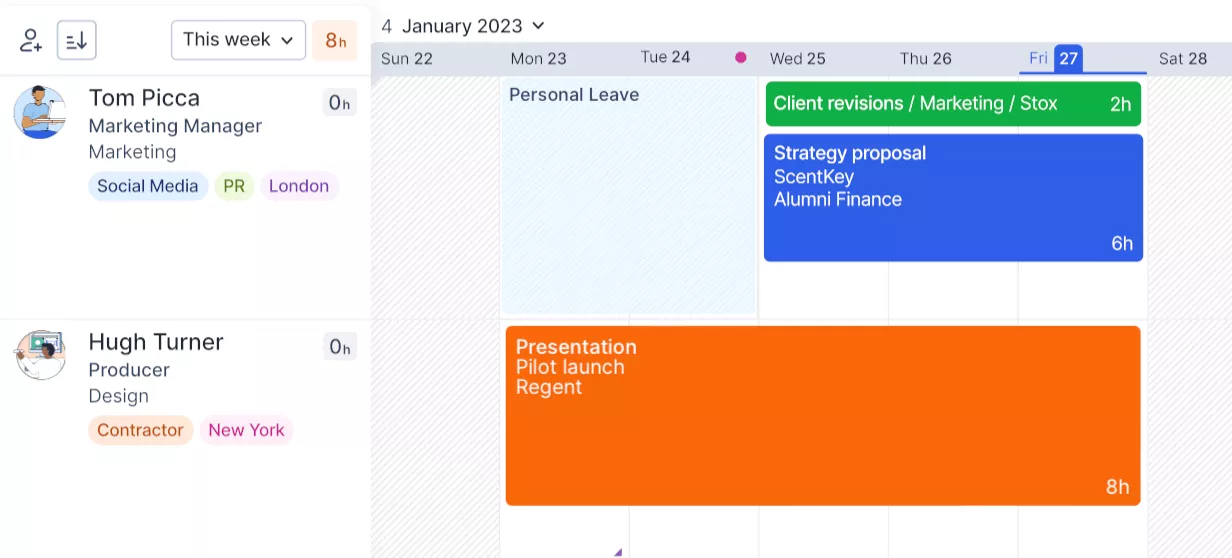
SOurce: float
Pros
- Easy to use and quick to learn
- Clear view of everyone’s schedule and workload
- Fast to adjust bookings, placeholders, and time estimates
- Useful filters and views across people, roles, and projects
Cons
- Calendar-synced meetings cannot be repositioned in the schedule
- The schedule can feel overwhelming for some users
- Advanced reporting and customization can feel limited without exporting data
- Some everyday navigation details still create friction
Final Verdict
Float starts to feel limited when workload decisions depend on deadlines, task prioritization or context, or budget visibility, not just who is free.
It is strong in reshuffling capacity, but lighter on project context and operational depth. If your schedule needs to connect more tightly to delivery decisions, our comparison of tools like Float is a better next step.
4. Resource Guru – Best for Resource Scheduling and Booking Visibility
Resource Guru fits teams that want a simple resourcing and project scheduling layer for booking people, tracking leave, and staying on top of team workload.
It starts to feel thinner when you need deeper resource planning, because its strongest use case is scheduling coordination rather than richer delivery or reporting workflows.
Key Features
- Shared schedule with heatmaps for workload and availability
- Clash management with waiting lists and overtime handling
- Leave tracking that surfaces booking conflicts
- Capacity, utilization, and timesheet reporting
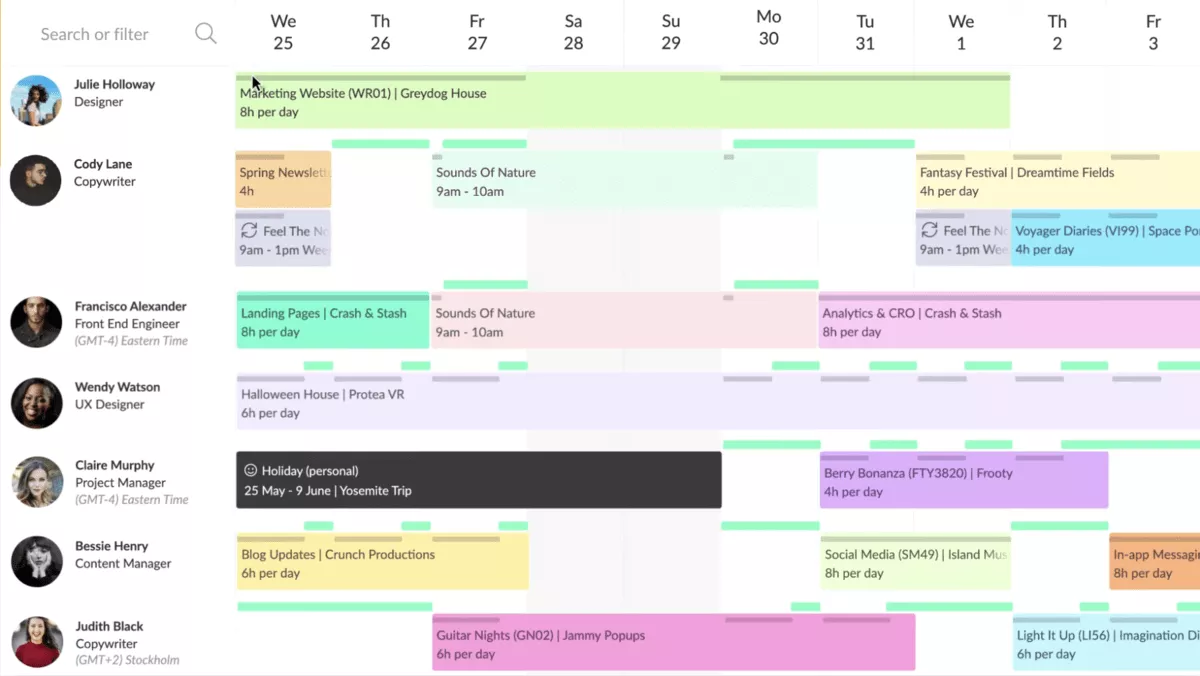
SOurce: resource guru
Pros
- Easy to use and easy to roll out
- Clear schedule views and filters for people, teams, and projects
- Quick updates when schedules change during the day
- Strong visibility into availability, assigned hours, and capacity
Cons
- Excel exports and report filtering can be frustrating
- The mobile experience still feels limited for time logging
- Busy schedules can feel too colorful or visually crowded
- It is easy to move a booking by accident without noticing
Final Verdict
Resource Guru is easy to outgrow if availability is only one part of the decision. Once forecasting, reporting, or project context matter more, the schedule alone is not enough. If that sounds familiar, our breakdown of Resource Guru replacements is worth a look.
5. Teamhood – Best for Visual Workload Planning With a Free Version
Teamhood is best for smaller teams that want a visual workload management tool with better workload visibility, clearer task organization, project management and a free version to get started.
It is a weaker fit for teams that need workload planning to connect tightly to billing, utilization economics, or broader service operations, because its strength is visual planning of project tasks and scheduling control rather than commercial depth.
Key Features
- Workload view for balancing resources across the team
- Gantt charts, a Kanban board, Timeline, and List views for planning work from different angles
- Time off management plus Google and Outlook calendar sync
- Time tracking, hourly rates, effort estimates, and baseline vs actual comparison
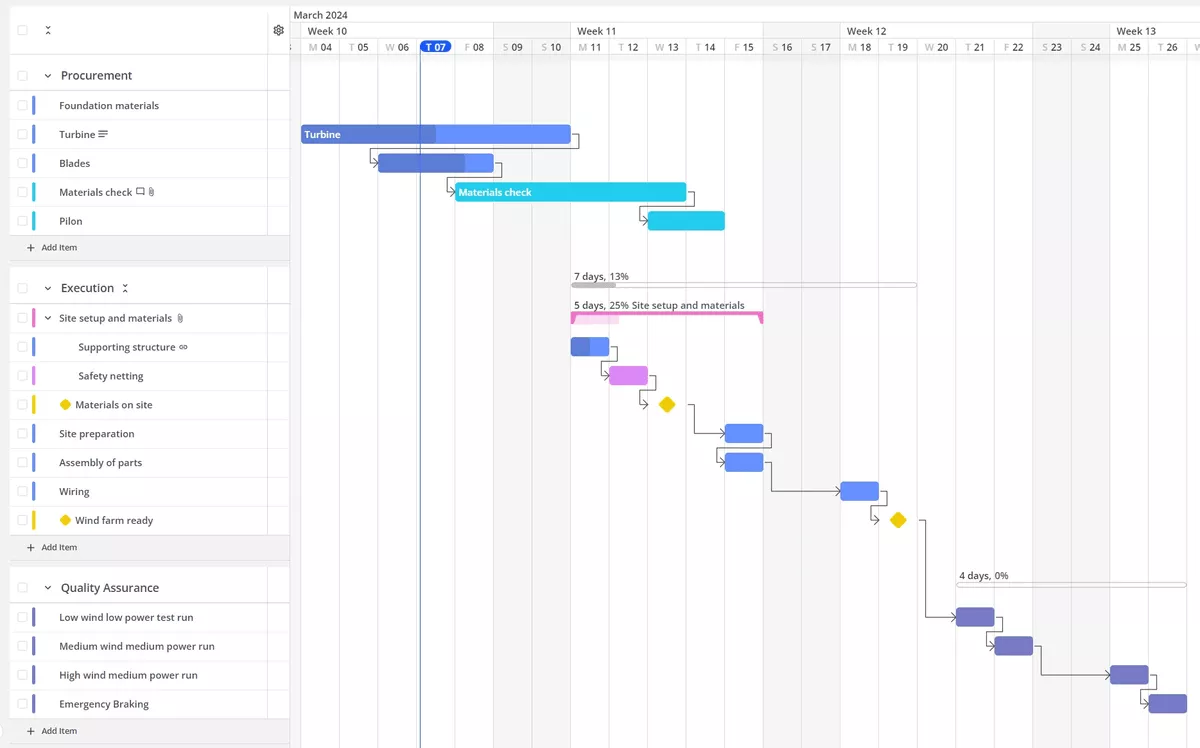
SOurce: teamhood
Pros
- Quick to set up and easy to learn
- Strong visual planning across Gantt charts and a Kanban board
- Better visibility across work
- Responsive customer support during setup and day-to-day use
Cons
- Customization can still feel limited for some teams
- No mobile app is a real drawback for users who need it
- Some teams will find the manual task upkeep too high
- Integration gaps still matter
Final Verdict
Teamhood makes less sense once workload planning decisions depend on billable utilization, budget burn, or service margins. Its edge is visual planning, not commercial control.
If those numbers shape staffing or planning decisions, look at a tool with deeper financial reporting. At the end of the day, it’s a visual project management software with workload features.
What Features Should a Tool for Managing Workloads Have?
The most important features in a tool for managing workloads are team workload management, workload visibility, capacity planning, resource allocation, resource forecasting, availability tracking, workload analysis, workload analytics, dashboard analytics, visual dashboards, progress tracking, and reporting.
Feature 1: Workload visibility
Workload visibility shows who is overloaded, who has room, and where work is unevenly distributed. Without it, managers end up assigning work based on memory, last-minute messages, or a spreadsheet that is already out of date.
This matters because workload issues usually show up before delivery slips, not after. Strong workload visualization helps you catch the problem early, support workload balancing, and avoid the pattern where one person is overloaded while other team members sit underused.
Feature 2: Capacity planning
Capacity planning shows how much work your team can realistically take on based on working hours, existing bookings, and time off. It matters because deadlines are often set before anyone checks whether the people doing the work actually have the time.
This is one of the most important planning features because it helps teams stop overcommitting by default. It also matters when plans depend on effort estimates and dependency management, not just rough guesses about who is free. In practice, it gives you a clearer view of workload capacity before new work is promised.
Feature 3: Resource allocation
Resource allocation helps you assign the right work to the right person based on role, availability, and current load. That matters when different people have different skills, rates, or delivery responsibilities, and moving work around changes more than just the calendar.
A strong allocation view makes reassignments easier and less risky. It also makes task organization easier by helping you match the right people to project tasks and support task prioritization when priorities change. That matters when someone goes on leave or when a project needs a different level of experience without losing sight of what the change means for delivery.
Feature 4: Resource forecasting
Resource forecasting shows what future demand is likely to do to your schedule before the work is fully underway. This matters when pipeline work, tentative projects, or seasonal demand can create overload or bench time months before it shows up in the live plan.
For many teams, this is the difference between proactive planning and constant scrambling. Good forecasting helps you protect workload capacity, improve resource utilization, and make better project planning calls before the gap turns expensive.
Feature 5: Availability tracking
Availability tracking shows who is actually available after time off, holidays, and existing commitments are factored in. That sounds basic, but it is one of the first things to break when teams manage workload across too many disconnected tools.
This feature matters because a person can look free on paper and still be unavailable in practice. When availability is accurate, the schedule becomes easier to trust and less dependent on someone manually fixing conflicts after the fact.
Feature 6: Workload analytics and reporting
Workload analysis, workload analytics, and reporting help you see patterns behind the schedule, not just the schedule itself. They support progress tracking by showing whether overload is isolated or recurring, whether utilization is healthy, and whether planning decisions are improving over time.
These workload views help you see where planning keeps breaking, which roles are stretched too often, and whether the way work is distributed is helping or hurting delivery performance.
How to Choose the Right Tool for Managing Workloads? (Step-By-Step Process)
The best way to evaluate workload tools is to test how each option handles capacity, availability, task management, reporting, and day-to-day resource management inside the same project management workflow your team already runs.
That tells you more than comparing generic project management software checklists or broader project management suites that are not built for workload decisions. If you want a broader framework first, read our guide to managing workloads across growing teams.
Below is a step by step guide:
Step 1: Define the workload problem before you compare tools
Start by naming what keeps breaking today. It might be uneven workloads, bad visibility into who is free, weak project planning, or a gap between resource management and delivery.
If you skip this step, every demo will sound good because each vendor will solve a different problem well.
- Good: You have a short internal list of problems your team can agree on.
- Bad: You use vague goals like “better visibility” without saying whether that means overload, time off conflicts, missed deadlines, or weak forecasting.
Step 2: Check whether you need scheduling or deeper planning
Some tools are mainly built for scheduling. Others go further into forecasting, resource management, workflow management, utilization, portfolio management, Project Portfolio Management, collaboration features, and team collaboration.
That difference matters because a tool that is great at moving bookings around may still fall short once planning decisions depend on budgets, project phases, future pipeline work, or portfolio management across multiple active projects.
- Good: You know whether your team only needs a cleaner schedule or a broader planning layer, or whether you are really evaluating project management and Project Portfolio Management options at the same time.
- Bad: You buy a lightweight scheduler when your real problem is forecasting workload three months ahead.
Step 3: Test how the tool handles overloaded people
Do not stop at the pretty planner view. Take one real week from your current operation and test what happens when one person is overloaded, someone else has spare capacity, and a deadline cannot move.
This is where the software proves whether it can actually help with project planning, task management, resource management, and resourcing decisions, or just show you the problem more clearly.
- Good: You can rebalance work in a few clicks and see the impact immediately.
- Bad: You need to update the plan, the task board, and a spreadsheet separately just to move work from one person to another.
Step 4: Pressure-test availability, leave, and recurring conflicts
Workload plans break fast when availability is not reliable. Check how the tool handles time off, holidays, recurring meetings, part-time schedules, and last-minute leave. If those factors do not affect the live schedule properly, your team will stop trusting the plan.`
- Good: Availability updates automatically, and conflicts are visible before work is assigned.
- Bad: The planner still shows someone as free when they are out, booked elsewhere, or blocked for half the day.
Step 5: Look at reporting before you commit
Reporting is where a lot of tools start to separate. Check whether the software can show the patterns behind the schedule, not just the schedule itself.
You want to know whether reporting, dashboard analytics, and exports can help you track overload, workload trends, resource utilization, capacity gaps, and the quality of your resourcing decisions over time.
- Good: Reporting answers real planning questions without exporting everything first.
- Bad: The tool looks strong in demos, but becomes hard to use once leadership wants clearer workload analysis or proof that planning decisions are improving.
Step 6: Measure admin effort, not just features
The best workload management software is not the one with the most features. It is the one your team will actually keep updated.
Watch how much manual input is needed to maintain schedules, move work, update tasks, and keep project planning accurate once the first week of setup is over.
- Good: Managers can keep the plan useful without building a second system around it.
- Bad: The tool already feels heavy in the trial, because that overhead usually gets worse after rollout.
How to Roll Out Workload Management Software?
You should roll out workload management software by teaching one small pilot team to work through the workloads during a single planning cycle. This means:
- Cleaning the inputs before any moving
- Defining minimal rules for how to use the plan
- Training managers first, then the users
- Reviewing the first cycle before you expand the rollout to the rest of the team
The goal is not to rebuild your whole operation in a week. It is to get one team using the tool consistently enough that the schedule starts reflecting real work instead of becoming another system that team members ignore.
Step 1: Start with one pilot team and one planning cycle
Pick one team with a visible workload problem and run the rollout through one weekly or biweekly planning cycle first. This gives you a controlled way to test how the software handles availability, task assignment, project scheduling, and day-to-day updates before more team members depend on it.
Do not start with the whole company unless your current planning process is already unusually consistent. A smaller pilot makes it easier to spot friction, fix bad assumptions, and avoid a messy rollout that creates duplicate planning work.
Step 2: Clean up the inputs before you move anything
Most rollout problems come from bad inputs, not bad software. Before migration, decide which projects are active, which team members need to be in the system, what availability rules apply, and whether time tracking is part of the rollout from day one.
This step matters because workload data breaks fast when old projects, wrong working hours, or missing leave rules get carried into the new setup. If the starting data is messy, the team will lose confidence in the plan almost immediately.
Step 3: Define the minimum rules that keep the plan usable
Set a few simple rules before launch. Decide who updates bookings, how often schedules are reviewed, when project scheduling changes must be reflected in the tool, and what managers are expected to keep current.
Keep these rules short enough that people will follow them. Good rollout rules reduce admin overhead. Bad ones create a second planning process that lives beside the software instead of inside it.
Step 4: Train managers first, then the people affected by the plan
Managers and team leads need to know how to update schedules, move work, review capacity, and catch conflicts before the wider team comes in. Once that part is stable, train the team members whose time, availability, and workload will be affected by the system. The goal is to make sure team members understand how the plan affects their day, not just how managers use it.
This order matters because the rollout succeeds or fails with the people maintaining the plan. If managers are unsure how to keep the schedule current, the rest of the team will stop treating it as reliable.
In case you need a broader view on the basics, head over to our guide to planning future workforce needs.
Step 5: Review the first cycle before you expand the rollout
After the first planning cycle, review what drifted. Look at where bookings were missed, where time tracking broke, where the schedule stopped matching reality, and where managers had to work around the system.
That review should tell you whether the rollout is ready to expand or whether the process still needs tightening. If the first cycle already feels heavy, scaling it to more people will not fix that problem.
Rollout and Implementation Checklist
- Choose one pilot team with a clear workload management problem
- Decide whether time tracking is part of phase one
- Remove inactive projects and outdated bookings before migration
- Confirm working hours, leave rules, and availability settings for all pilot users
- Define who owns bookings, updates, and weekly schedule reviews
- Test one real week of task assignment and project scheduling before going live
- Train managers, team leads, and team members before rolling the tool out more widely
- Review the first planning cycle and fix process gaps before expansion
Final Thoughts – What Tool Should You Pick?
If workload management is only about seeing who is free, a lighter scheduling tool can do the job. But if staffing decisions depend on delivery, budgets, utilization, team collaboration, and broader resource management, an all-in-one system usually makes more sense.
If that is the kind of setup you need, book a demo and see how Productive handles workload management in practice.
Connect With Agency Peers
Access agency-related Slack channels, exchange business insights, and join in on members-only live sessions.
