Best Project Management Software 2026 – Top 10 (Paid & Free)

If you’re looking for the best project management software, you’re in the right place.
This guide reviews the top 10 picks, with key features, user-based pros and cons, best-fit use cases, and a comparison table to help you narrow the list quickly.
We also cover five bonus software picks, explain which platform type fits which team type, and break down the key features that actually matter. By the end, you’ll also get a step-by-step selection process and a rollout checklist you can reuse when choosing and implementing a new tool.
What’s the Best Project Management Software in 2026?
The best project management software in 2026 is Productive, Asana, ClickUp, monday.com, Jira, Trello, Smartsheet, Wrike, Notion, and Microsoft Project.
There is no single best option for every team. Different teams and roles need different levels of structure, visibility, collaboration, and financial control.
Shortlist of the Best Project Management Tools
| Tool | Best for | Skip if | Project type | Budget tracking | Staffing or capacity planning | Logged hours | Client access | Reporting depth | Free version |
|---|---|---|---|---|---|---|---|---|---|
| Productive | Agencies and professional services teams that need delivery, budgets, staffing, logged hours, billing, and reporting in one place | You only need a free personal task board | Client-service delivery | Yes | Yes | Yes | Yes | Advanced | No, free trial |
| Asana | Teams that need clear task ownership, shared work views, and cross-functional visibility | You need native billing or service-business financial control | Cross-functional work management | Add-on or limited by plan | Limited or plan-dependent | Via integrations or add-on | Guests | Strong on higher plans | Yes |
| Clickup | Teams that want highly configurable tasks, docs, goals, automations, and dashboards | Your team struggles with complex setup or too many configuration options | Flexible work management | Limited or setup-dependent | Available on paid plans | Yes | Guests | Strong but configuration-heavy | Yes |
| monday.com | Teams that want visual boards, workflow automations, and flexible planning | You need deep financial control or advanced service delivery workflows | Visual work management | Limited or setup-dependent | Limited or plan-dependent | Plan-dependent | Guests | Good dashboards | Yes |
| Jira | Software teams managing sprints, issues, releases, bugs, and technical dependencies | Non-technical teams need a lighter, less developer-oriented workflow | Agile software development | Limited for service budgets | Advanced planning on higher plans | Via apps or plan setup | Limited external collaboration | Strong for agile reports | Yes |
| Trello | Small teams that want a simple Kanban board and fast adoption | You need budgets, advanced reports, staffing, or complex dependencies | Lightweight Kanban | No | No | Via Power-Ups | Board sharing | Basic | Yes |
| Smartsheet | Teams that prefer spreadsheet-style planning, dashboards, and portfolio visibility | Your team wants a simple task board or a less spreadsheet-like interface | Spreadsheet-style planning and portfolio control | Available depending on setup | Available on higher plans | Limited or integration-based | Sharing and permissions | Strong | No, free trial |
| Wrike | Larger teams that need structured workflows, dashboards, approvals, and cross-functional coordination | You want a simple tool with minimal setup | Enterprise work management | Available depending on plan | Available depending on plan | Available depending on plan | External users and collaborators | Strong | Yes |
| Notion | Teams that manage work around docs, wikis, notes, databases, and lightweight tasks | You need advanced scheduling, staffing, or financial project controls | Documentation-led work | No | No | No native project timesheets | Guests | Basic to moderate | Yes |
| Microsoft Project | Teams that need traditional schedules, dependencies, baselines, and Microsoft ecosystem fit | You need easy adoption for non-PM teams or client-facing collaboration | Traditional project scheduling | Available on higher Project plans | Available on higher Project plans | No native service-style timesheets | Limited | Strong for structured planning | Included in Microsoft 365 for Planner, paid for advanced Project plans |
How We Chose These Tools for Managing Projects?
We chose these platforms by matching them to real buyer scenarios, not by building the longest possible list.
The final selection covers the main categories readers compare: task tools, flexible work platforms, agile systems, spreadsheet-style planning, documentation-led workspaces, service-business platforms, and traditional scheduling software.
1. Productive: Best All-in-One Project Management Software for Agencies and Professional Services Teams
Productive is the strongest pick in this list for agencies and professional services teams that need project management to stay connected with budgets, logged hours, staffing, and dashboards.
Its value shows up when client work has to stay tied to delivery and business performance.
Manage projects with Productive
Keep Project Work Connected to Budgets, Time, and Reporting
A lot of tools stop at tasks. That works until a project manager also needs to know how many hours were logged, whether the estimate still holds, what is billable, and how the work is affecting profitability.
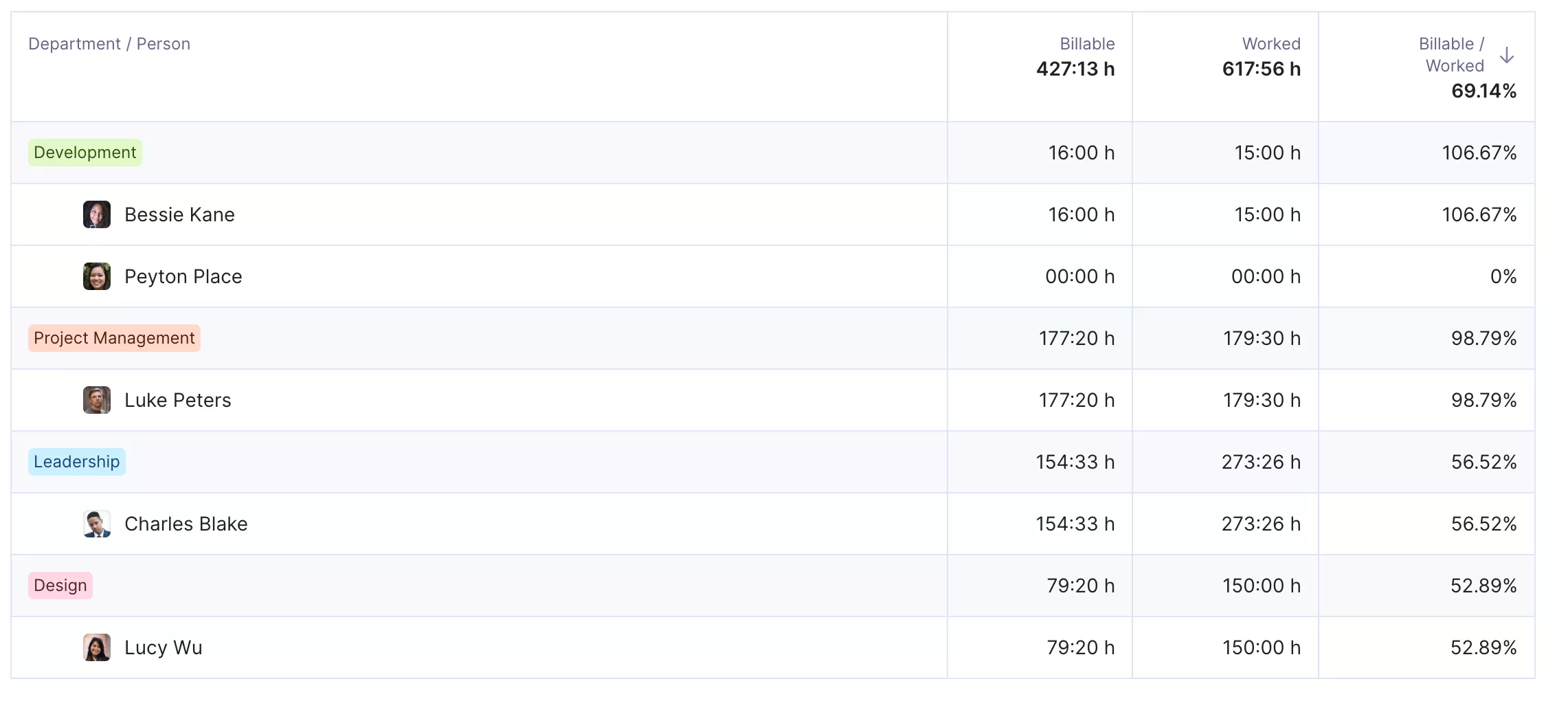
Get real-time updates on your staff utilization, billable, and non-billable time.
Productive keeps those layers in the same system. Teams can manage tasks, milestones, dependencies, docs, timesheets, budgets, expenses, and reports without rebuilding the same story in separate spreadsheets.
For agencies, consultancies, and professional service providers, this matters because status is rarely just “done” or “not done.” It is also whether the work is still within scope, within budget, and moving toward a clean handoff or invoice.
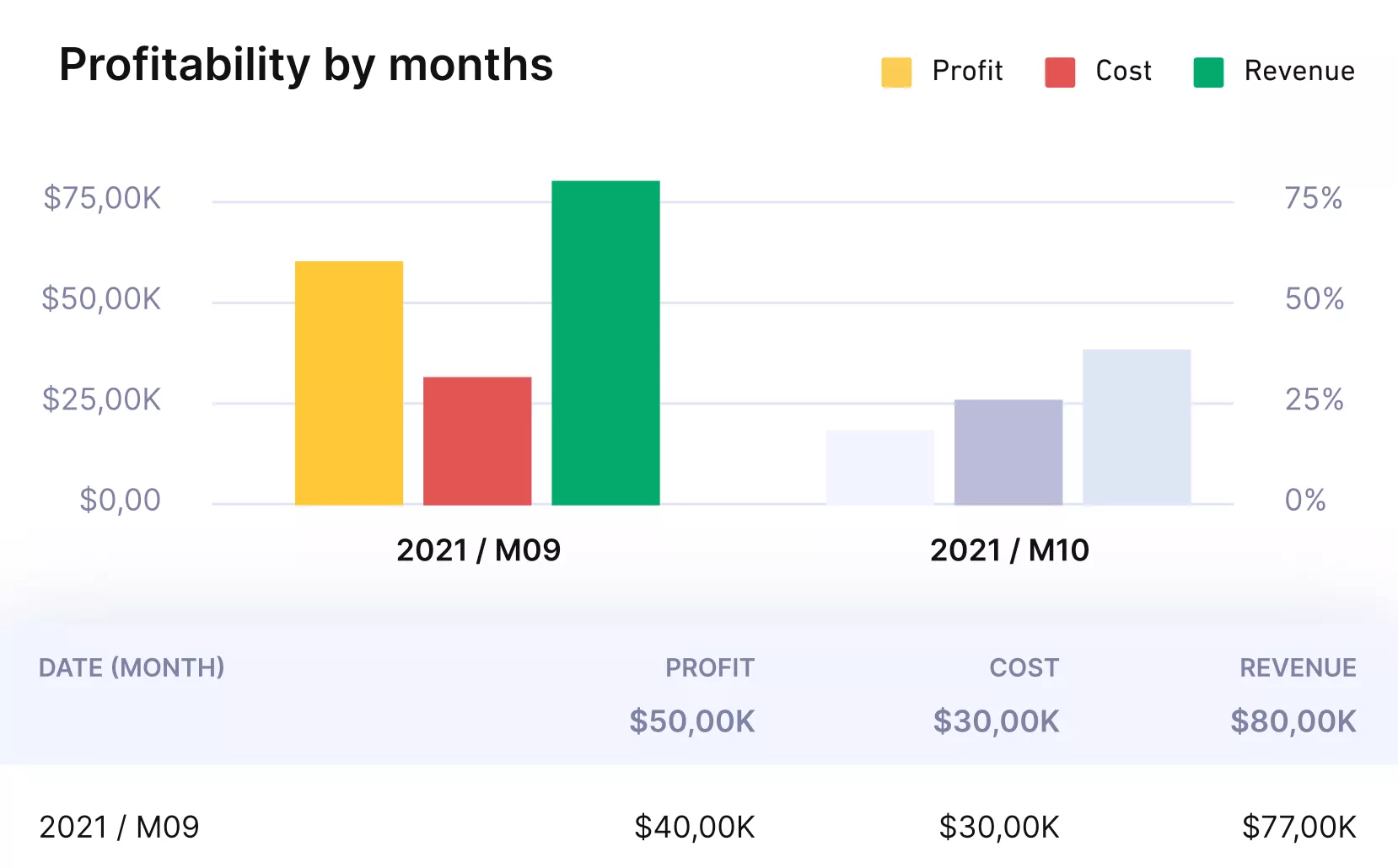
Get instant updates on client or project profitability, costs and margins.
Give Managers Better Visibility Before Projects Slip
The warning signs usually appear before the deadline is missed. The problem is that they are often spread across timesheets, task boards, Slack messages, and finance reports. By the time someone has pulled the data together, the project may already be over budget or behind schedule.

It was unexpected that we managed to find a tool that allowed us to not only manage projects and tasks better but also allocate our resources and get an overview of our profitability.
Productive helps teams manage bookings, availability, absences, and services across projects. That gives agencies and teams a clearer way to plan client work before it turns into a last-minute reshuffle.
It also keeps capacity planning closer to the work itself, instead of leaving it in a disconnected staffing spreadsheet.
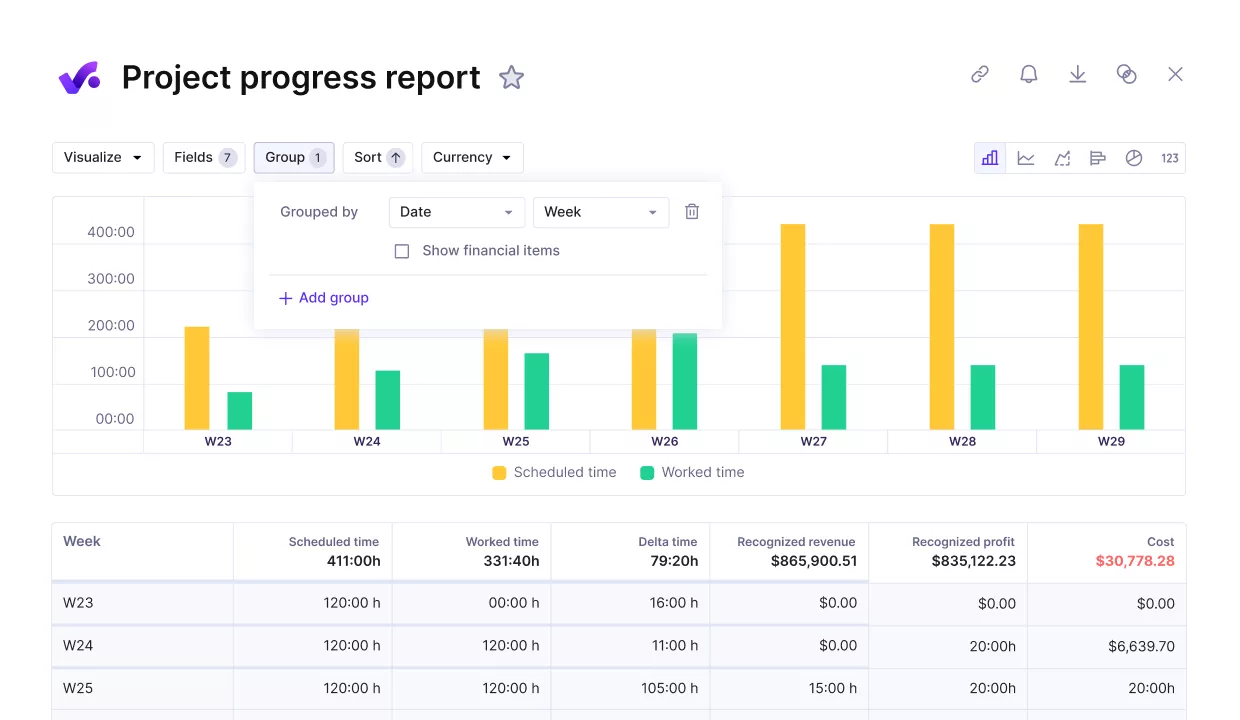
Measure project progress against key performance and financial metrics.
How Productive AI Fits Into Project Management Software?
Productive also adds AI features through Productive AI, which is built into Productive.io for agency and PSA work.
Instead of treating AI as a separate layer, Productive uses it to support project management workflows such as generating reports, summarizing tasks, helping with expenses, managing time entries, and turning plain-language requests into useful actions.
Some newer Productive 5.0 capabilities are still rolling out, but the direction is clear: AI should reduce admin work around projects, not replace the project manager’s judgment.
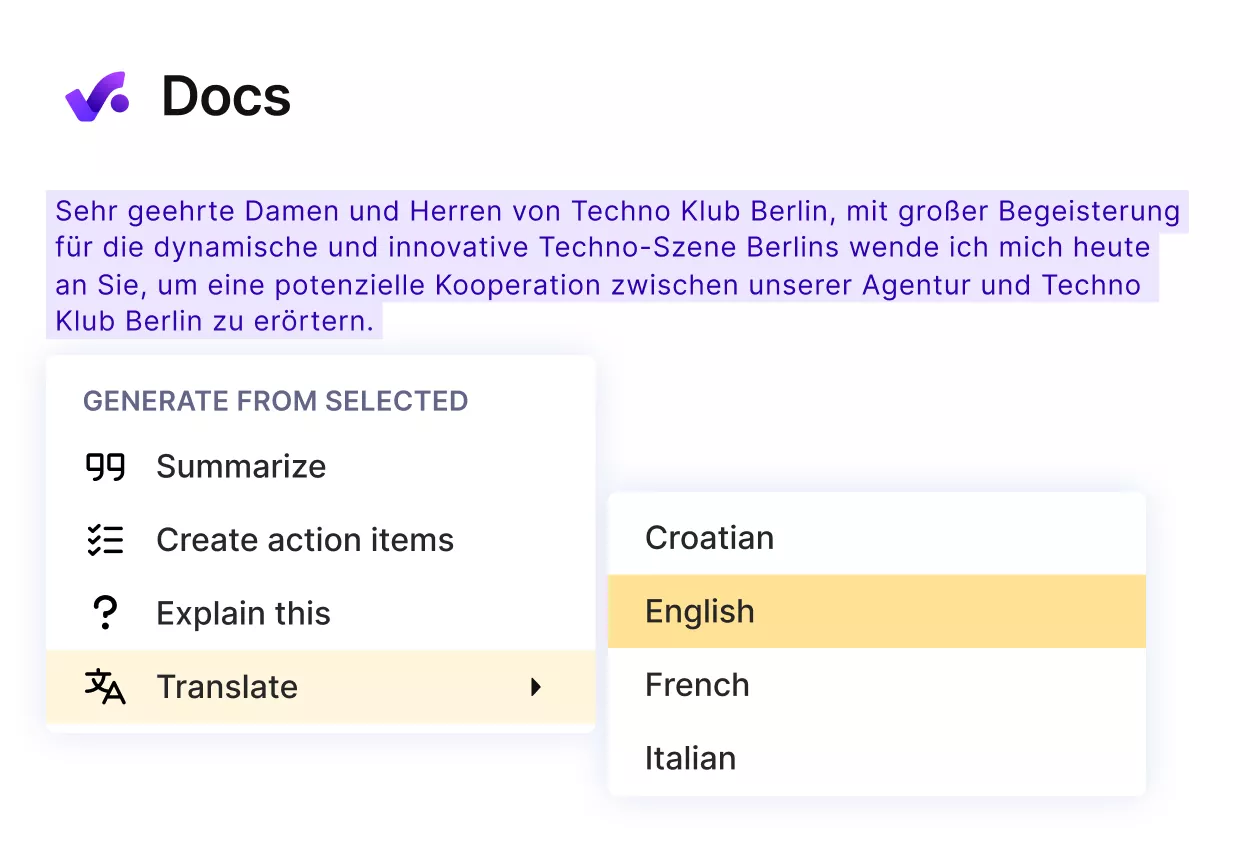
Generate reports, summarize tasks, or fetch key data with AI.
Plan Client Capacity Without Turning Staffing Into a Spreadsheet
Staffing becomes harder when the person assigning work has to remember who is booked, who is available, who is on leave, and which services belong to which budget. That may work in a small team, but it becomes fragile once several client projects overlap.
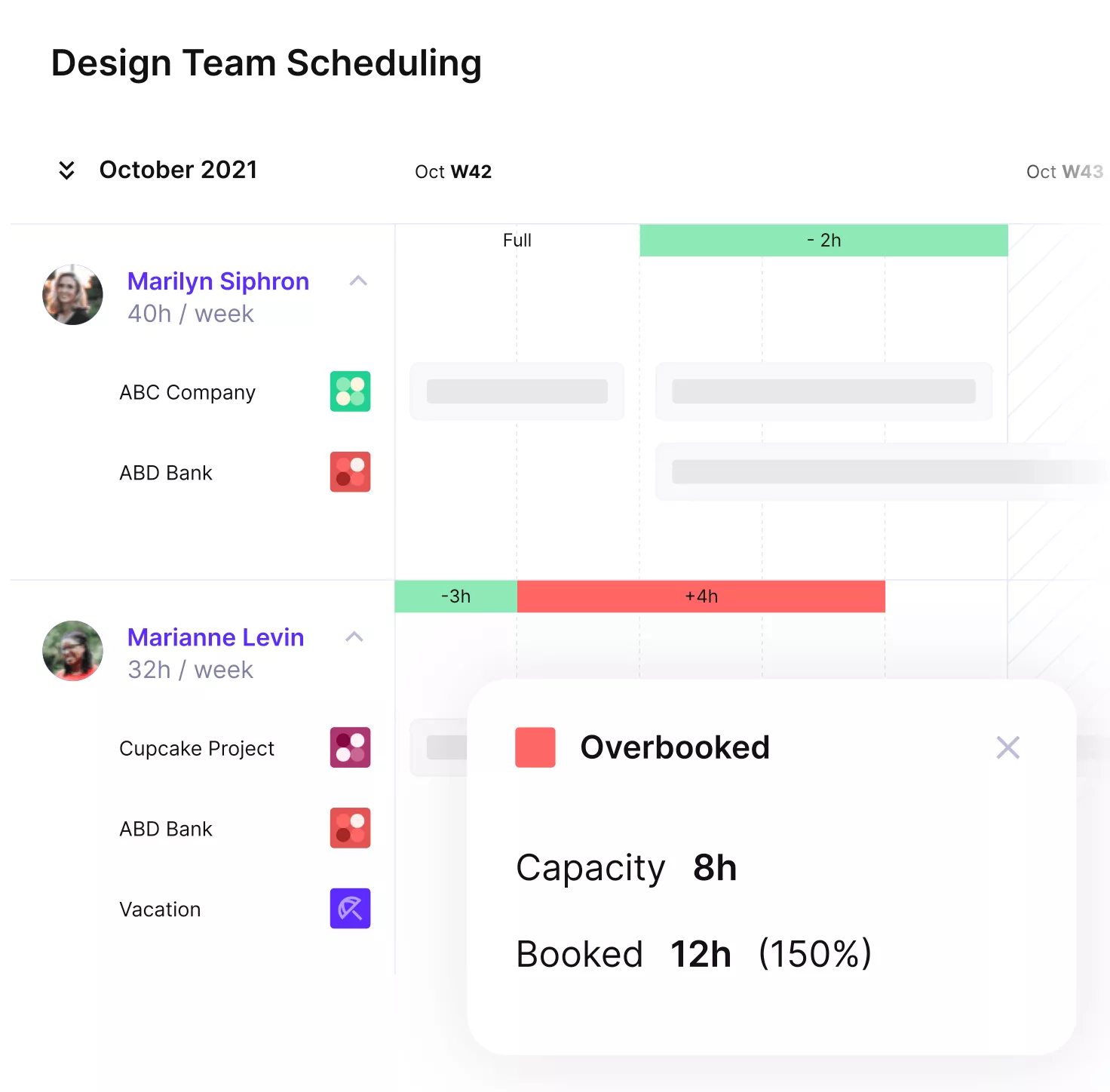
Prevent overbooking or idle hours with Productive.
Productive’s resource planning helps teams manage bookings, availability, absences, and services across projects. That gives agencies a clearer way to plan client work before it turns into a last-minute reshuffle. It also keeps capacity planning closer to the project itself, instead of leaving it in a disconnected staffing spreadsheet.
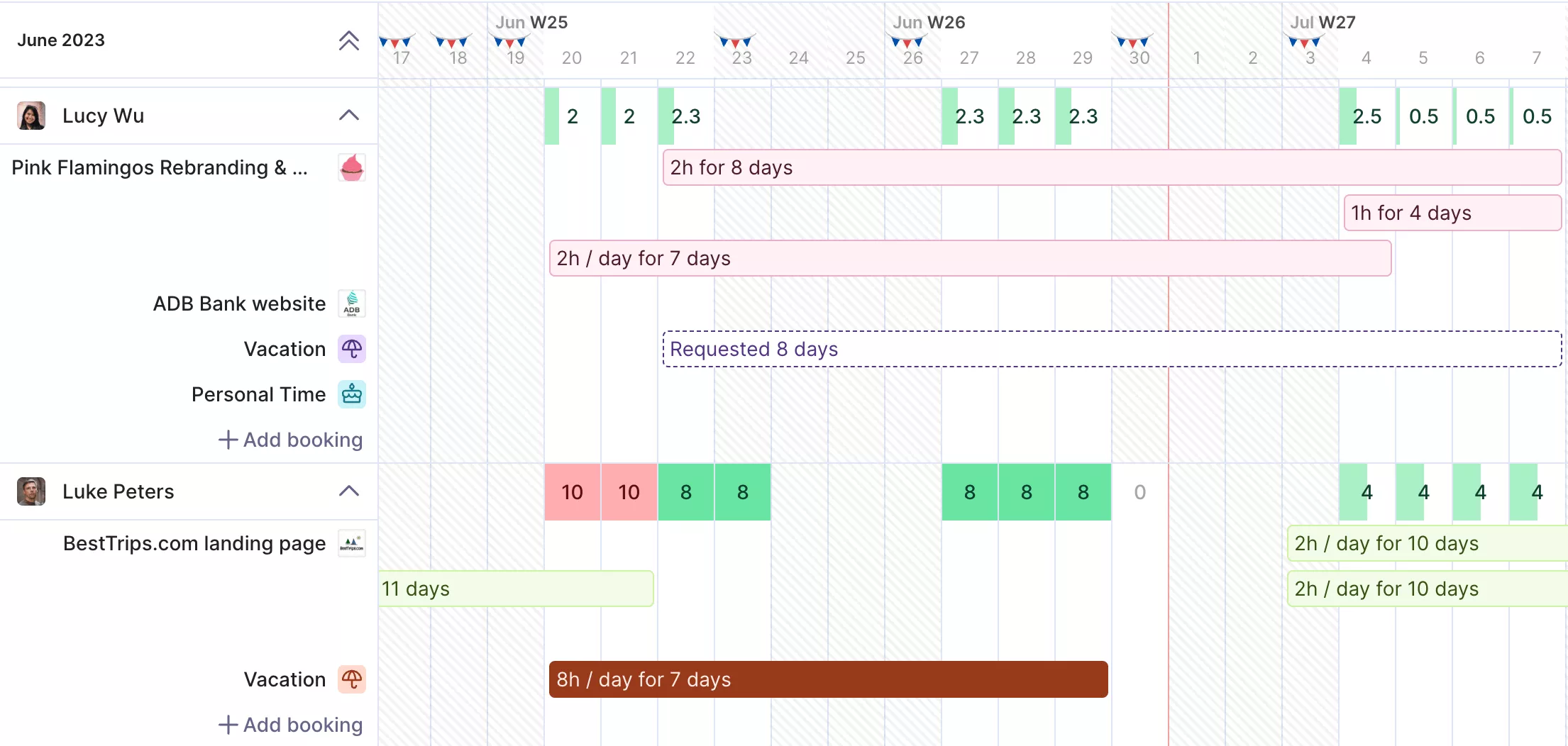
Manage all resources from a single place.
Productive still has setup depth. Teams that only need a free task board will probably prefer a lighter option. But if project management needs to connect budgets, logged hours, staffing, dashboards, and AI features in one system, Productive is the most complete all-in-one option in this roundup.
Pricing
- Plans start with the Essential plan at $10 per user per month, which includes essential features such as budgeting, project & task management, docs, time tracking, expense management, reporting, and time off management.
- The Professional plan includes custom fields, recurring budgets, advanced reports, billable time approvals, and much more for $25 per user per month.
- The Ultimate plan has everything that the Essential plan and Professional plan offer, along with the HubSpot integration, advanced forecasting, advanced custom fields, overhead calculations, and more. Book a demo or reach out to our team for the monthly price per user.
You can also try out Productive with a 14-day free trial.
Turn Your Project Tool Into a Real Operating System for Client Work
Productive can show you a cleaner way to run delivery. Book a demo and see how it brings projects, people, time, money, and reporting together.

2. Asana – Best for Cross-Functional Task and Project Visibility
Asana is a work management platform for teams that need clear task ownership, shared project views, and fewer status-checking messages. It fits cross-functional teams that care more about task coordination, deadlines, approvals, and visibility than native billing or project profitability.
Key Features
- Task management with owners, due dates, subtasks, comments, and dependencies
- List, board, calendar, timeline, and Gantt-style layouts
- Task statuses, status updates, inbox notifications, and project dashboards
- Workflow automation, integrations, goals, portfolios, and resource management features are available on higher plans
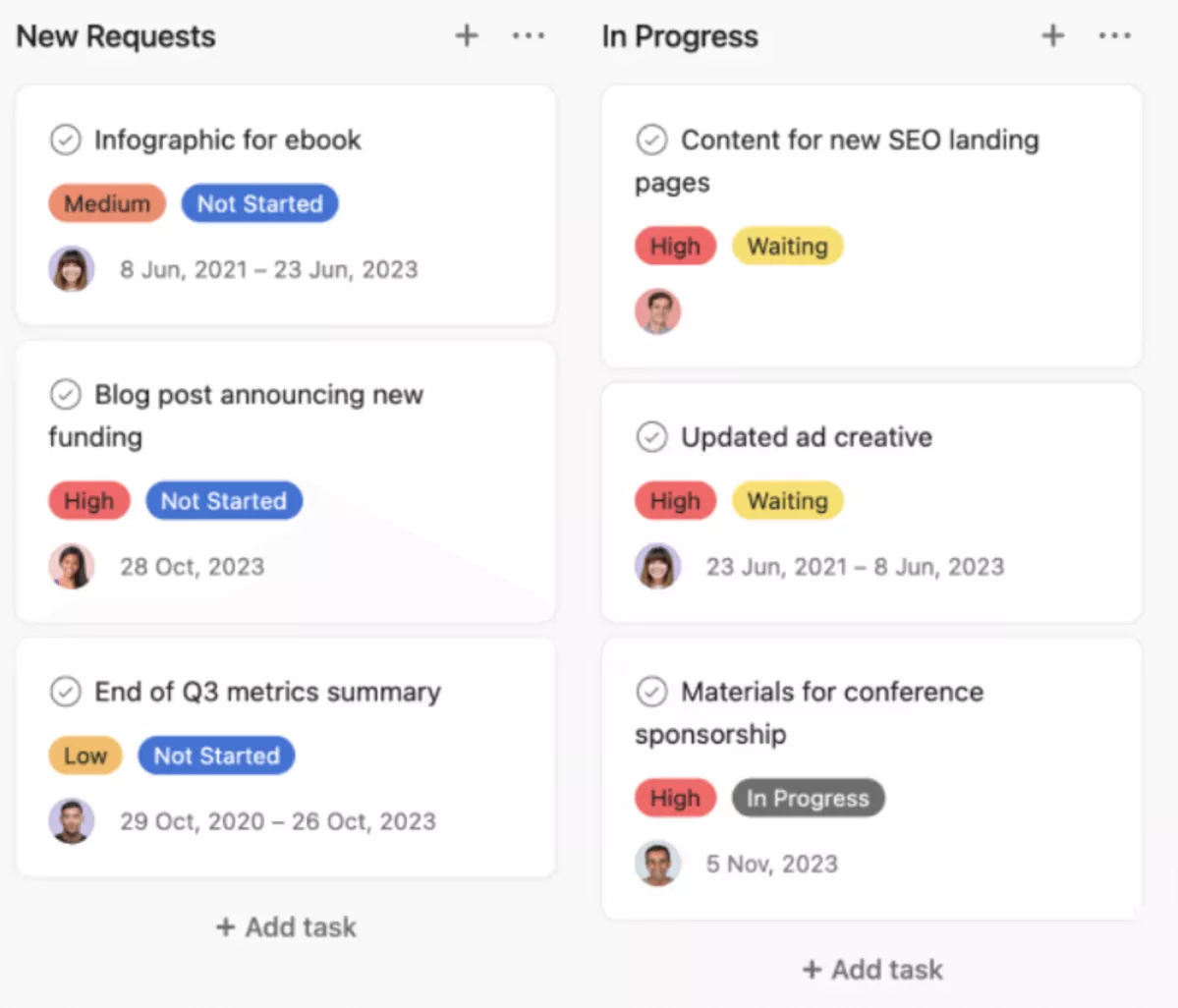
SOurce: asana
Pros
- Clear ownership and deadline tracking: Asana is strong when teams need a shared place to see who owns each task, what is due, and what is coming next.
- Flexible project views: Teams can switch between lists, boards, calendars, timelines, and Gantt-style views depending on how they plan work.
- Good cross-team visibility: Asana helps reduce scattered follow-ups by keeping tasks, deadlines, files, and updates in one place.
- Approachable setup for task-based teams: Several users point to straightforward setup, clear layouts, and online guidance as reasons Asana is easy to adopt.
Cons
- Large projects can become noisy: Asana can feel overwhelming when projects have many tasks, updates, notifications, and contributors.
- Advanced features may sit behind higher plans: Reporting, automation, dashboards, and some workflow controls can be limiting for smaller teams that stay on lower tiers.
- Task movement can become fiddly: Moving tasks or subtasks across boards is not always as quick as users expect, especially in more detailed workflows.
- It is not built for project financial control: Asana can organize work well, but teams that need budgets, billing, margins, or client-service reporting will usually need another system alongside it.
Final Verdict
Asana is a strong fit when the problem is task visibility across departments. Look elsewhere if the work needs to connect with budgets, billable hours, staffing, invoices, or project profitability. In that case, Asana may help organize tasks, but it will not run delivery.
3. ClickUp – Best for Customizable Task and Work Management
ClickUp gives teams a highly configurable way to manage tasks, docs, goals, dashboards, automations, and project updates in one place. It works best for teams that want to design their own work system, but it needs clear ownership or the setup can become noisy fast.
Key Features
- List, board, calendar, Gantt, and dashboard layouts
- Tasks, Docs, Chat, Whiteboards, and connected search for keeping project context together
- Fields, templates, workflow automation, and AI-assisted task creation or updates
- Goals, dashboards, logged hours, and integrations with tools such as Google Drive and Figma
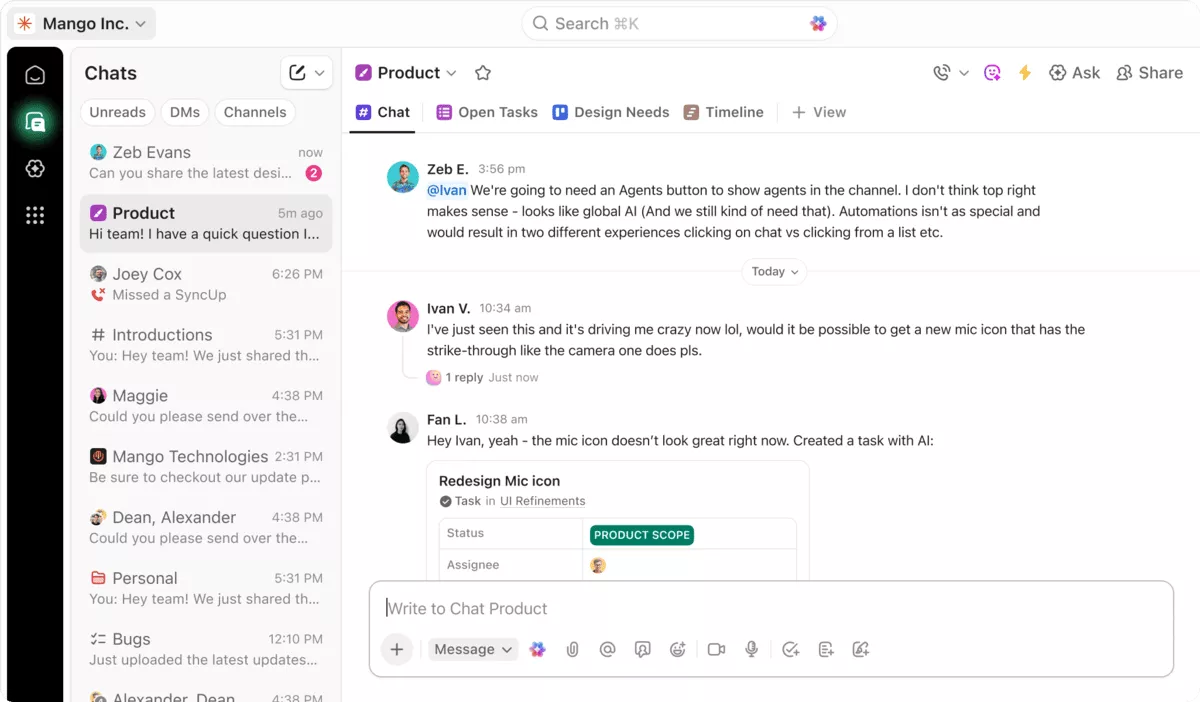
SOurce: clickup
Pros
- List, board, calendar, Gantt, and dashboard layouts
- Tasks, Docs, Chat, Whiteboards, and connected search for keeping project context together
- Fields, templates, workflow automation, and AI-assisted task creation or updates
- Goals, dashboards, logged hours, and integrations with tools such as Google Drive and Figma
Cons
- The learning curve is real: ClickUp’s flexibility can become a burden when teams have to decide how spaces, lists, fields, statuses, dashboards, and notifications should work.
- Workspaces can become messy without governance: If teams do not agree on naming, structure, and process ownership, ClickUp can turn into a cluttered system instead of a clearer one.
- Notifications can get distracting: Users report that task and chat notifications can pile up quickly, especially when they are added to work they no longer need to follow.
- Performance can slow teams down: Some users report long loading times when moving between lists, searching, or linking tasks, which matters if the workspace becomes large.
Final Verdict
ClickUp works when your team wants a highly configurable work system, and someone can own the setup. It becomes harder to justify if you are already leaving a tool because it became too complex.
It also gets weaker when project managers need one trusted place for delivery data, project financials, and staffing decisions.
4. monday.com: Best for Visual Workflows and Automations
monday.com is a visual work management platform for teams that want boards, dashboards, automations, and project views that are easy to shape around different workflows. It fits teams that need shared project visibility across departments, but not necessarily the financial depth of a PSA-style platform.
Key Features
- Boards, items, project approval workflows, and high-level project overview boards
- Gantt charts, project dashboards, workload views, milestones, dependencies, and baselines
- Custom automations, templates, forms, integrations, and monday AI support
- Free plan for small teams, with limits on users, boards, items, automations, integrations, and some columns
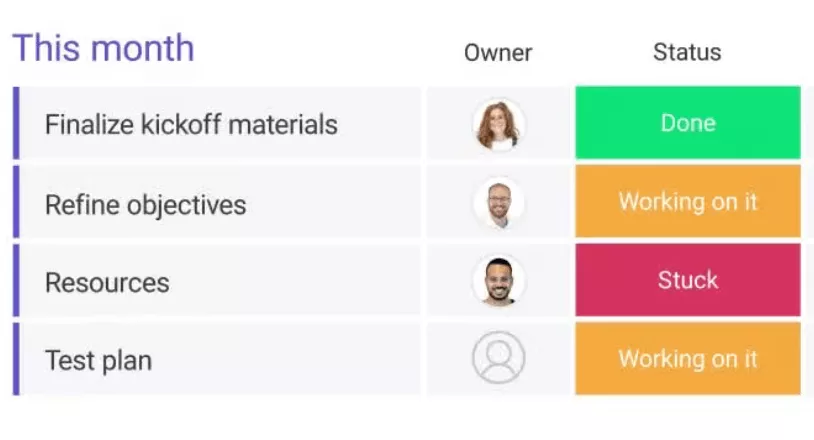
SOurce: monday.com
Pros
- Strong visual project tracking: monday.com makes it easy to see tasks, deadlines, progress, and project status without waiting for manual updates.
- Flexible board setup: Teams can build boards for simple task lists or more detailed operational workflows without needing IT to configure everything.
- Useful dashboards for stakeholders: Custom dashboards help different teams or managers track KPIs, timelines, ownership, and project progress from the same workspace.
- Good fit for cross-team coordination: monday.com can centralize parallel workstreams so teams do not have to chase updates across spreadsheets, email threads, and status meetings.
Cons
- Workflows can become complex as teams scale: More boards, automations, integrations, and custom structures can make the platform harder to govern.
- Some advanced features sit behind higher plans: Users call out pricing friction when features they expect are limited to higher tiers.
- Performance and technical support can become concerns: Some users report performance issues and frustration when support routes them toward higher plans.
- It is not a deep financial project system: monday.com can help track projects visually, but agencies that need budgets, billable time, resource planning, invoicing, and profitability in one workflow will likely need more than monday.com alone.
Final Verdict
monday.com makes sense when the main gap is visual workflow visibility. It is less convincing when the real issue is project control: estimates, billable work, capacity, invoices, and margin. If those details live outside monday.com, teams may still need another system to understand delivery performance.
5. Jira – Best for Agile Software Development Teams
It is especially relevant for scrum teams that need an issue tracker, sprint planning, release visibility, and technical handoffs in one workflow.
Key Features
- Scrum and Kanban boards for agile software teams
- Backlogs, sprint planning, story points, work types, and workflows
- Issue tracker features, issue management, roadmaps, integrations, and add-ons
- Agile reports and dashboards, including sprint, burndown chart, velocity, and cumulative flow reports
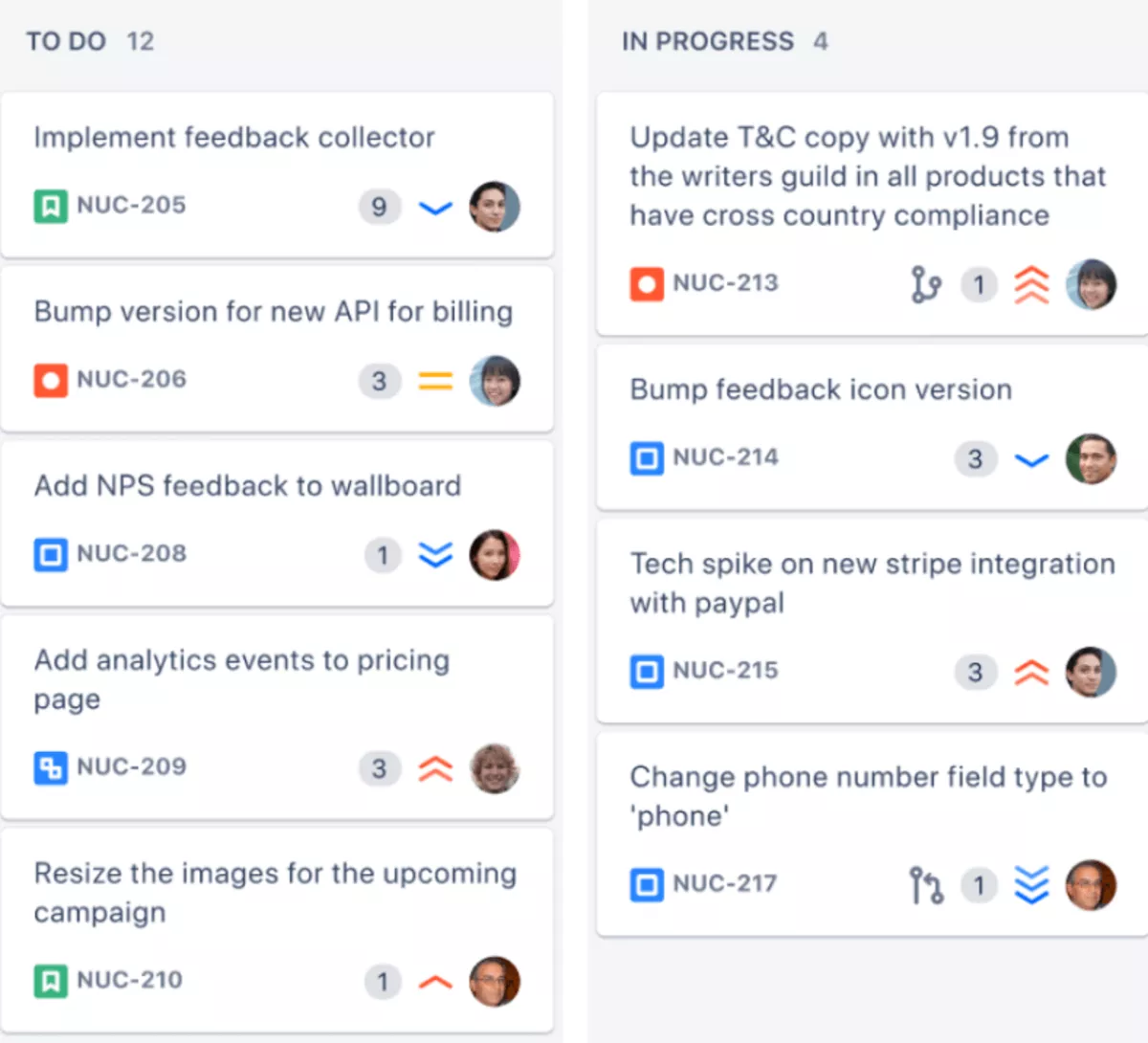
SOurce: jira
Pros
- Strong fit for sprint-based teams: Jira gives software teams a structured way to manage sprint tasks, bugs, feature work, and release progress.
- Useful backlog and issue tracking: Teams can organize user stories, bugs, priorities, and dependencies in one system instead of splitting technical work across spreadsheets or chat.
- Custom workflows support technical handoffs: Jira works well when teams need stages for development, QA, code review, deployment, or client-specific delivery processes.
- Good agile reporting depth: Built-in agile reports help teams monitor sprint progress, scope creep, velocity, cycle time, and delivery bottlenecks.
Cons
- It can feel heavy for new users: Jira has enough boards, filters, workflows, permissions, and issue types that setup and onboarding can take real effort.
- Non-technical teams may find it too developer-oriented: Jira’s strongest workflows are built around issues, sprints, bugs, releases, and backlogs, which can feel unnatural for creative or client-service teams.
- Large projects can require admin discipline: Custom workflows, fields, permissions, and marketplace apps can become messy without someone responsible for governance.
- Add-ons can increase the real cost of ownership: Teams that need advanced reporting, time tracking, or extra planning layers may need marketplace apps or higher-tier Atlassian products.
Final Verdict
Jira belongs on the shortlist for software and product teams that plan work through sprints, bugs, issues, releases, and backlogs. It is the wrong tool for teams that mainly need simple task tracking, creative approvals, client updates, or budget visibility.
6. Trello – Best for Simple Kanban Project Tracking
Trello is a visual project management tool built around boards, lists, and cards. It is best for small teams that want quick task visibility and simple Kanban workflows without a heavy setup process.
Key Features
- Boards, lists, and cards for visual task management
- Due dates, labels, checklists, comments, attachments, and reminders
- Power-Ups for connecting tools such as Slack, Google Drive, Jira, and more
- Templates, automations, mobile app support, and paid-plan layouts such as dashboard, calendar, timeline, and map
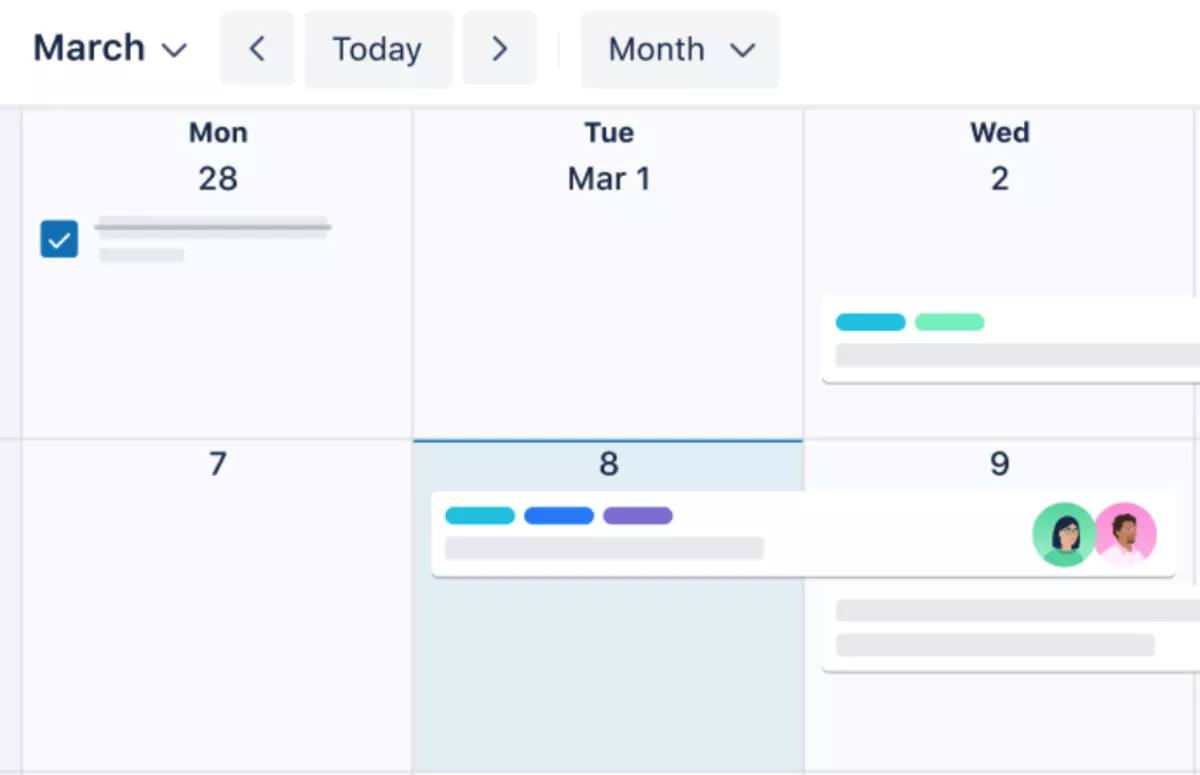
SOurce: trello
Pros
- Fast setup for simple workflows: Trello is easy to understand because most teams can start with a board, a few lists, and cards that move through stages.
- Clear visual task tracking: Cards make ownership, status, due dates, and priorities easy to scan without opening a complex project plan.
- Helpful for lightweight collaboration: Teams can keep comments, files, checklists, and updates attached to the task instead of spreading context across emails.
- Useful free plan for small teams: Trello’s free plan can cover basic boards, cards, collaborators, templates, and integrations for teams that do not need advanced controls.
Cons
- It breaks down on complex projects: Trello becomes harder to manage when projects need dependencies, workload balancing, advanced reporting, or timeline planning.
- Boards can get crowded: As cards and lists multiply, teams need strict naming, archiving, and board hygiene to keep work readable.
- Advanced views and automation have limits: Teams that need dashboard views, timeline planning, or heavier automation may need paid plans or Power-Ups.
- It does not cover project financials: Trello is useful for task tracking, but it is not designed for budgets, time tracking, resource planning, billing, or profitability reporting.
Final Verdict
Trello is useful for small teams and freelancers. The cutoff is complexity. Once work needs dependencies, workload planning, client reporting, budget visibility, or several teams moving through connected stages, Trello usually becomes a workaround.
7. Smartsheet – Best for Spreadsheet-Style Project and Portfolio Reporting
Smartsheet is useful when the project plan still needs to feel like a spreadsheet, but the team also needs stronger views, reporting, automations, and portfolio rollups. It suits operations, PMO, construction, enterprise, and cross-functional teams that already think in rows, dependencies, owners, and status columns.
Key Features
- Grid, Gantt, card, and calendar-style planning layouts
- Tasks, subtasks, task relationships, milestones, critical paths, and dependencies
- Resource management features, heatmaps, and budget control by time, currency, or expense type
- Real-time dashboards, reports, workflowautomation, forms, integrations, and portfolio-level controls on advanced plans
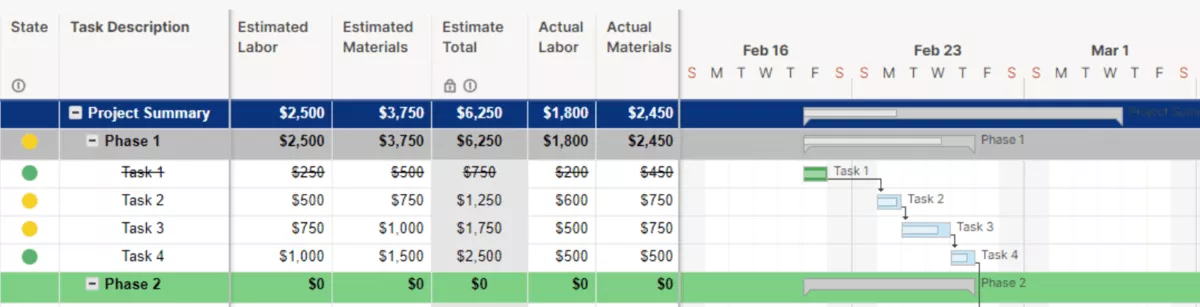
SOurce: smartsheet
Pros
- Familiar spreadsheet-style planning: Smartsheet feels approachable for teams that already manage project work in spreadsheets but need more structure than Excel or Google Sheets.
- Good visibility across tasks, timelines, and dependencies: Teams can track project plans, deadlines, ownership, progress, and dependencies from a more controlled workspace.
- Strong dashboards and reporting: Smartsheet can roll project data into dashboards and reports, which helps managers monitor progress without rebuilding updates manually.
- Useful for standardized operations: Automations, forms, templates, reports, and shared sheets help teams reduce scattered spreadsheets and repeat the same process across projects.
Cons
- Advanced setup can feel unintuitive: Formulas, automations, cross-sheet references, and dependencies can take trial and error, especially for teams expecting a simpler project app.
- Large sheets and linked data can slow down: Performance may become an issue when teams manage heavy data, multiple linked sheets, or complex workflows.
- Costs can rise as usage grows: Licensing and advanced portfolio features can become expensive as more users, controls, and add-ons are needed.
- It is not ideal for deep service-business project control: Smartsheet can manage structured plans and reporting, but agencies that need delivery, budgets, time tracking, resourcing, billing, and margin in one workflow may still need a more specialized system.
Final Verdict
Smartsheet fits teams that still think in spreadsheets but need stronger dashboards, dependencies, reporting, and portfolio visibility. Teams that want fast adoption, lightweight collaboration, or service-business financial control may find it too structured in the wrong way.
8. Wrike – Best for Enterprise and Cross-Functional Project Operations
Wrike becomes more relevant when work starts crossing departments, approval paths, project owners, and reporting layers. It is a stronger fit for structured operational work than for a small team that only needs a board, a list, and a few due dates.
Key Features
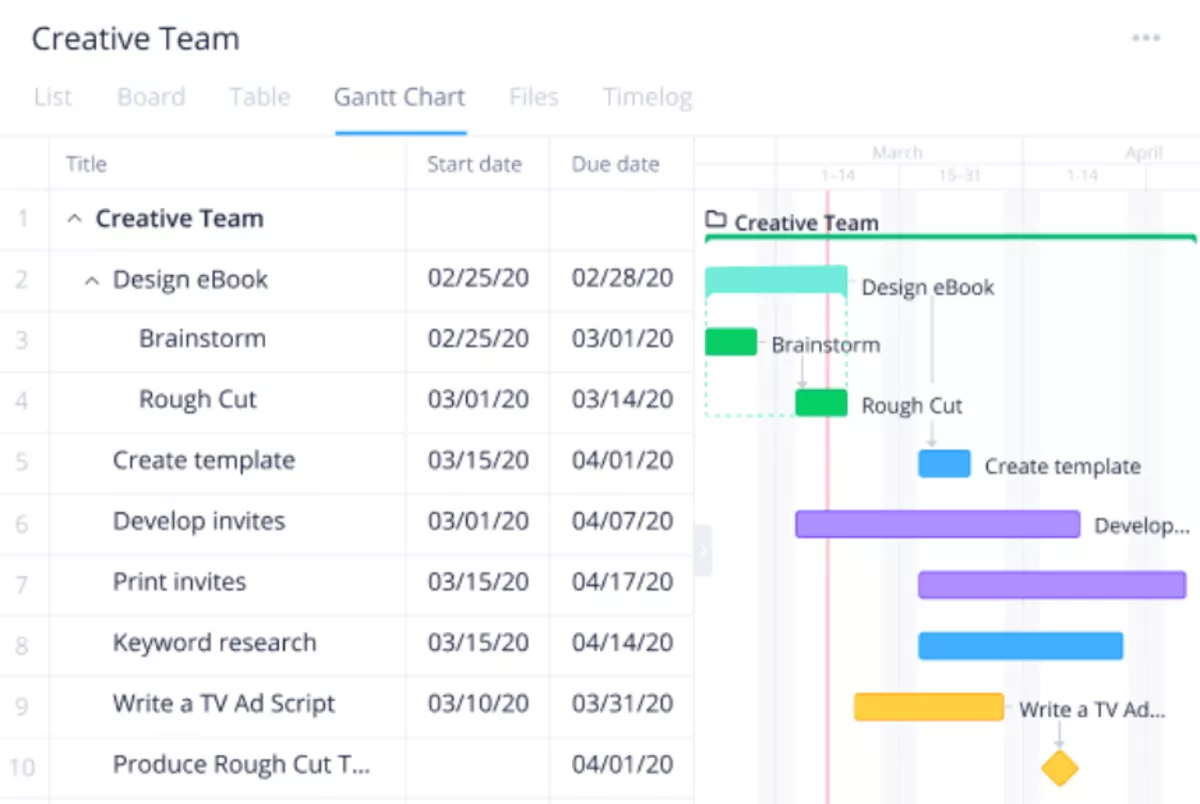
- Multiple layouts, including board, table, Gantt, calendar, chart, and Scrum board
- Custom workflows, item types, request forms, project templates, blueprints, and cross-tagging
- Resource management features, workload charts, bookings, budgeting, and logged hours
- Real-time reports, dashboards, automations, AI tools, and integrations with 400+ apps
SOurce: wrike
Pros
- Strong visibility across projects and workloads: Wrike helps managers see tasks, project updates, reports, dashboards, and workload signals in one place.
- Custom workflows fit more structured operations: Teams can tailor statuses, views, item types, and reporting around the way work actually moves.
- Useful for cross-functional coordination: Wrike can centralize planning, timelines, communication, files, reviews, and follow-ups across several teams.
- Good reporting depth for larger teams: Dashboards and reports make Wrike useful when managers need project status without chasing every team for updates.
Cons
- Setup takes discipline: Wrike has enough views, spaces, automations, reports, and controls that the initial setup can feel heavy.
- Administration can become its own job: Cross-space reporting, automation logic, access, and workflow governance may need a clear owner.
- Search and navigation can slow people down: Some users report friction when finding older tasks, comments, or information inside larger projects.
- Client access can be limiting: Teams that bring clients into project boards may need to think carefully about seats, access levels, and what clients should see.
Final Verdict
Wrike makes sense when coordination across departments, approvals, dashboards, and workload visibility has become hard to manage.
The risk is setup ownership. Without someone maintaining workflows, permissions, reports, and governance, Wrike can become another heavy workspace.
9. Notion – Best for Documentation-Led Project Tracking
Notion works best when project management starts with shared context: briefs, notes, specs, wikis, databases, and lightweight task tracking. It can manage projects, but it is strongest as a documentation-led workspace rather than a full project control system.
Key Features
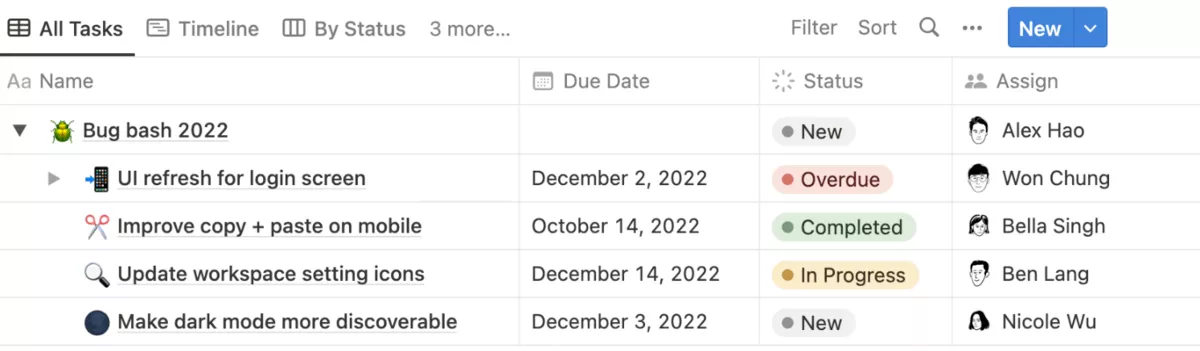
- Pages, docs, wikis, collaborative documents, databases, and templates for organizing project knowledge
- Project databases with rich properties, priority labels, task statuses, and multiple layouts
- Timeline views, charts, dashboards, task databases, subtasks, and dependencies
- Comments, discussions, reminders, mentions, Notion Calendar, synced databases, AI tools, and integrations
SOurce: notion
Pros
- Strong for centralizing project knowledge: Notion can keep notes, tasks, project plans, docs, and reference material in one workspace.
- Flexible database structure: Teams can build custom project trackers, content calendars, roadmaps, task lists, and documentation hubs around their own process.
- Good fit for documentation-heavy work: Notion works well when the project brief, meeting notes, decisions, and task context matter as much as the task list itself.
- Useful free plan for individuals and small teams: The free plan makes Notion easy to test for personal organization, lightweight project tracking, and internal documentation.
Cons
- Setup can become confusing: Notion’s flexibility means teams need to design pages, databases, properties, and views before the workspace feels useful.
- Search and nested pages can slow people down: Larger workspaces can make it harder to find older notes, buried pages, or specific project information.
- Tables and offline access have limits: Users who expect spreadsheet-like control or reliable offline use may find Notion frustrating.
- It is not built for delivery operations: Notion can organize project information, but it is not the right tool for budgets, billable time, capacity planning, invoicing, or project profitability.
Final Verdict
Notion works when scattered knowledge is the main project problem. It is useful for briefs, specs, notes, project databases, and lightweight task tracking. It falls short when teams need delivery controls such as workload planning, budget tracking, time approvals, client reporting, or billing.
10. Microsoft Project – Best for Traditional Scheduling and Microsoft-Heavy Teams
Microsoft Project still makes the most sense when the project plan is a schedule first. Think construction timelines, implementation plans, waterfall delivery, portfolio roadmaps, and organizations that already run a lot of work inside Microsoft 365.
Key Features
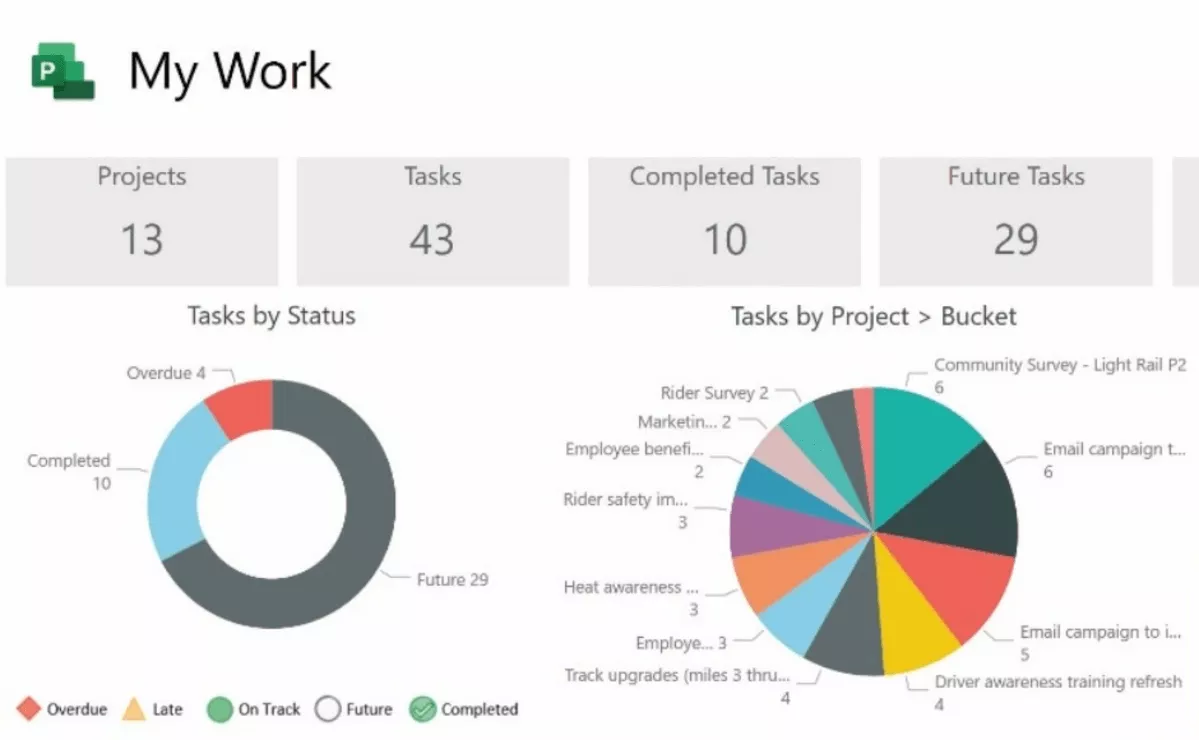
- Timeline and Gantt-style planning for structured schedules
- Task dependencies, baselines, resource allocation, and budget-oriented planning
- Roadmaps for centralized visibility across programs and projects
- Microsoft 365, Teams, Excel, SharePoint, and Power BI ecosystem fit
SOurce: microsoft project
Pros
- Strong scheduling control: Microsoft Project is useful when project managers need timelines, dependencies, baselines, and variance tracking rather than a lightweight task board.
- Good fit for Microsoft-heavy organizations: Teams already working in Microsoft 365 can connect project planning with familiar tools like Teams, Excel, SharePoint, and Power BI.
- Helpful for structured projects: It works well when projects need formal plans, resource assignments, milestones, and clear ownership across a longer timeline.
- Recognizable output for traditional PM work: Many project managers and stakeholders understand Microsoft Project plans, Gantt charts, and portfolio-style views.
Cons
- Onboarding can feel slow and complex: New users may need guidance before they can manage schedules, dependencies, reports, and resource planning confidently.
- The interface can feel dated or rigid: Microsoft Project is powerful, but some users find it less intuitive than newer project management apps.
- Collaboration is not its strongest angle: Teams that need easy client collaboration, shared approvals, or casual task updates may find it too formal.
- It may need extra tools for timekeeping and delivery operations: Microsoft Project can structure the plan, but it is not a complete system for client-service time tracking, billing, utilization, and project margin.
Final Verdict
Microsoft Project is weaker for teams that need fast adoption, casual collaboration, or client-facing delivery workflows. Agencies and service teams should be careful when the project plan also needs to connect with commercial data.
What Kind of Project Management Software Do You Actually Need?
The right software depends on how work moves through your team, not on which option has the longest feature list. Start with the workflow: simple tasks, cross-functional delivery, software sprints, creative approvals, client work, portfolio visibility, documentation, or lightweight Kanban.
Use this section to narrow the category before comparing individual platforms. It should help you avoid two common mistakes: buying a heavy system when you only need task visibility, or staying with a simple board after work starts needing budgets, staffing, approvals, and client handoffs.
Project Management Tool Fit Matrix
| If your workflow looks like this | You probably need | Prioritize | Watch out for |
|---|---|---|---|
| Your team mainly needs owners, due dates, status, and simple accountability | Task software | Task lists, boards, due dates, comments, checklists, reminders | Buying a complex platform before the team needs it |
| Several departments need shared workflows, automations, approvals, and status visibility | Work management software | Custom workflows, planning views, automations, dashboards, user permissions, integrations | Creating so many custom workflows that nobody owns the process |
| Developers manage sprints, bugs, backlogs, releases, and technical dependencies | Agile software | Sprint planning, issue tracker features, backlogs, Scrum or Kanban boards, dev integrations, agile reports | Forcing non-technical teams into a developer-heavy workflow |
| Creative or marketing teams manage briefs, assets, reviews, revisions, and stakeholder approvals | Creative workflow software | Creative briefs, proofing features, file feedback, campaign calendars, stakeholder visibility | Choosing a basic task tool that cannot handle feedback loops |
| Agencies or professional services teams manage client work, budgets, capacity, and billable hours | Client-service software | Budget control, timesheets, staffing, client access, billing workflows, dashboards | Using a task board that hides budget burn, capacity issues, or margin risk |
| Leadership needs visibility across projects, programs, departments, or regions | Portfolio software | Portfolio dashboards, dependencies, governance, permissions, capacity views, executive summaries | Buying enterprise software when the real problem is team-level coordination |
| Work depends on briefs, specs, meeting notes, wikis, databases, and lightweight tasks | Documentation-led software | Docs, collaborative documents, databases, templates, permissions, linked tasks | Treating documentation as a replacement for delivery controls |
| A small team needs a visual board and fast adoption | Lightweight Kanban software | Boards, cards, labels, checklists, due dates, simple team collaboration | Expecting it to handle budgets, staffing, advanced dashboards, or complex dependencies |
When is a Simple Task Tool Enough?
A simple task tool is enough when the main question is “who owns what?” rather than “how is this work affecting budget, capacity, or delivery risk?” These tools work well for small teams, personal work, basic content calendars, and internal requests that do not need deeper business visibility.
The risk is staying too long. Once managers need budget visibility, staffing plans, client updates, or cross-team dashboards, the task board becomes a place to track work, not a place to run delivery.
When You Need Work Management Software?
Work management software makes sense when work moves across teams, and the same process repeats often. Examples include campaign planning, operations requests, internal approvals, product launches, and recurring cross-functional work.
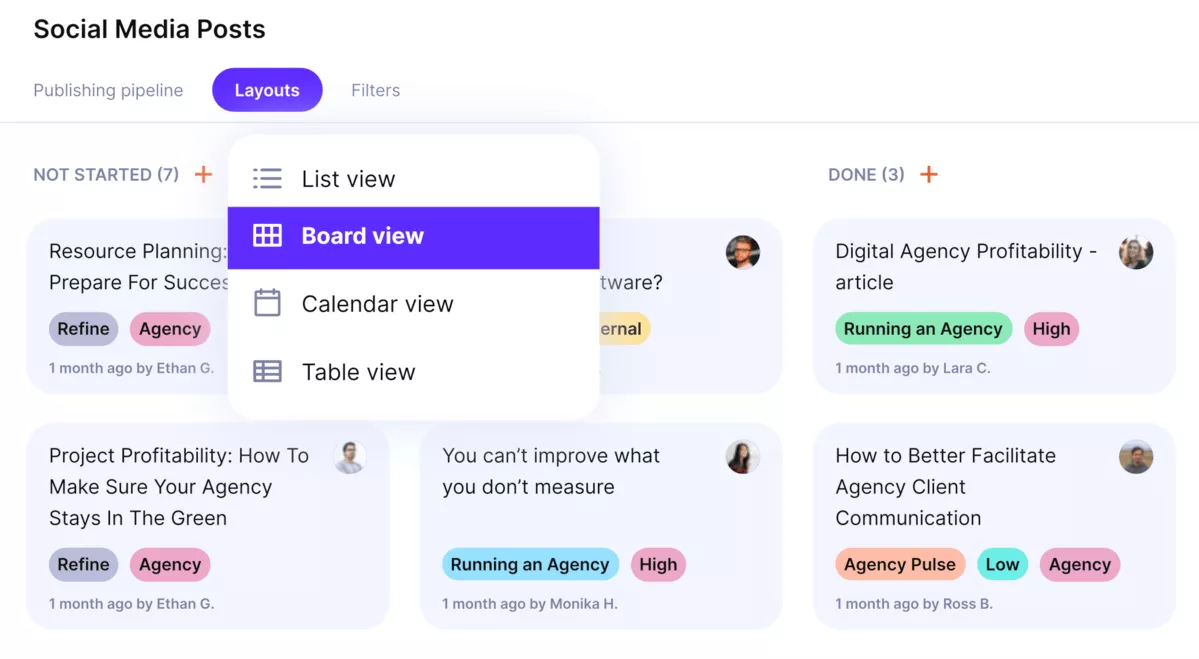
Manage projects with live Kanban boards, gantt, lists, tables and workloads.
Prioritize views, automations, dashboards, permissions, templates, and integrations. Assign an owner for the setup early. These systems can become messy when every department creates its own fields, statuses, and dashboard logic.
When Agile Software Makes Sense?
Agile software fits teams that plan work through backlogs, sprints, issues, bugs, releases, and technical dependencies. It is the right category for software, product, and engineering teams that need sprint reports, issue history, and development integrations.
It is usually a poor fit for teams that do not speak in tickets, epics, or releases. Creative, operations, and client-service teams may need status visibility without the structure of a software delivery workflow.
When Client-Service Teams Need More Than Task Tracking?
Agencies, consultancies, and professional services teams usually need more than tasks and deadlines. The same client project also affects estimates, billable work, budget control, staffing, client updates, invoices, and margin.
This is where simple systems break down. If the work is tracked in one place and the budget lives somewhere else, project managers find out too late that the plan no longer matches commercial reality.
When Portfolio Visibility Becomes the Real Need?
Portfolio visibility matters when leadership needs to compare projects, not just manage them one by one. This usually means seeing status, capacity, priority, risk, dependencies, and progress across departments or programs.
A portfolio layer may be overkill if the real problem is team-level delivery. It becomes useful when status updates need to roll up into planning, governance, and executive decisions.
When Documentation-Led Tools Are Enough?
Documentation-led tools work when shared context keeps work moving. They are useful for briefs, meeting notes, product specs, internal wikis, lightweight roadmaps, collaborative documents, and task databases.
They are weaker when delivery needs structure. If the team needs capacity planning, budget visibility, approvals, client dashboards, or billing, the documentation hub should support the system of record, not replace it.
AI Capabilities in Work Management Software: Who Really Needs Them?
AI tools are most useful when they help managers summarize reliable project data, find information faster, or turn repetitive admin work into reviewed actions.
They are less useful when they create outputs that nobody reviews or when they make the workflow seem more automated than it really is.
| AI capability | Useful when | What to verify |
|---|---|---|
| Automation suggestions | Teams repeat the same steps often | Can users review, edit, and control the automation before it affects live work? |
| AI-generated tasks or summaries | Teams turn notes, briefs, or meetings into work items | Does the output create usable structure, or does someone still need to rewrite it? |
| AI-driven recommendations | Managers want earlier signals on delays, risk, or workload pressure | Does the system use real project data, and can users verify the source? |
| Capacity support | Staffing changes often across active work | Does it account for real availability, roles, bookings, time off, and workload? |
| Chatbots or AI assistants | Teams need faster answers from docs or task data | Can users trace the answer back to the source before acting on it? |
What Are Other Project Management Tools Worth Considering?
Other project management tools worth considering include Airtable, Miro, LiquidPlanner, TeamGantt, and Basecamp.
We’ll briefly compare them in the table below:
Comparison Table of Other Project Management Tools
| Tool | Key features | Buyer relevance | Best fit or project type | Free version |
|---|---|---|---|---|
| 11. Airtable | Custom workflows, fields, automations, dashboards, linked records, interfaces | Also useful when teams want relational databases behind their project workflows, not just a board or list. | Database-led project tracking, content calendars, operations workflows | Yes |
| 12. Miro | Online whiteboards, templates, diagrams, mind maps, journey maps, Kanban boards, process maps | Helpful for planning and workshops, but usually not enough as the system of record for delivery | Ideation, brainstorming, visual planning, workshops | Yes |
| 13. Liquidplanner | Predictive scheduling, dynamic capacity planning, simulations, priority-based planning | Relevant when timelines change often and managers need schedule forecasts rather than simple task boards | Predictive scheduling for complex project portfolios | No |
| 14. TeamGantt | Gantt charts, shared schedules, workload visibility, board/calendar/list views, dependencies | Useful when the timeline is the main planning object and teams need visual schedule alignment | Timeline-heavy project planning and client-facing schedules | No |
| 15. Basecamp | Project pages, to-dos, schedules, docs and files, group chat, message boards, automatic check-ins | Useful when a small team wants calm project communication without heavy configuration | Simple team coordination and lightweight project collaboration | Yes |
What Are the Types of Project Management Tools?
The main categories are task tools, work platforms, agile systems, creative workflow tools, client-service systems, portfolio tools, and documentation-led workspaces.
These categories overlap, but the differences matter.
A visual board can manage simple tasks, but it usually will not replace a system for client budgets and staffing. A documentation workspace can support project context, but it may not be enough for delivery control.
Type 1: Task Management Tools
Task tools help teams assign work, set due dates, track status, and keep basic accountability visible. They are best for small teams, personal work, internal checklists, and workflows where ownership is the main problem.
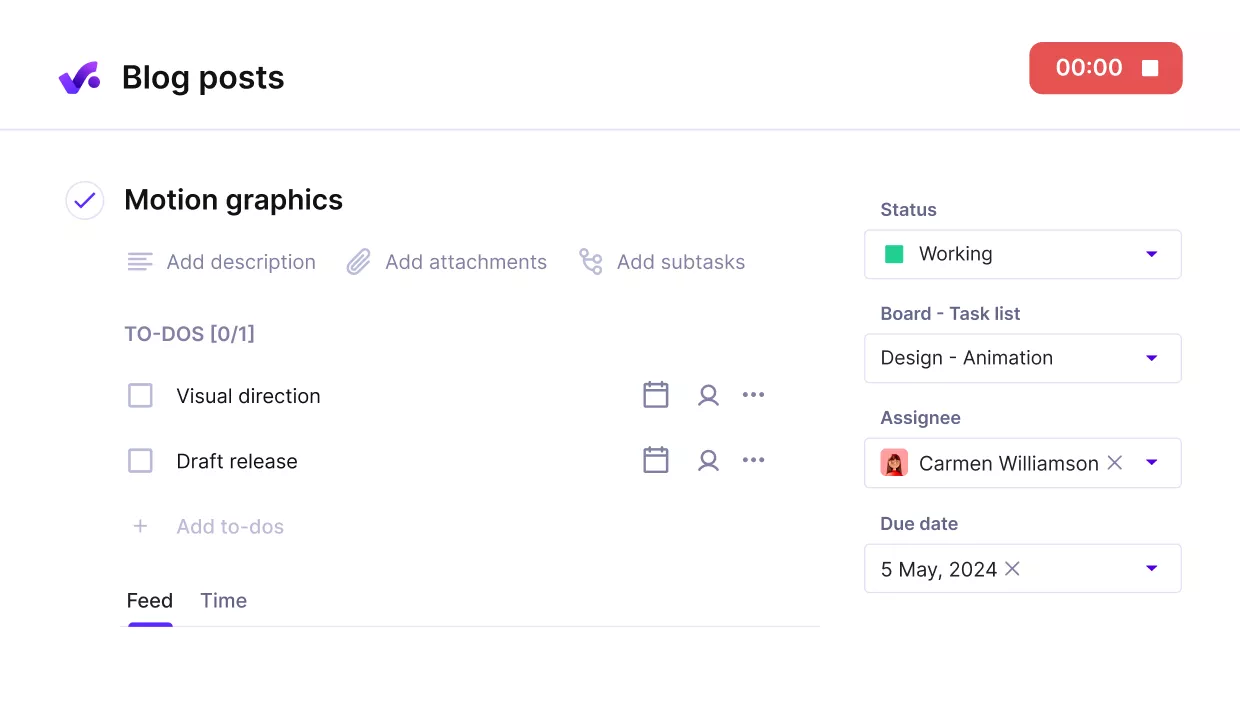
Add connected tasks with reusable templates, and fill descriptions or actions lists with ai.
They become limiting when the team needs staffing, budget visibility, billing, or management-level dashboards. At that point, the tool can show what needs to happen, but not how the work is performing.
Type 2: Work Management Platforms
Work platforms help teams coordinate repeatable processes across departments. They usually include planning views, automations, dashboards, customizable templates, user permissions, and integrations.
These tools fit marketing, operations, HR, product launches, internal requests, and recurring cross-functional work. They need process ownership because too much customization can create a new kind of chaos.
Type 3: Agile Systems
Agile systems are designed for teams that plan through sprints, backlogs, user stories, bugs, issues, and releases. They are common for software, product, and engineering teams.
The best fit is a team that needs sprint planning, an issue tracker, release visibility, and development integrations. They are usually too technical for teams that only need status updates, approvals, or client communication.
Type 4: Creative Workflow Tools
Creative workflow tools support briefs, campaign calendars, file sharing, feedback loops, proofing features, approvals, and revision history. They are useful when work moves through creative stages rather than technical sprints.
They are a better fit for marketing, design, content, and production teams than a basic task board. The key test is whether the tool can manage feedback and approvals without pushing people back into email threads.
Type 5: Client-Service Systems
Client-service systems are built for agencies, consultancies, and professional services teams that deliver work for clients. They need to connect the plan with budgets, billable hours, staffing, client communication, dashboards, and often billing.
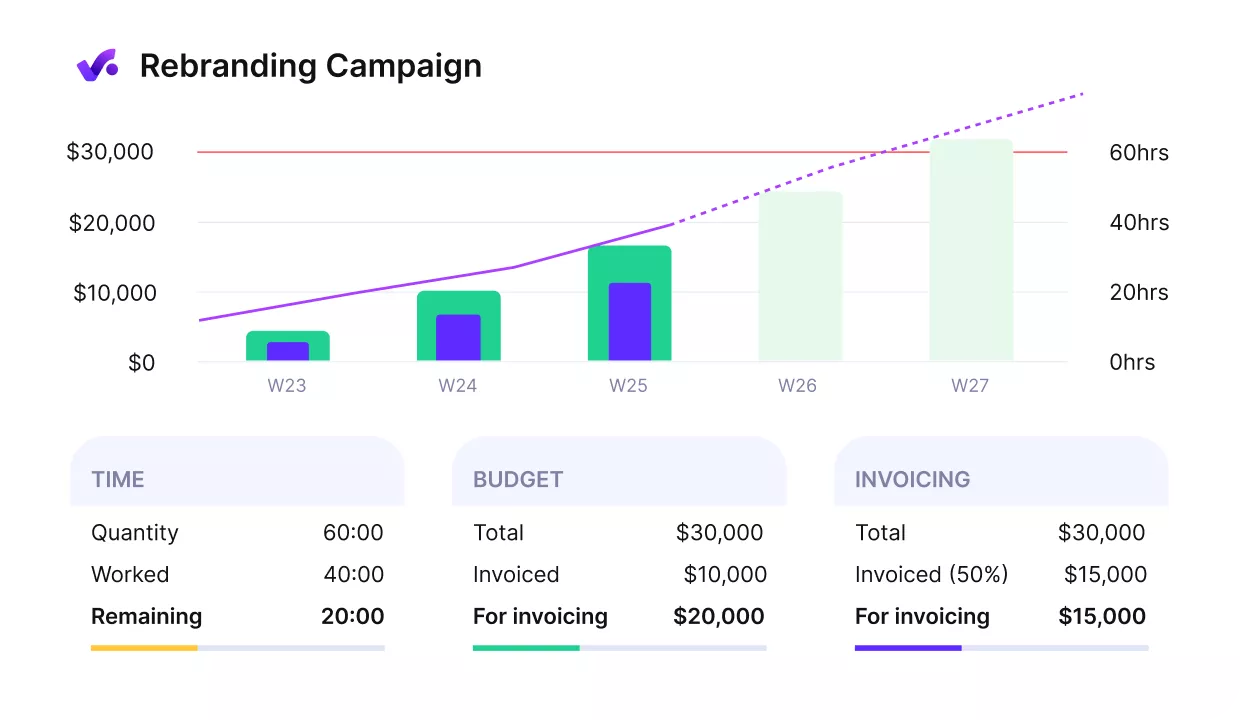
Get early warning of budget overruns and profitability hits.
This category matters when projects are tied to revenue and margin. If a team only tracks tasks, it may miss the bigger question: whether the work is still within scope, properly staffed, and commercially healthy.
Type 6: Portfolio Tools
Portfolio tools help leaders manage multiple projects, programs, teams, or departments at once. They focus on visibility across priorities, dependencies, capacity, governance, and risk.
These tools are usually overkill for a small team managing one project at a time. They become useful when leadership needs to compare work, decide what to prioritize, and understand how demand affects capacity across the organization.
Type 7: Documentation-Led Workspaces
Documentation-led workspaces organize the context around work: briefs, notes, specs, meeting summaries, wikis, collaborative documents, databases, and lightweight tasks. They are useful when shared knowledge keeps work moving.
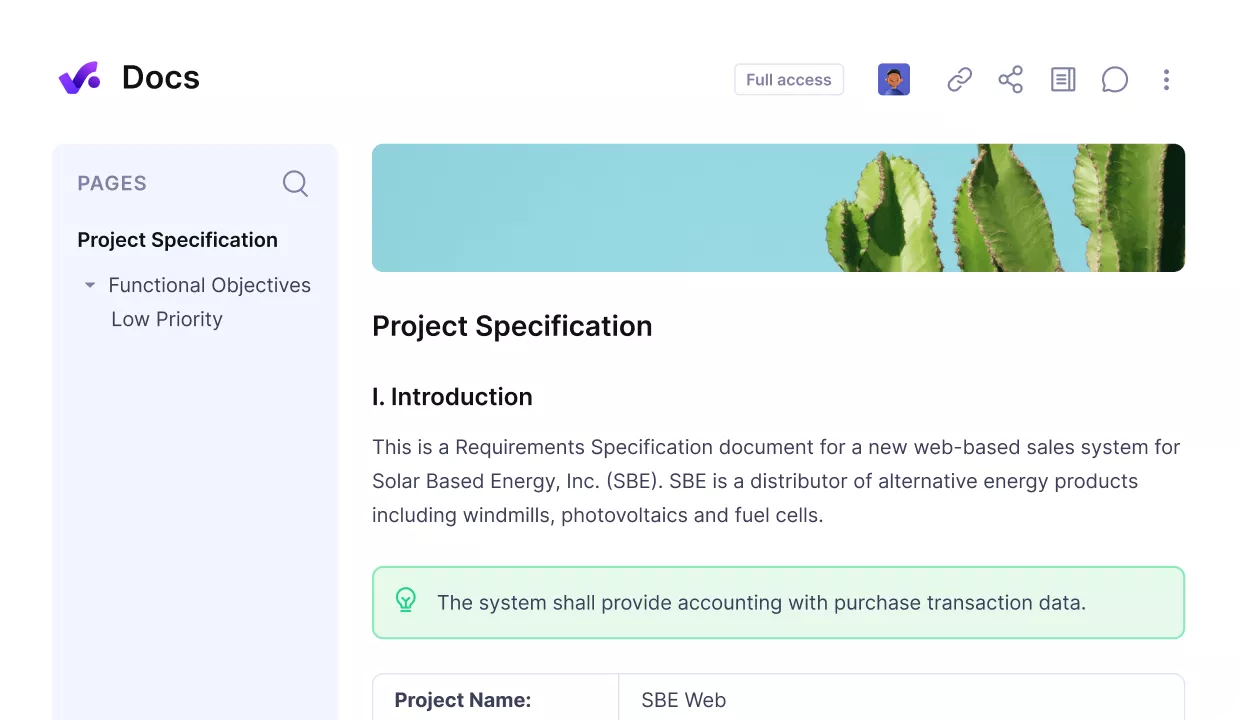
Share all documentation and wikis from a single source.
They are not always enough when delivery needs structure. If the team needs approvals, budget visibility, staffing, client dashboards, or billing, the documentation hub should support the delivery system, not replace it.
What Are the Key Features of Project Management Software?
The key features to compare are task workflows, planning views, collaboration, logged hours, budget control, staffing, dashboards, integrations, automations, permissions, and client access. Not every team needs all of them.
The right feature set depends on whether you manage simple internal work or client delivery tied to people, money, and reporting.
Cover your key feature list with Productive’s all-in-one workplace
Feature 1: Task and Workflow Management
Task and workflow features help teams break work into clear steps, assign owners, set due dates, and track progress. They are the baseline for almost every tool in this category.
Simple teams may only need tasks, comments, checklists, and due dates. Larger teams should look for dependencies, custom statuses, approval flows, recurring work, customizable templates, and rules that keep handoffs consistent.
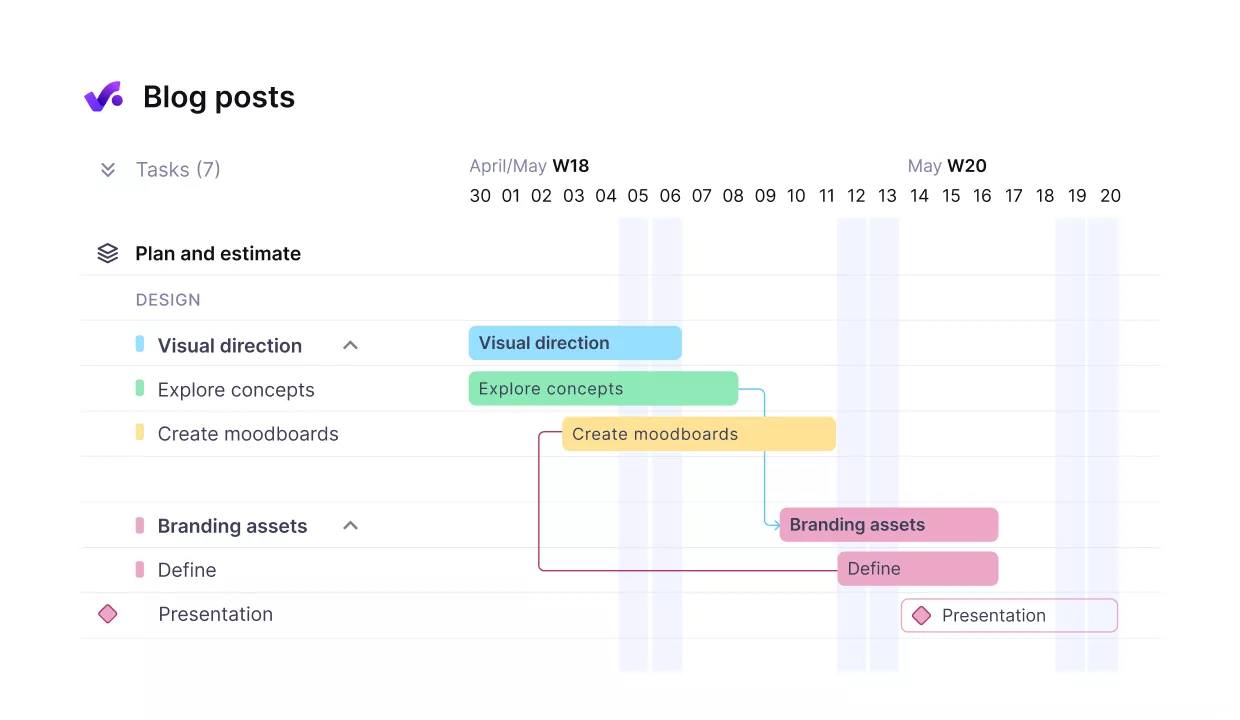
Productive lets you see and track dependencies, handoffs, and timeline risk across multiple project phases.
For teams comparing PM tools, task management should also include task statuses, owners, dependencies, and repeatable templates, not just a list of open work.
Feature 2: Planning Views and Scheduling
Planning views help different people understand the same work in different ways. A manager may need a timeline, a contributor may prefer a board, and leadership may want a dashboard.
Look for list, board, calendar view, Gantt charts, timeline, table, and schedule-based layouts if your team plans work across deadlines or dependencies. Timeline planning becomes more useful when phases and handoffs matter more than a simple task list.

Productive lets you see and track dependencies, handoffs, and timeline risk across multiple project phases.
Feature 3: Team Collaboration and Stakeholder Communication
Team collaboration features keep context close to the work. This usually includes comments, mentions, file sharing, notifications, approvals, shared updates, and communication tools such as Slack or Microsoft Teams.
These features matter most when work moves between departments, clients, contractors, or external stakeholders. If feedback still lives in email threads or chat messages, the tool may show progress without showing the decisions behind it.
Feature 4: Logged Hours and Timesheets
Logged hours matter when effort affects billing, estimates, utilization, or delivery analysis. They are less important for teams that only need internal task visibility.
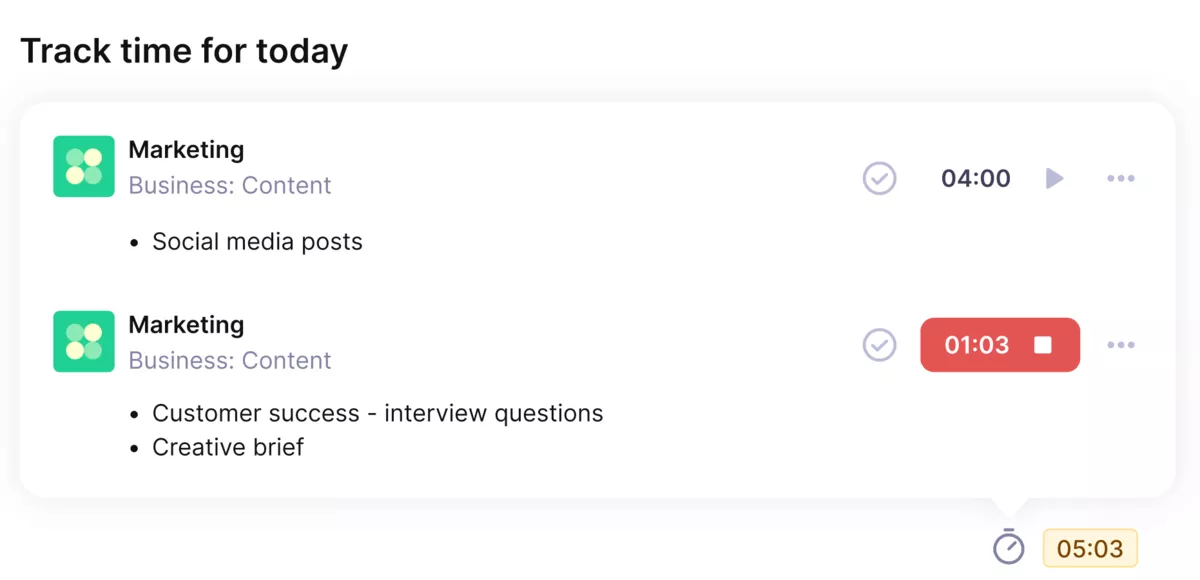
Use automated time trackers to track time without friction.
For agencies and professional services teams, timesheets should connect to tasks, projects, people, and budgets. Otherwise, managers may know what was completed but still need another system to understand effort, cost, or billable work.
Feature 5: Budget and Cost Control
Budget and cost control help teams understand whether work is still commercially healthy. This can include budgeted hours, billable rates, costs, expenses, retainers, fixed-fee budgets, and alerts.
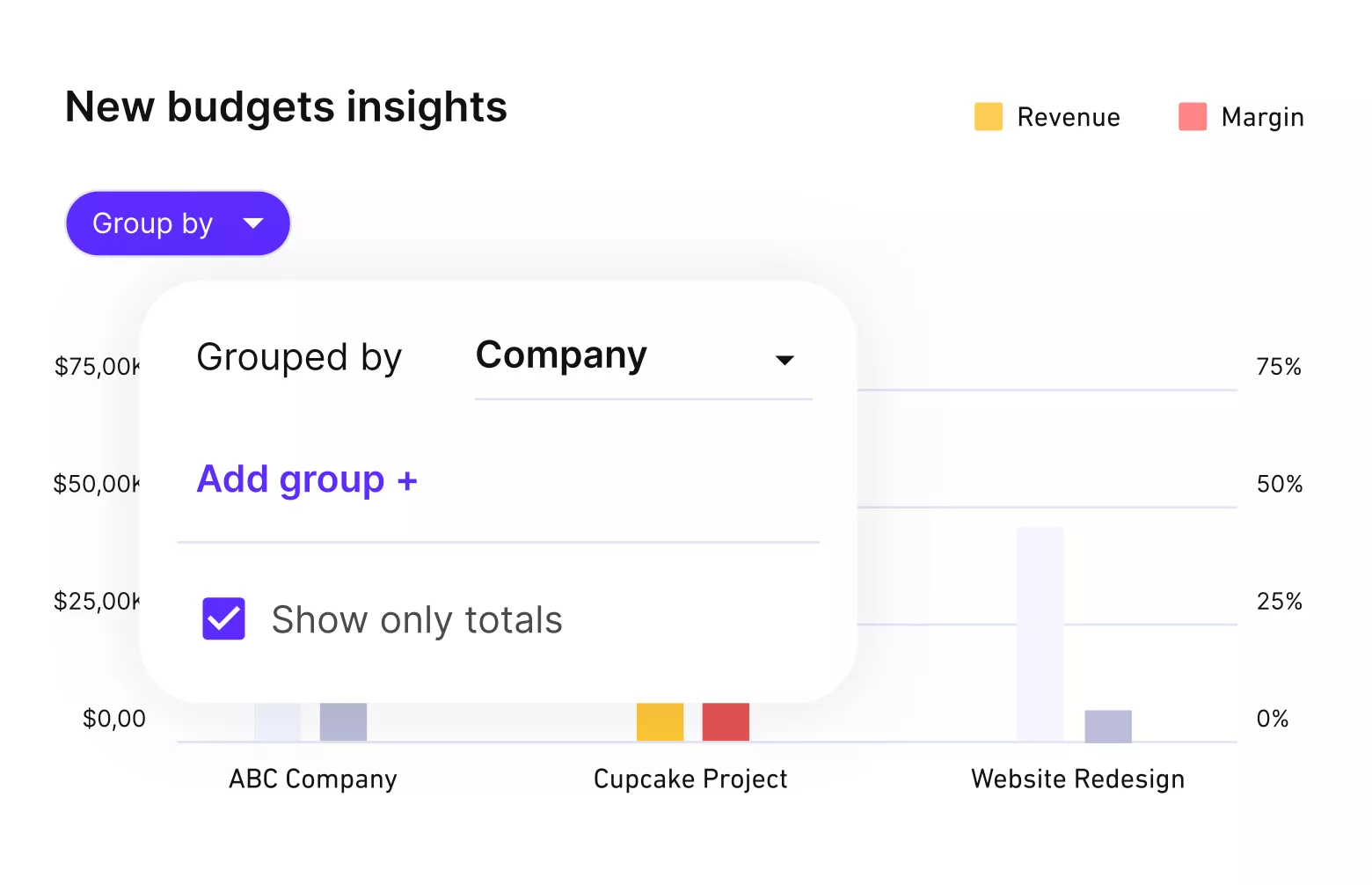
Get instant budget updates and early warnings of overruns.
This feature becomes important when projects are tied to client work, margin, or scoped deliverables. Be careful with vague budget claims. Some tools only track high-level numbers, while others connect budget data more deeply with time, expenses, services, and dashboards.
Feature 6: Staffing and Capacity Planning
Staffing features help teams see who is available, who is booked, and where work may overload the team. This becomes essential once several projects compete for the same people.
This is where resource management becomes different from simple scheduling: managers need to understand availability, workload, roles, and demand before assigning work.
Look for capacity, availability, workload, bookings, time off, skills, roles, and utilization features if people decisions affect delivery. Smaller teams may not need a full staffing layer, but growing service teams usually outgrow manual scheduling quickly.
Feature 7: Dashboards and Reporting
Dashboards turn project data into status visibility. They help managers see progress, risk, workload, budget health, and delivery trends without asking every owner for an update.
Basic dashboards are enough for simple task tracking. Larger teams should look for customizable reports, portfolio views, project health indicators, utilization reports, and filters by client, team, role, project, or service.
Feature 8: Integrations and Automations
Integrations connect the tool with the rest of your stack. Automations reduce repetitive work, such as status changes, notifications, approvals, reminders, and task creation.
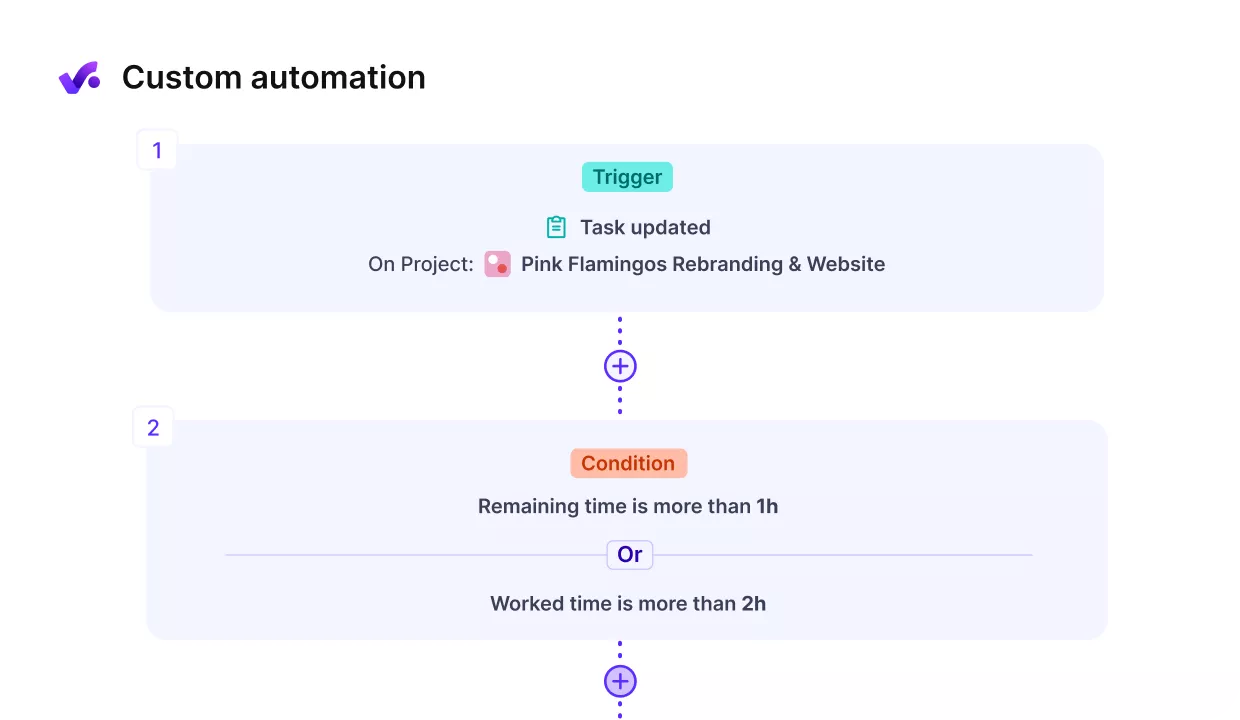
Easily replace repetitive work with Productive’s automations.
Prioritize integrations with tools your team already uses for accounting, calendars, file storage, CRM, development work, and communication. Google Calendar, Slack, Microsoft Teams, GitHub, Jira, Xero, QuickBooks, and Google Drive are common examples to check.
Feature 9: Permissions, Client Access, and Mobile App Support
User permissions control who can see, edit, approve, or comment on work. Client access lets external stakeholders follow progress without seeing internal notes, cost data, or sensitive planning details.
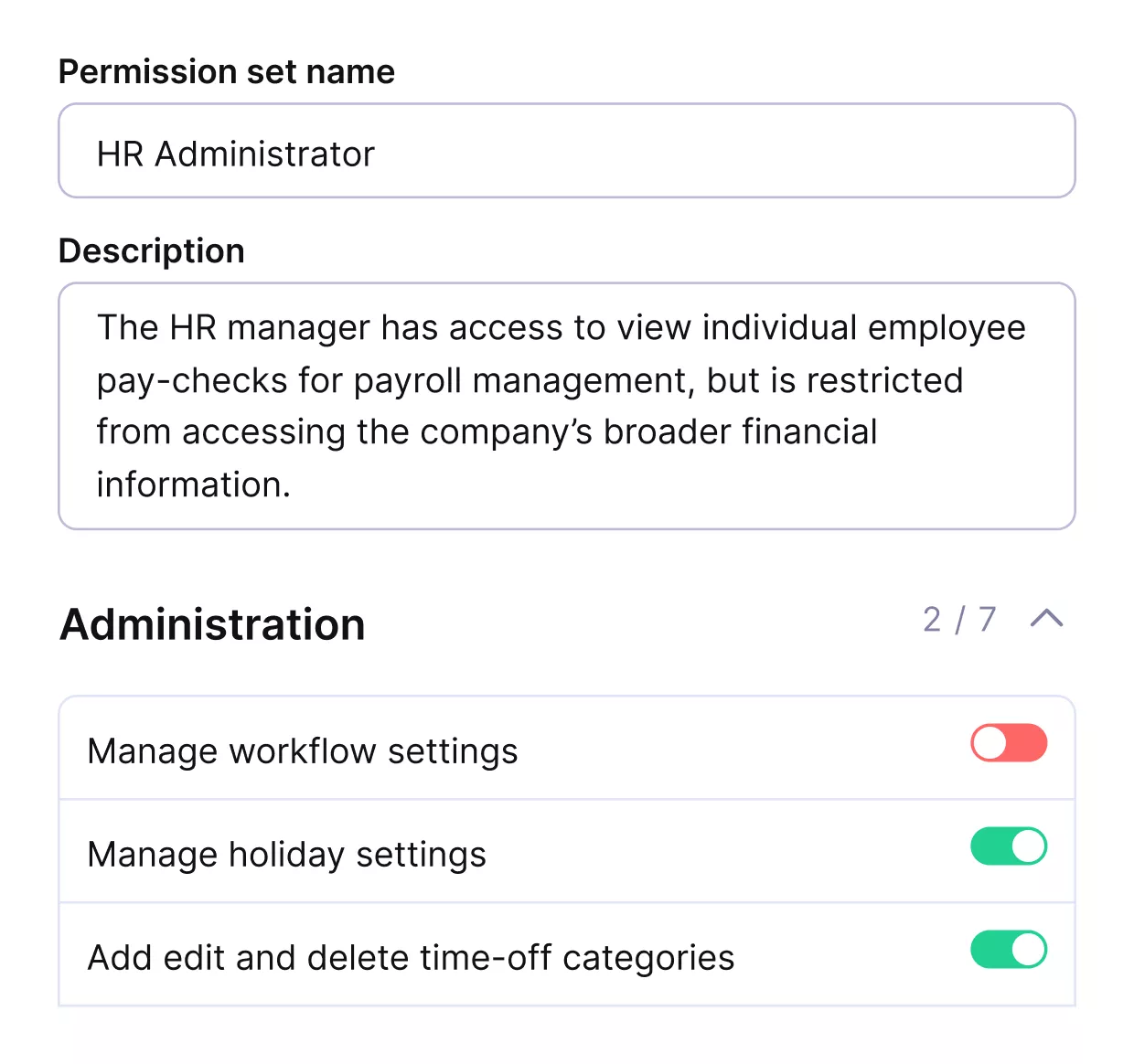
Add custom permissions and views to team members, contributors or clients.
Mobile app support also matters if people update tasks, upload files, check deadlines, or log hours away from their desks. The best setup gives each role the right level of access without making the workspace harder to manage.
Feature 10: Customer Support and Onboarding Materials
Customer support and onboarding materials matter more than teams expect. A tool with advanced features can still fail if nobody understands how to set up templates, permissions, workflows, reports, and integrations.
Before committing, check the help center, implementation resources, training content, and support options. Good onboarding reduces the risk of messy setup and helps teams use the software consistently.
With Productive, you can get a single platform for managing everything from tasks and projects to finances and resources. Book a demo with Productive today to learn more.
How to Choose the Best Tool for Managing Projects? (Step-by-Step Process)
Choose the right software by matching it to your work type, visibility needs, adoption risk, and the data your team needs in one place. A good selection process should rule out tools that look strong in a demo but do not fit daily delivery.
Step 1: Start With the Work Your Team Actually Runs
Start by naming the type of work you handle most often. A software team managing sprints needs a different setup than a creative team handling approvals, or an agency delivering client work against budgets.
Write down three recent projects and map how work moved from request to delivery. Look for the real workflow: tasks, approvals, schedules, budgets, capacity, stakeholder feedback, documentation, or technical issues.
This keeps the team from buying based on a feature list that does not match daily work.
Step 2: Decide Whether You Need Task Visibility or Delivery Control
Some teams only need task visibility. They need to know who owns the work, what is due, and what is blocked. In that case, a simple task tool or visual board may be enough.
Other teams need delivery control. That means the system has to support planning, dependencies, workload, budget visibility, billable hours, dashboards, and client communication. If the work affects revenue, staffing, or delivery risk, do not evaluate the software as a task list only.
Step 3: Check Which Data Needs to Stay Connected
Before comparing platforms, list the data your team cannot afford to split across systems. This might include tasks, timesheets, budgets, staffing plans, client updates, invoices, status views, or portfolio summaries.
This step matters because many tools look similar at the task level. The difference appears after work starts. If hours live in one tool, budgets in another, and delivery status in a third, managers may spend more time reconciling data than improving the work.
Step 4: Test the Tool With One Real Project
Do not test software with a fake sample board. Use one active project with real tasks, real owners, real deadlines, and at least one messy handoff.
During the test, check how quickly the team can create tasks, update status, find context, log hours, review progress, and spot risk. A tool that looks clean in a demo can still fail when the team has to use it on a busy Monday.
Step 5: Review Dashboards Before You Commit
Dashboards should answer the questions managers actually ask. For example: Which projects are at risk? Which tasks are blocked? Who is overloaded? Which client work is using more effort than expected?
Check whether dashboards can be filtered by team, client, role, budget, date range, or workflow stage. If the team still needs exports and manual spreadsheets every week, the tool may not solve the visibility problem that started the search.
Step 6: Compare Free Plans Against Your Actual Workflow
A free plan can be useful for testing adoption, but it should not define the decision by itself. Compare the free version against the work you need to manage in the next six months, not only what you need this week.
Check limits around users, projects, boards, dashboards, automations, integrations, storage, permissions, mobile app access, and support. Some free plans are excellent for small teams. Others are only useful until the real workflow forces an upgrade.
Step 7: Check Rollout, Training, and Migration Effort
The best tool is not only the one with the strongest feature set. It is the one your team can adopt without rebuilding every process from scratch.
Before choosing, ask who will own the setup, templates, permissions, automations, data migration, and training. Also, check customer support and onboarding materials. If nobody owns the rollout, even a strong platform can become another messy workspace.
How Do You Implement a Project Management Tool?
Implement the tool by rolling it out on one real workflow first, standardizing how work is tracked, and checking whether teams can trust the data before moving everything into it.
The rollout should be small enough to control, but real enough to expose problems. A fake sample project will not show whether people can find tasks, update status, report progress, or trust the data when deadlines are moving.
Project Management Tool Rollout Checklist
Use this checklist before moving every project into the new system:
1. Pick one pilot team and one active project. Choose work with real owners, deadlines, handoffs, and visibility needs.
2. Define the workflow before importing tasks. Agree on statuses, task owners, due dates, phases, approval steps, and dashboard rules.
3. Clean the data first. Remove duplicate tasks, outdated files, old owners, and unclear deadlines before migration.
4. Build one reusable template. Include the task structure, planning views, custom fields, permissions, dashboards, and automations the team will actually use.
5. Check integrations early. Test calendar, file storage, Google Calendar, Slack, Microsoft Teams, CRM, accounting, timesheet, and development integrations before rollout.
6. Set permission rules. Decide what internal teams, contractors, clients, and leadership can see or edit.
7. Test dashboards before go-live. Confirm that managers can see progress, blockers, workload, budget status, and delivery risk without exporting data.
8. Train people by role. Managers, contributors, finance, operations, and clients do not need the same onboarding.
9. Review adoption after two weeks. Look for missing updates, duplicate work, ignored notifications, broken automations, and dashboards nobody trusts.
10. Roll out in waves. Move the next team or project only after the pilot workflow is stable.
A tool should reduce coordination work, not move the same confusion into a new interface. If the pilot still depends on spreadsheets, manual status checks, or side-channel approvals, fix the workflow before scaling the rollout.
Final Thoughts: Which Project Management Software Should You Choose?
You should choose project management software based on how your team plans, delivers, tracks, and reports work, but agencies and professional services teams usually need an all-in-one tool because projects also affect budgets, time tracking, resource planning, billing, reporting, and profitability.
Productive brings those workflows together for teams that need more than task tracking.
Book a demo and get started for free.
Connect With Agency Peers
Access agency-related Slack channels, exchange business insights, and join in on members-only live sessions.
