Top 5 ProWorkflow Alternatives (Paid & Free) – 2026 Review

In case you’re looking for true ProWorkflow alternatives you’re right where you need to be.
This guide narrows the field to five real replacements, with review-based pros and cons, key features, best-for fits, and a buyer-friendly comparison table across project management tools.
It also includes a practical how-to-choose process and a migration checklist.
What Are the Best ProWorkflow Alternatives in 2026?
The best ProWorkflow alternatives in 2026 are Productive, Teamwork, Wrike, ClickUp, and monday.com.
These five made the list because they are all real replacements for the core job the tool handles, but they suit different buyer needs, from closer client-work replacements to broader all-in-one project management options.
Short List of the Best ProWorkflow Competitors
Comparison of the Best Alternatives to ProWorkflow
| Tool | Best for | Choose this tool if | Skip this tool if | Free version available |
|---|---|---|---|---|
| Productive | All-in-one agency operations and project delivery | You want projects, budgets, resourcing, billing, and profitability in one system | You only need a simple task and time tool | No |
| Teamwork | The closest client-work replacement | You want a more modern client delivery tool with work logging and workload planning | You need broader operational control beyond project delivery | Yes |
| Wrike | Structured workflow and collaboration | You need clearer process control, approvals, and cross-team visibility | You want a lighter, easier tool with less setup overhead | Yes |
| ClickUp | Flexible work management | You want one place for tasks, docs, dashboards, chat, and planning | You want a more opinionated tool with less setup and fewer decisions | Yes |
| monday.com | Customizable workflow management | You want a flexible system you can shape around your own process | You want the tool itself to impose more structure by default | Yes |
How We Chose These Tools?
This shortlist was built around real replacement fit, not raw tool volume across project management tools. We looked at how well each option replaces the tool for teams that need a dependable project management setup for client work, work logging, collaboration, and day-to-day delivery.
We also compared recurring themes in user reviews, checked each product’s official positioning, and filtered out tools that drift too far from the jobs users are actually trying to solve in day-to-day project management.
1. Productive – Best for all-in-one operations and project delivery)
Productive is a better ProWorkflow alternative for agencies and professional service providers that need more than task tracking, time tracking, and basic project control.
Compared with ProWorkflow, Productive gives teams a clearer way to manage budgets, resourcing, billing, profitability, and client management in the same system, which matters once delivery gets more complex.
Try the best all-in-one ProWorkflow alternative
Manage More Than One Billing Model Without Workarounds
One of the clearest limits with ProWorkflow is how often agencies outgrow the simpler billing setup. That becomes a real issue when the same client relationship includes retainers, fixed-fee work, hourly overages, expenses, or milestone-based billing.
Productive’s billing setup is better suited to agencies that need to manage different commercial models without splitting them across separate tools. Instead of forcing teams to separate delivery tracking from commercial reality, it gives them a way to manage different budget and billing setups closer to the project itself.
That approach makes it easier to run mixed engagements without relying on manual fixes outside the platform.
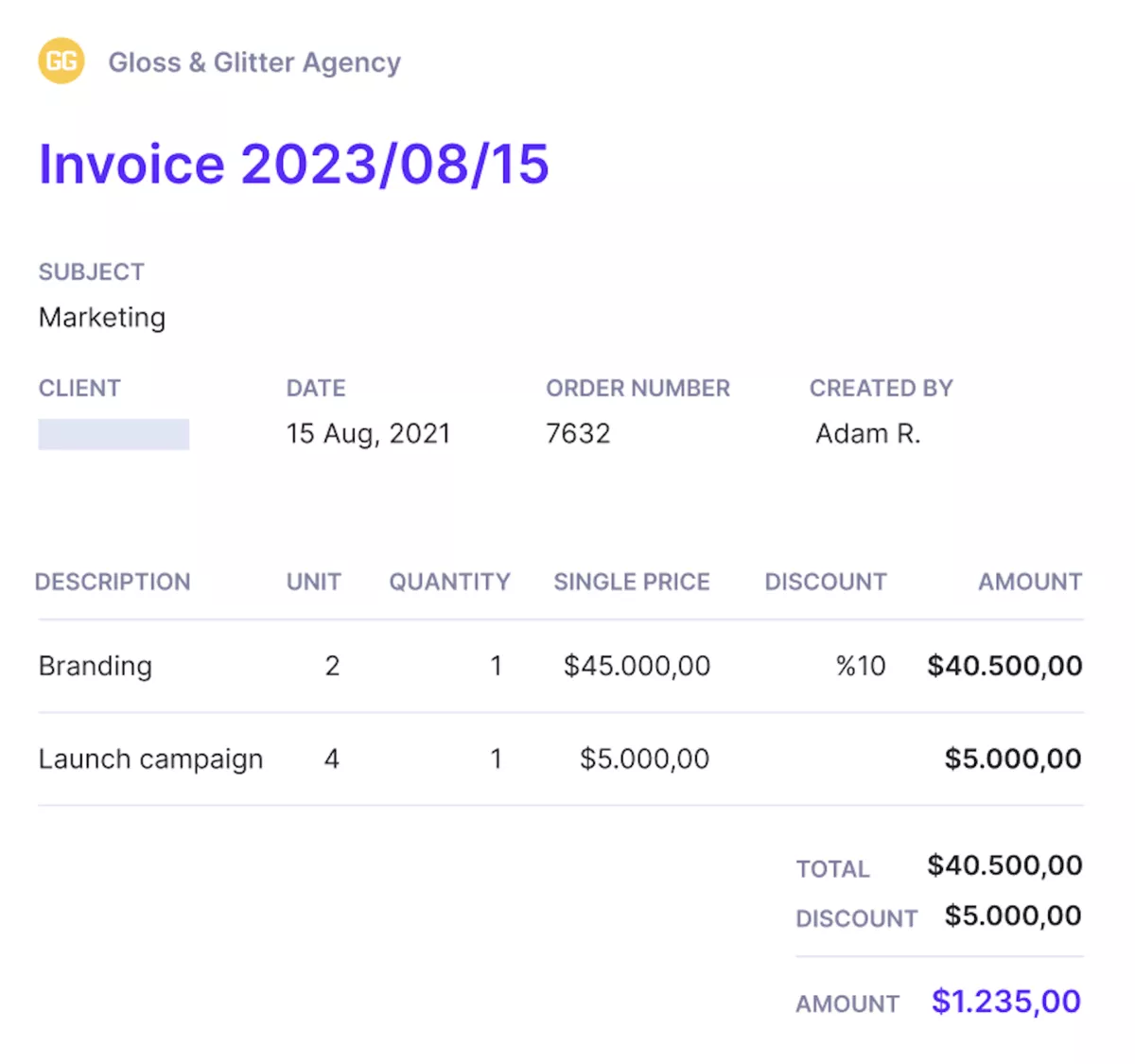
Send invoices from the same place you track work and manage finances.
Get Financial Visibility Without Rebuilding Everything in Spreadsheets
Project data may exist in the system, but teams often need extra layers outside of ProWorkflow for utilization, budget burn, work in progress, or profitability.
Productive improves on that by connecting tracked time, expenses, budgets, and resource planning more tightly. Its budgeting capabilities make it easier to see budget burn, utilization, and profitability without rebuilding the picture in spreadsheets. The advantage is not that it promises magic reporting.
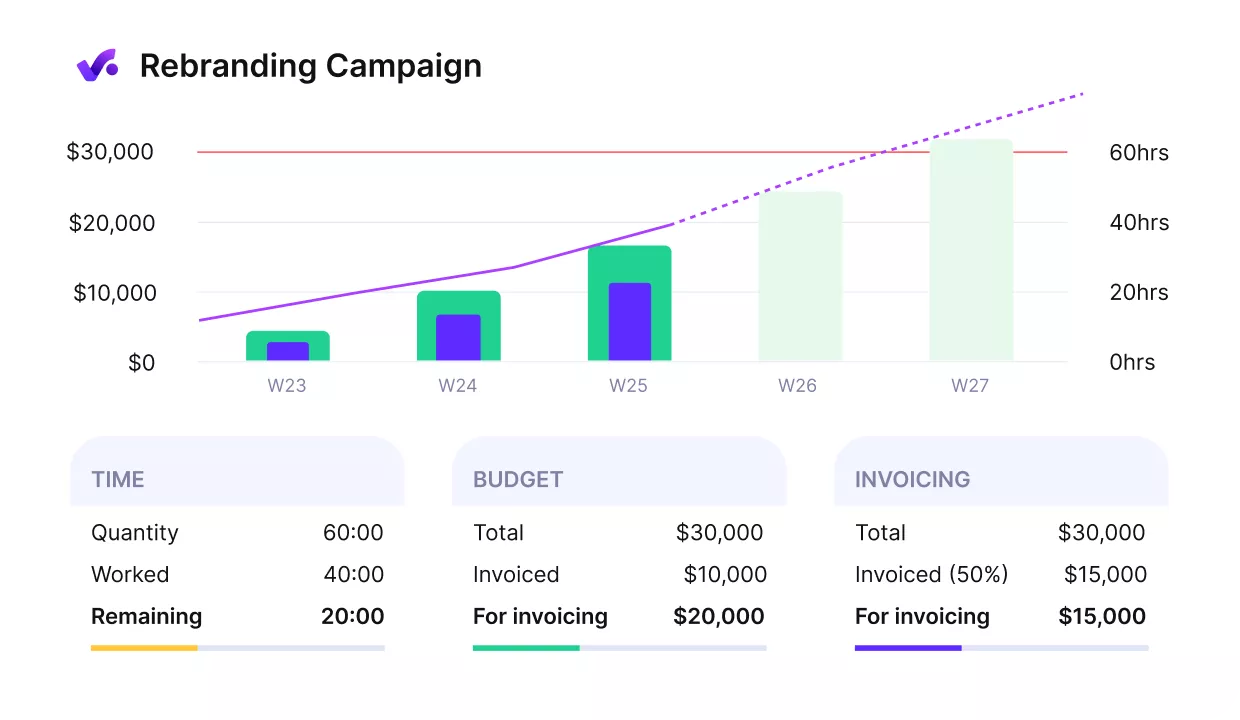
Get early warnings of budget overruns.
It is that financial visibility is built more directly into the way the system works, so agency leaders can get closer to the numbers they need without rebuilding the picture manually every time.
Make Time Tracking More Useful for Delivery and Finance
Work logging only helps if the team can log time consistently and the business can actually use that data. Users often describe friction around time entry and project organization, which weakens everything that depends on those records later.
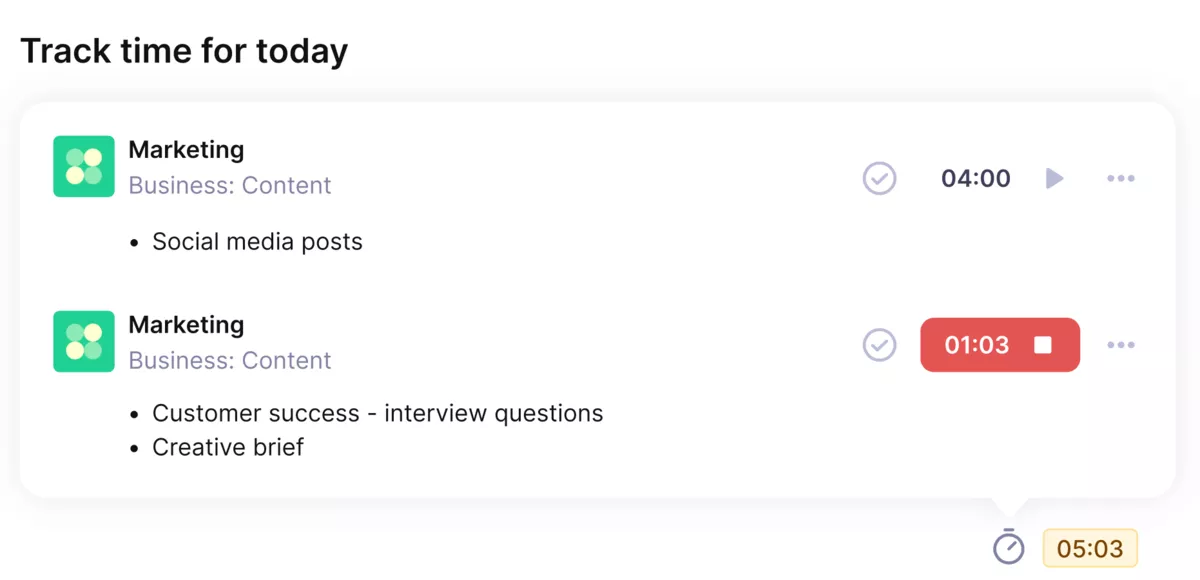
Track time directly on tasks with Productive’s automatic time trackers.
Productive gives teams multiple ways to log time and ties those entries back to budgets and services inside the same workflow, with client access handled separately through the client portal where needed. Compared with ProWorkflow, that makes time data more useful beyond the timesheet itself.
It also supports delivery oversight, budget control, and billing logic in a more connected way.
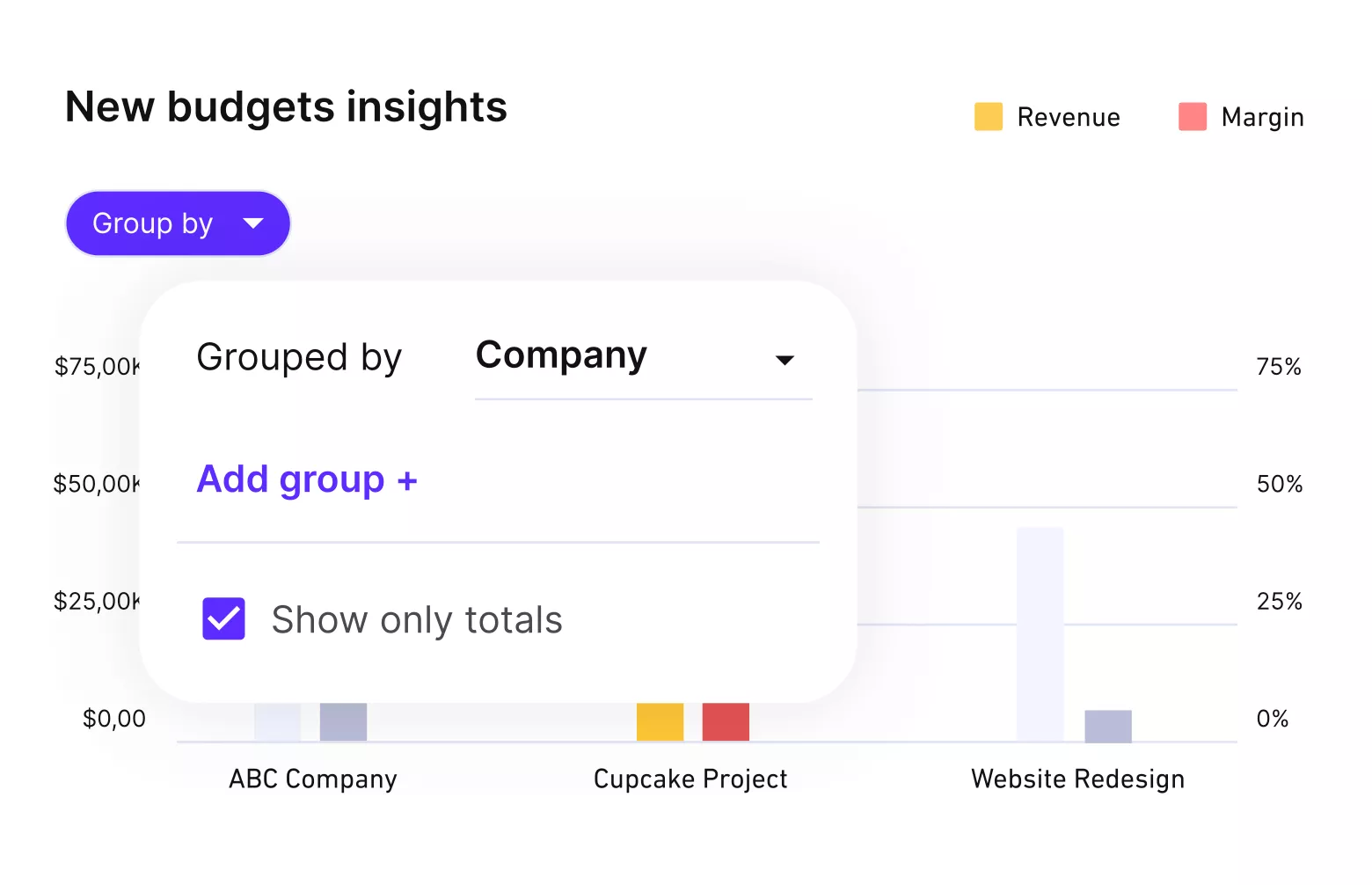
Get real-time budget updates and improve visibility.
Plan Capacity With the Same System You Use to Run Delivery
Productive’s Resource Planner sits alongside project and budget data, which gives teams clearer resource management without splitting planning into another tool.
As a result, team leads get to see scheduled work, time off, and delivery plans without splitting that process across separate tools.
For agencies trying to improve forecasting and utilization, that is a meaningful step up from a narrower project-tracking setup.
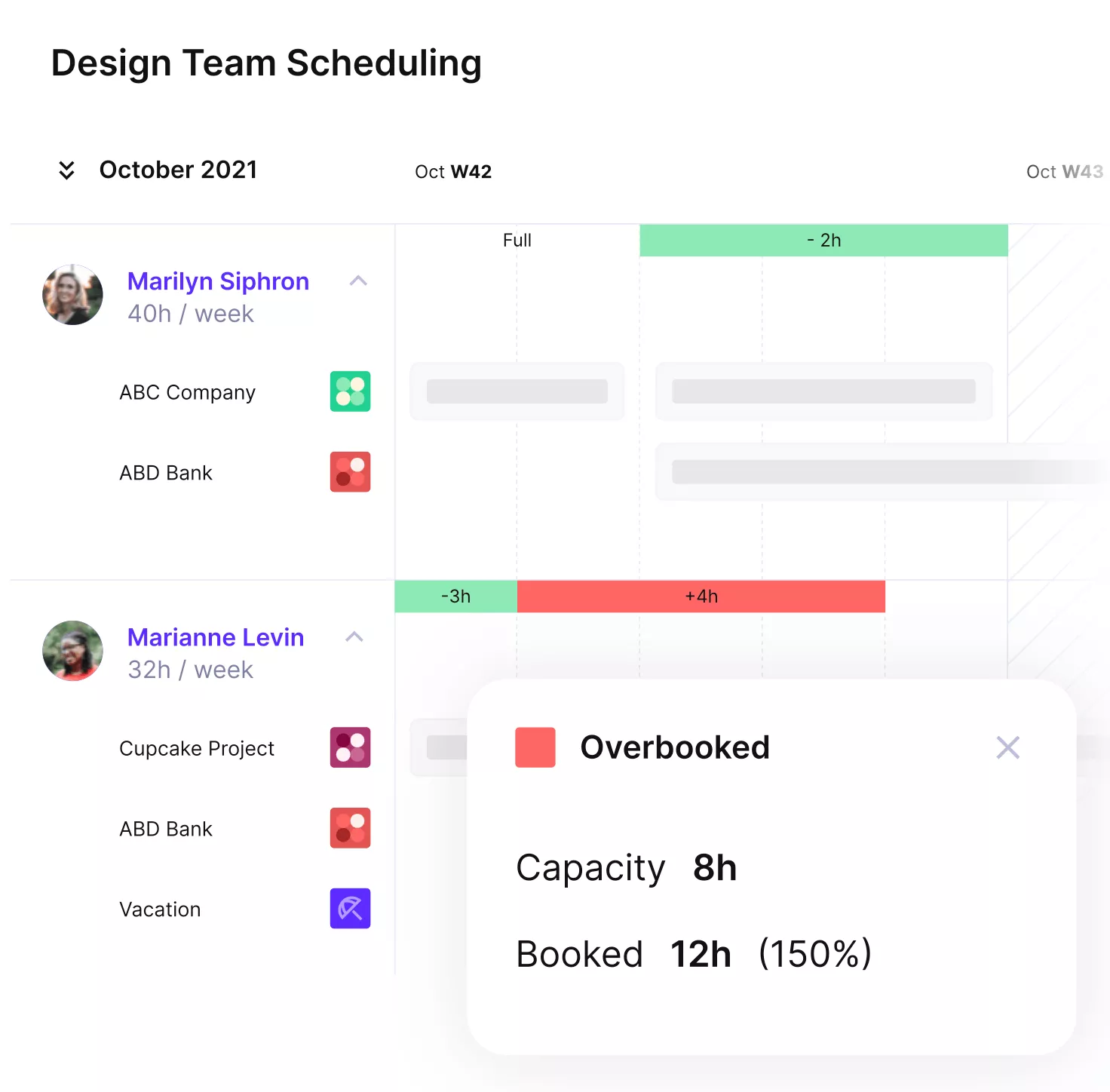
Schedule your team’s workloads in real time.
Use One System for Delivery Decisions, Not Just Project Updates
The bigger difference between these tools is not that Productive replaces ProWorkflow feature for feature. It is that Productive is built for companies that need project delivery and operational control to work together more closely.
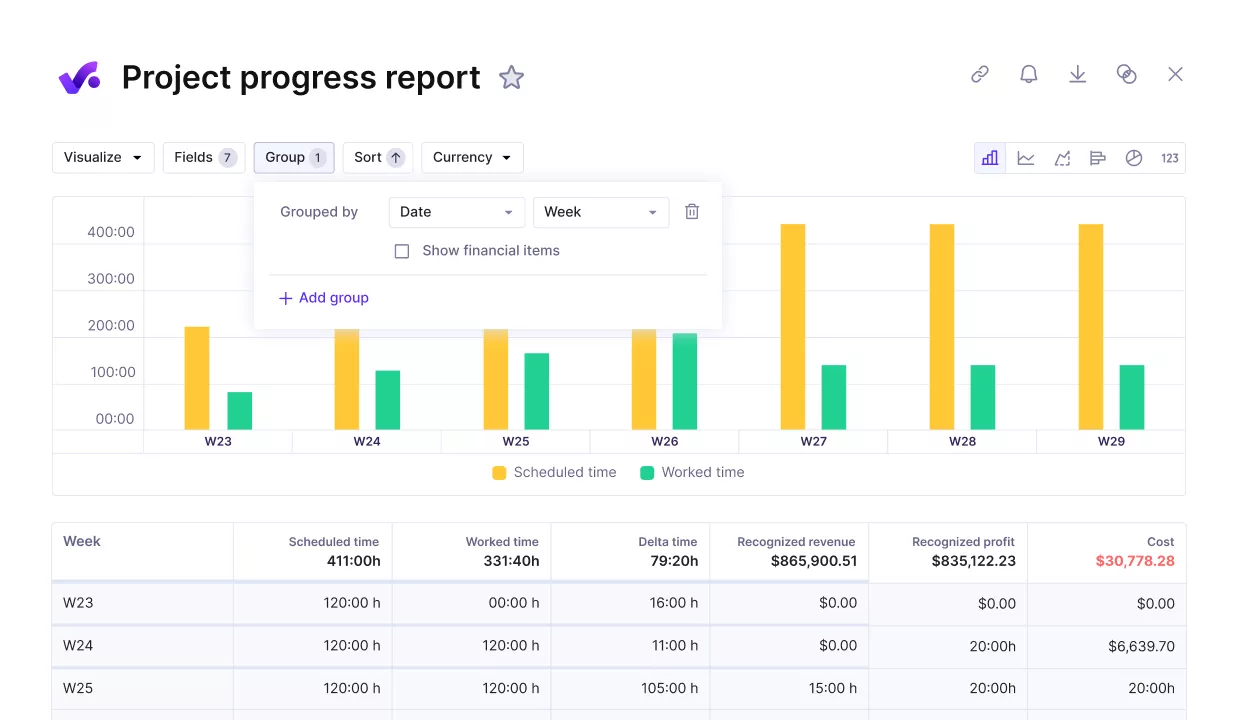
Track project progress against key performance metrics.
That does not make it the right choice for every team. Smaller teams that only want a simple project and time tool may not need this much depth.
However, agencies orn professional service providers that are starting to feel the limits of ProWorkflow in billing, reporting, resourcing, or financial visibility will usually find Productive better aligned with how they actually operate.
Pricing
- Plans start with the Essential plan at $10 per user per month, which includes essential features such as budgeting, project & task management, docs, time tracking, expense management, reporting, and time off management.
- The Professional plan includes custom fields, recurring budgets, advanced reports, billable time approvals, and much more for $25 per user per month.
- The Ultimate plan has everything that the Essential plan and Professional plan offer, along with the HubSpot integration, advanced forecasting, advanced custom fields, overhead calculations, and more. Book a demo or reach out to our team for the monthly price per user.
You can go for a free 14-day trial before you decide to check out a paid plan.
If ProWorkflow feels too limited, Productive is worth a closer look
For agencies that need more flexibility in how they run projects and manage the business behind them, Productive offers a more capable all-in-one option.

2. Teamwork – Best for the Closest Client-Work Replacement
Compared with ProWorkflow, Teamwork feels like a more polished fit for service teams that mainly need to manage projects well rather than expand into a broader operations stack.
For a closer look at how this category compares, see our detailed comparison of Wrike vs Teamwork vs Productive.
Key Features
- Built-in time entry tied to client work and billable delivery
- Workload planning for team capacity
- Project budgeting and reporting features for tracking delivery performance
- Project planning with templates, dependencies, collaboration tools, and client access options
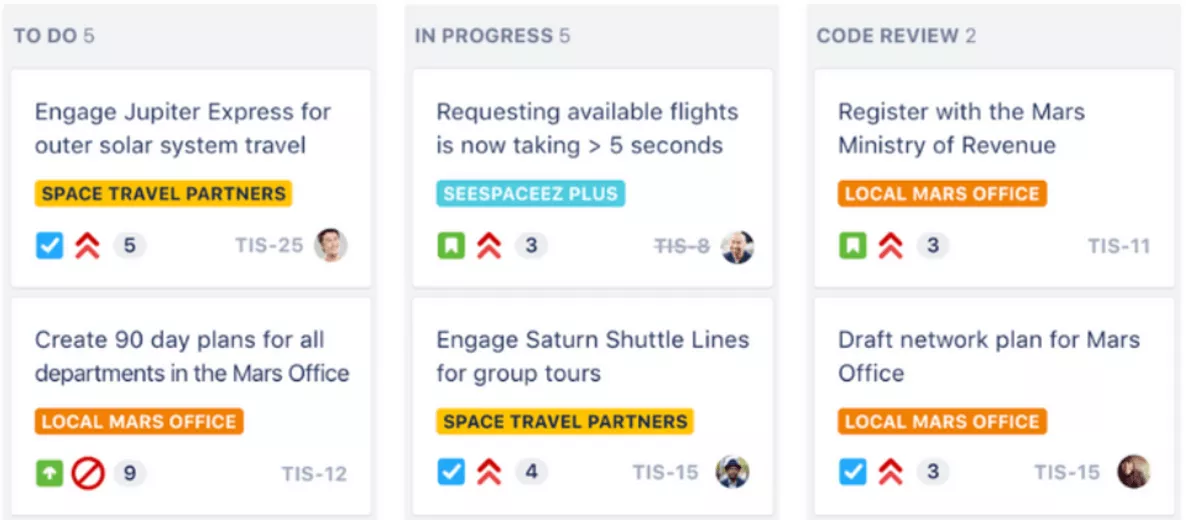
SOurce: teamwork
Pros
- Keeps projects, budgets, and client work in one place, which reduces the need to patch together multiple project management tools.
- Makes time tracking easier to use, especially for teams that need clearer delivery visibility on mobile app and desktop workflows.
- Supports collaboration well when updates, comments, and work details need to stay in the same workspace.
- Handles recurring delivery workflows well with templates, automation, and bulk task handling.
Cons
- The interface can feel clumsy or confusing when teams use a wider range of features.
- Navigation is not always intuitive, especially when important options feel harder to find than they should.
- Glitches or sluggish moments can get in the way of daily use.
- Parts of the feature set can feel too basic for more specialized workflows.
Final Verdict
Teamwork is strongest when the goal is better client delivery, not broader operational control. If this switch is really about financial oversight, forecasting, or deeper business visibility, there are stronger options on this list.
3. Wrike – Best for Structured Workflow Management and Collaboration
Where ProWorkflow is easier to grasp, Wrike is better at turning messy cross-team work into a defined process. It is the stronger choice when work needs clear statuses, approvals, handoffs, and custom workflows, not just task lists and logged hours.
Key Features
- Structured workflows, forms, automation, custom workflows, and Custom Fields for process control
- Gantt Charts and Kanban boards for planning and tracking work in different views
- Dashboards and reporting for stronger project visibility across teams
- Workload planning and cross-functional collaboration tools
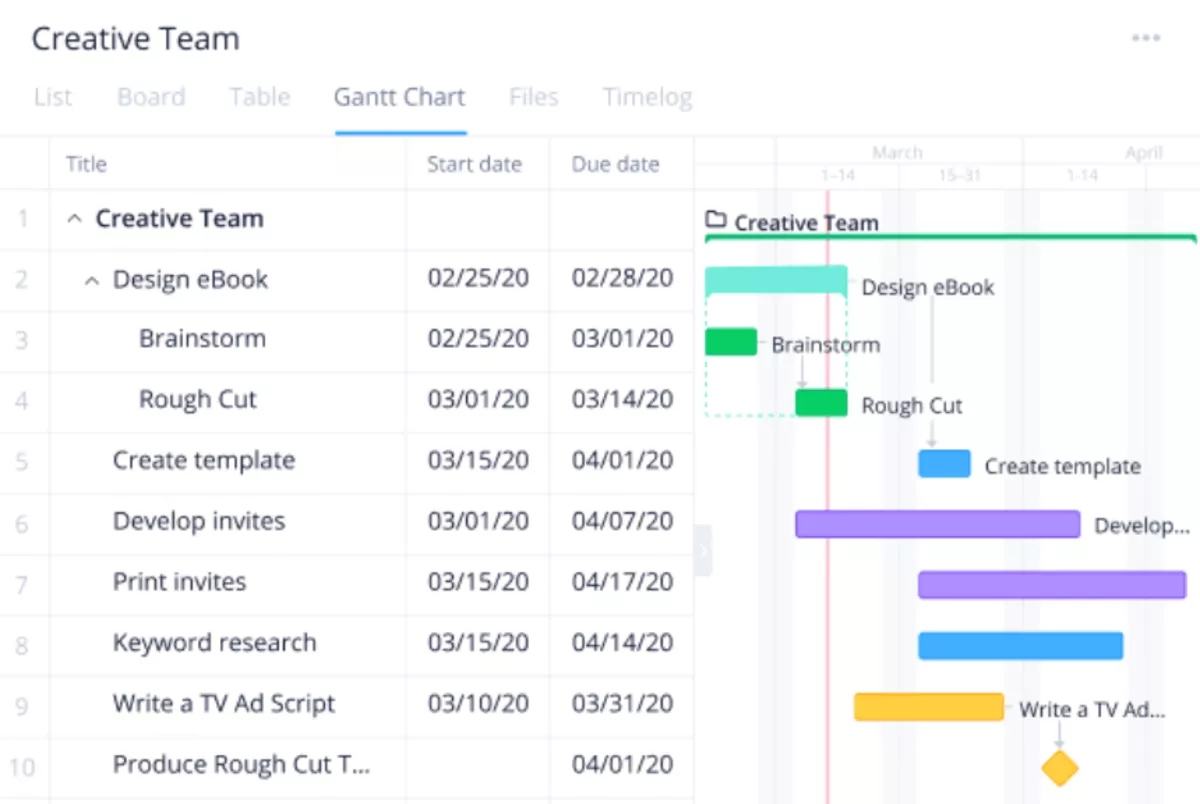
SOurce: wrike
Pros
- Gives teams tighter control over how work moves from request to completion.
- Makes it easier to standardize complex processes with Custom Fields, structured steps, and automation.
- Improves visibility when managers need to see progress, workload, and ownership across many moving pieces.
- Keeps collaboration tied to the work itself through comments, files, updates, and shared context.
Cons
- Takes more effort to learn well than lighter project tools.
- Can feel too heavy for teams that mainly need straightforward project tracking.
- The interface can get noisy, especially with lots of notifications and active work.
- Administration and deeper setup can take more time than buyers expect.
Final Verdict
Wrike is the better fit when the real problem is process sprawl, approvals, and cross-team coordination. If you want a broader view of where it sits in the market, see our roundup of Wrike alternatives.
4. ClickUp – Best for Flexible Work Management
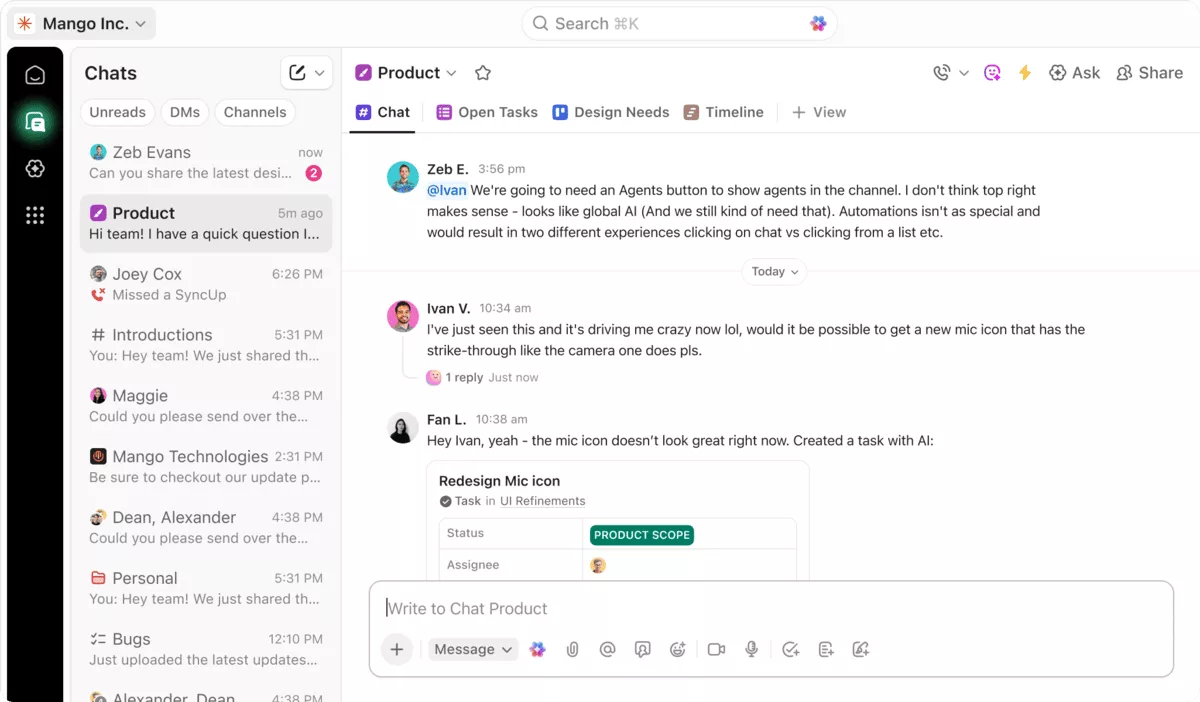
ClickUp is not the closest match to ProWorkflow. It makes more sense for teams that want one place for tasks, docs, dashboards, chat, and planning instead of a narrower project delivery tool. That broader setup is useful for teams that want to consolidate work instead of managing it across several separate tools.
Key Features
- Multiple work views, including Kanban boards and Gantt Charts
- Custom workflows, fields, and automations for flexible setup
- Dashboards for tracking project progress, workload, and delivery data
- Built-in docs, Google Drive links, and collaboration tools connected to project work
SOurce: clickup
Pros
- Reduces tool sprawl by combining tasks, docs, chat, dashboards, planning views, and Google Drive links in one workspace.
- Gives teams a lot of flexibility in how they organize work, which helps when one rigid setup does not fit every workflow.
- Makes day-to-day work easier to adapt across different teams, clients, project types, and customer support handoffs.
- Offers a generous free version, which lowers the barrier for teams that want to test a broader setup before committing.
Cons
- The breadth of features can feel overwhelming when teams only need a simpler project system.
- Setup takes time if you want the workspace to feel clean and consistent instead of chaotic.
- Performance complaints still come up in reviews, especially when workspaces get busy.
- The platform can create more decisions than some teams want, because flexibility also means more room to overbuild.
Final Verdict
ClickUp works best when the bigger goal is consolidation. If you want to compare it against similar tools, see our guide to ClickUp alternatives.
Teams that are tired of splitting work across too many tools can get a lot from it, but buyers who want a more opinionated replacement may spend too much energy deciding how everything should be set up.
5. monday.com – Best for Customizable Workflow Management
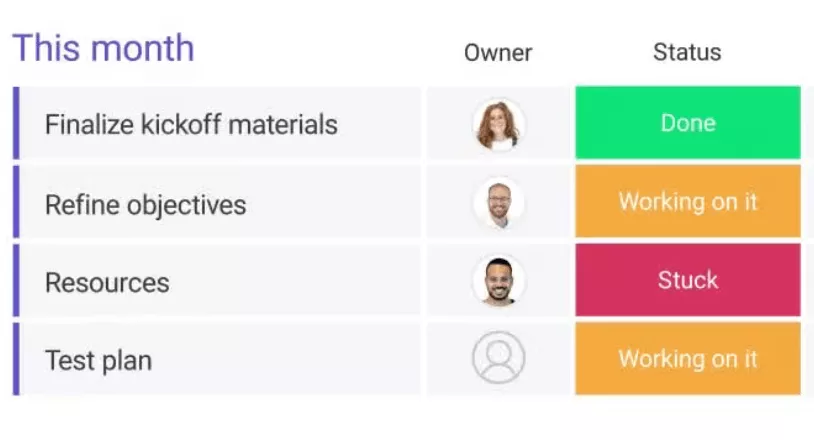
monday.com is a stronger fit for teams that value visual planning, easy board customization, and workflow automation, but less ideal for buyers who want a more opinionated tool with fewer setup decisions.
Key Features
- Custom boards, Kanban boards, statuses, fields, and Google Drive attachments for shaping different workflows
- Workflow automation, custom workflows, and forms for reducing manual coordination
- Dashboards and reporting views for tracking progress and team activity
- Resource management and workload views for planning team capacity across teams
SOurce: monday.com
Pros
- Makes it easy to build workflows around the way a team already works instead of forcing a rigid structure.
- Gives teams a highly visual way to manage projects, owners, statuses, progress, and Kanban boards.
- Cuts down on manual follow-up with workflow automation, forms, and board-based coordination.
- Offers a free version that makes it easier to test the platform before a bigger rollout.
Cons
- Setup can become messy if teams customize too much without clear rules.
- Some important features feel limited depending on plan level or use case.
- There is still a learning curve once automations, dashboards, and more advanced workflows enter the picture.
- It can feel too open-ended for teams that want a tool to impose more structure by default.
Final Verdict
monday.com is best for teams that want flexibility first and are comfortable shaping the system around their own process. It is a weaker fit for buyers who want the tool itself to provide a clearer operating model, because too much freedom can turn into inconsistency fast.
Why Are Teams Looking for ProWorkflow Alternatives?
Teams are looking for ProWorkflow alternatives because they run into specific problems: limited customization, reporting and invoicing that feel less seamless than they need, navigation that slows down routine work, a steeper learning curve than expected, and weaker organization as projects scale.
Below is a breakdown of the most common reasons and how they affect teams using ProWorkflow day to day. If you need a broader framework for evaluating what breaks first as teams grow, our agency project management guide gives useful context.
- Customization can feel limited. When teams need to shape the tool around a more specific workflow, they can run into limits with Custom Fields or more advanced setup needs. That becomes a bigger issue when different teams, clients, or delivery processes all need slightly different setups.
- Reporting and invoicing do not always feel seamless. This matters most once teams need faster handoffs between delivery data and the business side of the work. If reporting or invoicing feels awkward, people end up spending more time checking, exporting, or cleaning up information.
- Navigation can slow people down. Some user reviews describe features and tools as harder to find than they should be. In day-to-day work, that means more clicking around just to complete routine actions, which adds friction across the team.
- The interface can make day-to-day project work feel more difficult than expected. Instead of helping work move faster, the experience can feel overwhelming for some users. That is especially noticeable when the team is managing a lot of active projects at once.
- The learning curve can feel higher than the product should require. Reviews mention that the interface and product flow are not always easy to understand at first. That can slow onboarding and make adoption harder for teams that want a straightforward system.
- Search and organization can become a problem as work scales. Reviews point to project organization as a real need, especially for teams handling many clients and projects at the same time. When it takes too much effort to find the right project or keep work organized, buyers start looking for an alternative with better visibility and structure.
How to Choose a ProWorkflow Alternative That Works Best for Your Team? (Step-by-Step Process)
To choose a ProWorkflow alternative well, define the problems you need to solve, separate close replacements from broader platforms, test each tool against real workflows, compare tradeoffs, and run a focused pilot before you decide.
That helps you separate tools that look similar on paper from project management tools that actually fit your workflows, team size, delivery model, and the way your team prefers to view work, whether that is through Gantt Charts or Kanban boards.
Step 1: Define What ProWorkflow Is No Longer Doing Well Enough
Start by writing down the exact jobs ProWorkflow handles today. Do not stop at broad labels like project management, time tracking, or collaboration.
List the real day-to-day tasks, such as tracking time, managing active projects, handling recurring work, monitoring delivery progress, sharing updates, or getting data ready for invoicing and reporting.
Then mark where the friction shows up. If teams keep complaining about navigation, reporting gaps, weak customization, or too much manual work, turn those complaints into decision criteria. A vague frustration like “it feels hard to use” is not enough.
A useful criterion sounds more like “we need faster project search,” “we need better reporting for client delivery,” or “we need a clearer way to manage repeatable workflows.”
Step 2: Separate Close Replacements from Broader Platforms
Some alternatives to ProWorkflow are close replacements that improve project delivery without changing much else, while others add client access, customer support workflows, or broader operations controls.
Others are broader platforms that also cover planning, automation, operations, or professional services automation.
To decide which direction makes sense, ask one question: are you trying to fix project execution, or are you trying to fix a wider operating model? If your problems are mostly around tasks, work logging, visibility, and collaboration, a closer replacement may be enough.
If the switch is really about improving resource planning, financial oversight, intake, approvals, or operational control, you should evaluate broader management software instead of staying too narrow.
This is usually the point where agency teams need clearer agency workflows instead of more patchwork fixes.
Step 3: Build a Shortlist Around Real Use Cases
Once you know what you are solving for, build a shortlist around work your team already does. Choose two or three recurring workflows and use them as your test cases.
That might be a new project kickoff, a weekly delivery cycle, a multi-step approval process, or a project that needs logged hours and reporting at the end.
Then ask each vendor to show that exact workflow in the product. Do not let the evaluation stay at the level of polished dashboards or generic feature tours.
If the tool cannot handle your real process without awkward workarounds, it does not belong on the shortlist. This is also where it helps to review your current agency processes before you commit to a new system.
Step 4: Compare Tradeoffs, Not Just Features
At this stage, start asking what each tool makes easier and what it makes harder.
A broader platform may beat it on flexibility, resource planning, or workflow depth, but also take longer to learn and maintain. A simpler project management software option may be easier to roll out, but still leave gaps in reporting, work logging, or cross-team visibility.
Step 5: Run a Focused Pilot Before You Commit
Before making a final decision, run a small pilot with one representative team, one live workflow, and a fixed timeline. Keep the pilot narrow enough to manage, but real enough to expose issues around setup, adoption, reporting, and day-to-day usability.
At the end of the test, collect feedback from the people who actually used the tool, not just the people who approved it. If the pilot only looks good in a demo environment, keep looking.
The point of this step is to avoid buying a tool that seems promising during evaluation but breaks down once real work starts moving through it.
How to Migrate from ProWorkflow?
The safest way to migrate from ProWorkflow is to audit what you have, decide what needs to move, clean the data before import, map your workflows into the new workflow application, test everything with a pilot team, and only then roll it out more widely across your project management setup.
That approach reduces the chance of bringing old problems into a new system and gives your team time to fix setup issues before they affect live project management work.
Start by reviewing the data and processes you use today, including any files stored in Google Drive or shared through other tools. Look at active projects, templates, project structure, time data, recurring workflows, reports, and any information tied to billing or handoffs.
Then decide what should be migrated as-is, what should be cleaned up first, and what should be left behind. Once that is clear, map the new tool to the way your team actually works, test it with one representative group, and treat the pilot as a working rehearsal instead of a soft launch.
ProWorkflow Migration Checklist
Preparation
- Name one migration owner and one decision-maker for setup approvals.
- List the workflows you need the new tool to support from day one.
- Decide which teams, projects, and clients are included in phase one.
- Set a realistic cutover date and a short pilot window before it.
Cleanup
- Review active and inactive projects and archive anything you do not need to move.
- Standardize project names, statuses, project labels, and owner fields before export.
- Remove duplicate templates, old fields, and outdated workflow steps.
- Check time-entry history and decide how much historical detail needs to be imported.
Mapping
- Map ProWorkflow fields, statuses, workflows, templates, and Open API dependencies to the new system.
- Rebuild one recurring project workflow from start to finish before migrating everything else.
- Decide how dashboards, reports, and resource planning views should work in the new tool.
- Document any gaps where the new setup will work differently so the team is not surprised later.
Pilot Testing
- Run one live project or one representative team through the new setup.
- Test work creation, assignments, work logging, reporting, and any recurring workflow steps.
- Ask users where they get stuck, what feels slower, and what still needs to be clarified.
- Fix setup issues before expanding the rollout.
Rollout
- Move the remaining projects in batches instead of all at once.
- Give the team a simple migration guide with new rules, naming conventions, and who to ask for help.
- Freeze major process changes during the first rollout window so people are not learning a moving target.
- Monitor adoption daily during the first two weeks.
Post-Migration Review
- Check whether the new tool is handling project management, day-to-day work, and work logging the way you expected.
- Review reporting accuracy, workflow consistency, and team adoption after the first month.
- Retire old processes and duplicate tools once the new setup is stable.
- Keep a short backlog of cleanup tasks so the system improves after launch instead of drifting.
Closing Thoughts: Are These Alternatives Worth the Switch?
Yes, switching is worth it when ProWorkflow is slowing your team down with weak customization, harder navigation, and workflows that no longer match how you actually deliver work.
The best ProWorkflow alternatives solve different problems, but all-in-one options make the strongest case when you want fewer tool handoffs and better visibility across projects, time, and planning. If that is the direction you are heading, Productive is worth a closer look.
Book a demo and start today.
Connect With Agency Peers
Access agency-related Slack channels, exchange business insights, and join in on members-only live sessions.
