Top 10 Project Management Collaboration Tools (2026) + Prices

The best project management collaboration tools are Productive, Teamwork.com, Rocketlane, monday.com, Asana, ClickUp, Smartsheet, Zoho Projects, Basecamp, and Wrike. We compared how each project management tool lets clients in and tracks time against budgets, and what it costs.
Each tool gets key features, review-based pros and cons, pricing with its G2 rating, and who should pick it. A comparison table, a feature checklist, and a four-step test follow.
What Are the Best Project Management Collaboration Tools in 2026?
The best project management collaboration tools are Productive, Teamwork.com, Rocketlane, monday.com, Asana, ClickUp, Smartsheet, Zoho Projects, Basecamp, and Wrike. Here’s who each one fits:
At a Glance: Prices, G2 Ratings, and Client Access (Checked November 2026)
The ten tools differ on how clients get in, where time is tracked, and what you pay:
| Tool | Best For | Client or Guest Access | Time and Budget Tracking | Starting Price | G2 Rating (out of 5) |
|---|---|---|---|---|---|
| Productive | Services firms billing clients from shared projects | Free client accounts | Time logged on tasks against the budget; client budget access from Professional | $12 per seat/month ($10 yearly) | 4.7 (108 reviews) |
| Teamwork | Agencies managing client work and billable time | Unlimited free client accounts | Tracks time; time budgets from Accelerate | $13.99 per seat/month ($9.99 yearly) | 4.4 (1,225 reviews) |
| Rocketlane | Client onboarding and implementation projects | Unlimited customer members in a branded portal | Timesheets; budgets from Premium | $49 per team member/month, billed annually | 4.7 (882 reviews) |
| monday.com | Flexible boards with guest access | Guests from Standard (four count as one seat); unlimited guests on Pro | Tracks time from Pro | $12 per seat/month ($9 yearly) | 4.7 (17,975 reviews) |
| Asana | Cross-functional teams with outside collaborators | Unlimited free guests from Starter | Native time tracker from Advanced; budgets as an add-on | $13.49 per seat/month ($10.99 yearly) | 4.4 (14,138 reviews) |
| ClickUp | Tasks, docs, and chat in one workspace | Guests on every plan; guest seats capped on paid plans | Tracks time from Core; timesheets from Business | $12 per seat/month ($9 yearly) | 4.6 (15,848 reviews) |
| Smartsheet | Spreadsheet-style plans with free guests | Unlimited free guests on Business | Time and expense tracking in a paid add-on | $12 per member/month ($9 yearly) | 4.4 (23,286 reviews) |
| Zoho Projects | Project budgets and timesheets | Client accounts as a paid add-on | Time logs, timesheets, and budgets from Premium | $5 per seat/month ($4 yearly) | 4.4 (596 reviews) |
| Basecamp | Small teams wanting a simple way to work with clients | Clients count toward the account limit below Pro Unlimited | Time tracking from Pro Plus ($99/month); no budgets | $29 per month, flat (Freelancer, billed monthly only) | 4.1 (5,490 reviews) |
| Wrike | Teams reviewing files and approvals with clients | Guest reviewers on proofs; external members need a paid seat | Tracks time from Business; budgets on Pinnacle | $10 per seat/month, billed annually | 4.2 (4,645 reviews) |
How We Chose These Tools
We looked for project management tools with built-in collaboration, where a services team and its clients share projects. We left out tools built mainly for chat, video calls, whiteboards, or wikis.
Productive is our tool, so it’s listed first and covered in more depth. Features come from each vendor’s own pages, and pros and cons from dated G2 and Capterra reviews. Prices and G2 ratings were checked on November 20, 2026.
1. Productive – Best for Services Firms That Bill Clients From Shared Projects
Productive is agency management and professional services automation (PSA) software for project management, resourcing, time tracking, budgets, and reporting. Clients get free accounts and work on tasks and docs alongside your team.
Try out Productive’s project management
Keep Client Feedback and Internal Notes on the Same Task
If client feedback arrives by email and your team discusses it in chat, no one place shows both. In Productive, clients you add to a project can collaborate on its tasks and docs. They see only the projects they’re part of.
You decide which projects clients join, and you can keep whole folders private. Your team can also mark a comment hidden from the client, so only your team members see it. Files attach to tasks and comments, and each task has its own email address.
Forwarded emails and their attachments then appear in the task feed.
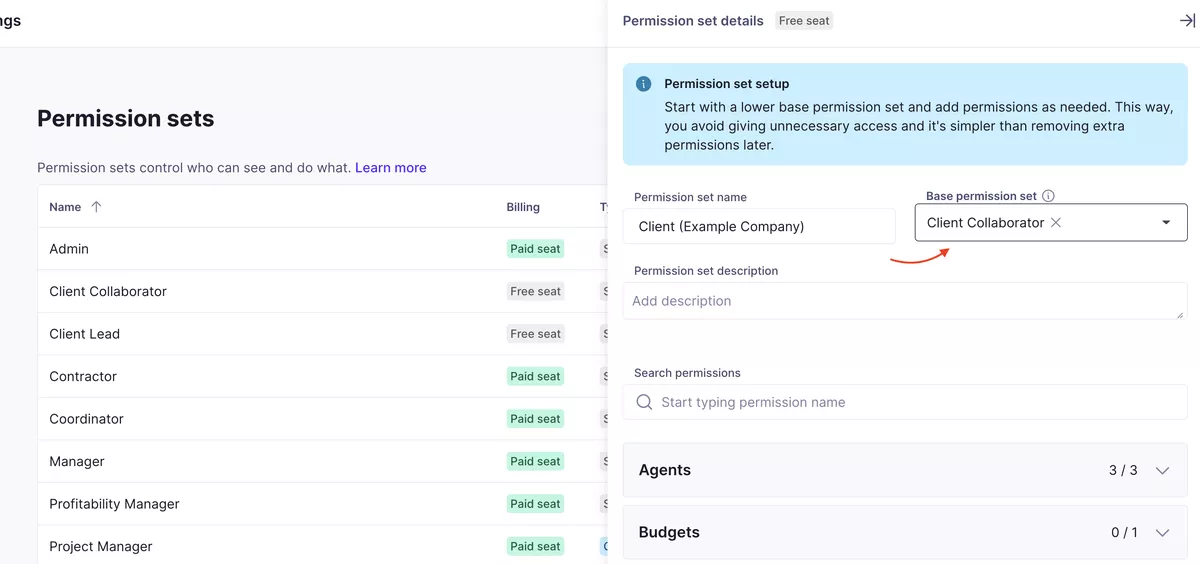
Manage client permissions in Productive, where client permission sets use free seats.
Show Clients the Hours and Budget Behind Their Work
With tasks and hours in separate tools, someone has to combine the numbers before a client sees them. With time tracking on tasks turned on, every task gets a Time tab. You pick a service from the project’s budget and log time, or run a timer, without leaving the task.
Turn on client access for a budget, and clients with the Client Lead permission see it with their timesheets.
They see billable time, not your team’s worked time or rates. If you approve billable hours first, entries reach the client only after approval. Client access to budgets is available on the Professional and Ultimate plans.
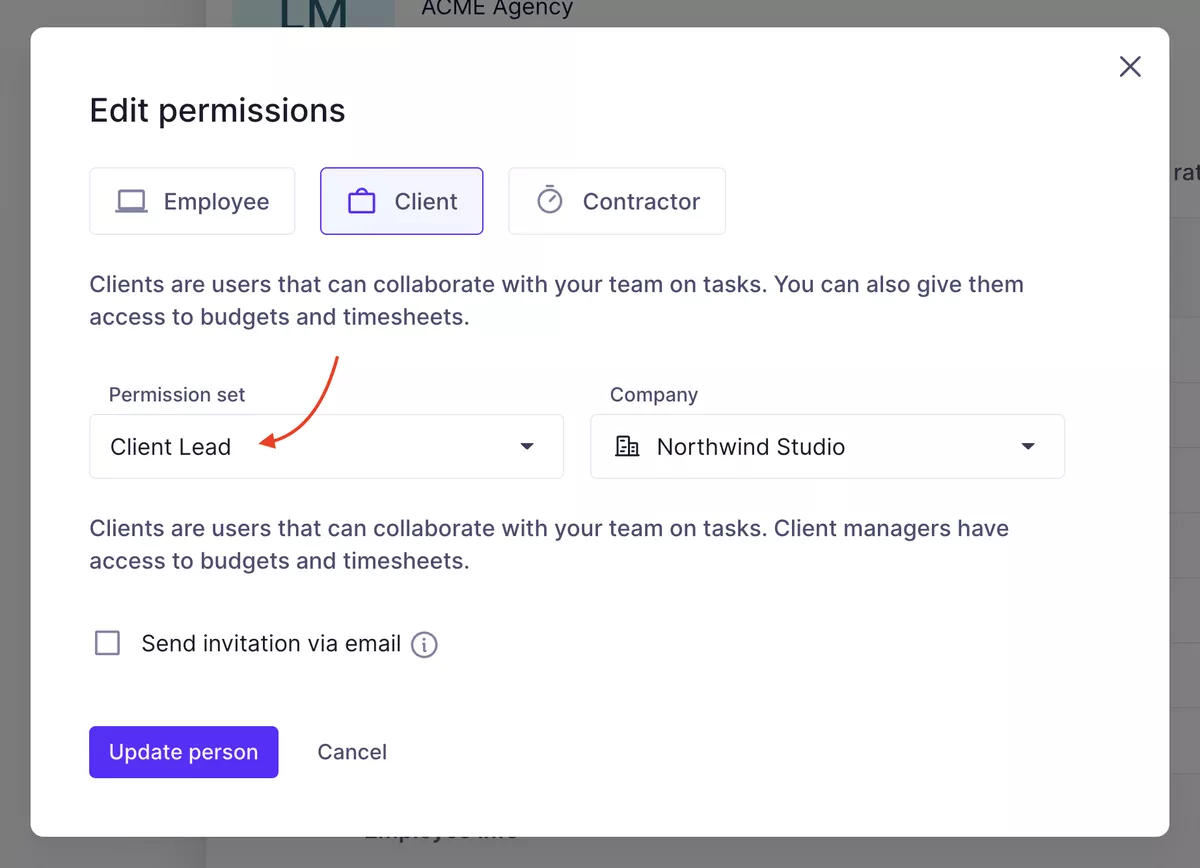
Give a client the Client Lead permission so they can see budgets and timesheets in Productive.
Share Call Notes and Weekly Recaps With Clients Using AI
A weekly status email written by hand needs someone to collect updates from the team first. Productive’s AI features come with every plan, and its AI Assistant can draft a client update from recent activity.
Productive’s AI Notetaker joins your client calls and records them on Zoom, Google Meet, or Microsoft Teams. An admin needs to turn on Productive AI first. After the call, you get a transcript, AI-written notes, and action points. The AI Assistant can turn those action points into tasks.
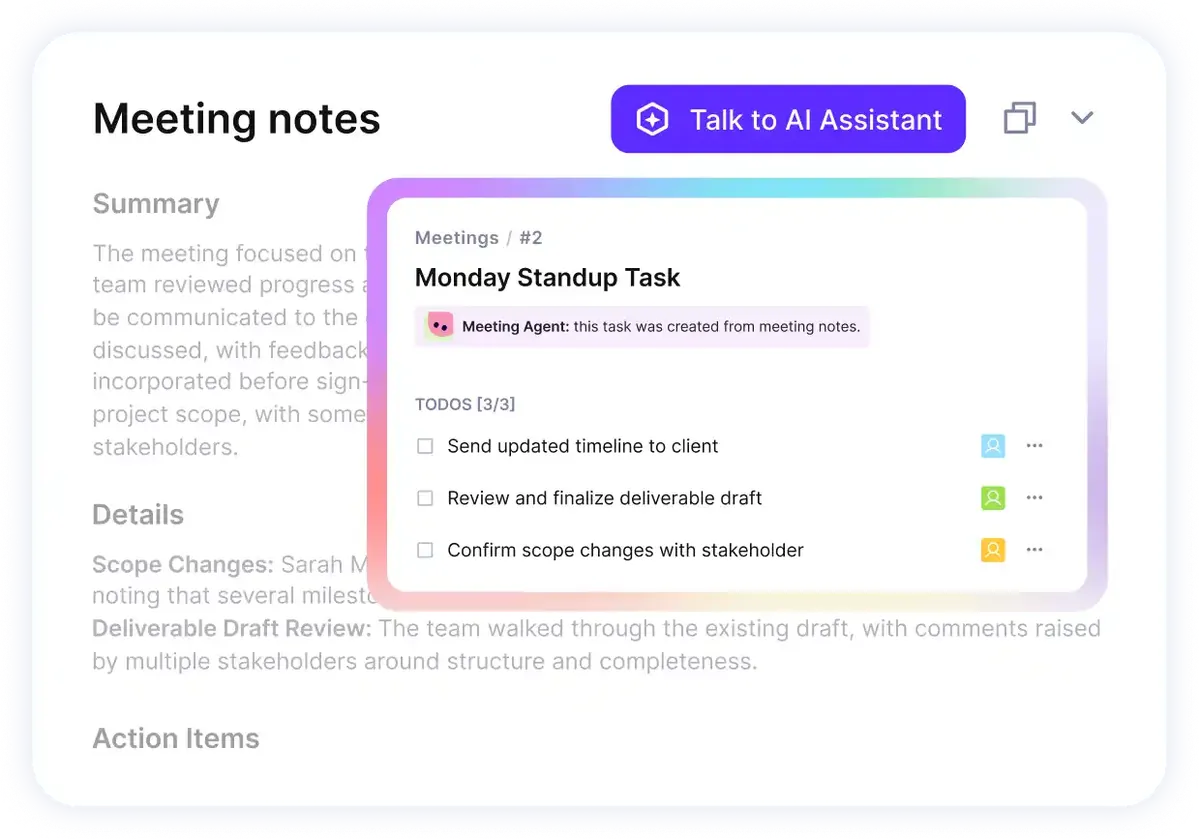
Turn meeting notes into a task with to-dos in Productive.
Your team gets a summary email, and you can share the meeting with a client through a view-only link. Everything is saved in Productive and can be linked to the project. The Notetaker comes with Essential, Professional, and Ultimate, with 10 recording hours a month for your organization.
Productive holds 4.7 out of 5 from 108 G2 reviews, checked November 20, 2026.
Pros
- Agency work is connected in one place. Projects and the rest of the work sit in one platform instead of separate tools.
- Timesheets are simple to keep up to date. Logging hours takes little effort, so entries stay current.
Cons
- Tasks take one assignee by design. Shared work goes into subtasks or to-dos, which some teams find limiting.
- Detailed reports can take extra work. Very specific reporting sometimes means finishing the job outside Productive.
Who Should Pick Productive?
Services firms that bill clients from tracked time get the most from Productive. Clients get free accounts, and on Professional and Ultimate they can see the budget behind their work.
Pricing
- Plans start with the Essential plan at $10 per user per month, which includes essential features such as budgeting, project & task management, docs, time tracking, expense management, reporting, and time off management.
- The Professional plan includes custom fields, recurring budgets, advanced reports, billable time approvals, and much more for $25 per user per month.
- The Ultimate plan has everything that the Essential plan and Professional plan offer, along with the HubSpot integration, advanced forecasting, advanced custom fields, overhead calculations, and more. Book a demo or reach out to our team for the monthly price per user.
Keep Client Feedback, Hours, and Budgets in One Place
Productive keeps client comments and tracked time on the same task, logged against the client’s budget.

2. Teamwork.com – Best for Agencies Managing Client Work and Billable Time
Built for client work, Teamwork.com combines project management, client access, time tracking, and invoicing in one app. Client accounts cost nothing and can get the same project-level permissions as your team.
Key Features
- Unlimited free client accounts
- Billable time tracking
- Time budgets and retainers
- Invoices from logged time
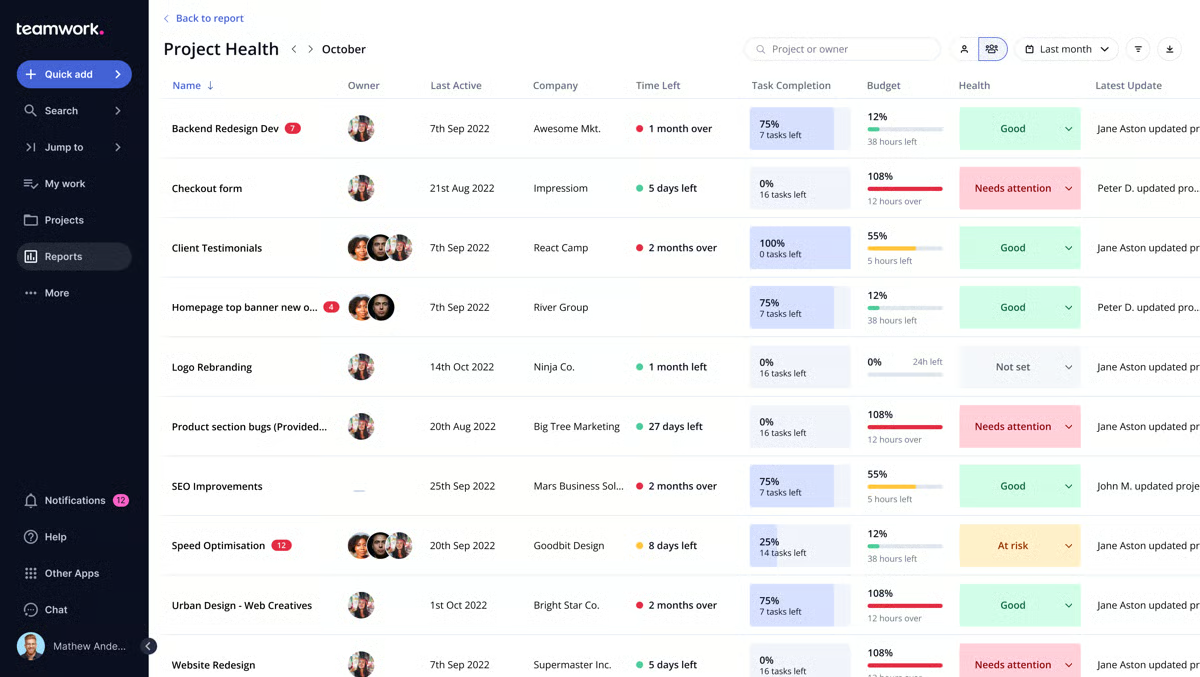
Source: g2
Pros
- Time tracking is easy to keep up with. Logging time against each project is straightforward.
- Task details, comments, and files stay together. You don’t have to look in several places to follow a task.
- Automations take routine task setup off your hands. Rules can set owners, priorities, and deadlines without manual updates.
Cons
- Some tools take digging to find. Getting to what you need can mean going through menus and settings.
- Large projects can feel heavy. Working on a project gets harder as it grows.
Pricing and G2 Rating
Teamwork.com’s pricing starts with a free plan for up to five people. Paid plans start at $9.99 per seat a month on Basics, billed yearly. Time budgets and invoicing come with Accelerate at $24.99.
Teamwork.com holds 4.4 out of 5 from 1,225 G2 reviews, checked November 20, 2026.
Who Should Pick Teamwork.com?
If you run retainers and invoice from logged time, Teamwork.com fits that work. Time budgets, retainers, and invoicing come with Accelerate, and client accounts are free.
3. Rocketlane – Best for Teams Running Client Onboarding and Implementation Projects
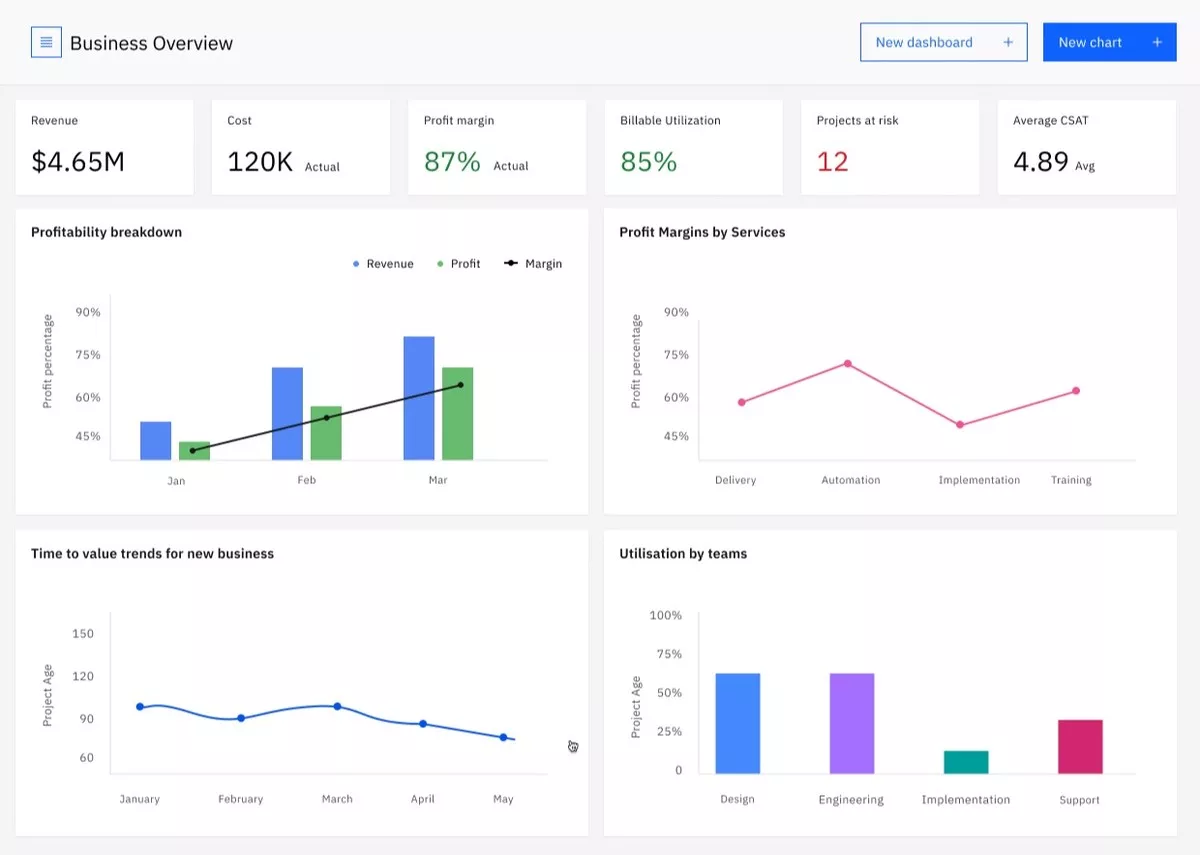
Each customer gets a branded portal in Rocketlane, an all-in-one PSA platform. Your team and the customer work in that portal together, with no limit on customer members.
Key Features
Rocketlane’s main features for client work are:
- Branded customer portal
- Unlimited customer members
- Timesheets and timesheet approvals
- Project budgeting (Premium)
Source: Rocketlane
Pros
Rocketlane’s strengths, from dated reviews:
- The customer portal gives clients one shared view. Customers follow the same plan your team works from.
- It’s simple and intuitive to use. The interface is easy to work in day-to-day.
Cons
Rocketlane’s weak spots, from dated reviews:
- Reporting is hard to customize. Reports and dashboards are less flexible than teams want.
- Bulk edits take extra work. Updating many tasks or time entries at once could be simpler.
Pricing and G2 Rating
Rocketlane’s Standard pricing is $49 per team member a month, billed annually. Budgets come with Premium at $69, and both plans include unlimited customer members.
Rocketlane holds 4.7 out of 5 from 882 G2 reviews, checked November 20, 2026.
Who Should Pick Rocketlane?
Rocketlane suits teams that run customer onboarding or implementation projects. Each customer gets a branded portal, and customer members are unlimited on every plan.
4. monday.com – Best for Teams That Want Flexible Boards With Guest Access
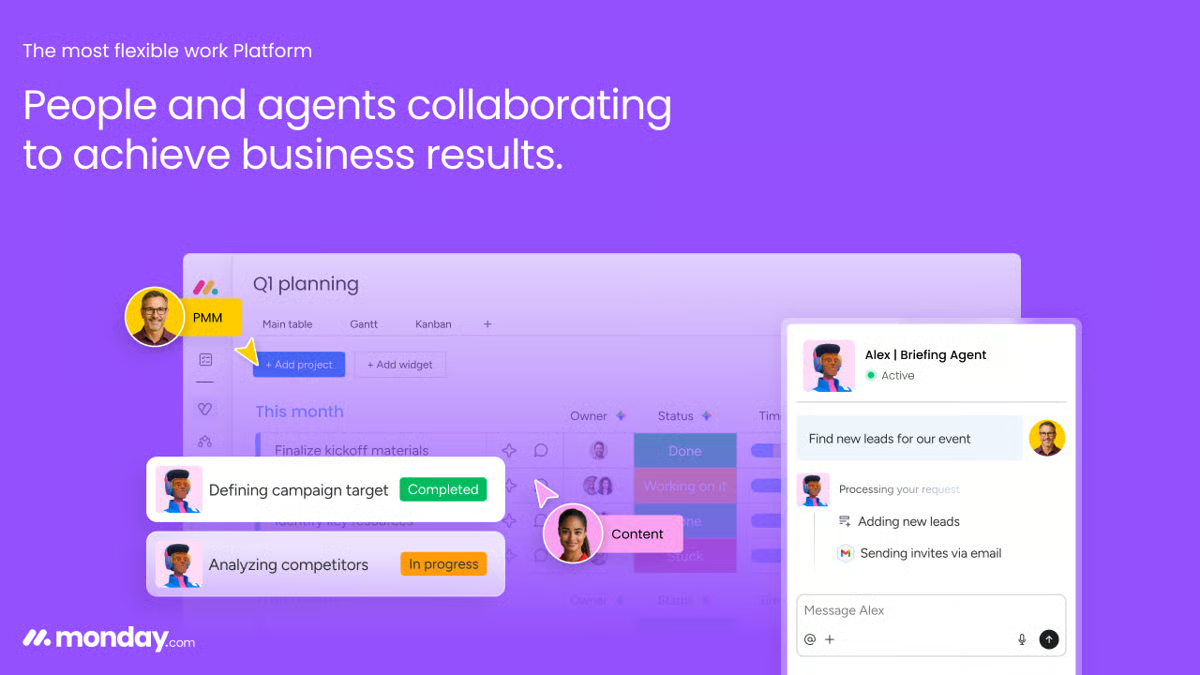
On monday.com’s AI work platform, every project is a board, which keeps project management visual. Clients can join a board as guests from the Standard plan.
Key Features
monday.com’s main features for client work are:
- Guest access (Standard and up)
- Unlimited free viewers (Basic and up)
- Time tracking column (Pro)
- Gantt charts (Standard) and dependencies (Pro)
Source: monday.com
Pros
monday.com’s strengths, from dated reviews:
- Boards keep owners, deadlines, and status together. You see who owns each task and when it’s due in one view.
- Status columns work well. Statuses make it easy to see where work stands.
Cons
monday.com’s weak spots, from dated reviews:
- Automations take time to set up. Getting them working can take some learning, especially without experience.
- Seats come in fixed packages. Adding one person can mean paying for a bigger seat package.
Pricing and G2 Rating
monday.com’s G2 rating is 4.7 out of 5 from 17,975 reviews, checked November 20, 2026.
Paid plans start at $9 per seat a month on Basic, billed annually. AI features are available from Basic. Standard costs $12 and adds guest access and a calendar view. Tracking time needs Pro at $19, and Pro also adds Sidekick, monday.com’s AI assistant.
Who Should Pick monday.com?
Teams that like visual boards, with clients who mainly follow progress, are a good match for monday.com. Viewers are free and unlimited from Basic, with read-only access.
5. Asana – Best for Cross-Functional Teams Working With Many Outside Collaborators
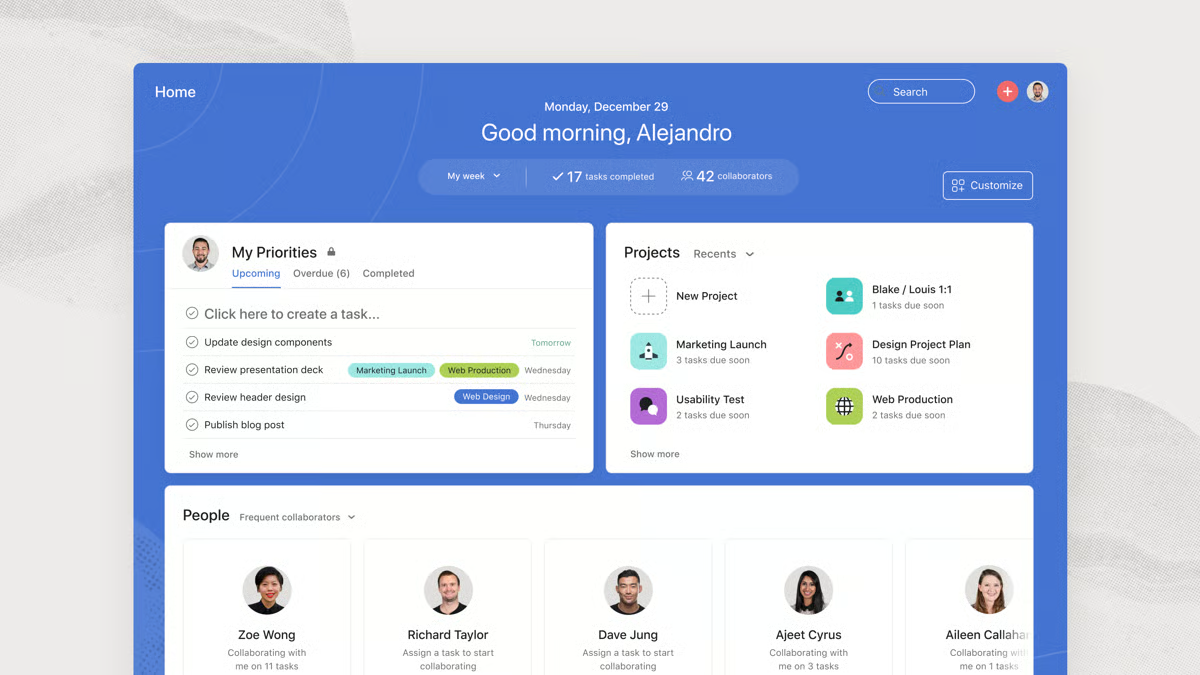
Asana’s work management software plans and tracks work across teams, with unlimited free guests on paid plans. That lets clients work in the projects you share with them.
Key Features
Asana’s main features for client work are:
- Unlimited free guests (Starter and up)
- Estimated versus actual time (Advanced)
- Time tracking through integrations
- Timesheets and Budgets add-on
Source: g2
Pros
Asana’s strengths, from dated reviews:
- Progress is easy to follow. People can see where work stands without asking for updates.
- List and section views stay simple. A project’s work is easy to scan.
- It works with the tools you already use. Integrations with Google tools keep existing files and tasks connected.
Cons
Asana’s weak spots, from dated reviews:
- Notifications can pile up. Small updates and comments can flood your inbox.
- Sharing settings need care. It’s easy to lose track of who can see a project or its comments.
Pricing and G2 Rating
Asana’s pricing starts at $10.99 per seat a month on Starter, billed annually, and Starter includes unlimited free guests. Starter tracks time through integrations. Asana’s own time tracker starts on Advanced at $24.99, and budgets need the Timesheets and Budgets add-on.
Asana holds 4.4 out of 5 from 14,138 G2 reviews, checked November 20, 2026.
Who Should Pick Asana?
Asana is a strong pick for teams with many outside collaborators. Paid plans include unlimited free guests, so adding clients doesn’t raise your seat count.
6. ClickUp – Best for Teams That Want Tasks, Docs, and Chat in One Workspace
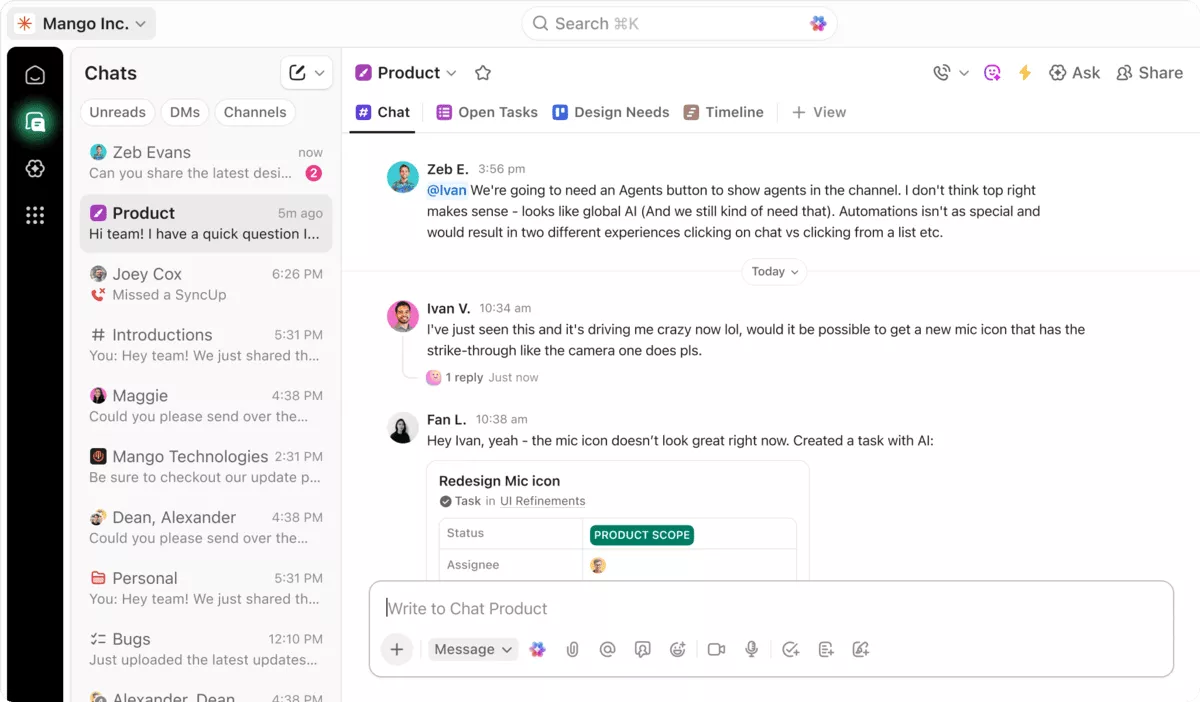
ClickUp bundles project management, team conversation, and its Brain AI, keeping tasks, docs, and chat together. Guests can join on every plan, and Core adds permission controls for them.
Key Features
ClickUp’s main features for client work are:
- Guest permissions (Core and up)
- View-only guests (Core and up)
- Built-in time tracker (Core and up)
- Timesheets (Business)
Source: ClickUp
Pros
ClickUp’s strengths, from dated reviews:
- Everything stays in one place. Work, documents, and comments sit in one platform.
- The built-in AI is useful. Brain’s AI features help with day-to-day work inside ClickUp.
Cons
ClickUp’s weak spots, from dated reviews:
- So many options can overwhelm. New people can find the number of settings, views, and features a lot to take in.
- It can feel slow. Moving between sections, or working in large tasks and chats, can take longer than expected.
Pricing and G2 Rating
ClickUp holds a 4.6 out of 5 G2 rating from 15,848 reviews, checked November 20, 2026.
The free plan includes Kanban boards and a calendar view. Core costs $9 per seat a month, billed yearly, and Business costs $17 and adds timesheets and resource management. Core includes five external guest seats, plus two for each extra paid seat. Business includes 10, plus five per extra paid seat, and read-only guests are unlimited on paid plans.
Who Should Pick ClickUp?
For task management, docs, and chat in one workspace, ClickUp is worth a trial. The free plan allows unlimited guests, and Core adds a built-in time tracker.
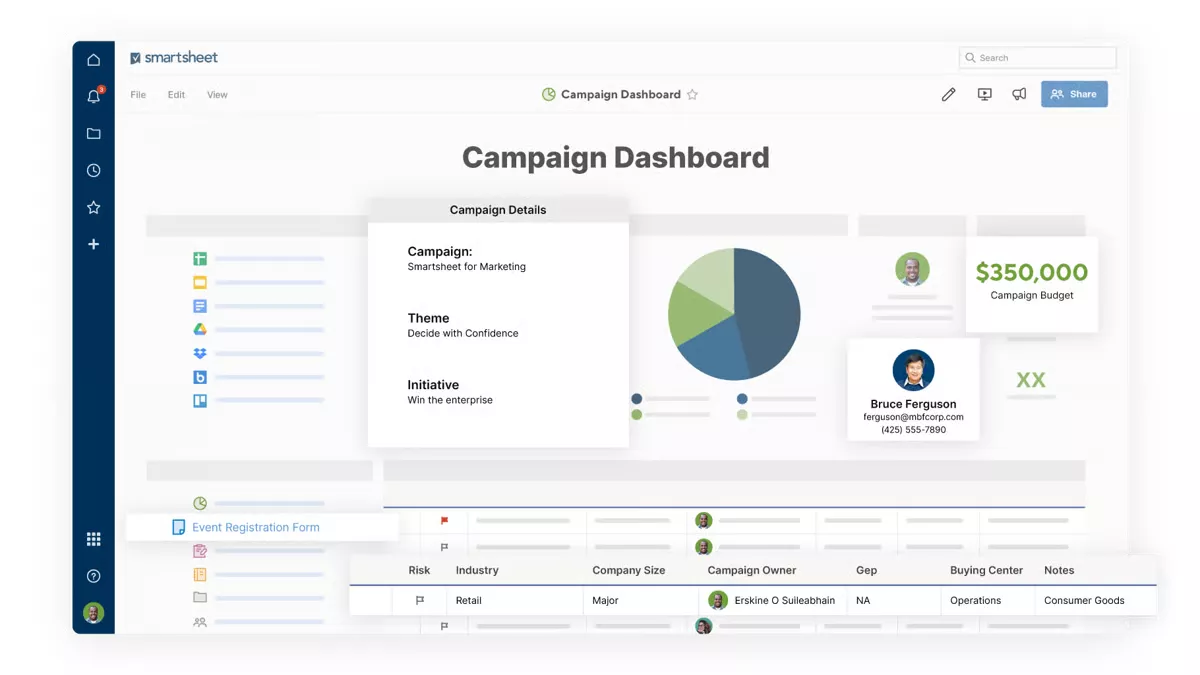
7. Smartsheet – Best for Teams That Plan in Spreadsheet-Style Grids With Free Guests
Smartsheet runs project management in spreadsheet-style grids and calls itself an execution hub for enterprise work. Guests are free and unlimited on Business, so clients can open the sheets you share.
Key Features
Smartsheet’s main features for client work are:
- Unlimited free guests (Business)
- Unlimited free contributors (Pro)
- Workload tracking (Business and up)
- Time and expense tracking (Resource Management add-on)
Source: g2
Pros
Smartsheet’s strengths, from dated reviews:
- Updates reach the whole team in one place. The team works from one shared place.
- It works like a spreadsheet, with project tools on top. The familiar grid makes project management simple.
- Automations cut manual follow-up. Automated reminders and update requests replace chasing people by email.
Cons
Smartsheet’s weak spots, from dated reviews:
- Sharing is hard to narrow down. Showing someone part of the work can mean sharing a whole sheet or workspace.
- Formulas can be hard to work with. Writing and editing them can take more effort than expected.
Pricing and G2 Rating
Smartsheet’s pricing starts at $9 per member a month on Pro, billed yearly. Pro includes Gantt, table, board, and calendar views. Business costs $19, billed yearly, and adds unlimited free guests. Time and expense tracking come with the Resource Management add-on.
Smartsheet holds 4.4 out of 5 from 23,286 G2 reviews, checked November 20, 2026.
Who Should Pick Smartsheet?
Smartsheet fits teams that already plan in spreadsheets and want project tools on top. Business adds unlimited free guests, so clients can open the sheets you share.
8. Zoho Projects – Best for Teams That Track Project Budgets and Timesheets
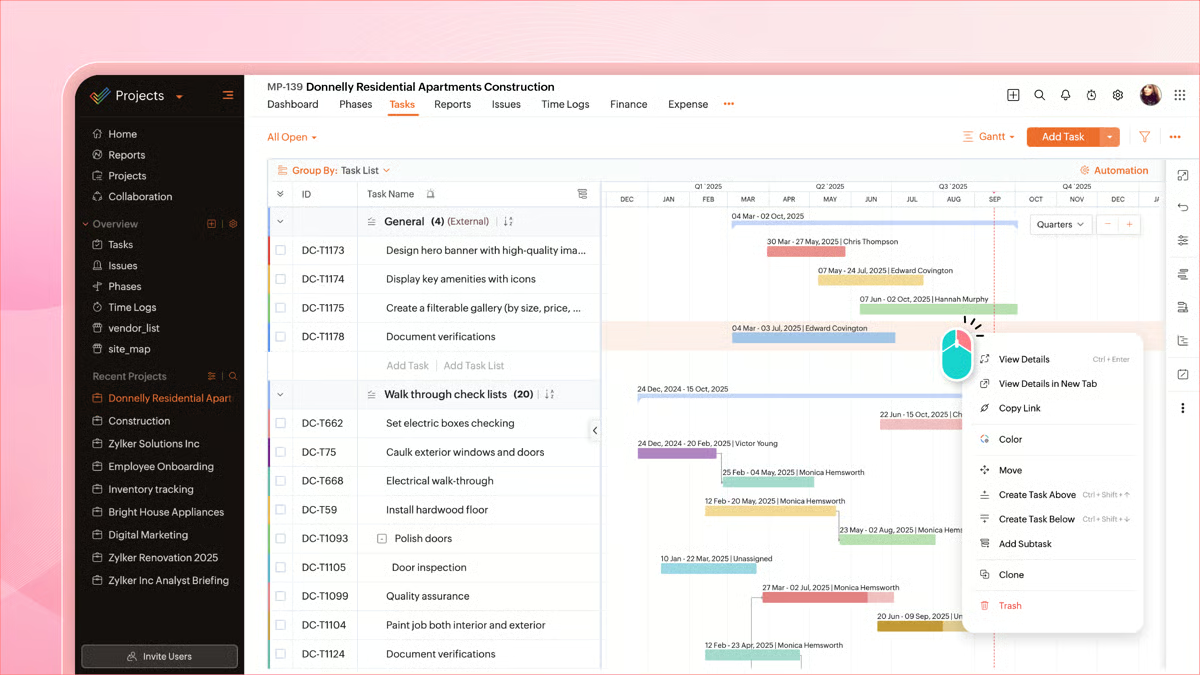
Time logs, timesheets, and project budgets come with the Premium plan of Zoho Projects, a cloud-based project management tool. Clients join through client accounts, a paid add-on on every paid plan.
Key Features
Zoho Projects’ main features for client work are:
- Time logs and timesheets (Premium)
- Timesheet approvals (Premium)
- Project budget and earned value (Premium)
- Client accounts (paid add-on)
Source: Zoho Projects
Pros
Zoho Projects’ strengths, from dated reviews:
- Budget and cost tracking are strong. You can follow project costs alongside the work itself.
- Team collaboration is built in. Files, discussions, and updates sit in one place.
Cons
Zoho Projects’ weak spots, from dated reviews:
- The interface feels dated. Parts of the design look older than more modern tools.
- Customizing takes effort. Setting up workflows, reports, and custom structures can take work.
Pricing and G2 Rating
Zoho Projects’ pricing starts with a free plan for up to five people and three projects. Time logs, timesheets, and budgets need Premium, and client accounts cost extra on every paid plan. Premium costs $4 per seat a month, billed annually; Enterprise $9, and Ultimate $14. Each client account adds $4 a month on annual billing.
Zoho Projects holds 4.4 out of 5 from 596 G2 reviews, checked November 20, 2026.
Who Should Pick Zoho Projects?
On a tight budget, Zoho Projects covers time logs, timesheets, and project budgets on Premium. That costs $4 per seat a month, billed annually, plus $4 for each client account.
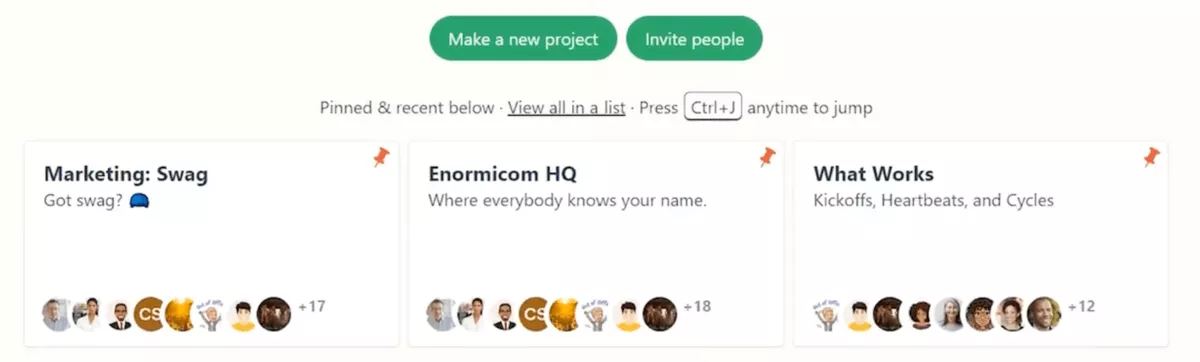
9. Basecamp – Best for Small Teams That Want Simple Client Collaboration
Basecamp charges one flat price for its project management and team communication app, with no per-seat fees. You can share a project with clients and keep your internal work private.
Key Features
Basecamp’s main features for client work are:
- Client access with private internal work
- Flat pricing, no per-seat fees
- Time tracking (Pro Plus)
- Project templates (Pro)
Source: Basecamp
Pros
Basecamp’s strengths, from dated reviews:
- It’s simple to pick up. Teams find it easy and user-friendly to work in.
- It works well with clients. Basecamp works as a shared space for client work.
Cons
Basecamp’s weak spots, from dated reviews:
- Finding files can be hard. Older documents can be hard to track down.
- Reporting stays basic. Reports and tracking features don’t go far beyond the basics.
Pricing and G2 Rating
Basecamp’s pricing starts with a free plan for one project. Paid plans are flat, starting at $29 a month on Freelancer. Tracking time comes with Pro Plus at $99 a month for up to 15 people.
Pro Unlimited costs $199 a month, billed annually, and removes the cap on people. Clients count toward that cap on every plan below it. Basecamp holds 4.1 out of 5 from 5,490 G2 reviews, checked November 20, 2026.
Who Should Pick Basecamp?
A team that wants one flat price, not per-seat fees, should look at Basecamp. Pro Unlimited costs $199 a month billed annually, with no cap on people, clients included.
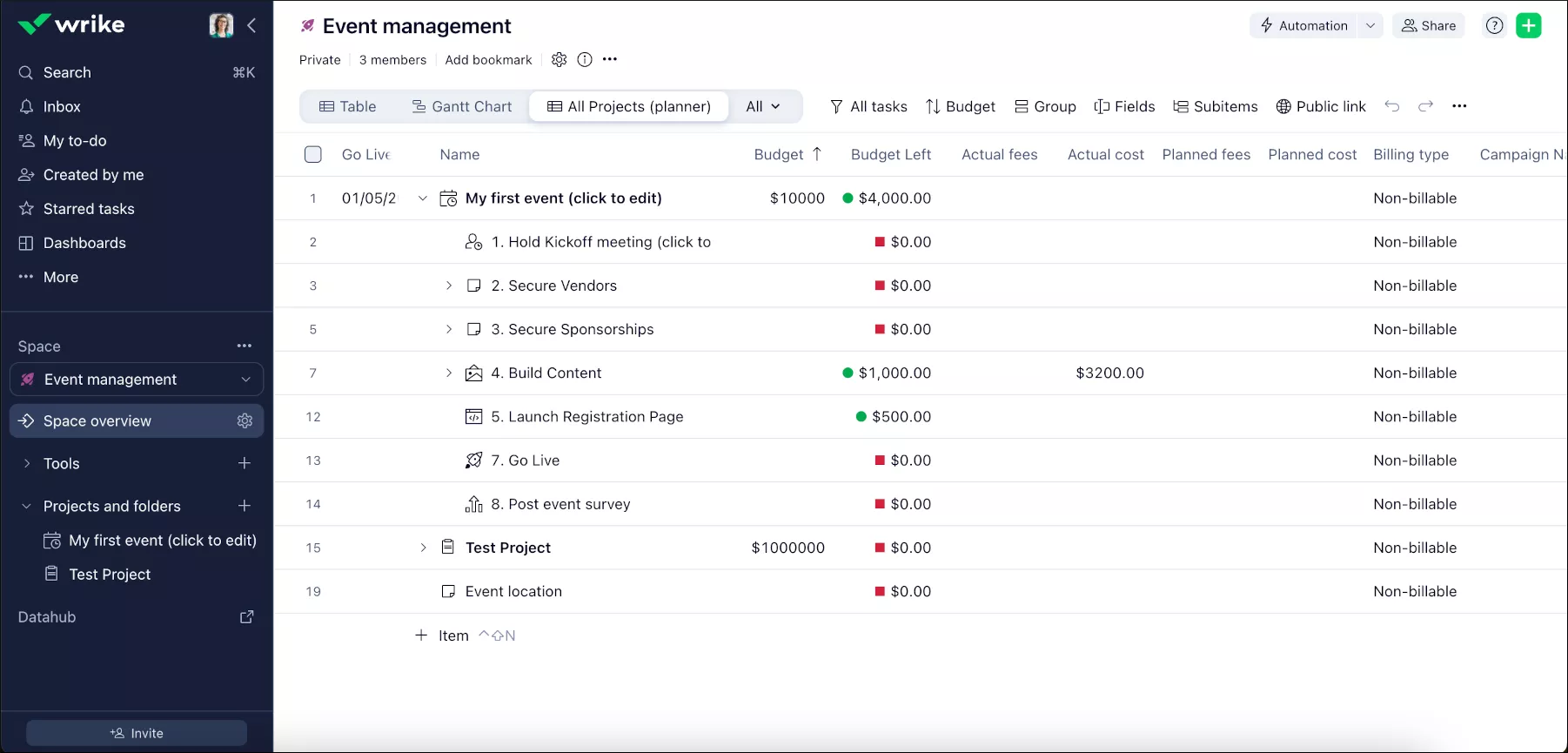
10. Wrike – Best for Teams That Review Files and Approvals With Clients
File reviews happen inside Wrike, a work management platform with built-in online proofing. Reviewers, including guests, can comment on files, compare versions side by side, and approve work.
Key Features
Wrike’s main features for client work are:
- Online proofing with guest reviewers (Business and up)
- Side-by-side version comparison
- Time tracking and timesheets (Business and up)
- Client and project budgets (Pinnacle)
Source: Wrike
Pros
Wrike’s strengths, from dated reviews:
- Tasks hold the instructions and files people need. Work requests and the files behind them stay in one place.
- Reports are easy to generate. You can create many kinds of reports.
- Gantt charts make timelines clear. Project timelines and task dependencies are easy to see.
Cons
Wrike’s weak spots, from dated reviews:
- The interface can feel cluttered. Some screens feel busy, and some details take extra clicks.
- Getting the structure right takes trial and error. Folders, projects, and templates set up early may need rethinking later.
Pricing and G2 Rating
Wrike’s pricing starts at $10 per seat a month on Team and $25 on Business, both billed annually.
Time tracking, timesheets, file proofing, and resource and capacity planning start on Business. Budgeting comes with Pinnacle, which is priced through sales. People who join as external members need a paid seat, while view-only members can join free.
Wrike holds 4.2 out of 5 from 4,645 G2 reviews, checked November 20, 2026.
Who Should Pick Wrike?
When clients review files and designs with you, Wrike’s proofing tools handle that work. Guests can comment on files, compare versions, and approve work, starting on Business.
What’s the Difference Between Project Management Software and Collaboration Software?
The difference is what each one tracks. Project management software handles task management by organizing work into projects, tasks, owners, and dates. Collaboration software is built for conversations: chat, video conferencing, and shared files. Slack, Microsoft Teams, Zoom, and Google Workspace are collaboration software, which is why they aren’t on this list.
Team collaboration tools are built mainly for conversation, not for tracking work against owners, dates, and budgets. This list holds only project management tools with collaboration built into the task.
Our top project management software picks cover the wider category. Comments, files, and client access are attached to the work itself. A decision then stays next to the task it changes.
The two kinds of software do different jobs:
| Project Management Software | Collaboration Software | |
|---|---|---|
| Main job | Project tracking and task management, with owners and dates | Moves conversations, calls, and files |
| Examples | Every tool on this list | Slack, Microsoft Teams, Zoom, Google Workspace |
| Planning views | Kanban boards, Gantt charts, task dependencies, workload management | Chat threads, video calls, shared documents |
| Client feedback | Comments on the task the client is reviewing | Messages in a channel, an email, or a call |
On remote teams, keep chat for quick questions and video calls for meetings. Keep tasks, files, and decisions in the project tool. Our guide to cloud collaboration for professional services covers rolling out one shared system for files, tasks, and hours.
Next, the collaboration features to check when clients join the work.
Which Collaboration Features Matter for Client Work?
Collaboration features for client work are client access, internal comments, task files, task time, and status updates. The list is our own grouping. We’ll take a closer look at each.
Client Access You Can Afford to Give
Client access affects whether clients work in the collaboration tool or keep emailing you. Check whether client accounts are free, capped, or paid, and what a client can edit. To set who does what once clients join, see our guide to project collaboration for services firms.
Comments Your Team Can Keep Internal
Internal-only comments let your team discuss a task without the client reading along. Look for a setting that hides a single comment from clients, not a separate private channel. Without it, internal discussion has to happen somewhere else, away from the task.
Files and Emails That Attach to the Task
File sharing is easier to follow when files sit on the task they change. Check whether attachments and forwarded emails land on the task itself. If they only go to a shared drive, someone has to link them back by hand.
Time and Budget Tracked on the Same Task
Tracking time on the task connects client work to what it costs. Hours logged on a task should count against the client’s budget without an export. If time is tracked in a separate app, the budget is only as current as the last import.
Status Updates Without Chasing
Status recaps tell clients where their work stands. Look for scheduled recaps, meeting notes, or a client view of progress and task completion. Then updates don’t depend on someone writing them each Friday. To see which tools write recaps for you, check how AI project management tools compare.
The next step is testing these features on your own projects.
How to Choose a Project Collaboration Tool for Client Work
To choose a project collaboration tool for client work, check what a client can see, price the plan your team and clients need, log one week of time against a budget, and invite a real client to a trial project. The steps are our recommendation. Let’s look at each.
Step 1: Check What a Client Can See
Before any real client joins, set up a dummy project. Invite a test client account to it, such as your own personal email address. Log in as that client, or use the tool’s client preview. Then list every item they can open, including comments, files, budgets, and other projects.
The collaboration tool passes if internal comments, rates, and other clients’ work stay hidden. It fails if you find a single internal note or another client’s task.
Step 2: Price the Plan Your Team and Clients Need
Price the plan in a two-column sheet: your team headcount and the client contacts who need access. Then find the cheapest plan that includes client access and time tracking for everyone.
Compare that total with the plan your team alone would need. The tool fails this step if client access pushes you up a plan.
Step 3: Log One Week of Time Against a Budget
Have two teammates log a week of client work against a budget with a known hour limit.
At the end of the week, open the budget and compare hours used with the limit. It passes if the budget shows the hours without an export. It fails if the hours are in a second tool or a spreadsheet.
Step 4: Invite a Real Client to a Trial Project
Once the tool passes Step 1, invite one client contact to a live client project. Pick someone who already sends you feedback by email. Ask them to comment on two tasks and open a shared file.
The collaboration tool passes if they manage it without a call and without a paid seat. It fails if you have to walk them through it, or the invite forces a seat upgrade.
Once a trial starts, a few practical questions follow.
FAQ
Do Clients Need a Paid Seat to Collaborate on a Project?
Not always: Productive, Teamwork.com, Rocketlane, paid Asana plans, and Smartsheet Business let clients in for free. ClickUp’s free plan allows unlimited guests, and its paid plans cap guest seats. Wrike, monday.com on Standard, and Zoho Projects charge for some outside collaborators.
Is There a Free Project Collaboration Tool?
Yes, several project management tools on this list have free plans with limits. Teamwork.com is free for up to five people, and ClickUp’s free plan includes guest accounts.
Can a Collaboration Tool Track Billable Time?
Every collaboration tool on this list tracks time, but the plan or add-on matters. Productive, Teamwork.com, Rocketlane, ClickUp, and Zoho Projects track time on their entry paid plans. Asana, monday.com, Basecamp, and Wrike need a higher tier, and Smartsheet needs an add-on.
How Do You Get Clients to Use a Shared Project Tool?
Start with one project and one task you need their input on. Invite one contact and ask for a comment on that task. Then move the next round of feedback into the collaboration tool instead of email.
Final Thoughts: Pick the Tool Your Clients Will Work In
The best project management collaboration tools keep client comments, logged hours, and the budget in one system. If your shortlist still needs a separate time tracker or budget sheet, an all-in-one tool removes that step. Run the four steps on your shortlisted tools before your next client project starts.
If you want client work, tracked hours, and budgets in one place, book a demo of Productive.
Run Client Work From One Platform
See how projects, time tracking, budgets, and invoicing work together in Productive.
