Cloud Collaboration for Professional Services: A Practical Guide

Ideally, cloud collaboration means your team works from one place. In practice, that work often ends up split across three: a shared drive for the files, a chat thread for the decisions, and a timesheet somebody fills in from memory on Friday.
This guide covers what cloud collaboration is, its types, its benefits for services firms, practices for working across multiple engagements, how to implement it, and the features to look for.
Key Takeaways
- Cloud collaboration is a way of working from one shared system, wherever your team is: files, conversations, task status, and logged hours sit together, so the work and the numbers behind it stay in step.
- The payoff is less time lost in reviews, cleaner timesheets, and one view of live projects: keeping feedback on the deliverable saves the chasing and re-explaining, and logging as you work protects your realized rates.
- Having a workspace per client, visibility into who’s free, and tight access control helps you run several clients at once: without them, handovers get messy, staffing turns into guesswork, and cost rates end up in the wrong hands.
- Integration, private cost rates, and documentation that lives on the project are what to look for in a tool: without them, you re-enter hours by hand, clients can see what the work costs you, and briefs go stale in another app.
What Is Cloud Collaboration?
Cloud collaboration is a way of working in which your team shares the same files, tasks, and projects in a single online system, rather than emailing versions back and forth. Everyone opens the same version, sees the same status, and works from wherever they are, under one set of access and security controls.
For a services firm, cloud-based collaboration needs to go beyond that. Think of it as an operational layer that connects delivery to the numbers behind it. A comment on a deliverable, a status change on a task, and a logged hour all belong to the same engagement so nothing gets lost.
Those shared systems come in a few distinct types.
What Are the Types of Cloud Collaboration?
The types of cloud collaboration are synchronous and asynchronous collaboration, which describe timing, and document, communication, and project-based collaboration, which describe purpose. We’ll take a closer look at each.
Synchronous and Asynchronous Collaboration
Synchronous collaboration requires everyone to be present at the same time, whereas asynchronous collaboration does not.
In professional services, that looks like:
- Synchronous: two designers co-editing a client mockup while on a call, settling the layout in twenty minutes instead of three rounds of email.
- Asynchronous: a consultant in another time zone reviewing that mockup overnight and leaving threaded comments for the morning.
For a remote team billing across time zones, async review keeps engagements moving without paying for overtime or pushing calls into someone’s evening.
Synchronous and asynchronous work meet at the client call, where much of the context gets set, and where it can get lost.
Productive’s AI Notetaker joins your Zoom, Google Meet, or Teams calls as a bot, then records, transcribes, and summarizes the decisions.
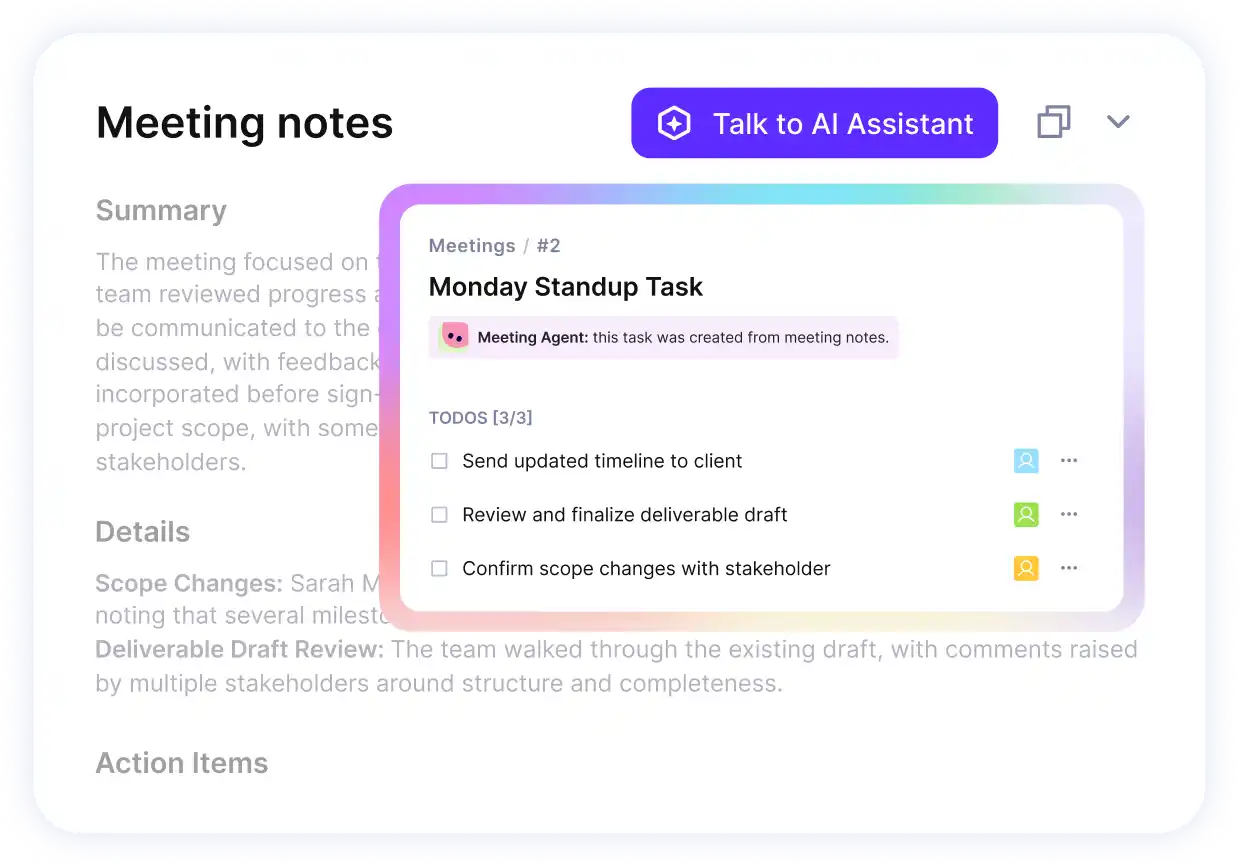
Turn the talk into next steps in Productive.
Each meeting comes back with a transcript, a summary, and action points you can turn straight into tasks and to-dos on the project they belong to.
If you want to compare options, we reviewed the field in our list of the top AI notetakers.
Document, Communication, and Project-Based Collaboration
Document collaboration is real-time co-authoring and document sharing, communication collaboration is instant messaging and threads, and project-based collaboration is a workspace that holds one engagement together.
In professional services, that looks like:
- Document: three account leads writing one proposal at the same time, rather than merging three versions by hand the night before it goes out.
- Communication: team communication kept in one channel per campaign, so client feedback stays in a single thread instead of scattering across four inboxes.
- Project-based: task management, files, and logged hours for a single engagement in one place, so someone joining mid-project can catch up without a handover meeting.
Delivery work can draw on all three, and the two splits stack. A single engagement might run synchronous document work in the morning and asynchronous project updates overnight.
When the three live in disconnected tools, the hours spent in each never roll up against one project budget. Project-based collaboration is the one that holds the handoffs between roles, which is where delivery could break down.
Our guide to project collaboration covers where those handoffs break down across the project lifecycle.
These two splits are common ways to describe cloud collaboration, though not the only ones, and some count video collaboration as its own category. That’s what the types look like. Here’s what they’re worth to a services firm.
What Are the Benefits of Cloud Collaboration for Services Firms?
The benefits for services firms are less time lost in client reviews, accurate timesheet capture across engagements, and shared visibility across live projects.
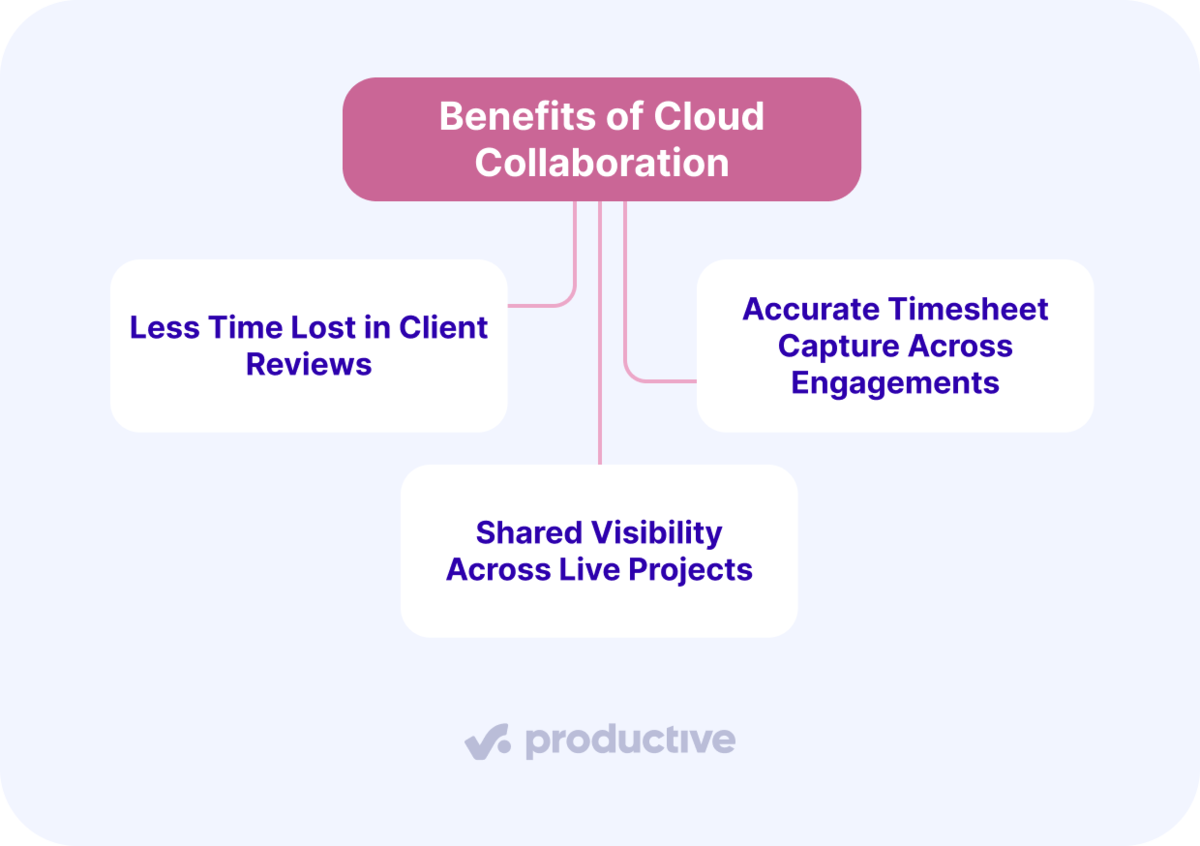
We’ll take a closer look at each.
Less Time Lost in Client Reviews
You lose less time in a review when the feedback sits on the deliverable itself instead of in email. A review should cost you the time it takes to read the notes and act on them, and emailed feedback costs more than that.
Notes arrive in one person’s inbox, a second set arrives from someone else, and somebody has to merge them and work out what was meant. Comments on the document go next to the line they are about, and everyone sees the same set. There is nothing to reassemble.
Accurate Timesheet Capture Across Engagements
Timesheets are accurate when people log hours as they work, not when they rebuild the week on Friday. Anyone writing it down as they go records what they did. Anyone filling it in later is trying to remember.
Memory can rounds things off. A ten-minute call can disappear, a long afternoon could become “about three hours,” and the small pieces of client work squeezed between other tasks can slip through entirely. Those hours were still worked. They just never reach the invoice or the budget.
Shared Visibility Across Live Projects
Shared visibility means one view of every live project instead of the scattered personal lists that hide the full picture. When everyone keeps their own list in notes or spreadsheets, no lead can spot that one engagement is well into its budget with half the deliverables outstanding.
That fragmentation is widely felt. Microsoft’s 2025 Work Trend Index found 48% of employees and 52% of leaders say their work feels “chaotic and fragmented.”
A shared workspace shows what is done, in progress, and stuck across every live project, plus how many budgeted hours each has left. Quick questions stay next to the work instead of disappearing into a chat thread.
Those are three benefits that show up in the numbers, though they are not the only ones. All of it gets harder to hold onto once several clients run at once.
What Practices Help You Collaborate Across Multiple Client Engagements?
The practices that help you collaborate across multiple client engagements are a separate workspace for each client, cross-project resource visibility across live engagements, and controlled access for rotating contractors and clients. We’ll take a closer look at each.
A Separate Workspace for Each Client
Distinct workspaces give each client their own structured record of the engagement. When status and files live in email threads instead, clients have no clear view of what has been delivered against the scope they signed.
Sending PDFs by email while working in separate design files means links go missing and versions drift. A workspace per client keeps one engagement’s history in one place, so a mid-project handover or an end-of-project review has something to read.
Cross-Project Resource Visibility Across Live Engagements
A shared view of who is booked and how heavily keeps staffing out of guesswork when many engagements run at once. In conversations with services firms, the same setup comes up repeatedly: several separate tools running CRM, time tracking, project management, and accounting, with no data flowing between them.
That forces manual re-entry and hides which designer is overbooked next week and which has open capacity. Centralizing the data lets a lead staff the next engagement against real availability.
Controlled Access for Rotating Contractors and Clients
Granular access lets you grant and revoke visibility as freelancers, subcontractors, and client contacts rotate on and off projects. Coarse role controls can expose the cost rate and profit margin on a job to people inside or outside the firm who have no reason to see it.
With Productive’s Permission Builder, managers can monitor project progress and budget usage without revealing sensitive internal cost rates. This way, each person sees the layer of data they’re entitled to.
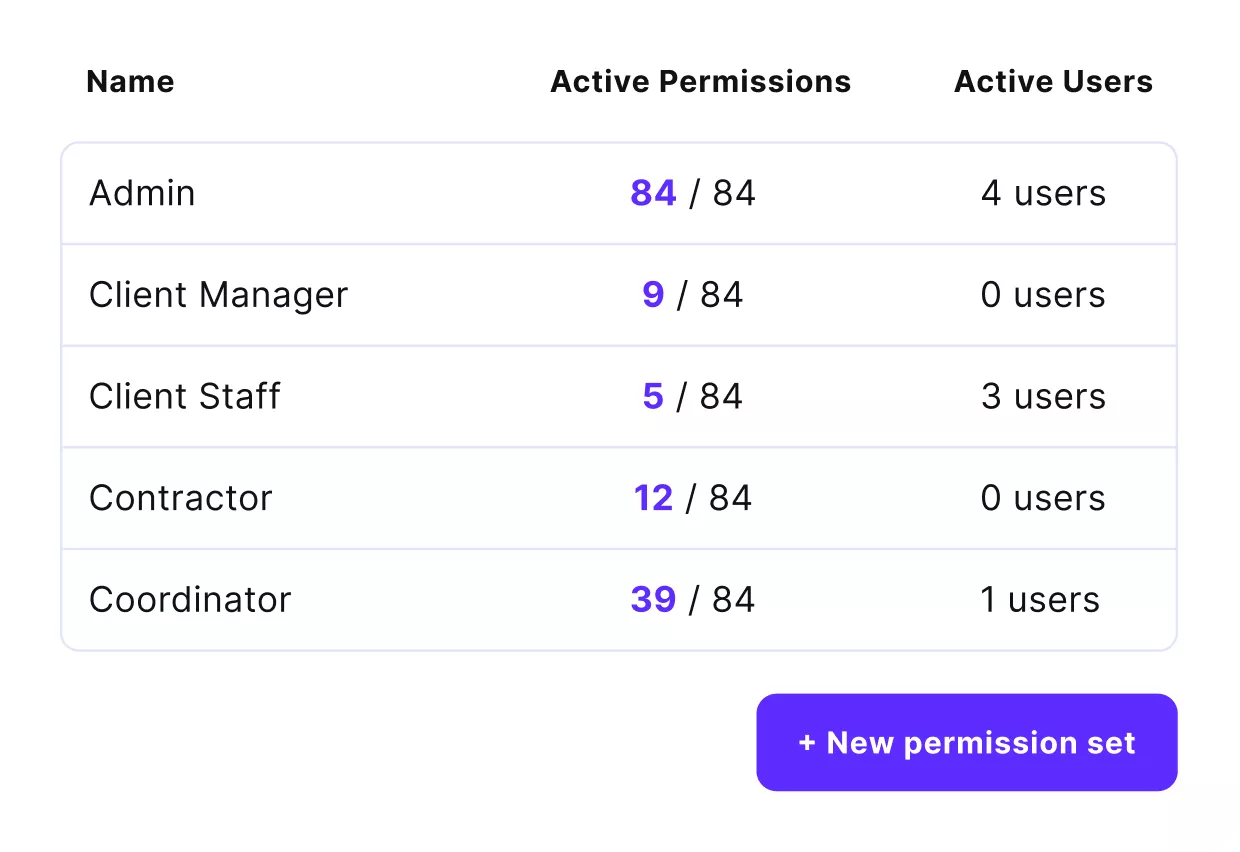
Productive Permission Builder ensures each member sees only the project data they need.
Inviting clients costs nothing either, since clients do not count toward your paid seats, though contractors do.

We can get all of the feedback within Productive. It’s great to have the ability to have your project managers and clients talk directly and not having to worry about catching up on emails at 8PM.
Read the full story of how Prolex Media consolidated six tools into one system.
With the practices set, the next question is how to roll this out without disruption.
How Do You Implement Cloud Collaboration in a Services Firm?
You implement cloud collaboration in four steps: audit where files, updates, and hours currently live, define access tiers for internal and client users, pilot with a small group on one or two engagements, and roll out to the wider delivery team.
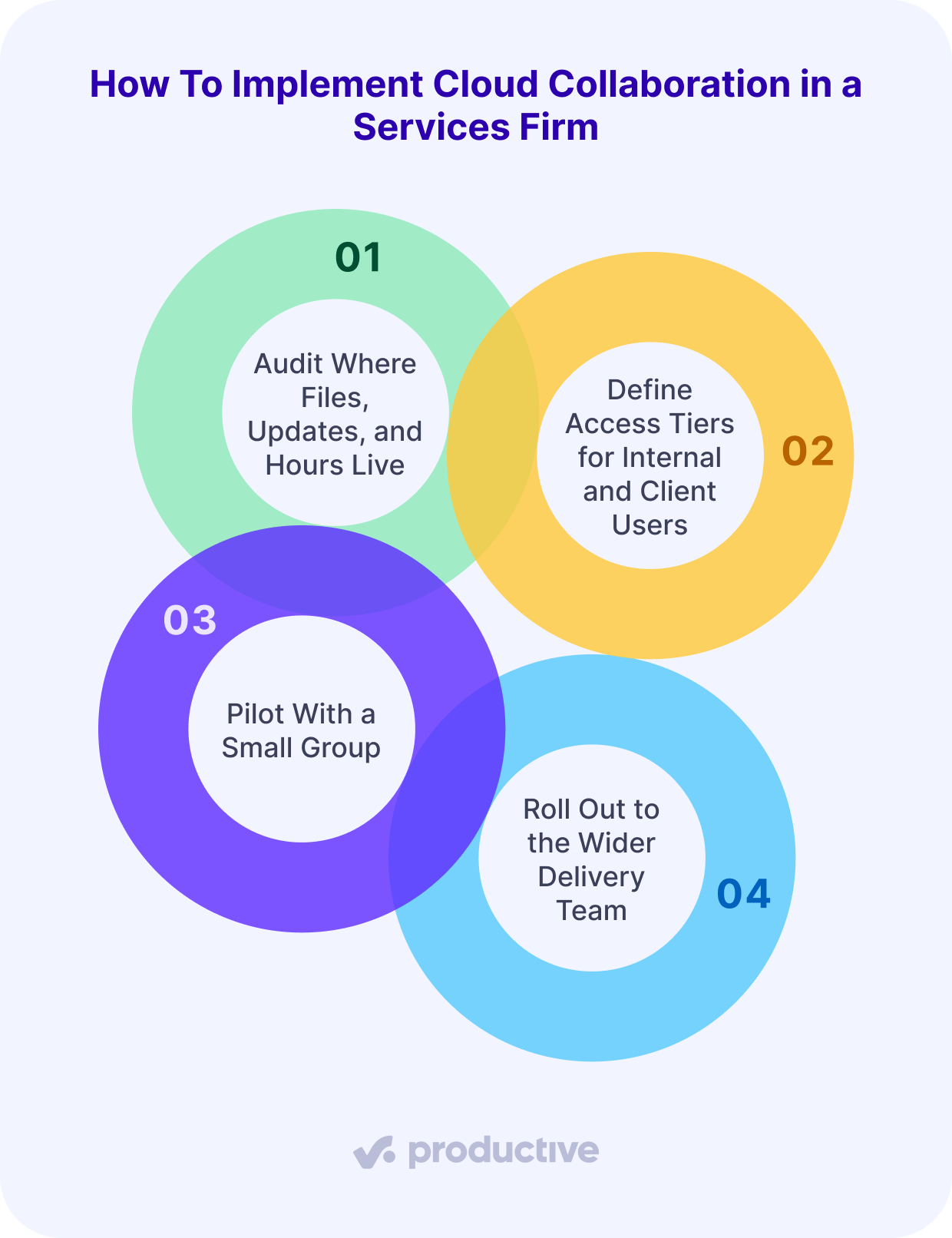
This is a recommendation rather than a standard. It follows what customers tell us about their own rollouts. We’ll take a closer look at each.
Step 1: Audit Where Files, Updates, and Hours Currently Live
Audit every place your files, updates, and hours sit today. Many firms find them spread across file storage, spreadsheets, chat, and a separate accounting system, with timesheets reentered into invoices by hand.
Listing each location shows you where re-entry happens and where the gap between hours worked and hours billed opens up.
Step 2: Define Access Tiers for Internal and Client Users
Set permission boundaries before anyone gets an invite. Decide who sees financials, and separate the people who see billing rates from the people who see cost rates.
Doing this after rollout means auditing access on live client projects, which is slower and riskier.
Step 3: Pilot With a Small Group on One or Two Engagements
Give a small group one or two live engagements to run in the new system, with the workspace linked to tracked hours and its budget. Project managers are a sensible group to start with, since they build the structure everyone else will work inside and will hit the gaps first.
We would also keep time tracking coarse to begin with. Logging against a service like copywriting is easier to sustain than logging against every task, and it still tells you whether a fixed-fee project is burning its hours. Connecting those hours to the budget lets burn surface while there is still room to reforecast or renegotiate scope.
Step 4: Roll Out to the Wider Delivery Team
Once the pilot group has fixed what it found, open the system to the rest of delivery and standardize how every engagement runs. Some firms expand one department at a time rather than all at once. Use the pilot to set defaults for workspace structure, access tiers, time capture, and how budget burn gets reviewed each week.
Rolling out well only pays off if the tool fits how your firm actually delivers work.
What Features Should Services Firms Look For in Cloud Collaboration Tools?
The features to look for in cloud collaboration tools are integration with project management, time tracking, and budgets, documentation and templates that live with the project, and client-safe permission controls and access tiers. We’ll take a closer look at each.
Integration With Project Management, Time Tracking, and Budgets
Shared work has to connect to time, budgets, and capacity, or the numbers that decide profitability stay in separate systems. When invoicing, project management, and accounting are independent tools with nothing flowing between them, every logged hour gets reentered before it reaches an invoice.
Connected tools mean a logged hour reaches the invoice without anyone exporting a file or re-typing a number.
Documentation and Templates That Live With the Project
Briefs, specifications, and project documentation should sit on the project they describe, not in a separate app. When the brief lives in one tool and the work in another, the two can drift apart, and whoever picks the project up later may be reading the stale one.
Productive’s Docs attach to a project and take real-time edits and comments from several people at once, with a version history you can roll back.
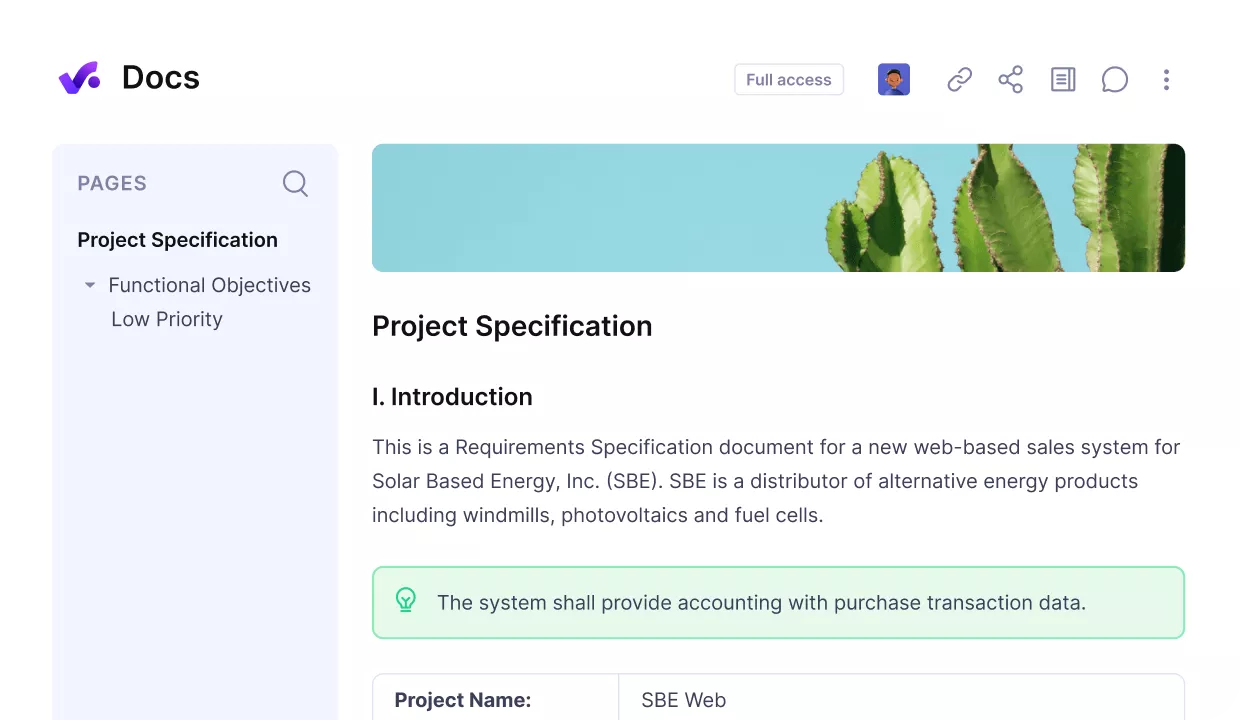
Keep your briefs and project documentation next to the project in Productive.
Doc templates let you save one as a reusable structure, so every brief of the same type starts the same way.
Collaborate in Productive
Client-Safe Permission Controls and Access Tiers
Granular permissions separate internal and client users, so you can share deliverables without exposing cost rates. Coarse role settings can be too broad to hide margin from a project manager while keeping cost data visible to finance.
Those are three features worth looking for, though your own shortlist might have more on it.
Manage Collaboration Across a Portfolio of Client Engagements
Cloud collaboration only helps if the files, the conversation, and the hours end up in the same system. Spread across three, every gap between them is a place where something gets lost.
Productive connects project management, time tracking, budgets, and collaborative docs into a single system, so nothing comes as a surprise.
Book a demo with Productive to see how it works on one of your projects.
Run Every Client Engagement From One Place
Productive holds the files, the conversation, the tasks, and the hours in one system, eliminating the need to stitch together multiple tools.
