Top 5 Kantata Alternatives (Paid & Free) – Buyer’s Guide 2026

Real Kantata alternatives can be hard to find and compare in one place. Plus, most of the lists don’t cover migration and choosing advice.
Stick with this guide to make your search easier. Here we’ll cover true replacements, along with their user-backed pros and cons, key features, best-fit use cases, a comparison table, practical advice on choosing the right software, and a repeatable migration checklist.
Let’s start with the shortlist.
What Are the Best Kantata Alternatives in 2026
The best Kantata alternatives in 2026 are Productive, Streamtime, Accelo, Certinia, and Teamwork amongst other project management software to compare. This shortlist focuses on alternatives that cover real replacement needs, with review-backed trade-offs and practical switching guidance instead of generic software roundups.
Shortlist of the Best Kantata Competitors
Buyer’s Comparison Table
| Tool | Best for | Choose this if | Skip this if | Free plan |
|---|---|---|---|---|
| Productive | Mid-sized agencies and professional services firms | You want budgets, rates, resource planning, billing, and reporting in one system without enterprise admin overhead | You need a Salesforce-native enterprise stack with heavier implementation depth | No |
| Streamtime | Smaller creative teams | You want a lighter planning, quoting, and invoicing workflow built around studio-style delivery | You need heavier PSA control, deeper reporting, or more structured resourcing | No |
| Accelo | Service businesses that need deeper quote-to-cash control | You want CRM, client work, time, billing, and operations in one platform | You want a lightweight rollout with minimal setup effort | No |
| Certinia | Enterprise teams with Salesforce already in place | You need enterprise PSA depth, complex project financials, and Salesforce-native operations | You want a simpler tool with lower admin and implementation overhead | No |
| Teamwork | Smaller client service teams | You want a more approachable client-work platform and a real free starting point | You need deeper PSA financial control, advanced forecasting, or more complex service operations | Yes |
How We Chose These Tools?
We chose these tools by first filtering for options that can credibly replace core Kantata workflows, not just general project management apps with time tracking bolted on.
From there, we reviewed software review sites, Reddit threads, YouTube walkthroughs, and repeated review patterns to understand how each tool feels in real use, then checked official product pages to verify feature claims before including them here.
We also used a broader benchmark for project management software for professional services to keep the shortlist grounded in real service-delivery needs, not just feature comparisons.
1. Productive – Best for Mid-Sized Agencies and Professional Services Firms That Need Deep Operational Control
Productive is a better fit for mid-sized agencies and professional services firms that need deep operational control without enterprise-level admin overhead. It gives teams tighter control over rates, budgets, resource management, billing, and reporting without the extra admin burden that usually comes with enterprise PSA tools.
Try the best Kantata replacement
Keep Rate Logic on Services, Not on Individual People
Productive keeps rates tied to services, budgets, or client setups rather than to each person on every project. That matters when the same team works across retainers, one-off work, and different client rate cards.
Instead of resetting role assignments every billing period, teams can keep the billing logic with the service itself and reduce the monthly admin work that usually creates invoice mistakes.
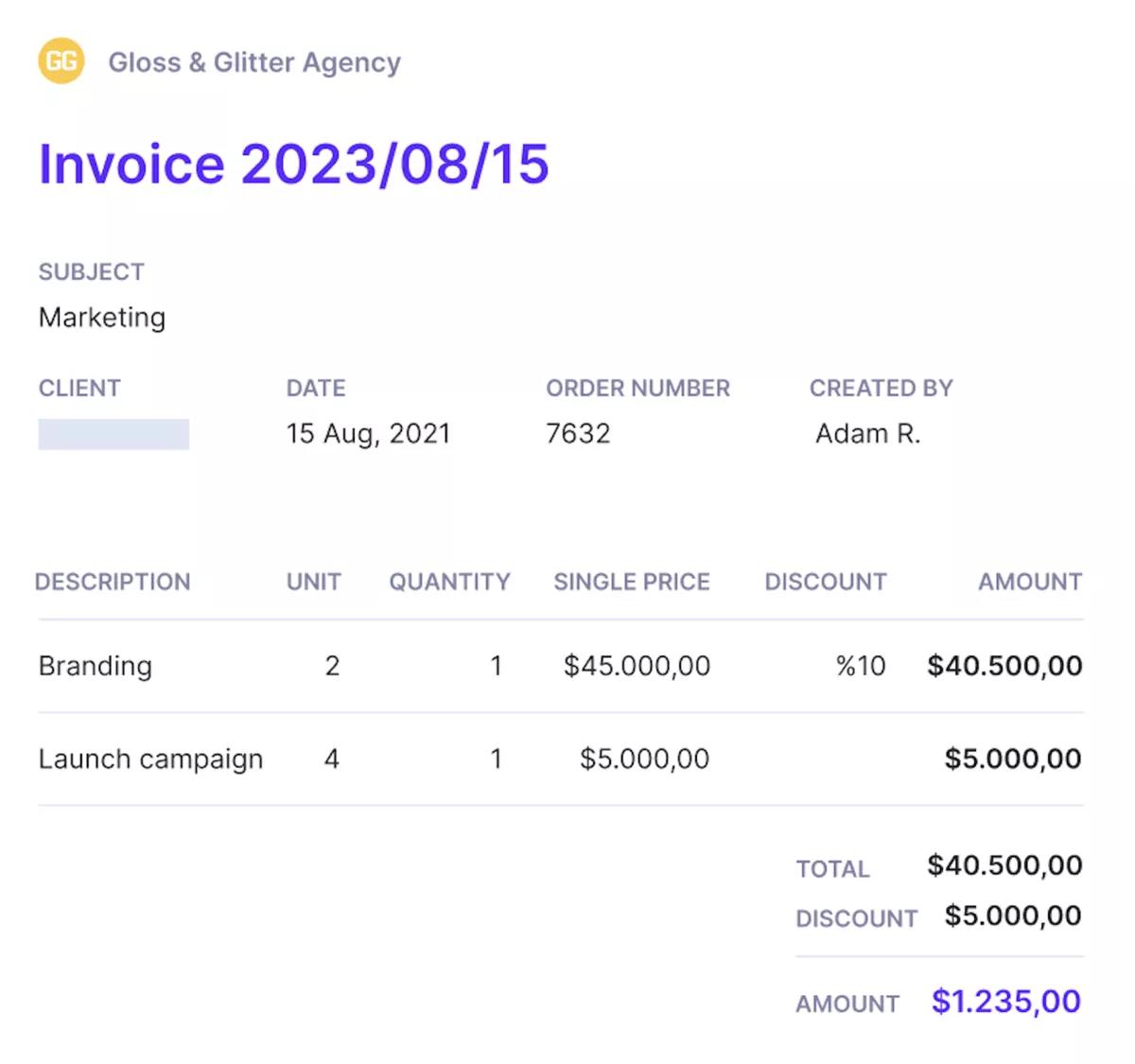
Send branded invoices from the same place you deliver work.
Run Retainers and One-Off Projects in the Same Structure
Retainers and project-based work do not behave the same way, and Productive does not force them into the same billing logic. Productive’s billing workflows for recurring and project-based work fit better when different pricing models need to live in the same system.
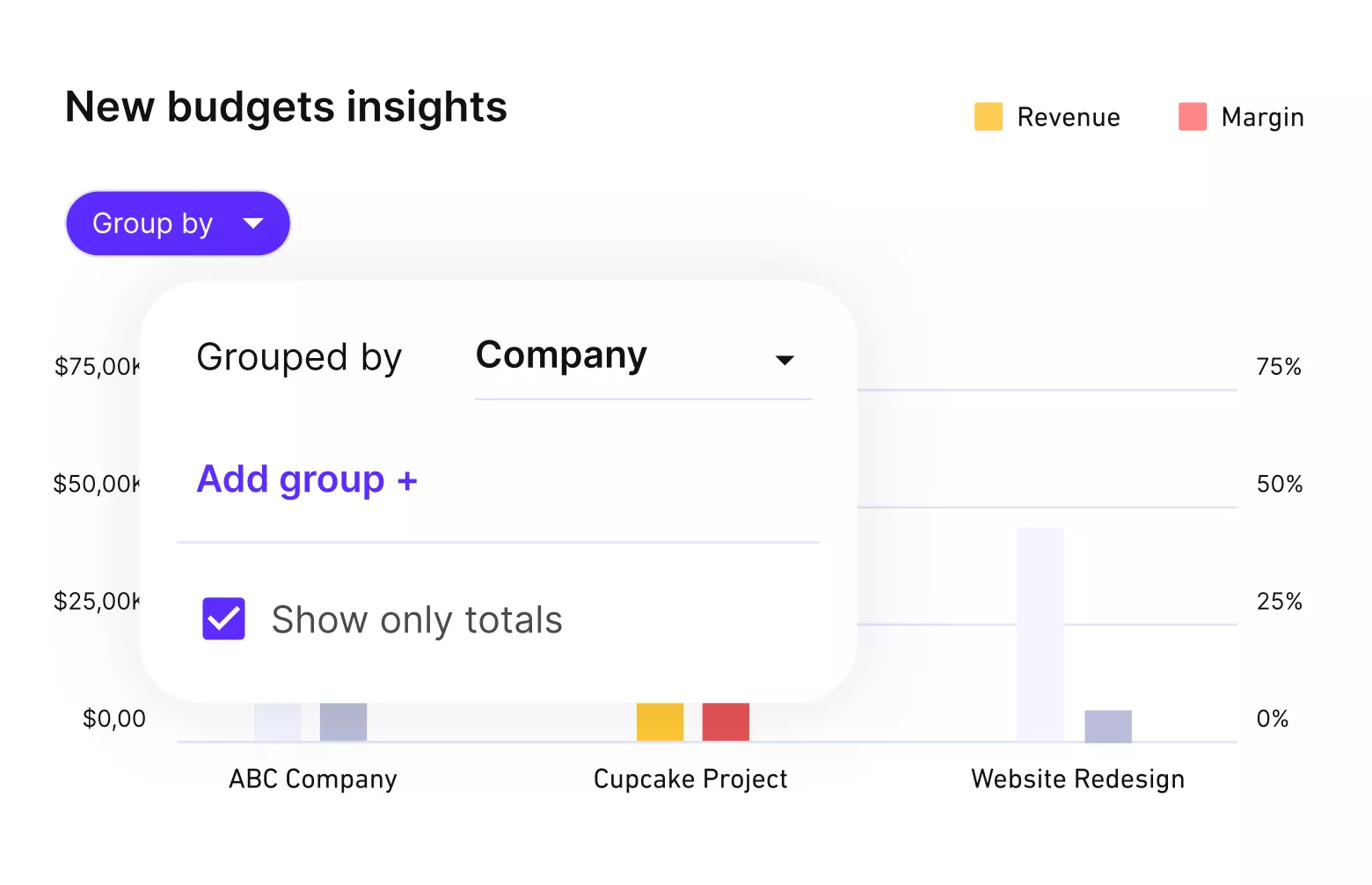
Get automated budget updates.
It supports recurring budgets for retainers alongside fixed-price, time and materials, and non-billable internal work inside the same project structure. That makes it easier to track retainer burn and one-off project burn in one place instead of reconciling them in side spreadsheets.
Break up tasks into multiple phases with milestones and dependent tasks.
See Task Progress Across Projects, Not One Project at a Time
Productive is stronger when the team is managing a portfolio of active work rather than a single plan. Productive’s project management setup for service teams is a better fit when PMs need visibility across multiple active projects, not just a single timeline.
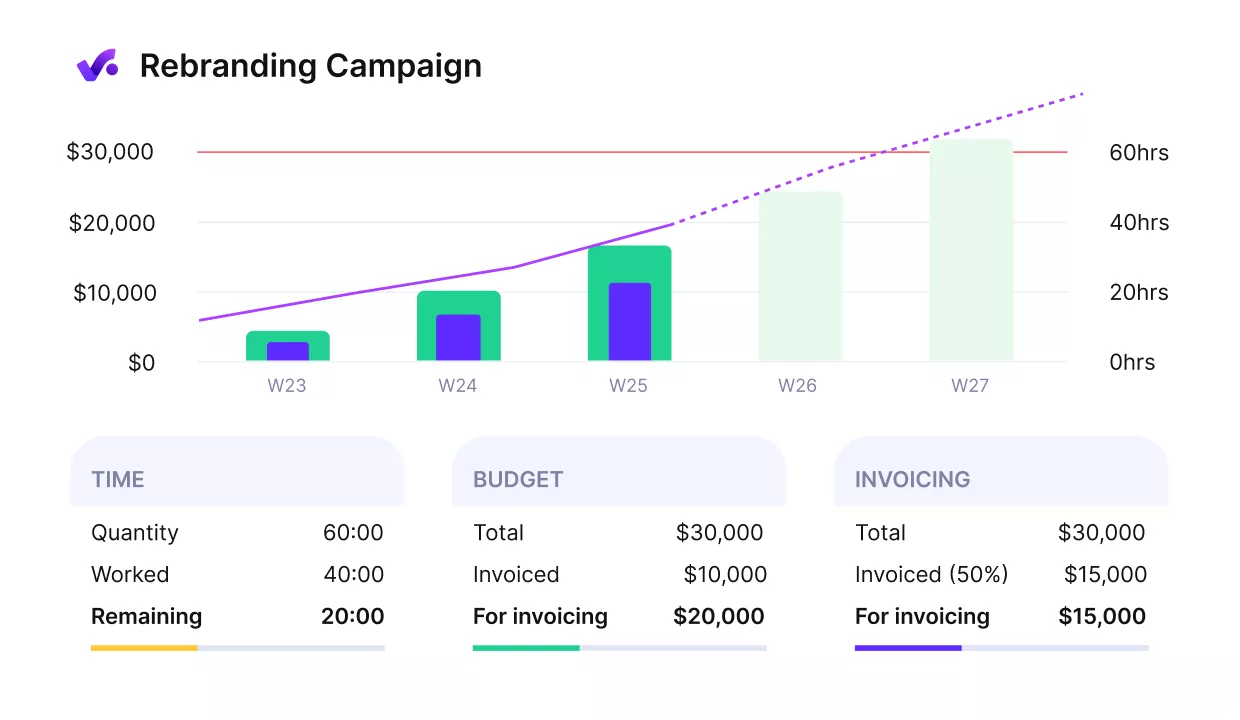
Compare project progress with key performance metrics.
Its cross-project Workload view lets PMs filter tasks by assignee, status, due date, client, or project type, so it is easier to see what is blocked, overdue, or waiting on feedback. Tasks also keep their time tracking and project context, which makes day-to-day coordination and task tracking easier.
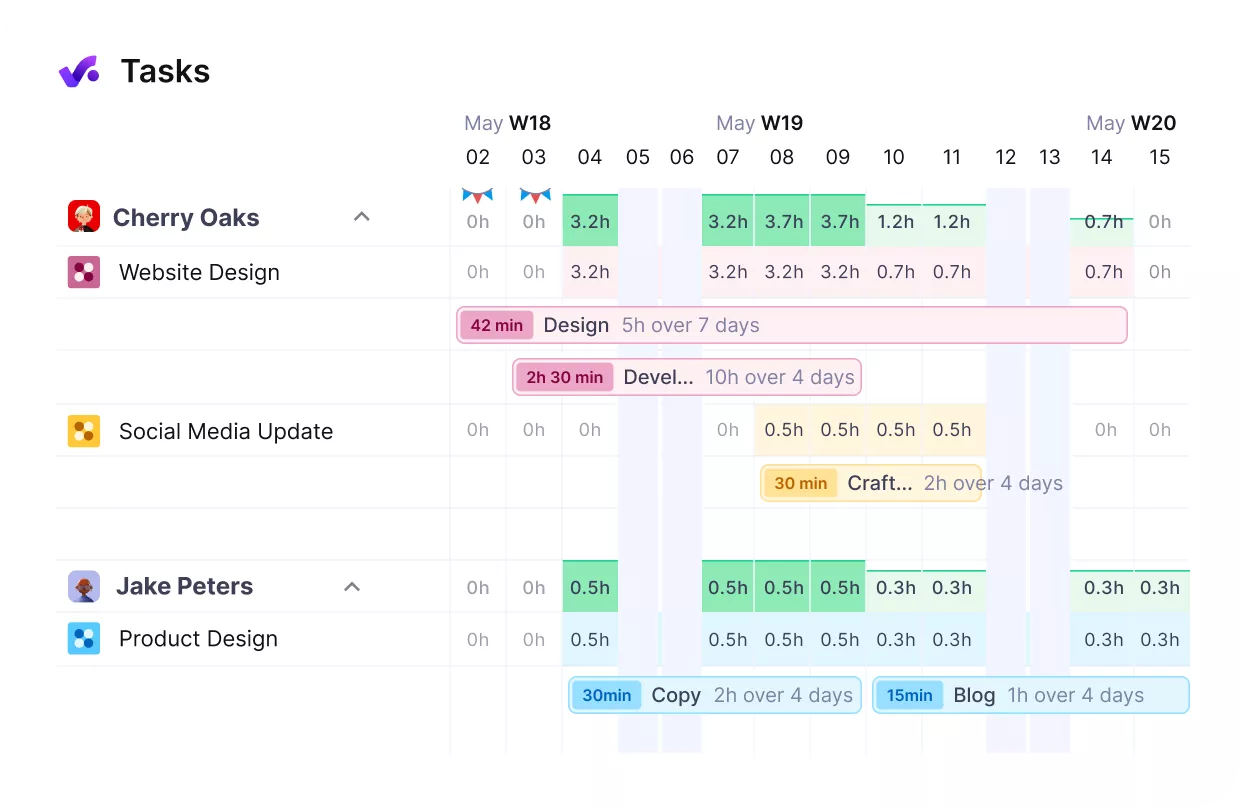
Get a real time overview of your team’s wokloads.
Plan Capacity With Live Scheduling and Actuals in the Same Place
Capacity planning works better when bookings, tracked time, and budgets reflect the same underlying data. Productive’s resource planning workflow makes that easier when scheduling, availability, and delivery all need to stay in sync.
In Productive, the Resource Planner uses drag-and-drop resource allocation and live scheduling data, so PMs can update plans as delivery changes instead of rebuilding them in parallel.
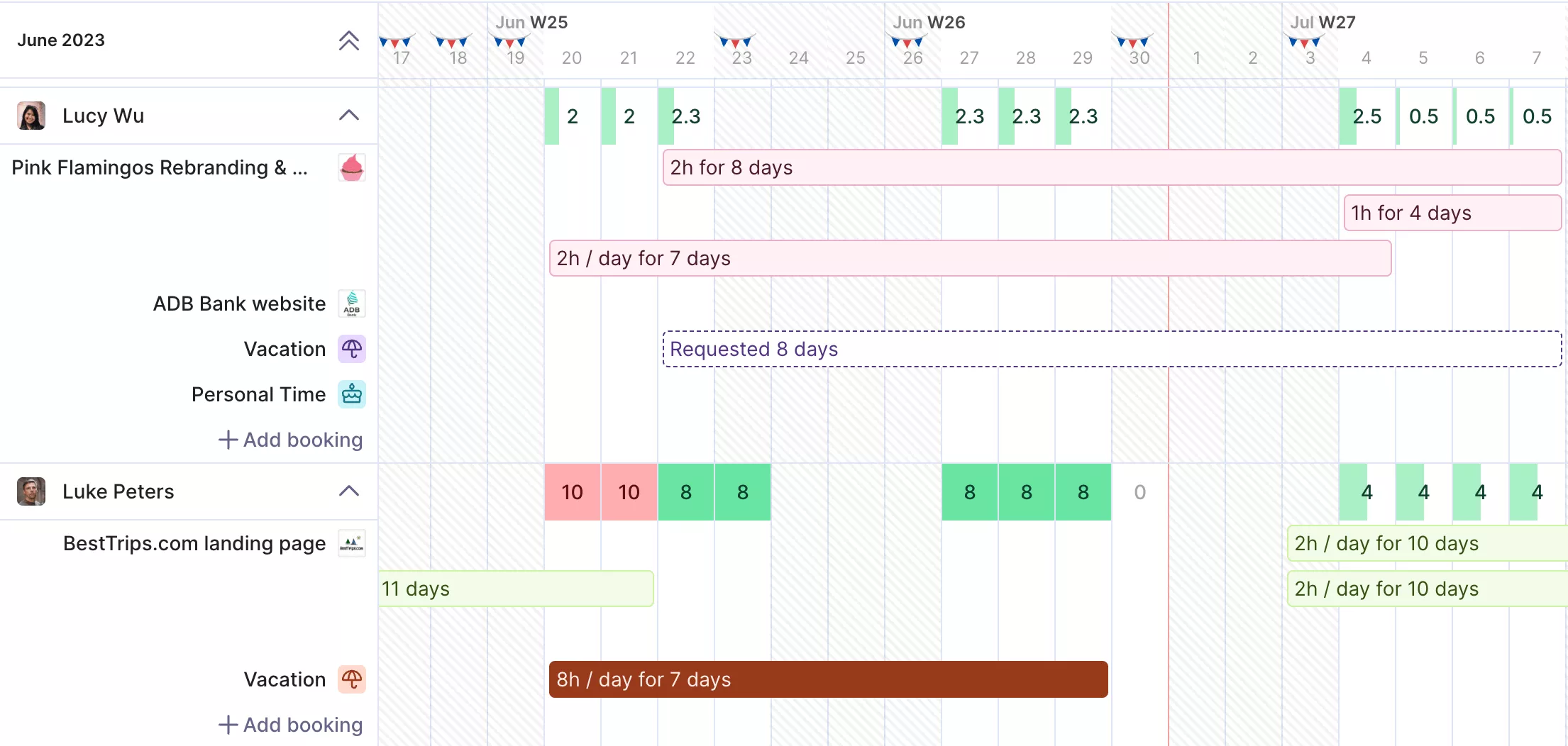
Plan resources ahead and reduce idle hours or overbooking.
That gives teams a more usable setup for day-to-day resource management as work shifts. That makes resource scheduling more useful for practical decisions like reassigning work, spotting overbooking, or seeing when the team has room to take on more work.
Keep Delivery, Billing, and Reporting Tied Together
Productive removes a lot of the manual stitching that slows teams down. Its budgeting workflows for service delivery make it easier to keep delivery, billing, and reporting tied to the same underlying numbers.
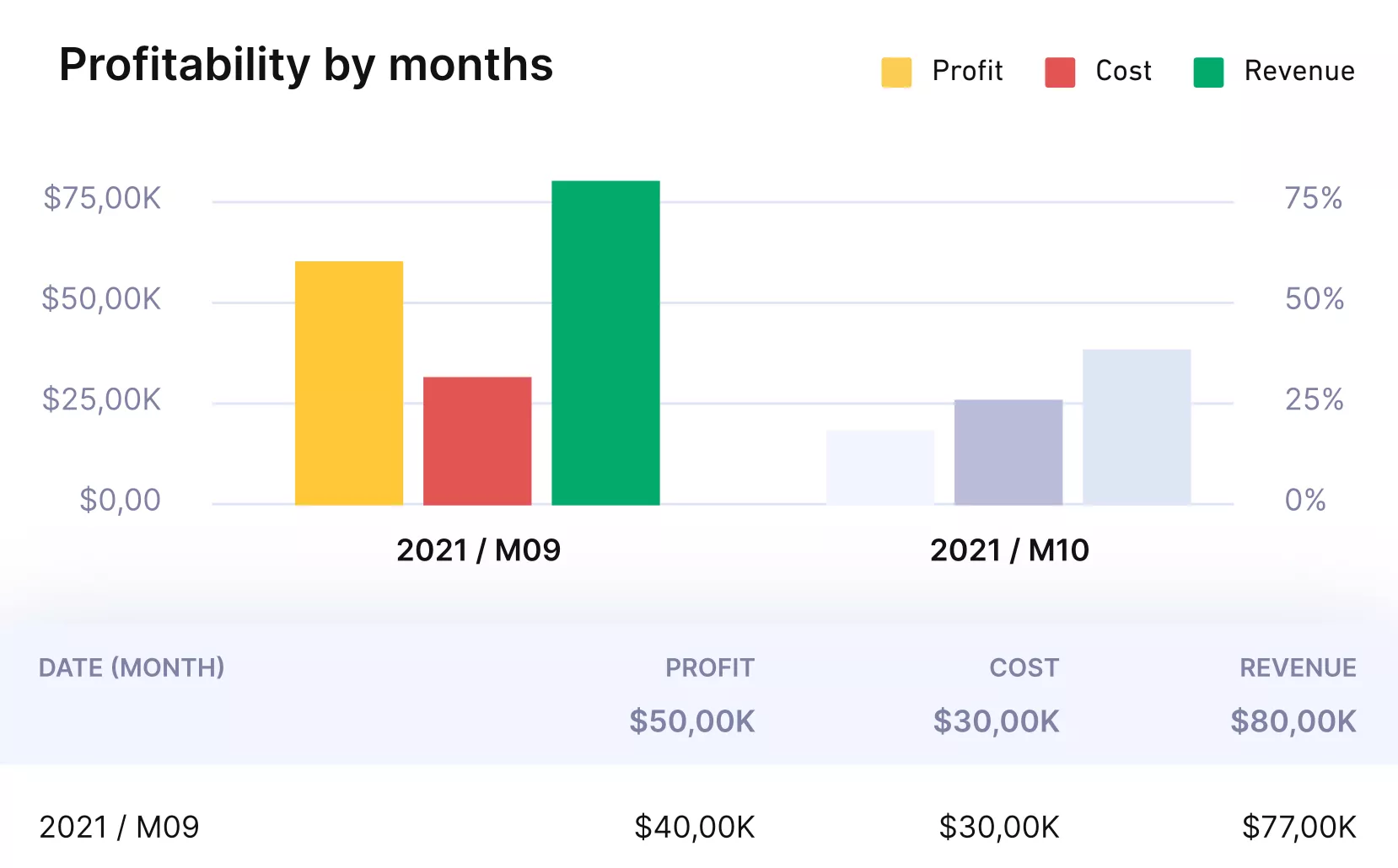
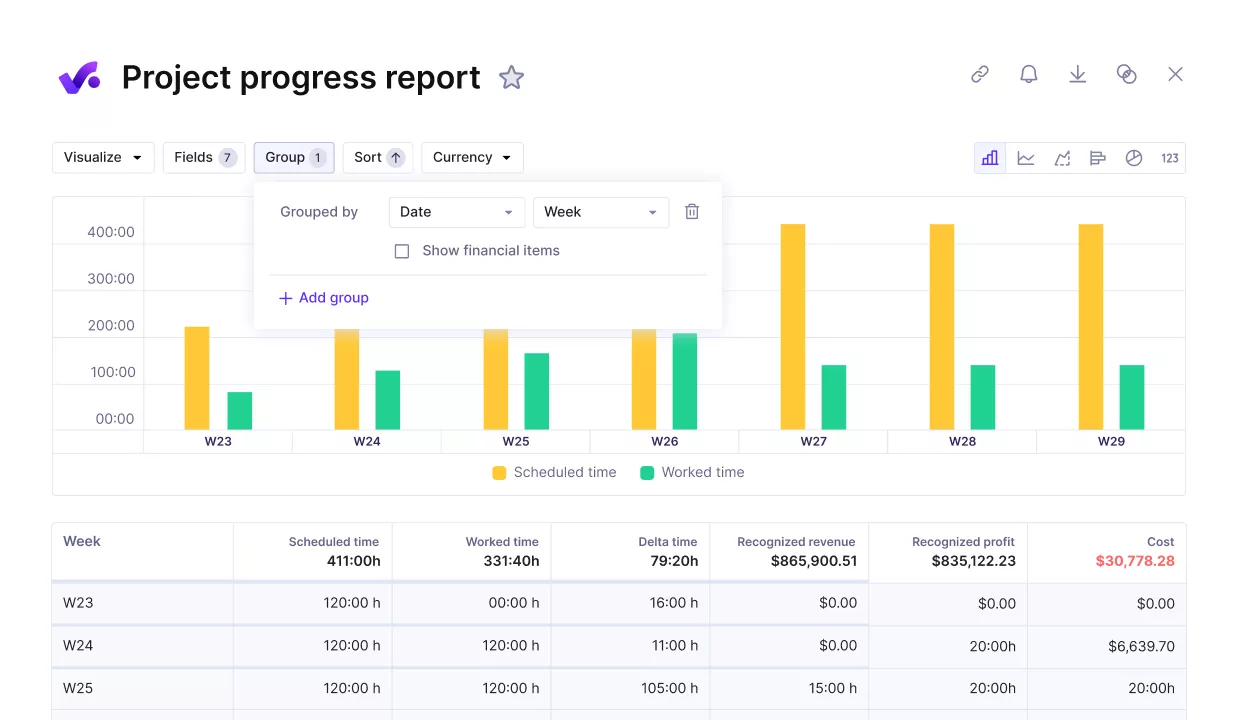
Get real time updates on all financial metrics.
Tasks, budgets, projects, clients, deals, and invoices sit in the same system, so delivery data flows into billing and reporting without constant reconciliation between modules.
Invoices can be generated from tracked time, services, and expenses, then synced to QuickBooks or Xero for accounting, which is a better fit for teams that want client-ready billing without rebuilding everything by hand.
Pricing
- Plans start with the Essential plan at $10 per user per month, which includes essential features such as budgeting, project & task management, docs, time tracking, expense management, reporting, and time off management.
- The Professional plan includes custom fields, recurring budgets, advanced reports, billable time approvals, and much more for $25 per user per month.
- The Ultimate plan has everything that the Essential plan and Professional plan offer, along with the HubSpot integration, advanced forecasting, advanced custom fields, overhead calculations, and more. Book a demo or reach out to our team for the monthly price per user.
Productive offers a 14-day free trial, so you can see what it can do for your project’s financial health.
Move Beyond Kantata Without Enterprise Overhead
If your team needs budgets, resourcing, billing, and reporting in one place, Productive gives you that control without the admin burden that usually comes with enterprise PSA tools.

2. Streamtime – Best for Smaller Creative Teams That Want a Lighter Planning Workflow
Streamtime is a better Kantata replacement for smaller creative teams that want project management, time logging, quoting, invoicing, and planning in a simpler package.
Key Features
- Project planning with jobs, timelines, rates, and planned profit
- Time tracking and scheduling that sync with job plans and to-do lists
- Quoting and invoicing are tied to active work
- Reporting on client and project profitability
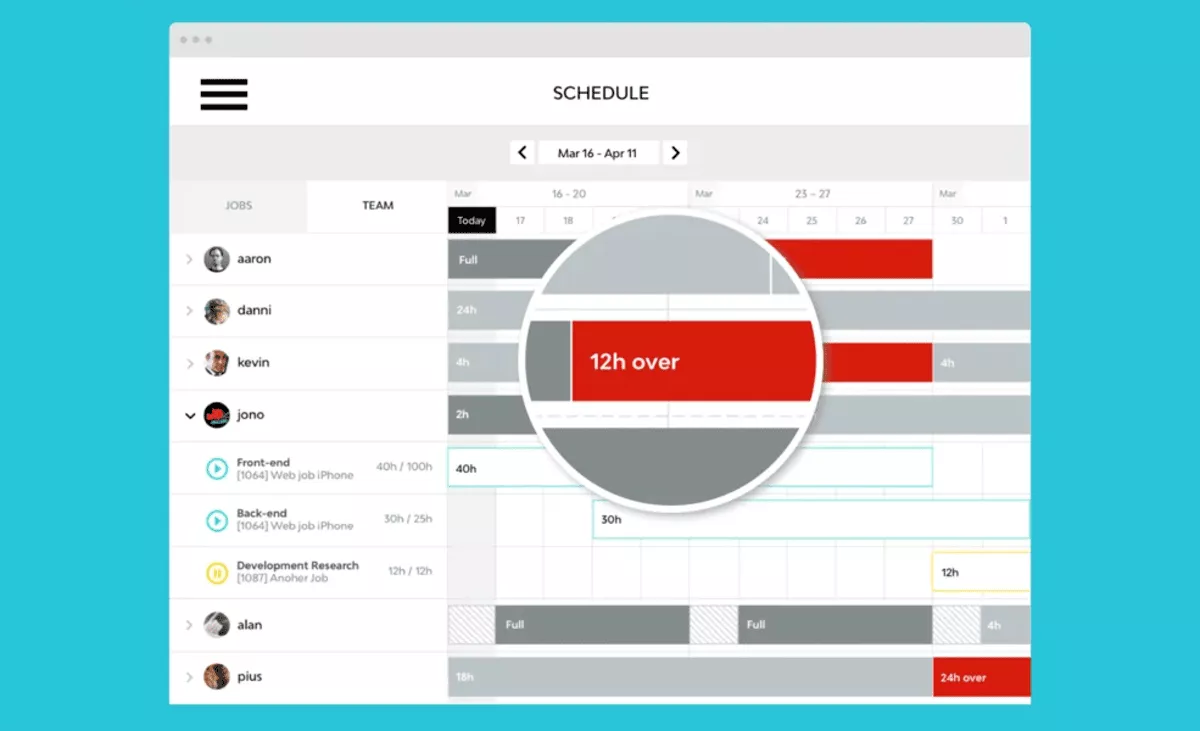
SOurce: streamtime
Pros
- Better fit for creative teams than spreadsheet-heavy project management tools.
- Easy to get up and running for a small team.
- Accessible across desktop and mobile.
- Helps smaller teams stay on track with timelines and milestones.
Cons
- Reporting is hard to pull and navigate.
- Resource planning can become too heavy to manage.
- The product can feel buggy in daily use.
- Document customization is limited.
Final Verdict
Streamtime is not the right fit for teams that need a heavier PSA backbone, deeper reporting, or more standard enterprise-style resourcing. It makes more sense for creative businesses that want a lighter operational tool and can live with some trade-offs in reporting depth, process structure, and broader workload management.
3. Accelo – Best for Service Businesses That Need Deeper Quote-to-Cash Operational Control
Accelo is built for service businesses that need tighter control across sales, client work, time and expense tracking, billing, and reporting in one system. It is a more serious operational replacement than lighter project tools, but that depth also means more setup effort and more process discipline than some teams will want.
Key Features
- Quote-to-cash workflow that connects sales, projects, retainers, billing, and client management records
- Built-in time tracking with automated timesheets, email, and meeting time capture
- Budgeting and project profitability controls for one-time and ongoing work
- Capacity-aware scheduling, workflow automation, and bulk client invoicing
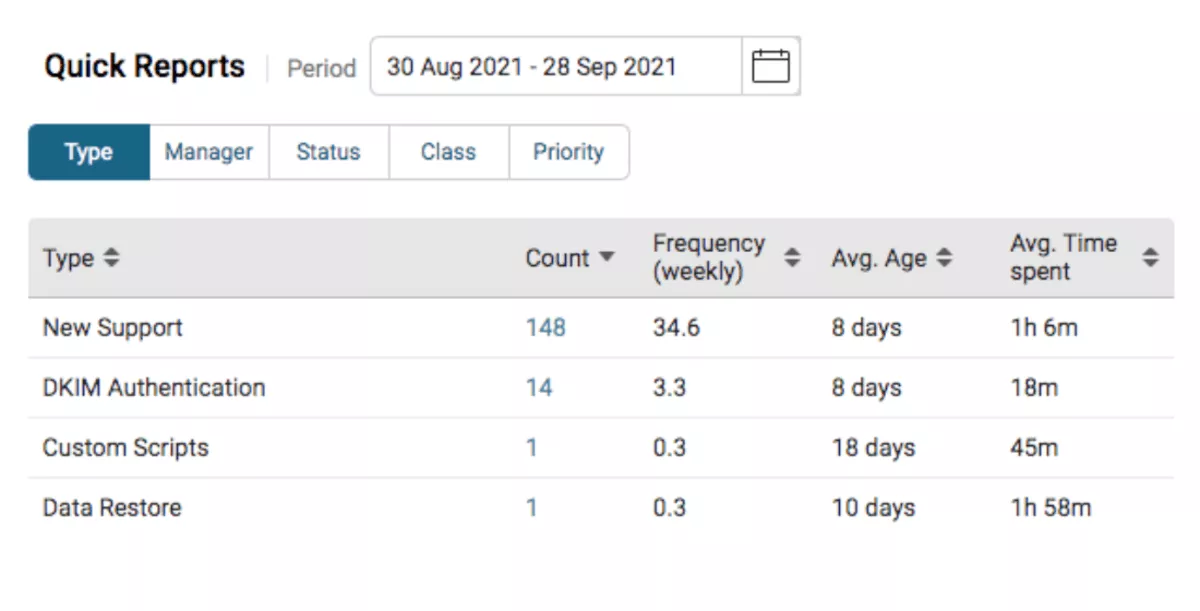
SOurce: accelo
Pros
- Strong all-in-one workflow coverage across CRM, projects, billing, and service delivery.
- Useful visibility into timesheets, ticket work, and billable activity.
- Flexible enough to adapt across departments and client workflows.
- Good fit for teams that want one central hub instead of separate tools.
Cons
- Setup and rollout can take real time before the system clicks.
- Learning curve is still a meaningful issue for new teams.
- Triggers, reports, and some workflows can feel harder to configure than they should.
- The platform can feel too complex or too expensive for smaller teams.
Final Verdict
Accelo is not the best pick for teams that want a lightweight tool they can roll out with minimal admin effort. It makes more sense when you are actively trying to replace scattered systems with one operational platform and are willing to invest time upfront to get the process right.
4. Certinia – Best for Enterprise Teams That Need a Salesforce-Native PSA
Certinia is the enterprise-heavy option in this list, and it makes the most sense for teams that want a Salesforce-native PSA with serious depth across projects, staffing, and project financials. It also sits closer to the kind of operational footprint you see in broader ERP software for larger organizations.
Key Features
- Salesforce-native professional services automation with connected customer, project, and financial data
- Resource planning and staffing tools with forecasting and utilization support
- Project portfolio management and project planning for complex delivery environments
- Billing events and finance-system handoff for enterprise services billing workflows
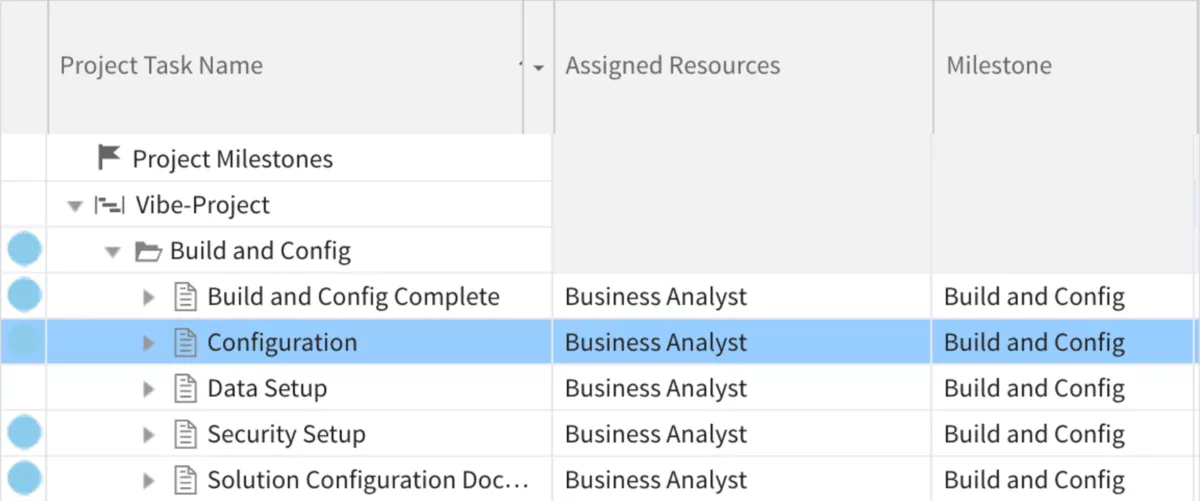
SOurce: certinia
Pros
- Strong Salesforce-native connection across project and financial data.
- Good visibility into project health, resource allocation, forecasting, and broader financial management.
- Broad PSA coverage for complex service organizations.
- Configurable enough to support enterprise process depth.
Cons
- Learning curve is still a real issue.
- Implementation and deployment can take a long time.
- Some workflows feel too complex and require too many steps.
- Reporting, customization, and UI consistency still create friction.
Final Verdict
Certinia is not the tool to choose if your team wants speed, simplicity, or a low-overhead rollout. Teams evaluating Certinia alternatives are often looking for easier implementation and administration, while Certinia fits better when Salesforce is already central to the business, and you are willing to accept more implementation and admin complexity in exchange for deeper PSA control.
5. Teamwork – Best for Smaller Client Service Teams That Want a Lighter Option With a Real Free Plan
Teamwork is the lighter option in this list, and its free plan is a big reason it belongs here for smaller client service teams. It covers more than basic project management software, but the trade-off shows up when you need deeper PSA control around advanced resource planning, project financials, or more complex service operations.
Key Features
- Free plan with task, list, board, Gantt, and time logging for small teams
- Project tracking, timesheets, and billable time support for client work
- Client collaboration tools with shared updates, files, and project visibility
- Reporting, workload planning, budgets, and profitability features are available on higher plans
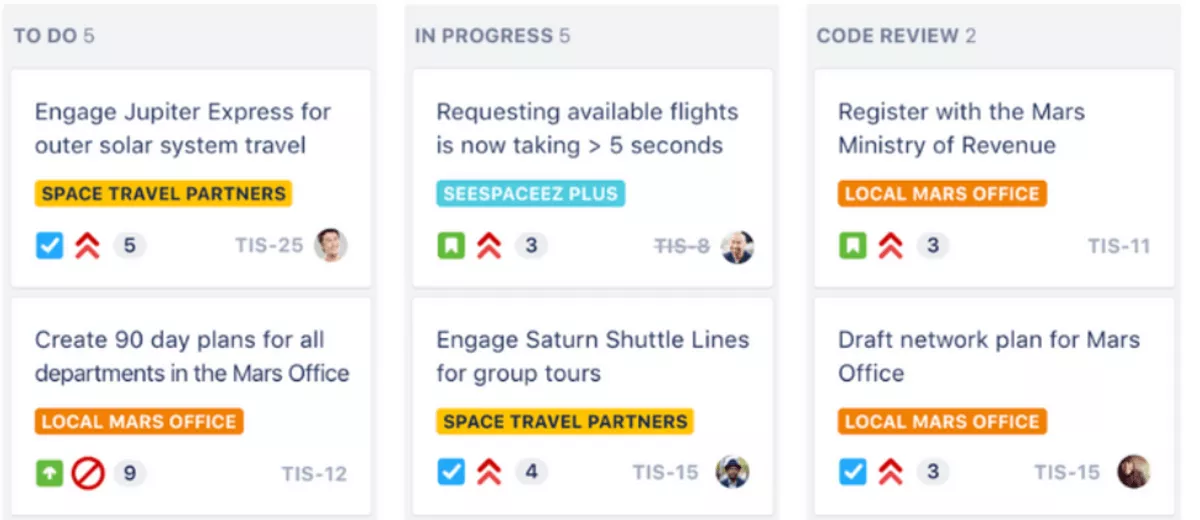
SOurce: teamwork
Pros
- Easy to use and organized for day-to-day teamwork.
- Strong visibility into workload, capacity, and work in progress.
- Helpful for client collaboration and shared project communication.
- Good setup experience and support for smaller teams.
Cons
- Some users still find the product complex at first.
- Reporting flexibility can feel limited compared with deeper tools.
- Mobile performance and large-project handling still create friction.
- Teams with heavier PSA needs may hit limits as they grow.
Final Verdict
Teamwork stops making sense once your buying process starts to revolve around advanced financial control, deeper forecasting, or more structured professional services operations. If you are weighing it against heavier tools, this breakdown of Teamwork alternatives is a useful next comparison.
Why Do Teams Look for Kantata Alternatives?
Teams look for Kantata alternatives because the platform can feel too complex, too rigid, or too heavy for the way their team actually works.
Kantata is still a serious PSA platform, but that does not mean it is the right fit for every project management environment, especially when teams want faster adoption, simpler reporting, or a lighter operating model.
That matters for professional services organizations that need structure, but not at the cost of day-to-day usability.
One common reason teams switch is usability friction.
Kantata can do a lot, but that depth comes with more structure, more setup, and more process overhead than some teams want. That matters most when project managers, delivery leads, finance teams, and daily users all need to work in the same system without constant admin support.
Another issue is reporting and visibility.
Some teams like Kantata’s reporting depth, but others start looking elsewhere when custom reporting becomes too hard to adjust or when the reporting setup depends too much on specialized knowledge.
At that point, the problem is not whether the data exists. The problem is whether the team can get answers out of the system fast enough to manage work, margins, and project profitability.
Fit is the third big reason.
Kantata is built for structured service operations, so teams that want a lighter planning workflow, a simpler rollout, or a tool that feels easier to learn may decide the trade-off is not worth it. That is also why many buyers start reviewing a broader set of resource management software options before they narrow the shortlist.
How to Choose the Best Kantata Replacement? (Step-by-Step Process)
The best way to choose a Kantata replacement is to run a simple buying process that starts with your real workflows, tests the tools against live scenarios, and scores the trade-offs before you migrate.
Here’s a detailed step-by-step breakdown:
Step 1: Map the Workflows You Cannot Lose
Start by mapping the exact PSA workflows the new tool must replace in the first 30 days. A practical project resource management guide can help here if your team has never documented this process properly before. Do not write down generic needs like project management or reporting.
List the real operating jobs like:
- How a deal becomes a project?
- How budgets are set?
- How people are scheduled?
- How project scheduling works across teams?
- How time and expenses are approved?
- How retainers or fixed-fee work are tracked?
- How invoice-ready data is produced?
- How utilization or margin is reviewed?
Also, note where resource demand shows up first, because that is usually where a weak PSA starts creating manual work. Put this in a simple sheet with three columns: workflow, owner, and what breaks today.
That gives you a buying checklist tied to actual operations instead of vendor language.
Step 2: Define Your Non-Negotiables by Workflow Risk
Now rank each workflow by how risky it is to get wrong. For example:
- If your team bills by actual time, then time entry, approvals, rates, and invoice prep are non-negotiable.
- If you run retainers, then remaining budget, overages, and month-end reporting matter more.
- If you staff across many active projects, then scheduling, availability, placeholders, rescheduling, and Scenario planning matter more than surface-level ease of use.
This step is where you separate true PSA requirements from nice-to-have convenience. It is also where you decide how much depth you actually need in resource utilization, financial management, and workflow management.
Step 3: Make Vendors Prove the Hard Parts Live
Do not ask for a generic demo. Give each vendor the same short scenario and make them show the work live.
A strong PSA test should include: creating a project from a won deal or template, assigning roles and hours, testing resource scheduling, updating the budget after scope changes, logging time and expenses, approving that time, checking the remaining budget, and pulling one delivery report plus one finance report.
If they cannot show those actions cleanly with your workflow logic, the tool is not a serious replacement, no matter how polished the demo looks.
Step 4: Score Tools Across Delivery, Finance, and Admin Effort
Use one scorecard for every tool and make the categories operational.
Score each option on delivery fit, financial control, resource management, reporting speed, admin burden, rollout complexity, flexibility for your billing model, and how well the tool handles resource utilization over time.
For most teams, that should also include a simple check on client management and cross-team handoffs. Then ask three people to score it separately: one delivery lead, one finance owner, and one daily user.
That makes it easier to catch the gaps between what leadership wants, what project managers need, and what the delivery team can realistically maintain.
Step 5: Pilot One Real Workflow Before You Decide
Before you sign off, run a short pilot using one real team or one live client workflow. Do not pilot a fake sandbox process that nobody actually uses. Pick one repeatable workflow such as a monthly retainer, a fixed-fee project with phased budgets, or a time-and-materials engagement with approvals.
Then check five things:
- How fast the team adopts it?
- Whether reporting matches expectations?
- Whether billing data is clean?
- Whether scheduling stays usable?
- Whether the admin load is sustainable.?
That will tell you far more than another feature comparison ever will.
How to Migrate From Kantata?
You should migrate from Kantata by auditing your current setup, deciding what data and workflows actually need to move, testing the replacement on one live process, and only then planning the full cutover.
That order matters because most migration problems do not come from the import itself. They come from bad field mapping, unclear ownership, broken reporting expectations, and old process habits that nobody cleaned up before the move.
They also show up when process management and workflow management rules were never documented clearly enough to be rebuilt in the new system.
Step 1: Start With a Migration Audit
List every active workflow your team uses in Kantata today, including project setup, staffing, time approvals, budget tracking, billing prep, and recurring reporting. Then mark each one as keep, rebuild, simplify, or drop.
This is the fastest way to avoid carrying unnecessary process management baggage into the new system.
Step 2: Clean the Data Before You Move Anything
Archive old projects, close duplicate records, review rate cards, confirm role names, and decide how much historical reporting you really need in the new platform. Teams often waste time migrating messy data that nobody uses.
It is usually better to preserve some history offline and move only the records needed for current workflow management, active projects, and near-term reporting.
Step 3: Map How the New System Should Work
A simple resource management plan template and walkthrough can help if you need a cleaner structure for ownership, handoffs, and staffing rules before the rollout. Define what creates a project, who owns approvals, how budgets are updated, how billable time becomes invoice-ready, and what reports delivery and finance need every week or month.
If that logic is not clear before the pilot, the rollout will turn into a process argument instead of a software transition.
Step 4: Run One Live Pilot Before Full Rollout
Use a real project, retainer, or client workflow and check whether time, budget, reporting, resourcing, and financial management all behave the way your team expects. Pay close attention to what breaks first.
It is usually one of four things: permissions, reporting structure, billing logic, or project tracking habits. Fix those in the pilot, assign clear owners, and only then set the cutover date for the wider migration.
Kantata Migration Checklist
- Audit current workflows and label each one: keep, rebuild, simplify, or drop.
- Export a list of active projects, clients, people, rates, budgets, and reporting needs.
- Archive duplicate, outdated, or closed records before any import work starts.
- Decide which historical data must move and which data can stay in exports or backup files.
- Map old fields to new fields for clients, projects, roles, rates, budgets, and time entries.
- Document who owns project setup, approvals, billing prep, and reporting after the move.
- Build one pilot workflow using a real project, retainer, or time-and-materials engagement.
- Validate time entry, approvals, staffing, and budget updates inside the pilot.
- Check that delivery reports and finance reports match what stakeholders expect.
- Train the pilot team on the new process before asking them to use the new tool live.
- Fix workflow gaps, field issues, and reporting mismatches found during the pilot.
- Set a cutover date, freeze rule, and rollback plan for the full migration.
Final Thoughts – Are These Alternatives Worth the Switch?
Yes, these alternatives are worth the switch when Kantata no longer matches the way your team plans work, tracks budgets, manages resources, or pulls reports.
If your team needs projects, resources, budgets, billing, and reporting to work together in one place, it usually makes more sense to choose an all-in-one platform than to stitch together lighter project management software.
If you want to see what that looks like in practice, book a Productive demo and compare it against your current workflow with real use cases in mind.
Connect With Agency Peers
Access agency-related Slack channels, exchange business insights, and join in on members-only live sessions.
