Top 5 Ganttic Alternatives (Paid & Free) – 2026 Review

Ganttic alternatives can be hard to compare because many pages either dump generic project management software or resource management software.
This guide cuts through that with five true replacements, including review-based pros and cons, key features, best-for fits, a comparison table, practical choosing advice, and a free migration checklist.
It is built for teams that care about resource management, staffing visibility, and day-to-day visibility across projects. Use it to narrow the shortlist fast and pick the tool that actually matches how your team plans work.
What Are the Best Ganttic Alternatives in 2026?
The best Ganttic alternatives in 2026 are Productive, Resource Guru, Float, Teamdeck, and Priorit next to other project management software with Gantt scheduling. These alternatives to Ganttic cover different needs, from all-in-one work management for services teams to lighter scheduling and portfolio tools. The shortlist below is meant to help you compare the strongest options quickly before you get into the detailed tool breakdowns.
A Short List of the Best Ganttic Replacements
Ganttic Competitors Comparison Table
| Tool | How It Compares to Ganttic | Skip If | Best For | Free Version Available |
|---|---|---|---|---|
| Productive | Extends scheduling into project management, budgets, tracked hours, forecasting, billing, and reporting. | Skip if you only want a lightweight scheduler and do not need the broader operational layer. | All-in-one replacement for professional services teams | No |
| Resource Guru | Stays closest to Ganttic on scheduling people and bookable resources, with a focused planning setup. | Skip if you want deeper project delivery, financial control, or broader workflow coverage. | Resource scheduling and non-human resource booking | No |
| Float | Pushes further into workload planning, utilization visibility, and forward-looking team scheduling. | Skip if you need deeper reporting, more workflow flexibility, or a broader all-in-one system. | Team capacity planning and forecasting | No |
| Teamdeck | Adds tracked hours and leave management to team scheduling in one lighter system. | Skip if you want deeper BI-style reporting or a more complete operating platform. | Resource planning with time tracking and leave management | No |
| Priorit | Moves toward lighter portfolio visibility and prioritization rather than hands-on scheduling depth. | Skip if you need a close operational match for Ganttic’s day-to-day resource planning job. | Lighter portfolio planning needs | Yes |
How We Chose These Tools
We chose these tools by reviewing real user feedback on G2 and Capterra, checking vendor product pages, and comparing what each tool actually does better, worse, or differently than the current tool. We paid close attention to software review patterns, features comparison points, and integrations comparison signals, but the bigger filter was practical fit: what planning problems the current tool solves today, where users run into limits, and which options are the most credible replacements for those exact workflows, including project scheduling, resource allocation, and broader delivery control.
1. Productive – Best All-In-One Replacement for Professional Services Teams and Agencies
For firms that have outgrown standalone scheduling, Productive is the only option here that closes the loop between planning, delivery, and financial control.
A visual planner can handle bookings and portfolio visibility, but many professional services teams also need those decisions to connect directly to budgets, tracked hours, forecasting, sales, billing, and reporting.
Productive brings those parts together in one system, which makes it a stronger fit for consultancies, agencies, studios, and architecture or engineering firms where staffing decisions affect delivery, project planning, resource allocation, and margin at the same time.
Plan Real Capacity Before Overbooking Turns Into Delivery Risk
This is the first place Productive feels closer to how service teams actually work. Teams can drag and drop bookings, use placeholders for roles they have not staffed yet, hold tentative work before it is confirmed, and switch between saved views in the Productive’s Resource Planner to make workload easier to read.
The point here is to spot future demand, staffing gaps, and availability issues before they turn into delivery problems.
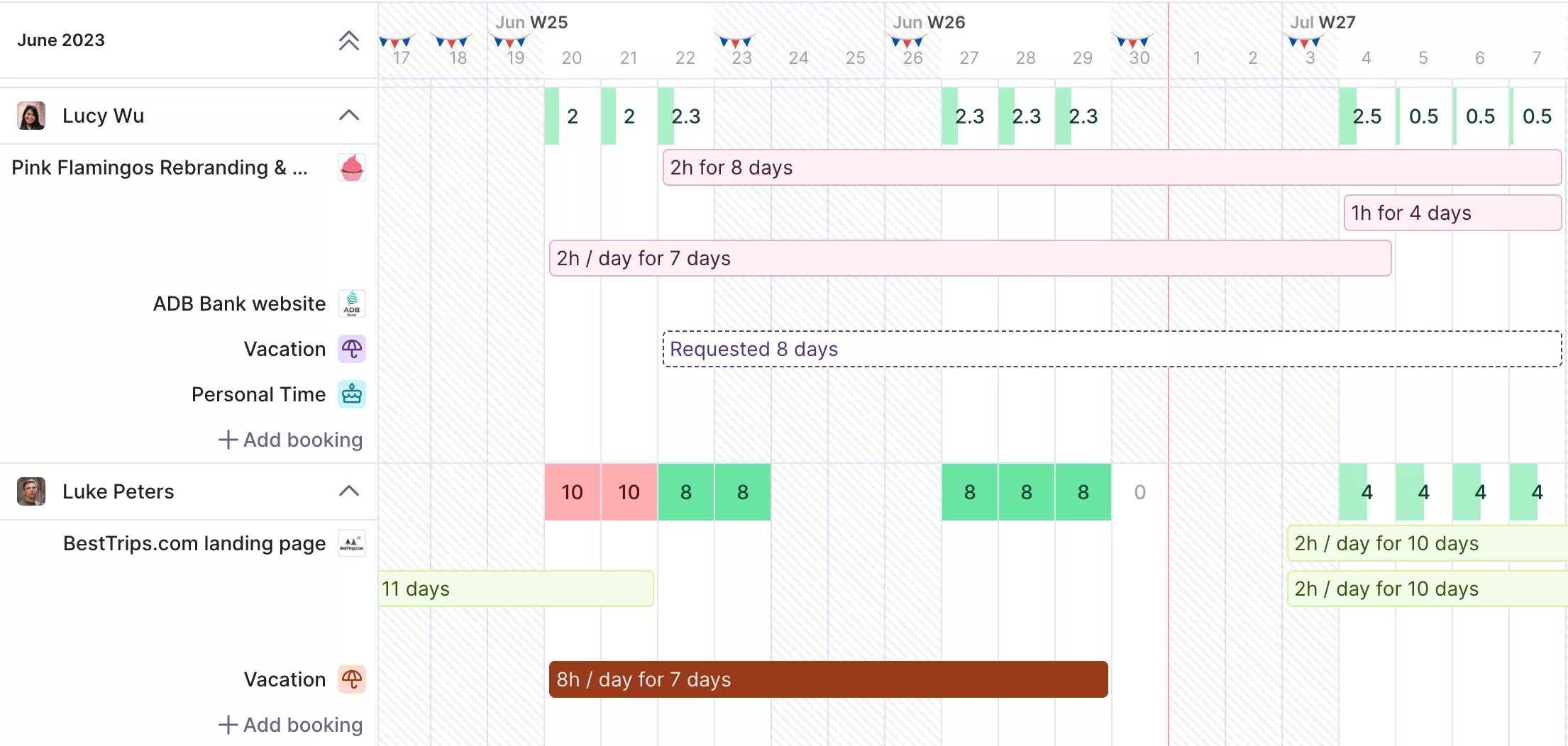
source: productive
See Budget Health While You Are Still Scheduling the Work
A big reason teams outgrow a scheduler like this is that a schedule on its own does not show whether the work is financially healthy. Productive’s budgeting connects your live budgets to overall profitability, so the same staffing decisions feed directly into cost, revenue, and margin.
That matters most for firms running hourly, fixed-price, retainer, or mixed work, because budget control stays tied to the work plan instead of being rebuilt later in spreadsheets.
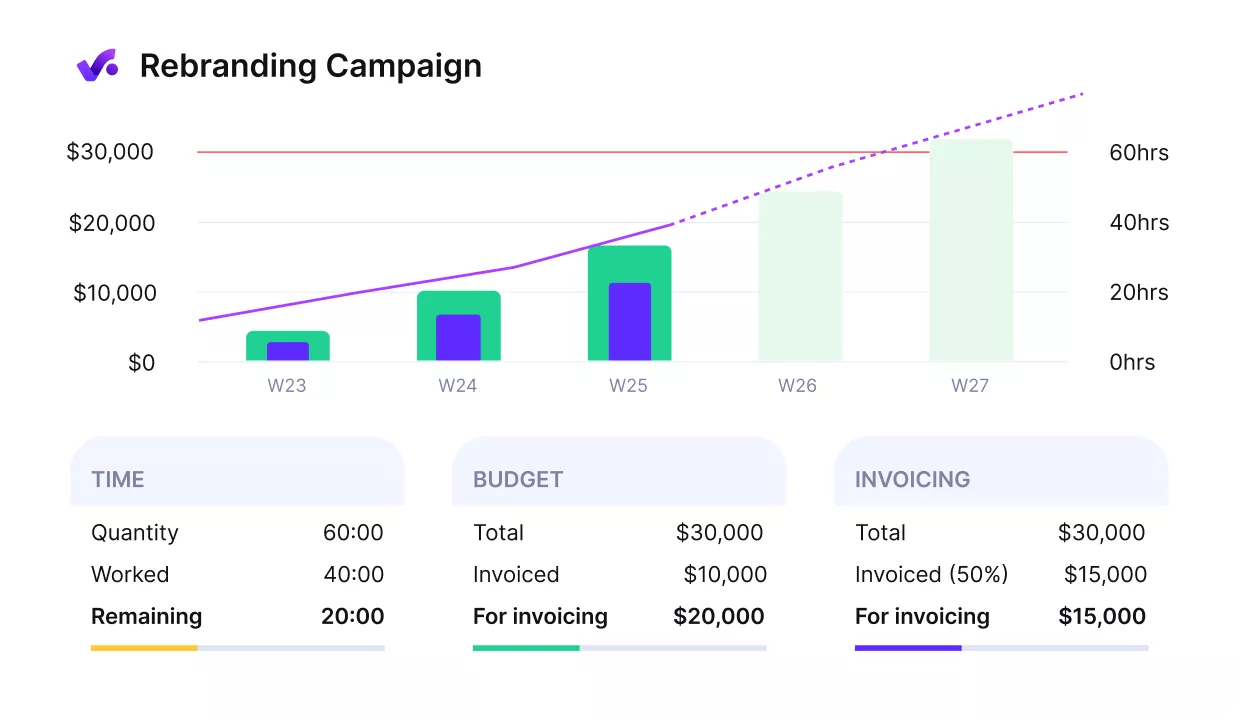
Get early warnings of budget overruns.
Hold Likely Work Before It Turns Into a Resourcing Scramble
This is another structural difference between the two tools. Productive includes sales, forecasting, and Productive Gantt charts so teams can model future work, test likely scenarios, and see what a probable deal would do to utilization and profit before the work is won.
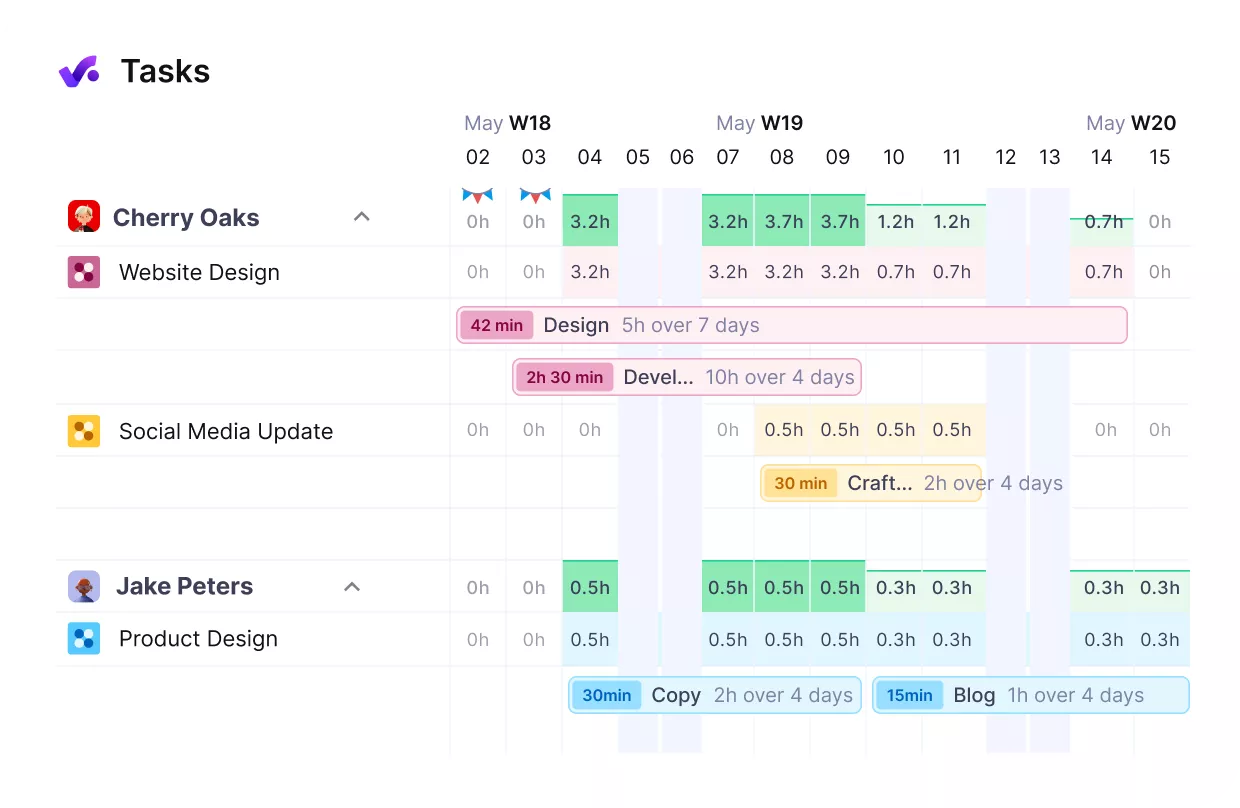
Manage your team’s workloads and spot overbooking or idle hours.
That is a better match for firms that need to answer more than “Who is free next week?” They also need to know whether the team can absorb pipeline work without creating margin pressure or delivery risk later.
Keep Time, Billing, and Reporting Connected After the Schedule Is Approved
Once delivery starts, Productive closes the loop that a scheduling-only tool leaves open. Teams can log hours in several ways, connect them to budget spend and profitability, and use the same system for broader operational reporting instead of rebuilding the story somewhere else.
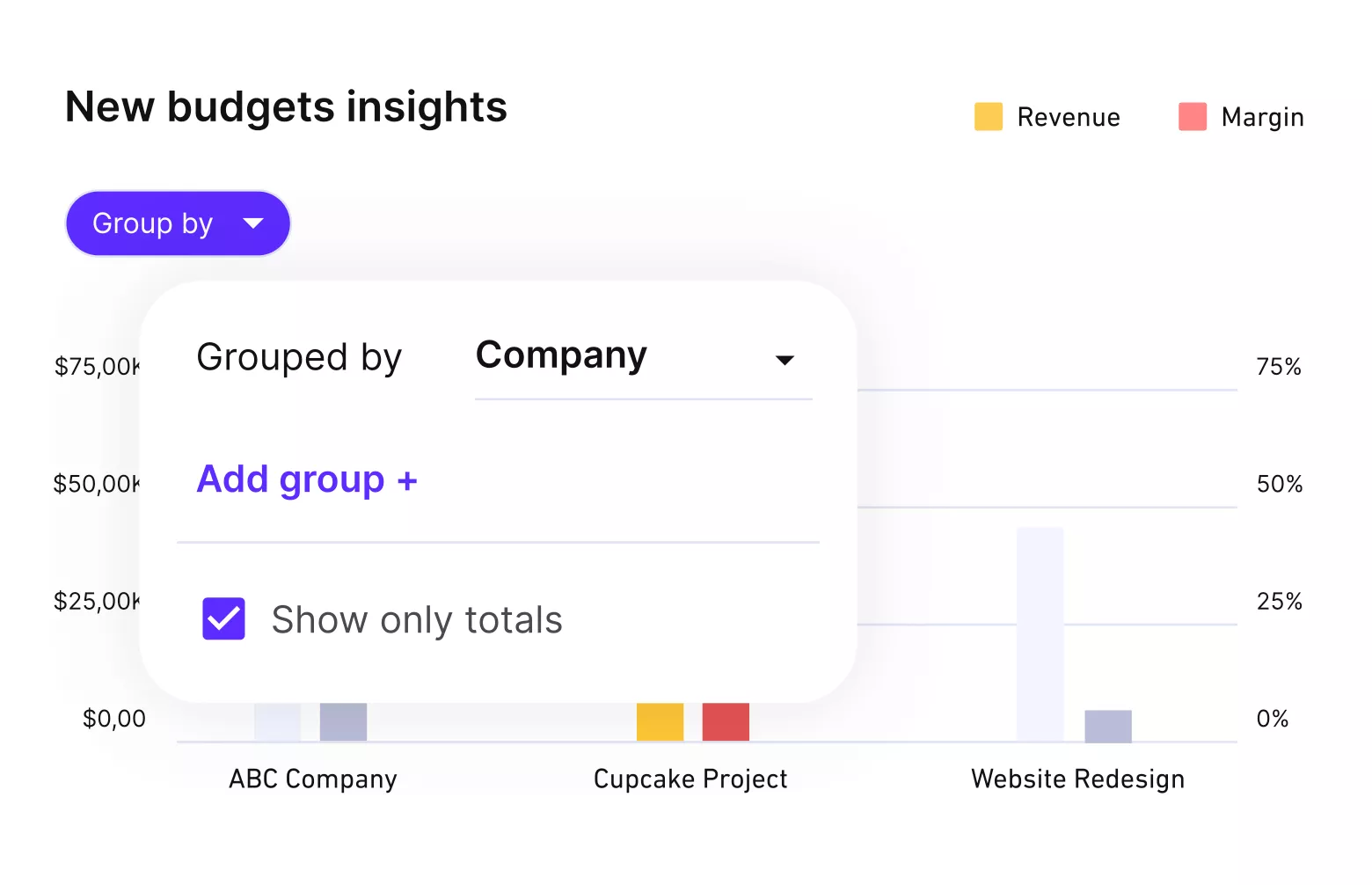
Get real-time updates on project profitability.
That matters because the real issue is what happens after work is approved, when delivery, financial visibility, reporting, and the broader agency workflows around delivery all need to keep moving together.
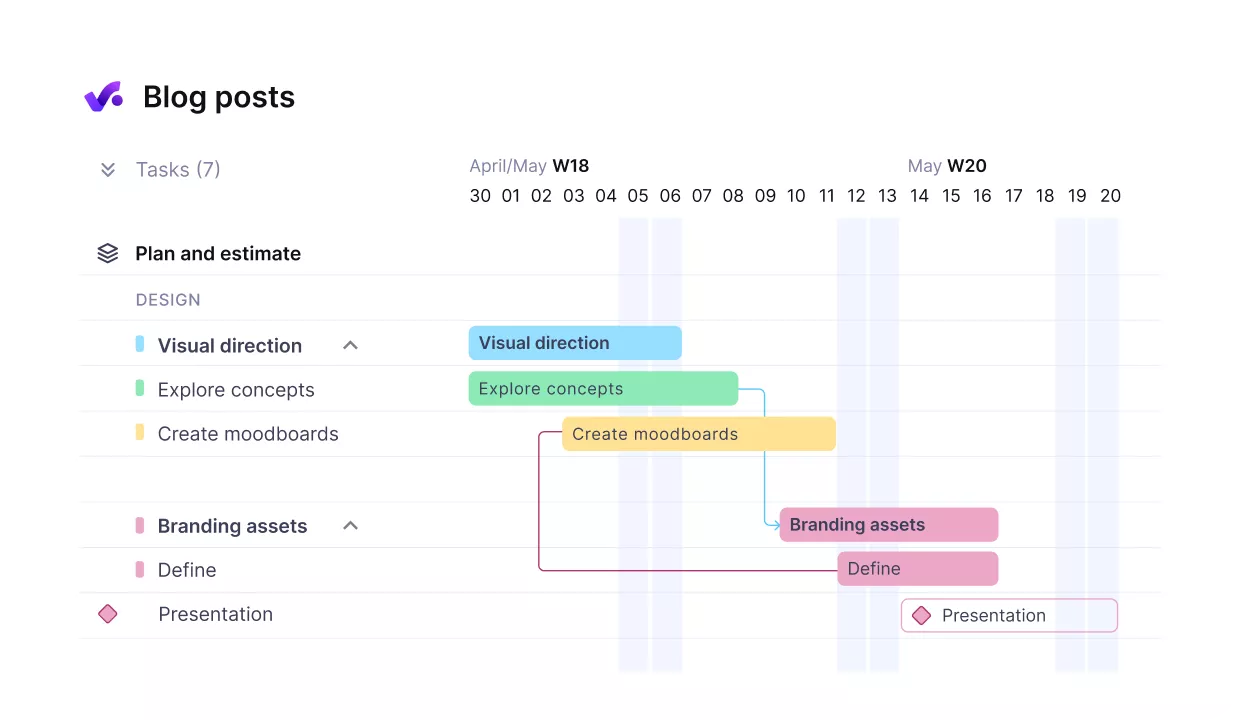
connect finances and delivery in unified workflows with productive.
Pricing
- Plans start with the Essential plan at $10 per user per month, which includes essential features such as budgeting, project & task management, docs, time tracking, expense management, reporting, and time off management.
- The Professional plan includes custom fields, recurring budgets, advanced reports, billable time approvals, and much more for $25 per user per month.
- The Ultimate plan has everything that the Essential plan and Professional plan offer, along with the HubSpot integration, advanced forecasting, advanced custom fields, overhead calculations, and more. Book a demo or reach out to our team for the monthly price per user.
Productive has a free 14-day free trial, so you can try out what the tool can offer to your professional services firm.
Switch from Ganttic to Productive
Keep resource planning, project delivery, and financial visibility in one place instead of stitching together extra tools.

2. Resource Guru – Best for Resource Scheduling and Non-Human Resource Booking
If your day-to-day work is mostly booking people, equipment, rooms, and project time in one shared view, Resource Guru is one of the closest fits in this list. If it is already high on your shortlist, our guide to Resource Guru alternatives goes deeper into where it fits and where it falls short.
It works best as a focused staffing tool, not as a replacement for deeper project scheduling, billing, or financial workflow tools.
Key Features
- Scheduling with clash management and waiting lists
- Capacity planning with availability and utilization visibility
- Leave management in the same planning workflow
- Equipment and meeting room booking alongside people
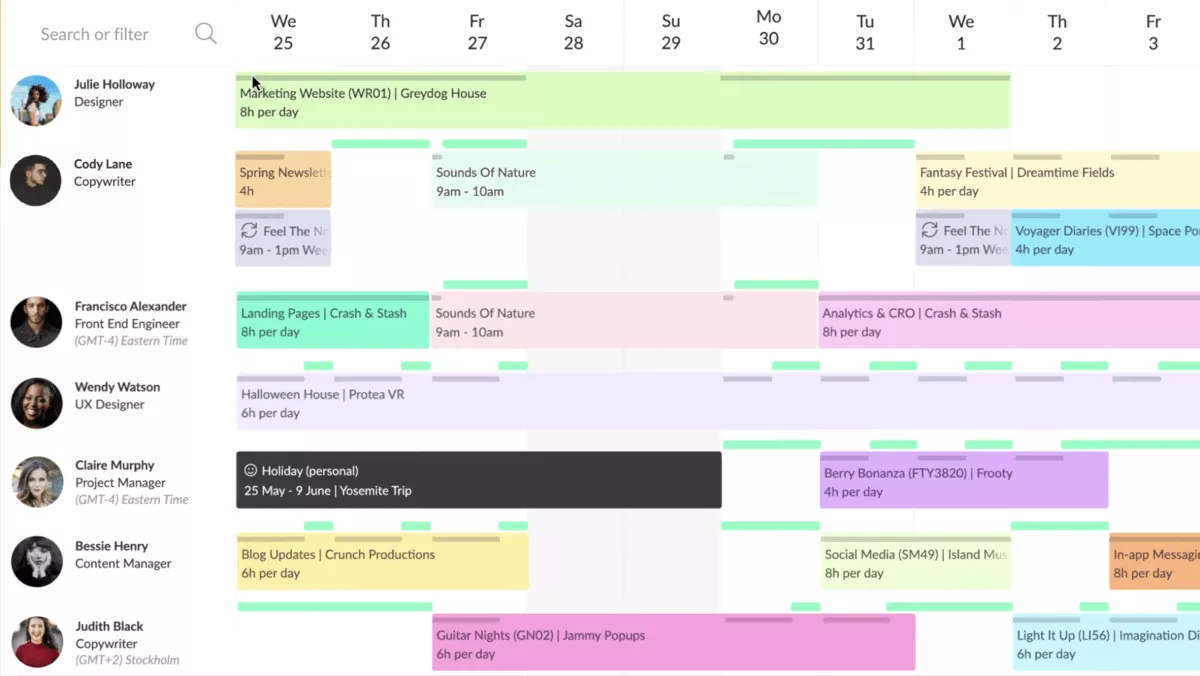
SOurce: resource guru
Pros
- The interface is easy to use and easy to learn.
- Different views make it easier to focus on the right people and bookings.
- Shared visibility into schedules, bookings, and availability cuts down on back-and-forth.
- It works well for scheduling multiple resource types, not just employees.
Cons
- Drag-and-drop booking updates need more flexibility.
- Reporting is not practical enough for teams that want clearer, easier-to-read outputs.
- Editing bookings across multiple days can be tedious.
- Customization is limited in places like colors, layout, and package-level reporting.
Final Verdict
Resource Guru is not the right choice if you want your replacement to cover broader project management, financial control, or a more customizable operating setup. It makes the most sense when your main priority is a clean booking tool for people and other resources, and you are happy to keep the rest of your workflow somewhere else.
3. Float – Best for Team Capacity Planning and Forecasting
Float leans hardest into forward-looking team planning, so it stands out for firms that want earlier warning signs on workload and availability. If it is already high on your shortlist, our guide to Float alternatives goes deeper into where it fits and where it falls short.
It fits best when your planning process centers on people, availability, and forecasting rather than broader delivery, billing, or more advanced project operations in one system.
Key Features
- Live visual schedule for team allocation and workload visibility
- Availability planning with utilization signals, time off, and over-capacity warnings
- Work allocation by hours or percentages across projects
- Reports for project performance, budget usage, and planned versus logged time
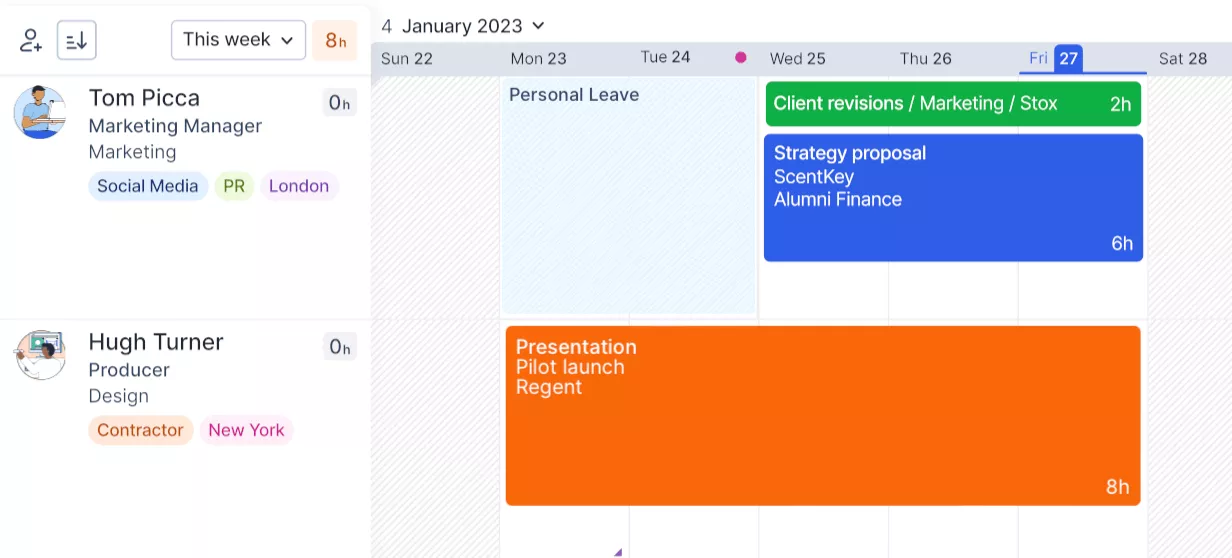
SOurce: FLOAT
Pros
- The interface is clean and clear.
- Moving bookings and changing time estimates is quick and simple.
- Switching between people and projects on the report screen is easy.
- Team timesheets in one place give better visibility into workloads.
Cons
- The main planning page can feel overwhelming for some users.
- Time logging mistakes are hard to undo.
- Calendar-synced items cannot be moved around in the schedule.
- The initial setup, loading speed, and reporting depth can still feel frustrating.
Final Verdict
Float is strongest when the real problem is planning people well, spotting workload issues early, and getting out of spreadsheet-based scheduling. It becomes a less natural fit when the team also needs more flexible workflows, easier onboarding for occasional users, or deeper reporting in the same tool.
4. Teamdeck – Best for Resource Planning With Time Tracking and Leave Management
Teamdeck sits in the middle ground between a pure scheduler and a broader delivery platform, which is why it appeals to teams that want bookings, logged hours, and leave management in one place.
It is a better fit for teams that want stronger day-to-day visibility than for teams that need a broader platform for delivery management, finance, or more advanced workflow control.
Key Features
- Bookings and workload planning
- Timesheets and logged hours for billable and non-billable work
- Leave management with time-off requests and availability tracking
- Custom reporting for utilization, payroll, and project budget views
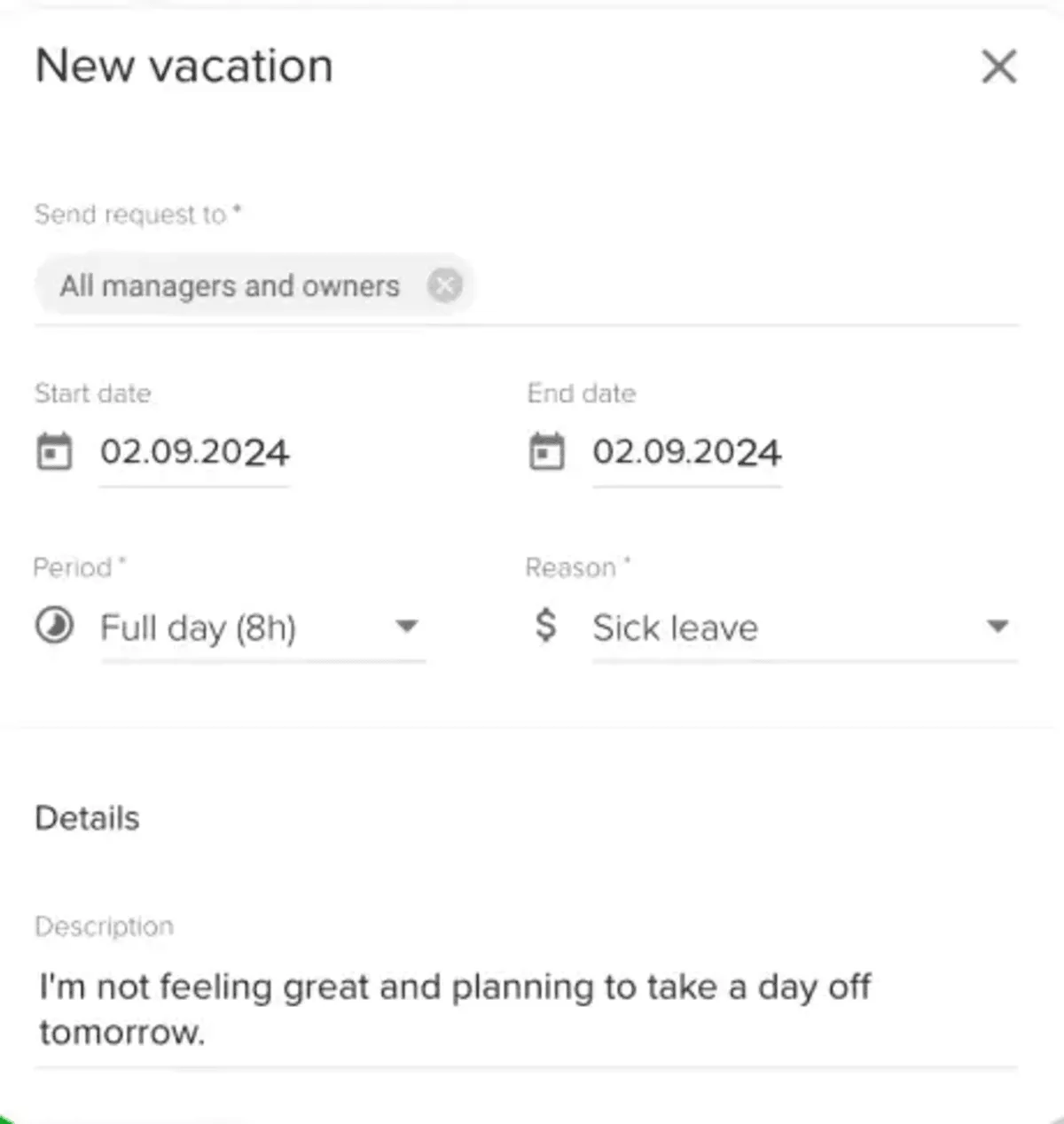
SOurce: teamdeck
Pros
- It is reliable and easy to set up and use.
- Logged hours and scheduling are simple to manage day to day.
- Standard reports are useful and easy to generate.
- Billable time is easy to capture, and holidays and vacations are easy to track.
Cons
- Pricing can be hard to justify for individuals or smaller companies.
- Reporting still feels limited if you want deeper BI-style analysis.
- Some teams run into friction when generating reports or tracking leave.
- The interface can feel plain if you want a more polished or modern UI.
Final Verdict
Teamdeck is a sensible option when you want planning, tracked time, and leave management to live together without buying a heavier system than you need. It loses some appeal when reporting depth, UI polish, or a broader all-in-one operating setup matters as much as the core planning job.
5. Priorit – Best for Lighter Portfolio Planning Needs
Priorit is the outlier in this list because it is lighter, more portfolio-oriented, and less focused on day-to-day scheduling depth. It fits best for smaller teams that want a simpler way to track project portfolio management signals, strategic priorities, business performance, and lighter project planning needs without adopting a heavier planning stack.
It is much less of a direct replacement than Resource Guru, Float, or Teamdeck, so the fit depends on whether you need portfolio visibility and prioritization more than hands-on scheduling depth.
Key Features
- Dashboard for tracking key performance indicators and business signals
- Strategic planning and benchmarking tools
- Budgeting and forecasting support
- Predictive analytics and trend indicators
SOurce: priorit
Pros
- It gives smaller teams a lighter entry point than most portfolio tools.
- The dashboard-led setup is easier to grasp than a heavier enterprise PPM system.
- Strategic planning and KPI tracking live in one place.
- A free version is listed, which lowers the barrier to testing it.
Cons
- It is not a close match for Ganttic if you need day-to-day resource scheduling.
- There is no clear proof of deeper time tracking or leave management workflows.
- Public review coverage is thin, which makes the tradeoffs harder to validate.
- Integration visibility is limited in the sources available.
Final Verdict
Priorit is worth a look when the real need is lighter portfolio visibility, strategic planning, and a lower-cost starting point rather than detailed resource scheduling. The tradeoff is that it sits farther away from the core scheduling use case, so it works better as a lighter portfolio tool than as a like-for-like operational replacement.
Why Do Users Look for Ganttic Replacements?
Users look for Ganttic replacements because the interface can get messy at scale, some actions are harder to undo or test safely, and reporting or planning gaps start to show once resource demand becomes more complex.
The common thread is simple: the tool works well for visual planning, but some teams outgrow it when they need cleaner reporting dashboards, easier scenario changes, or a setup that handles more complexity without extra workarounds.
- The view gets harder to manage as planning gets more complex. Some users like the visual layout at first, but say it becomes messy when there are a lot of projects and resources on screen. That matters if your team needs a cleaner way to spot conflicts, gaps, and overbooking at a glance.
- It is hard to test changes without risking the live plan. One recurring frustration is the lack of an easy way to roll back to a previous version or copy a plan and test ideas safely. Teams that are used to working through multiple scenarios in Microsoft Excel or spreadsheet templates often start to feel that limit quickly.
- Search and navigation can slow people down. Reviews point to friction when users cannot find projects easily unless they know the exact naming structure, or when the UI feels harder to navigate than it should. That becomes a bigger issue when the tool is used every day by more than one team.
- Some reporting and export needs still sit outside the tool. Users like the visual planning side, but there are complaints around exports, PDF views, and getting reporting into a format that is easier to share. That can push teams to rebuild parts of the process outside the system.
- Missing-role and future-demand planning are not always clear enough. The tool helps teams see who is assigned and where conflicts exist, but some users still struggle to show unfilled roles or future resource demand in a clean way. If staffing decisions depend on seeing what is missing, not just what is booked, that gap becomes more important.
- Integration and workflow flexibility can feel limited. Some users call out limited integration options or awkward data handling when they need to move information elsewhere. That is usually the point where teams start looking for a replacement that fits the rest of their workflow more naturally.
How to Choose the Best Ganttic Alternative for Your Team? (Step By Step Process)
You should choose the best Ganttic alternative by mapping your current planning workflow, testing the exact jobs your team does every week, and comparing tools against those jobs instead of comparing feature lists in isolation.
The steps below are meant to be practical enough to copy into your evaluation doc, share with colleagues, and use during live trials.
Step 1. List the Planning Jobs the Replacement Has to Support
Write down the recurring planning tasks your team runs every week and group them by workflow. That usually means things like assigning people to projects, checking availability before committing work, spotting overbooking, sharing schedules with stakeholders, and reviewing project portfolio management at a higher level.
If your team has never documented that clearly, start with a simple map of the resource management workflows you already run today. That gives you a much better baseline for deciding whether a new tool improves the work or just looks cleaner in a demo.
Step 2. Separate Core Needs From Nice-to-Have Requests
Split your requirements into two lists: what the replacement must do in the first 30 days, and what would only be useful later.
That usually makes it easier to see whether you really need a stronger team-planning tool, a broader management tool, or a simpler tool from this list of Gantt chart software options with cleaner scheduling.
If a tool looks impressive but does not solve the weekly planning job better than your current setup, move it down the list.
Step 3. Test the Planning Scenarios That Create the Most Friction
Use one live scenario from your team instead of a polished demo setup. Good test cases include moving work after someone books leave, checking how the tool shows overbooking, seeing whether unfilled roles are visible before delivery slips, and updating a plan after project dates change.
These tests show very quickly whether the tool handles real planning pressure well or only looks good when everything is clean and static.
Step 4. Score Daily Scheduling and Higher-Level Planning Separately
A tool can be strong at daily scheduling and still be weak at portfolio visibility, forecasting, or strategic planning. Score those layers separately so the team can see whether the shortlist is solving the hands-on planning work, the management view, or both.
This helps avoid picking a tool that looks strong in demos but leaves one important layer underpowered.
Step 5. Test the Outputs Your Team Actually Needs to Share
Check whether the tool can produce the outputs your team already sends to a project manager, stakeholders, managers, or clients. That includes schedule exports, readable reports, shared planning views, and any handoff format people rely on during weekly check-ins.
This part matters because a tool can handle planning well but still create extra admin work if the output is hard to share or needs cleanup outside the system.
Step 6. Check the Systems the Tool Has to Work With
Focus the integrations comparison on the systems your workflow already depends on, such as calendars, logged hours, finance, or internal reporting tools.
Then test what the connection actually looks like: what syncs automatically, what still needs manual cleanup, and where data might break once the team starts using the tool every day.
This gives you a much more useful answer than simply confirming that an integration exists.
Step 7. Run the Same Short Trial in the Top Two Tools
Once you narrow the shortlist, run the exact same trial in the top two tools using the same sample project, the same team members, the same scheduling change, and the same reporting question.
Keep notes on speed, clarity, and what needed workarounds. That side-by-side test usually tells you more than another round of vendor pages because it shows how the tool behaves when your team uses it the way it actually works.
How to Migrate From Ganttic?
You should migrate from Ganttic by exporting your current planning data, mapping it into the structure of the new tool, running one live test cycle, and only then moving the full team over. A clean migration is less about speed and more about making sure your schedules, resource planning logic, and reporting outputs still work once the new tool becomes the source of truth.
Migration Checklist
Use this checklist as a working migration plan, not just a launch-day to-do list.
- Export your current planning data. Pull the project schedules, resource bookings, role assignments, time-off data, and any reporting exports your team already relies on. If some parts of the process still live in Microsoft Excel, Google Spreadsheets, or internal spreadsheet templates, pull those too so you do not migrate only half the workflow.
- List the views and outputs your team needs every week. Write down the planning views, exports, and reports that a project manager, stakeholders, or clients already expect to see. That includes any views your team shares in updates or handoffs, plus any guide to Gantt charts your team may need when comparing formats or planning approaches. This makes it much easier to test whether the new tool can replace the practical output, not just the internal planning screen.
- Map old fields to the new structure. Decide how projects, people, roles, non-human resources, leave, and availability data should appear in the new tool. This is also the point where you need to decide what gets cleaned up, merged, renamed, or dropped instead of blindly importing old mess into a new system.
- Pick one live project or team as the pilot. Run the migration first with one active planning workflow, not with the whole company at once. Choose a test case with real booking changes, handoffs, and scheduling pressure so you can see how the tool behaves under normal use.
- Rebuild one real planning scenario end to end. Recreate a current schedule, move work between people, add time off, check overbooking, and confirm that the team can still update plans without workarounds. This is where most migration gaps become obvious.
- Check sharing, exports, and reporting before cutover. Test whether the new tool can produce the same planning outputs your team already sends around. If the team still needs to rebuild reports outside the system, that should be obvious before rollout, not after it.
- Confirm who owns cleanup and support. Assign one person to data cleanup, one person to workflow setup, and one person to trial feedback. Migration moves faster when ownership is clear and small issues do not sit in limbo.
- Set a cutover date and freeze the old plan. Once the pilot works, choose the date when the new tool becomes the live system for planning. Make it clear when the old tool stops being updated so the team does not end up running two versions of the schedule at once.
- Review the first two weeks after launch. Check whether people are using the tool the right way, whether the outputs are still usable, and whether any part of the old process is creeping back in through side spreadsheets or manual workarounds. That review is what tells you if the migration is actually finished.
Should You Make the Switch?
Yes, you should make the switch if Ganttic no longer gives your team the clarity, flexibility, or outputs you need to plan work confidently.
If the main problem is focused scheduling, a specialist tool may be enough, but if planning now touches delivery, reporting, budgets, and team coordination, teams usually start feeling the limits of disconnected tools.
In that case, an all-in-one option will usually hold up better over time. If that is where your team is heading, it is worth taking a closer look at Productive.
Book a demo and get started today.
Connect With Agency Peers
Access agency-related Slack channels, exchange business insights, and join in on members-only live sessions.
