Top 5 Flowlu Alternatives & Replacements (Paid & Free) 2026

Finding the right Flowlu alternatives can get messy fast because most roundups turn into feature dumps or random directories.
No worries, this guide keeps it simple: you’ll get the top options with key features, pros, cons, and best-for picks based on real user reviews, plus a comparison table, a step-by-step way to choose, and a migration checklist.
The goal is to help you narrow down to a short list you can trust, then pick the one that fits how you actually work.
Which Are the Best Flowlu Alternatives in 2026?
The best Flowlu alternatives in 2026 are Productive, SuiteDash, ClickUp, Bitrix24, and Zoho One.
Up next, you’ll get a quick shortlist with best-for picks and a comparison table, then we’ll break down each tool with the real tradeoffs.
Short List of the Best Alternatives and Replacements
Comparison of the Best Alternatives
| Tool | Choose this tool if | Skip this tool if | Best for | Replacement type | Free version |
|---|---|---|---|---|---|
| Productive | Budgets, resourcing, and delivery must be connected | You only want basic CRM and invoicing | Agencies and professional service providers that need budget burn, utilization, and profitability clarity | All-in-one replacement (agency and service team ops) | No |
| SuiteDash | Client work runs through a portal and client hub | You want a simple setup in week one | Client-facing delivery with a branded client hub | Portal replacement (client portal-first) | No |
| ClickUp | You want flexible project workflows and strong views | You expect CRM and billing built in | PM-first teams that want boards and timelines | Partial replacement (PM-first) | Yes |
| Bitrix24 | Your workflow is CRM-first and pipeline-driven | You want a clean, minimal CRM | Teams that want sales, comms, and delivery tasks close together | Partial replacement (CRM-first) | Yes |
| Zoho One | You want a broad suite under one subscription | You want one simple tool with one UI | Teams that want a business suite, not just projects | All-in-one replacement (enterprise suite) | No |
How We Chose These Tools?
We built this shortlist by looking for real Flowlu substitutes, not a random list of “project apps.” We used G2 and Capterra to spot recurring pros and cons for each tool, and we only used Reddit for workflow context, like what breaks during switching or what teams struggle with after a few weeks.
1. Productive – Best for Agencies and Professional Service teams That Need Budgets and Resourcing Connected
Flowlu is a solid early all-in-one, but it starts to strain once you need real visibility into delivery, capacity, and margins. Productive is built for companies that want projects, time, budgets, and resourcing to live in one system, so ops decisions are based on the same data.
Try the best all-in-one Flowlu alternative
See Profitability While Work Is Still in Motion
In Flowlu, it’s easy to notice overruns only after the work is done. In Productive, time and expenses roll into live project budgeting and budget burn tracking, so you can see how far you are from the plan while there’s still time to act.
Teams typically use budget alerts and profitability reporting to spot “we’re over-servicing this client” early, not at invoicing time.
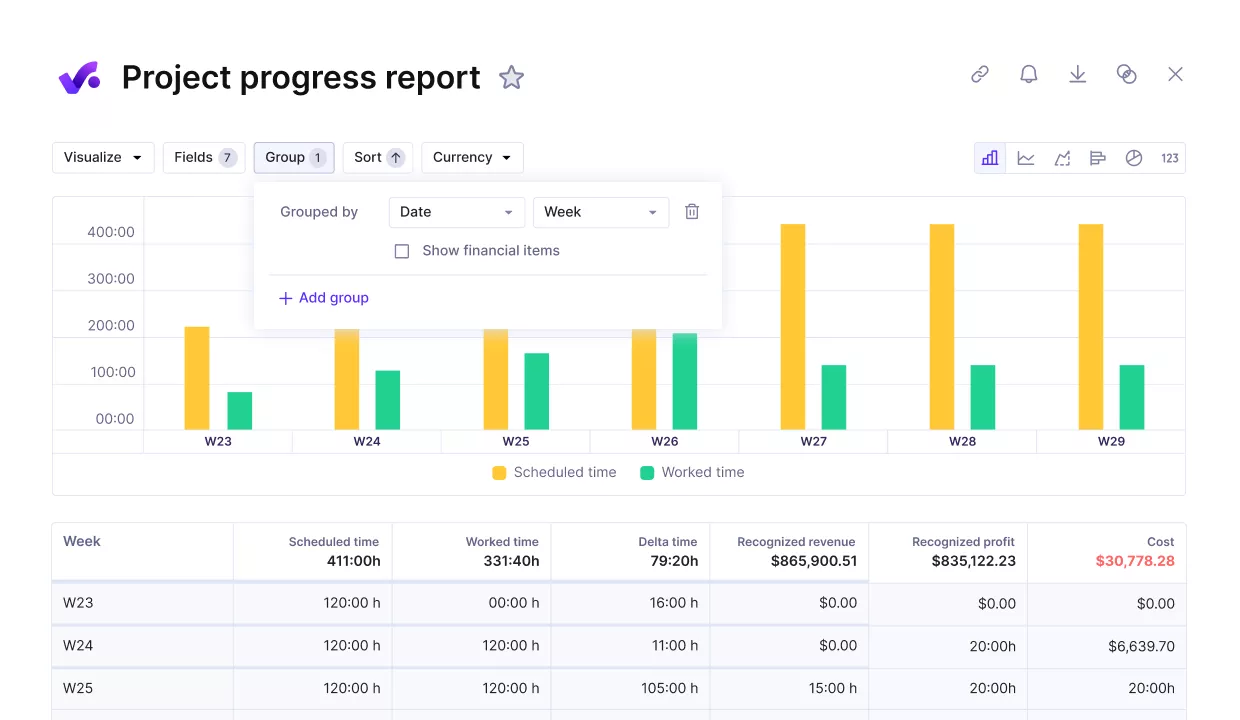
Compare project progress against key performance metrics and budgets.
Plan Capacity Across the Team, Not Just Assign Tasks
Flowlu can assign tasks, but it does not help you answer “who can take this next week.” Productive adds resource planning and capacity visibility on top of delivery work, so you can see allocations, workload, and utilization across people and projects.
That makes it easier to avoid reactive staffing and to sanity-check new work before you commit.
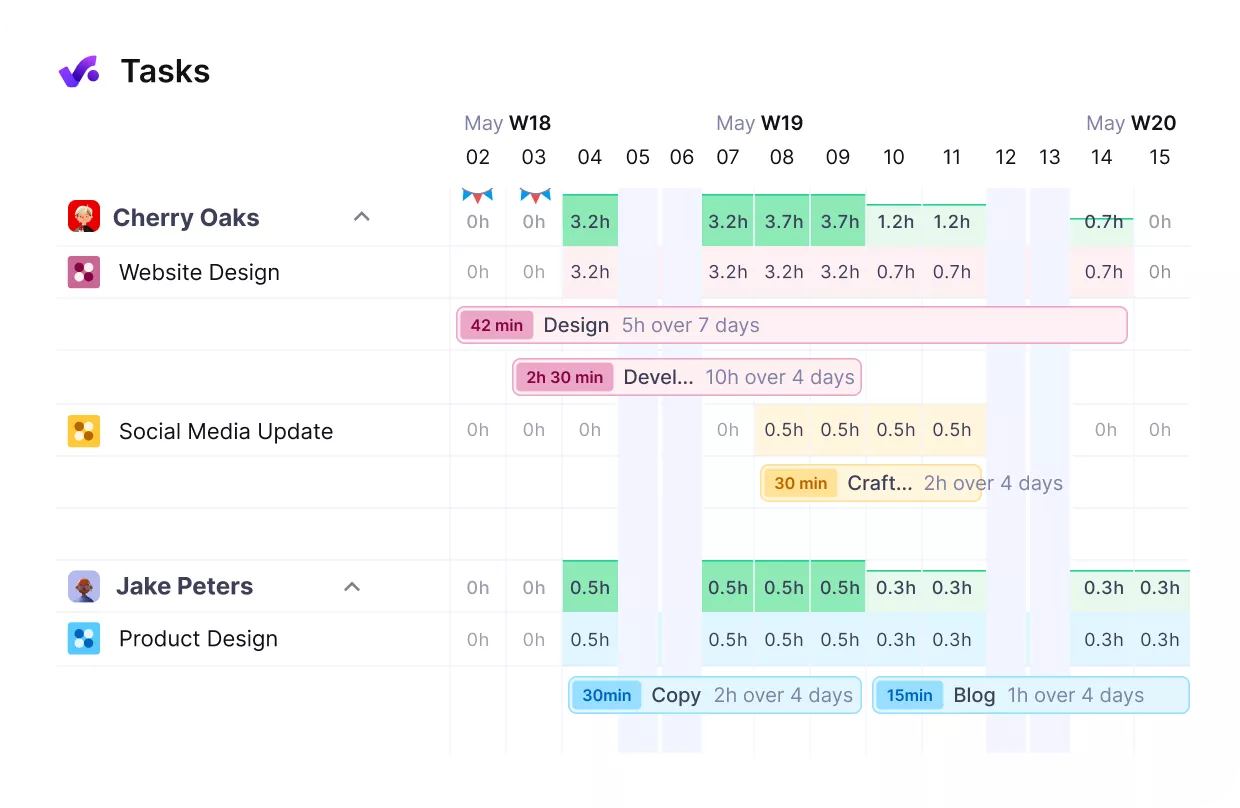
Plan capacity without overbooking or idle hours.
Make Time Tracking Easy and Accurate
In Flowlu, time tracking can feel like a separate step, which is where timesheets start to get messy. In Productive, it’s simple to track time accurately against tasks and projects against real work, and everything stays connected: logged hours update budget burn, utilization, and billing data in the same system.
If you need extra accuracy, approvals help keep time and expenses consistent before they show up in reports, so decisions are based on data you actually trust.
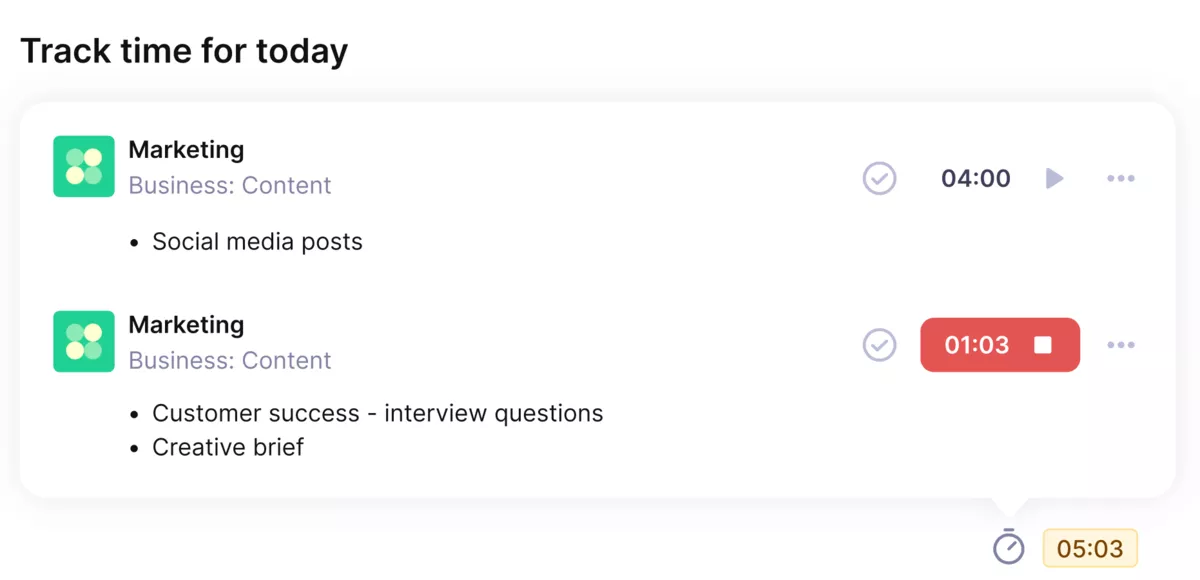
Use Productive for smooth and easy time tracking directly on tasks.
Connect Sales to Delivery Without Re-Entering Scope
Flowlu’s CRM-to-delivery handoff often becomes manual work. Productive links the sales side to delivery, so a won deal can become a project without rewriting the same scope details again. The result is fewer dropped details between business development and the project team.
Turn won deals in started projects.
Reporting Built for Agency Decisions
Instead of generic business summaries, Productive focuses on agency questions like utilization, billable versus non-billable time, and profitability by client or project. This is the kind of reporting teams use for pricing, staffing, and deciding which work to take on next.
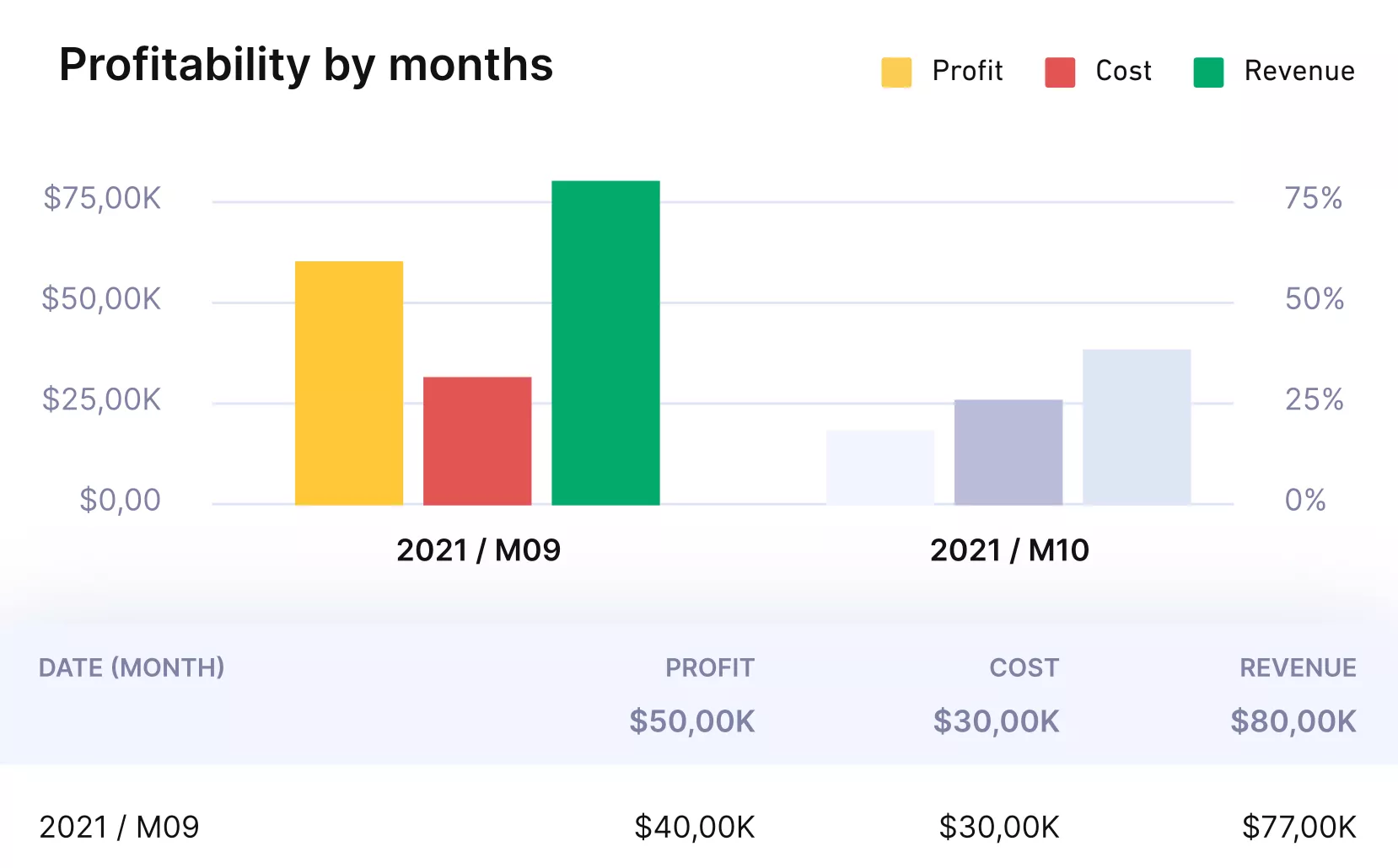
Get real-time reports and updates on key metrics with Productive.
Other Key Features
- Deal-to-project handoff so scope and budgets carry over from sales into delivery
- Time and expense approvals to keep reported numbers clean before they reach clients
- Project templates and standardized setups to make recurring work easier to launch
- Flexible reporting views for utilization and profitability by client, project, or team
Pricing
- Plans start with the Essential plan at $10 per user per month, which includes essential features such as budgeting, project & task management, docs, time tracking, expense management, reporting, and time off management.
- The Professional plan includes custom fields, recurring budgets, advanced reports, billable time approvals, and much more for $25 per user per month.
- The Ultimate plan has everything that the Essential plan and Professional plan offer, along with the HubSpot integration, advanced forecasting, advanced custom fields, overhead calculations, and more. Book a demo or reach out to our team for the monthly price per user.
Ready to move on from Flowlu? Switch to a true all-in-one.
If you want one system where budgets, resourcing, time, and reporting stay connected, book a demo of Productive and pressure-test it on a real client project.

2. SuiteDash – Best for Client Portals and Client-Facing Delivery Work
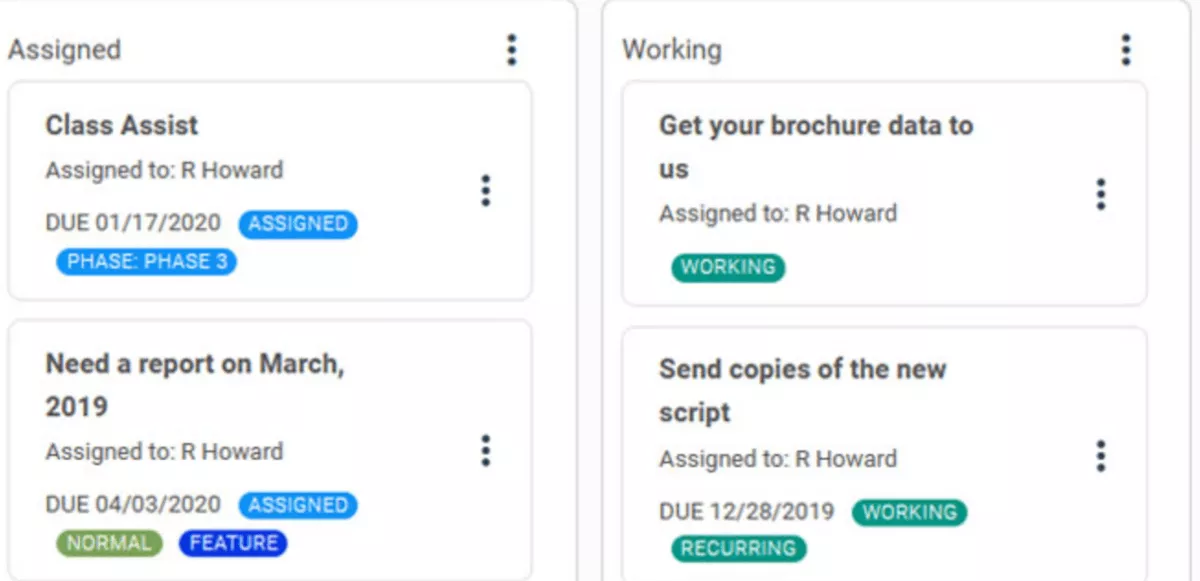
SuiteDash is a strong Flowlu replacement when your biggest need is a client portal where delivery work, files, and messages stay together, and the upside is a branded client portal that makes client-facing interactions feel more polished.
Key Features
- Branded client portal and customer portal setup for a cleaner client experience
- Proposal builder plus contract generation for onboarding and approvals
- Appointment scheduling and payment portals to handle bookings and payments
- File sharing with a knowledge base for ongoing client docs
SOurce: suitedash
Pros
- The client portal keeps client-facing interactions and updates in one place.
- Strong customization for a consistent branded client portal.
- Helpful customer service when you’re handling setup and ongoing client requests.
- Solid client ops bundle: proposal builder, appointment scheduling, and portal workflows.
Cons
- Setup takes time before the client portal feels ready.
- Performance can feel sluggish in the branded client portal, which affects client-facing interactions.
- The interface can feel busy because there are many settings.
- You may need process tweaks after launch to match how your team actually works.
Final Verdict
If you need a quick, low-admin switch from Flowlu, SuiteDash can feel like too much work before it gets better. But if your priority is a branded client portal that tightens client-facing interactions and keeps clients in one hub, it can be worth the setup tradeoff.
3. ClickUp – Best for Flexible Project Management When You Do Not Need Built-In Billing
Flowlu aims to bundle projects, CRM, and billing in one place. ClickUp is a better fit when project management is the main job, and you want more flexible views, while CRM and invoicing can live elsewhere; see our guide to ClickUp alternatives.
Key Features
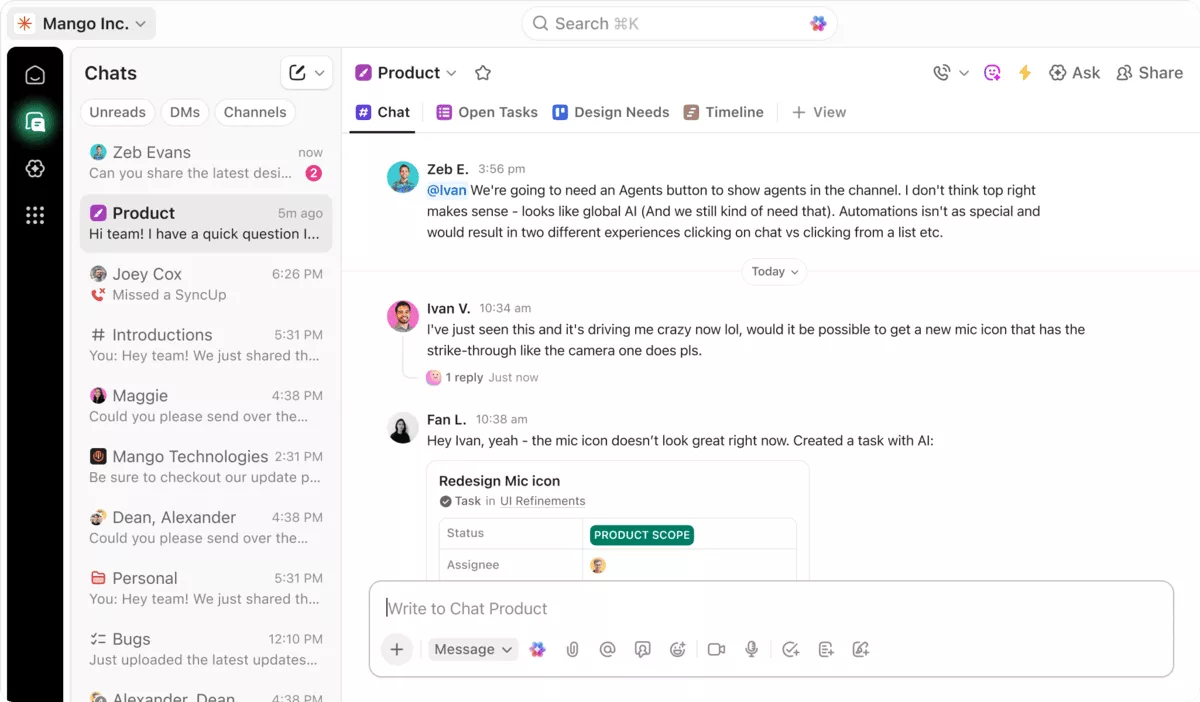
- A Kanban-based approach with a Kanban board and Kanban charts
- Gantt charts, interactive timelines, and a project timeline for planning
- Task dependencies to keep sequencing clear when work moves between people
- Custom workflows, automation features, and workflow automation to reduce manual updates, including task dependencies
SOurce: clickup
Pros
- Visual, detailed views make it easier to show a snapshot of work to stakeholders.
- Strong for agile project management because statuses and sprints are easy to adjust.
- Flexible task statuses let teams match the tool to how they actually work.
- Many teams like the layout and find it intuitive with minimal training.
Cons
- The user interface can feel overwhelming when you are creating tasks in the right spot.
- Tasks can feel like they disappear if your backlog and sprint structure are not consistent.
- Formatting content inside a task description can be frustrating.
- Gantt charts add planning power, but setup and automations can take time before the workspace feels clean.
Final Verdict
ClickUp is a poor swap for teams that expect Flowlu-style CRM and billing to sit right next to delivery, because those workflows usually end up split across other tools.
Treat it as a project management upgrade for teams that live in tasks, timelines, and views, and are fine with keeping sales and invoicing elsewhere.
4. Bitrix24 – Best for CRM-First Teams That Want Sales and Delivery in One Workspace
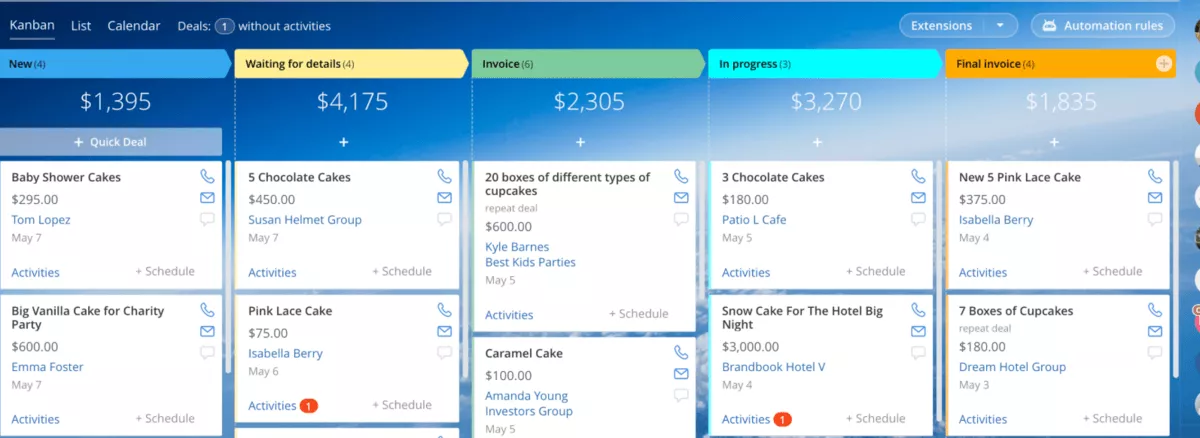
Flowlu tries to cover a lot in one place. Bitrix24 puts customer relationship management first, with a sales pipeline, lead tracking, and contact management at the core, so your customer relationships do not get lost between tools.
If you’re weighing similar CRM-first tools, here’s a deeper roundup of Bitrix24 alternatives.
Key Features
- Lead and opportunity management inside a sales pipeline
- Contact management with custom fields for your pipeline stages
- Email sync, email automation, and basic email marketing tools
- CRM-linked tasks so delivery work stays tied to the deal
SOurce: bitrix24
Pros
- Lots of tools in one workspace, so CRM, projects, and internal communication feel connected.
- Strong customization, especially around pipelines and fields.
- Good value for the amount you get, once the setup is done.
- CRM and communication in one place helps reduce app switching during follow-ups.
Cons
- Expect to invest time upfront, because Bitrix24 has a lot of setup and settings before it feels smooth.
- The interface can feel cluttered, and some actions take too many clicks.
- Customer service can be slow, with some issues taking days to resolve.
- The app can crash and log you out, which breaks momentum.
Final Verdict
Teams that want a clean, simple CRM should skip Bitrix24, because the learning curve and clutter show up fast. It fits CRM-first teams that need lead and opportunity management and email sync, and want delivery tasks tied to the same workspace.
5. Zoho One – Best for Companies That Want a Broad Business Suite
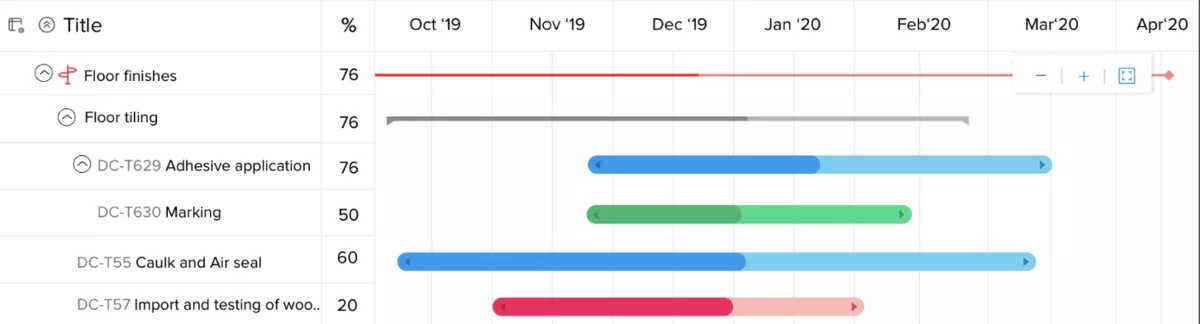
Flowlu is a generalist all-in-one. Zoho One is a broader suite, and it fits teams that want work management plus marketing and finance apps under one subscription.
If your biggest gap is managing team growth and consistency, head over to our overview and guide to people management.
Key Features
- Suite coverage across sales, projects, and finance, including financial management and expense tracking apps
- Marketing tools that include social media integration and landing page builders
- Admin and account controls aimed at data security across the suite
- API access with broad API availability, plus integrations with Google Workspace and Microsoft 365
SOurce: zoho one
Pros
- The sheer range of apps can replace multiple subscriptions, which is why many buyers treat it as a business management suite.
- Integration between apps is a real advantage, especially when you are trying to keep CRM, projects, and finance data connected.
- Value for money comes up often, compared to buying separate tools for each department.
- The marketing side is stronger than most Flowlu-style tools, with social media integration built into the bundle.
Cons
- Expect upfront setup time and internal ownership, because the suite is wide and configuration takes work.
- Some apps feel less mature than best-of-breed tools, so you may keep one or two specialists anyway.
- The experience is not perfectly consistent across every app, which can slow down onboarding.
- Support quality is a mixed bag in reviews, especially when issues span multiple apps.
Final Verdict
If you want a single, simple replacement for Flowlu with minimal admin and a single UI, Zoho One isn’t it, because it’s a business management suite, not a single tool.
Why Are People Looking for Flowlu Alternatives?
People are looking for Flowlu alternatives because they want stronger reporting, a smoother interface, and more confidence in day-to-day reliability and support.
If the CRM side is what’s pushing you to switch, this guide on CRM for agencies is a great starting point.
- They want a cleaner user interface, including basics like dark mode and fewer visual quirks.
- They need a client portal that feels polished for client-facing interactions, especially when a branded client portal is part of the experience.
- They want onboarding to feel tighter, with tools like a proposal builder and appointment scheduling baked into the workflow.
- They need better reporting options for client updates, so the output looks good without extra formatting.
- They run into reliability issues that break real-time updates, like settings not sticking or payments failing at the wrong moment.
- They want faster customer service and clearer migration support when switching systems, without losing sight of data security.
How to Choose a Flowlu Alternative? (Step by Step Process)
To choose a Flowlu alternative, first audit your real Flowlu work (your last two weeks: one deal or request, one active project, and one client update), decide whether you need a suite or a stack, then run a one day pilot where you rebuild those exact workflows in 2 to 3 tools and score the output for reporting and handoffs, not feature checklists.
Below, we’ll break this process into practical steps:
Step 1: Build a “Replacement Scorecard” From Real Work
Open your last two weeks in Flowlu and pull three real examples: one deal or request, one active project, and one client update you had to send. Write them down in a simple scorecard with columns for: the workflow, the output you need, and what would count as success.
Use these workflows as your default list, then delete anything you do not actually use: CRM and pipeline, projects and tasks, client comms, invoicing and payments, time and expenses, and reporting.
Go or no go: if your team cannot agree on the top three workflows and the output you need from each, you will pick tools based on vibes. Pause and align first.
Step 2: Decide “Suite or Stack” With One Concrete Rule
Do not pick tools yet. First, decide whether you are replacing Flowlu with one connected system or with a stack.
Use this rule: if two of your top three workflows must share the same data without manual copying (example: deals to delivery, delivery to billing, or delivery to reporting), treat this as a suite problem. If your workflows are mostly isolated, a stack can work.
If capacity is one of the reasons you’re switching, this capacity planning guide is a helpful reference for what to validate during the pilot.
Go or no go: if your plan needs three separate tools to complete one weekly workflow, expect ongoing admin work. Tighten the plan before you shortlist.
Step 3: Run Four “Workflow Tests” in 30 Minutes per Tool
Take the 2 to 3 tools you are considering and run the same tests in each. Keep it timeboxed, and write the results in your scorecard.
- Test 1: recreate one real project from scratch and check whether the structure matches how you run work, including any custom fields you rely on.
- Test 2: rebuild one client update with the output you actually send, and judge it on speed and clarity, not on fancy charts.
- Test 3: simulate one approval moment. If your team needs approvals, check whether you can support group approvals or at least task approval process templates that fit how decisions happen.
- Test 4: check the “handoff” moment. Can you move from a request or lead into delivery without losing context? That is where Flowlu replacements usually fail.
If you want a simple lens for the handoff and visibility side of the evaluation, this workload management guide breaks down what “good” looks like.
Go or no go: if a tool fails two tests, cut it. Do not negotiate with it.
Step 4: Verify Integration Reality and Data Ownership Before You Commit
Finish with an integrations comparison using your real stack. Do not trust a logo wall.
Do one export and one import. Confirm you can get your core records out cleanly, and check API access if you rely on custom connections. Validate your daily tools: HubSpot CRM, Jira Software, and your project management tool.
If your team lives in docs and whiteboards, verify how it connects to Google Workspace, Microsoft 365, Confluence, and Miro for visual collaboration.
Also, sanity check roles, audit needs, and data security. If the vendor can’t explain how data is handled, do not be the team that finds out later.
Go or no go: if you cannot export your core data cleanly and prove the integrations you need, stop. No amount of nice UI will fix that later.
If a tool passes the scorecard, run a short pilot with one real client workflow and check the impact on handoffs and reporting. That is the only way to know if it supports your day-to-day collaboration tool needs or looks good in a demo.
How To Migrate from Flowlu?
To migrate from Flowlu, assign an owner, set a cutover date, export your data, map your fields, then run one short parallel workflow before you switch the whole team. The checklist below is the exact handoff note you can forward to whoever is running the migration.
Migration Checklist You Can Forward Internally
- Name the migration owner and date. Share one short note that includes the cutover date, what changes for the team, and where questions go during the first week.
- Define the migration scope in one page. List what moves and what does not: CRM (contacts and deals), projects (tasks and templates), billing records, and reporting. Add one line for what “done” looks like.
- Create a rollback folder before you clean anything. Export everything from Flowlu and store the raw files in a shared folder. This is your backup if imports go sideways.
- Build a field mapping sheet. Map statuses, owners, tags, and every custom field value to the new tool so imports do not break. Decide now what you will drop.
- Clean the export once, then freeze it. Remove duplicates, standardize names, fix missing owners, and merge stages that are basically the same. Do not keep re-cleaning new versions.
- Set up the new tool for week one only. Create the minimum structure the team needs: pipelines or stages, one or two core templates, roles, and permissions. Leave advanced automations for later.
- Import in a safe order. Import contacts and deals first, then projects and tasks. Import billing history only if it is used weekly; otherwise, store it as an archive.
- Move client-facing content with a clear home. Recreate the folder structure for file sharing and publish a simple knowledge base page that answers: where files live, how clients request work, and how updates are shared.
- Run a short parallel run with one real workflow. Keep Flowlu read-only while you run one live project in the new tool. Track what breaks: handoffs, reporting output, and client updates.
- Cut over with a final delta export. Freeze changes in Flowlu, export anything created during the pilot, import the delta, then switch fully.
- Own the first week. Assign who answers questions, who fixes mappings, and where to ask for migration support. Then write a one-page “new way of working” note so the team does not drift back.
Final Thoughts
Most Flowlu alternatives look similar until you hit the handoffs, like moving from sales to delivery or delivery to billing, where context gets lost, and reporting turns into manual work. It is usually time to switch when you are rebuilding reports every week, project updates go out late, or billing and delivery drift apart and you stop trusting the numbers.
In those cases, the cleanest fix is often a true all-in-one replacement that keeps projects, people, and reporting connected, not a bigger stack of tools.
If you want that kind of all-in-one setup for client work, Productive is worth a serious look, and you can book a demo to see if it fits your workflow.
Connect With Agency Peers
Access agency-related Slack channels, exchange business insights, and join in on members-only live sessions.
