Top 10 Employee Time Tracking Software – Buyer Review 2026

Choosing solid employee time tracking software can get confusing because the category includes simple timers, attendance tools, GPS time clocks, monitoring platforms, payroll-connected apps, and project-based systems for client work.
And that’s actually normal.
To help you out here, we wrote this guide that reviews the 10 best options by fit, workflow, and use case, so you can compare what each tool is actually built to support.
You’ll also get a comparison table, key features, review-based pros and cons, choosing advice, and a migration checklist for moving from your current setup without adding more admin than you remove.
What Is the Best Employee Time Tracking Software in 2026?
The best employee time tracking software in 2026 is Productive, Clockify, Toggl Track, Harvest, TimeCamp, Hubstaff, QuickBooks Time, Connecteam, Jibble, and Deltek Replicon Time.
Shortlist of the Top 10 Apps for Tracking Employee Hours
Comparison Table: What Buyers Need to Know
| Tool | Best for | Skip if | Category | Workflow | Free version |
|---|---|---|---|---|---|
| Productive | Agencies and professional services teams | You only need a basic timer or clock-in tool | PSA, agency and service operations | Log hours against projects, budgets, services, billable work, and profitability | No |
| Clockify | General employee hours | You need deeper project financials or PSA workflows | Timer and weekly entries | Use timers, entries, projects, clients, and reports | Yes |
| Toggl Track | Simple, employee-friendly work logs | You need payroll, attendance, or heavier workforce controls | Lightweight timer | Log work through timers, apps, browser extensions, and reports | Yes |
| Harvest | Billable work and client invoicing | You need full resource planning or delivery management | Billing workflow | Review client hours and turn approved work into invoices | Yes |
| TimeCamp | Automatic work capture | Your team needs a fully manual, trust-first setup | Automatic capture | Record activity automatically and organize it into projects, tasks, and reports | Yes |
| Hubstaff | Remote workforce visibility | Monitoring features would hurt adoption or trust | Employee monitoring and remote teams | Review activity, screenshots, GPS, and workforce reports | No |
| QuickBooks Time | Payroll and accounting-connected hours | You do not use QuickBooks or need project profitability reporting | Payroll-connected hours | Approve mobile entries, schedules, GPS, and payroll-ready records | No |
| Connecteam | Deskless and shift-based teams | Your main need is client project billing or agency profitability | Workforce management | Manage attendance, shifts, GPS, mobile entries, and team schedules | Yes |
| Jibble | Attendance and clock-in accuracy | You need project billing, budgets, or service delivery reporting | Attendance and clock-ins | Review clock-ins, attendance, kiosk entries, location, and weekly records | Yes |
| Deltek Replicon Time | Enterprise governance | You need a lightweight timer with minimal admin | Enterprise governance | Manage project hours, approvals, compliance, time off, and workforce reporting | No |
How We Chose These Tools?
We chose these tools by checking official product pages for feature fit, then reviewing common user patterns on G2 and Capterra to understand where each tool works well and where it creates friction.
The final list is intentionally mixed because this search does not point to one single category. Some buyers need payroll and attendance, some need location checks for field teams, some need weekly records and reporting, and service businesses often need approved hours connected to project management, billing, and profitability.
1. Productive – Best for Agencies and Professional Services Teams
Productive is for agencies and professional services teams that need logged hours connected to delivery and financial data.
Instead of keeping submitted hours in one tool and project budgets in another, Productive connects entries with tasks, services, budgets, people, billing, resource management, project management, and reporting.
That makes it a better fit for teams that need to understand what work costs, what can be billed, and how logged hours affect project profitability.
Track employee time with Productive
Track Time From Tasks, Timers, Mobile, or Bookings
Productive gives teams several ways to record hours, so the workflow can match how people actually work. With Productive’s time tracking workflows, employees can add hours manually in Day, Timesheet, or Calendar view, start a timer while they work, track directly from a task, or use the desktop widget to start, pause, switch, and link timers to tasks.
Mobile also matters here. Productive’s iOS and Android apps support time entry on the go, alongside task work, notifications, and budget visibility.
For planned work, automatic time tracking can turn scheduled Resource Planner bookings into entries, so recurring or pre-booked work does not depend only on someone remembering a timer.
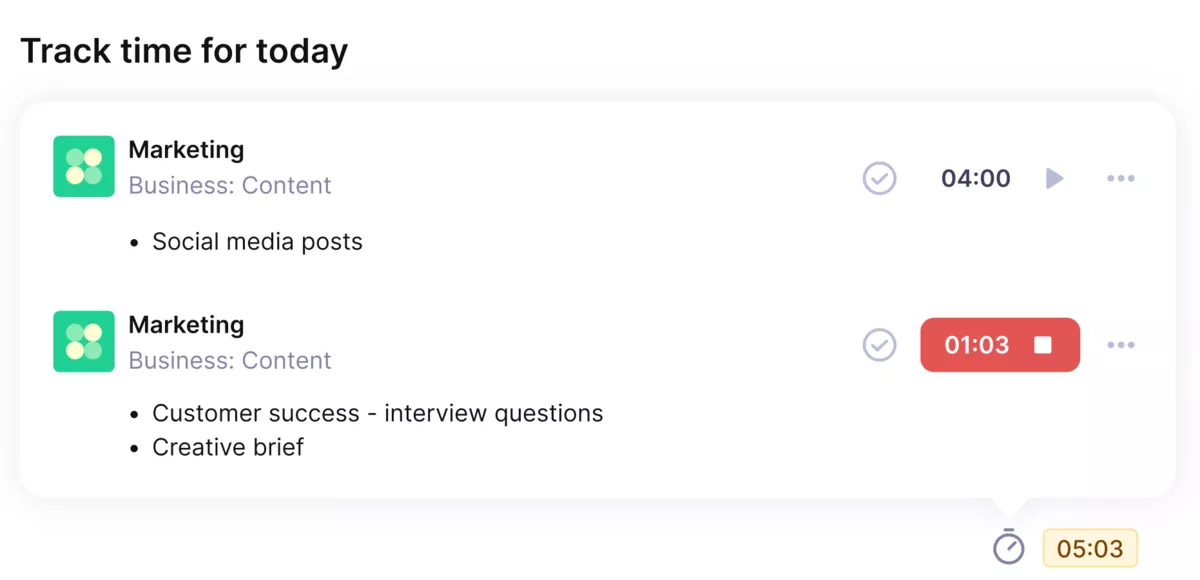
Use productive’s automatic time trackers and get time logs without any friction.
Help People Log Hours Where the Work Already Lives
Productive works better than a separate tracker when employees already manage work inside tasks, budgets, and services. A designer, developer, strategist, or consultant can log hours against the task and service they are working on, instead of choosing a generic project label in another app.
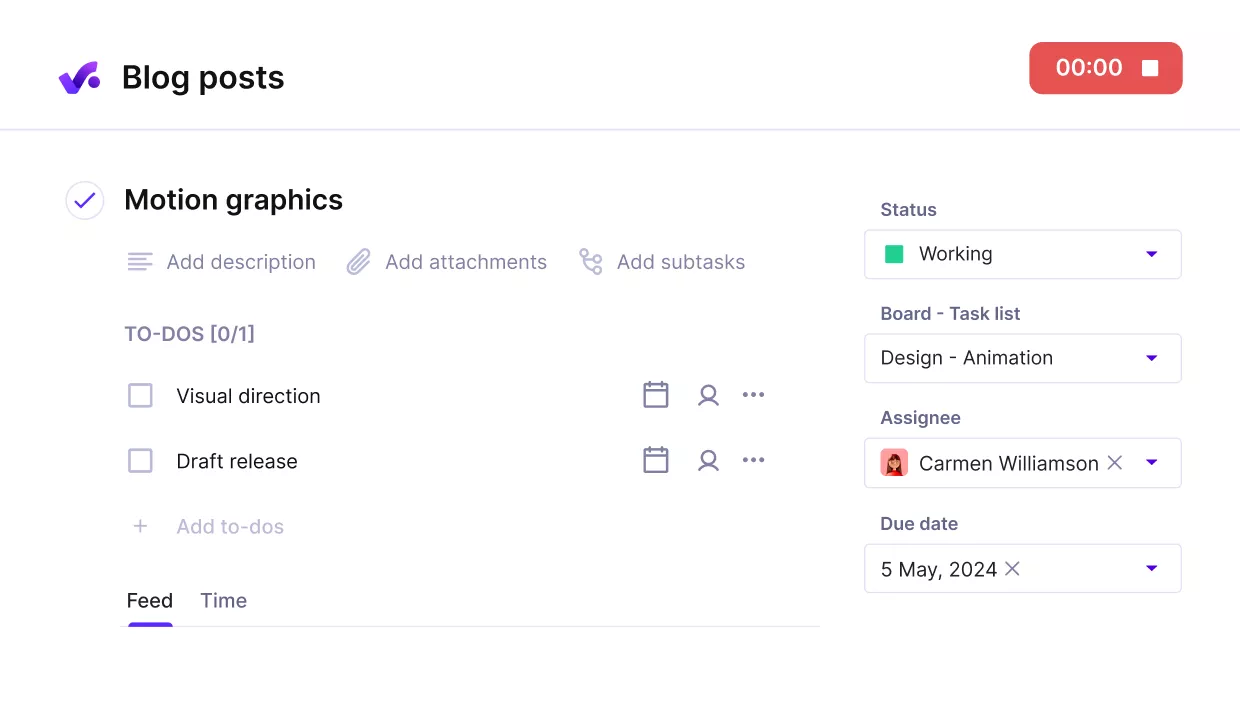
Track time exactly where the work happens.
For teams that use Google or Outlook calendars heavily, Productive AI can also help convert calendar events into time entries. This should be treated as a way to populate and review timesheets faster, not as a fully autonomous tracker.
People still need to check that the budget, service, and entry details are right.
Tie Each Entry to a Service, Budget, and Person
A basic tracker can tell you how many hours someone worked. That is not enough when the agency needs to know which service used the time, which project budget it belongs to, and whose cost or bill rate applies.
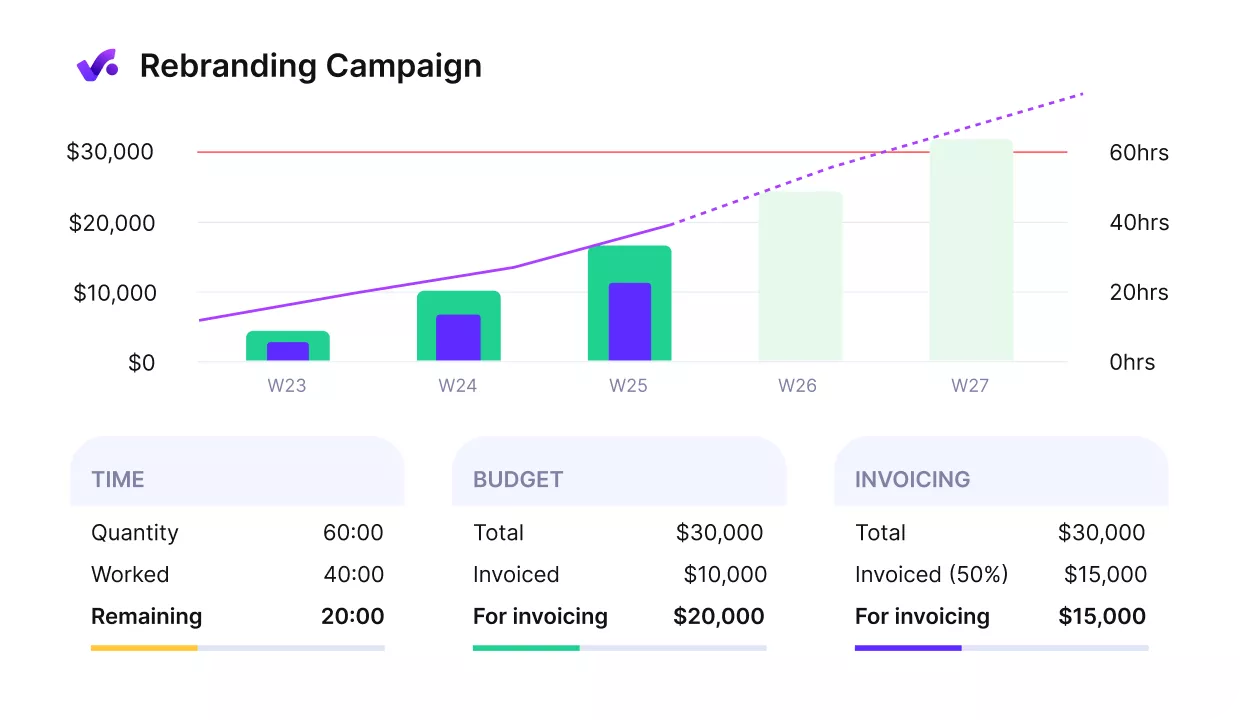
Get early warnings of budget overruns.
Productive lets teams log hours against budgets and services, then review entries by person, date, service, task, and other details.
This keeps approved hours connected to Productive’s budgeting and profitability workflows, instead of leaving finance to rebuild the link between project work, project billing, budget usage, and profitability in a spreadsheet.
Approve Billable Time Before It Affects Billing and Reports
Productive helps teams review submitted hours before they are included in billing, reporting, or profitability analysis. Managers can approve submitted entries, verify that hours were logged to the correct project or service, and correct issues before the numbers move downstream.
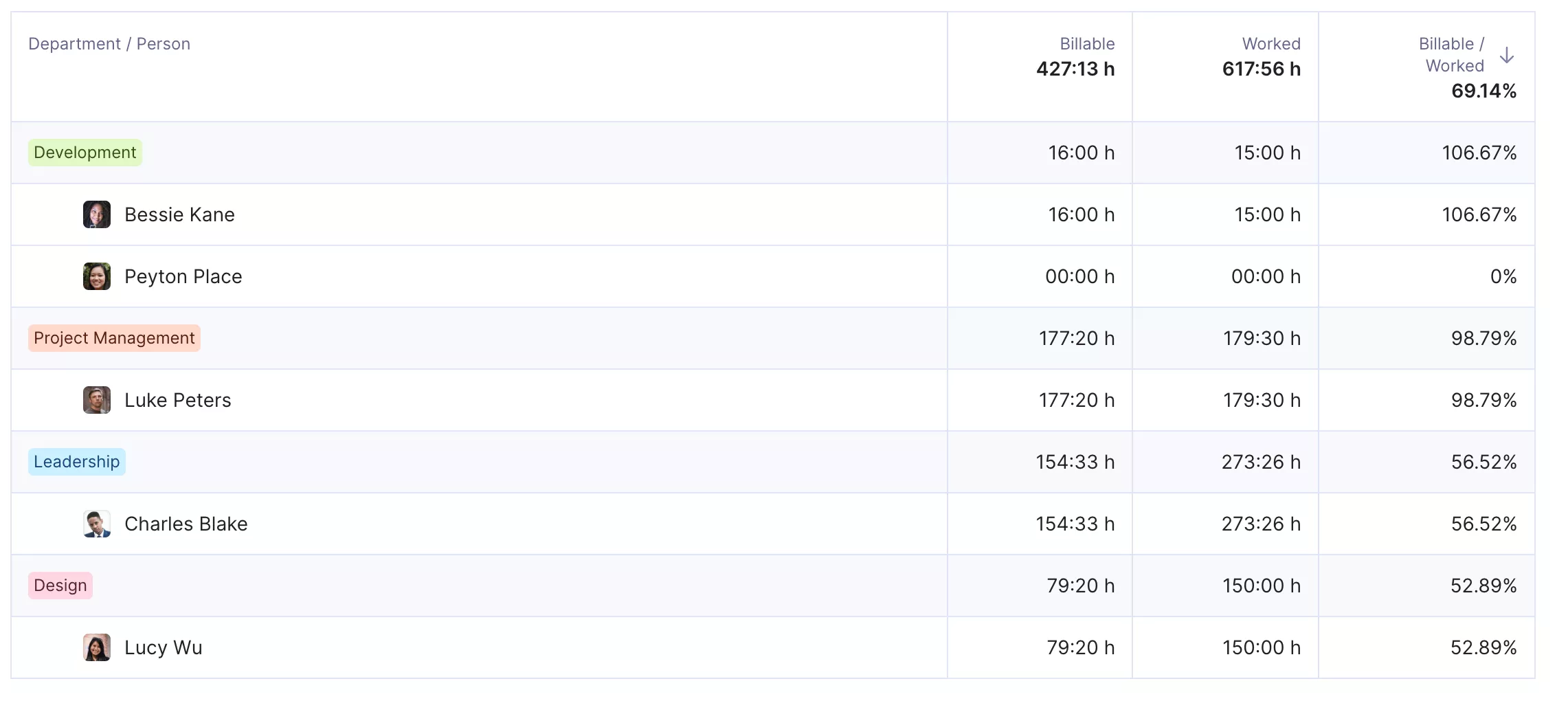
Get updates on employee utilization, or breakdowns of billable and non-billable hours.
This is especially useful for billable work, non-billable work, and over-servicing. If entries are wrong at approval, invoices, budget reports, and margin views will also be wrong. Productive gives teams a cleaner checkpoint before those hours affect client project billing.
Build Reports From the Same Approved Hours
Productive’s reporting helps teams use approved-hour data without exporting it into a separate reporting workflow. With Productive’s reporting tools, teams can build custom reports around budgets, revenue, utilization, profitability, and approved hours.
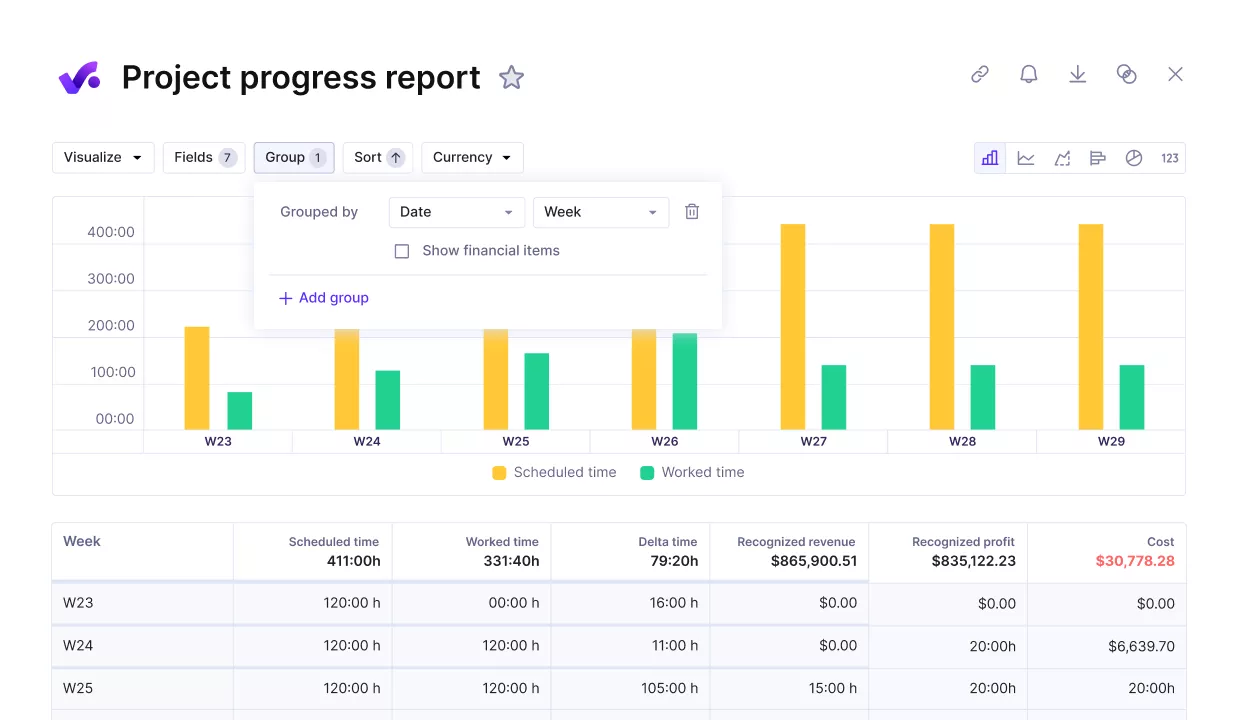
Get real time updates on key KPIs and customizable reports.
Productive AI Reports can also generate editable reports from a plain-language prompt. For example, a manager can describe the time or profitability view they need, then adjust the generated report’s filters, fields, and groupings.
AI output still needs review, but it can reduce the manual setup work behind recurring reporting.
Use Logged Hours for Capacity and Profitability Decisions
Productive is not necessary if all you need is a simple timer. It becomes more useful when approved hours are needed to support resource management, utilization, and budget decisions.
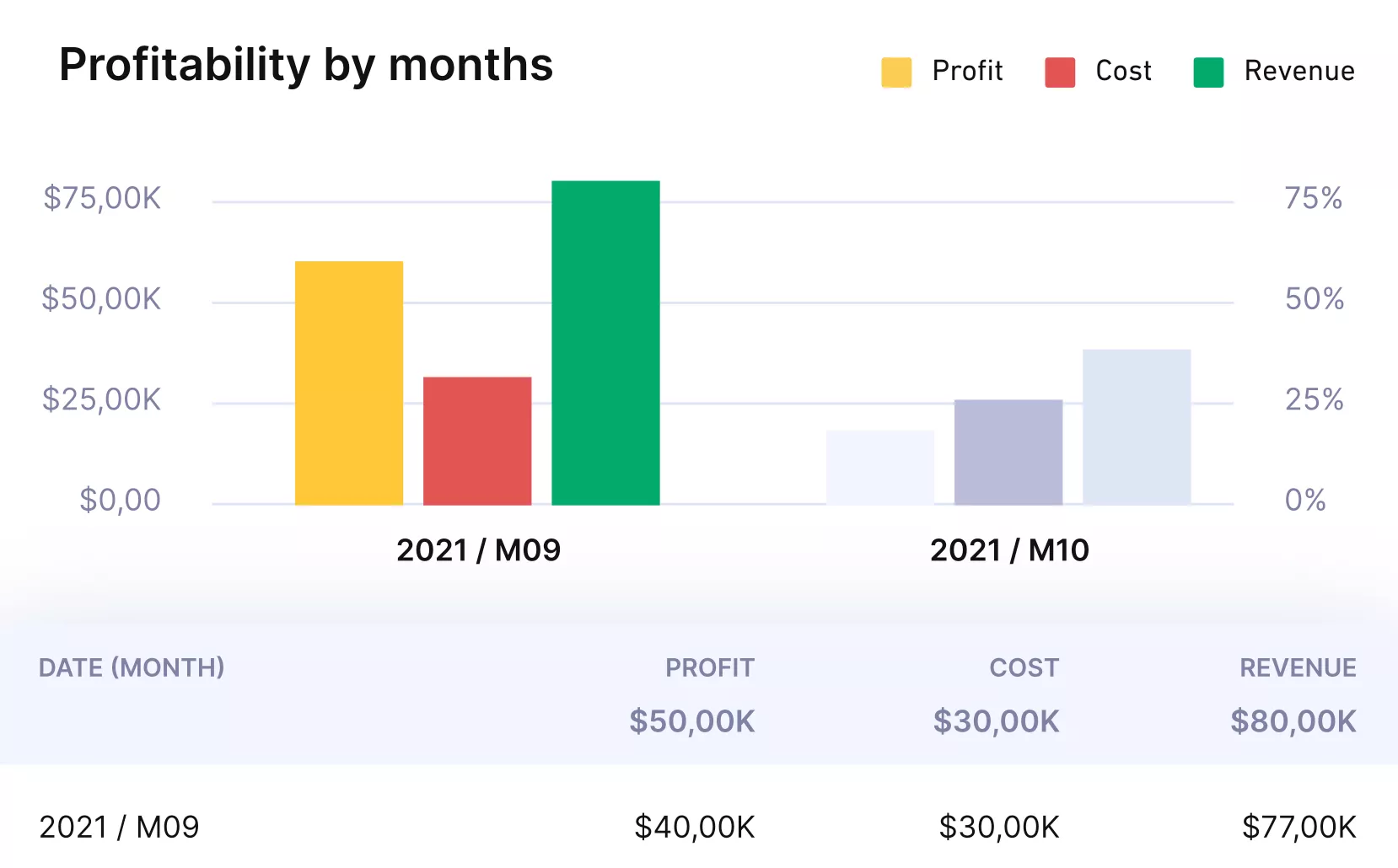
See how profitable your projects or clients are.
For agencies and professional services teams, the real value is that logged hours do not stop at the weekly entry. It can help show whether projects are burning budget too quickly, whether the team is over-servicing clients, and whether planned work matches actual delivery.
Pricing
- Plans start with the Essential plan at $10 per user per month, which includes essential features such as budgeting, project & task management, docs, time tracking, expense management, reporting, and time off management.
- The Professional plan includes custom fields, recurring budgets, advanced reports, billable time approvals, and much more for $25 per user per month.
- The Ultimate plan has everything that the Essential plan and Professional plan offer, along with the HubSpot integration, advanced forecasting, advanced custom fields, overhead calculations, and more. Book a demo or reach out to our team for the monthly price per user.
Productive has a free 14-day free trial, so you can try out what the tool can offer to your professional services firm.
Turn employee hours into cleaner project decisions
Productive helps companies connect time entries with tasks, services, budgets, invoices, and profitability, so approved hours do not disappear into spreadsheets.

2. Clockify – Best for General Employee Time Tracking
Clockify is the safest baseline when a team needs clean hours by client, project, task, and person without buying into a heavier workforce system.
Its strength is coverage: timers, weekly entries, apps, reports, and project-level views that work for many teams before their hours need more financial or operational context.
Key Features
- Timer and manual entries for logging work across projects, tasks, and clients
- Weekly entries for adding hours and reviewing logged work
- Reports for analyzing logged hours by project, client, task, team member, and billable status
- Chrome extension and apps for logging hours from the browser, desktop, or mobile device
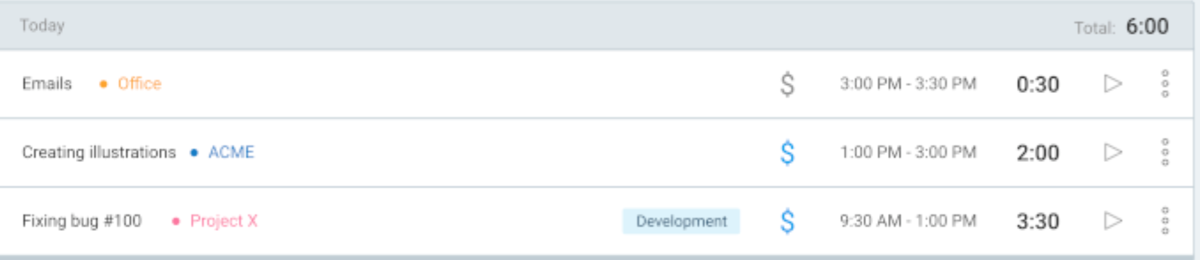
SOurce: clockify
User-Based Pros
- Users often praise Clockify for being easy to roll out across teams without heavy setup.
- The user interface is simple enough for daily work logging across projects and tasks.
- Clockify can support client and project work without forcing teams into a heavier system.
- Teams use the reports to review hours, billables, workload, and project activity in one place.
User-Based Cons
- Advanced reporting and filtering can feel limited once teams need deeper breakdowns.
- Customization is not strong enough for more complex reporting needs.
- Mobile app sync and stability can be frustrating for teams that log hours away from the desktop.
- Larger organizations may outgrow Clockify if they need stronger security, automation, or enterprise-level controls.
Final Verdict
Clockify should move down the shortlist once logged hours need to explain the margin, capacity, billing risk, or project profitability.
It is strong at capturing and organizing hours. Still, agencies or service teams that already fight with budget burn, resource planning, and client project billing will likely need a more connected system.
For a deeper agency-specific comparison, see our guide to agency-focused time tracking options.
3. Toggl Track – Best for Simple, Employee-Friendly Time Tracking
Toggl Track takes the opposite route from surveillance-style tools: it tries to make work logging disappear into the workday.
That matters for teams where adoption is the hard part, especially when the goal is personal accountability, time blocking, and cleaner project logs rather than payroll control.
Key Features
- One-click timers and manual entries for logging work in real time or adding time later
- Calendar View for checking time entries against Google and Outlook calendar events
- Reports that group time by client, project, task, user, billability, and other filters
- Desktop and mobile apps with offline logging, plus a Pomodoro Technique timer for focused work sessions
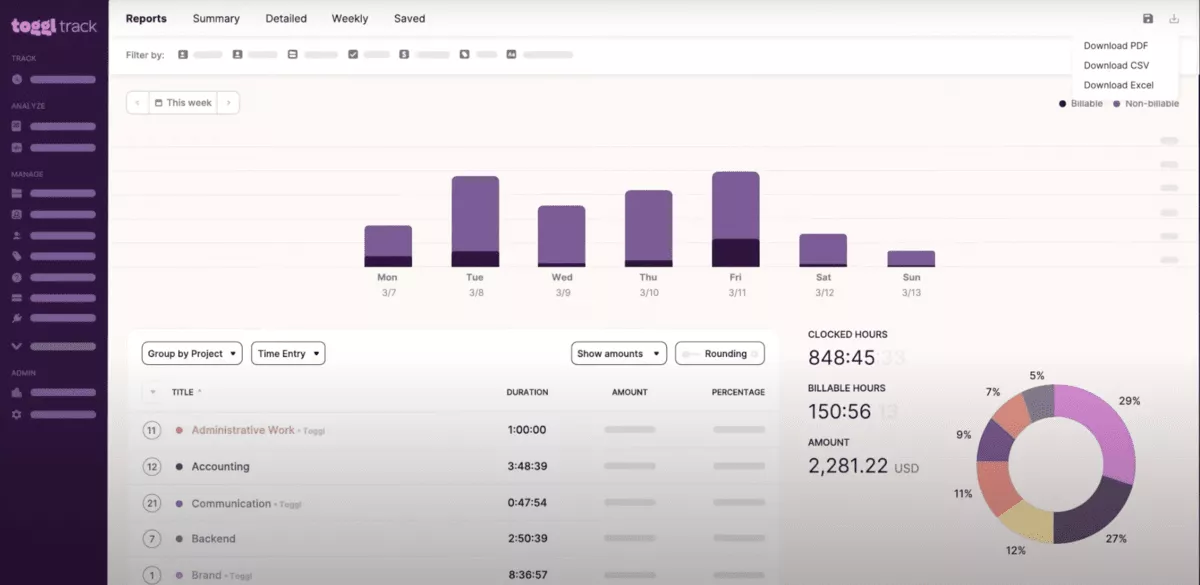
SOurce: toggl track
User-Based Pros
- Users often praise Toggl Track because the timer is quick and does not interrupt their workflow.
- The setup is simple enough for teams that want to start tracking without a long onboarding process.
- Reviewers like the reporting view for understanding where hours go across projects and work areas.
- The tool feels useful for time blocking and daily planning because employees can review how their day was actually spent.
User-Based Cons
- Some useful features, including detailed reporting and billable work controls, can require a paid plan.
- Manual fixes can be annoying when employees forget to start the timer or need to edit past entries.
- Syncing between devices can feel slow or inconsistent for users who move between desktop, web, and mobile.
- A few reviewers find parts of the interface bulky or less intuitive than expected.
Final Verdict
Do not choose Toggl Track as the system of record for attendance, payroll, GPS tracking, or service delivery finance.
It works best as a lightweight work log. The risk shows up when managers expect it to carry approvals, cost visibility, or complex reporting that belongs in a more structured operations platform.
4. Harvest – Best for Billable Time and Client Invoicing
Harvest sits close to the money side of work logging: record the work, separate billable and non-billable time, review project hours, and turn approved work into invoices.
That makes it more focused than a simple timer, but still lighter than a full PSA or project management platform built around delivery, resourcing, and margin control.
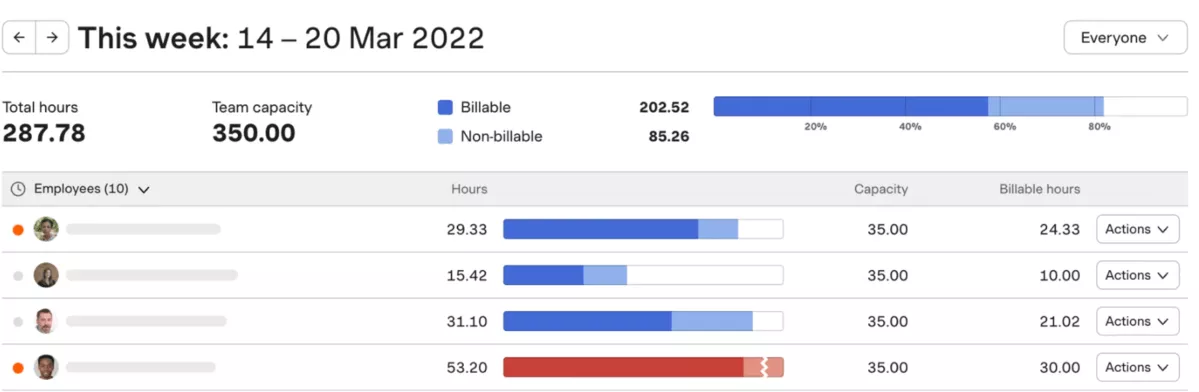
Key Features
- Timers and manual entries for project hours across clients, projects, and tasks
- Weekly entries for reviewing billable work and non-billable work before invoicing
- Invoicing and payments for turning logged hours and expenses into client invoices
- Reporting software for reviewing project budgets, costs, profitability, and job costing signals
SOurce: harvest
User-Based Pros
- Harvest keeps billable time, invoicing, and business finances close together.
- Reviewers often describe the hour-logging workflow as simple and quick to learn.
- Teams use Harvest to manage client work without falling back into Excel for every financial view.
- The project and invoice views help service teams connect recorded hours with client billing.
User-Based Cons
- Some users want stronger automation because Harvest still depends on manual starts and stops.
- The API and integration documentation can feel limited for teams with custom workflows.
- Missing visibility around manual time edits and entry history.
- Many users left the platform after its insane price increase.
Final Verdict
Harvest starts to strain when a service team needs more than time-to-invoice control.
Once the real questions become “Who is available?”, “Which work is hurting margin?”, or “How does this time affect delivery plans?” Harvest can leave teams stitching together answers from separate tools.
If that is the problem you are trying to solve, our Harvest alternatives for service teams breakdown compares tools built for broader delivery, reporting, and financial workflows.
5. TimeCamp – Best for Automatic Time Tracking
TimeCamp is a better fit for teams that need automatic capture because employees switch between tasks often, forget timers, or need a clearer record of work across projects and clients.
Its automatic capture can record activity in the background, then help teams turn logged work into weekly entries, reports, and workflow insights.
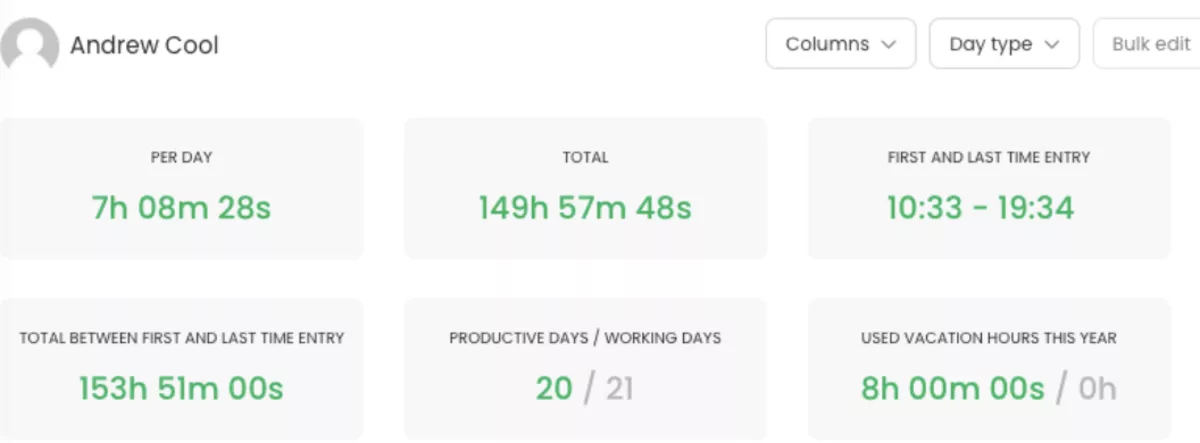
Key Features
- Automated capture that uses keywords to assign activity to projects and tasks
- One-click timer and manual entries for teams that still need control over logged work
- Calendar View and weekly entries for reviewing daily work as time blocks
- Reports for analyzing hours by project, task, person, activity, and other work categories
SOurce: timecamp
User-Based Pros
- Users value automatic capture when they forget to start timers or move between client tasks.
- Reviewers say TimeCamp can be easy to set up and use without adding much overhead to daily work.
- Teams use it to understand time spent across tasks, projects, clients, and work areas.
- Some users like that TimeCamp supports project-level billing, invoices, and payment decisions from logged hours.
User-Based Cons
- Sync issues between desktop and mobile apps can make logged records harder to trust.
- Manual entry can feel confusing when users need to correct or add time in the browser.
- Reporting and filtering may not be flexible enough for every team.
- The mobile experience can feel slower and less natural for work that happens away from the computer.
Final Verdict
TimeCamp is risky if passive capture makes employees question the system before they trust the data.
It can solve forgotten timers and messy manual logs, but it also depends on a clean setup, clear categories, and a team that accepts passive capture. If your bigger problem is project profitability, approvals, or service delivery planning, automatic capture alone will not carry the workflow.
6. Hubstaff – Best for Remote Workforce Visibility and Monitoring
Hubstaff belongs in this list because some teams need more than a timer: they need remote work visibility, location data, activity records, screenshots, schedules, and payroll-connected hours.
That also makes it the tool to evaluate most carefully, because employee monitoring can support accountability in one workflow and damage trust in another.
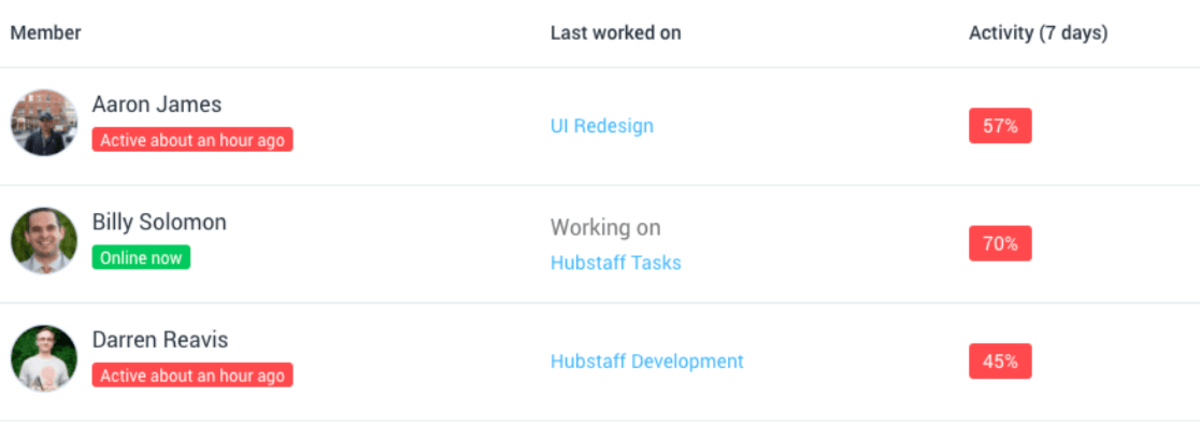
Key Features
- Work-hour logging with activity levels, app and URL usage, and optional screenshots
- Location tracking and geofenced job sites for mobile and field teams
- Weekly entries, schedules, attendance, expenses, and payroll workflows
- Performance reports and workforce intelligence for reviewing hours, activity, costs, and team workload
SOurce: Hubstaff
User-Based Pros
- Users often like Hubstaff because it gives managers more visibility into remote teams and daily work.
- Reviewers mention that logging work sessions is easy for regular logins, tasks, and daily activities.
- Teams value the activity and screenshot features when they need accountability across distributed work.
- Hubstaff can help teams keep project work, hours, and productivity records more organized.
User-Based Cons
- Timer issues and bugs can make the data feel less reliable.
- Activity monitoring can feel too strict for teams that need more trust and flexibility.
- Some mobile workflows are limited, especially when users need to submit timesheets from iOS.
- Hubstaff can feel too narrow if the team needs stronger project management rather than monitored hours.
Final Verdict
Hubstaff should not be the default pick for teams that care more about adoption, employee trust, or creative work than proof-of-work controls.
Its monitoring layer makes sense for certain remote, hybrid, and field teams, especially when location history, screenshots, and performance reports are real requirements.
For agencies or service businesses, the risk is choosing surveillance depth when the bigger problem is budget control, resource planning, client billing, or project delivery visibility.
7. QuickBooks Time – Best for Payroll and Accounting-Connected Time Tracking
Use QuickBooks Time when your main problem is getting employee hours from mobile entries, job sites, and approvals into QuickBooks payroll and accounting without rebuilding the data by hand.
It is especially relevant for mobile teams that need hour capture, schedules, geofencing, approvals, and real-time data before payroll is run.
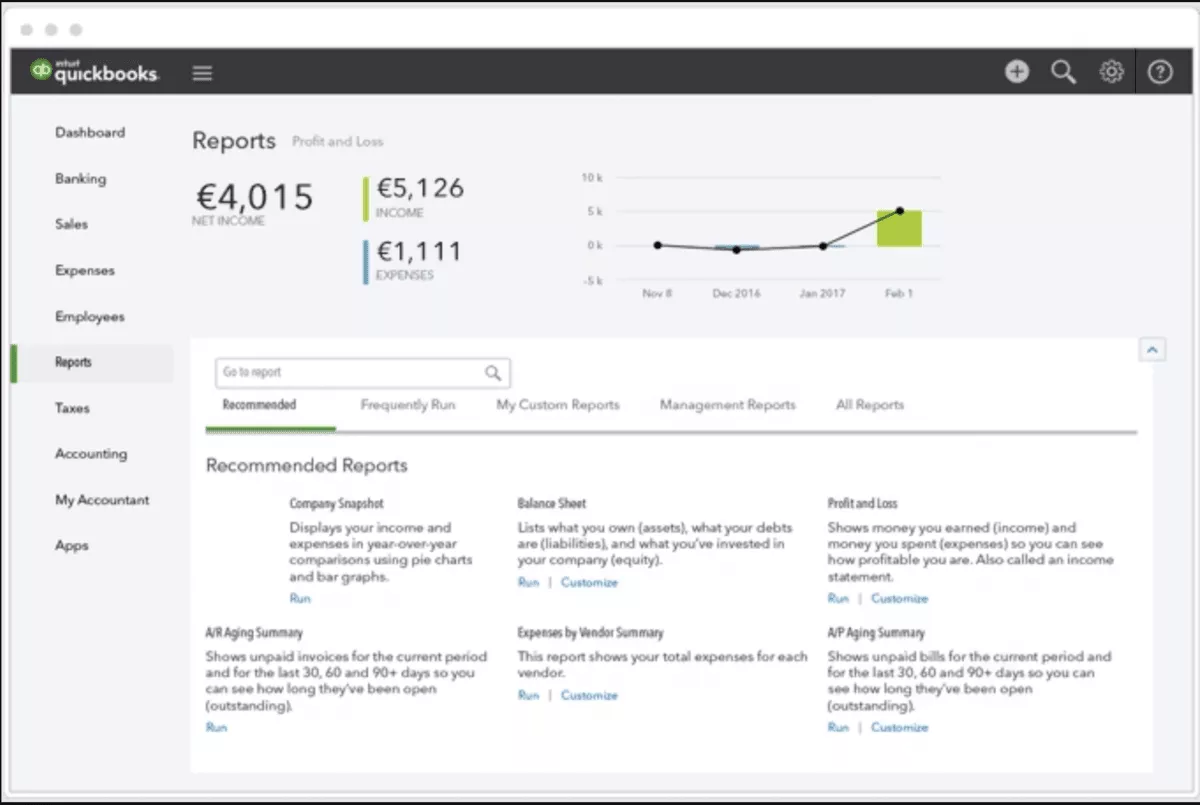
Key Features
- Mobile entries for clocking in, submitting hours, and approving weekly records from smartphones
- Location checks and geofencing for teams working across job sites or locations
- Scheduling tools for building shifts, assigning jobs, and sharing updates with employees
- Payroll integration and QuickBooks workflows for moving approved time into payroll and accounting
SOurce: QuickBooks Time
User-Based Pros
- Users like the connection between hours, payroll, and accounting because it reduces duplicate work.
- Reviewers point to GPS support as useful for mobile teams that need location-aware time entries.
- The mobile app helps employees capture, submit, and approve time away from the office.
- Teams use QuickBooks Time reports to review labor costs, productivity, schedules, and approved hours.
User-Based Cons
- Clocking issues can affect accuracy when employees depend on clean start and stop times.
- Some users see QuickBooks Time as expensive compared with other workforce tools.
- Reviewers mention limited features when they need more flexibility in daily workflows.
- Customer support and setup flexibility can become frustrating for teams with more specific requirements.
Final Verdict
QuickBooks Time should drop off the list if payroll is not the main reason you are buying.
It is strongest when time entries need to become payroll-ready hours inside the QuickBooks ecosystem. Agencies, consultancies, and service businesses that need project profitability, delivery reporting, or budget visibility will probably need a tool that connects time to client work more deeply.
8. Connecteam – Best for Deskless and Shift-Based Teams
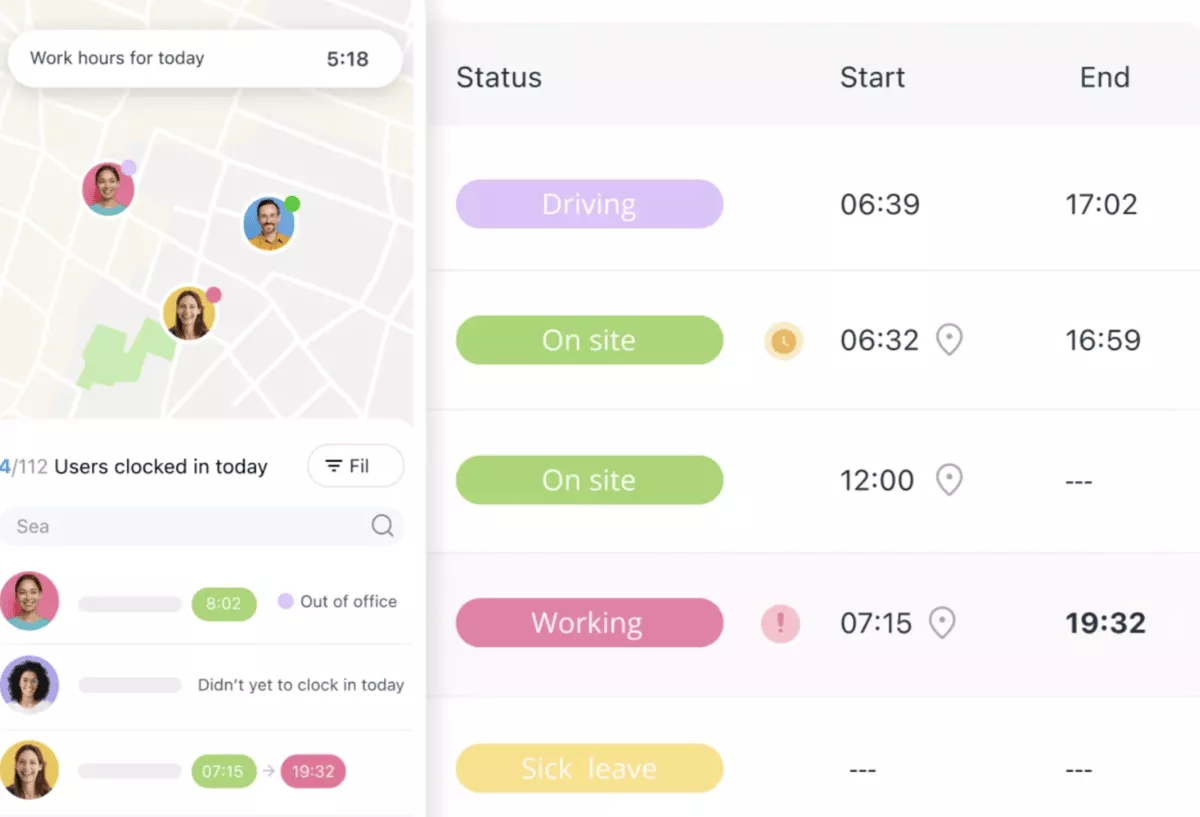
Connecteam is a mobile workforce management platform for teams where hours depend on shifts, job sites, attendance, supervisor updates, and field communication.
The value is in combining the mobile clock-in flow with schedules, location checks, geofencing, employee attendance, and shift management for people who do not spend the day at a desk.
Key Features
- Mobile clock-in options from the Connecteam app, web dashboard, kiosk station, NFC, or fixed device
- Location tracking and geofencing for checking where employees clock in and out
- Schedules and shift management for assigning jobs, filling shifts, and updating mobile teams
- Payroll-ready records, breaks, overtime, attendance, and communication tools in one platform
SOurce: connecteam
User-Based Pros
- Users like having schedules, work-hour records, and communication in one place for day-to-day team coordination.
- Reviewers say Connecteam is easy to learn, especially for teams that do not want a complicated setup.
- Deskless teams use it to manage attendance, clock-in and clock-out times, and daily staff activity.
- Mobile shift tools help teams post shifts, let employees claim work, and reduce one-off messages.
User-Based Cons
- Advanced reporting and complex integrations can feel limited for teams that need more depth.
- Some users say the interface can feel cluttered when many tools are active at once.
- GPS accuracy and real-time location data can be unreliable when field teams have weak internet.
- The mobile app can create friction when it lacks the same actions available in the web browser.
Final Verdict
Connecteam is the wrong choice when logged hours need to explain client profitability rather than attendance coverage.
The tool can organize mobile employees, shifts, and field communication, but that does not automatically help an agency understand utilization, project budgets, or margin. For service businesses, the gap is not clock-in discipline. It is whether approved hours connect to delivery and financial decisions.
9. Jibble – Best for Attendance and Time Clock Tracking
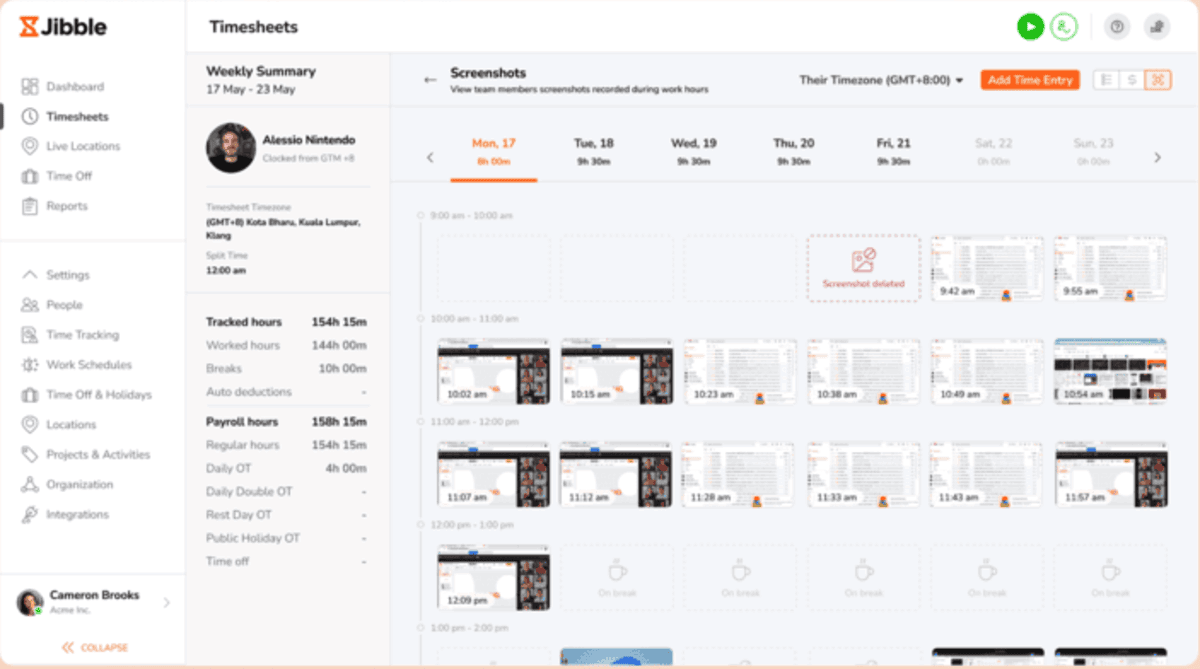
Jibble is the clean attendance pick in this list: it focuses on whether employees clock in, where they clock in, and whether the record is ready for payroll.
That makes it useful for teams replacing paper attendance sheets, manual logs, or a basic clock-in setup that cannot verify employee attendance.
Key Features
- Clock-in options for web, mobile, tablet, and shared kiosk workflows
- Facial recognition, PIN, NFC, GPS, and geofencing for verified attendance
- Offline clock-in support with face recognition, selfie verification, location data, and later syncing
- Attendance dashboards, reminders, overtime, PTO, and payroll-ready exports
SOurce: jibble
User-Based Pros
- Clocking in and out is simple and does not require much training.
- Tool helps replace manual attendance logs with clearer digital records.
- Teams value the visibility into hours worked, absences, time off, and payroll-ready attendance data.
- Jibble’s device flexibility helps teams record hours from phones, tablets, desktops, or kiosks.
User-Based Cons
- Time off and vacation adjustments can be harder to manage than basic clock-in and clock-out.
- Sync delays can create small accuracy issues when the attendance status does not update immediately.
- Some users want stronger integrations with HR and payroll tools.
- The dashboard and reports can take time to learn when users need more than simple attendance tracking.
Final Verdict
Jibble is not the best fit if you need to know whether the work was profitable, not just who worked.
Jibble can help teams clean up clock-in and clock-out accuracy, location rules, facial recognition, offline entries, and payroll-ready records. It should not be your first choice if project codes, budget context, client billing, utilization, or service delivery reporting matter more than verified attendance.
10. Deltek Replicon Time – Best for Enterprise Time Tracking Governance
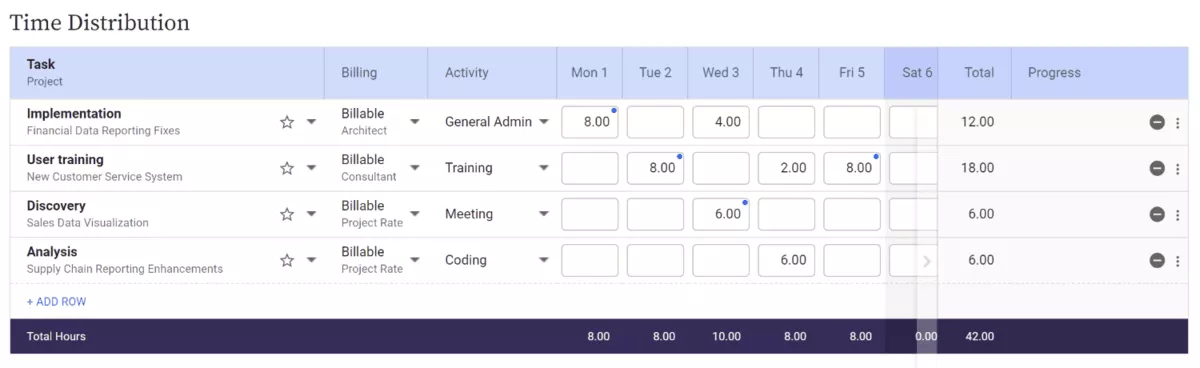
Deltek Replicon Time is for enterprise teams that need structured project entries, approvals, PTO tracking, labor law compliance, and labor analytics across complex work.
It is the heaviest option in this list, so the value depends on whether governance and auditability matter more than quick, low-admin weekly entries.
Key Features
- Project Timesheet Entry for logging hours against projects, tasks, billable work, and non-billable work
- Approval workflows for reviewing entries before payroll, billing, or reporting
- Time Off & Accruals for PTO records, leave balances, and time off requests
- Labor compliance, labor analytics, and reporting for enterprise teams with more complex workforce requirements
SOurce: deltek replicon time
User-Based Pros
- Users like the accurate project-hour logging and approval workflows for structured review.
- Replicon connects hours with client tasks, time off, and leave balances.
- Reporting helps teams support audits and review project, labor, or budget information.
- Some users value the combination of customization, real-time reporting, and project management support.
User-Based Cons
- The interface can be confusing at first, especially for users who need reports quickly.
- Reporting can feel unintuitive when teams customize templates or extract specific data.
- Some admin settings are not flexible enough, including defined field names.
- Complex reports and mobile workflows can expose performance or usability issues.
Final Verdict
Do not choose Deltek Replicon Time just because enterprise depth sounds safer.
Smaller teams, agencies that want a lighter PSA workflow, or companies that only need basic employee hours, will probably spend too much effort managing the system around the weekly entry.
For a broader service-business shortlist, compare the tools in our professional services time tracking roundup.
What Kind of Employee Time Tracking Software Do You Actually Need?
You need the type of employee time tracking software that matches how your team works, why you collect hours, and what the data needs to support after someone submits it.
Most teams can narrow the category by asking what happens after the entry is submitted.
- If the data only needs to prove attendance, a clock-in tool or Time and Attendance Software may be enough.
- If hours need to support billing, project management, utilization, resource planning, or margin decisions, look at project-hour or PSA-style software instead.
For distributed teams, the category decision also depends on whether you need monitoring or clearer remote work systems. Productive’s remote team management guide covers goals, async updates, accountability, and workload visibility without treating activity tracking as the only answer.
| Type | Best fit | What it solves | Skip if |
|---|---|---|---|
| Clock-In Software | Hourly, shift-based, retail, and field teams | Records clock-ins, clock-outs, attendance, employee timekeeping, and payroll inputs. | You need project context, client billing, or profitability reporting. |
| Time and Attendance Tools | Operations managers who need payroll-ready attendance control | Adds approvals, absences, overtime rules, breaks, PTO, and payroll-ready records. | You need to understand project performance, not just employee attendance. |
| Project Hours Software | Agencies, consultancies, software teams, and client-service teams | Logs hours against clients, projects, tasks, and billable work. | You only need basic attendance or shift coverage. |
| Employee Monitoring Software | Remote teams that need oversight, not trust-first time logging | Tracks activity, apps, screenshots, GPS, or performance signals for remote workforce visibility. | Adoption, trust, or creative work matters more than proof-of-work controls. |
| Location-Based Tools | Mobile crews, field teams, and off-site work | Uses geofencing, location checks, and mobile clock-ins for work that happens away from a desk. | Your team mainly needs project management, client billing, or reporting depth. |
| PSA-Style Work Logging | Agencies and professional services teams that need hours tied to money | Connects approved hours with budgets, billing, utilization, resource planning, profitability, and margin. | You only need to know who worked and when. |
How to Choose the Best Time Tracking Solution for Your Employees?
You should choose the best time tracking solution for your employees by testing how hours move from work to approval, payroll, billing, project management, and reporting.
Before you compare tools, use one real week of work as your evaluation sample. Include the normal mess: late submissions, client changes, missed timers, non-billable time, manager edits, and mobile work.
Step 1: Map Each Employee Workflow
Create a workflow map for each employee group: office staff, remote employees, field teams, contractors, managers, and approvers.
For each group, document five things:
- how they enter hours
- which fields they must complete
- who approves the entry
- when it is due
- where approved hours go next
A field team may need a GPS and mobile clock-in. An agency team may need client, project, task, and billable status. Finance may need approved hours ready for payroll or invoices.
Step 2: Define Required Time Entry Fields
Decide the fields every entry needs before anyone configures the tool. Typical fields include client, project, task, service, role, location, rate, billable status, and custom fields.
Then check how the tool catches bad data. You should be able to find missing project codes, unapproved hours, late entries, and billable work marked incorrectly without exporting everything into a spreadsheet.
Step 3: Test Approvals With Real Exceptions
Build a small approval test before rollout. Include one correct entry, one late entry, one wrong project code, one rejected entry, one correction, and one set of manual entries.
Check who gets notified, whether real-time notifications are useful or noisy, and whether the audit trail shows what changed. If managers cannot correct the week cleanly during the test, they will not correct it cleanly at the month’s end.
Step 4: Check Whether Time Entry Fits the Work
Employees should not have to leave their main workflow just to enter hours. If they manage work in Kanban boards, tickets, calendars, or mobile jobs, check whether hours can be added from that place or with minimal switching.
For field teams, test offline entries, breaks, GPS, and shift changes. For office teams, test browser extensions, desktop apps, calendar views, and corrections. Do not make people record hours in one screen and manage work in another unless the tradeoff is worth it.
Step 5: Validate the Reports Before Buying
Pick five reports you need before choosing the tool. Useful examples include approved hours for payroll, billable work by client, missing weekly entries by team, project budget burn, and utilization by role.
Then test whether reports & analytics can show those views without rebuilding them in BI dashboards. If the export drops project fields, rate fields, or approval status, the reporting workflow will break outside the app.
If utilization is one of the reports you need, Productive’s guide to calculating employee utilization explains how billable work, available hours, and utilization targets fit together.
Step 6: Write the Tracking Rules Before Rollout
Write the employee-hours policy before the first team starts using the system. Define what employees record, which activities are excluded, who can see the data, when managers review it, and how corrections are handled.
For monitoring tools, the work-hour rules need extra clarity. Screenshots, app tracking, GPS, or activity scores should have a specific operational reason, and that reason should be explained before rollout. Otherwise, the tool can hurt employee wellness and adoption before it improves the data.
Choose the tool that passes the sample week. If it cannot handle real submissions, approvals, corrections, reports, and exports during a small test, it will not get cleaner when the whole company starts using it.
What Are the Key Features of Time Tracking Software?
The key features of time tracking software include time entry, weekly records, attendance capture, mobile entries, approvals, reporting, integrations, and controls that match how the team works.
Not every buyer needs every feature. A construction crew may care about GPS and clock-in accuracy, while an agency may care more about billable hours, project codes, budgets, and profitability.
| Feature | What it does | Who needs it most |
|---|---|---|
| Timers and manual entries | Let employees start a timer, add time later, or correct missed entries. | Teams that track project work, client tasks, or mixed billable and non-billable work. |
| Weekly entries | Group submitted hours by day, week, employee, project, client, or task. | Managers who need to review work before payroll, billing, or reporting. |
| Attendance and clock-in tools | Capture when employees clock in and out, often with breaks, overtime, and shift rules. | Hourly, shift-based, retail, healthcare, field, and operations teams. |
| Mobile apps | Let employees submit time, review schedules, or approve hours away from a desktop. | Field teams, traveling consultants, hybrid teams, and managers who approve time on the go. |
| Location checks | Confirm where employees clock in, often through geofencing or job-site rules. | Construction, delivery, home services, facilities, and other location-based teams. |
| Approvals and reminders | Route submitted hours to managers and remind employees to fix missing or late entries. | Teams that need cleaner weekly records before payroll, invoicing, or budget reporting. |
| Project, task, client, or job codes | Attach hours to the work they belong to instead of leaving them as generic time entries. | Agencies, consultancies, software teams, and businesses that bill by project or client. |
| Billable and non-billable time | Separates revenue-generating work from internal work, admin, training, or write-offs. | Service businesses that need utilization, margin, and client profitability reporting. |
| Reporting and analytics | Shows approved hours, missing entries, billable work, budget burn, labor cost, or utilization. | Finance, operations, project managers, and leadership teams that use time data for decisions. |
| Integrations | Connects time data with payroll, accounting, invoicing, project management, or BI tools. | Teams that do not want to rebuild time data manually after approval. |
| Time off and schedules | Connects worked hours with absences, shifts, PTO, and planned capacity. | Operations teams, payroll teams, and managers responsible for coverage. |
| Identity and fraud controls | Uses tools like facial recognition, facial recognition kiosks, multi-factor authentication, biometric iris checks, Geo Authentication, Geo-punch capability, or an iris time clock to reduce buddy punching and false clock-ins. | Organizations where attendance accuracy, site verification, or fraud detection matters more than project-level context. |
How to Implement Employee Time Tracking Software?
You implement employee time tracking software by cleaning the current hour data first, then testing the new workflow with one team before a full rollout.
Start with the setup that breaks most often: clients, projects, jobs, tasks, users, approval roles, payroll processing rules, and reports. Employees also need a plain explanation of what they track, when they submit time, who reviews it, and how the data will be used.
Do this before you ask the whole company to clock in and clock out in a new system. A messy rollout will create duplicate project codes, missing hours, unclear approvals, and reports that cannot support billing, payroll, labor analytics, or project decisions.
Migration Checklist
- List every current source of hours, including spreadsheets, timers, payroll tools, project management tools, and manual reports.
- Write down who records hours today, why they record them, and who approves them.
- Export active clients, projects, jobs, tasks, users, teams, roles, rates, and open work.
- Remove duplicate project codes, inactive clients, old job types, and users who should not appear in the new system.
- Define the required fields for each entry, such as client, project, task, service, role, location, billable status, and notes.
- Define billable, non-billable, internal, admin, PTO, overtime, and correction rules.
- Map each approver, backup approver, payroll reviewer, finance reviewer, and project owner.
- Decide what syncs to payroll, invoicing, accounting, project budgets, utilization reports, or labor analytics.
- Check whether your setup needs to follow FLSA timesheet guidelines, internal workforce management standards, or enterprise teams’ approval policies.
- Set reminder rules for missing hours, late submissions, rejected entries, and unapproved weekly records.
- Pilot the workflow with one team, one manager, and one full pay period or billing cycle.
- Compare the old and new reports for approved hours, missing hours, billable work, payroll totals, and project totals.
- Fix confusing categories, missing required fields, broken approval paths, and reports that do not match the old baseline.
- Give each employee group role-specific instructions: how to record hours, how to fix mistakes, and who to contact when something is wrong.
- Lock the cutover date and stop accepting time in the old system after that date.
- Archive the old system, but keep historical exports for payroll, billing, audits, and reporting.
Final Thoughts: Which Employee Time Tracking Tool Should You Choose?
The employee time tracking tool you choose should match what happens after the hours are submitted. Payroll teams need clean attendance data, deskless teams need mobile and location-based tools, remote teams may need more visibility, and client-service teams need approved hours connected to project management, budgets, billing, and delivery.
For agencies and professional services teams that want hours tied to delivery and financial visibility, Productive is worth a closer look.
Book a demo to see how hours, budgets, projects, and reporting work together in one place.
Connect With Agency Peers
Access agency-related Slack channels, exchange business insights, and join in on members-only live sessions.
