Top 10 Clockify Alternatives (Paid & Free) – Decision Guide

Clockify alternatives help teams log hours and turn them into billing, payroll, or reporting without constant cleanup.
This guide compares 10 time tracking apps for 2026 with a shortlist, comparison tables, and tool-by-tool pros, cons, and verdicts based on recurring review themes.
We’ve also included bonus advice on how to chose your alternative, along with practical migration steps you can replicate.
What Are the Best Clockify Alternatives in 2026?
The best Clockify alternatives in 2026 are Productive, MyHours, Harvest, TimeCamp, Toggl Track, Timely, Jibble, Deltek (Replicon), Time Doctor, and Kimai.
If you are evaluating time tracking apps and comparing tools like Clockify for billing, automation, attendance, or compliance, start with the shortlist below. Each time-tracking solution includes a jump link that takes you to the detailed review.
If you’re here for a high-level overview, use the table below to narrow down to two or three options. If you only need an online time tracking tool with a timer and exports, prioritize the lighter tools first.
Buyer Comparison Table of Popular Time Tracking Apps
Use this table to quickly shortlist time trackers. Labels are intentionally simple so you can compare tradeoffs without reading a spec sheet.
| Time Tracking Software | Best for | Standout features | Tracking method | Timesheet approvals | Reporting depth | Billing handoff |
|---|---|---|---|---|---|---|
| 1. Productive | Agencies, budgets, approvals | Budgets and approvals tied to delivery | Automatic Timer and manual entry | Where enabled | Advanced | Review before invoicing |
| 2. MyHours | Small teams, simple tracking | Fast setup and simple client reportin | Timer and manual entry | Limited | Basic to medium | Exports for invoicing |
| 3. Harvest | Tracking to invoices | Invoicing from logged hours | Timer and manual entry | Limited | Medium | Invoices inside the tool |
| 4. TimeCamp | Automation plus timer | Automatic capture options | Automatic, timer, manual | Varies by plan | Medium to advanced | Exports and billing support |
| 5. Toggl Track | Lightweight tracking habit | Quick timer with clean reports | Timer and manual entry | Varies by plan | Medium | Exports and rates |
| 6. Timely | Minimal backfill | Timeline you allocate to projects | Capture plus allocation | Varies by workflow | Medium | Client summaries and exports |
| 7. Jibble | Attendance and shifts | Clock-in workflows and location options | Clock-in/out, kiosk, mobile | Varies by workflow | Basic to medium | Payroll exports |
| 8. Deltek (Replicon) | Enterprise controls | Policy rules and approval routing | Configurable timesheets | Yes | Advanced | Payroll and finance integrations |
| 9. Time Doctor | Monitoring environments | Activity insights plus optional screenshots | Automatic and manual | Varies by setup | Medium | Payroll workflows |
| 10. Kimai | Open source control | Self-hosted flexibility | Timer and manual entry | Via plugins | Basic to medium | Invoicing and exports |
Time Tracker Rollout Comparison (What Often Becomes the Real Dealbreaker)
| Clockify Alternatives | Privacy and monitoring stance | Setup effort | Free option |
|---|---|---|---|
| Productive | Light | Medium | Trial |
| MyHours | Light | Low | Yes |
| Harvest | Light | Low | Yes |
| TimeCamp | Moderate (automation options) | Medium | Yes |
| Toggl Track | Light | Low | Yes |
| Timely | Moderate (background capture) | Medium | Trial |
| Jibble | Moderate (attendance and location options) | Low to Medium | Yes |
| Deltek (Replicon) | Light | High | Trial |
| Time Doctor | Heavy (monitoring-first) | Medium | Trial |
| Kimai | Light | High (self-hosting) | Yes (self-hosted) |
1. Productive – Best for Time and Project Management
If Clockify is “fine,” but your team still lives in spreadsheets, the real problem is not tracking. It is everything that happens after: budgets, resourcing, approvals, and profitability checks that never quite match your time logs.
Productive treats tracked time as part of project delivery and company operations, so hours feed budgets, resourcing, and reporting.
Try the best Clockify alternative
Use tracked time to plan capacity, not just fill timesheets
Forgotten timers not only lose hours. They also distort capacity plans, so you end up booking by gut feel and scrambling when work runs long.
Productive connects tracked hours with resource planning so you can compare planned capacity to actual delivery. When a project trends long, you can rebalance work earlier and protect utilization without burning out the team.
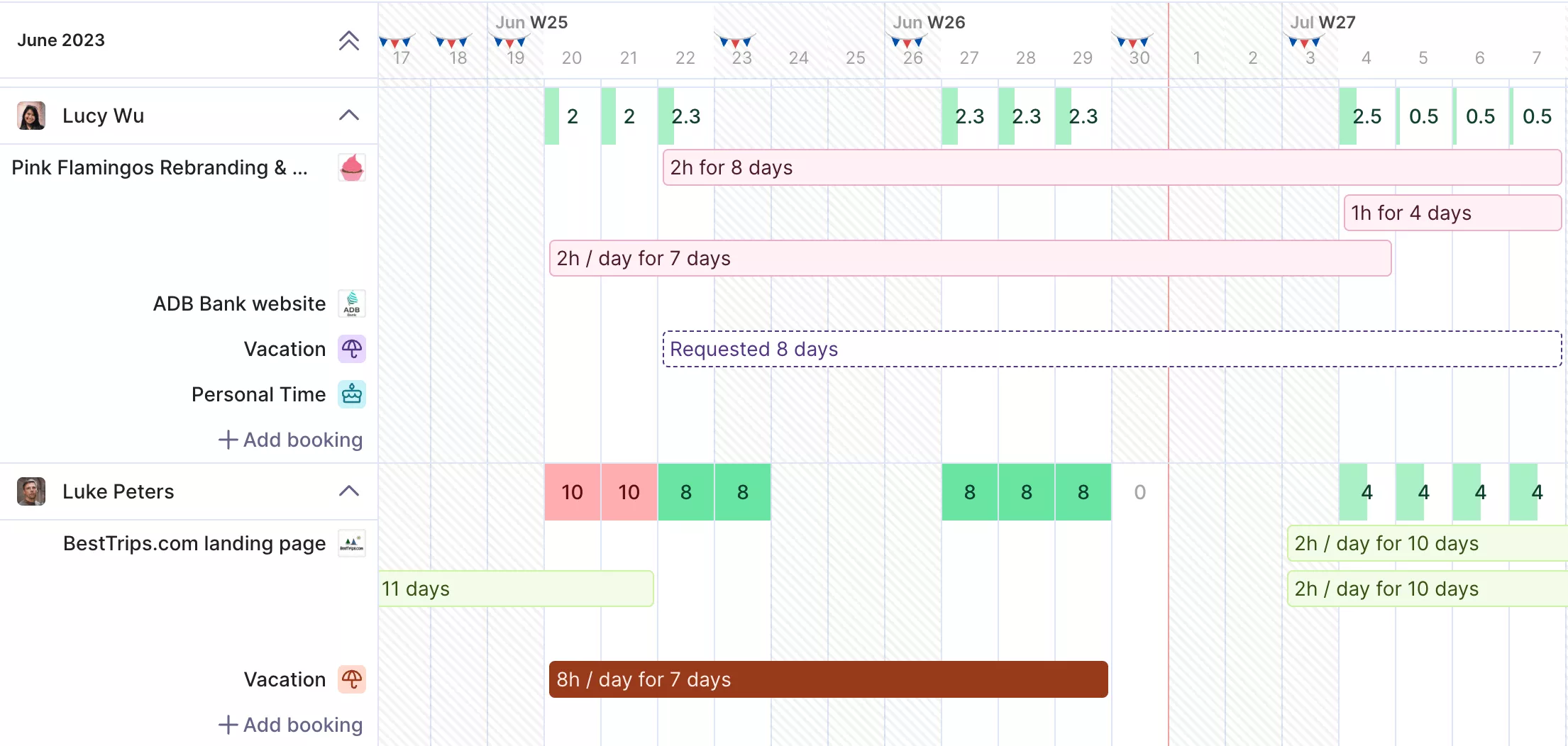
Plan resources and your team’s workloads with Productive.
Managers can approve time off before it is confirmed in the Resource Planner, so capacity plans stay realistic. And yes, Productive also syncs with your Google Calendar.
See budget burn in real time, while you can still change course
Most standalone timers show hours but not budget impact, unless someone translates the data into a separate sheet. That is why budget & profitability reviews happen late, and scope creep becomes “normal.”
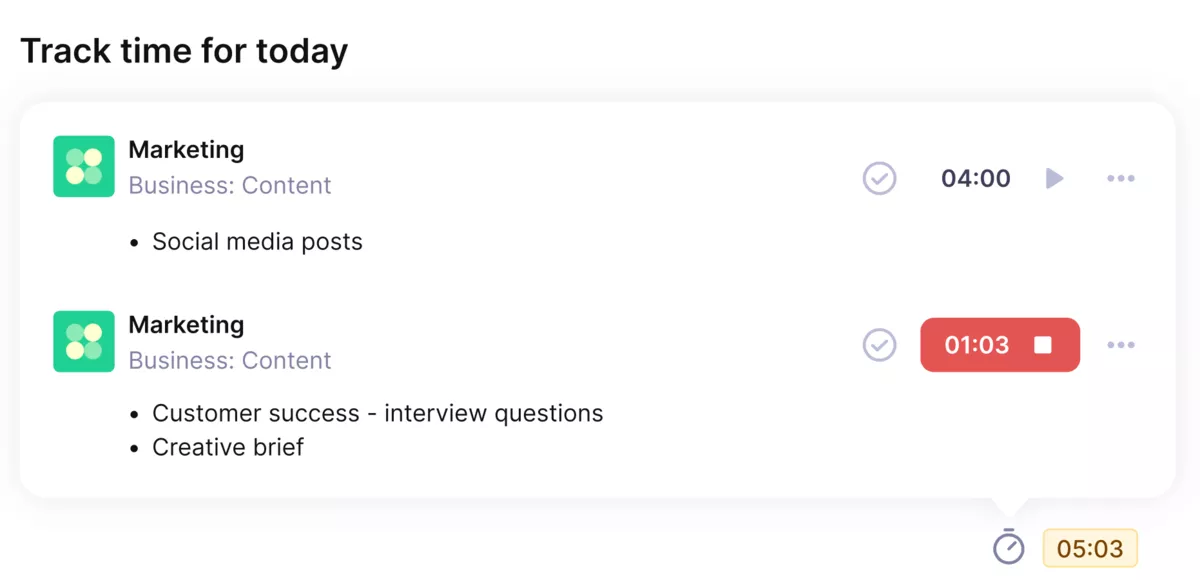
Use Productive’s automatic time tracker to track time directly on tasks.
In Productive, time and expenses are linked to each project’s budget. Budget owners can approve time entries and expenses, so costs do not slip in after the fact. That gives you insights into budgets while the project is running.
You get fewer billing surprises and less time spent reconciling numbers across tools. If you need extra advice here, head over to our guide on tracking project expenses.
Catch profitability issues during delivery, not in a post-mortem
Profitability issues are easiest to fix during delivery, not after the write-off.
Productive helps you see profit signals while delivery is in motion. When tracked time and expenses roll into the same budget structure, you can spot margin drift and too much non-billable work before it becomes a write-off.
For more practical advice, head over to our guide on project profitability formulas and metrics.
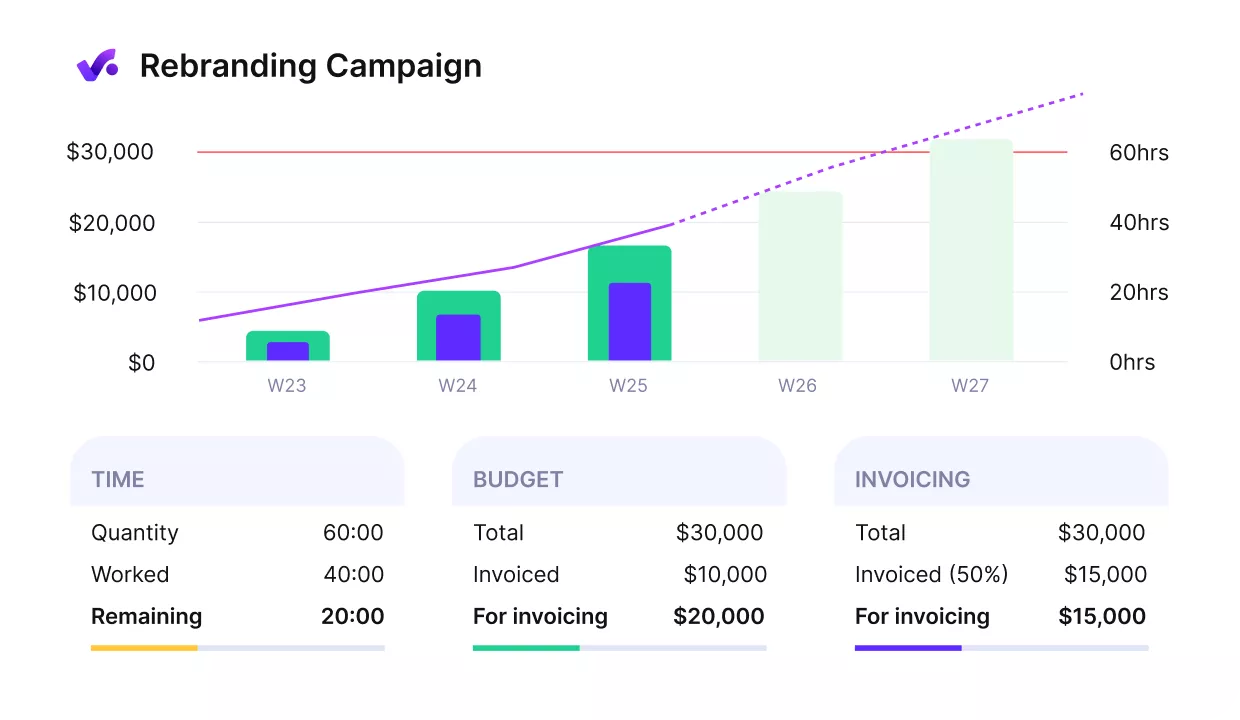
Get early warnings of budget overruns.
That gives you a chance to fix the plan, adjust scope, or have a client conversation early. Approvals also help reduce the “we don’t trust our own data” problem that makes profitability reporting useless. Learn more about balancing employee timesheets and hours in our billable and non-billable hours guide.
Turn time logs into decisions, not exports and spreadsheets
Many agencies run Clockify plus a PM tool, finance software, and spreadsheets. That fragmentation slows reporting, invoicing, and weekly decision-making. You also don’t get accurate time tracking.
Productive reduces that stack by keeping time, budgets, approvals, resourcing, and reporting in one system. Instead of exporting time entries to rebuild reports, you can report from the same place where the data was created and approved.
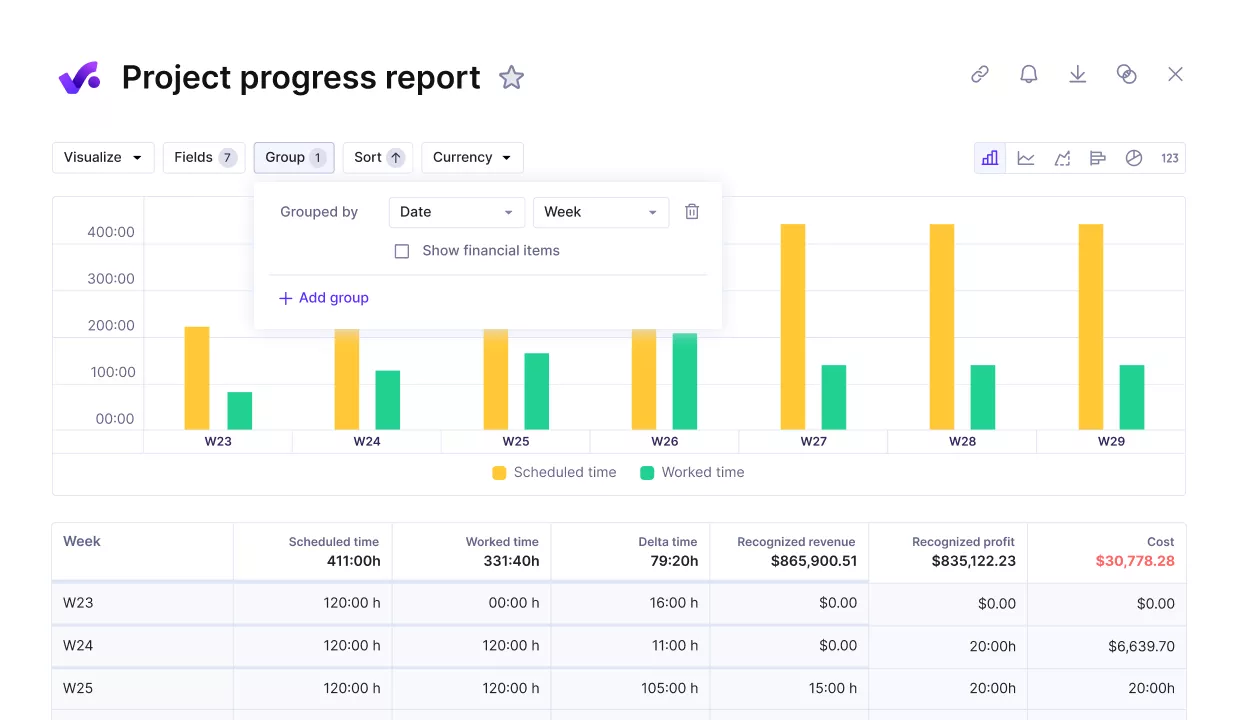
Track project progress against key project and team performance metrics.
Pricing
- Plans start with the Essential plan at $10 per user per month, which includes essential features such as budgeting, project & task management, docs, time tracking, expense management, reporting, and time off management.
- The Professional plan includes custom fields, recurring budgets, advanced reports, billable time approvals, and much more for $25 per user per month.
- The Ultimate plan has everything that the Essential plan and Professional plan offer, along with the HubSpot integration, advanced forecasting, advanced custom fields, overhead calculations, and more. Book a demo or reach out to our team for the monthly price per user.
Productive offers a 14-day free trial, so you can see what it can do for your project’s financial health.
Replace Clockify with Real Tracked Hours
Track time against budgets and approvals in Productive so you can catch overruns early. Use this time data to balance workloads and forecast staffing without spreadsheets or assumptions.

2. MyHours – Best Simple Clockify Alternative for Small Teams
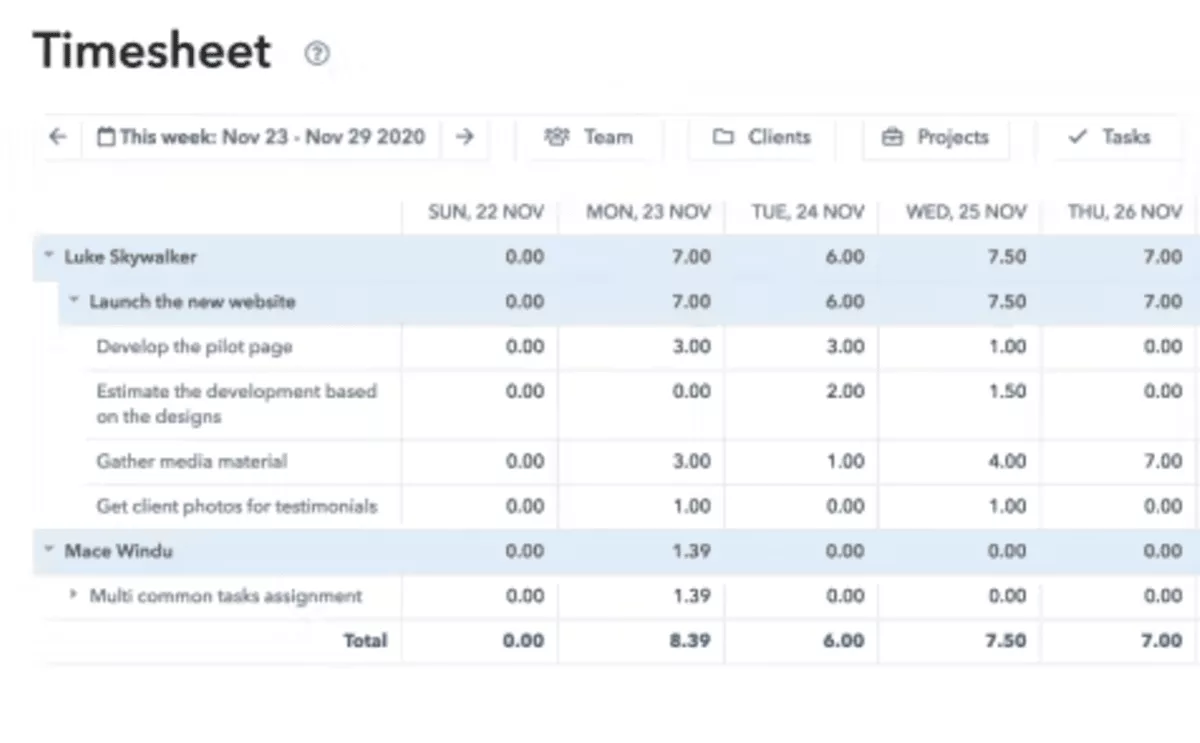
MyHours is a lightweight timesheet tool that organizes hours by client and project, with simple reports you can share quickly. It works best for freelancers and small teams that want a low-friction way to log time, keep billable work tidy, and avoid a heavy setup.
Just in case time management is your main pain point, maybe you should switch to our big list of tools for managing time.
Core Features
- Timer and manual time entries with accurate timesheet views
- Clients and projects with billable rates
- Basic reporting and exports
- Expense tracking support
SOurce: myhours
Pros
- Easy to use day to day for both admins and team members
- Quick setup and straightforward rollout for small teams
- Practical reports and filters for client and project visibility
- Good fit when you want a lighter tool than an all-in-one platform
Cons
- Invoicing and client billing features can feel basic compared to billing-first tools
- Integrations can be limited depending on what you connect
- Reporting depth may not hold up for complex delivery teams
- Managing and billing clients and projects can feel cluttered
Final Verdict
MyHours is not built for teams that need approvals, invoicing inside the tool, or multi-layer reporting. It is a good fit if you want simple client and project logging with reports that are easy to maintain.
It is also easier to outgrow when you manage many clients and want stronger integrations and filtering.
3. Harvest – Best Clockify Competitor for Invoicing and Billing
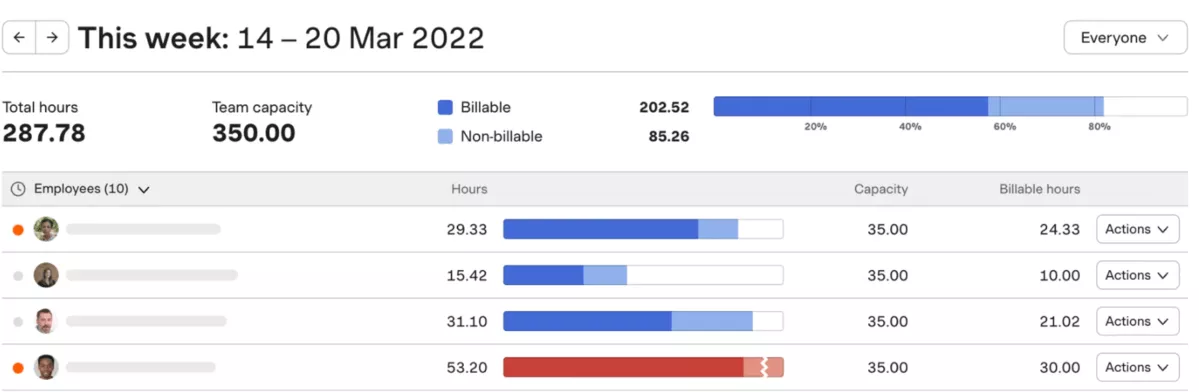
Harvest is one of the most popular online time billing tools. It’s a strong fit for freelancers and services teams that want billable hours to flow into invoices with minimal admin, plus client-friendly summaries that are easy to share.
Core Features
- Web app, desktop app, and mobile apps for logging hours
- Invoicing based on tracked time
- Reporting for projects and team time
- Integrations with common accounting tools
SOurce: harvest
Pros
- Simple invoicing workflow that reduces billing admin
- Clean interface that is easy for teams to adopt
- Client-friendly summaries that are easy to export and share
- Strong fit for small services teams with straightforward billing
Cons
- Limited automation compared to automatic capture tools
- Reporting can feel restrictive for overall project management
- Plan limits can push teams to upgrade sooner
- Less suited to teams that want deeper operational controls
Final Verdict
Harvest is not the best pick for teams that need automation-first tracking or heavier controls beyond billing. Choose it when you want hours, rates, and invoices to live in the same place with minimal setup.
4. TimeCamp – Best for Automated Time Capture With Less Manual Entry
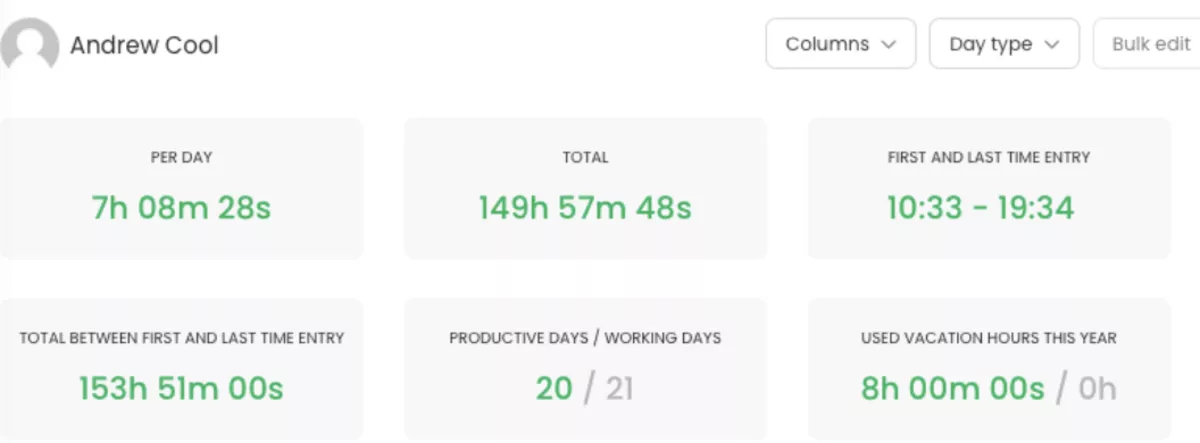
TimeCamp supports automatic time tracking, so teams do not have to rely on perfect timer habits. It is a good fit if you want work to show up more consistently, then turn that data into reports and billing without chasing people for end-of-week cleanups.
Core Features
- Desktop app with automated capture options to reduce manual logging
- Timesheets and reporting for projects and clients
- Invoicing and exports for billing workflows
- Native integrations with common project tools
SOurce: timecamp
Pros
- Helps reduce backfilled logs and missed hours
- Supports a mix of automatic capture and manual correction
- Reporting supports project visibility and billing workflows
- Often priced competitively compared to automation-first tools
Cons
- Automated capture can misclassify work and needs review habits
- Setting up takes time if you want reliable rules and categories
- Reporting and exports can vary depending on plan
- Background capture can create rollout friction for some teams
Final Verdict
TimeCamp is a rough fit if your team only wants a clean timer and nothing else, or if automated capture will cause pushback. It is most useful when missing hours and backfilling are hurting billing accuracy and you want automation to raise baseline consistency.
5. Toggl Track – Best Lightweight Timer and Reporting
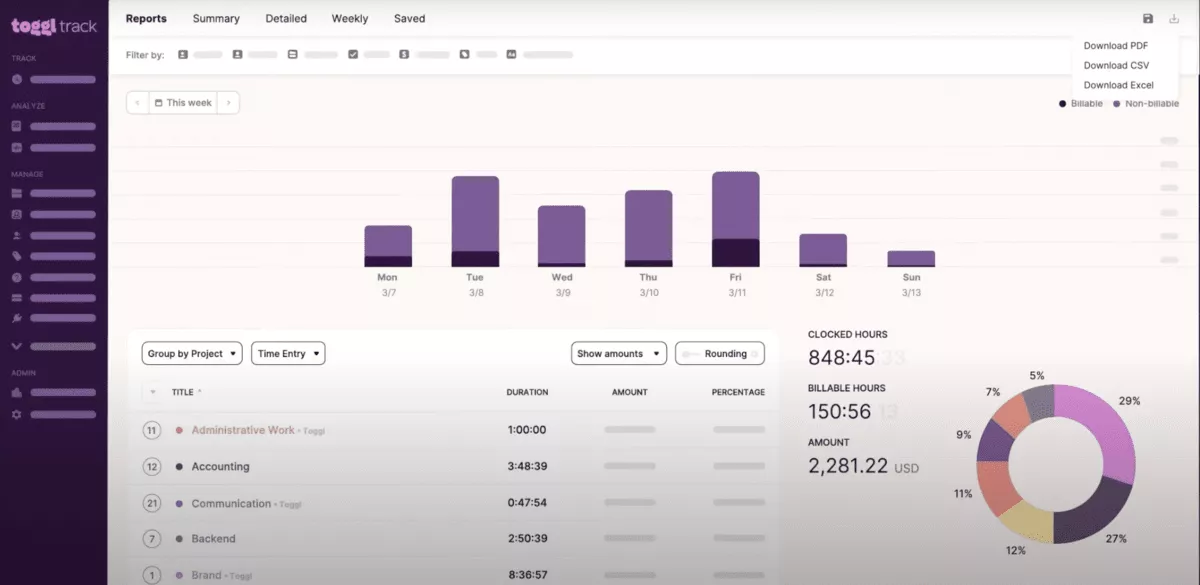
Toggl Track is a timer-first tracking app with a streamlined design that helps individuals and teams build a consistent tracking habit without a heavy rollout. It works best when you want people to start and stop a timer quickly, add basic context like projects and tags, and then pull clean reports for billing or internal visibility.
Core Features
- One-click timer plus manual entries
- Projects, tags, and billable rates
- Reporting, dashboards, and exports
- Browser extension, plus desktop app and mobile apps
SOurce: toggl track
Pros
- Very fast adoption with minimal training
- Clean UI that keeps daily logging lightweight
- Reports are easy to filter and share for client work
- Works well for individuals and small teams
Cons
- Reporting depth can feel limited for complex operations teams
- Plan limits may affect the features you need at scale
- Timer workflows can get messy with many projects and tags
- Less suited to teams that want strict review workflows
Final Verdict
Toggl Track will frustrate teams that need a formal review layer, tight permissions, or delivery governance tied to budgets. It is ideal when fast adoption is the priority, and you want clean, shareable reports without turning rollout into a project.
6. Timely – Best for Automatic Tracking With Minimal Backfilling
Timely is time tracking solution built around an activity timeline that captures work across your day, then lets you allocate it to projects later. It fits best as a software for consultants and services teams that hate backfilling and want more accurate billing without chasing people for end-of-week logs.
Core Features
- Desktop app with a background timeline for automatic time tracking
- Timesheet building and project allocation
- Reporting for clients and invoices
- Integrations and exports for billing workflows
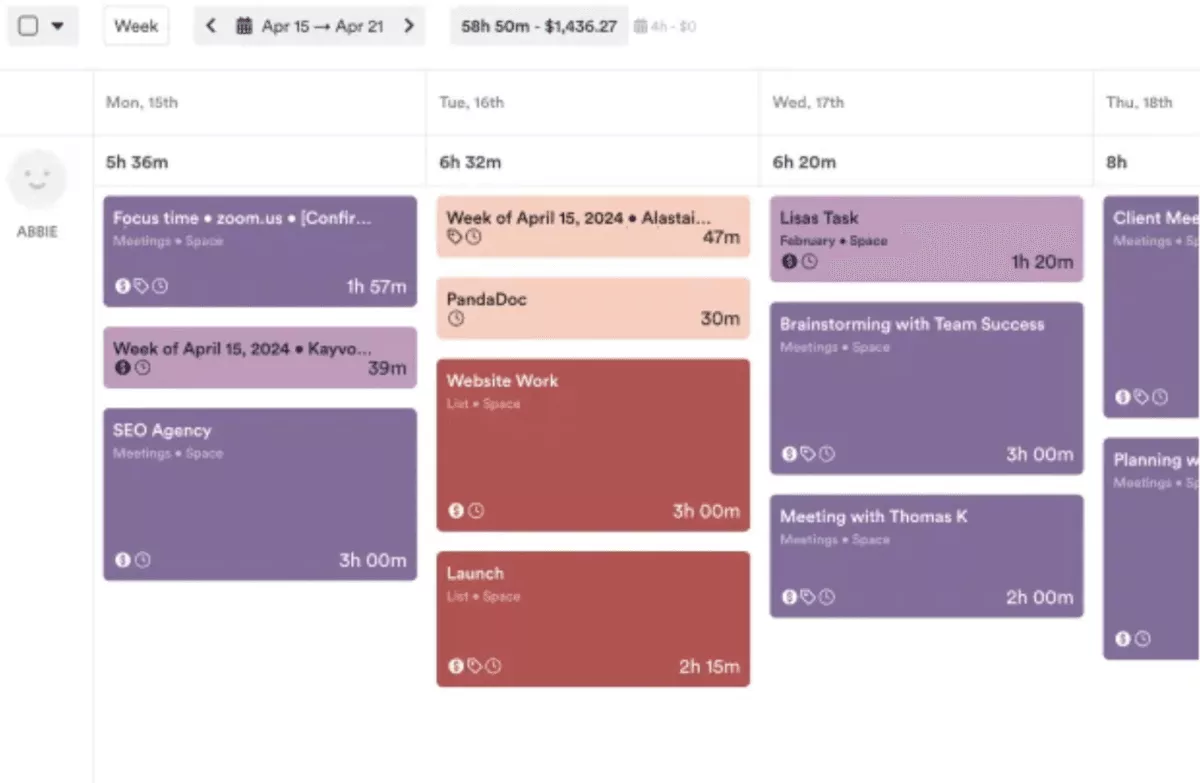
SOurce: timely
Pros
- Reduces manual logging and speeds up timesheet completion and time management
- Helps recover billable work that would otherwise be missed
- Allocation workflow can be faster than starting timers all day
- Client summaries are straightforward to share
Cons
- Background activities can raise privacy questions for some teams
- Categorization is not perfect, so review is still required
- Integrations may be limited depending on your stack
- Can feel expensive compared to timer-first tools
Final Verdict
Timely is a mismatch for teams that do not want background capture or that need a free plan to start. It is a great option when backfilling is the biggest problem, and you are comfortable reviewing a timeline before billing.
7. Jibble – Best for Attendance and Shift Timesheets
Jibble is an attendance-focused clock-in tool built for clock-in and clock-out routines, especially for teams that work shifts or move between job sites. It fits best when you care about presence, punctuality, and clean hour totals more than project profitability.
Core Features
- Clock-in and clock-out across mobile, web, and kiosk modes
- GPS tracking and geofencing options for location-based attendance
- Timesheets, overtime rules, and attendance reporting
- Leave and break tracking options
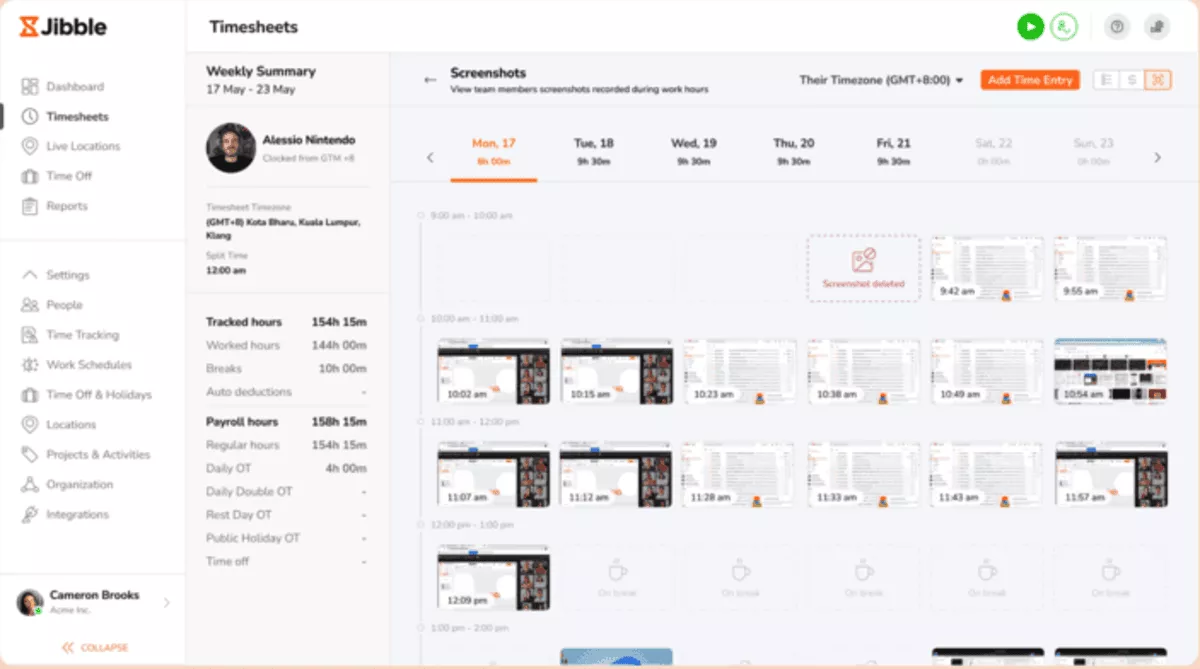
SOurce: jibble
Pros
- Simple setup and fast adoption for shift-based teams
- Free time tracking for unlimited users
- Helpful location features for field teams
- Clear timesheets that support payroll routines and attendance reporting
Cons
- Reporting can feel limited for project-based billing
- Location and tracking settings need careful rollout to avoid trust issues
- Mobile performance and syncing can vary by environment
- Integrations may not cover every payroll stack
Final Verdict
Jibble is the wrong tool for agencies that live on project profitability and detailed invoicing. Think of it as attendance and hours first, projects second. If you bill clients by project and need detailed breakdowns, you may hit reporting limits quickly. It is better for payroll accuracy than profitability analysis.
8. Deltek (Replicon) – Best for Enterprise Governance and Compliance Needs
Deltek Replicon is an enterprise-grade timesheet platform built for international businesses and policy-heavy organizations. It fits best when you need consistent employee timesheets across teams, plus controls that support compliance, audit needs, and complex approval routing. Expect enterprise pricing and contracts that scale per user per month.
Core Features
- Configurable timesheets with policy rules and multi-level approvals
- Project time and billing support for costing and charge codes
- Time off, attendance, and workforce management options
- Reporting, exports, and integrations for payroll and finance systems
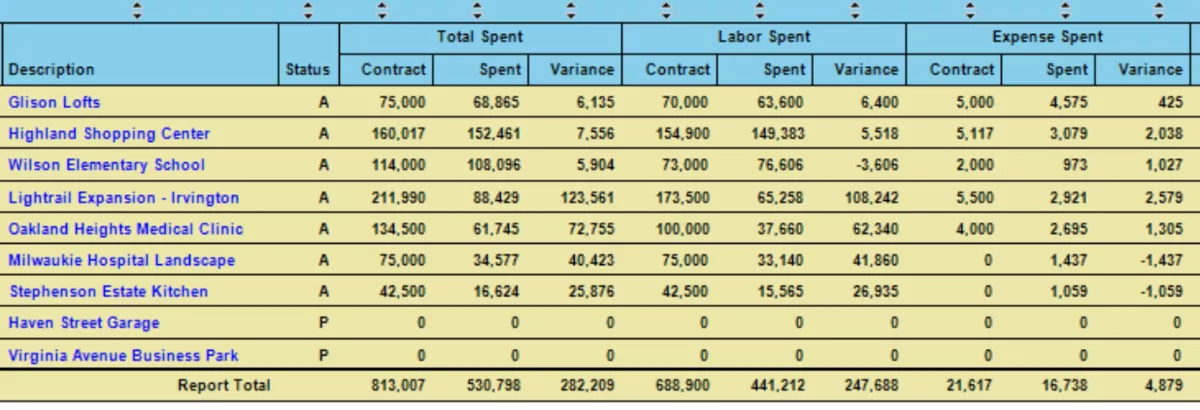
SOurce: deltek
Pros
- Strong fit for complex rules and enterprise approvals
- Flexible configuration for compliance-heavy environments
- Powerful reporting once templates are standardized
- Covers broader workforce needs beyond project time
Cons
- Implementation and configuration can take time
- Reporting setup may feel unintuitive at first
- UI can feel crowded for day-to-day entry
- Overkill for small teams with simple needs
Final Verdict
Deltek Replicon is overkill for a small team that just needs a timer and basic exports. It is built for enterprise setups where policy rules, approvals, and audit trails come first. Map your approval routing and required reports early, then confirm you can maintain them without constant admin work.
9. Time Doctor – Best Monitoring-Heavy Clockify Substitute
Time Doctor is employee monitoring software with timesheets for teams that want visibility into how work happens, not just how many hours were logged. It includes employee monitoring features such as activity tracking and optional screenshots, so rollout needs clear policies.
Core Features
- Logged hours with activity and productivity reporting
- App and website usage reporting
- Optional screenshot capture and monitoring controls
- Reports for payroll workflows and team oversight
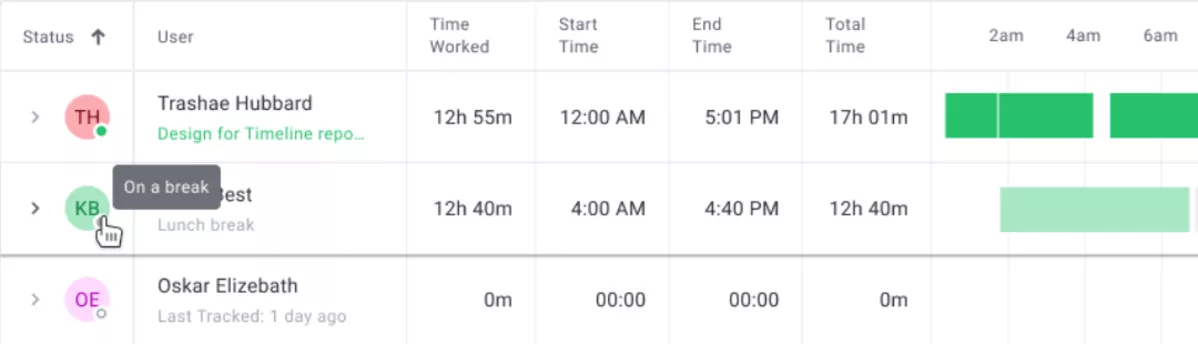
SOurce: time doctor
Pros
- Detailed visibility for managers or business owners in monitoring-first environments
- Useful reports for payroll routines and oversight
- Helps reduce missed hours when teams forget to log
- Can add accountability for distributed teams
Cons
- Monitoring can feel invasive and hurt adoption
- Tracking quality depends on clear policy and consistent setup
- Integrations may not match every workflow
- Rollout requires careful change management
Final Verdict
Time Doctor is a poor fit for privacy-first teams or anyone who just wants a simple client timer. It makes sense when monitoring is part of how you manage remote teams, and you want visibility beyond logged hours.
Time Doctor is a solid choice for remote employees and teams that want oversight across apps and websites alongside payroll-ready timesheets.
10. Kimai – Best Open Source Clockify Competitor
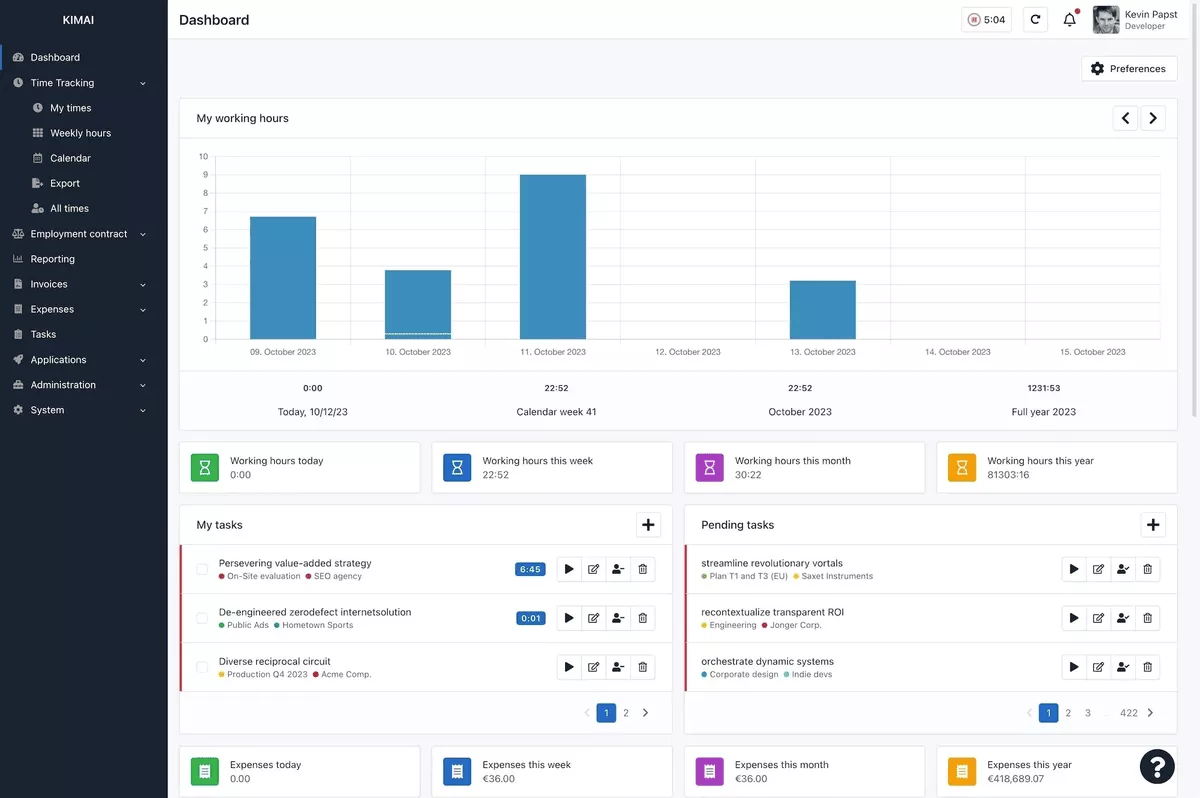
Kimai is an open source timesheet tool you can self-host, with projects, activities, invoicing, and exports. It is a strong fit for teams that want more control over data and hosting, or that prefer open source tools they can extend through plugins and an API.
Core Features
- Self-hosted tracking with customers, projects, and activities
- Invoicing and export options for client billing
- Roles, permissions, and team structure
- Plugin ecosystem and API for extensions
SOurce: kimai
Pros
- Data control through self-hosting
- Flexible extensions via plugins
- Exports that support invoicing workflows
- Works well for small teams once configured
Cons
- UI can feel clunky for daily logging
- Self-hosting adds ongoing admin work
- Some workflows can feel rigid without customization
- Advanced needs may require plugins or development effort
Final Verdict
Kimai is not the right choice if you want a managed SaaS with no maintenance burden. It is a solid option when open source control and self-hosting are advantages, not chores.
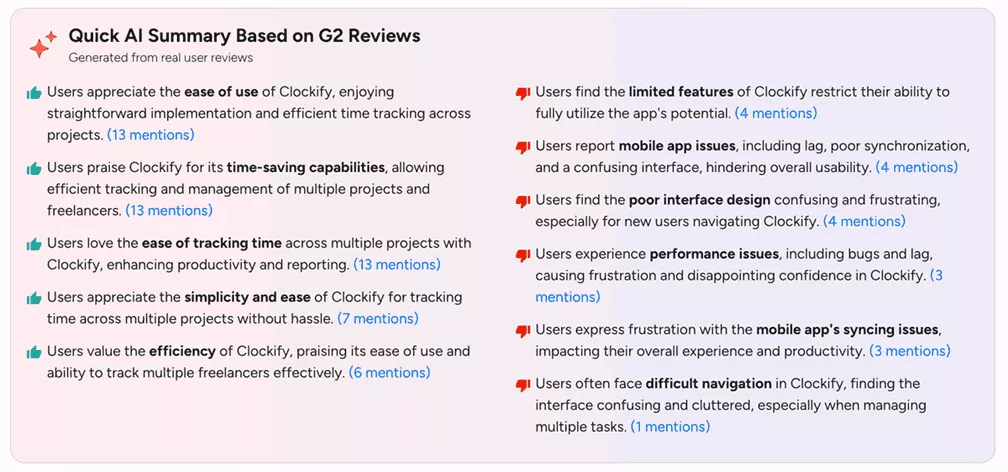
Why do teams switch from Clockify?
Teams look for a new tool when the workflow stops matching how they bill, report, and keep logs consistent across a growing team.
- Manual timers and late backfilling often create unplanned time entries and messy logs. That leads to invoice questions, weak budget visibility, and end-of-week cleanup.
- Reliability and integrations become a breaking point, too. If tracking does not stay consistent across devices, or a needed Clockify integration is missing, teams lose trust in the data and fall back to spreadsheets.
- Detailed reporting needs evolve fast. Once more people are logging hours, you need timesheet data that answers what to bill, where work is drifting, and which clients are consuming unplanned time, without constant exports.
- Approvals and governance matter more at scale. Without a simple review step, errors and unclear notes slip into billing and internal reporting. A Clockify replacement often adds clearer roles, permissions, and a basic audit trail.
- Tracking style and privacy expectations differ. Some teams want lightweight, trust-based tracking. Others need attendance controls or monitoring. If the approach does not fit your culture, adoption drops, and tracking becomes noise instead of insight.
SOurce: G2 reviews
What Are the Key Features of Clockify Substitutes?
The key features of Clockify substitutes prevent bad logs, speed up review, and keep billing and payroll outputs consistent. Those are the benefits of time tracking for Time Management, not just compliance.
Feature 1: Time capture options
Start by matching capture to how work shows up on a real day. If most work happens in long blocks, a simple timer works. If work is fragmented across short tasks, you need fast manual add flows and reminders so people do not backfill at the end of the week.
A solid time tracker supports both timer and manual logging, plus the small details that keep data usable: reminders for remote employees, required fields for notes or tags, and consistent behavior across desktop and mobile.
Feature 2: Reporting and billing handoff
You need comprehensive reporting capabilities that match how you review work and build invoices, without rebuilding everything in a spreadsheet. The basics should be easy: billable versus non-billable splits, client and project totals, and detailed time reports with customized reporting for account managers.
If you invoice from tracked time, validate rate handling and rounding rules, then check how exports line up with your billing process. If you bill project costs, confirm expense tracking covers approvals, receipts, and reporting without a separate spreadsheet.
Feature 3: Timesheet approvals and approval workflows
A usable approval process gives reviewers a clear queue, enough context to approve quickly, and a way to lock a period once billing is final.
Reviewers should be able to spot bad time entries immediately, such as missing notes, unclear project selection, or inconsistent billable status, without digging through extra screens.
Feature 4: Privacy and monitoring
Decide what data you collect before you pick a tool. Some teams only need hours and notes. Others want app usage, screenshots, or location signals. If you’re choosing an online time tracking tool, test the web flow and the desktop app side by side.
Some tools also record background activities, so decide what is acceptable before rollout. Whatever you choose, make sure it is configurable:
- What gets tracked, and is employee monitoring optional?
- Who can view it?
- How long is data stored?
- Can people pause tracking when they are off work?
Extra Consideration: Migration and rollout readiness
A smooth switch depends on a clean structure. You should be able to recreate clients, projects, and people roles, then map billable rules and rates without weeks of manual work.
Export a small sample from Clockify first and confirm you can import it, report on it, and invoice from it the way you expect. Then run a short parallel period so you can compare outputs before fully switching.
How to Choose Your Clockify Substitute?
Choose your Clockify substitute by running a short selection sprint that you can finish in a week. Shortlist two or three time tracking apps, then run the same workflow test in each tool: log work for a week, approve it, export it, and compare totals against your real invoice and payroll outputs.
Tip 1: Start with billing and finance outputs
Open your last two invoices and pick one internal payroll report. Those three files become your acceptance criteria. Write down what must be true for those outputs to be correct: rates, rounding rules, billable versus non-billable splits, and which fields must be present on entries.
Then ask each tool to reproduce the same layout, using its standard reports or exports. If you need a spreadsheet to “fix it after,” you are buying more admin work.
Tip 2: Match the capture method to your real day
Do a five-minute audit of one typical day. Count how many times you switch context between clients, meetings, email, and deep work. Then do one practical check: can you track time quickly when you bounce between short tasks, or do people give up and backfill later?
If the day is fragmented, prioritize fast manual add and good reminders. If the day is continuous, prioritize a timer you can start and stop without friction. For the pilot, pick one team and log hours for five working days, then check how many gaps you still have.
Tip 3: Make approvals and roles clear before you migrate
Before you compare features, draw your approval path on a napkin or make a simple diagram. Who reviews client work, who reviews internal work, and who locks a week once billing is final?
Now test that path inside the tool: can approvers find what they need fast, request fixes, and close a period without spreadsheets. If approvals require constant nudging or back-and-forth comments, billing will slip.
Tip 4: Validate reporting depth with three weekly questions
Use last week’s data to test reporting, not a demo dataset. Pull one real week of time from your current tool (or export from Clockify) and import it into the tool you are trialing, then generate a report of time spent for the same period.
Next, you’ll run these three checks exactly as written:
- Client overspend check: filter to last week, group by client, sort by total hours, then drill into the top two clients and confirm you can get a breakdown of time spent by project and person.
- Unplanned work check: filter to last week, group by project, then filter to non-billable or internal categories and confirm you can isolate what ate the time.
- Billing readiness check: filter to billable work for one client, export the report, and confirm the output includes the fields finance needs (date, person, project, notes, hours, rate).
Then repeat the process: once as an admin and once as a project lead. If either role has to export and rebuild the view in a spreadsheet, reporting will become a weekly tax.
Tip 5: Check integrations by simulating one full handoff
Instead of listing tools, map one real handoff end-to-end. Example: log hours, approve them, export or sync, invoice, and reconcile.
Make a simple table with five columns: step, owner, current tool, new tool, and what could break. If your team already lives in other productivity tools, focus on whether native integrations remove double entry or just move it.
Tip 6: Pressure test rollout effort and ownership
Pick an owner and give them a clear task list: recreate clients and projects, set rate rules, set roles, create one report for billing, and create one report for leadership. If you are comparing enterprise pricing, ask for a quote at your peak headcount and confirm what counts as a billable user per month.
Run parallel for one week with a small group. Compare totals and spot gaps early. If you cannot match your key outputs in a week, full migration will be painful.
How to Migrate from Clockify (Step-by-Step)
To migrate from Clockify, export your data, recreate the same structure in the new tool, import a small sample, then run one parallel week before you switch everyone over. This keeps reporting and invoices consistent, and it helps you catch mapping issues while the week is still fresh in everyone’s memory.
Step 1: Define what “correct” looks like
Before you touch exports, pick three outputs you need to preserve. For most teams, that is one client invoice breakdown, one internal weekly summary by person, and one monthly rollup by project.
Write down what must match (rates, rounding, billable splits, required notes).
Step 2: Export a clean source dataset from Clockify
Start with one export that captures your historical time entries, then pull structure exports for projects and people.
In Clockify, use the Detailed report export (CSV or Excel) for the date range you want to migrate. Export projects so you can recreate project names and client associations. If you need to preserve user emails, export user info as well.
Step 3: Build the new workspace before importing history
Create clients, projects, and roles first. Then configure the rules that change totals, like rounding, billable status defaults, required notes, and who can edit after approval. Do this with a small subset of data so you can see the effect of each rule.
Step 4: Import a small sample and reconcile the outputs
Do not import a year of history on day one. Import one client and one week, then reproduce your three “correct” outputs. Compare totals, spot missing fields, and fix naming and mapping issues early.
Step 5: Run a one-week parallel pilot
Pick a pilot group, keep Clockify as your reference, and have the group track time in the new tool for five working days. At the end of each day, compare totals by person and project, then fix issues while the week is still fresh.
Step 6: Cut over and lock the process
Once the pilot matches your outputs, roll out to the full team. Freeze changes in Clockify, export a final archive for the month, and publish a one-page logging rule doc that covers what must be captured on every entry (project, billable status, notes).
If approvals are part of your workflow, set the approvers and lock periods from week one so totals stop drifting.
Final Thoughts
When you compare alternatives to Clockify, shortlist two or three time tracking apps and run the same one-week pilot on real projects (rates, approvals, and the exports you use today). Compare totals and cost per user per month across the shortlist.
If your evaluation keeps drifting into resourcing, budgets, and approvals, it may be time to look at an all-in-one project management tool like Productive.
Book a quick demo to see if it fits your setup.
Connect With Agency Peers
Access agency-related Slack channels, exchange business insights, and join in on members-only live sessions.
