Top 6 Awork Alternatives (Paid & Free) – Buyer’s Guide 2026

Browsing for Awork alternatives can be frustrating and time-consuming.
To make it easier (and save you research time), we’ve written this decision guide that showcases true replacements, with their key features, pros, and cons, based on real-user reviews.
The guide also covers a how-to-choose process (in practical steps), a comparison table and a bonus migration checklist.
What Are the Best Awork Alternatives in 2026?
The best Awork alternatives in 2026 are Productive, ClickUp, monday.com, Teamwork, Wrike, and Paymo. Each pick can handle projects and tasks, includes timesheets, and give you some form of workload visibility.
Use the best-for labels to narrow to two tools, then read the verdicts to spot the dealbreakers.
Quick List: Best Awork Alternatives in 2026
| Tool | Choose this tool if | Skip this tool if | Best for | Time tracking | Workload visibility | Reporting depth | Setup effort | Free option (yes/no) |
|---|---|---|---|---|---|---|---|---|
| Productive | You want projects, time, resourcing, budgets, invoicing, and profitability in one system | You only need lightweight task tracking and do not care about budgets or billing | All-in-one agency operations | Yes | Strong | Strong | Medium | No |
| Clickup | You want maximum flexibility and multiple views in one workspace | You need a simple rollout with minimal setup and low onboarding time | Custom workflows and views | Yes | Basic | Medium | High | Yes |
| monday.com | You like a visual, spreadsheet-like way to run work and keep status visible | You need strict workflow rules and clean reporting without ongoing board maintenance | Visual work tracking and simple processes | Yes | Basic | Medium | Medium | Yes |
| Teamwork.com | You run client projects and want timesheets and delivery in one place | You need a lightweight tool with fewer clicks and cannot tolerate reliability hiccups | Client services delivery | Yes | Medium | Medium | Medium | Yes |
| Wrike | You need more structure, intake control, and cross-team workflow management than your current tool | You want a simple tool with minimal configuration and low admin ownership | Structured workflows and enterprise-style delivery | Yes | Medium | Strong | High | Yes |
| Paymo | You want timesheets tied to invoicing without stitching tools together | You need deep collaboration workflows, richer reporting, or heavier cross-team coordination | Small teams that bill for time | Yes | Basic | Basic | Low | No |
1. Productive – Best for Agencies That Want Awork-Level Delivery, With Budgets and Billing Attached
Awork is solid for running projects and tracking time. Teams usually outgrow it when they need those hours to update budgets, invoices, and profitability automatically, without exporting to spreadsheets.
Productive keeps delivery in one place, but it also shows what the work is costing, what’s left in the budget, and what’s ready to bill while the project is still running.
Try the all-in-one Awork alternative
Track Time in a Way That Updates Budgets Automatically
In Productive, time is logged using Productive time entry against specific services inside a project budget. That structure matters because time does not float in isolation. Every entry updates the budget’s remaining time and financial totals in real time, right on the budget’s Overview tab.
If your current setup feels like “we track hours, but nobody trusts it,” this is the fix: time, cost, and revenue sit in the same system, tied to the same budget rules.
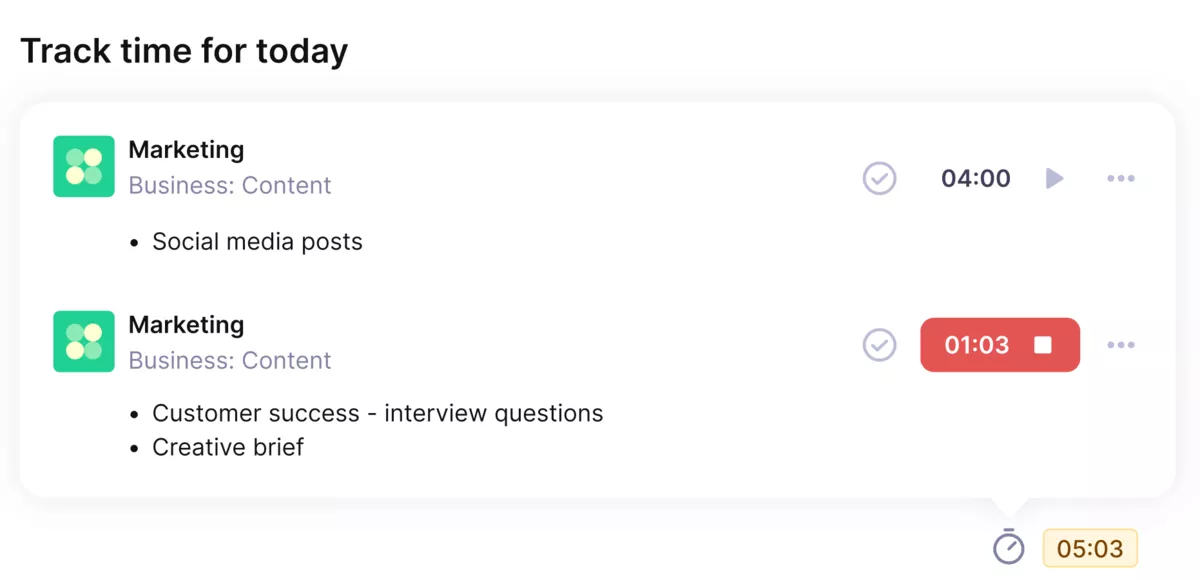
Use Productive’s automatic time trackers for smooth and accurate time entries.
Get Real-Time Budget Visibility, Plus a Forward-Looking View
Instead of discovering overruns after the fact, budgets show live snapshots as time is logged. You can see what’s been used and what’s left while work is still in motion, which supports budget control. You can also enable Forecasting Charts that use scheduled bookings to predict when a budget is likely to be depleted, so managers can step in earlier.
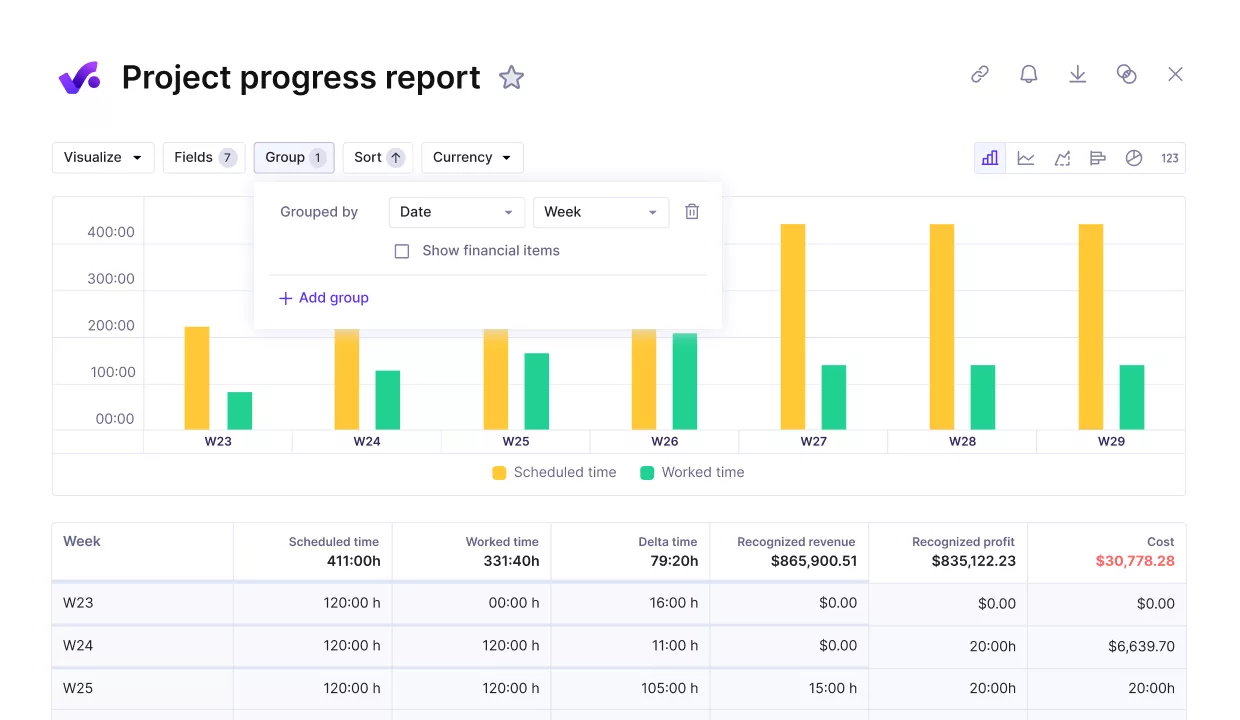
Compare project progress against defined performance metrics.
Make Profitability Visible by Project, Client, and Service
Task tools tell you what got done. They do not tell you if you made money. Productive’s Profitability snapshot, built on its Productive budgeting features, calculates profit by subtracting costs (tracked time multiplied by cost rates) from revenue (billable time multiplied by billable rates).
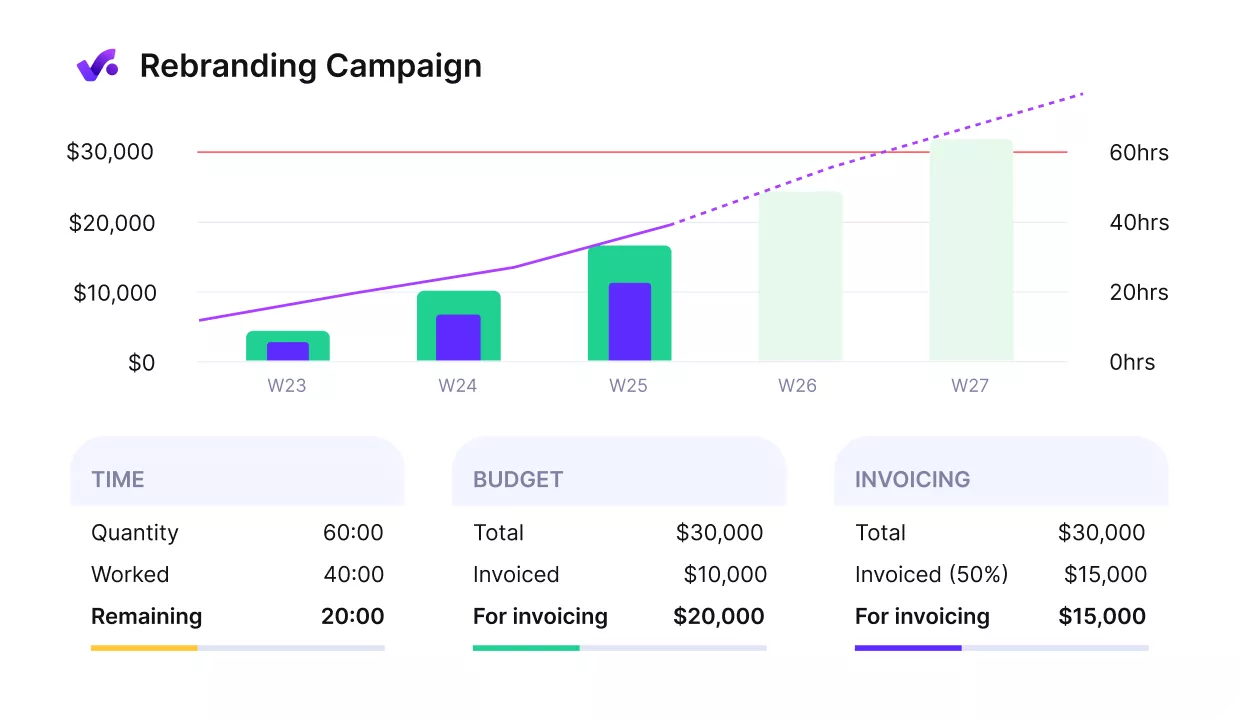
Get early warnings of budget overruns.
Because the inputs live together, profitability stays current, not retroactive. That makes budget control easier when scope changes mid-project. That makes it easier to spot which clients and service lines carry margin, and which ones are quietly draining capacity.
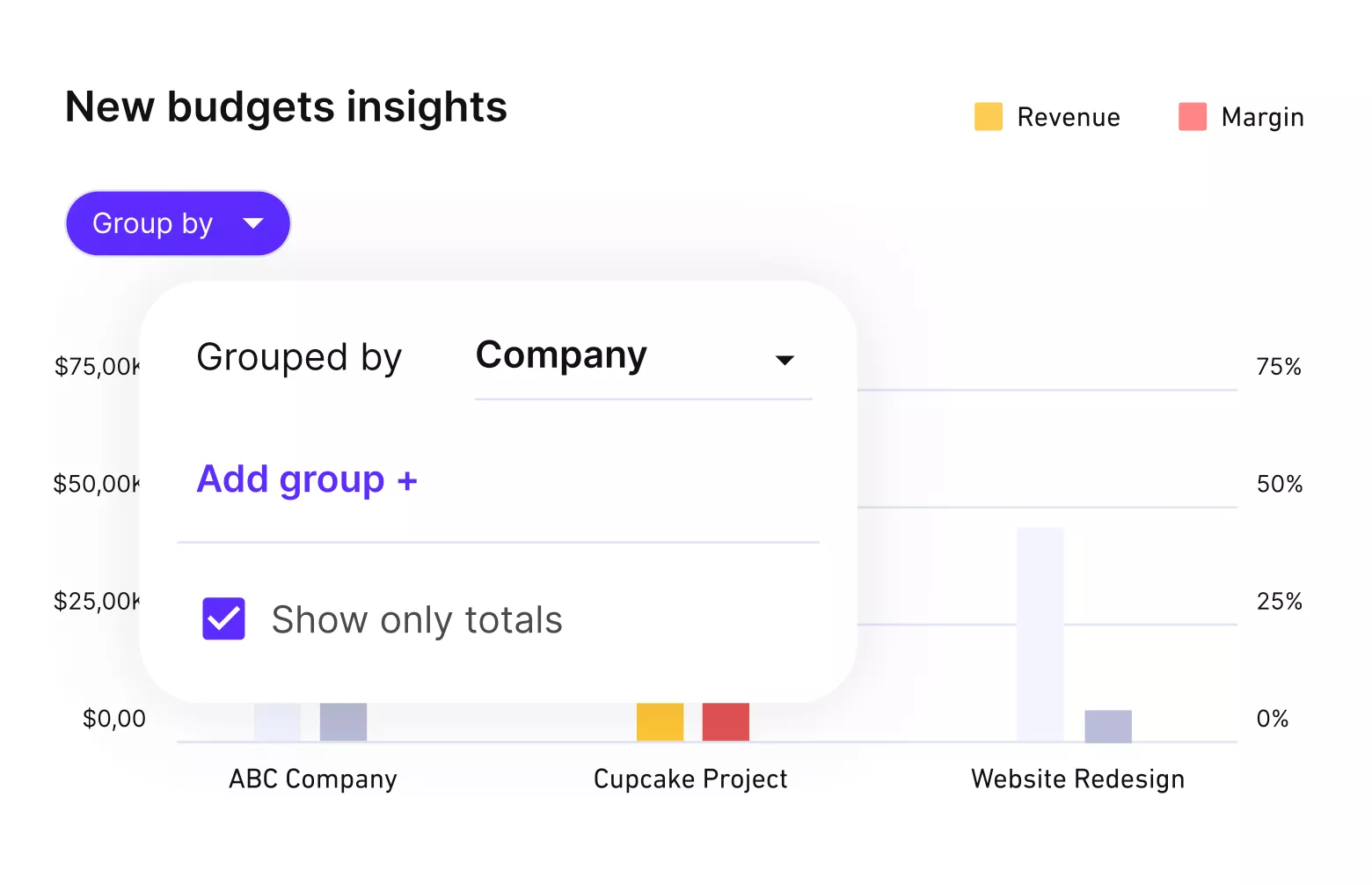
Set up automated updates on profitability, budgets or margins.
Close the Loop From Approved Time to Invoicing
Many teams lose money at the handoff between “work happened” and “invoice sent.” In Productive billing workflows start from time entries linked to billable services in the budget, so invoicing is built on the work already done.
You can generate invoices directly from approved time entries, reducing manual spreadsheet steps and helping you bill for everything you delivered. If you use Xero or QuickBooks for accounting, Productive can connect on the accounting side without forcing you to manage delivery in two places.
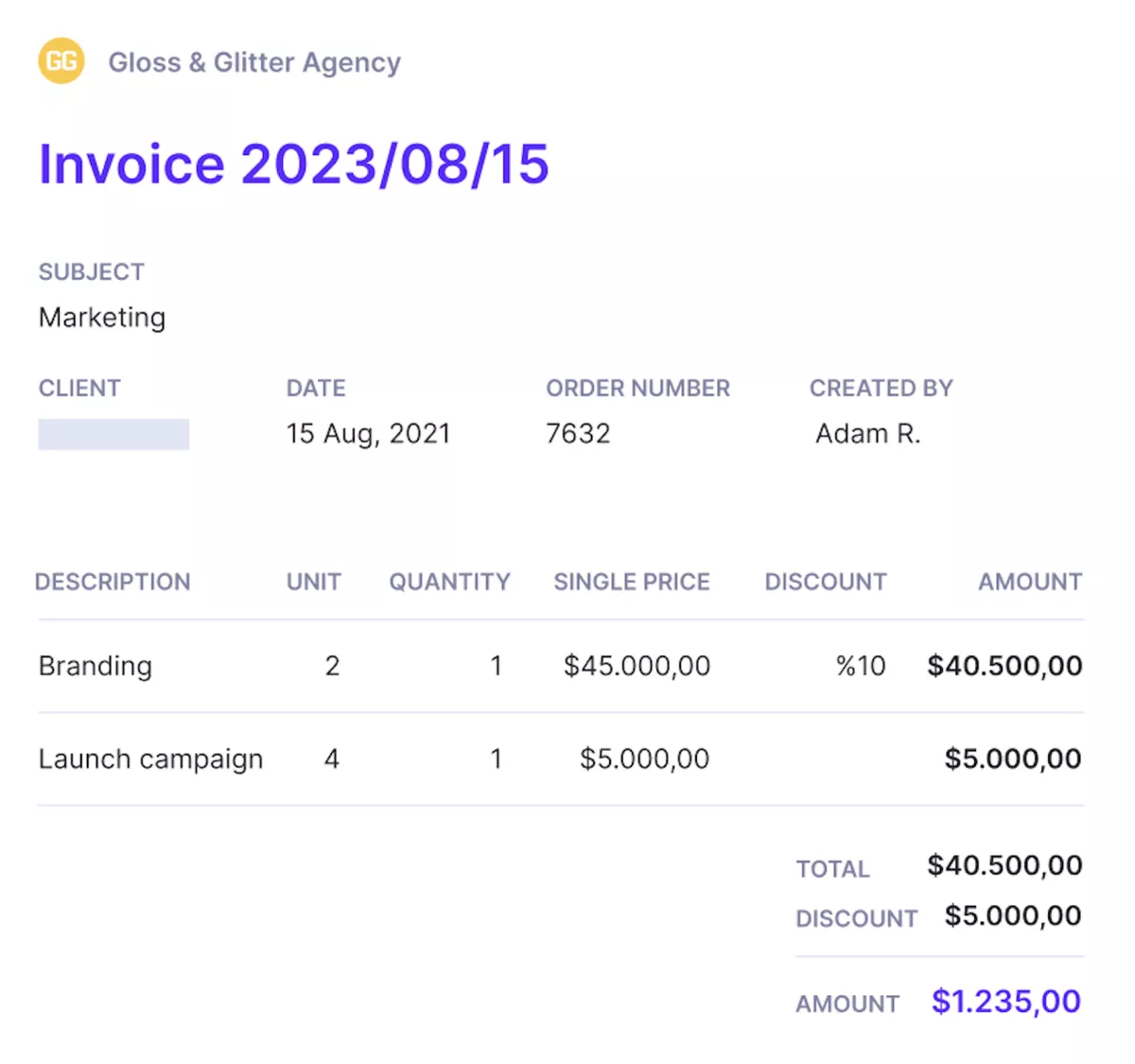
Manage finances, delivery and send invoinces form a single platform.
Replace Spreadsheet Resourcing With a Resource Planner and Utilization
Once an agency grows, “who is free next week” becomes a constant meeting or a messy spreadsheet. Productive’s Productive resource planning gives a visual view of bookings and availability across the team for capacity planning and resource management, so managers can spot overbooking and gaps early.
Utilization is tracked by comparing scheduled time against each person’s available hours, which makes it easier to manage targets and trends without manual math. This is the difference between “horse trading resources” and having a system you can trust when new work comes in.
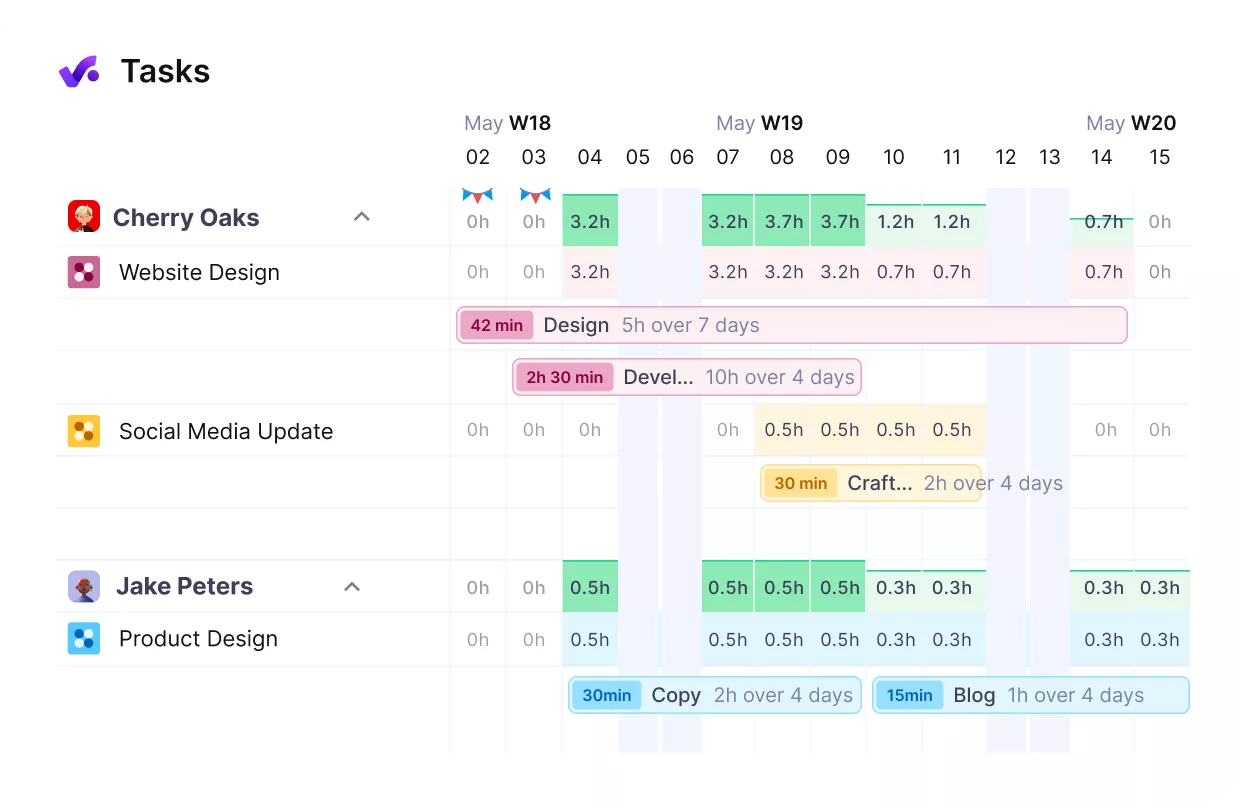
Manage finances, delivery and send invoinces form a single platform.
Pricing
- Plans start with the Essential plan at $10 per user per month, which includes essential features such as budgeting, project & task management, docs, time tracking, expense management, reporting, and time off management.
- The Professional plan includes custom fields, recurring budgets, advanced reports, billable time approvals, and much more for $25 per user per month.
- The Ultimate plan has everything that the Essential plan and Professional plan offer, along with the HubSpot integration, advanced forecasting, advanced custom fields, overhead calculations, and more. Book a demo or reach out to our team for the monthly price per user.
You can also try Productive with a free trial.
Replace Awork With Productive’s All-in-One System
Run projects, timesheets, budgeting, resource planning, invoicing, and reporting in one place instead of stitching tools together.

2. ClickUp – Best for Customizable Workflows With Built-In Time Tracking
ClickUp is a strong replacement if you want project management software where tasks, docs, and time logs live side by side for project management. It is a rough fit if you need something that feels simple on day one, because many reviewers mention a learning curve and performance hiccups as workspaces grow.
Key Features
- Multiple project views (List, Kanban boards, Calendar, Gantt charts)
- Time tracking with timers, timesheets, and time reporting
- Custom statuses, fields, and automations
- Project dashboards for project and team reporting
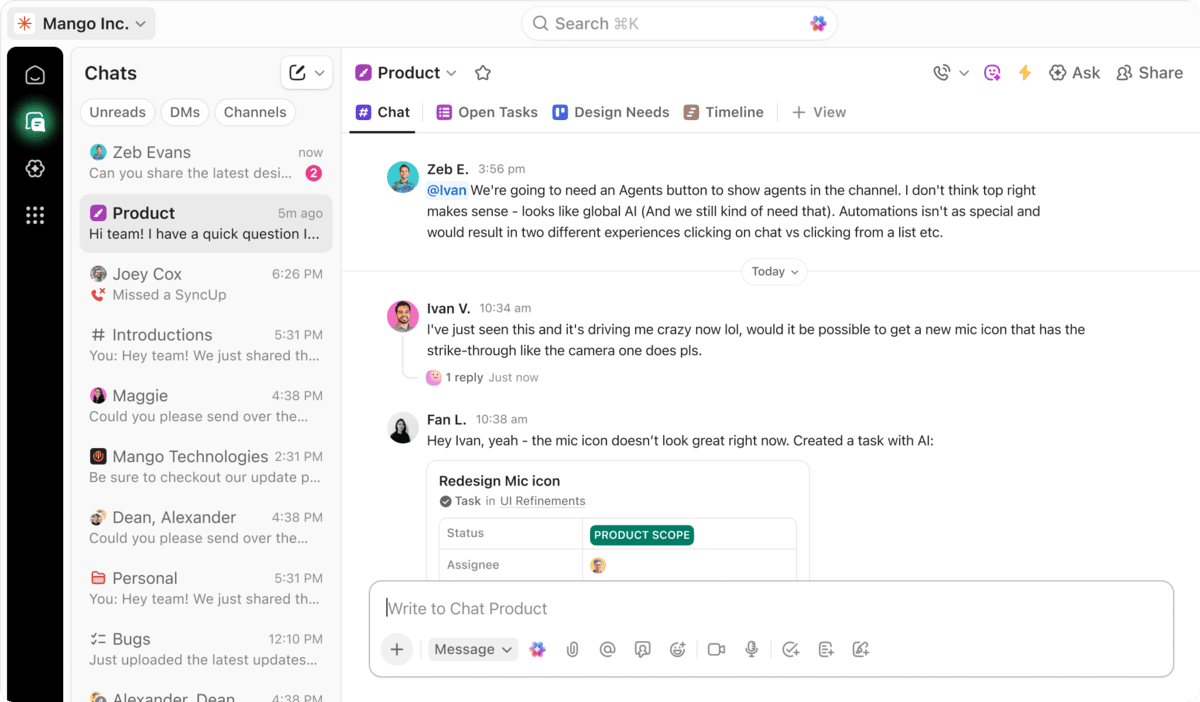
SOurce: clickup
Pros
- Deep customization for statuses, fields, and views, so teams can mirror their exact workflow.
- One place for tasks, docs, and project comments, which improves team collaboration and reduces tool switching during delivery.
- Strong structure for complex task management once the workspace conventions are set.
- Useful workflow automation and templates for recurring work, especially when teams standardize the same process.
Cons
- Slowness, lag, or occasional bugs that become more noticeable as workspaces and projects grow.
- A steep learning curve, with new users feeling overwhelmed by the number of options.
- A busy user interface can make simple navigation slower until the team agrees on a setup.
- Key capabilities that feel limited unless you move up to higher tiers.
Final Verdict
ClickUp is not for teams that want a tool you can roll out with minimal onboarding and almost no setup. If you are willing to invest in workspace design, it can replace your current setup well for teams that need flexible views and timesheets in the same system.
3. monday.com- Best for Visual Project Tracking
monday.com is a close alternative if your team likes a single board where status, ownership, and next actions are visible at a glance for day-to-day project management. In practice, it usually needs more setup and ongoing cleanup to keep workflows consistent, and our monday.com alternatives guide shows how it stacks up against other tools.
Key Features
- Custom boards with multiple views, including Kanban boards and timeline-style views for clearer project views
- Time Tracking column for Time tracking via timer-based tracking or manual entry
- Workload view and widget for basic capacity planning
- Project dashboards with widgets to roll up progress across boards
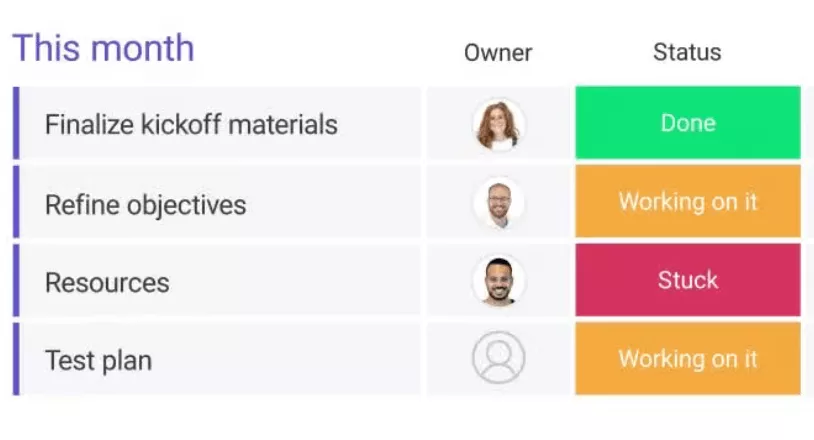
SOurce: monday.com
Pros
- A clear user interface that makes it easy to see task status and ownership at a glance.
- Flexible boards and columns that can match different teams without forcing one workflow.
- Strong team collaboration through item updates, file context, and quick handoffs that support team collaboration.
- Dashboards that reduce the need for spreadsheet reporting once boards are structured well.
Cons
- Automation rules can feel limiting when you need more advanced if-then logic.
- Setup takes effort, and boards can get messy without shared conventions.
- Exports and sharing, especially PDF exports and guest access, can be frustrating.
- Some advanced capabilities are plan-gated, which can limit how far you can take timesheets and automation.
Final Verdict
Monday is a bad fit if your current setup relies on strict workflow rules and you need reporting that stays clean without someone constantly maintaining boards. It works best for teams that want a “see it at a glance” feel and are willing to enforce a simple board structure so the system does not drift.
4. Teamwork – Best for Client Services Teams Managing Multiple Accounts
Teamwork.com is a like-for-like option for Customer Service and client services teams that need project management software with built-in billable time tracking. It can feel heavier than it looks at first if your project management is fairly lightweight today, and some users report reliability issues and missing integrations that can slow down day-to-day delivery.
Key Features
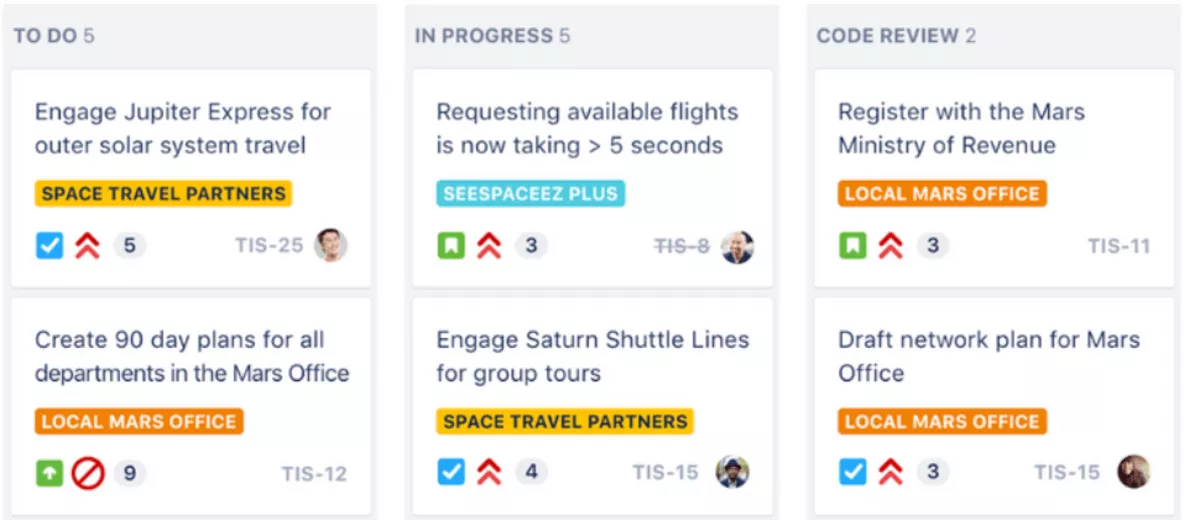
- Task lists and a board view for Kanban boards, plus milestones and dependencies for client project planning
- Time tracking with timers, timesheets, and time approvals
- Client users with customizable access and permissions
- Project dashboards and reporting views for progress and time
SOurce: teamwork
Pros
- Timesheets are easy to keep up with, especially when people can start and stop timers from their work.
- Strong structure for client project planning, with tasks, dependencies, and clear ownership.
- Helpful workload and resource management features for planning across multiple active projects.
- Client collaboration options that let you share project context without giving away full control.
Cons
- Glitches and occasional downtime can interrupt the core workflows, including comments and updates.
- Email and inbox-based workflows can feel clunky if you rely on tight email integration.
- Some advanced features take time to discover, and the product can require more clicks than lighter tools for simple updates.
- Reporting customization can feel limiting when different stakeholders want different views.
Final Verdict
Teamwork.com will frustrate you if you need a lightweight hub and you cannot afford interruptions like glitches or missing email integration in your daily workflow. It is a better match when you need a client-first system with timesheets, workload visibility, and controlled client access.
5. Wrike – Best for Structured Workflows and Cross-Team Delivery
Wrike is a strong pick if you have outgrown lightweight work management and need more structured project management software across departments. It can feel heavy to roll out because setup, navigation, and notifications take ongoing attention.
Key Features
- Request forms and a request form builder that can create tasks or projects from intake
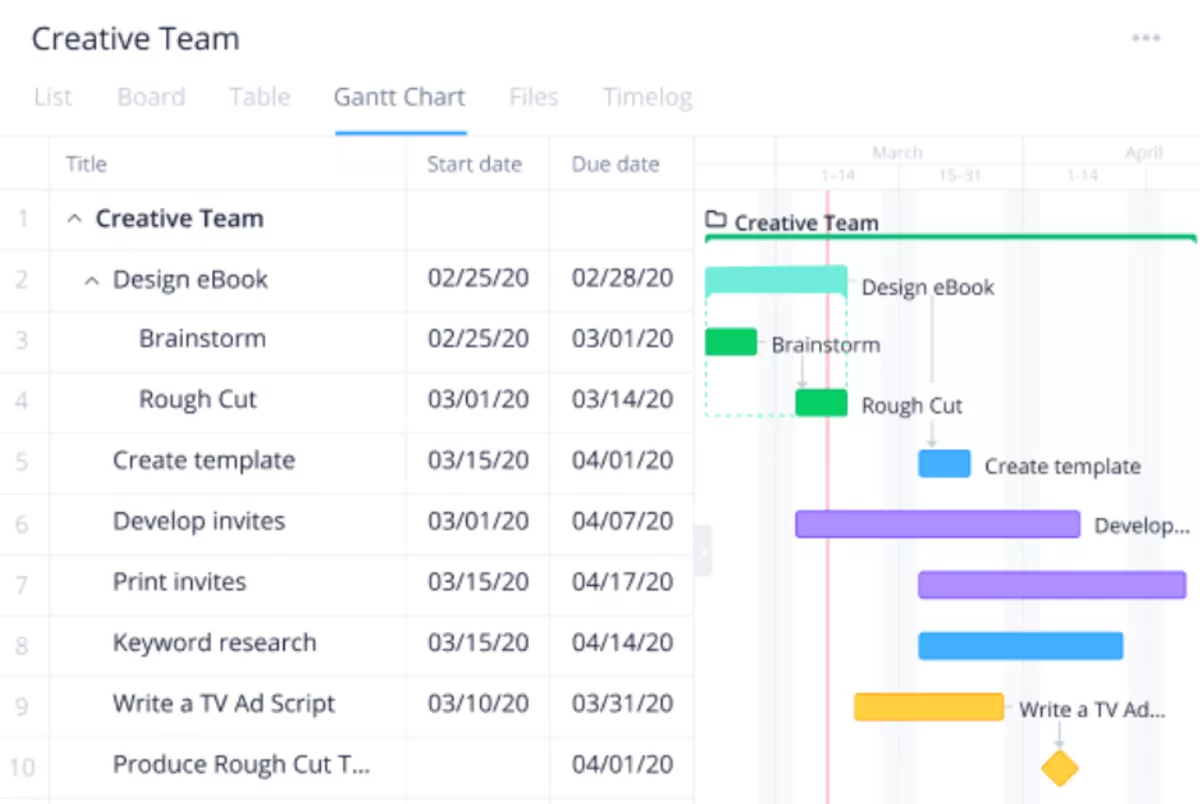
- Gantt charts for planning timelines and dependencies
- Workload charts for effort allocation and capacity planning
- Time tracking with timers and manual time logs, plus project dashboards for visibility
SOurce: wrike
Pros
- Strong structure for complex workflows, with custom fields and configurable processes.
- Clear visibility through views like Gantt charts and dashboards when you manage many moving parts.
- Request forms make intake more consistent, so work starts with the right context instead of back-and-forth.
- Solid task organization for cross-team delivery once roles and conventions are agreed.
Cons
- A steep learning curve for new users, especially if the workspace is heavily customized.
- Setup and workflow customization can be time-consuming before the system feels “right.”
- Performance issues and view limitations can frustrate teams that expect instant navigation.
- Notifications can get noisy, which makes it easier to miss important updates.
Final Verdict
Wrike will feel like overkill if simplicity was the main reason you liked your current tool, and nobody on the team wants to own the configuration and cleanup. It is a better fit when you want a workflow builder-style setup, and you are willing to invest time upfront to make structured delivery stick.
6. Paymo – Best for Small Teams That Want Straightforward Project Tracking With Timers
If you’re considering Paymo, it’s worth scanning our list of Paymo alternatives to make sure you’re not missing a better fit for how you bill and deliver work.
Paymo can work as a lightweight project management tool when your main need is straightforward timesheets tied to invoicing, but it can feel limiting once you need deeper collaboration workflows, stronger integrations, or heavier reporting.
Key Features
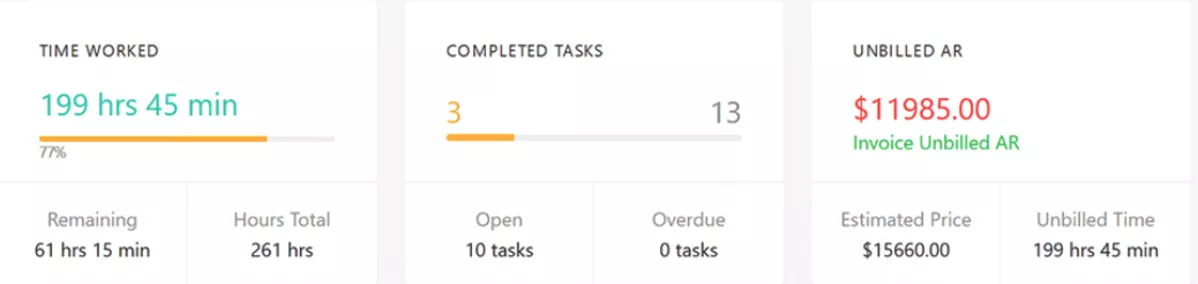
- Task lists and project planning with multiple views, including Gantt
- Timers, timesheets, and manual time logs
- Invoicing that can pull billable time entries into invoices
- Team scheduling and resource scheduling views for basic capacity planning
SOurce: paymo
Pros
- Tight link between timesheets and invoicing, which reduces missed billable work.
- Simple day-to-day time entry, so small teams can keep timesheets consistent.
- A clean user interface that is easy to navigate once projects and clients are set up.
- One tool for tasks, time, and billing, which can replace a small Awork stack for client work.
Cons
- Integration and sync issues can show up, especially when teams expect calendar and messaging workflows to be reliable.
- Export and reporting limitations can be frustrating for teams that live in spreadsheets.
- Some workflows feel shallow when you need more collaboration depth or custom processes.
- A few sharp edges, like limited recovery options for certain actions, can be painful if your team moves fast.
Final Verdict
Paymo is not for teams replacing their current tool because they need more cross-team coordination, deeper collaboration, and richer reporting across lots of parallel projects. It is a solid fit for small client-service teams that want straightforward task management with timesheets and invoicing tied together.
Why Are People Looking for Awork Alternatives?
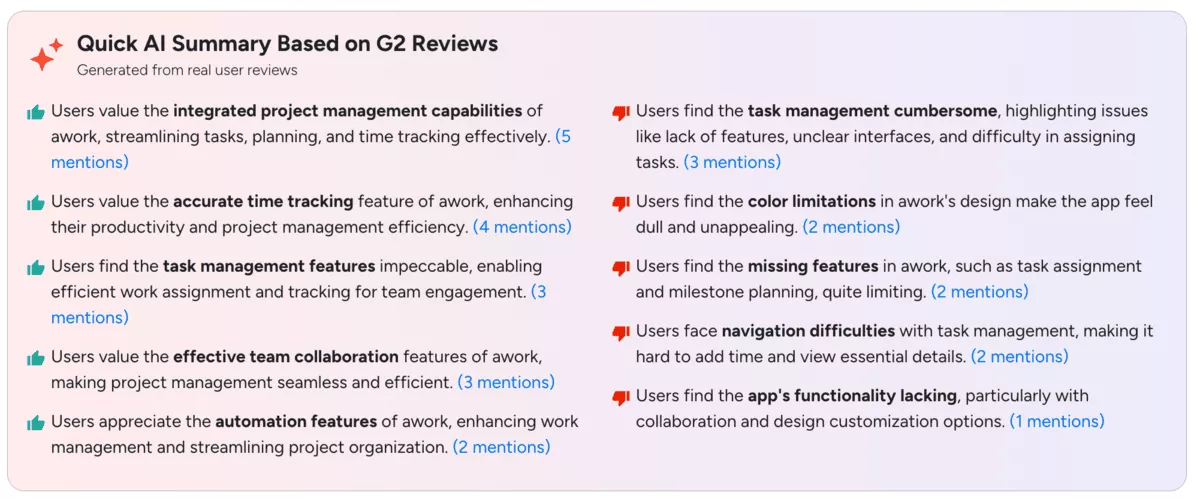
People look for alternatives because of friction points like adding time to tasks can be hard to find, teams miss basics like tagging teammates and priority labels, milestone planning is limited, timeline or stack views can become hard to read, and client collaboration can require setting a client up as a user just to work together.
If budget control is part of why you are switching, look for tools that surface budget burn without exports.
Common Reasons Mentioned in Reviews
- Logging time can feel awkward, like having to hunt for the right place to add time to a task.
- Collaboration can feel limited, for example, when teams cannot tag teammates in comments.
- Planning and milestone work can feel thin, especially if you want to group work into milestones.
- Timeline and planner views can get cluttered, which makes it harder to spot what is actually urgent.
- Client collaboration can be inconvenient if the tool pushes you toward creating the client as a user just to collaborate.
If invoicing is one of the reasons you are switching, this comparison of the best time billing software can help you shortlist options.
SOurce: Awork G2 Review
How to Choose an Awork Alternative? (Step-by-Step Selection Process)
Choose an Awork alternative by piloting two or three project management software options with real work, then picking the one that keeps your team consistent on tasks and timesheets without adding admin overhead in your project management process.
If time entries are inconsistent today, this guide on how to track billable hours breaks down the habits and checks that keep billing clean.
Step 1: Write Down What Your Current Tool Runs for You
List the workflows you actually use weekly, like task management, timesheets, basic planning, and workload visibility. “Done” looks like a one-page checklist your team agrees on, not a vague wish list. Write down the problems of these workflow must-haves in your current tool.
Step 2: Decide What Must Be Native, and What Can Be a Workaround
For most teams, switching tools, timesheets, and workload visibility are the first dealbreakers. If you do capacity planning, decide how far ahead you need to see overallocation and gaps.
Be explicit about whether you need resource planning (who is available next month) and resource scheduling (who is booked this week), or just one of them.
Step 3: Shortlist 2–3 Tools That Match How Your Team Works
If your team lives in Kanban boards and quick status updates, pick tools that keep Kanban boards readable and feel fast to scan. If your work depends on timelines and dependencies, include a tool with solid Gantt charts. “Done” looks like two or three candidates, plus an owner for each pilot.
Step 4: Run a Pilot With One Real Client Project
Create the project, import or recreate tasks, assign owners, and have the team log time for one week. If you do not get real-time entries, you did not run a real pilot. Ask your team members additional questions about how they tracked time and work, and if the whole process was smoother. Recreate generating reports with their entries and exporting them to clients.
Step 5: Test Visibility, Not Just Features
Build one view that answers “what is late,” one that answers “who is overloaded,” and one that answers “how much time did we spend.” Add one simple capacity planning view so you can spot overload before it hits delivery. If the tool cannot give you those answers quickly, it will not replace your current workflow cleanly. “Done” looks like a small set of project dashboards or reports you can share with stakeholders.
Step 6: Check Your Must-Have Integrations and Reporting Flow
Write down the tools you cannot live without, then validate connectors or automations. If you have formal security standards, ask for evidence like ISO 27001 and confirm hosting expectations up front. For lightweight automation, confirm whether Zapier integrations cover the triggers you need. For analytics-heavy teams, test a simple export to Power BI so you know you can keep your reporting stack.
Step 7: Use Reviews to Confirm the Dealbreakers, Then Validate Them in Your Pilot
Read recent negative reviews on G2 and Capterra for your finalists and look for repeated complaints. Then try to reproduce the issues in your pilot, like slow navigation, noisy notifications, or reporting limits. “Done” looks like a short decision note that names what you are accepting, and why.
If you are deciding between open source project management software and a hosted tool, treat open source as a hard requirement and shortlist only open source options first, then re-run the same pilot so you do not trade one set of workarounds for another.
If you are looking at planning-first tools, treat them as project planning software and confirm how you will handle day-to-day task management and timesheets.
How to Migrate From Awork?
Migrate by exporting your core structure and history, rebuilding a minimum setup in the new tool, and running a short pilot before you move the whole team. Treat Time tracking as data you need to preserve, so that billing and reporting still reconcile.
If expenses are part of what you bill, this guide to project expense tracking can help you decide what to capture and how to keep it consistent after the move.
Awork Migration Checklist
- Create a shared migration folder and a mapping sheet (statuses, fields, tags, users, clients).
- Export projects, tasks, and Time tracking history (time entries and timesheets) from the old tool.
- Rebuild one core project management workflow, including statuses, ownership rules, and Kanban boards for the pilot project.
- Create one set of project dashboards that show what’s late, what’s in progress, and who is overloaded for capacity planning.
- Run a two-week pilot on one real project, require daily time entry, and confirm the user interface is clear for contributors.
- Migrate remaining active projects in batches, freeze edits at cutover, then do a final reconciliation of logged hours and key reports.
If budget overruns are the main trigger for switching, this guide to project budget management shows a simple way to stay ahead of burn.
Closing Thoughts: Are These Alternatives Worth the Switch?
Yes, these alternatives are worth the switch if you are spending more time working around the tool than doing the work. A good replacement should make it easier to keep tasks updated, log time without friction, and spot workload problems before they turn into missed deadlines.
Your next step is simple: pick two tools from the shortlist, run a two-week pilot on a real project, and choose the one your team will actually use every day.
If you want to play it smart, you should definitely pick an alternative that keeps delivery, operations and finance tied in a single source.
Book a quick productive demo and start today.
Connect With Agency Peers
Access agency-related Slack channels, exchange business insights, and join in on members-only live sessions.
