Top 10 AI Notetakers (Paid & Free) Reviewed + Choosing Guide

The best AI note takers in 2026 are Fathom, Fireflies.ai, Otter.ai, tl;dv, Granola, Tactiq, Krisp, Avoma, and Notta. They do not all solve the same problem.
Some are really AI transcription tools that hand you a transcript and a summary. Others shine on sales calls, remote meetings, noisy audio, or multilingual notes.
We included Productive because it does more than record and transcribe. It has a built-in AI note taker that connects what was said to the work that follows.
What Are the Best AI Note Takers in 2026?
The best AI note takers in 2026 are Fathom, Fireflies.ai, Otter.ai, tl;dv, Granola, Tactiq, Krisp, Avoma, and Notta. They do not all solve the same problem. Some are really AI transcription tools that hand you a transcript and a summary.
Others shine on sales calls, remote meetings, noisy audio, or multilingual notes.
We included Productive because it does more than record and transcribe. It has a built-in AI note taker that connects what was said to the work that follows.
Shortlist of the Best AI Tools for Taking Meeting Notes
Comparison Table (What Buyers Want to Know)
| Tool | Best for | Call type fit | Free version | Recording style | Post-meeting workflow strenght | Skip if |
|---|---|---|---|---|---|---|
| Productive | Agencies and professional services teams | Client calls, project meetings, delivery follow-ups | Included in Productive platform | Platform-based note taker | Strong for turning call notes into project context and follow-up work | You only need a lightweight standalone transcript tool |
| Fathom | Solo users and customer calls | Sales calls, customer calls, internal meetings | Yes | Bot | Strong for quick summaries and call review | You need notes connected directly to project delivery |
| Fireflies.ai | Searchable team meeting knowledge | Recurring team calls, customer calls, knowledge sharing | Yes | Bot | Strong for searchable notes and shared meeting history | You do not want another meeting archive to manage |
| Otter.ai | Live transcript and interviews | Interviews, lectures, team meetings, live note review | Yes | Bot and live transcript workflow | Strong for real-time transcription and collaborative notes | You care more about task follow-through than live transcripts |
| tl;dv | Remote teams | Zoom, Google Meet, and Microsoft Teams calls | Yes | Bot | Strong for async meeting review and shared recordings | You need meeting outputs tied to delivery workflows |
| Granola | Bot-free call notes | Private calls, executive meetings, founder workflows | Yes | Bot-free | Strong for low-friction personal notes | You need a visible shared meeting archive for the whole team |
| Tactiq | Browser-based call notes | Google Meet, Zoom, and Microsoft Teams meetings | Yes | Browser-based | Strong for fast transcript capture and lightweight summaries | You need deeper admin controls or project workflow support |
| Krisp | Noisy calls and remote meetings | Remote calls, support calls, meetings with poor audio | Yes | Bot-free audio and notes workflow | Strong when audio quality affects note quality | You already have clean audio and need deeper meeting intelligence |
| Avoma | Revenue teams | Sales calls, customer success calls, demos | Free trial | Meeting assistant | Strong for sales follow-ups and deal context | You need a general team note taker, not a revenue workflow tool |
| Notta | Multilingual meetings | International meetings, interviews, transcription-heavy calls | Yes | Meeting transcription and notes workflow | Strong for multilingual transcription and searchable notes | You need project tasks and delivery follow-through after the meeting |
How We Chose These Tools
We chose these tools to cover different meeting workflows, not to create a list of tools that all do the same thing.
We also separated true AI meeting tools from general note-taking apps, hardware devices, generic transcription platforms, and videoconference transcribers that do not support the full note-to-follow-up workflow.
1. Productive – Best for Agencies and Professional Services Teams
Productive is a project management platform for agencies and professional services teams. Its AI Notetaker is available on the Essential, Professional, and Ultimate plans. You get ten hours of recording per month per organization. An admin has to switch on Productive AI first. Like any AI notes, the output is a draft to review before you act.
The reason it is on this list is simple. The meeting ends up next to the project it belongs to, not in a transcript library nobody reopens.
Make AI meeting notes with Productive
Get the Notes Without Playing Scribe
You cannot run a client call and capture every word at the same time. Productive’s Notetaker joins your Zoom, Google Meet, Microsoft Teams, or Webex call as a participant and records it for you.
There are two ways to bring it in. Toggle it on for a meeting in your connected calendar, or paste a meeting link to catch an ad-hoc call. The bot joins a few minutes early and announces that the call is being transcribed. After the call, you get a recording, transcript, and AI notes.
That is how Productive turns a call into notes, start to finish.
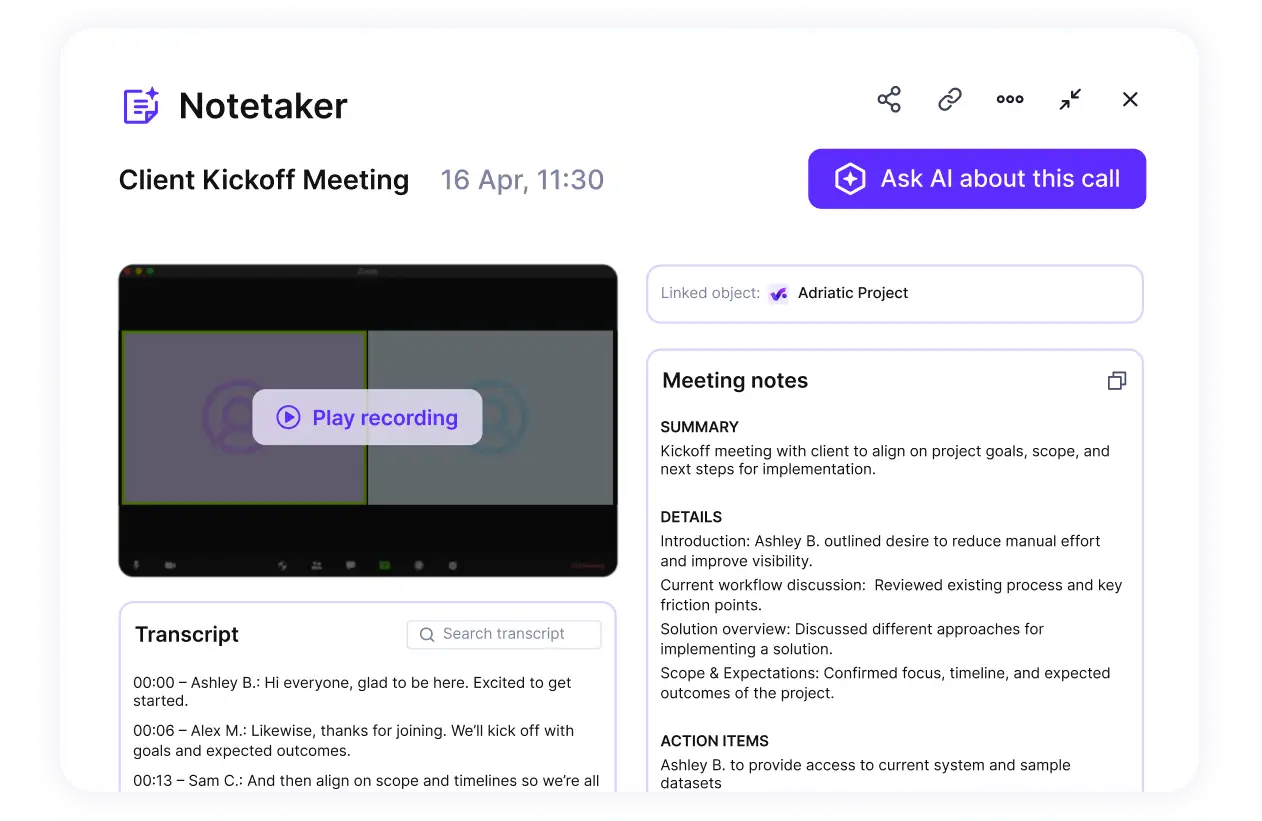
Use Productive’s notetaker to turn calls into notes.
Check Exactly What Was Said
A summary is not always enough. The transcript is timestamped, labeled by speaker, and searchable by keyword. You can also ask the AI Assistant a question about the call and get a direct answer. The assistant is part of the AI layer that runs across the platform. Notes come back in the language the meeting was held in, with English the most reliable.
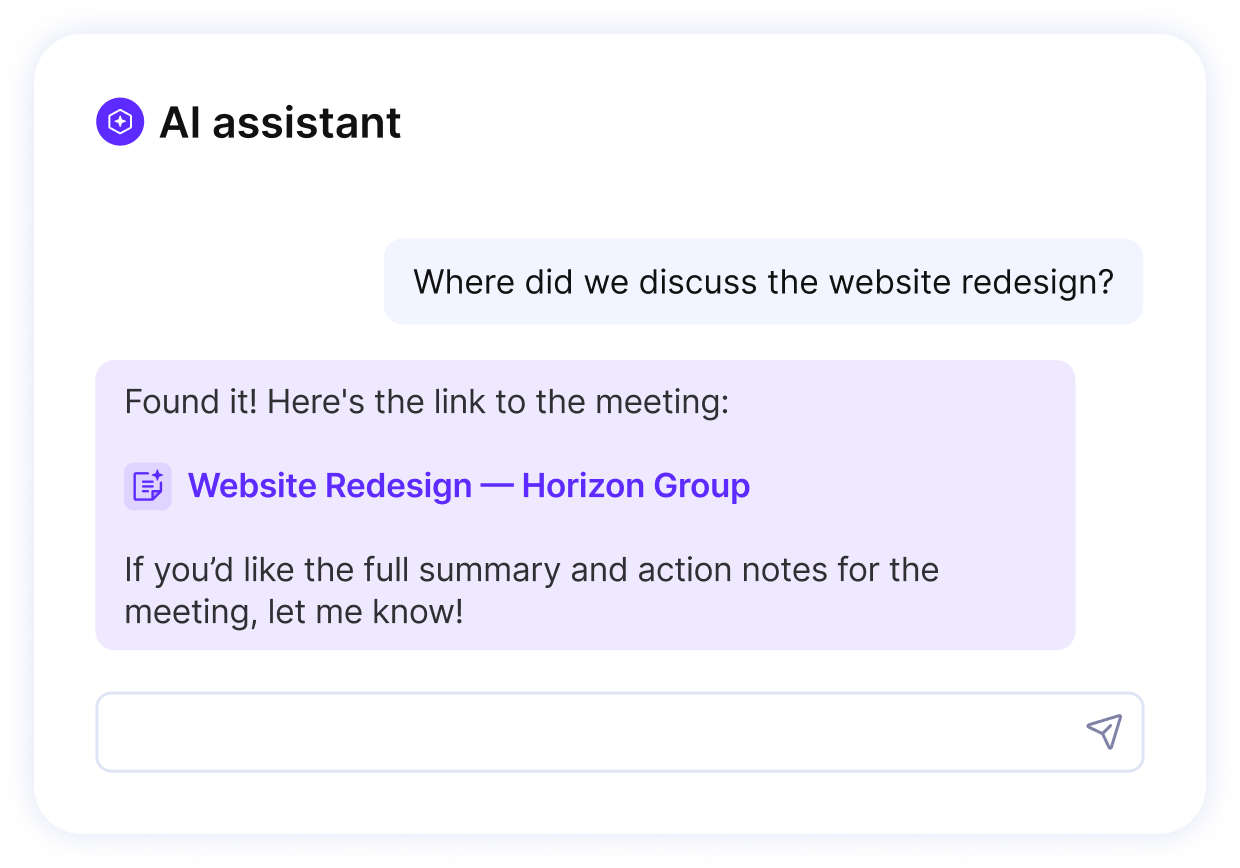
Fetch details from any conversation with Productive’s AI assistants.
Keep the Meeting Next to the Work It Belongs To
A recording in a separate app is easy to lose. Every meeting is saved in Productive, and you can link it to a project or deal. It then shows up in that project’s or deal’s own Meetings tab, where the team already works. Even an unlinked call stays in the Recorded list, so nothing goes missing.
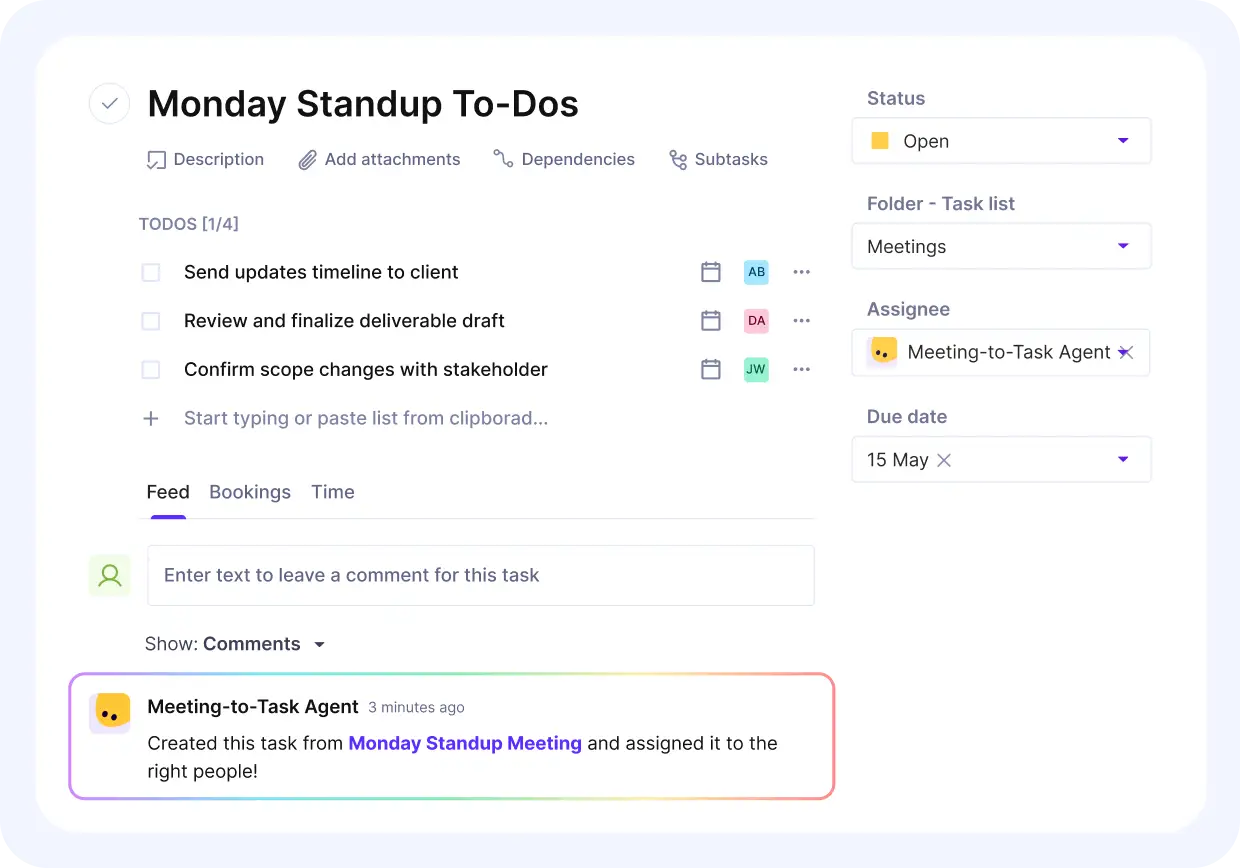
Add meetings to specific projects or clients.
Turn the Talk Into Next Steps
The useful part of a call is what happens next. The notes give you a summary, key takeaways, and Action Points, the follow-up items pulled from the conversation. From there you can turn action points into tasks and to-dos in Productive, so follow-up starts where the work lives. You edit anything the AI missed before it becomes the record. This is where AI starts doing the work, not just noting it.
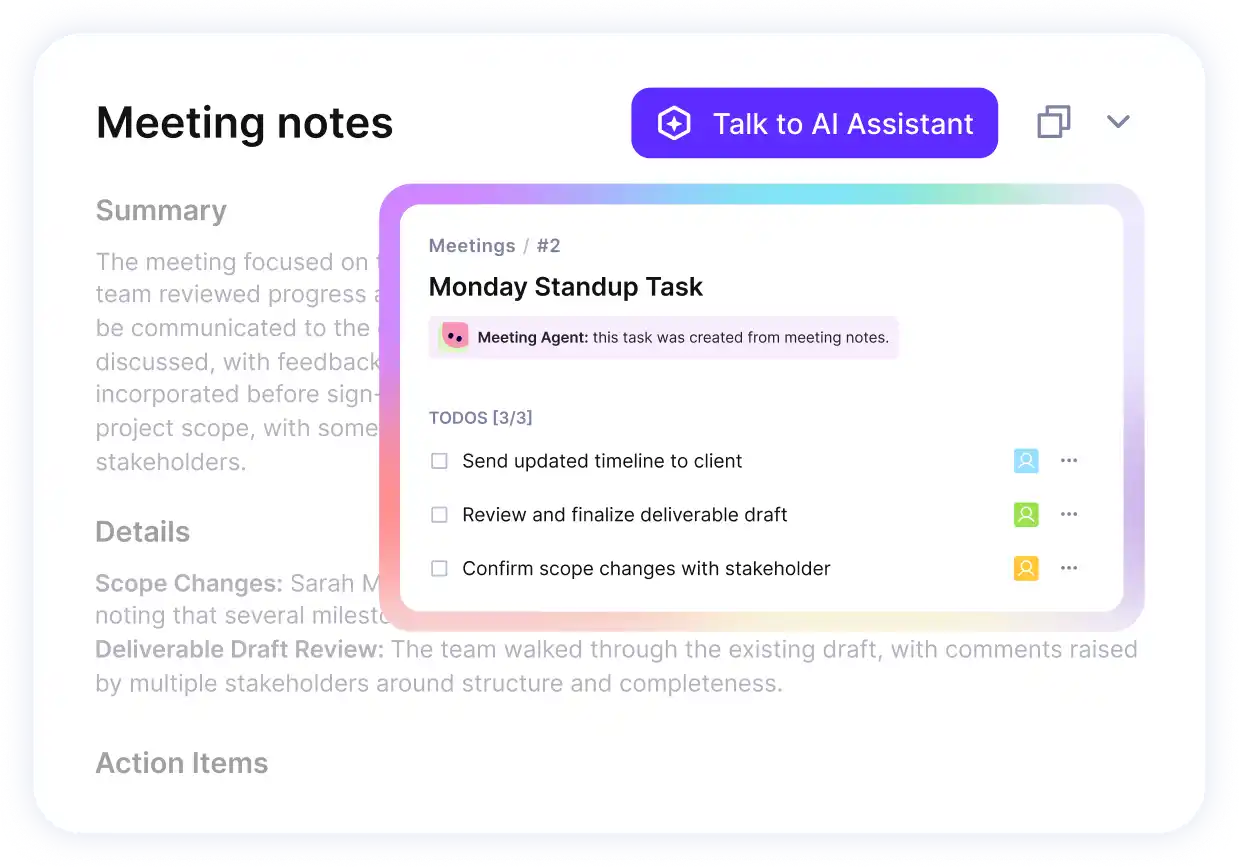
Turn meeting notes into actionable tasks.
Decide What Gets Recorded and Who Sees It
Client calls and internal calls do not need the same exposure. The Notetaker is off by default, so you choose which meetings it joins. You can keep the full recording or just the notes, and keep it private or share it.
You also control how the bot shows up. Set its display name and the message it posts when it joins. You can cancel before the meeting starts, though once the call is live the recording cannot be stopped.
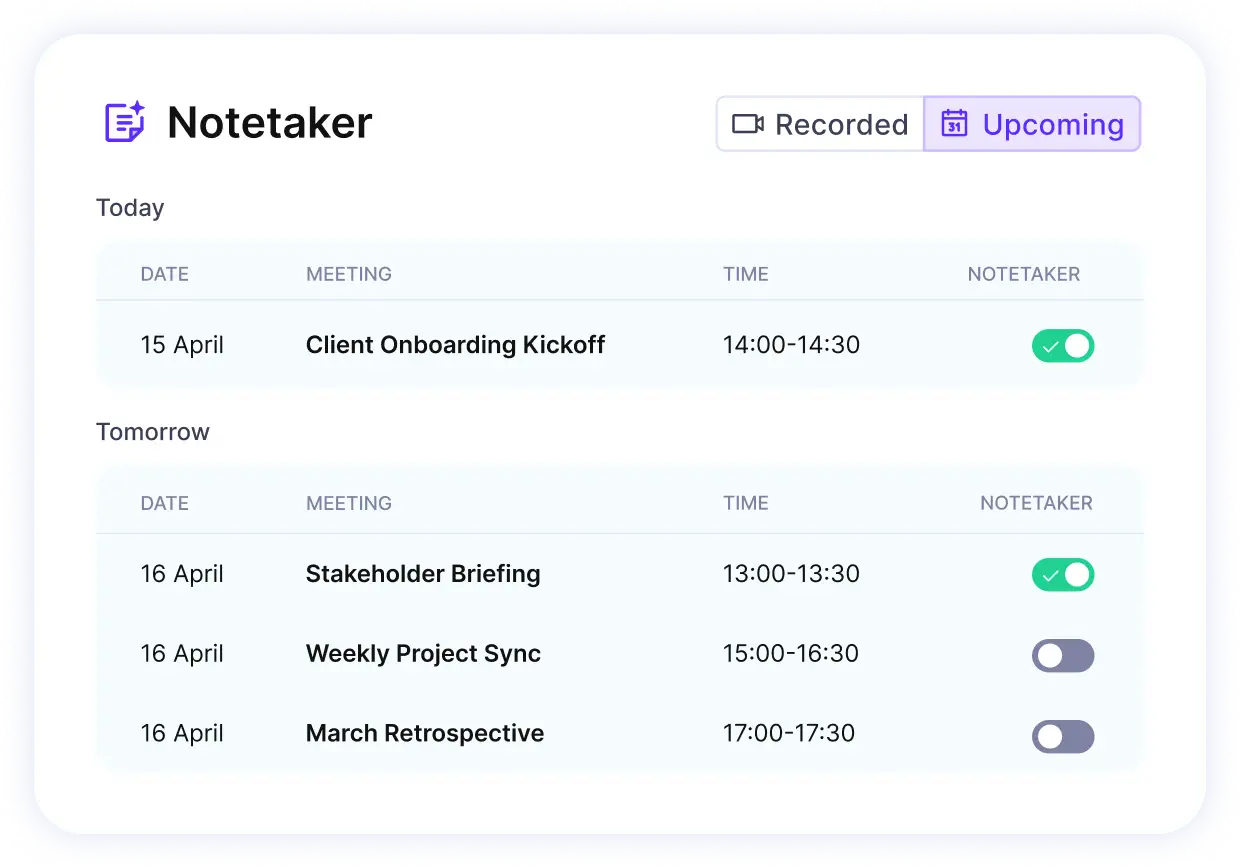
Decide which meetings get recorded and schedule the notetaker ahead.
Pricing
- Plans start with the Essential plan at $10 per user per month, which includes essential features such as budgeting, project & task management, docs, time tracking, expense management, reporting, and time off management.
- The Professional plan includes custom fields, recurring budgets, advanced reports, billable time approvals, and much more for $25 per user per month.
- The Ultimate plan has everything that the Essential plan and Professional plan offer, along with the HubSpot integration, advanced forecasting, advanced custom fields, overhead calculations, and more. Book a demo or reach out to our team for the monthly price per user.
You can also try out Productive with a 14-day free trial.
Manage Every Meeting From Note to Delivery With Productive
Switch from a standalone notetaker to an all-in-one platform for meeting notes, tasks, budgets, and reporting.

2. Fathom – Best Free AI Note Taker for Solo Users and Customer Calls
Fathom is the best free pick if you mostly need calls recorded, summarized, and easy to review later. It suits solo users, consultants, sales reps, and customer-facing teams. The catch is what comes next. Fathom captures the call, but it will not push the follow-up into your project work.
Key Features
- Records calls and generates AI summaries.
- Searchable notes after every call.
- Bot-based or bot-free capture.
- Summary templates for sales calls, customer success, one-on-ones, kick-offs, interviews, and retrospectives.
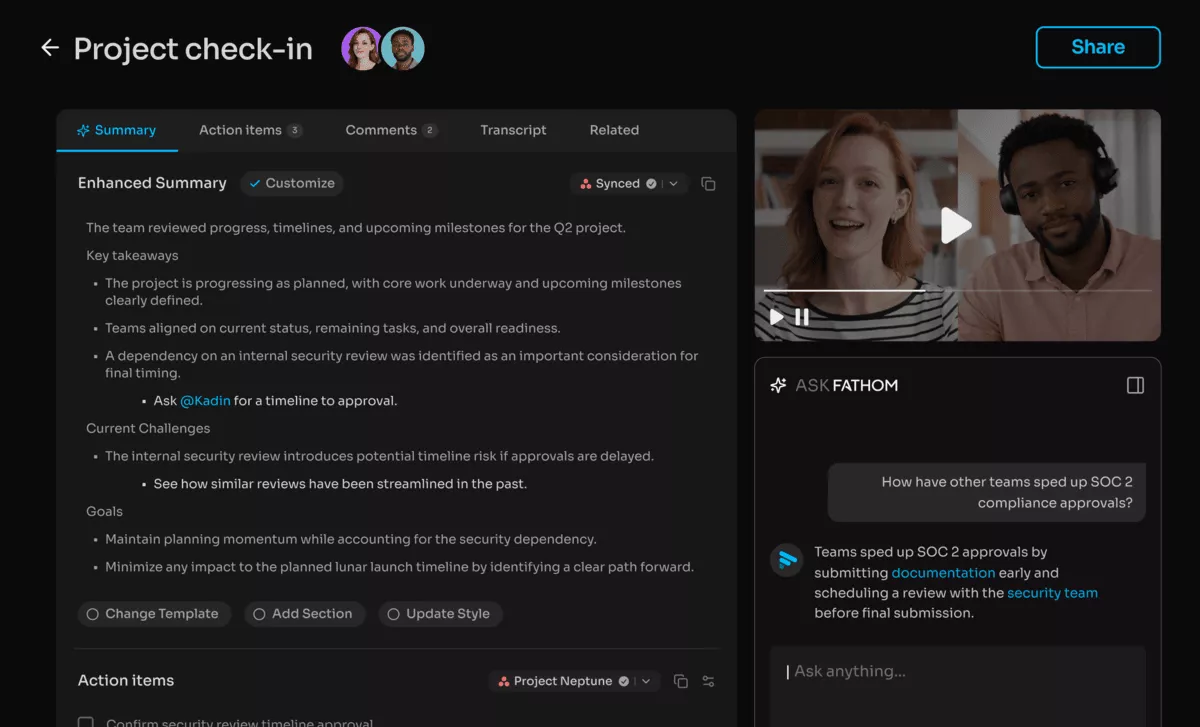
SOurce: fathom
Pros
- You get a dependable record of every call without splitting attention between talking and taking notes.
- After a client call, the summary is worth keeping. It lays the discussion out as a clear set of next steps.
- When a call produces a handful of action items, they are easy to find again afterward.
- The free plan lets a solo user or small team start without a long buying process.
Cons
- Detailed or technical calls still need a human read when client nuance or exact wording matters.
- Transcript accuracy slips with strong accents, unusual terms, or messy audio.
- Parts of the workflow feel rough, from notifications to getting the bot into a meeting.
- It captures the call, but you still need another tool to assign tasks, track delivery, and chase client follow-up.
Final Verdict
Pick Fathom when you want a free, low-effort recorder for sales calls, consulting calls, interviews, and customer conversations. It is a weaker fit once the real problem is assigning follow-up across projects. Task ownership, delivery updates, and client tracking all have to live somewhere else.
3. Fireflies.ai – Best AI Note Taker for Searchable Team Knowledge
Fireflies.ai is the one to reach for when a team needs its calls to stay findable long after they happen. Recurring meetings pile up context fast, and Fireflies turns that into a searchable archive the team can dig through. It is built for shared knowledge, not quick personal notes.
Key Features
- AI bot that records, transcribes, and summarizes calls.
- Chrome extension for capturing Google Meet calls.
- Summaries with action items and custom notes.
- Search across meetings, plus AskFred for questions.
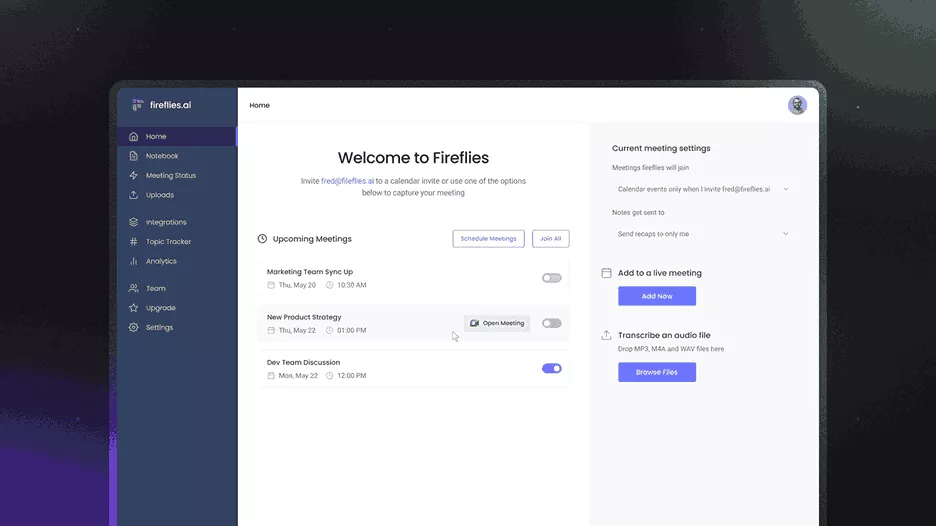
SOurce: fireflies.ai
Pros
- Old conversations stop disappearing, since every call feeds searchable knowledge the team can reuse.
- A manager who missed a client call can read what happened instead of asking for a recap.
- Follow-up is easier to track because summaries pull action items out of the full transcript.
- Shared transcripts and clipped moments let teammates catch up without replaying the whole call.
Cons
- Transcripts still need a read when a wrong word changes what was actually said.
- The bot can feel intrusive, whether it is how it joins or how it behaves in chat.
- AI credits and billing take some admin attention as more of the team starts using it.
- Permissions need thought up front, since some notes should be open and others kept tight.
Final Verdict
Fireflies.ai earns its place when your team keeps going back to old calls for decisions and context. If you just want a quick personal recorder, it will feel like more than you need. The same goes if you would rather manage follow-up inside your delivery system.
4. Otter.ai – Best for Live Transcription, Interviews, and Real-Time Capture
Otter.ai is at its best when the transcript is the point, not a by-product. Think interviews, lectures, research calls, or any conversation where you will need the exact wording later. It leans into live capture and worries less about what happens to the notes afterward.
Key Features
- Real-time transcription as the call happens.
- Live AI chat during the meeting.
- Automated summaries.
- Action items and meeting insights.
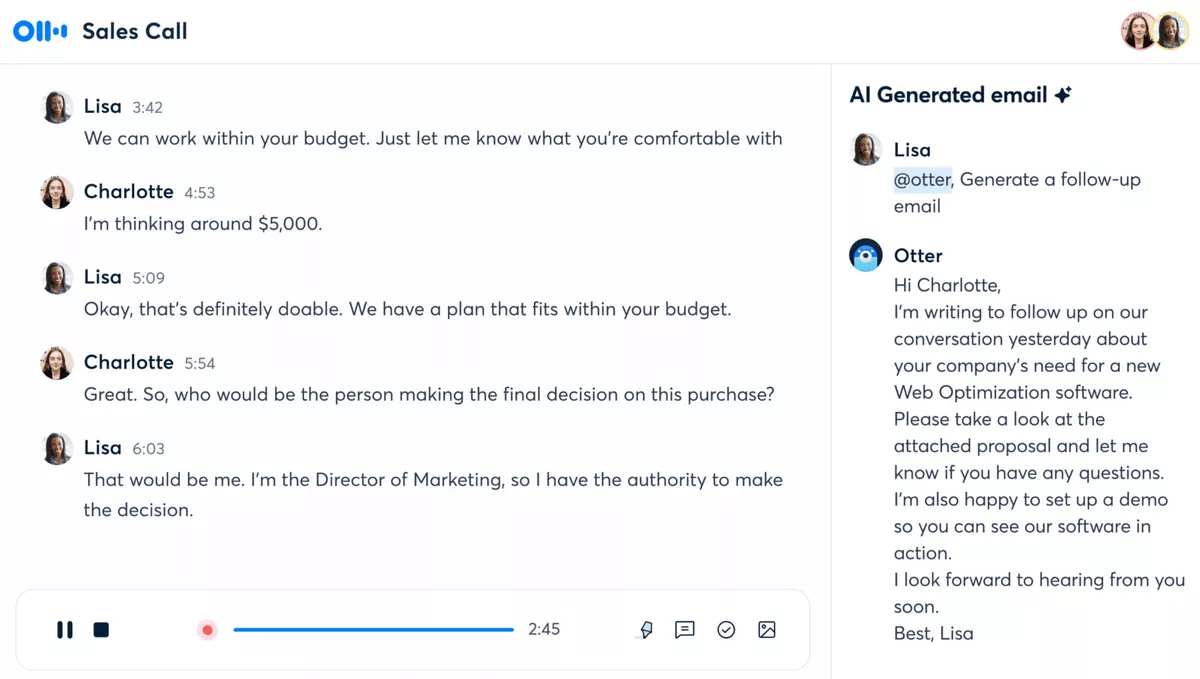
SOurce: otter.ai
Pros
- A live transcript lets people follow along without scribbling notes.
- Search and sharing make it easy to go back to a past discussion with the team.
- It handles interviews and group calls well, where you later need to check quotes, decisions, and who said what.
- Custom vocabulary cuts cleanup when a team uses its own jargon, names, or repeated terms.
Cons
- Transcripts still need a pass, since a missed or wrong word can shift the meaning.
- Speaker labels often need manual fixing on group calls.
- Auto-join can catch people off guard when they did not expect a recorder.
- Otter captures what was said, but task ownership and client updates still live somewhere else.
Final Verdict
Put Otter.ai on the list when live capture, interviews, or searchable notes matter more than what happens after the meeting. The job changes once you need action items turned into tasks and client follow-up visible in one place. There, Otter needs help from other tools.
5. tl;dv – Best AI Note Taker for Remote Teams That Want a Free-Friendly Recorder
tl;dv is the easy call for remote teams living in Zoom, Google Meet, or Microsoft Teams. It records those online calls, turns them into summaries and transcripts, and makes old conversations easy to pull back up. The free plan is the draw, so it is a low-risk place to start.
Key Features
- Recording for Zoom, Google Meet, and Microsoft Teams.
- AI-powered transcription.
- Call summaries and AI-generated notes.
- Multi-call summaries and workflow integrations.
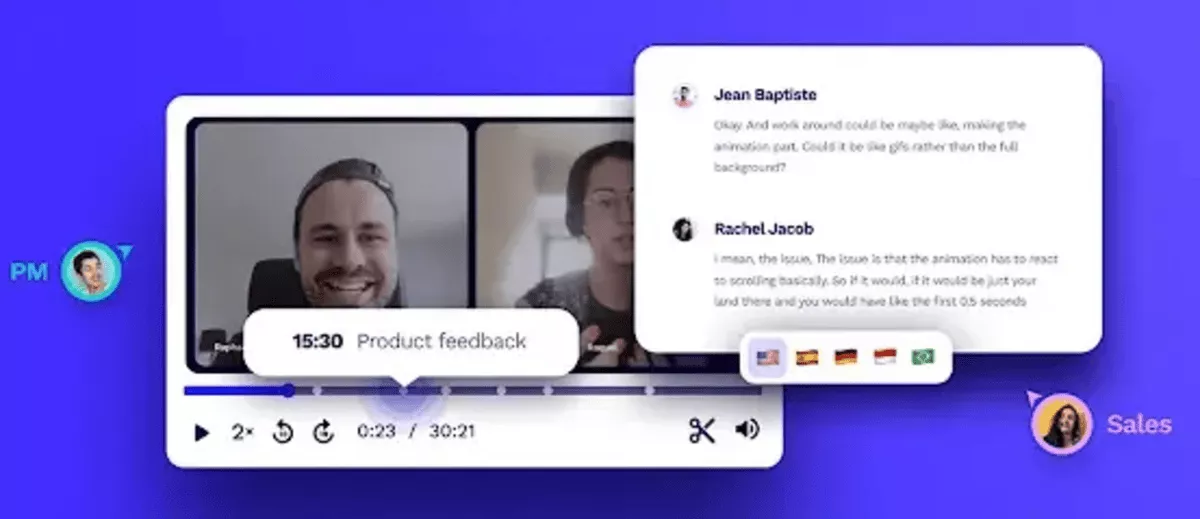
SOurce: tl;dv
Pros
- It is quick to add to recurring video calls, especially for teams already on Google Meet.
- Marking key moments makes a long call easy to skim later.
- Summaries can turn a sprawling discussion into follow-ups, dependencies, and scope notes.
- The free plan gives a remote team a real way to try recording before paying for a rollout.
Cons
- Transcripts need a look when several people talk over each other or the audio drops.
- The free plan starts to pinch once you want deeper work with transcripts.
- The visible bot can distract or feel intrusive on some calls.
- Paid plans are harder to justify for a small team that only needs basic summaries.
Final Verdict
tl;dv fits distributed teams that want a free-friendly way to record recurring video calls and keep them as searchable notes. Look elsewhere if your real problem is assigning action items into project work and keeping delivery follow-up in one place.
6. Granola – Best Bot-Free AI Note Taker for Private or Sensitive Meetings
Granola is the pick when a visible recorder would change the room. It captures notes without joining the call as a participant. That suits founders, executives, and client-facing conversations that need to stay relaxed. You get AI-cleaned notes without a bot in the meeting.
Key Features
- Bot-free audio capture.
- AI call notes.
- AI chat across your meetings.
- Shared folders and custom templates.
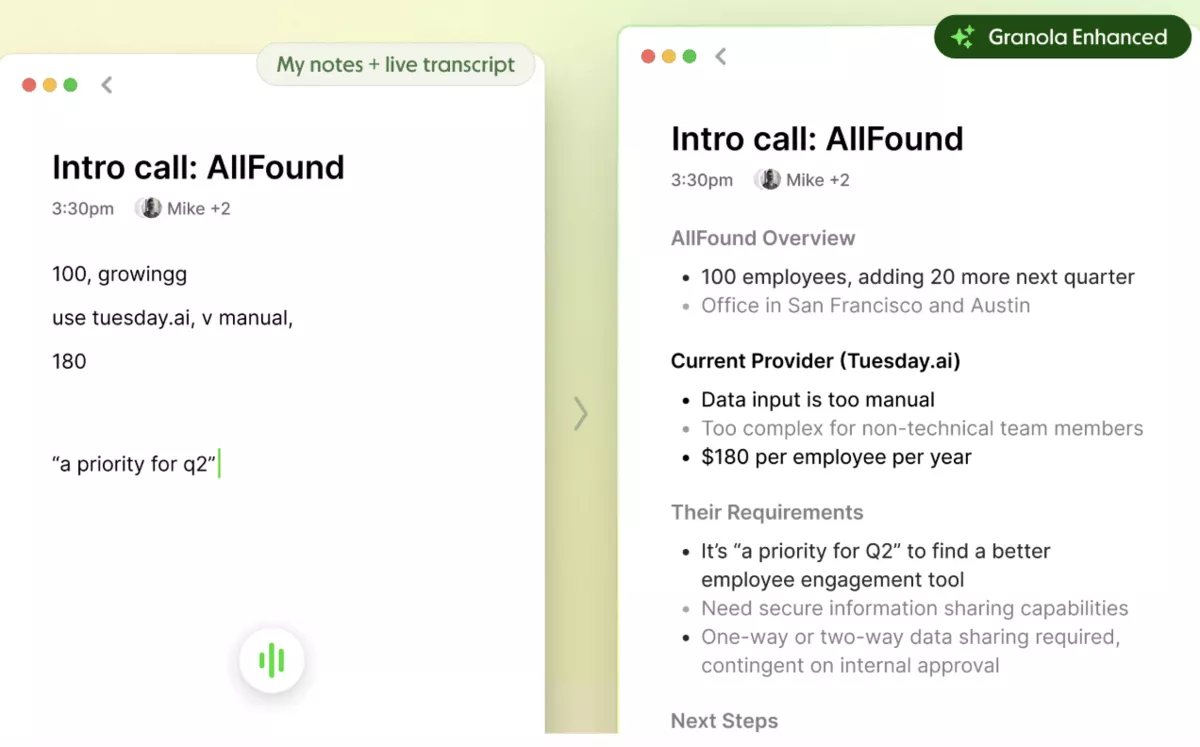
SOurce: granola
Pros
- It is easy to start, which helps when nobody wants a heavy setup.
- The notes capture next steps without turning the call into a cleanup chore.
- Going bot-free keeps the conversation feeling natural for everyone on the call.
- A single user can test it quietly before the team commits.
Cons
- Integrations are thinner than what the more established tools offer.
- AI output still needs a check when it reads the prompt or context wrong.
- Teams with multilingual calls should confirm language support before rolling it out.
- The web setup may not fit places where installing software is restricted.
Final Verdict
Granola is a strong shortlist pick when you want the notetaker to stay out of the room. You still get clean notes afterward. It is weaker for teams that need mature integrations, broader admin controls, or notes wired straight into project delivery.
7. Tactiq – Best Lightweight AI Note Taker for Browser-Based Notes
Tactiq is the lightweight option for teams that run their calls in the browser. It captures live from Google Meet, Zoom, or Microsoft Teams without putting a visible recorder on the call. You get quick notes, a live transcript, and follow-up prompts, with no heavy archive to manage on top.
Key Features
- Bot-free Chrome extension.
- Works with Google Meet, Zoom, and Microsoft Teams.
- Live transcript and AI summaries.
- Custom prompts and workflow automations.
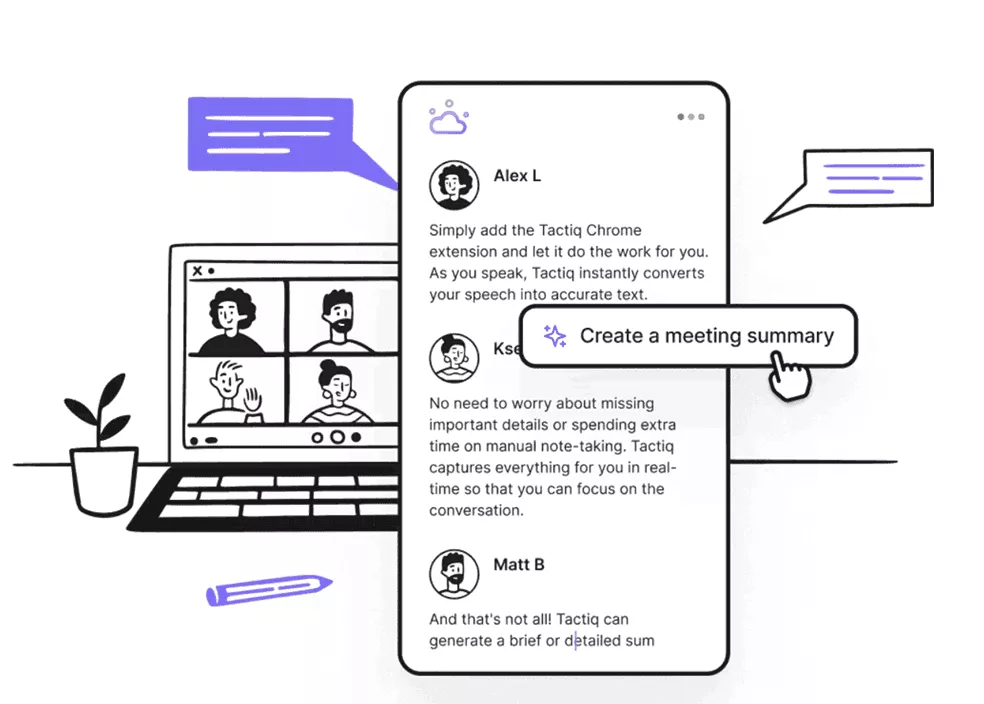
SOurce: tactiq
Pros
- Capture happens from the browser, so note-taking stays light with no separate recorder to run.
- Summaries and action items hand you a clear recap the moment a call ends.
- Transcript search finds the exact moment you need without replaying the whole call.
- The Chrome extension fits teams that already run most calls in the browser.
Cons
- Free-plan limits show up once you want more transcripts, summaries, or AI credits.
- Transcript quality needs a check with accents, rough audio, or non-native speech.
- The browser-first approach is limiting for teams that lean on desktop meeting apps.
- Some people hit friction with account management, disconnects, or the interface during setup.
Final Verdict
Tactiq is a practical pick for quick browser capture, searchable call text, and light follow-up. It is not the right fit if you need mature admin controls or deep task ownership. It also misses the mark if you want notes tied straight to delivery work.
8. Krisp – Best AI Note Taker for Noisy Calls and Remote Meetings
Krisp starts one step before the notes, with the audio itself. Bad sound makes every transcript, summary, and recap worse, so Krisp cleans the call first. It fits remote workers, support teams, and anyone whose calls are loud before they are anything else.
Key Features
- Noise cancellation.
- Call transcription.
- AI call notes and summaries.
- Accent conversion.
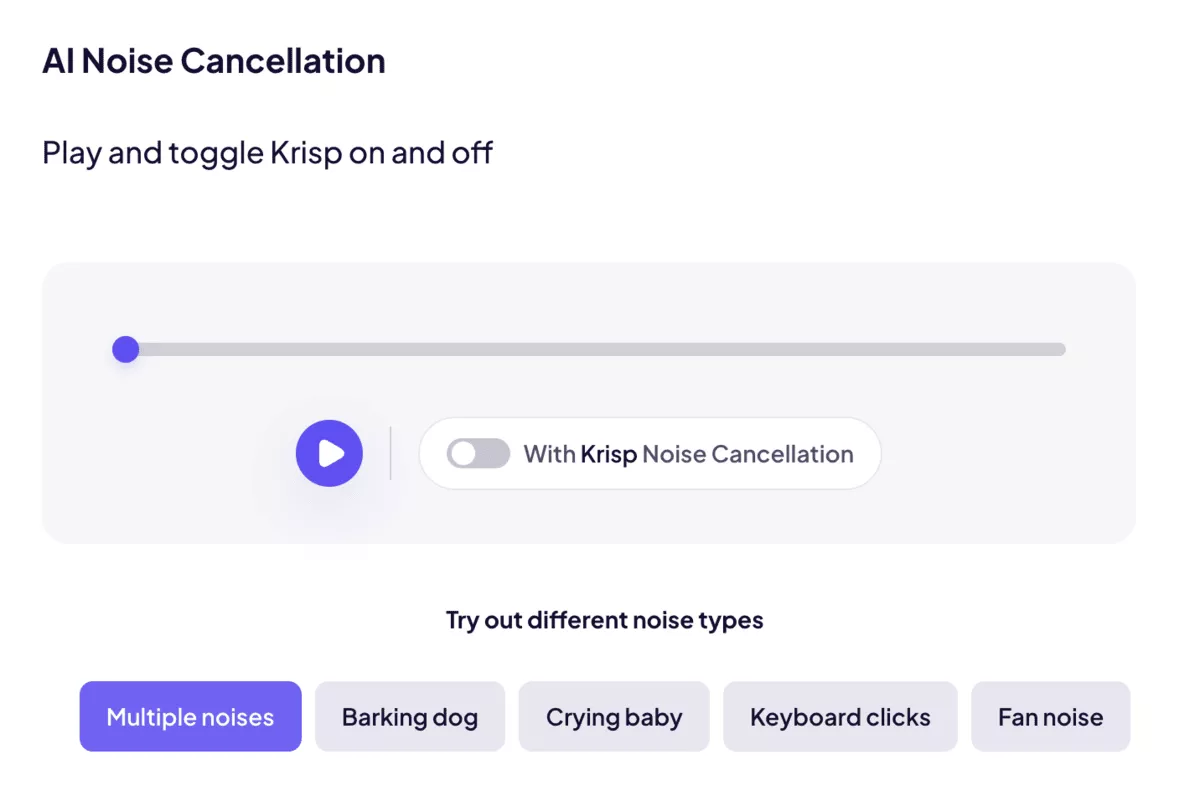
SOurce: krisp
Pros
- It earns its keep when background noise would otherwise swallow half the call.
- Customer-facing people sound clearer without a perfect home office or studio.
- Notes get better because transcription and summaries sit on top of cleaner audio.
- Transcripts help when accents or call quality make parts of the conversation hard to follow.
Cons
- It is less compelling if your audio is already clean and you mainly need better-organized notes.
- The app could give clearer signals when it stops working mid-call.
- Language detection and transcription still need a review before you trust the notes.
- Higher tiers make sense for call-heavy teams, less so for the odd noisy meeting.
Final Verdict
Krisp belongs on the shortlist when noise, accents, or shaky call quality make capture harder than it should be. Skip it if your audio is already reliable and you really need stronger post-call work. That means shared call libraries, CRM updates, or project follow-through.
9. Avoma – Best AI Note Taker for Revenue Teams and Customer Conversations
Avoma is less a note taker and more a revenue tool that happens to take notes. It is built for sales, customer success, and recruiting teams. They want call context, CRM updates, and coaching signals from customer conversations. If your calls drive deals, Avoma is worth a hard look.
Key Features
- Instant transcription.
- AI-generated notes and smart chapters.
- Follow-up email drafts.
- CRM data entry and Ask Avoma.
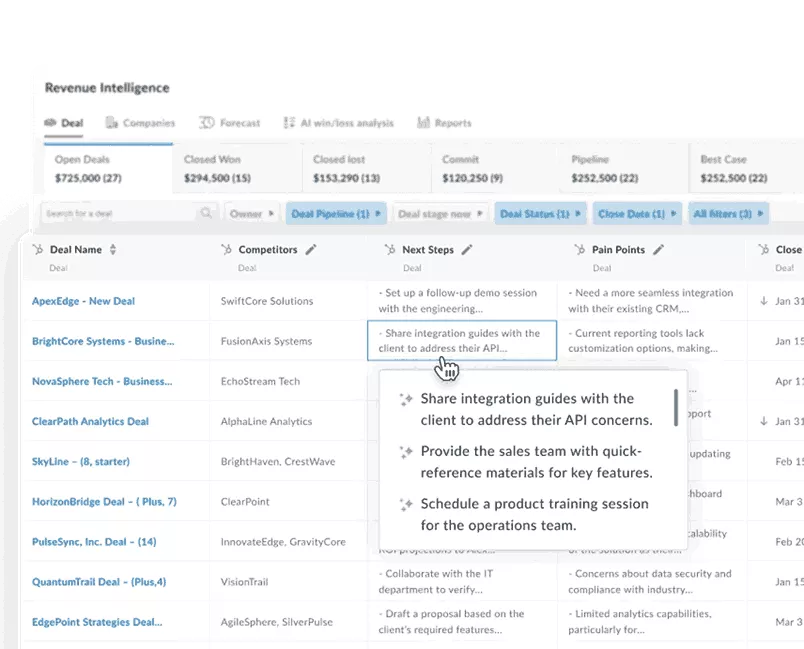
SOurce: avoma
Pros
- It handles notes, summaries, and action items in a way that fits structured customer calls.
- Search and AI chat make it easy to pull details from across previous calls.
- CRM workflows are the standout for teams that need call context tied to sales records.
- Deal context gives managers real material for coaching and deal review.
Cons
- Summaries and action items still need a review before they drive a follow-up decision.
- The product can feel too dense for a team that only wants simple recording and summaries.
- Bot reliability bites when the notetaker fails to join or drops off a call.
- The advanced revenue features are too much cost and complexity for a non-revenue team.
Final Verdict
Avoma is a strong fit when notes need to feed sales follow-up, CRM hygiene, coaching, and customer reviews. It is the wrong call for a team that just wants a simple recorder. And it overshoots for a team that would rather keep post-meeting work in a project delivery system.
10. Notta – Best AI Note Taker for Multilingual Meetings and Transcription
Notta takes the multilingual slot because it works across languages, devices, and formats. It handles online meetings, in-person talks, and uploaded files, and it transcribes in 58 languages. Reach for it when capture has to flex across all of that, not when follow-up is the hard part.
Key Features
- Transcription in 58 languages.
- AI notes and summaries.
- Bilingual transcription.
- Meeting recorder and Notta Desktop (beta).
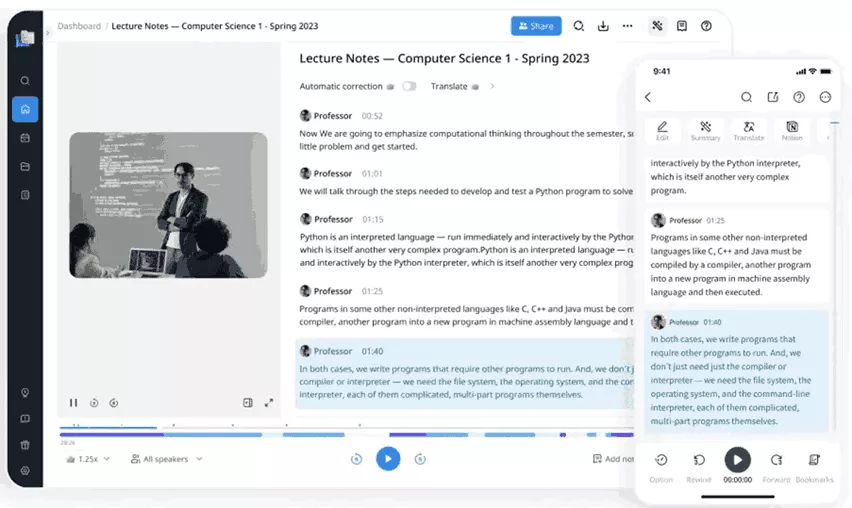
SOurce: notta
Pros
- It is handy for teams that need transcripts organized across formats, outputs, and connected tools.
- Visual summaries turn a long session into something you can skim.
- Transcription is fast enough to process recordings without cleaning them up from scratch.
- Search and translation make it easy to revisit past recordings across languages.
Cons
- AI summaries still need review when the output needs more detail, structure, or nuance.
- Teams with strict output formats should test whether Notta matches what they need.
- Noisy calls drag the transcript down, so check rough recordings before sharing them.
- The free version gets tight for frequent users, especially on longer or busier calls.
Final Verdict
Notta makes sense when multilingual transcription, uploaded recordings, and flexible capture matter more than deep project follow-through. It is less useful when meeting output needs to become tasks, delivery updates, and client follow-up in one system.
What Happens After the Notetaker Creates Your Notes?
After the notetaker creates your notes, the work is not done. The team still has to review the output, turn decisions into tasks, update existing work, and send the right follow-ups.
This is where many tools stop too early. They give you a transcript, a summary, and a list of action items. Then someone still has to decide what is accurate and what matters. Someone has to own the next step and figure out where that work lives.
1. Review the Output Before It Becomes the Record
AI-generated notes should not become the official record without review.
Someone needs to check names, decisions, dates, client details, and next steps before the output gets shared. That matters most on client calls, sales calls, interviews, and project discussions, where one wrong detail creates extra work later.
The review step should be short, but it needs an owner. Otherwise, the team ends up with a clean-looking summary that nobody fully trusts.
2. Turn Decisions and Action Points Into Tasks
The next step is turning the useful parts of the call into assigned work.
A decision might need a new task. A client request might need a deadline. A blocker might need to be added to an existing task. If these updates stay inside the note tool, the project manager still has to move them manually.
Productive is one option here. Its Notetaker can turn action points into draft tasks, or post a follow-up note on an existing task. That keeps the call output close to the work it affects.
3. Update Existing Work With Call Context
Not every call creates a new task. Sometimes the important part is context.
A client may approve a direction, change a priority, reject an option, or clarify an earlier request. That context should be added to the task, project, deal, or client record where the team will look later. Keeping it where the client’s history lives is how you keep a client account healthy over time.
Without that step, people remember that “we talked about it,” but nobody knows where the decision lives.
4. Send Follow-Ups and Make Ownership Clear
The final step is turning the reviewed notes into a follow-up that the right people can act on.
For a client call, that might be a recap with decisions, open questions, and next steps. For an internal project call, it might be task updates, owners, and deadlines. For a sales call, it might be a CRM update and a next email.
The point is not to create prettier notes. The point is to reduce the gap between what was discussed and what the team actually updates after the call.
How to Choose the Right Tool for Your Team? (Step-by-Step Process)
Choose the right tool by naming the problem that shows up after the call. It might be missed details, slow recaps, or action items nobody picks up. It might be messy sales follow-up, or project updates that never reach the delivery team.
Do not start with the longest feature list. Start with the handoff that keeps breaking.
If you are weighing AI more broadly than note-taking, see our breakdown of where AI helps across project work. It looks well beyond capturing calls.
Step 1: Pick the Call Type That Creates the Most Admin
Choose one call type first. The right tool for client delivery calls is not always the right tool for interviews, sales calls, or internal check-ins.
Use this table to cut the list down to two or three tools. Then test those tools on the same type of call.
| If this is the painful call type | The real problem to solve | Shortlist these tools first |
|---|---|---|
| Client delivery calls | Decisions and next steps do not make it back into project work | Productive, Fathom, tl;dv |
| Sales calls | Notes, objections, and next steps need to reach the CRM | Avoma, Fathom, Fireflies.ai |
| Recurring team check-ins | People need to find what was discussed across past calls | Fireflies.ai, tl;dv, Tactiq |
| Interviews or research calls | Exact wording, speakers, and quotes matter later | Otter.ai, Notta, Fathom |
| Remote async updates | Teammates need to review calls without attending live | tl;dv, Fireflies.ai, Tactiq |
| Noisy calls | Poor audio makes transcripts and summaries less useful | Krisp |
| Multilingual calls | Translation, language coverage, and transcript review matter | Notta, Otter.ai |
| Private or executive calls | A visible bot would make the call feel awkward | Granola, Tactiq, Krisp |
Step 2: Check Whether a Bot Will Change the Call Dynamic
A visible bot is not automatically a problem. It becomes a problem when the call depends on trust, informality, or external participation.
Use the table below by looking at who is on the call and how the notes will be used. If the call is internal, recurring, and everyone expects recording, a bot-based tool is usually fine. If the call is sensitive, executive-level, client-facing, or conversational, bot-free capture may be easier to adopt.
A simple rule helps here:
- Use bot-based tools when the team wants a shared call record.
- Use bot-free tools when the recorder itself might change the conversation.
Reach for Productive when the real issue is not recording style, but what happens to the notes, decisions, and follow-up work after the call.
| Recording style | Choose it when | Be careful when | Tools from this list |
|---|---|---|---|
| Bot-based | The call is recurring, internal, or already recorded by default | Clients, candidates, executives, or external stakeholders may change how they speak when a recorder joins | Fathom, Fireflies.ai, Otter.ai, tl;dv, Avoma |
| Bot-free | You want notes without adding another visible participant | The team needs a shared archive, admin controls, or standardized recording rules | Granola, Tactiq, Krisp |
| Browser-based | Most calls happen inside browser versions of Google Meet, Zoom, or Teams | People often use desktop apps, mobile calls, or switch devices during the day | Tactiq |
| Platform-based | The notes should connect to projects, tasks, client work, or delivery follow-up | You only need a personal recorder and do not want a broader work platform | Productive |
| Built-in assistant | The company already standardizes on one meeting platform | The team works across several tools and needs portability | Not part of the main list |
| Hardware recorder | The work happens in person, such as interviews, field research, or lectures | Most meetings happen online and the team does not want another device or workflow | Not part of the main list |
Step 3: Decide Where the Notes Should Go Next
Before you choose a tool, write down where each output should live after the call.
This is the fastest way to avoid buying another tool that only creates more admin. If the output needs to become work, pick a tool that supports that handoff. Productive is the clearest fit when notes need to sit close to projects, tasks, and client delivery.
| Output | Where it should go | Better-fit tools |
|---|---|---|
| Client decisions | Project, task, or client record | Productive |
| Sales next steps | CRM and follow-up email workflow | Avoma, Fathom |
| Team decisions | Searchable call archive | Fireflies.ai, tl;dv |
| Interview quotes | Transcript and searchable record | Otter.ai, Notta |
| Next steps | Task list or project workspace | Productive, Fathom, Fireflies.ai |
| Shared recaps | Team workspace or call library | tl;dv, Tactiq, Fireflies.ai |
Step 4: Test the Free Plan Against Real Work
Do not test free plans with one short internal call. Use the kind of call that caused the search in the first place. A free plan is useful only if it tests the actual workflow.
If the limit appears before the team finishes a normal week of calls, you have not learned enough about fit.
| Tool | What to test before upgrading |
|---|---|
| Fathom | Whether the free workflow is enough for your call volume and team sharing needs |
| Fireflies.ai | Storage, transcript search, integrations, and permission controls |
| Otter.ai | Monthly minutes, imports, speaker labels, and collaboration limits |
| tl;dv | AI usage, team features, and shared recording workflows |
| Granola | Team sharing, template needs, and integration limits |
| Tactiq | Transcript limits, AI credits, and browser dependency |
| Krisp | Minutes, transcription needs, and whether audio cleanup is the real blocker |
| Avoma | CRM sync, sales workflow fit, and advanced revenue features |
| Notta | Transcription minutes, export needs, and language-specific output quality |
| Productive | Whether your team needs the broader project management workflow, not just call capture |
Step 5: Choose the Tool That Removes the Manual Handoff
After the call ends, check what still has to be copied by hand.
If the answer is “almost nothing,” the tool is probably a good fit. The opposite is also telling. If someone still has to move notes into tasks, rewrite recaps, or update the CRM, the tool fell short.
For simple capture, Fathom, Tactiq, and tl;dv are easy to start with.For searchable team history, Fireflies.ai and Otter.ai make more sense. For agencies and professional services teams, Productive is the stronger option. The goal there is keeping call output connected to project work.
What Are the Key Features of an AI Meeting Assistant?
The key features of an AI meeting assistant are recording, transcription, summaries, next steps, search, integrations, and transcript cleanup.
You do not need the most advanced version of every feature. Choose the tool that handles your most common call type and reduces the manual cleanup that happens afterward.
Integrations matter most when notes have to reach the right people. If that handoff is your bottleneck, here is how to keep communication flowing as a project moves.
| Feature | What it does | What to check before choosing |
|---|---|---|
| Recording | Captures the call so the team can review it later. | Check whether it uses a visible bot, bot-free capture, browser capture, or a platform-based workflow. |
| Call transcription | Turns speech into text for review, search, and reuse. | Test it with real audio, accents, speaker overlap, and the kind of terminology your team uses. |
| Summaries | Condenses long calls into decisions, open questions, risks, and next steps. | Make sure someone can review and edit the output before it is shared or used as the record. |
| Next step | Pulls out follow-up work from the conversation. | Check whether next steps can become tasks, get owners, or connect to a project, CRM, or customer record. |
| Search | Helps teams find past decisions without replaying full recordings. | Look for search across calls, not just inside one transcript. |
| Integrations | Moves call output into the tools where work continues. | Check calendar, video call, CRM, task tool, Slack, and project management integrations. |
| Speaker identification | Labels who said what in multi-person calls. | Test it with group calls, similar voices, guests, and people who join late. |
| Transcript editing | Lets the team clean names, wording, formatting, and irrelevant sections. | Check how quickly a teammate can fix the transcript before sharing it with a client or team. |
| Controls and sharing | Decides who can access, edit, or share recordings and notes. | Review access settings before using it for client calls, interviews, or leadership discussions. |
How to Roll Out a Meeting Note-Taker in Your Team? (+ Practical Checklist)
The safest way to roll out a meeting note-taker is to start with one repeatable call type. Define where the outputs go, and put someone in charge of reviewing the notes before the workflow expands.
Do not turn it on for every call at once. Start with a meeting where notes are useful and the risk is low. You want to see quickly whether the tool reduces admin.
Rollout gets trickier across a distributed team. If that is you, here is how to lead a team that works from anywhere.
Start With One Call Type
Pick one call type for the first test.
Good starting points include:
- Weekly project check-ins
- Client status calls
- Sales discovery calls
- Customer onboarding calls
- Internal team syncs
Avoid starting with sensitive leadership calls, legal discussions, or high-stakes client escalations. The first test should prove the tool can capture useful context, not handle your most complicated meeting.
Define Where Each Output Goes
Before the first test call, decide what should happen after the note taker processes the recording.
| Output | Where it should go | Who owns it |
|---|---|---|
| Summary | Shared recap, project note, CRM record, or internal workspace | Meeting owner |
| Next steps | Task list, project workspace, or CRM follow-up | Person running the call |
| Decisions | Project, deal, or client record | Project manager or account owner |
| Transcript | Call library or searchable archive | Tool owner |
| Client recap | Email draft or client-facing update | Account owner |
| Internal follow-up | Task update or team note | Assigned owner |
This step matters because AI notes do not fix ownership by themselves. Someone still has to decide what becomes official, what becomes a task, and what can stay as reference material.
Set Simple Rules for Recording and Sharing
Keep the rules clear enough that people can follow them without asking every time.
Decide:
- Which calls can be recorded
- Who can start the recording
- Who reviews summaries before they are shared
- Whether clients receive the recap
- Where transcripts are stored
- Who can access recordings
- When notes should become tasks or updates
The goal is to prevent messy habits before the tool becomes part of the team’s routine.
Train the Team to Review Before They Act
AI-generated output should be treated as a draft.
Ask the meeting owner to check:
- Names and speaker labels
- Dates and deadlines
- Client requests
- Decisions
- Next steps
- Missing context
- Anything that sounds confident but is wrong
This review should take a few minutes. If it takes longer than manual notes, either the tool is wrong or the workflow is not defined yet.
Rollout Checklist
Use this checklist before expanding the tool beyond the first team.
- Pick one repeatable call type to test.
- Choose one person to own the rollout.
- Confirm the tool works with your main meeting platform.
- Test it on real calls, not sample recordings.
- Define where summaries, transcripts, and follow-up work go.
- Decide who reviews AI-generated notes before sharing.
- Set rules for client-facing calls.
- Check free plan or trial limits after one normal week of use.
- Ask users what still has to be copied by hand.
- Review whether the tool reduced admin or created another inbox.
- Keep the tool, switch tools, or expand usage based on the test.
Final Thoughts
A standalone tool can record calls, generate summaries, and help you find past conversations. That is useful. It still leaves a gap when someone has to copy notes into tasks or move next steps into another system. Then they update clients by hand on top of that.
For agencies and professional services teams, the cleaner option is usually a connected platform. Productive fits that workflow because its note taker features sit inside the same platform teams use to manage client work.
Book a demo to see how your team can keep call notes, next steps, and project follow-up in one place.
Connect With Agency Peers
Access agency-related Slack channels, exchange business insights, and join in on members-only live sessions.
