Top 10 Wrike Alternatives (Paid & Free) + Choosing Guide

If Wrike is not working for your team anymore, this guide helps you pick the right Wrike substitute for project management without wasting time on generic lists.
You will get the best 10 Wrike alternatives, each broken down into key features, pros, cons, and a short verdict.
Use the shortlist and buyer’s table to narrow down options fast, then follow the step-by-step choosing framework and the migration checklist to switch with less risk.
What Are the Best Wrike Alternatives in 2026?
The best Wrike alternatives in 2026 are Productive, Asana, ClickUp, monday.com, Teamwork.com, Jira, Trello, Adobe Workfront, Workamajig, and ProofHub.
Shortlist of the Best Tools Like Wrike
Buyer’s Comparison Table (Quick Scan)
If you are comparing project management tools, check whether you need project portfolios and project request tracking, or just a clean board and clear ownership.
| Tool | Best for | Biggest strength | Watch out for | Free version |
|---|---|---|---|---|
| Productive | Agencies and professional services | Projects, resourcing, and budgets in one system | Too much if you only need simple task boards | Nope |
| Asana | Cross-functional teams that want structure | Clear ownership and workflow consistency | Can feel rigid for highly custom processes | Yes |
| ClickUp | Teams that want one flexible workspace | Lots of views and configuration in one place | Needs setup discipline to stay clean | Yes |
| monday.com | Teams that prefer visual work planning | Fast adoption with boards and templates | Can feel limited for complex dependencies | Yes |
| Teamwork.com | Client service teams running many projects | Built around client delivery workflows | Less relevant for non-client teams | Yes |
| Jira | Software and product teams | Backlogs, sprints, and agile delivery | Heavy for non-technical teams | Yes |
| Trello | Freelancers and small teams | The simplest Kanban experience | Breaks down when workflows get complex | Yes |
| Adobe Workfront | Enterprise marketing and creative ops | Governance and standardization at scale | Rollout can be heavy without an owner | No |
| Workamajig | Creative agencies | Agency-first approach to running projects | Not a fit for product teams | Nope |
| ProofHub | Teams that want straightforward collaboration | Simple project tracking plus review loops | Not ideal for advanced portfolio needs | Nope |
How We Chose These Tools?
We built this list for small business owners, agencies, professional service teams, and product businesses who want clear tradeoffs, not vague descriptions and feature lists.
For each tool, we reviewed repeated themes in user reviews on trusted software review sites like G2 and Capterra.
We also used Reddit and YouTube to sanity-check switching experiences and day-to-day workflows, without treating them as feature proof. Finally, we cross-checked key claims, including customization options and plan limits, against vendor documentation so the article reflects what the tools actually support.
1. Productive – Best All-in-One Wrike Replacement
Productive is an all-in-one project management tool built for agencies and other professional services teams that need more than basic task management and tracking.
It connects projects, capacity planning, time, budgets, and profitability in one system, so you are not exporting work into spreadsheets just to answer basic questions.
Try the best Wrike replacement
Plan Capacity Without a Second Tool
If you are using Wrike plus Float, the core pain is visibility. You want to know who is overloaded, who has room, and what next month looks like.
Productive’s Resource Planner lets you book people on services and time off, then monitor capacity and team workloads in the same place you plan delivery.
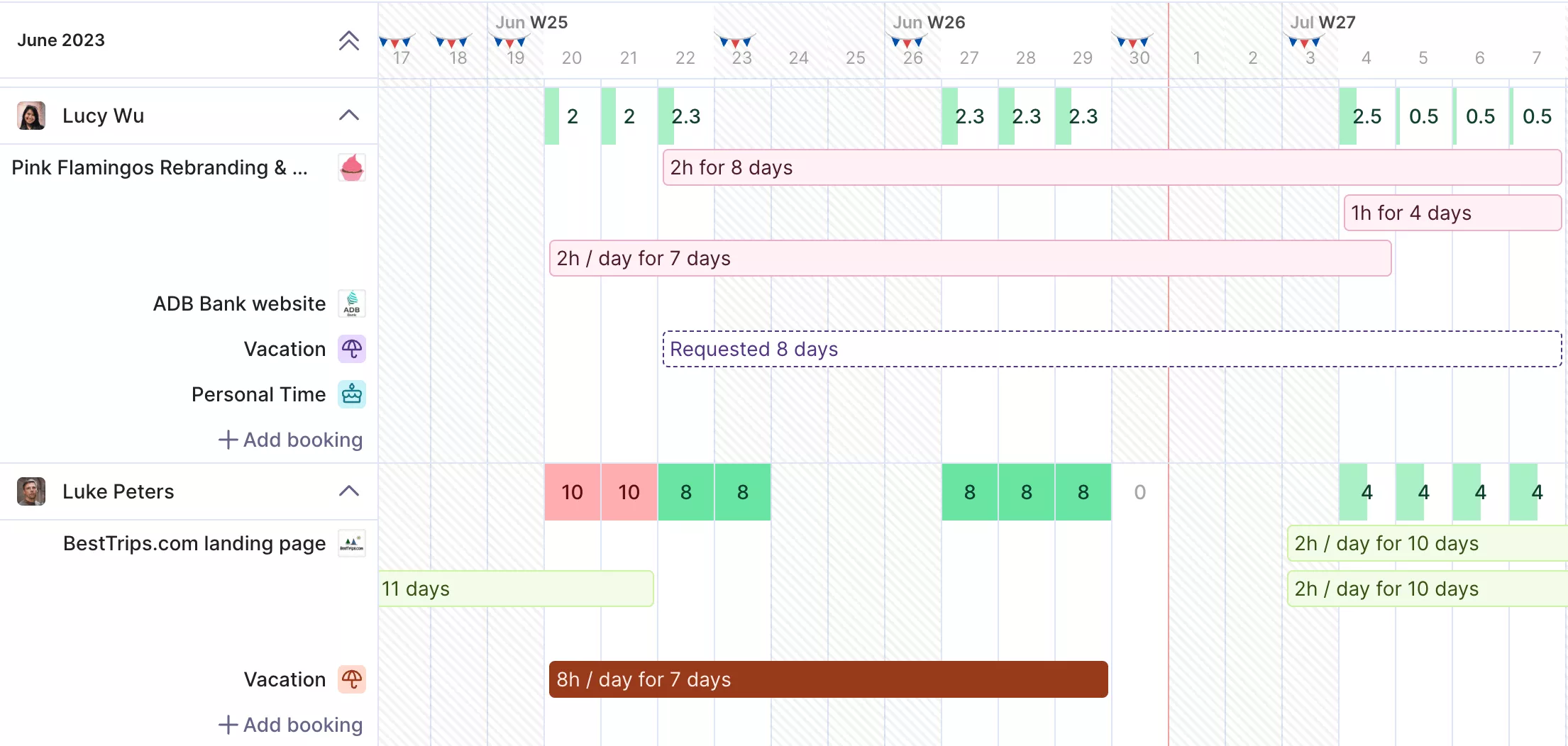
Get a real-time overview of your team’s availability.
You can also use placeholders when you need to plan future work before the exact hire is known. This helps teams move from “resource horse trading” to clearer workload management.
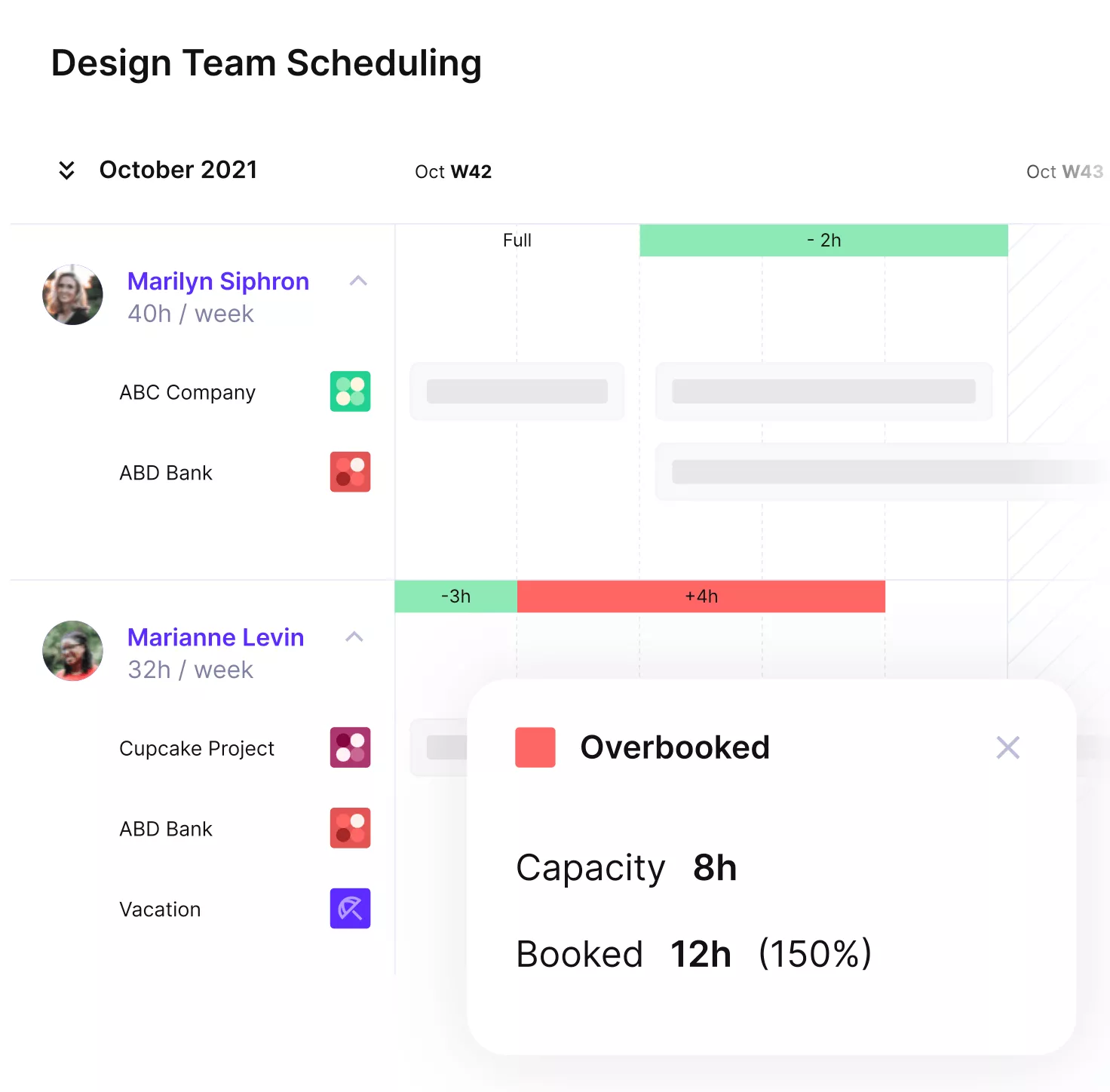
Prevent overbookings and idle hours with Productive.
Tie Time and Budgets to Day-to-Day Delivery
Wrike often makes financial and project spending tracking feel separate from the work. In Productive, built-in time tracking directly impacts budget spend, revenue, and profitability tracking.
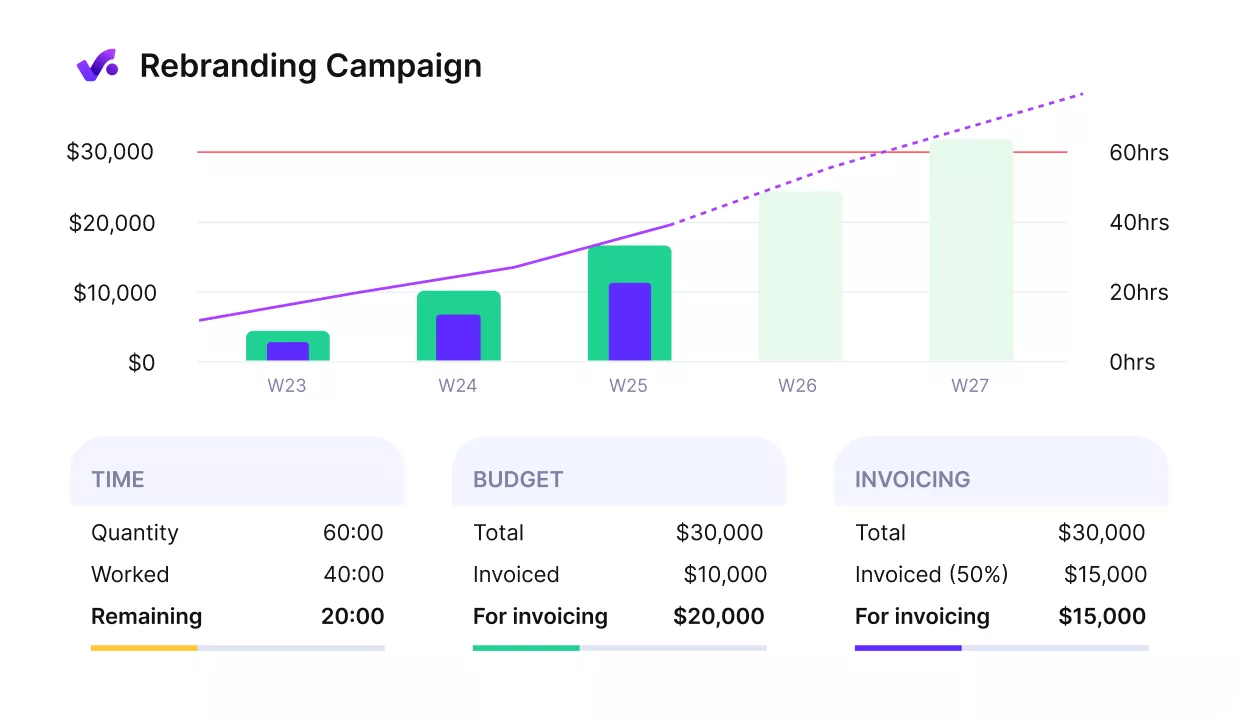
Get early warnings of budget overruns.
The hours your team logs are not just for timesheets. They become the input for delivery reporting and budget monitoring. Set up budgets the way you scope work, then check progress against the plan while the project is still running.
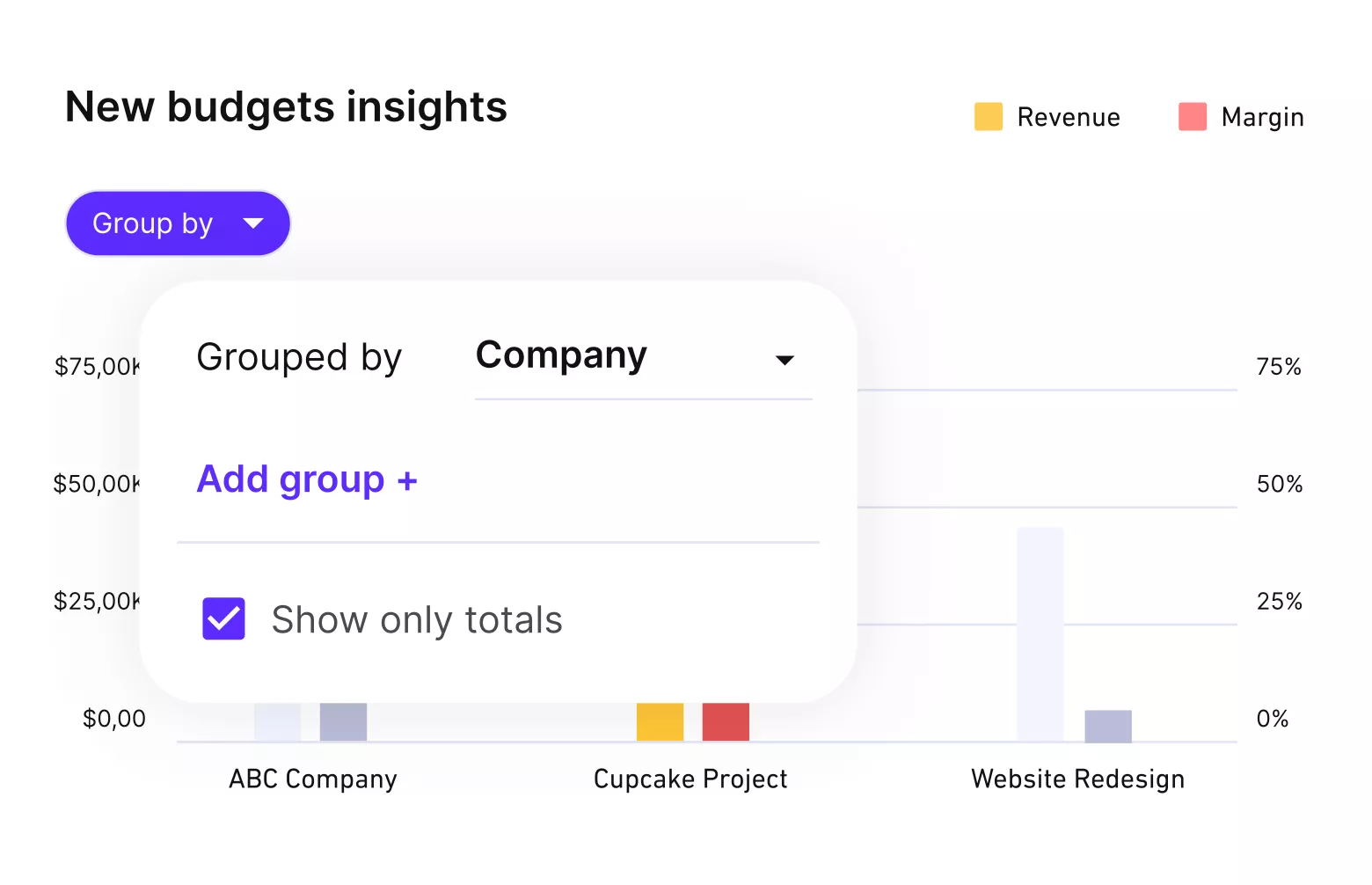
Tie time to budgets and delivery.
Keep Time, Expenses, and Time Off Reviewable
Bad inputs create bad reporting. Productive supports approvals so the right person can review entries before numbers become “official.” Budget owners can approve time entries before they are visible to clients or included in internal budget and profitability reports.
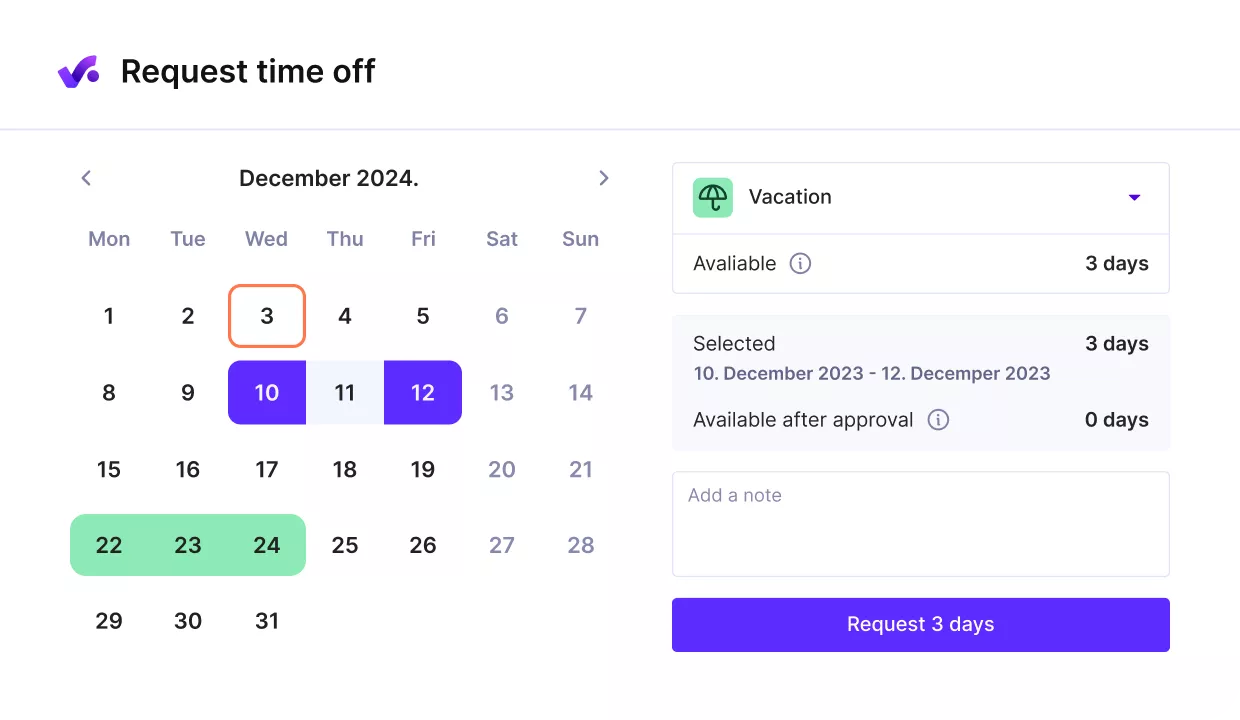
set up absence approvals, so time off is reviewed before it affects your capacity plans.
Get Earlier Signals on Budget Burn and Profitability
Teams often leave Wrike because budget visibility shows up too late, or only after a manual check. Productive includes a Profitability view so you can check budget spend and project profitability without waiting for month-end reporting.
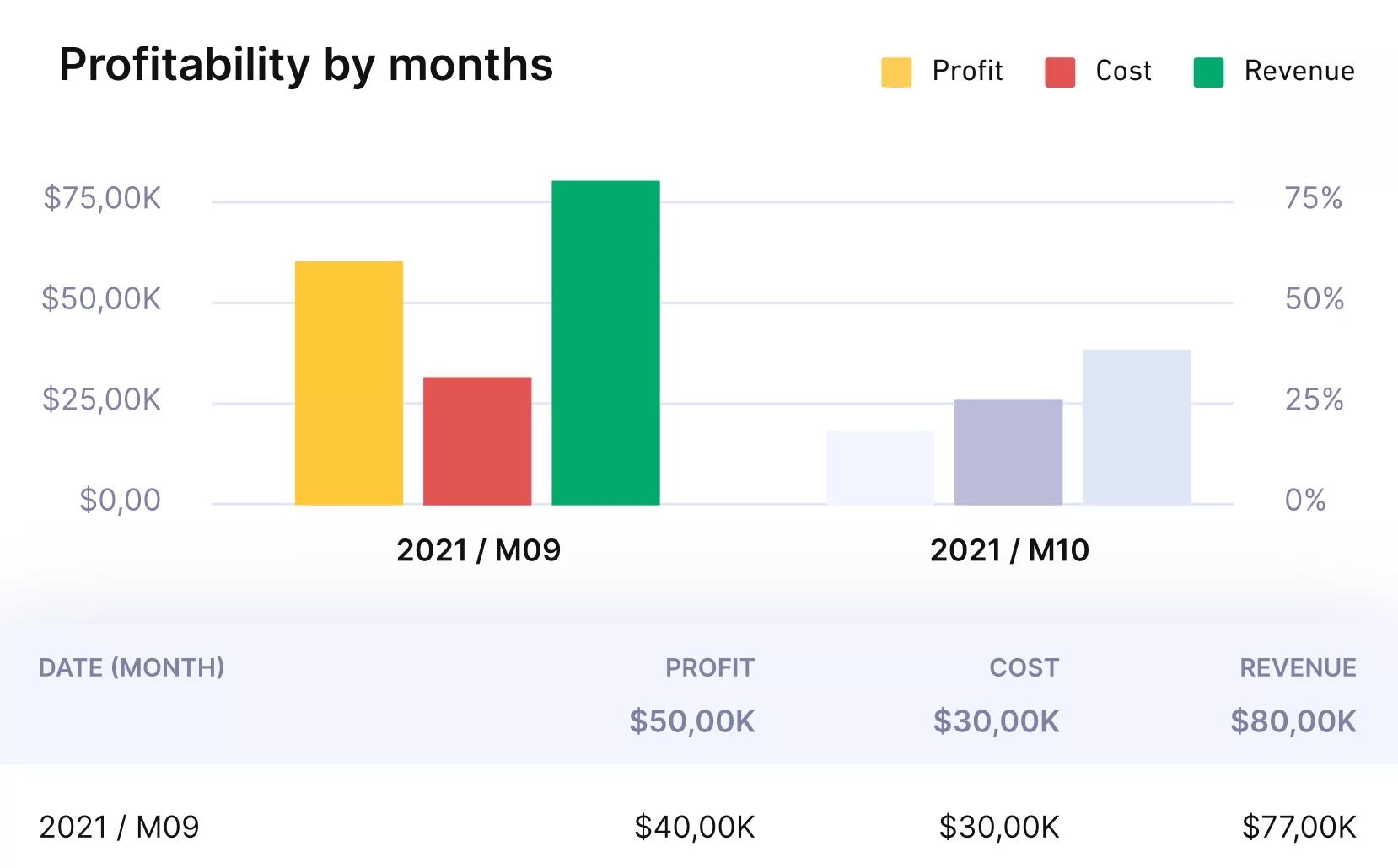
Get full visibility of your finances with Productive.
You can also set up custom alerts that warn you when a budget is heading toward an overrun. This is especially useful for fixed-price work, retainers, and any delivery where small drift compounds fast.
Connect sales and accounting to delivery work
Wrike can end up as a silo between sales and finance. Productive integrates with tools upstream and downstream from delivery. If you need client-facing visibility, Productive also includes a Client portal and a sales CRM.
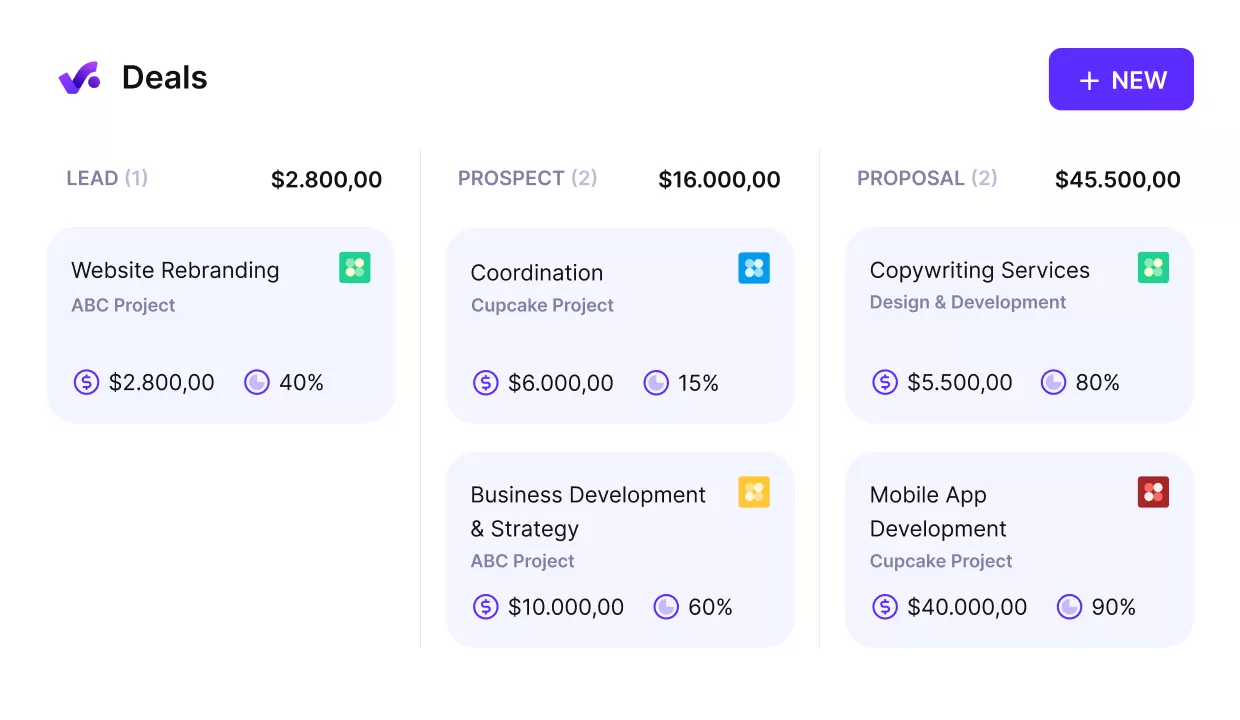
Turn won deals into initiated projects.
If you use HubSpot, contacts and companies from deals can sync into Productive, and deal stage updates can be reflected there too. On the accounting side, Productive supports integrations like QuickBooks Online and Xero to sync invoices, payments, and expenses, so finance is not re-entering the same data twice.
Pricing
- Plans start with the Essential plan at $10 per user per month, which includes essential features such as budgeting, project & task management, docs, time tracking, expense management, reporting, and time off management.
- The Professional plan includes custom fields, recurring budgets, advanced reports, billable time approvals, and much more for $25 per user per month.
- The Ultimate plan has everything that the Essential plan and Professional plan offer, along with the HubSpot integration, advanced forecasting, advanced custom fields, overhead calculations, and more. Book a demo or reach out to our team for the monthly price per user.
You can go for a free 14-day trial before you decide to check out a paid plan.
Replace Wrike’s Tool Stack with One Platform
Plan team workloads, track time, and keep budget visibility without spreadsheet glue. Book a demo.

2. Asana – Best for Structured Cross-Functional Work
Asana is a online project management tool that fits cross-functional teams that want clear owners and repeatable workflows. It is a strong Wrike competitor for campaigns, launches, and requests, with a timeline view and shareable reporting and analytics.
Key Features
- Work intake forms
- Rules and automations
- Timeline (Gantt-style planning)
- Dashboards and reporting
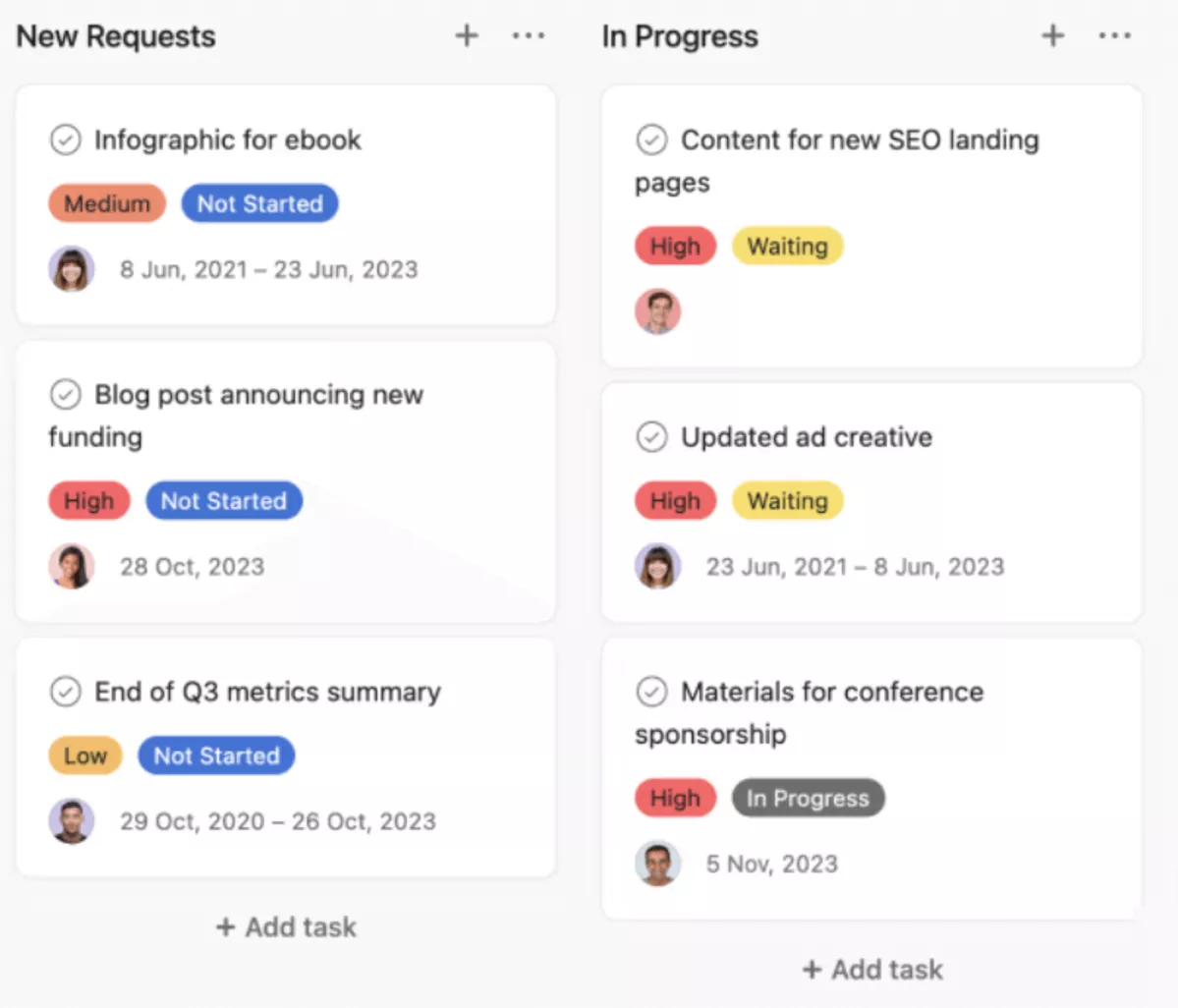
SOurce: asana
Pros
- Many reviewers praise the clean, intuitive interface and clear ownership.
- Users often say it keeps multi-team work organized without spreadsheets.
- Reviewers like due dates and task tracking as a reliable source of truth.
- Teams like that comments stay on tasks, so context stays put.
Cons
- Some reviews mention a learning curve once workflows get deeper.
- Users note limits when processes need heavy customization.
- A common complaint is that conventions must be enforced to stay consistent.
- Automations and setup usually need an owner.
Final Verdict
Asana works best when you want repeatable handoffs and clear ownership. If you need deep customization or complex resource management, it is not the best Wrike replacement.
We talk more about the tool in our detailed Wrike vs Asana comparison.
3. ClickUp – Best for Flexible Workspaces
ClickUp is task management software that combines tasks, docs, and dashboards in one workspace. It suits teams that want lots of views and task automation, and can keep setup disciplined.
Key Features
- Multiple project views (List, Board, Calendar, Gantt)
- Custom fields and statuses
- Task automation
- Dashboards and reporting
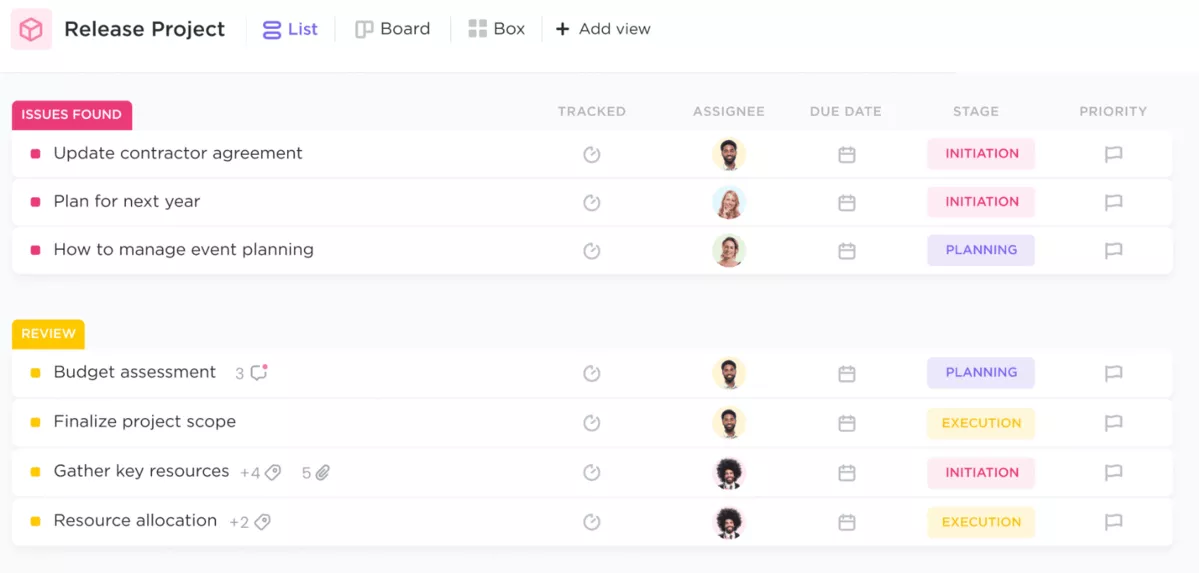
SOurce: clickup
Pros
- Reviewers highlight how customizable statuses, fields, and views are.
- Many teams like keeping docs and tasks together to reduce tool switching.
- Users often mention dashboards help track project progress.
- Reviewers call out the range of views for the progress of projects.
Cons
- Reviews mention lag in larger workspaces.
- The interface can feel cluttered until standards are set.
- Some teams report missing pieces for specific workflows.
- Some reviewers say it can feel like a complex tool because of the powerful features.
Final Verdict
ClickUp fits teams that want one workspace with lots of views and do not mind maintenance. In case performance or clutter would slow adoption, choose a lighter Wrike competitor.
For additional comparison, you might want to check out our Wrike vs Clickup article.
4. monday.com – Best for Visual Boards and Fast Adoption
monday.com is work management software built around visual boards that are easy to scan. It suits teams that want customizable workspaces, collaboration tools, and custom workflows for project management, without a long rollout.
Key Features
- Work intake forms
- Boards and templates
- Customizable Workflows
- Dashboards and reporting
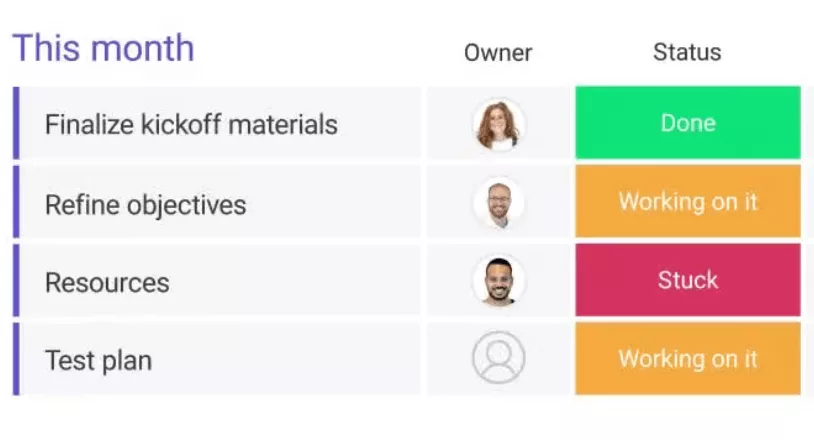
SOurce: monday.com
Pros
- Users often say the board layout makes status easy to scan.
- Reviewers highlight Customizable Workflows as a reason teams can share one system.
- Many teams mention that templates help them get started fast.
- Automations are often cited as a time saver for repeatable work.
Cons
- Some reviews mention a learning curve once setups get more complex.
- Users point to limits when you need strict task dependencies.
- Busy workspaces can get noisy with updates and notifications.
- Reporting can feel shallow for portfolio-level answers.
Final Verdict
monday.com is a good Wrike replacement for visual planning and fast adoption across teams. If strict dependencies or deep portfolio reporting are must-haves, it can feel limited. Keep board patterns consistent, and it stays easier to scale.
5. Teamwork.com – Best for Client Delivery Teams
Teamwork.com is collaborative project management software for client delivery teams that juggle many projects and stakeholders. It supports project tracking across clients, with permissions for client collaboration and clear collaboration in comments.
It is a practical project management pick when clients need visibility.
Key Features
- Tasks, subtasks, and milestones
- Time tracking
- Client access and permissions
- Dashboards and reporting
SOurce: teamwork
Pros
- Reviewers often say it matches agency workflows when many projects run in parallel.
- Users like the flexibility to shape projects without rebuilding everything.
- Time tracking is often praised for keeping delivery honest.
- Comments and updates support real-time collaboration for day-to-day handoffs.
Cons
- Some reviewers say the interface feels dated at first.
- Setup can take time if you need consistent structure across many clients.
- Reporting can take effort to tailor for different stakeholders.
- Notifications and permissions need active management.
Final Verdict
Teamwork.com is worth shortlisting when client delivery is your core job. If your main goal is capacity planning, you will still need something stronger. Standardize templates per client type and it runs smoothly.
6. Jira – Best for Agile Software Teams
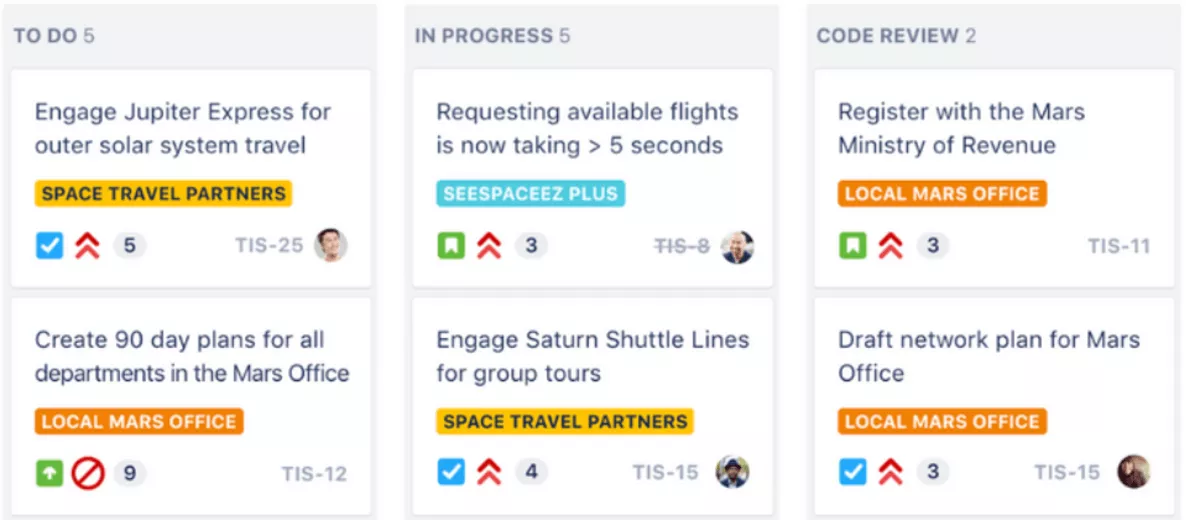
Jira is built for agile project management with backlogs, sprints, and issues. It fits an agile team that needs issue tracking, a Kanban board, and sprint planning.
Key Features
- Backlogs and sprints
- Kanban board
- Workflows and issue tracking
- Project automation
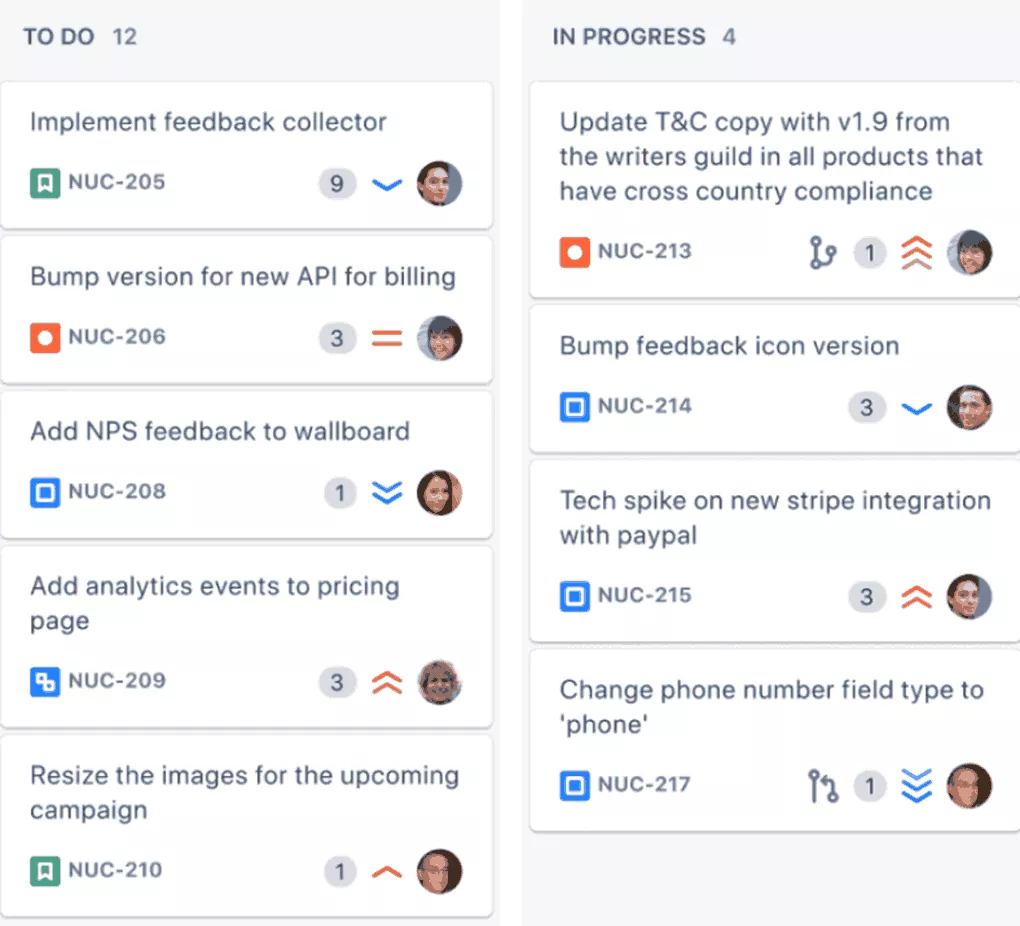
SOurce: jira
Pros
- Reviewers call out how well it handles complex work across teams.
- Teams like the flexibility in workflows, fields, and processes.
- Many users mention that sprint planning and delivery work well together.
- Integrations are often praised in developer tool stacks.
Cons
- A steep learning curve is a common theme for non-technical users.
- Admin overhead grows as setups get more customized.
- It can feel heavy for simple project tracking.
- Consistency depends on governance, otherwise setups sprawl.
Final Verdict
Jira is the right alternative when your work involves sprints, backlogs, and issues. For non-technical teams, it can feel like admin instead of clarity. Choose it only if you have ownership to keep setups consistent.
7. Trello – Best Free Option for Simple Kanban Planning
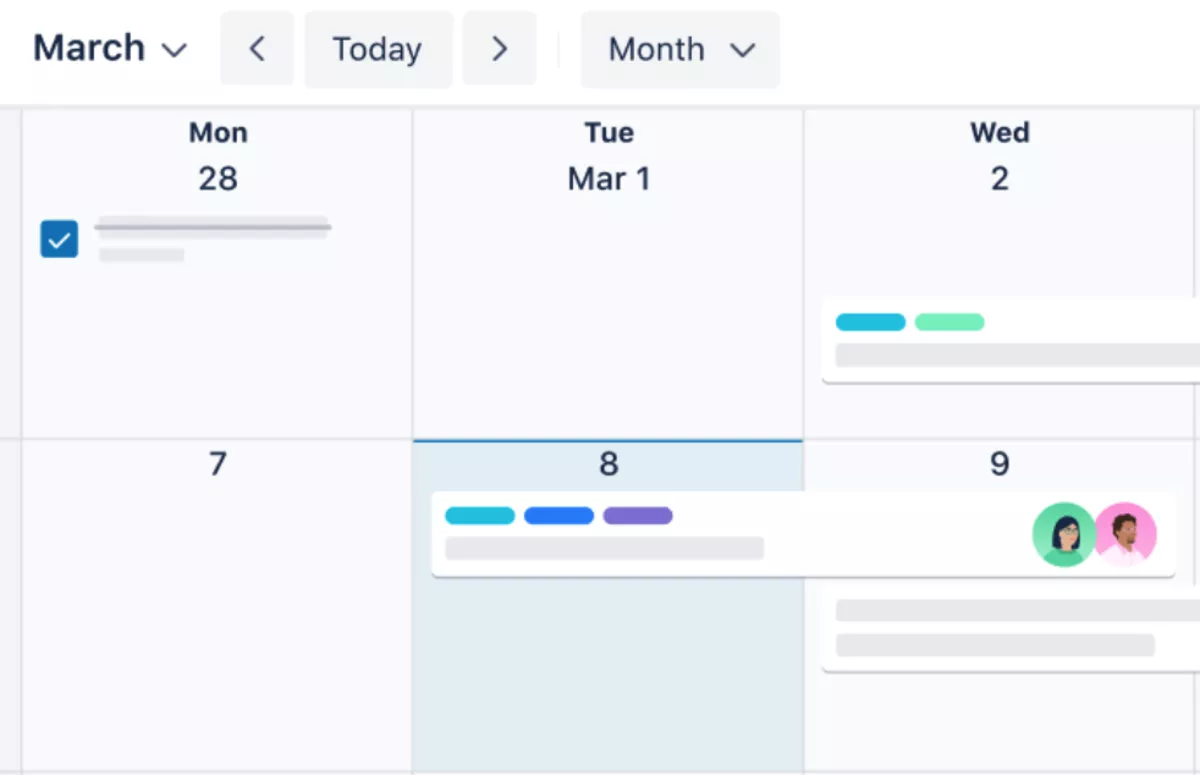
Trello is a lightweight task manager based on boards, lists, and cards. It is the simplest Wrike substitute for freelancers and small teams, with a free plan that covers the basics.
Key Features
- Boards, lists, and cards
- Checklists, labels, and due dates
- Simple automations
- Templates and integrations
SOurce: trello
Pros
- Reviewers say it is easy to learn and quick to roll out.
- The Kanban layout keeps work clear without extra overhead.
- Many users like it for lightweight collaboration on small projects.
- It is often described as reliable for basic plans.
Cons
- Boards get messy as projects grow and multiply.
- Reporting is limited for managers and stakeholders.
- Dependencies and complex workflows are hard to model.
- Advanced needs often push teams to add-ons and workarounds.
Final Verdict
Trello is the lightest Wrike substitute for simple Kanban planning, and it can be an ideal choice when your workflow is simple. It stops working well once you need dependencies, portfolio views, or reliable reporting.
Keep it for small teams and straightforward workflows, avoid Trello for complex projects.
8. Adobe Workfront – Best for Enterprise Marketing Operations
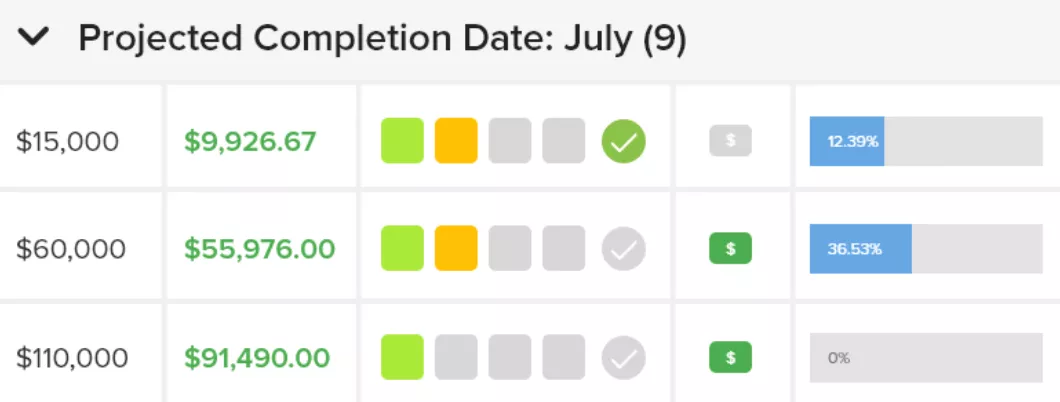
Adobe Workfront fits larger teams in enterprise marketing ops and creative ops that need governance across many stakeholders. It is built for complex workflows, with a content approval workflow and multi-step approvals for reviews.
Key Features
- Work intake forms and request queues
- Proofing and approvals for a multi-level approval workflow
- Workflow setup and automations
- Dashboards with advanced reporting & analytics
SOurce: adobe workfront
Pros
- Reviewers say it handles complex workflows at scale.
- Approval and proofing flows are often praised once configured.
- Teams like the visibility across stakeholders.
- Reporting is a common reason leadership can stay aligned.
Cons
- A steep learning curve is a repeated theme.
- Setup and rollout effort can be heavy.
- Some users say the interface feels dated.
- You usually need an internal owner to keep workflows clean.
Final Verdict
Adobe Workfront makes sense when governance, intake, and approvals are the real problem. If you want lightweight task tracking, it will feel heavy. It works best with a clear owner and a disciplined rollout.
9. Workamajig – Best for Agency-First Project Delivery
Workamajig is a project management system for creative teams doing client delivery. It is built for creative projects that need time, budgets, and workflow management close to the work.
Key Features
- Project tracking for creative projects
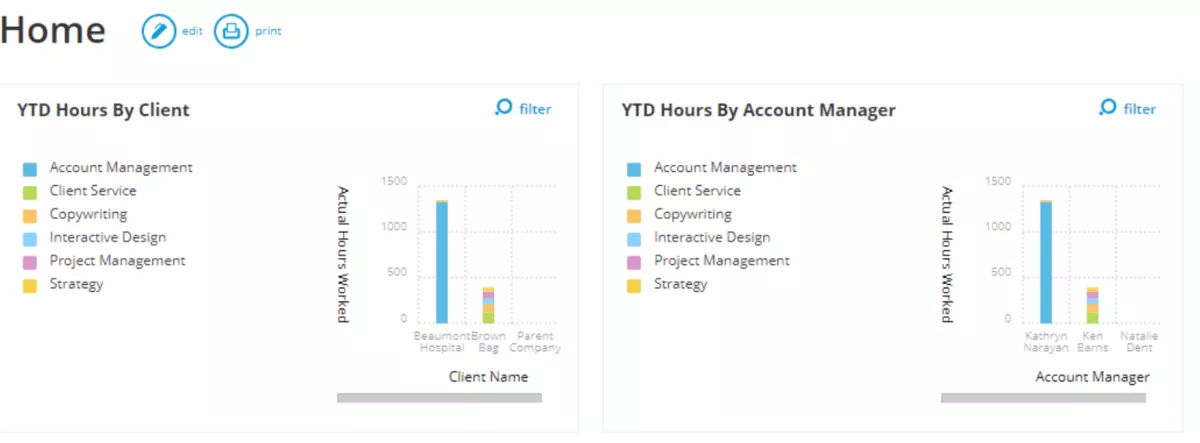
- Time tracking and project budgets
- Proofing and approvals for client work
- Billing and reporting
SOurce: workamajig
Pros
- Many reviewers like having delivery and financial workflows in one system.
- Users often mention visibility into profitability by project or client.
- It is frequently described as a better fit for agency workflows than generic tools.
- Reporting is often seen as useful once that setup is consistent.
Cons
- Some teams say parts feel less intuitive until trained.
- Setup and change management can be a hurdle.
- The interface is sometimes described as dated.
- Consistency depends on ownership across modules.
Final Verdict
Workamajig can fit creative agencies that want delivery and financial workflows in one tool. If you only need a modern board, it is likely too much system. You’ll have to invest in training and a consistent setup.
10. ProofHub – Best for Straightforward Collaboration and Approvals
ProofHub is collaboration software for teams that want tasks, discussions, and approvals in one place. It is a straightforward project management solution that supports seamless collaboration without a long setup.
Key Features
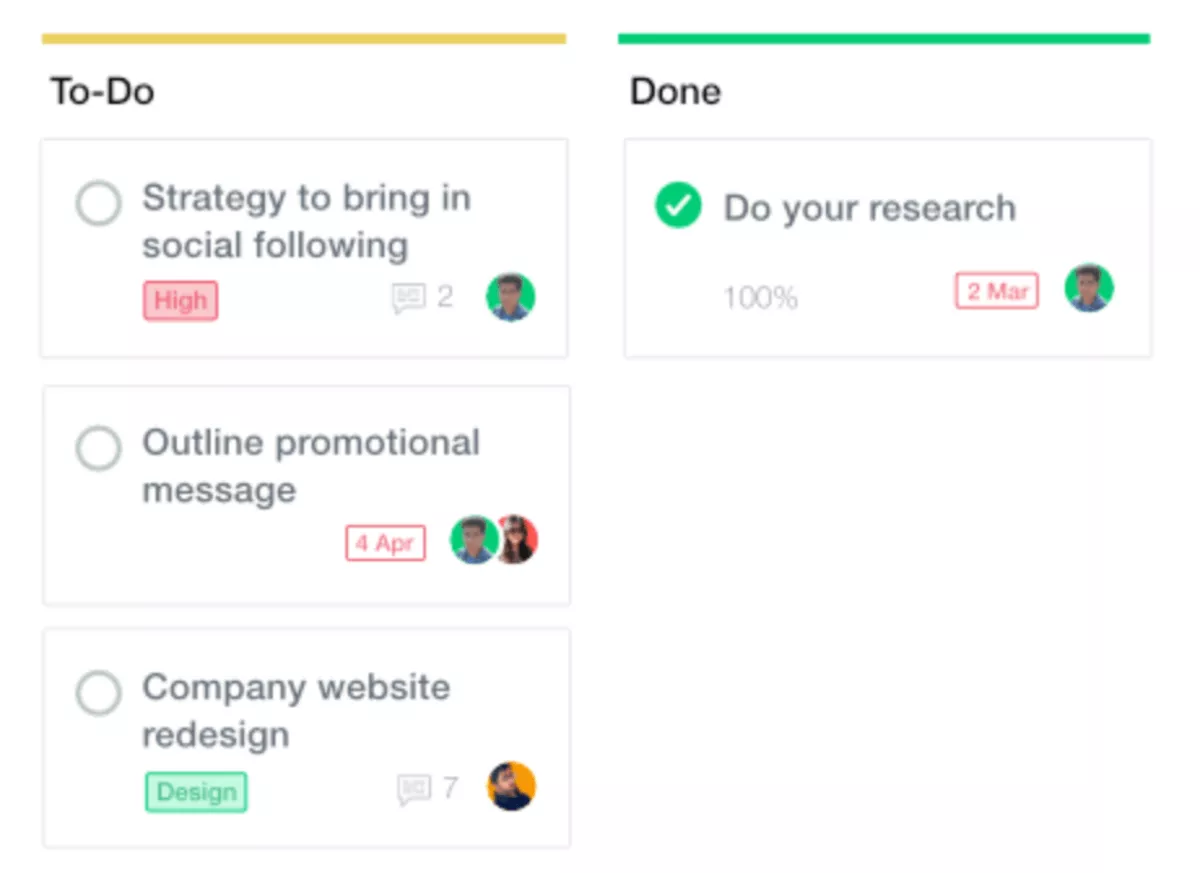
- Task lists and Kanban boards
- Gantt charts and timelines
- Proofing and approvals
- Discussions and reports
SOurce: proofhub
Pros
- Reviewers say it is easy to adopt for non-technical teams.
- Proofing and approvals help keep feedback tied to files.
- Teams like keeping tasks, discussions, and files together.
- It works well for straightforward project tracking.
Cons
- Integrations can be limited compared to larger platforms.
- Reporting can feel basic for leadership views.
- Some users say parts of the interface feel dated.
- Automations and customization can be limited for complex processes.
Final Verdict
ProofHub is a solid Wrike replacement for teams that want tasks, discussions, and approvals together with minimal setup. It can feel light if you need advanced reporting or portfolio management.
Why Do Teams Look for Wrike Alternatives?
Teams look for a Wrike substitute because Wrike can feel clunky for resource planning in project management, so teams end up adding a second tool or falling back to spreadsheets to understand capacity.
Financial tracking and budget visibility are also hard to manage inside day-to-day delivery, and reporting often turns into manual work stitched together from different systems.
Below are the most common causes, and what they change in day-to-day delivery.
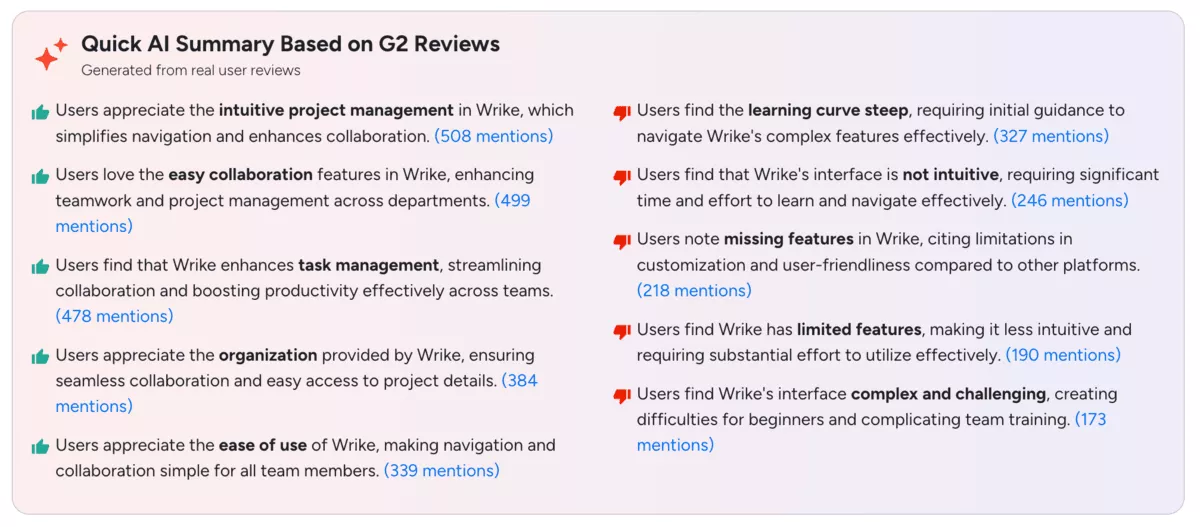
Wrike G2 reviews
Common Reasons for Leaving Based on Reviews
- Capacity planning feels clunky. Teams struggle to see who is overloaded, who has capacity, and what the next month looks like without a separate spreadsheet.
- Capacity planning lives in a second tool. The Wrike plus Float setup creates duplicate data entry, double time-off updates, and extra admin just to keep schedules accurate.
- Financial tracking is hard to trust. Finance teams want to connect hours burn and financial burn, but end up exporting data and rebuilding reports.
- Spreadsheets become the real system. Even with a paid tool, teams still do manual pulls for resourcing, P&L, and stakeholder reporting.
- Work is disconnected from the rest of the business. When sales, delivery, and accounting are split across tools, planning stays reactive instead of proactive.
- Budget visibility is missing during delivery. Teams need earlier signals when work is drifting off budget, not a surprise at the end.
- Reporting is scattered and hard to share. Leaders want a clean view by client, team, or department without stitching data together.
- Automation is not consistent. Teams want reliable automations across projects, plus automation capabilities that reduce manual handoffs.
- Processes vary too much across teams. Without consistent workflows, adoption drops and projects feel messy.
- Customer support becomes a deciding factor. When rollout is bumpy, responsive customer support matters more than another feature.
How to Choose a Wrike Alternative? (Step-by-Step Process)
To choose the right Wrike alternative, score your shortlist against your real workflows, then pilot the top options with a live project, make stress tests and choose the tool that fits in your budget.
Below, we break that process down into actionable steps you can follow. In case you have more choosing questions, there’s also a guide on how to choose PM software.
Step 1: Map Your Current Wrike Workflow
Owner: Ops lead (or PMO), with one delivery lead.
What to do: Export your active spaces, folders, projects, request forms, custom fields, dashboards, and automated workflows. For each workflow, write who owns it, who approves it, and what “done” means. Note what still lives in spreadsheets.
Output: A one-page inventory of your top 5 workflows and the people involved.
Step 2: Define What Must Stay Consistent vs. What Can Vary
Owner: Team lead, with one representative from each department.
What to do: Pick 2 to 3 workflows that must be standard
everywhere, like intake and approvals. Then list what can vary by team, like views and templates. This prevents tool sprawl later.
Output: A short ruleset: “standard everywhere” vs. “team-level flexibility.”
Step 3: Turn Pain Points Into a Scorecard
Owner: Ops lead, with finance and one project manager.
What to do: Write 5 to 7 non-negotiables tied to your pain and project goals. If you need advanced project management features, name them in plain terms before you compare tools.
Add evaluation checks that buyers often forget (especially if your team prefers spreadsheet-like interfaces for bulk updates):
- Can we model task dependencies without hacks?
- Do calendar views work for real scheduling, not just a cosmetic view?
- Can we track project timelines in a way that the team will maintain?
- Is the visual interface an intuitive interface for daily users?
- Can we see project progress and the progress of projects without building spreadsheet-like interfaces or manual exports?
- Does it cover basic resource management and resource allocation, or will we still guess?
- Do we need workflow automation for approvals and handoffs?
- Do we need project portfolio management across clients or departments?
Put these into a 1–5 scorecard with space for notes.
Output: A reusable scorecard for every tool.
Step 4: Run a 5-Day Pilot on a Real Project
Owner: Delivery lead, with 3 to 6 daily users.
What to do: Pick one real project with deadlines, stakeholders, and a few handoffs. Rebuild it in each finalist using a Kanban board and a Gantt chart. Set at least two task dependencies.
Try calendar views for weekly planning, including Google Calendar. Check whether project timelines and updates stay accurate after two days of real work.
Output: A pilot log with friction points and a yes or no from each user.
Step 5: Stress-Test Reporting, Permissions, and External Collaboration
Owner: Ops lead, with one stakeholder from leadership.
What to do: Set up roles and permissions for internal teams and external collaborators. Build one project dashboard that a delivery lead needs weekly, and one set of visual dashboards leadership wants monthly. Export or share two project reports.
Confirm you can report on project progress, workload, and budget signals without manual exports, even on complex projects.
Output: A “go” checklist: permissions confirmed, reports validated, rollout owner assigned.
How to Migrate From Wrike?
To migrate from Wrike, start by locking down your core workflows, then move one real project first before you cut over the whole team.
The checklist below covers the steps teams usually miss. Copy it, share it with your team, and assign an owner to each item.
Bonus Migration Checklist (Copy/Paste)
- Pick a migration owner and a cutover date. Set a clear “new work starts in the new tool” date.
- Freeze workflow changes in Wrike. No new fields, no new automations, no last-minute structure tweaks.
- List your current structure. Spaces, folders, projects, templates, custom fields, request forms, dashboards, and reports.
- Define naming conventions. Project names, client names, phases, tags, and statuses.
- Decide what moves and what stays archived. Do not migrate everything by default. Move only active and reference projects.
- Map roles and permissions. Admins, project owners, contributors, and clients. Confirm who can create, edit, and approve.
- Rebuild your core workflows first. Keep the workflow steps simple. Add only the workflow steps you actually use.
- Recreate intake and approvals. Forms, request queues, and approval workflow steps for reviews and sign-off.
- Rebuild your top templates. Only the templates that drive most of your delivery.
- Migrate data in this order. Users and teams, then projects, then tasks, then files, then comments.
- Confirm calendar flow. Decide how deadlines and reminders should show up in Google Calendar.
- Test reporting before cutover. Build the 2 reports you rely on most. Confirm they support efficient project management without manual exports.
- Run a 5-day parallel test. Keep one pilot project running in both tools. Log every friction point.
- Train by role, not by feature. 30 minutes for contributors, 60 minutes for PMs, 30 minutes for leadership.
- Set new habits. Where updates live, how often statuses change, and what “done” means.
- Cut over and clean up. Redirect links, update bookmarks, and retire old templates.
- Review after 2 weeks. Fix the top 3 issues, then lock the process so your workflows stay consistent.
Conclusion
Start with the one bottleneck in your project management process that is costing you time each week, then pick a tool that fixes it without adding overhead. Tie the decision back to the project goals you report on.
If your pain spans delivery, resourcing, and budget visibility, an all-in-one platform is usually the cleanest move. In case you’re rethinking your workflows, it’s a great idea to head back to the basics that we cover in our agency project management guide.
Productive is built for agencies and professional services that want projects, resourcing, and budgets connected in one place.
If you want to see how Productive upgrades your workflow, book a short demo.
Connect With Agency Peers
Access agency-related Slack channels, exchange business insights, and join in on members-only live sessions.
