Top 10 Quickbooks Alternatives (Paid & Free) – 2026 Guide

QuickBooks is a core system for many teams, so switching is rarely pleasant.
On top of that, reliable QuickBooks alternatives are hard to shortlist because most search results are feature dumps and endless tool lists.
Lucky for you, the search is over.
This guide covers 10 alternatives to QuickBooks in 2026, including options that replace accounting software and options that improve invoicing and billing workflows. You will get a best-for summary for each tool based on real user feedback, a comparison table, clear tradeoffs, and a bonus migration checklist.
What Are the Best QuickBooks Alternatives in 2026?
The best QuickBooks alternatives in 2026 are the 10 tools in the shortlist below. They are intentionally varied, so you can compare true accounting replacements with lighter options that mainly improve invoicing and billing.
Use this section to short-list two or three tools. Then go to the comparison table to double-check fit. After that, jump to the tool section you want, or go straight to the migration checklist if you are ready to switch.
How We Chose These Tools?
We built this list for small business owners, agencies, professional service teams, and product businesses who want clear tradeoffs, not vague descriptions and feature lists.
For each tool, we reviewed repeated themes in user reviews on trusted software review sites like G2 and Capterra.
We also used Reddit and YouTube to sanity-check switching experiences and day-to-day workflows, without treating them as feature proof. Finally, we cross-checked key claims, including customization options and plan limits, against vendor documentation so the article reflects what the tools actually support.
Best Alternatives to QuickBooks Tools Comparison Table
| Tool | Best for | Free plan | Platform | General ledger | Bank reconciliation | Inventory support | Notes on tradeoffs |
|---|---|---|---|---|---|---|---|
| QuickBooks | Baseline small business accounting | No (trial available) | Web, QuickBooks Desktop, Mobile | Yes | Yes | Yes (varies by plan) | Strong default, but can feel pricey or complex as needs change |
| Productive | Service delivery visibility around billing | No (trial available) | Web, iOS, Android | Not a GL replacement | Not a GL replacement | Not a GL replacement | Best fit when projects, time, and budgets drive the business |
| Sage Intacct | Mid-market finance controls and reporting | No (request pricing / product tour) | Web (cloud) | Yes | Yes | Check vendor | Often a heavier setup than SMB tools |
| Xero | Cloud accounting for small teams | No (trial available) | Web, iOS, Android | Yes | Yes | Yes (tracked inventory is available) | Add-ons can drive total cost |
| Oracle NetSuite | ERP and multi-entity operations | No (request demo / quote) | Web, iOS, Android | Yes | Yes | Yes | Customization options can raise admin overhead |
| AccountEdge | Desktop-first accounting | No (trial available) | Desktop (locally installed) | Yes | Yes | Yes | Collaboration can be harder than cloud-first tools |
| Zoho Books | Accounting inside a broader suite | Yes (varies by region) | Web, iOS, Android | Yes | Yes | Yes (built-in, advanced via add-on) | Best if you already like the ecosystem approach |
| ZipBooks | Very small businesses, light setup | Yes | Web (mobile browser) | Yes | Yes | Limited (not for inventory valuation) | May be limiting as complexity grows |
| ZarMoney | Flexible cloud accounting workflows | No (trial available) | Web, iOS, Android | Yes | Yes | Yes | Setup and learning curve can be higher |
| Wave | Free option available for basics | Free option available | Web, iOS, Android | Yes | Yes (web) | Limited (not built for inventory valuation) | Great starting point, easy to outgrow |
| Odoo Accounting | Modular system and customization | No (trial available) | Web, iOS, Android | Yes | Yes | Yes (via Odoo Inventory) | More customization options, more implementation work |
1. Productive – Best All-in-one QuickBooks Replacement
Productive is an all-in-one platform that connects projects, time, expenses, budgets, and invoicing in one place. It is not a general ledger replacement.
If you use QuickBooks Online for accounting, Productive can send invoices to QuickBooks and sync the invoice payment status back into Productive. It can also send budget expenses to QuickBooks, so delivery and accounting stay aligned without manual re-entry.
Try the best all-in-one Quickbooks replacement
Connect delivery work to a budget that stays readable
In Productive, budgets are the hub. Teams track time and expenses against services inside a budget, so delivery activity and financial progress live together. You are not rebuilding the same picture in spreadsheets every week.
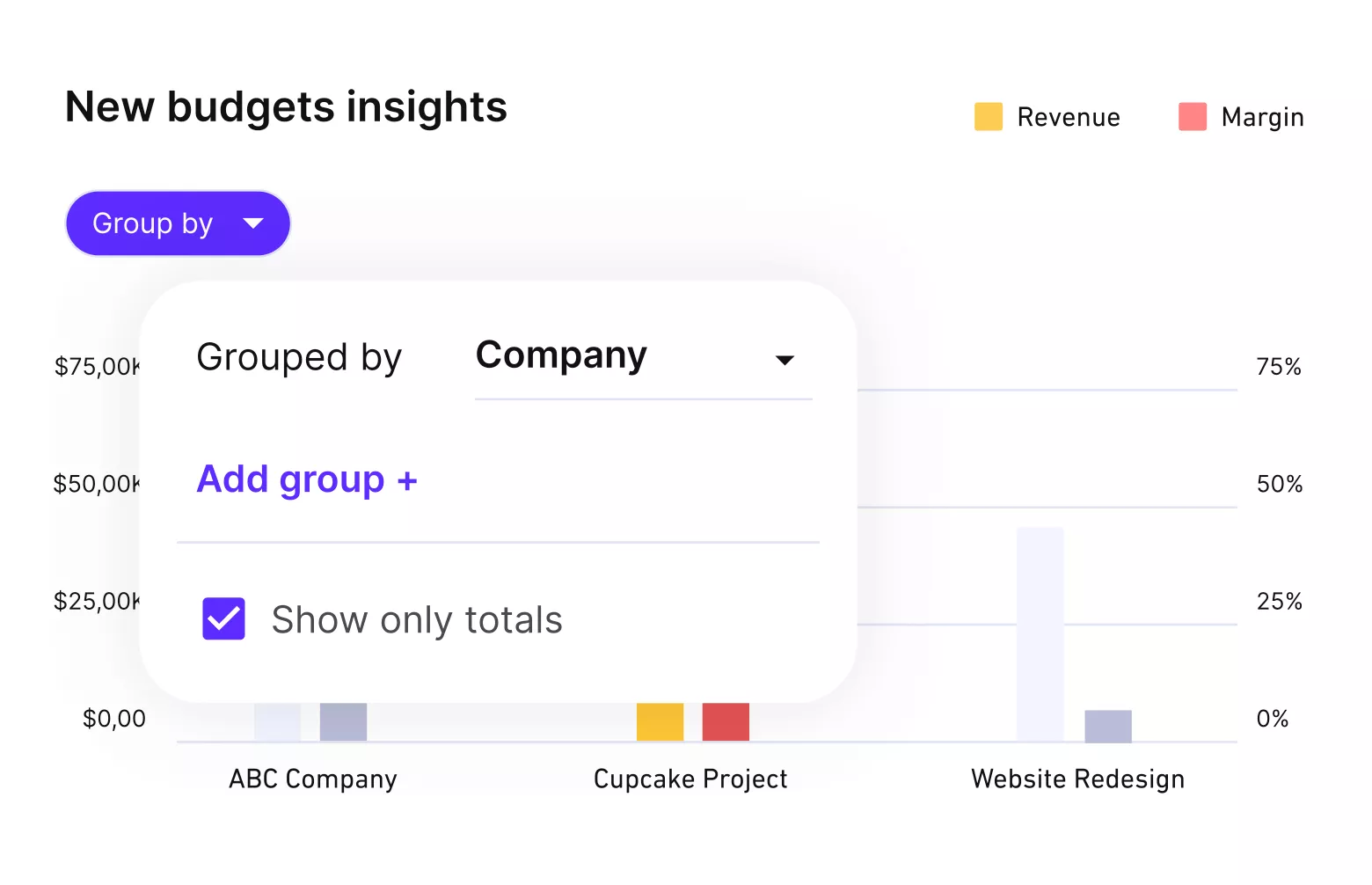
Get real time updates on your budgets.
The Budget Overview tab is designed to answer the questions teams ask during delivery. It shows a budgeting snapshot (remaining budget based on logged billable time) and a profitability snapshot that uses cost rates and overhead, if enabled.
See profitability while work is still in motion
If you want project-level visibility, cost rates matter. Productive lets you set up cost rates so that tracked time has a cost basis, which feeds profitability reporting.
If you need to include overhead in profitability, Productive supports overhead costs on top of employee cost rates. This improves how profitability reflects real operating costs.
In case you need a better understanding of profitability and finances, our finance management guide is probably the best place to start.
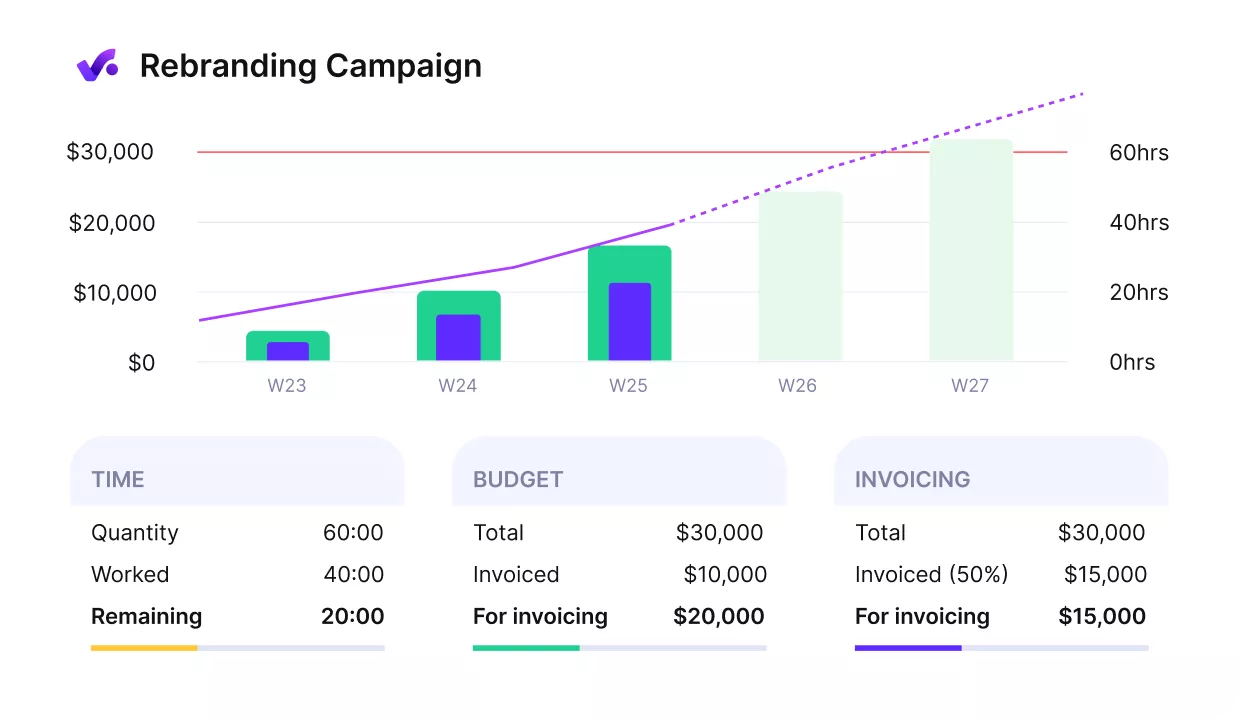
Get early warnings of budget overruns.
Log expenses where project owners can actually use them
Productive supports expense submissions tied to budgets, so expenses can be categorized and tracked alongside time. That is the difference between “expenses live in someone’s inbox” and “expenses are visible where delivery decisions happen.”
If you want control over what hits a budget, Productive supports an expense approval flow where budget owners can approve, reject, or edit submitted expenses.
For vendor spend, Productive also supports company purchase orders and linking POs with expenses. This keeps external costs tied to the same budgets you review for delivery and billing.
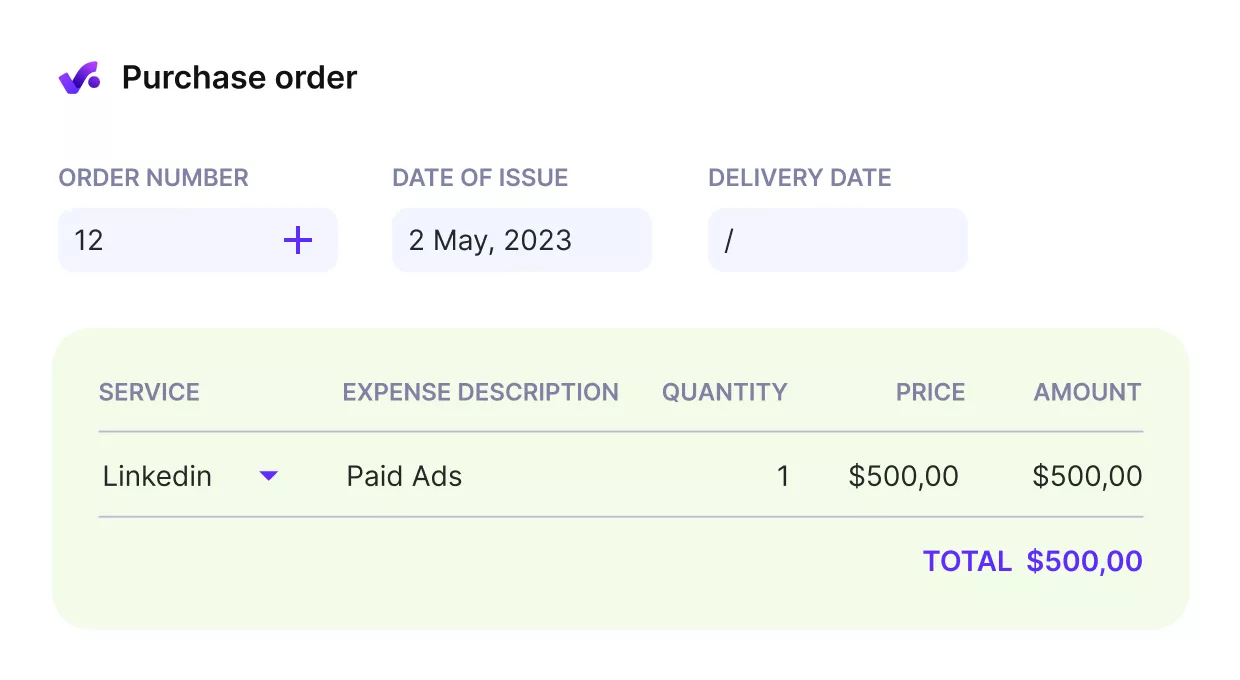
Link purchase orders and all other expenses to project budgets and profitability.
If you’re having a hard time with tracking expenses, it might be a good idea to get back to the basics. Actionable tips and a step-by-step process are in our detailed expense tracking guide.
Add approvals so reports and invoices are based on reviewed data
If time tracking quality is the blocker, approvals help. Productive’s time approval allows budget owners to review time entries before they are visible to clients or included in internal budget and profitability reports.
You can also manage who can approve time entries using approval permissions. That keeps the approval step consistent across teams.
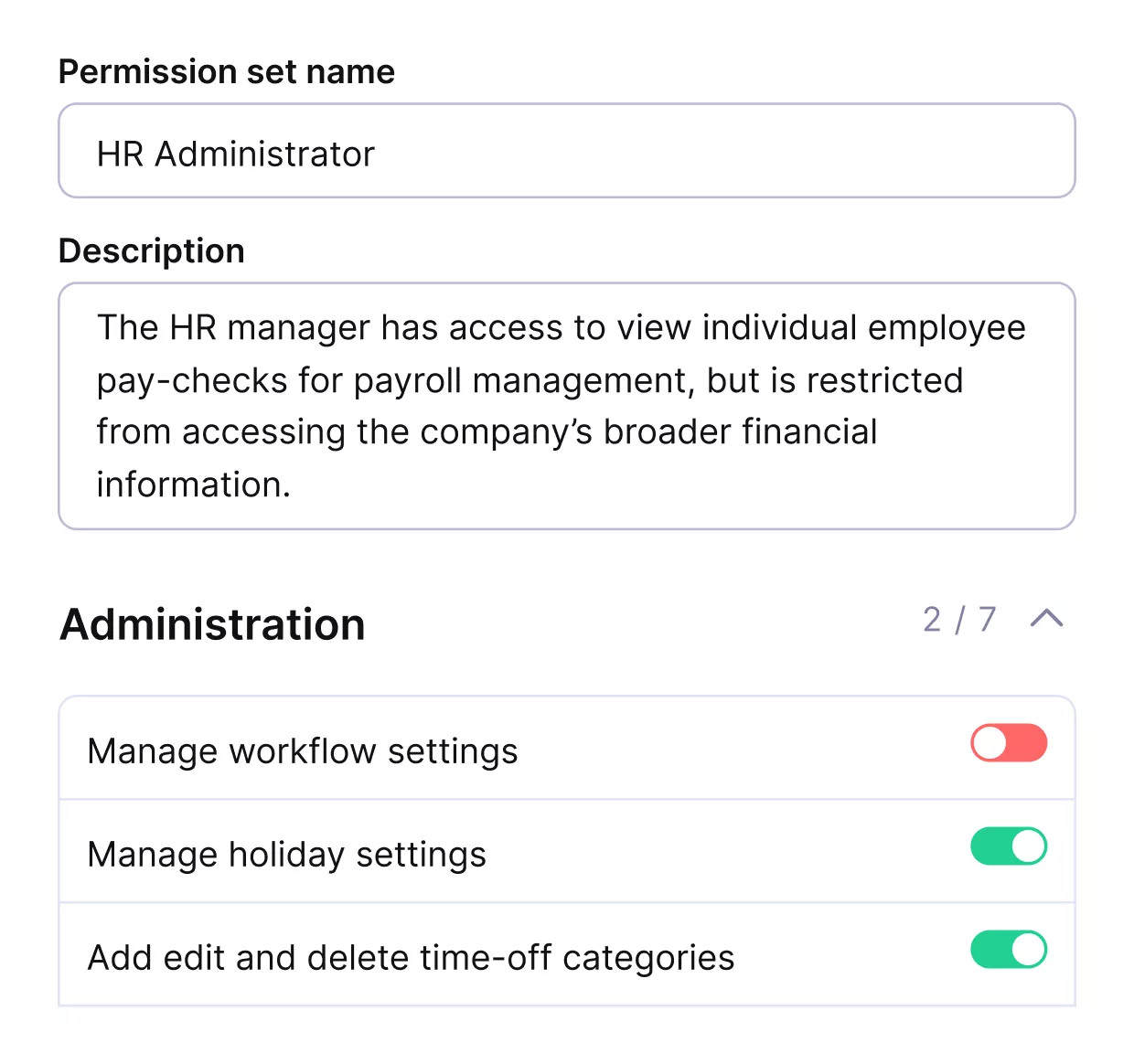
Set custom permissions and approvals in Productive.
Build invoices from tracked work, then push them into QuickBooks Online
Productive supports creating invoices inside Productive. When QuickBooks Online is your accounting system, the integration allows you to send invoices from Productive to QuickBooks.
Payment status can also sync back. When an invoice is marked as paid in QuickBooks (including partial payments where supported), that status can reflect in Productive.
If you invoice in multiple currencies, Productive supports showing invoice amounts in two currencies on invoices. It also includes currency settings and exchange rate configuration for multi-currency setups.
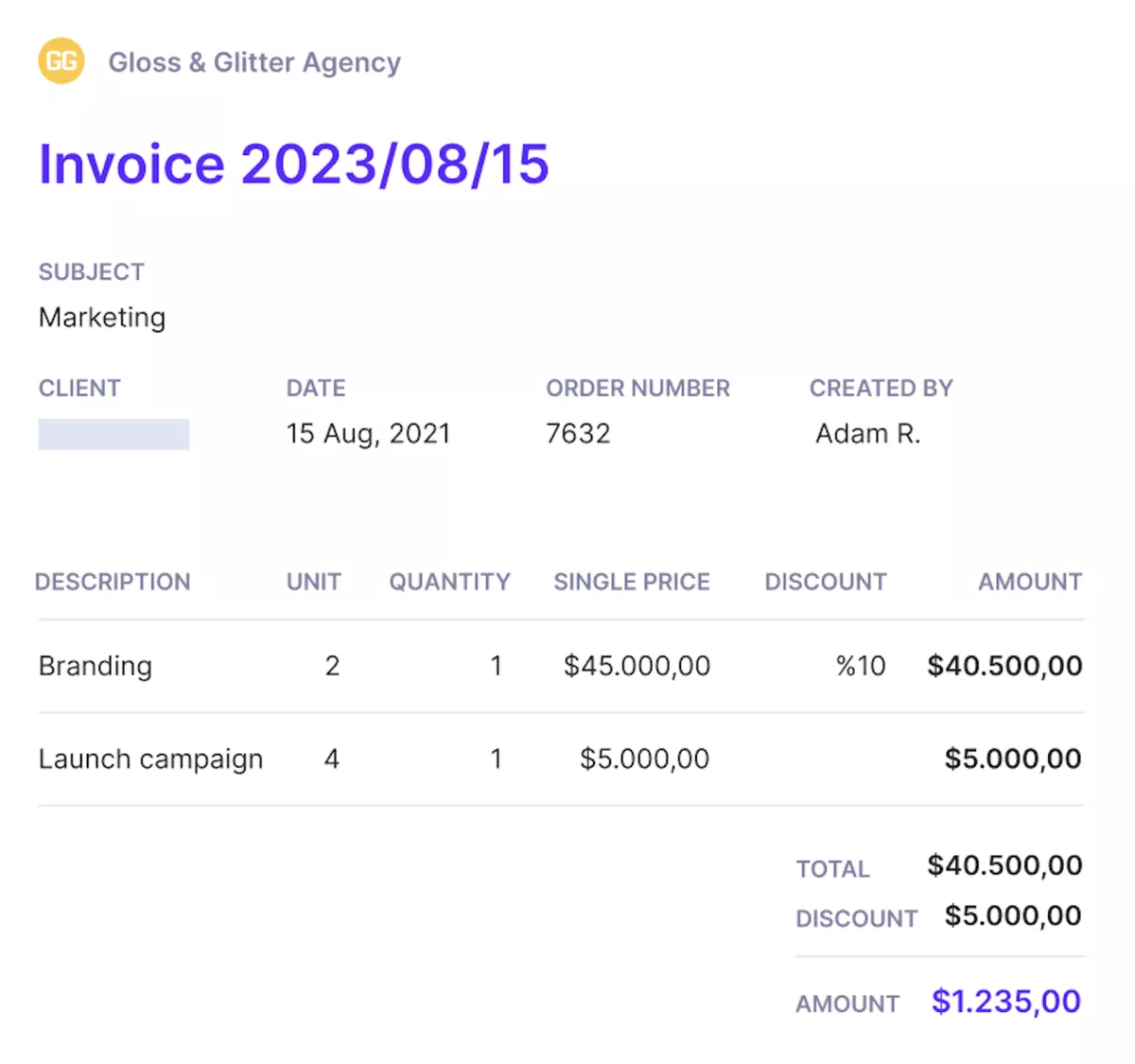
Create and send invoices directly form Productive.
Pricing
- Plans start with the Essential plan at $10 per user per month, which includes essential features such as budgeting, project & task management, docs, time tracking, expense management, reporting, and time off management.
- The Professional plan includes custom fields, recurring budgets, advanced reports, billable time approvals, and much more for $25 per user per month.
- The Ultimate plan has everything that the Essential plan and Professional plan offer, along with the HubSpot integration, advanced forecasting, advanced custom fields, overhead calculations, and more. Book a demo or reach out to our team for the monthly price per user.
You can go for a free 14-day trial before you decide to check out a paid plan.
Try a Cleaner Alternative to QuickBooks
For agencies and professional services teams, Productive replaces QuickBooks as the system you use to manage billable work and client billing, without forcing you to manage delivery in an accounting tool.

2. Sage Intacct – Best for Mid-Market Finance Teams
Intacct is best for mid-market finance teams that need tighter controls and multi-entity reporting. Plan for a structured rollout, because reporting and close workflows usually need configuration before the tool feels settled.
The main reason to consider Intacct is tighter reporting and control than you can comfortably maintain in a lighter SMB tool. Its dimensional reporting lets you slice results by department, location, or program, and drill from a dashboard back to the underlying transactions.
Key Features
- Core financials, including AP and AR
- Dimensional reporting with drill-down dashboards
- Cash management with account matching and reconciliation
- Multi-entity and consolidation support
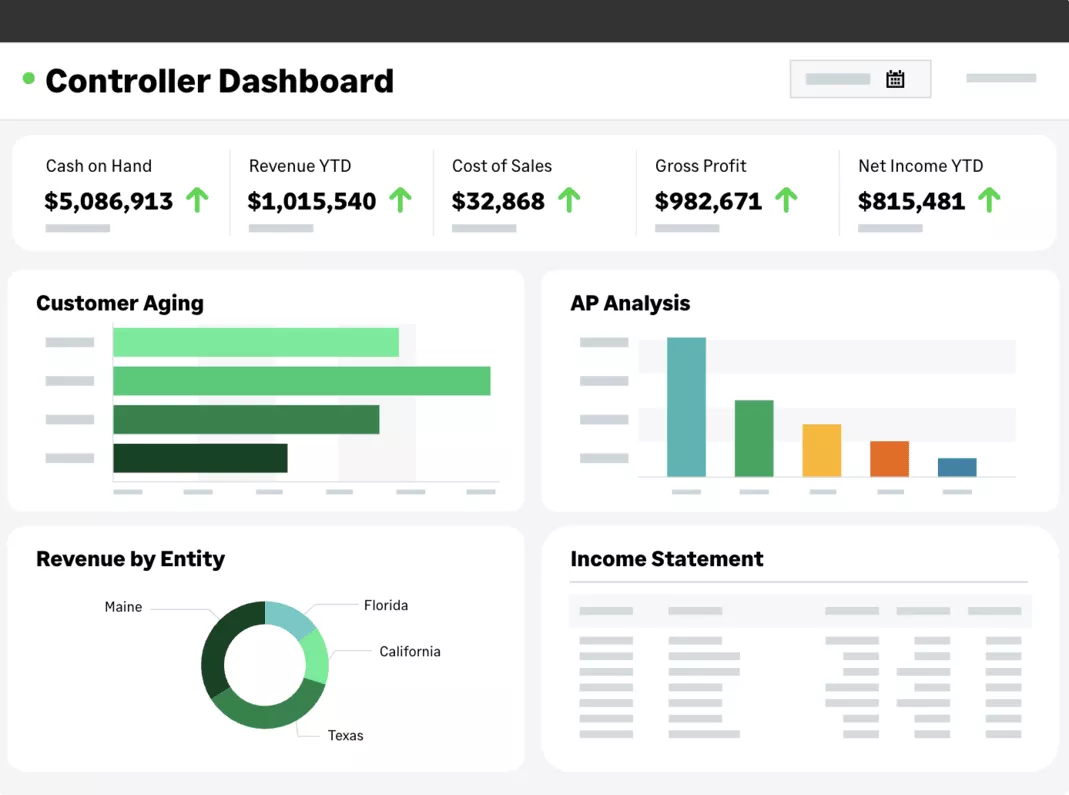
SOurce: sage intacct
Pros
- Users often like having a more structured close process than lightweight tools.
- Dimensional reporting can reduce spreadsheet work once the model is set.
- Teams often mention more consistent reporting across departments.
- Multi-entity setups are supported when one set of books is no longer enough.
Cons
- Implementation and configuration can take real time, especially around reporting.
- Bugs and slow fixes show up in feedback.
- Account setup and payment workflows can feel unintuitive.
- The admin workload is higher than most SMB tools.
Final Verdict
Teams looking for a light switch from QuickBooks should cross this off early. What usually breaks the fit is the rollout and ongoing admin load that comes with deeper controls and reporting.
3. Xero – Best for Cloud Accounting Simplicity
Xero is best for small businesses that want cloud accounting that feels lighter than QuickBooks in day-to-day use. It is a strong fit when you want fast bank matching, clean invoicing, and an accountant-friendly setup.
Xero stays readable when you log in for ten minutes a day. If you need deeper job costing, industry-specific reporting, or complex inventory, you will likely cover gaps with add-ons rather than the core product alone.
Key Features
- Standard financial statements and reporting
- Bank connections with matching and reconciliation reports
- Invoicing and billing with online payment options
- Tracked inventory for basic stock items
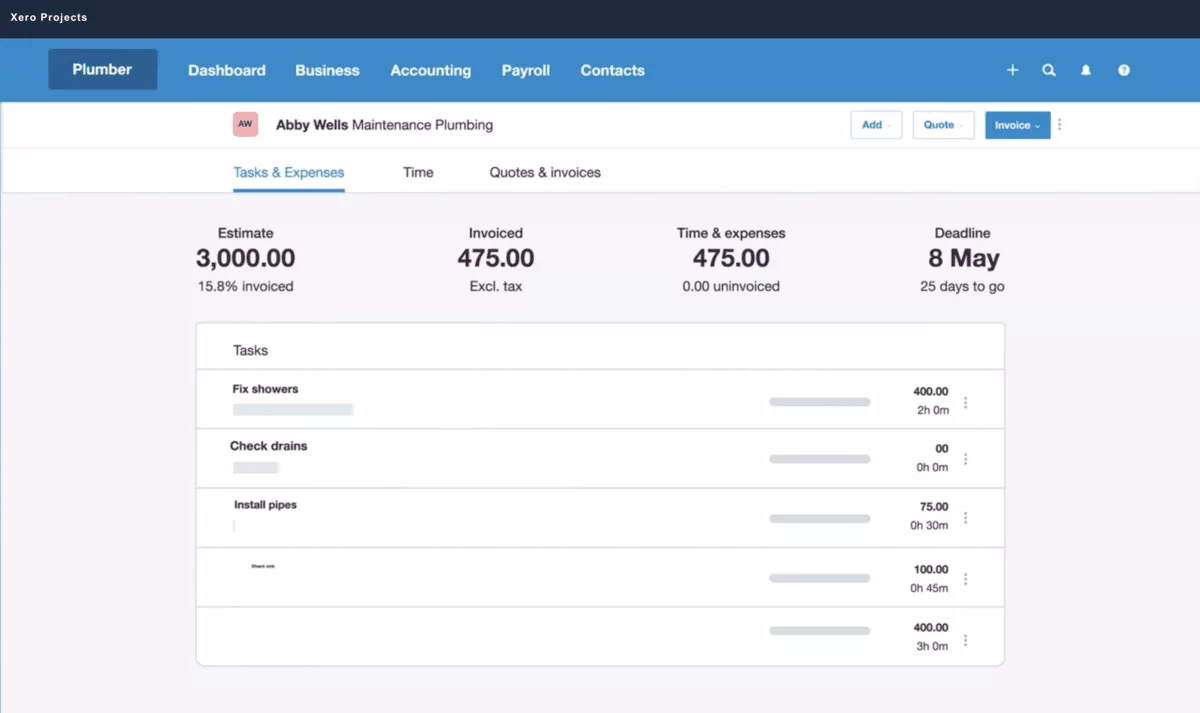
SOurce: xero
Pros
- The interface is widely described as clean and quick to learn.
- Day-to-day tasks like invoicing and categorizing transactions feel straightforward.
- The integration ecosystem is a practical advantage for small business stacks.
- Web and mobile access covers most basic workflows.
Cons
- Support response time and resolution can feel inconsistent.
- Plan limits and pricing changes frustrate some long-time users.
- Reporting can feel basic unless you add reporting tools.
- Add-ons can push the total cost higher than expected.
Final Verdict
Xero is easy to live with day to day, but it can become fragmented once you rely on several add-ons for core needs. The dealbreaker is usually add-on sprawl combined with plan limits.
If you’re here for time tracking and billing, you should check out our best time billing software list.
4. Oracle NetSuite – Best for ERP-level accounting and operations
Oracle NetSuite is built for multi-entity or operationally complex businesses that need an ERP-level system. It is typically sold on a quote basis, and implementation is usually a project rather than a quick migration.
NetSuite fits when finance depends on operational data, like inventory, purchasing, and order workflows. The main tradeoff is ownership, since configuration and integrations often need dedicated admin time or partner help.
Key Features
- Core financials with multi-entity support
- Bank data matching and reconciliation workflows
- Inventory and order management as part of the wider suite
- Configuration and integrations for complex processes
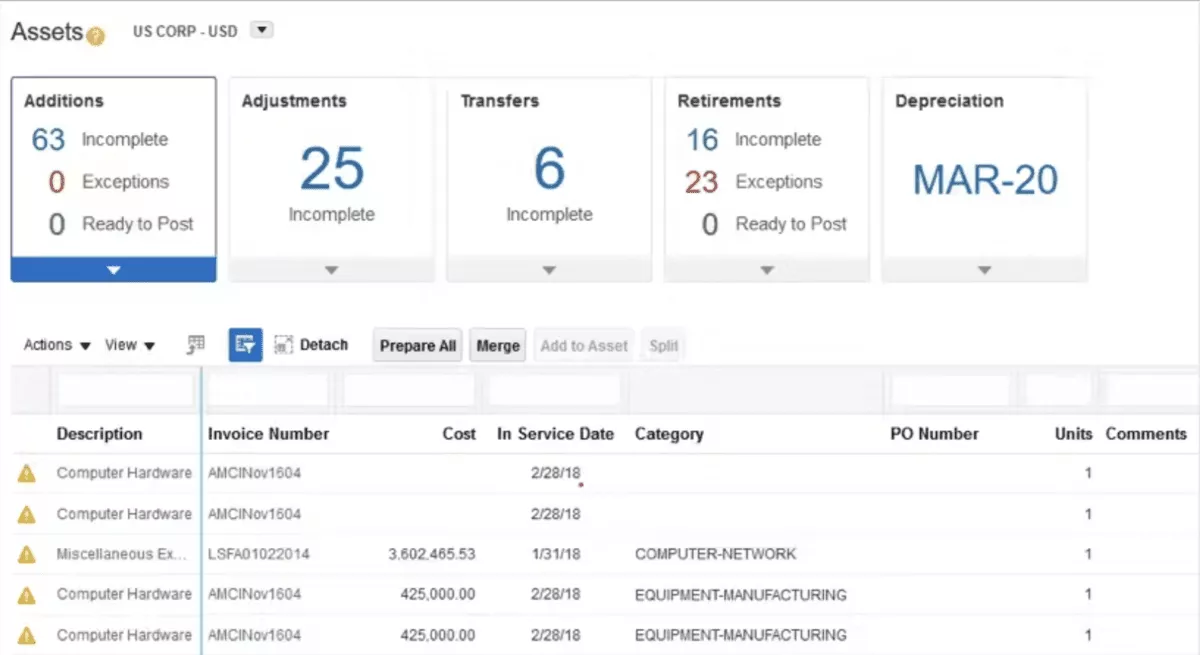
SOurce: Oracle NetSuite
Pros
- One system can reduce handoffs between finance and operations.
- Configuration depth suits edge-case processes.
- Once set up, teams can standardize workflows across departments.
- The partner and integration ecosystem helps with rollout for complex setups.
Cons
- Quote-based pricing and implementation costs can be hard to predict early.
- Everyday tasks can feel slower than SMB tools.
- Customizations create maintenance work over time.
- Support experiences vary, especially once issues get technical.
Final Verdict
NetSuite makes sense when you truly need an ERP scope. The dealbreaker is long-term ownership cost and admin overhead, not a missing checkbox feature. We talk a whole lot more about this tool in our NetSuite alternatives list.
5. AccountEdge – Best for Desktop-First Accounting Control
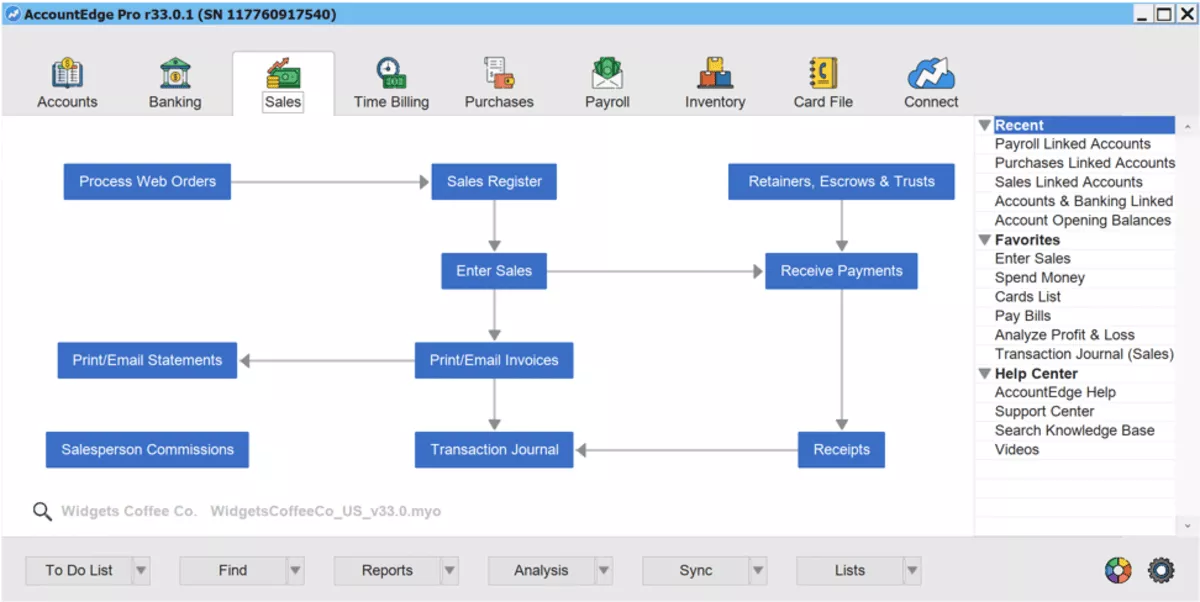
AccountEdge works best for small businesses that want desktop accounting on Mac or Windows, with more control over where the data lives. It is a different model from most QuickBooks Online alternatives, since the core product is locally installed.
AccountEdge Connect can add browser access and bank connections when you need remote entry, but collaboration usually takes more setup than cloud-first tools.
Key Features
- Desktop accounting for Mac and Windows, plus optional AccountEdge Connect browser access
- Banking tools, including account matching and reconciliation
- Sales and invoicing, purchasing and bill pay, and payroll workflows
- Inventory and job codes for tracking costs by project or department
SOurce: AccountEdge
Pros
- Desktop setup is a plus for teams with weak internet or tighter data control needs.
- Inventory and job tracking are frequent reasons people stick with it.
- The feature set is broad for a desktop package, including payroll.
- Reporting and month-end basics are generally covered without extra modules.
Cons
- Some users run into extra costs for things like bank feeds or certain support.
- The UI can feel dated compared with newer cloud tools.
- Remote collaboration is not as smooth unless you add Connect or hosting.
- Integrations can be a pain point, especially when a connector changes.
Final Verdict
AccountEdge is a strong pick for desktop-first control, but it can feel limiting once you need smooth collaboration across locations. The dealbreaker is usually remote access and integrations, not day-to-day bookkeeping.
6. Zoho Books – Best for Zoho Ecosystem Users
Zoho Books fits small teams that want accounting inside the Zoho ecosystem. The key is confirming what you get in your region and tier, since limits and integrations can vary by plan and setup.
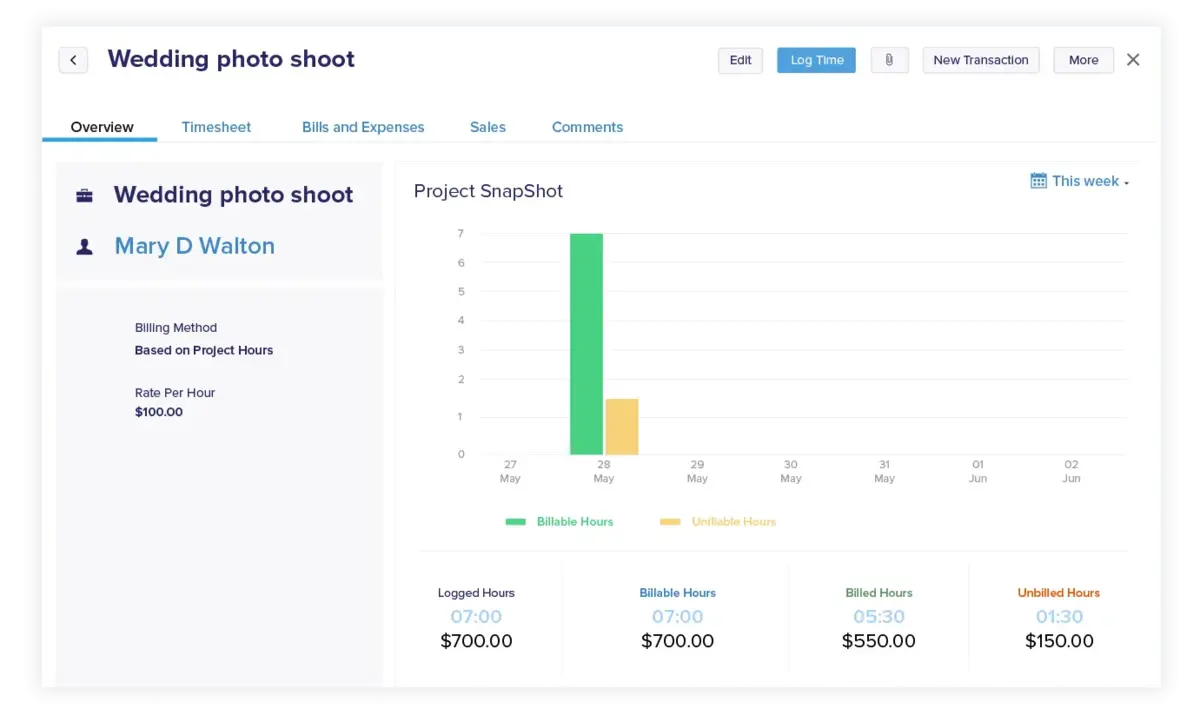
Key Features
- Bank connections with matching and reconciliation
- Vendor bills and purchase orders
- Inventory tracking for items with reorder points
- Projects and timesheets for billable work (plan dependent)
SOurce: Zoho Books
Pros
- The interface is generally easier to learn than heavier accounting systems.
- Pricing is often described as reasonable for small teams.
- Tight integration with other Zoho apps is a recurring reason people choose it.
- Invoicing and billing features cover most common small business needs.
Cons
- Support response times and resolution can be frustrating.
- Plan limits and paid upgrades surprise some buyers.
- Some settings and workflows feel buried or less flexible.
- Integrations and data handling are not always smooth.
Final Verdict
Zoho Books is most comfortable when you are already committed to the Zoho ecosystem. The dealbreaker tends to be plan limits or support responsiveness when something urgent breaks.
7. ZipBooks – Best for Very Small Business Basics
ZipBooks is a fit for freelancers and very small teams that mainly need invoicing and basic bookkeeping. It is web-first, and the native mobile app has been discontinued, so it works best when a mobile-friendly browser is used.
The free Starter plan is narrow, including the one bank connection limit. If you are replacing QuickBooks for anything beyond basics, expect to move to a paid plan quickly.
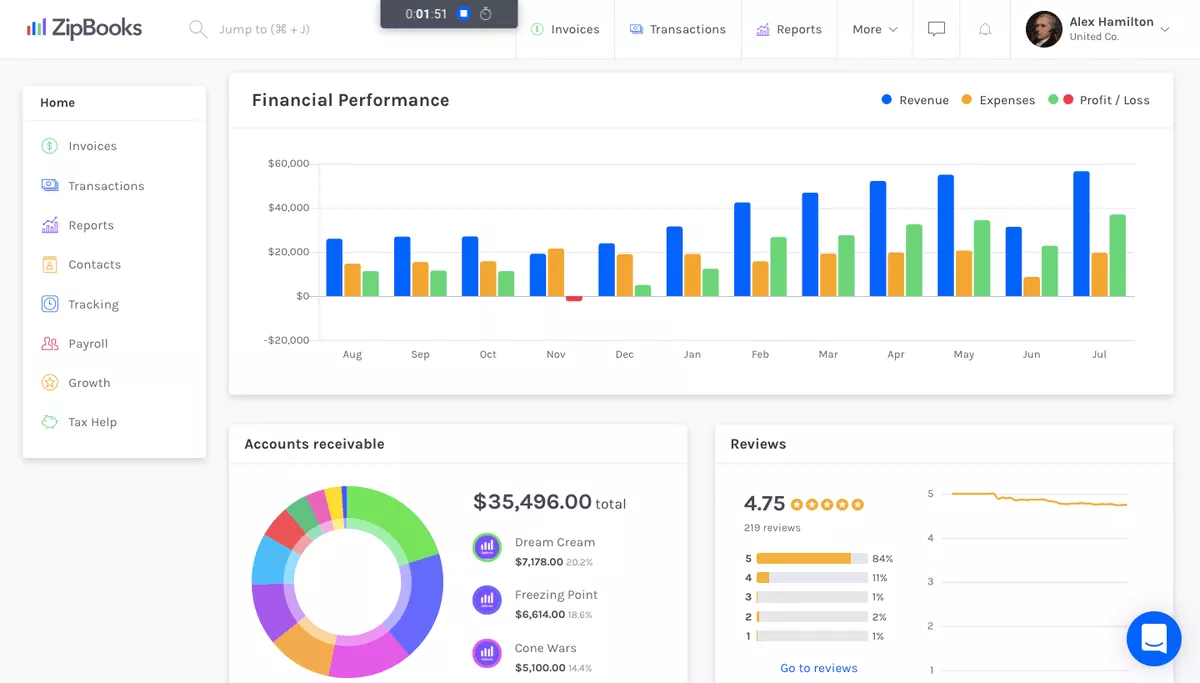
Key Features
- Invoicing with recurring invoices and automated payment reminders (paid plans)
- Bank connections with matching and reconciliation
- Standard accounting reports
- Time tracking that can be pulled into invoices (paid plans)
SOurce: ZipBooks
Pros
- The UI is often described as easy to learn for basic bookkeeping.
- Value for money is a common theme, especially compared with larger tools.
- In-app chat support gets positive mentions.
- Time tracking is a plus for hourly service work.
Cons
- Invoice customization comes up as a limitation.
- Some core workflows push you to a paid plan sooner than expected.
- Reporting depth is limited once you need custom views.
- Integrations are not as extensive as larger platforms.
Final Verdict
ZipBooks is best treated as a starter system. The dealbreaker is usually hitting limits in reporting, integrations, or anything that looks like inventory workflows.
8. ZarMoney – Best for Flexible Cloud Accounting Workflows
ZarMoney suits small businesses that want cloud accounting plus inventory in one system, without moving to an ERP. It is often picked for flexibility, but setup can take longer than people expect.
Its main draw is keeping item sales, purchasing, and stock tracking closer to the books than many entry-level tools. If you export accounting data often, note that exports are limited to one-year increments.
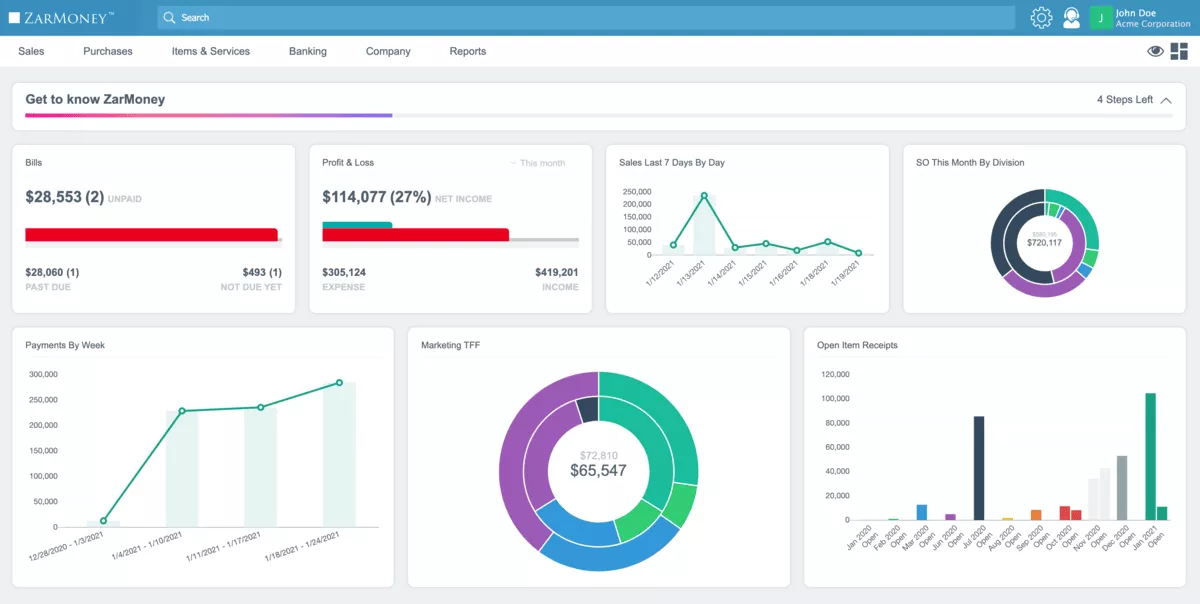
Key Features
- Bank connections with transaction matching and reconciliation
- Core reporting with CSV export
- Inventory items, including adjustments across multiple locations
- Quotes, invoices, purchase orders, and vendor bills tied to items
SOurce: ZarMoney
Pros
- Navigation and search are often described as straightforward.
- Pricing and overall value get frequent positive mentions.
- Support responsiveness stands out in many reviews.
- Reporting is a common reason teams consider it.
Cons
- Setup and onboarding can take longer than people expect.
- Reporting configuration can be a mismatch for teams that need heavy customization.
- Some users report quirks that take time to troubleshoot.
- The mobile experience is often described as behind the web version.
Final Verdict
ZarMoney can work for basic inventory plus bookkeeping, but it struggles when inventory workflows get specific. The dealbreaker is usually assemblies or edge-case stock adjustments once operations mature.
9. Wave – Best for Free Accounting Basics
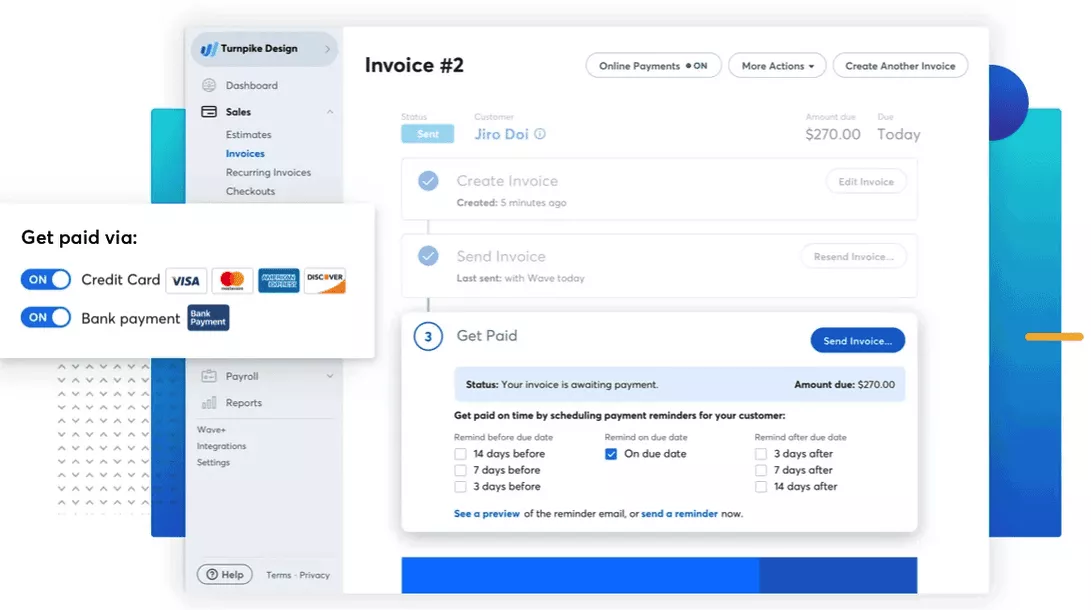
Wave Accounting is a practical choice for freelancers and very small businesses that want invoicing and basic bookkeeping without committing to a monthly subscription. The free Starter plan covers essentials, and paid tiers focus on automation.
You can reconcile accounts on the web to keep books aligned with statements. If you want more automation, Wave pushes you toward the Pro plan.
Key Features
- Free Starter plan for invoicing and basic accounting
- Account matching and reconciliation tools on the web version
- Pro plan automation, including automatic bank transaction imports
- Receipt capture and recurring invoices (Pro plan)
SOurce: Wave
Pros
- Easy to get invoices out without much setup.
- Clean interface for simple income and expense tracking.
- Solid starting point if your books are cash-basis and straightforward.
- Works well for single-owner businesses that keep operations simple.
Cons
- No inventory management, so product businesses outgrow it fast.
- Automation features tend to require upgrades.
- Reporting customization is limited compared with paid competitors.
- Support expectations can be a mismatch if you need fast, hands-on help.
Final Verdict
Wave works best when your books stay simple and mostly solo. The usual dealbreaker is needing shared workflows, inventory, or more automation than the Pro upgrade can realistically cover.
10. Odoo Accounting – Best for Modular Accounting With Customization
Odoo Accounting suits teams that want accounting inside a modular app suite and are comfortable shaping the system around their process.
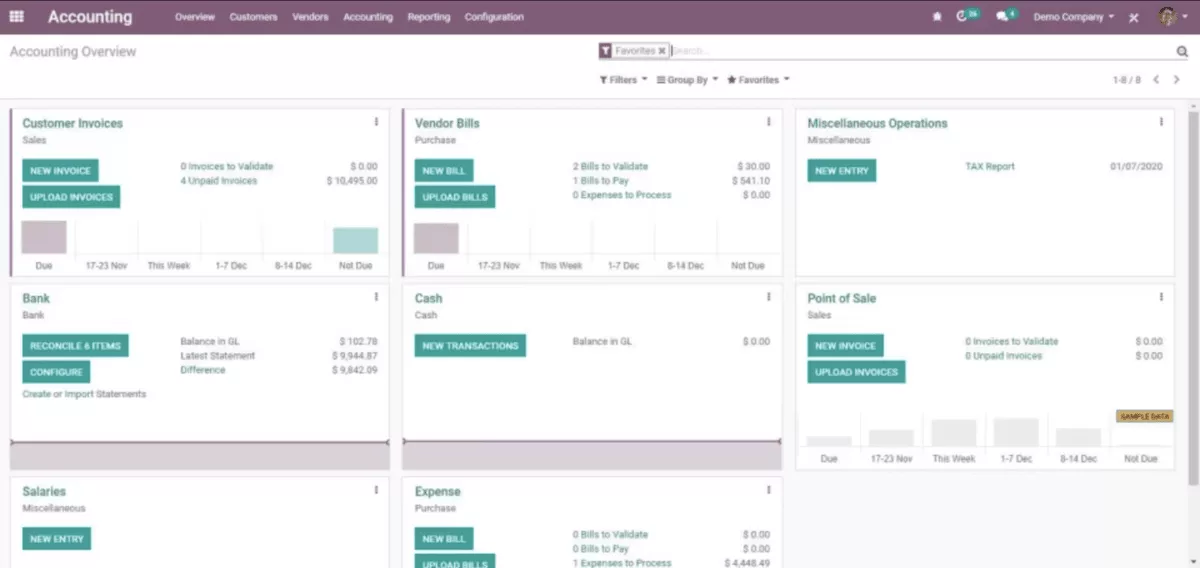
The Accounting app supports reconciliation workflows and can create journal entries that align with inventory valuation when you also run Odoo Inventory. The tradeoff is that setup choices, like how you structure accounts and journals, have a big impact on day-to-day usability.
Key Features
- Accounting dashboards and standard reports
- Bank syncing options and reconciliation tools
- Customer invoicing and vendor bills with payment tracking
- Inventory valuation journal entries, when paired with Odoo Inventory
SOurce: Odoo Accounting
Pros
- Fits well when you want finance tied to operational data in one suite.
- Flexible configuration for workflows that do not fit rigid templates.
- Large ecosystem of apps and partners for extensions.
- Can expand into broader ERP processes without migrating data again.
Cons
- Setup and configuration can take time to get right.
- Pricing and feature availability depend on edition and app choices.
- Custom modules and integrations add maintenance work during upgrades.
- Overkill if you only need invoicing and basic bookkeeping.
Final Verdict
Odoo can be worth it if you are willing to configure and maintain the system. The dealbreaker is the implementation effort when what you really needed was straightforward bookkeeping.
Why People Look for QuickBooks Alternatives?
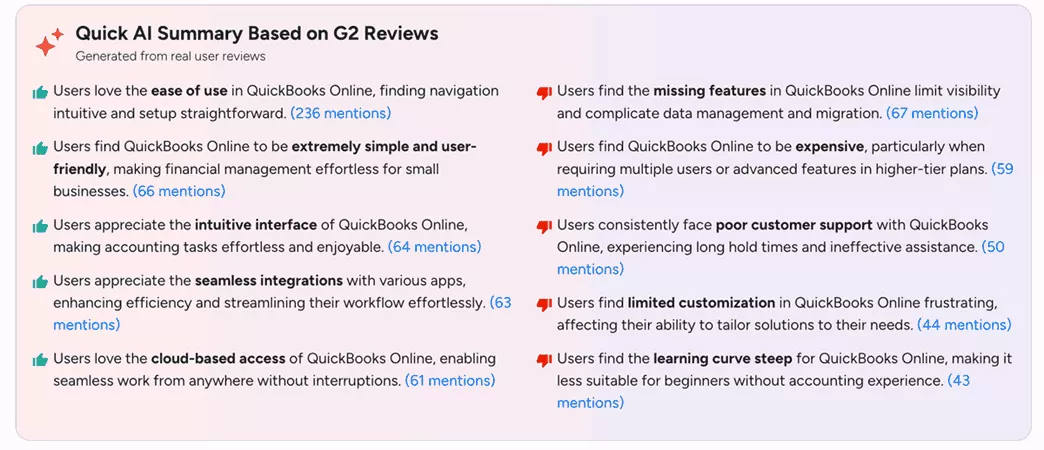
People look for QuickBooks alternatives because costs rise as they add users and paid add-ons, day-to-day bookkeeping becomes harder to keep clean, reporting needs outgrow what they can get without exports, or the tool does not fit how they sell (services versus inventory).
SOurce: Quickbooks G2 review
According to G2, the most common reasons are:
- Pricing and add-ons: Costs climb as you add users and paid modules like payroll, payments, or support. The impact usually shows up when a team scales and the monthly total no longer matches how much of the tool they actually use.
- Day-to-day usability: Small frictions, like fixing categorization mistakes or matching transactions, add up. In real life, this shows up as month-end turning into cleanup work instead of a routine close.
- Professional services vs. inventory management: Professional services teams need clean billable time and expense tracking for client billing, while product teams need inventory management that holds up with purchasing and stock adjustments. A mismatch pushes tracking into spreadsheets.
- Reporting expectations: Teams often outgrow standard statements and want consistent financial reporting by client, department, location, or entity. The tell is frequent exports to Google Sheets or an Excel template, sometimes just to feed Power BI and build the view they need.
- Desktop vs. cloud fit: Some teams want desktop accounting software for local control and offline reliability, while others need easy collaboration across remote staff and accountants. The wrong model creates friction, no matter how good the features are.
How To Choose the Right QuickBooks Alternative?
Choose the right alternative by (1) confirming what accounting you need, (2) listing must-have workflows, (3) picking cloud vs. desktop, (4) testing reporting with real questions, and (5) totaling integrations and cost.
Then short-list two tools and test them with your real data.
Step 1: Decide if you need full accounting or just billing
Start by listing what must live in the system. If you need a general ledger, bank reconciliation, and financial statements like a balance sheet, you are shopping for accounting software.
If you mainly need invoicing and payments, you can consider lighter tools, but you still need to confirm how reporting and tax workflows will work. Ask your accountant what they need for tax prep so nothing breaks at year-end. We talk more about the fundamentals in our guide for professional service billing.
Step 2: Write down your non-negotiable workflows
Make a short list of daily jobs that cannot be broken during a switch. Examples are: importing bank transactions, matching and categorizing them, handling sales and invoicing, coding credit cards, recording vendor bills, handling sales tax or VAT, and running the month-end close.
If inventory matters, add the exact workflows, like purchase orders, stock adjustments, and valuation.
Step 3: Choose your operating model first
Decide whether you want cloud-first collaboration, desktop accounting software, or a hybrid. This is where many accounting switches fail, because the product choice fights the way the team actually works, like remote approvals, offline needs, or accountant access.
Step 4: Test reporting with two real questions
Pick two questions you ask every month and make them a requirement. One should be about financial reporting. One should be about cash flow.
For example: “Which clients or product lines were profitable?” and “What changed since last month?”
Then verify you can answer them inside the tool without rebuilding a Google Sheets view or pushing data into Power BI like you did in QuickBooks. If your reporting depends on customization options, confirm what is native versus an add-on.
Step 5: Check integrations and total cost, not just sticker price
List the tools you cannot replace, like payroll, payments, ecommerce, or CRM software. Confirm the app integrations exist and understand what is included versus paid add-ons. If you rely on customization options for reports or approvals, confirm what is included at your tier.
Then estimate the total cost based on your user count, required modules, and the support level you will actually need. This is often where “cheap” tools stop looking cheap once you include add-ons for sales and invoicing, reporting, or support.
How To Migrate from QuickBooks?
To switch from QuickBooks, start with clean books, pick a cutover date, move only the data you can trust, then validate the new system before you shut anything down.
Use the checklist below as your migration runbook. Each line has a clear output, so you can tell if you are ready to move on.
If your file is messy, large, or full of custom lists, a conversion service can reduce rework. It is also useful if you need to preserve a long history without spending weeks on cleanup.
Free QuickBooks Migration Checklist
- Set the cutover date and migration scope: Choose a month-end if possible. Decide whether you will migrate the full transaction history or only the opening balances plus open invoices and bills.
- Lock in bookkeeping cleanup: Post missing invoices and bills, clear uncategorized transactions, and resolve duplicates. Your goal is that your books can close without surprises.
- Finish bank reconciliation: Reconcile every bank account and credit card up to the cutover date. Save the reconciliation report PDFs and the ending balances as your reference point.
- Decide whether to use a conversion service: If you have lots of history, many custom fields, or years of transactions, a conversion service can be faster than DIY.
- Back up the company file: If you are moving off desktop accounting software, create a final backup. If you are moving off QuickBooks Desktop, archive the company file in the same folder as your exports.
- Export lists from the old file: Export the chart of accounts, customers, vendors, and products or services. Keep these exports in a single folder so you can trace what was imported.
- Export what is still open: Export open invoices, open bills, and open credits. If you run payroll or payments outside the new system, document what will stay in the old tool.
- Create a mapping sheet: Use an Excel template or Google Sheets to map old to new account names, tax rates, payment terms, and item names. This prevents messy duplicates during import. Keep the Excel template as your audit trail.
- Import in the right order: Import accounts first, then customers and vendors, then items or services, then open invoices and bills. After each import, spot-check a few records for duplicates and formatting issues.
- Bring over opening balances: Set opening balances for bank accounts, credit cards, and any balance sheet accounts you are not migrating as transactions. Document the opening balances you set for each account.
- Export tax information: Save your tax rates and tax information for reference, especially if you need to match past filings.
- Validate the reports that matter: Compare profit and loss statements, balance sheets, and AR/AP aging in the new system against the same reports from the old file on the cutover date. Have your accountant or conversion service confirm the totals match.
- Run one parallel cycle: Keep the company file read-only for reference. Run one real billing cycle and one bill-pay cycle in the new tool, then confirm the outputs match what you expect.
- Freeze the old system and document the source of truth: Limit access, store exports and PDFs, and archive the final company file reports for audits and year-end.
Final Thoughts: Are these Alternatives Worth the Switch?
Yes, if the alternative fixes the problems you cannot solve in QuickBooks without exports, workarounds, or constant cleanup.
Before you commit, test two tools with your real reports and run one parallel cycle. That is the simplest way to confirm the numbers match, and the day-to-day work feels manageable.
If you run a professional services business where invoices are built from tracked time and project expenses, the cleanest long-term fix is often an all-in-one operations tool that connects delivery to billing.
Productive is built for that workflow. If that is your setup, book a demo to see how it handles time and expense approvals, budgets, and client reporting in one place.
Connect With Agency Peers
Access agency-related Slack channels, exchange business insights, and join in on members-only live sessions.
