Top 5 Nifty Alternatives (Paid & Free) – Curated 2026 Review

Looking over Nifty alternatives often feels like scrolling an endless feature list. We get that.
If you want a true Nifty replacement, you need something that covers day-to-day project work without stitching together a bunch of add-ons. We also get that.
To help you out as much as we can, we picked five tools that can realistically replace Nifty, with key features, plus clear pros and cons (pulled from real user reviews). We also included practical how-to-choose advice and a free migration checklist to help you switch with fewer surprises.
What Are the Best Nifty Alternatives in 2026?
The best nifty alternatives in 2026 are: Productive, ClickUp, monday.com, Wrike, and Teamwork. If you want a tool that can actually replace Nifty, this shortlist focuses on project management software that supports planning, tasks, and collaboration in one place, not a patchwork of management tools.
Shortlist of the Best Nifty Competitors
Comparison Table of the Best Nifty Replacements (What Buyers Want to Know)
| Tool | Best for | Choose this if | Skip this if | Free version |
|---|---|---|---|---|
| Productive | Agencies and service teams that want delivery tied to ops | You need budget visibility, capacity planning, and billing readiness in the same place as your projects | You only need lightweight tasks, milestones, and collaboration | Trial only |
| ClickUp | Highly customizable work management | You want flexible views and workflows that different teams can shape to fit how they work | You want simple setup and low admin overhead | Free plan |
| monday.com | Visual workflows and cross team dashboards | You want boards and dashboards that make progress and ownership obvious | You need complex workflow logic without relying on configuration and higher tier features | Free plan |
| Wrike | Structured projects with more governance | You manage complex work with dependencies and want tighter control over process | You want a lightweight tool that feels simple on day one | Free version |
| Teamwork | Client delivery projects | You run client work and want projects, time tracking, and communication tied together | You do mostly internal work and do not need client focused structure | Free plan |
How We Chose These Tools?
We chose these tools by reviewing patterns in Capterra and G2 reviews, then pressure testing the claims with Reddit threads and YouTube walkthroughs. Our goal wasn’t to list every popular name in management software, but to pick replacements that show up in real evaluations and hold up in day-to-day use for teams.
Next, we will break down each tool with key features, pros and cons from reviews, and a clear verdict on who should skip.
1. Productive – Best for Companies That Need Full Budget and Capacity Visibility
If you are using a tool mainly to coordinate delivery, it can do the job. The challenge shows up when you need the same system to answer operational questions, like whether a project is still on track financially, whether the team has capacity next month, and what is ready to be invoiced.
Productive is designed around those questions, so projects, time, resourcing, and billing stay connected.
Replace Nifty with the best all-in-one alternative
Get Clear Profitability and Utilization Answers Without Extra Reporting
When you are juggling separate tools, reporting turns into reconciliation. Productive keeps delivery and financial signals in the same dataset, so you can answer basic questions faster, like which projects are drifting, which clients are healthy, and whether the team is trending toward overload.
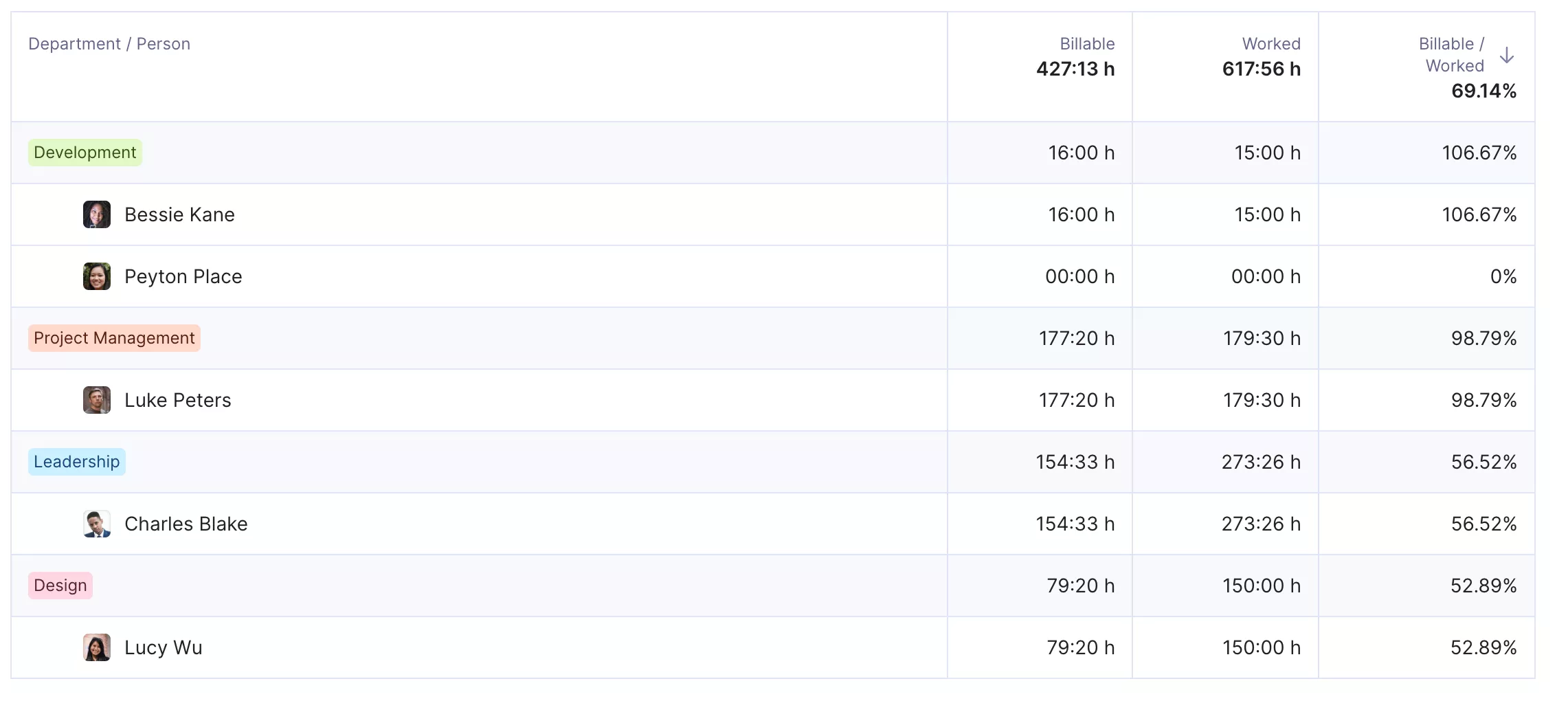
Get real time updates on your team’s utilization.
This is often the biggest upgrade for teams that are tired of stitching together spreadsheets just to understand performance.
Stay Ahead of Budget Risk, Not Just Task Progress
In Productive, delivery sits on top of budgets, so time and expenses update the financial picture as the work happens. That means project leads can spot scope creep and over-servicing early, while there is still room to adjust priorities, timelines, or the commercial conversation.
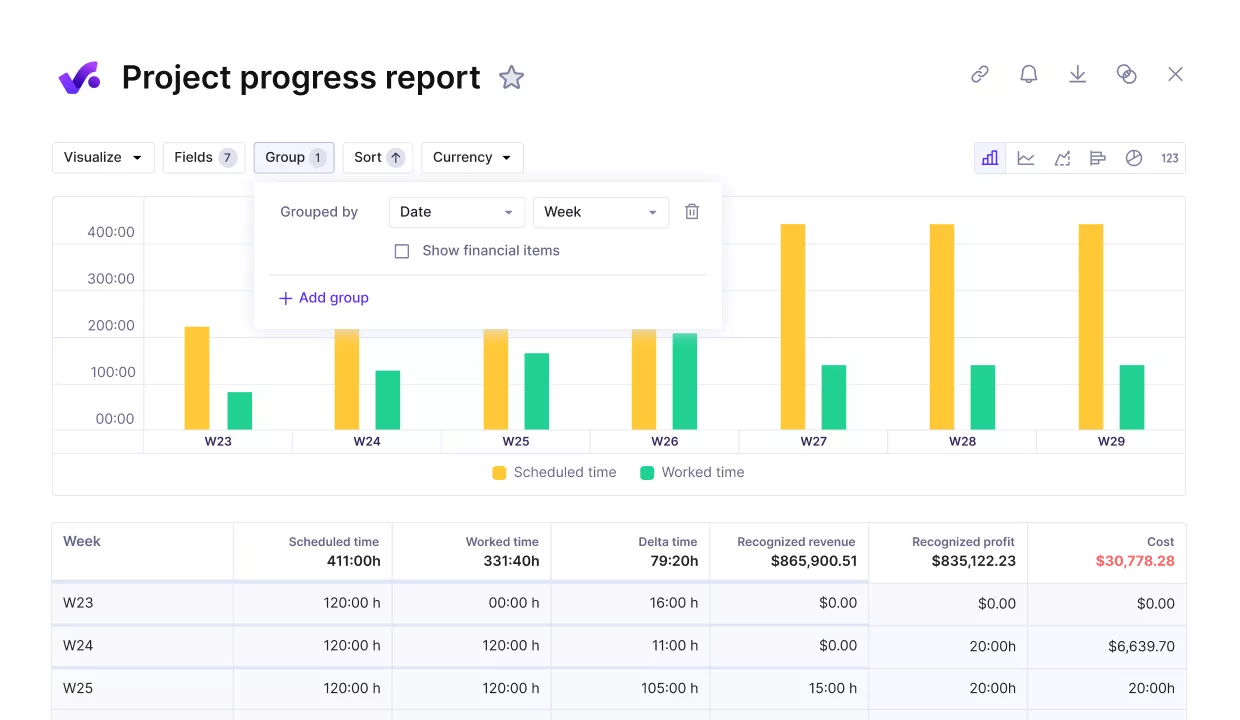
Compare project progress against key performance metrics.
Instead of only knowing that tasks are moving, you can also see whether the plan still makes sense.
Turn Time Entry Into Clean Timesheets and Billing Inputs
Many teams can log time, but still end up reconciling it later to figure out what to invoice and how a project performed. Productive’s time tracking in Productive keeps time entries tied to budgets and invoicing workflows, so timesheets are useful beyond record keeping.
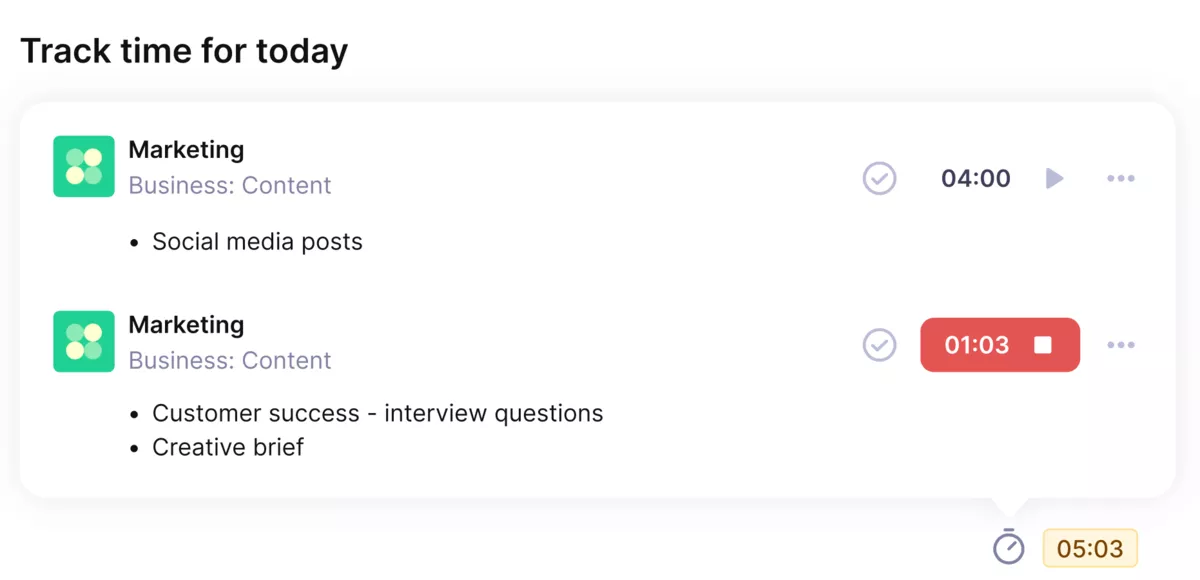
Use Productive’s automatic time trackers for smooth and accurate time tracking.
The practical win is less manual cleanup at month’s end and fewer disputes about what was delivered and what is billable.
Plan Team Capacity With a View That Scales
Task assignments are helpful, but they do not give you a reliable picture of team-wide availability. Productive’s resource planning in Productive focuses on capacity planning so you can see who is booked, where the pressure points are, and how changes in timelines affect the rest of the schedule.
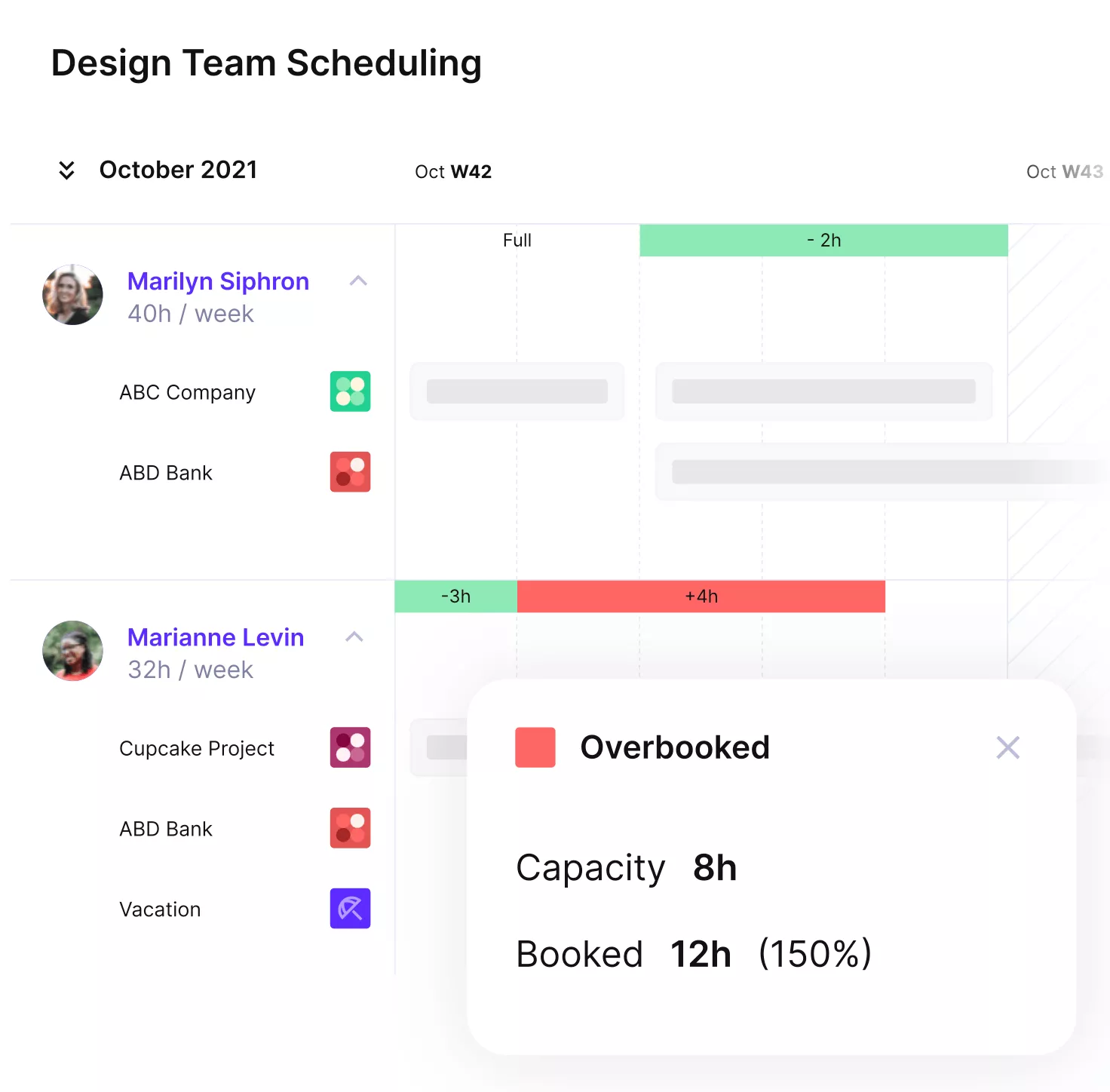
Plan and schedule your team’s workloads in Productive.
This becomes especially valuable when you are making decisions about taking on new work, moving deadlines, or balancing work across roles.
Keep Delivery and Invoicing Aligned So Handoffs Do Not Slip
When delivery tracking and billing live in separate places, invoicing depends on someone remembering to follow up at the right moment. Budgeting in Productive keeps billing closer to delivery signals, so it is easier to turn progress into invoicing actions and reduce revenue leakage caused by missed handoffs.
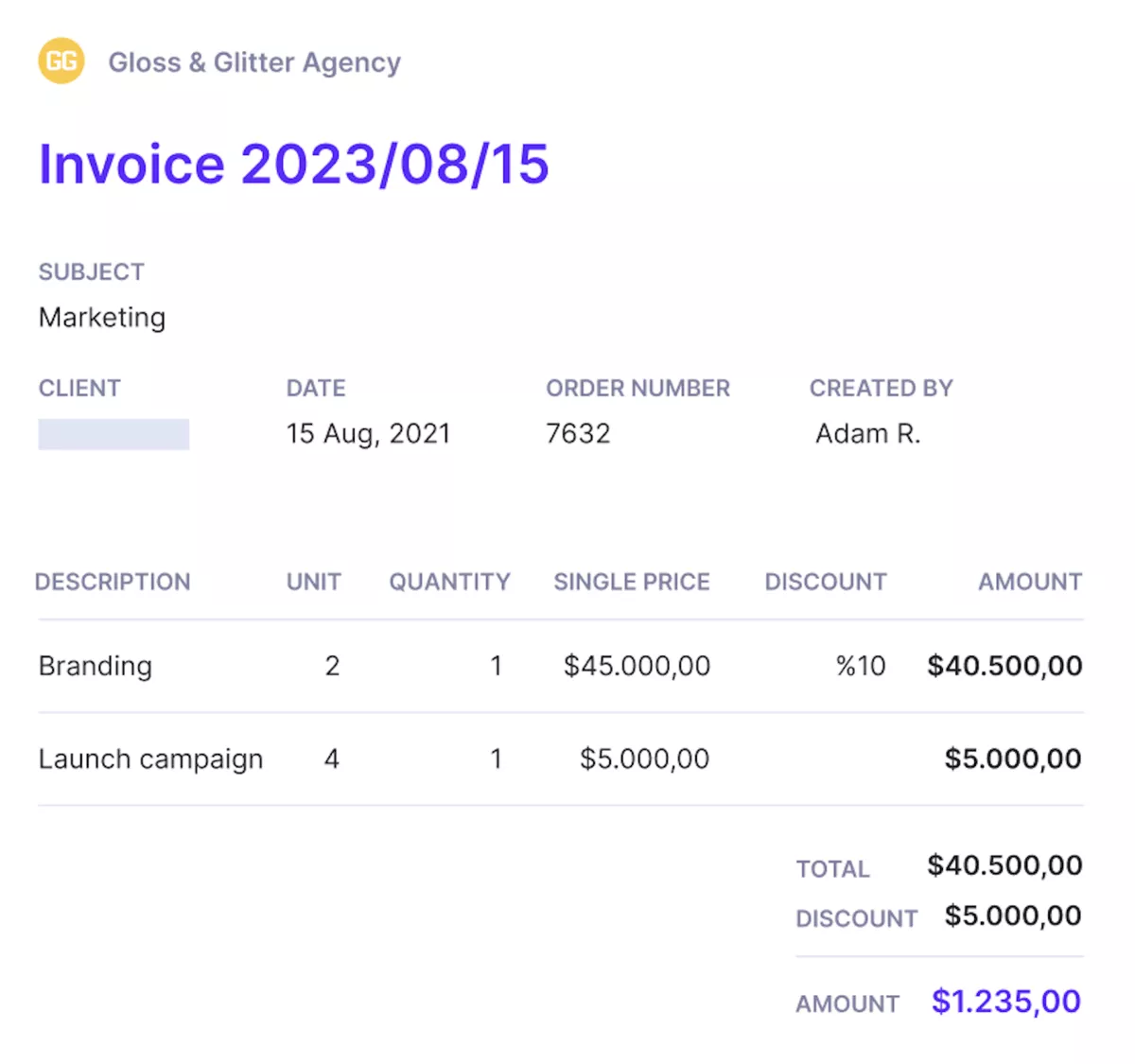
Send invoices from the same place where you deliver work.
It also makes status conversations easier, because project and finance teams are working from the same underlying data.
When Should you Consider Productive?
Productive is a strong fit when your main pain is visibility into budget health, capacity, and billing readiness, not just getting tasks over the line.
If your needs are limited to lightweight task tracking, milestones, and collaboration, it may feel like more system than you want. But if you are already maintaining a parallel stack for budgets and resourcing, consolidating those answers into the same place as delivery is usually the simpler long-term choice.
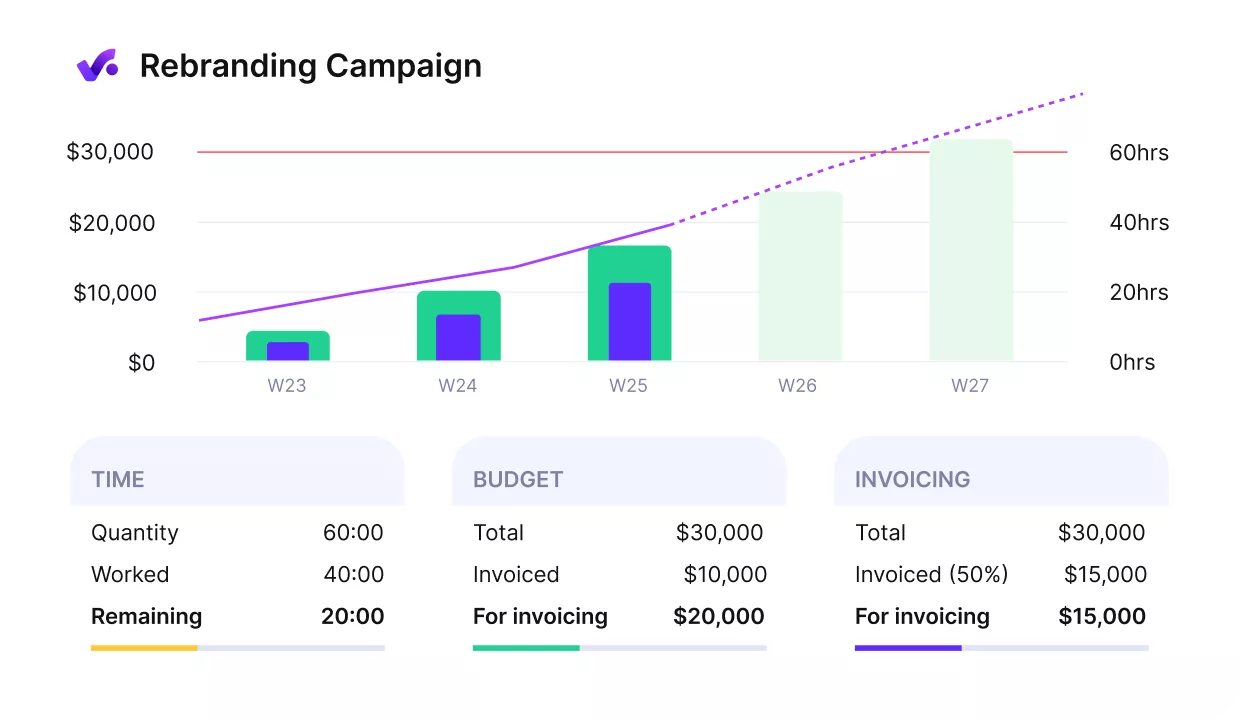
Manage work, operations and finances from a single platform.
Pricing
- Plans start with the Essential plan at $10 per user per month, which includes essential features such as budgeting, project & task management, docs, time tracking, expense management, reporting, and time off management.
- The Professional plan includes custom fields, recurring budgets, advanced reports, billable time approvals, and much more for $25 per user per month.
- The Ultimate plan has everything that the Essential plan and Professional plan offer, along with the HubSpot integration, advanced forecasting, advanced custom fields, overhead calculations, and more. Book a demo or reach out to our team for the monthly price per user.
Productive offers a 14-day free trial, so you can see what it can do for your project’s financial health.
Ready to replace Nifty, not just add another tool?
Nifty is great for coordinating delivery, but many teams switch when they need budget burn, capacity, and billing readiness in the same place as the work. Productive is built for that next stage, so you are not managing delivery in one tool and the business in three others.

2. ClickUp – Best for Highly Customizable Work Management
ClickUp is project management software that gives you more control over task management than Nifty, especially when you want to tailor workflows to different teams.
The tradeoff is that many teams hit a learning curve, so the setup work and ongoing admin can feel heavy if you want something simple, and Productive’s ClickUp alternatives guide is a useful reference if you are weighing a few options.
Key Features
- Customizable views so each team can work in a list, board, or timeline.
- Workflow automation to move work forward when statuses change.
- Gantt charts for planning dependencies and dates across a project.
- Time tracking on tasks for delivery and billing.
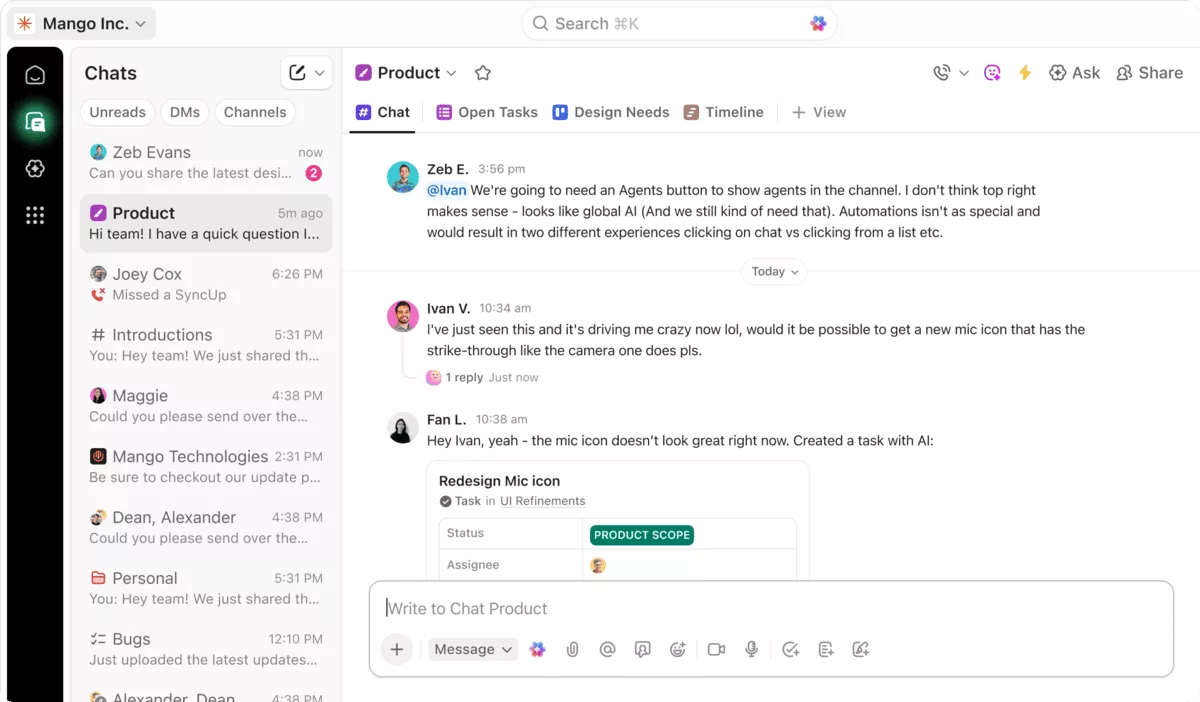
SOurce: clickup
Pros
- Flexible structure for complex projects and agile project management.
- Strong customizable views that help different teams work their own way.
- Useful automation options once your workflows are set up.
- Broad feature set that can replace separate docs, tasks, and team chat.
Cons
- Overwhelming at first, with lots of settings and places to click.
- Setup and governance take time, especially when multiple teams share the same space.
- Performance can feel slow on larger workspaces.
- Notifications can get noisy if you do not tune them early.
Final Verdict
If your team wants simple work tracking with minimal setup, ClickUp can feel like too much tool for the job. The dealbreaker is the ongoing maintenance: without someone to own the structure, the work gets messy fast.
3. monday.com – Best for Visual Workflows and Cross-Team Dashboards
monday.com is Monday software built around visual collaboration, where project management lives in boards and dashboards instead of long task lists.
Compared with Nifty, it can make team collaboration more visible, but the number of settings and plan gates can slow you down as your workspace grows, and our monday.com alternatives guide gives extra context if you are benchmarking similar tools.
Key Features
- Kanban boards for day-to-day tracking with clear status columns.
- Gantt charts and a timeline view for planning dates and dependencies.
- Docs and workdocs for lightweight document collaboration inside projects.
- Workflow automation recipes for recurring handoffs, reminders, and updates.
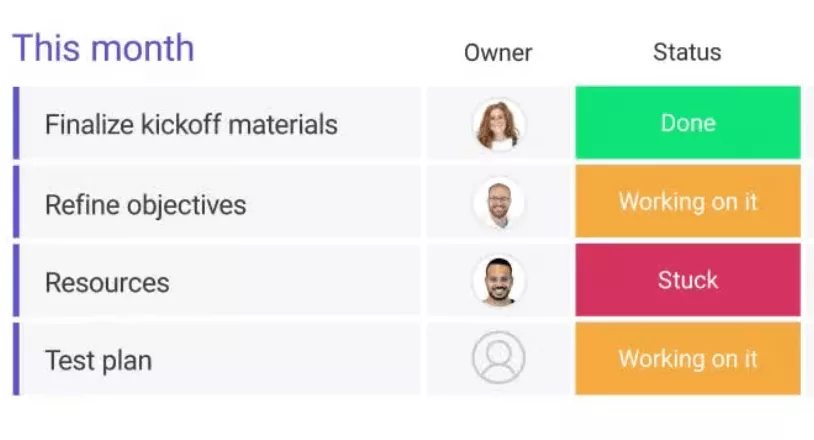
SOurce: monday.com
Pros
- Clear at a glance boards that reduce status chasing.
- Teams can keep updates, files, and comments tied to the work item.
- Automations help cut repetitive follow ups once boards are set.
- Version history helps people find the current file without digging through folders.
Cons
- It can feel overwhelming at first, especially if you start with too many boards.
- Advanced rules can feel limited when you try to build more complex workflows.
- Some helpful automation options are tied to higher-tier plans.
- The minimum paid seat requirement can be a blocker for very small teams.
Final Verdict
Not the best pick if you want a lightweight replacement that stays simple without much ongoing setup work. The dealbreaker is that the extra options and plan limits can turn everyday work into admin if nobody owns the system.
4. Wrike – Best for Structured Work Management With Governance
Wrike software is built for structured project management, with workflows and views that help you manage dependencies and keep complex work from slipping.
It has the features to replace Nifty for teams that need more control, but the tradeoff is a steeper learning curve and more management overhead, and Productive’s Wrike alternatives guide is helpful if you are comparing options in the same lane.
Key Features
- Gantt charts with task dependencies for realistic scheduling.
- Custom workflows and automation rules to standardize handoffs.
- Dashboards and reports to track status across projects.
- Request forms that turn intake into structured tasks or projects.
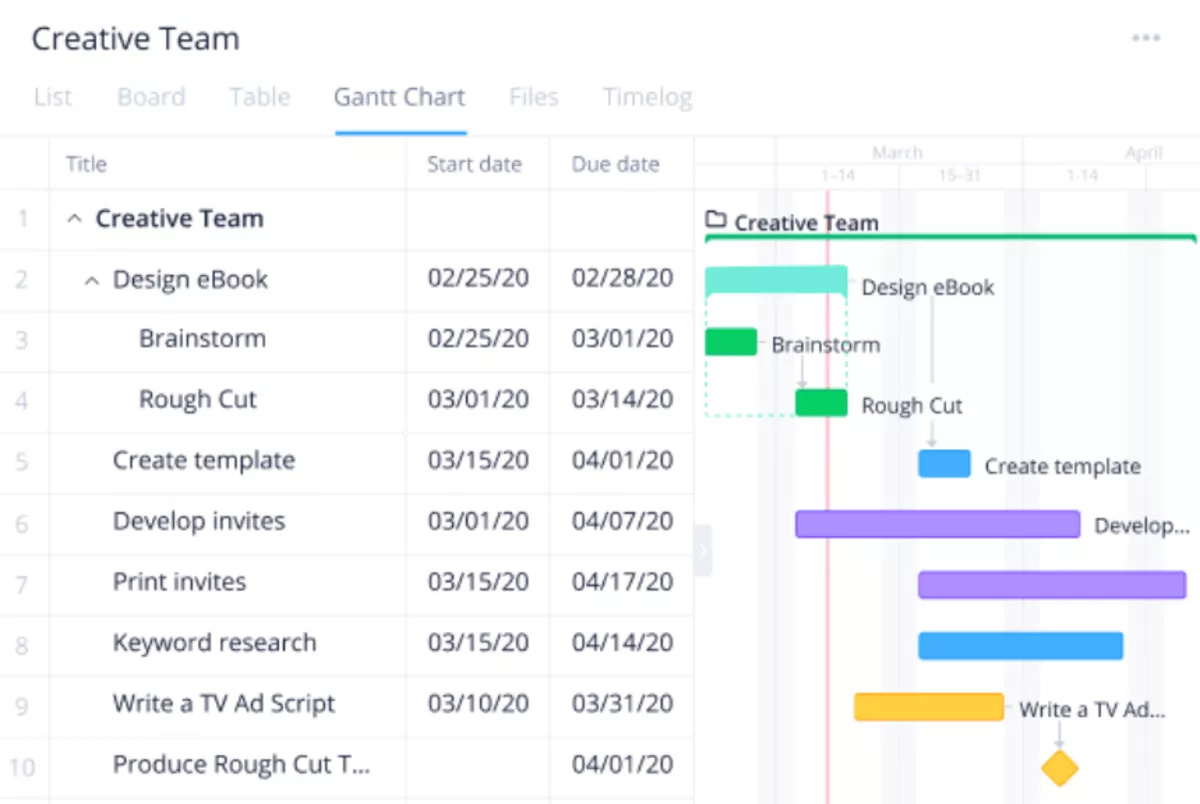
SOurce: wrike
Pros
- Dashboards make project management status easier to see without chasing updates.
- Keeps work organized and cuts down the usual back and forth.
- Forms, custom fields, and automation help keep requests consistent.
- Tasks, files, and conversations stay in one place, so collaboration is easier.
Cons
- The learning curve is real, especially for teammates who just want a simple tool.
- Navigation can take more clicks than you expect, and older items can be hard to find.
- Email notifications can get overwhelming if you do not tune them early.
- Some workflow changes require admin level access, which slows down iteration.
Final Verdict
If your team wants lightweight software that works out of the box, Wrike is an easy skip. It only pays off when you are ready to invest in setup and ongoing governance, because the learning curve and admin controls are the dealbreaker.
5. Teamwork – Best for Client Delivery and Agency-Style Projects
Teamwork is project management software built around client work, so you can plan projects, keep updates tidy, and capture delivery time in one place. Compared with Nifty, it puts more emphasis on team communication and external collaboration, but it can feel heavier than you need for internal-only projects.
Key Features
- Client users with controlled access for external stakeholders.
- Gantt charts and milestones for mapping dates, dependencies, and deadlines.
- Built-in time tracking and timesheets tied to projects.
- Templates and task lists to standardize repeatable delivery workflows.
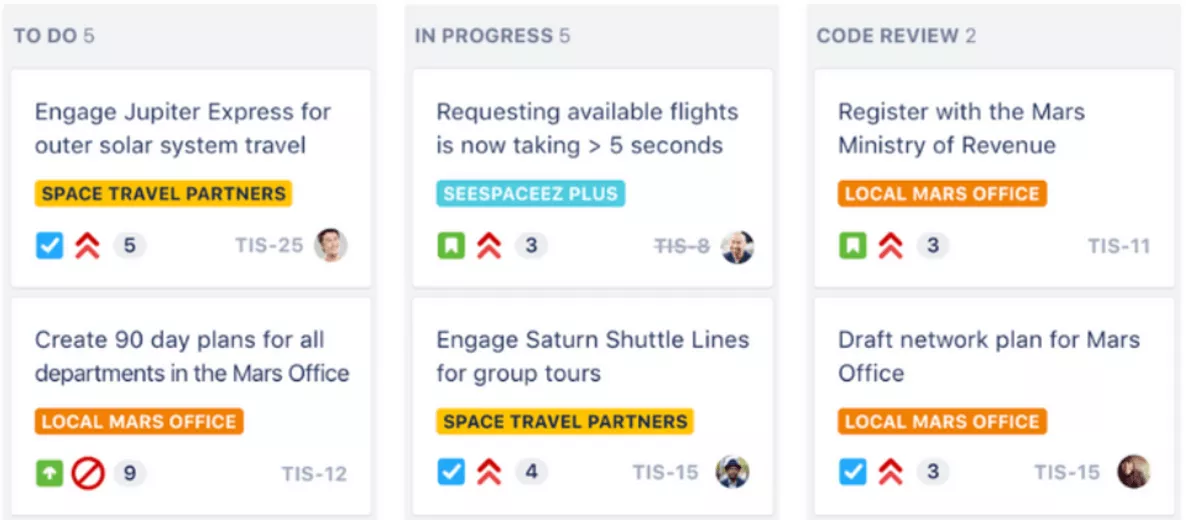
SOurce: Teamwork
Pros
- A solid hub for client communication and storing project documentation.
- Templates are useful for recurring work and keep delivery consistent.
- Timers and timesheets make it easier to log billable hours as you go.
- Comments, files, feedback, and approvals stay attached to tasks, so handoffs are clearer.
Cons
- Onboarding can take time, especially if you are rolling it out across multiple teams.
- Finding a specific project or task can be slow in large workspaces.
- Email reminders and notifications can get excessive unless you tune them.
- The mobile experience can lag on larger projects.
Final Verdict
If you want a lightweight tool for internal tasks, Teamwork is easy to pass on, because it is built for structured client delivery. The dealbreaker is the overhead: if you will not use the client facing features, the extra setup and notifications are not worth it.
Why Do Teams Look for Nifty Alternatives?
Teams are looking for Nifty alternatives or replacements because of missing functionality, reliability issues, and limits that show up once projects get more complex.
Treat the list below like a quick diagnostic: if two or more points match your day to day experience, you are likely better off switching than trying to patch the gaps with process or workarounds.
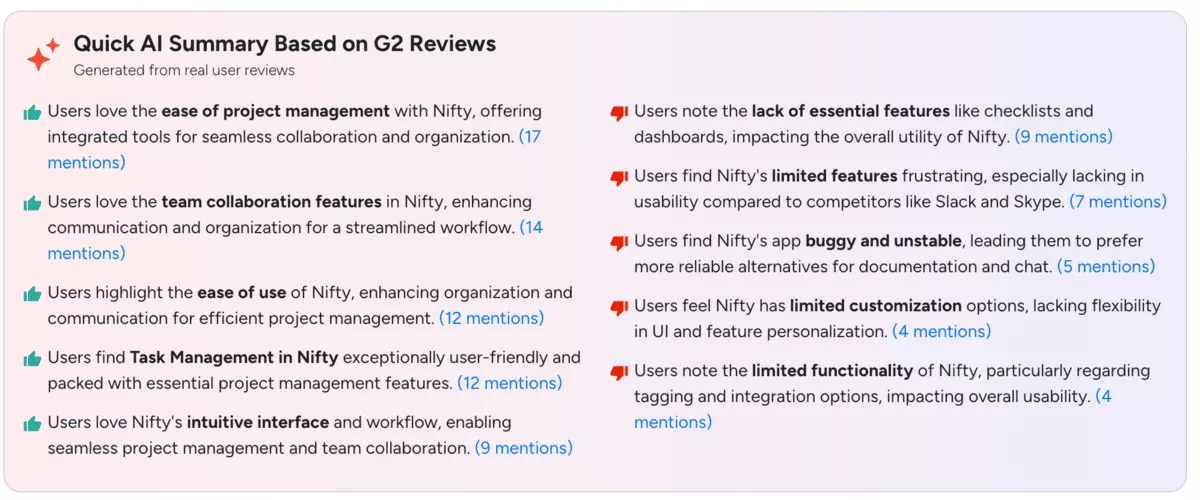
SOurce: Nifty g2 review
- Missing features that teams expect: Reviewers mention gaps like checklists and stronger dashboards, which makes project tracking and reporting feel thinner than other project management software.
- Bugs and instability: Some teams call out the app as buggy or unreliable, especially when they try to use Nifty for docs and chat as part of day to day work.
- Limited customization: When teams want more control over layouts, statuses, and workflows, they describe Nifty as less flexible than they expected.
- Weak integrations and tagging: Reviewers mention limitations around integrations and organization features, which can get in the way of task management once you scale past a few projects.
- Support frustrations: Some users point to slow or unhelpful support experiences as a reason to look elsewhere.
- Comparisons to bigger platforms: Tools like Asana show up a lot in evaluation conversations, so teams often compare the usability and reporting of Asana software against what they can get from Nifty.
How to Choose a Nifty Replacement? (Step-by-Step Process)
You should choose a Nifty replacement by running a structured evaluation based on your real delivery process. The point is to reduce switching risk by validating fit against the work you already do, including reporting, permissions, and the day to day experience for the team.
Step 1: Write Down Your Top 3 Workflows and One Pain Point Per Workflow
Pick three workflows you run every week in Nifty, such as intake, delivery tracking, and weekly status reporting. For each workflow, write the steps in order and note one pain point with a clear impact, such as missed visibility, unclear ownership, too many manual updates, or weak reporting.
This becomes your scoring sheet for demos and trials, so you are comparing tools against the same baseline.
Step 2: Decide Your Must-Haves and Dealbreakers Before You Demo Anything
Write a short list of must-haves you cannot compromise on, then a shorter list of dealbreakers. Define each item as a behavior you need to see in the tool, not a label. For example, instead of writing “timeline view,” write what you need it to support, like dependencies, milestones, or portfolio rollups.
If resource management matters, define what you need to plan, such as future capacity by person, tentative bookings, or visibility into overload. If you want help defining those requirements, Productive’s human resource planning guide is a useful reference.
Step 3: Shortlist 2 to 3 Tools and Run the Same Pilot Project in Each
Choose two or three options, then set up the same pilot project in each tool using your real structure. Recreate your board, your timeline or Gantt view, your statuses, and one stakeholder report.
Run the pilot for one week of normal updates with the people who will actually use it. This shows whether the tool stays clear under daily use, and whether it supports consistent habits without extra admin work.
Step 4: Validate the Integrations You Depend On, Plus API Needs if Relevant
List the systems your workflow depends on today, then identify the integrations that are required for your process. Test the exact actions you will rely on, like creating work from requests, syncing status, or exporting time and invoices.
If you have technical requirements, confirm API availability and whether it supports the endpoints you need for your workflow, not only basic data access.
Step 5: Confirm Who Will Own Setup and Ongoing Governance
Decide who will maintain templates, permissions, and structure once the tool is live. If ownership is shared, document what each owner controls and what requires admin review. Tools that look great in a demo can drift quickly without governance, so treat ownership as part of the selection criteria, not an afterthought.
Step 6: Collect Feedback From the People Who Will Use It Every Day
Run a short survey or structured check-in with the pilot group. Ask what made their work faster, what caused friction, and what they avoided. Use that feedback to adjust your shortlist.
If your team is considering Productive, ClickUp or similar tools, you can use it as a usability reference point, but the decision should still come from your workflow tests.
How To Migrate From Nifty?
You migrate from Nifty by moving in phases: clean up first, migrate structure second, then cut over only after a short pilot proves your reporting and permissions hold up. If your switch is also about tightening billing and financial handoffs, Productive’s revenue operations (RevOps) guide can help you align on what needs to change.
This approach keeps your project history usable while you rebuild the workflows that matter most in the new tool.
Start by auditing active projects and archiving anything you do not need. Then rebuild your core setup using project templates, so new work starts clean instead of inheriting old clutter.
If your team runs delivery alongside Jira Software, map that connection early, so your workflow does not break during the switch. Finally, run a one-team pilot, fix what is missing, then do a planned cutover on a single date so everyone knows where work lives.
Free Nifty Migration Checklist
Copy and paste this into an email or a doc and assign an owner to each line.
1. Migration Prep
- Name a migration owner and a backup owner.
- Pick a cutover date and write down what will freeze in Nifty, and when.
- List the projects you will migrate, then decide what you will not migrate (old work, dead deals, outdated docs).
- Agree on naming rules, statuses, and folder structure in the new tool.
- Decide your permission model early, including who can create projects, edit workflows, and invite guests.
2. Project Data Export and Backup
- Export projects, tasks, and milestones from Nifty.
- Export time entries if you need historical reporting.
- Download key docs, files, and forms responses you cannot afford to lose.
- Screenshot or save examples of reports and dashboards you want to recreate.
- Write down your current integrations and what they are used for.
3. Workspace Mapping and Setup
- Create your workspace structure: teams, spaces, folders, and default views.
- Recreate statuses, custom fields, and templates before importing live work.
- Import one project first and check that owners, dates, and priorities map correctly.
- Rebuild roles and permissions, then test with a non-admin user.
- Set notification defaults so the tool is not noisy on day one.
- Connect critical integrations and confirm the data flow works both ways.
4. Pilot Run
- Run one real project end-to-end for one to two weeks.
- Hold one short check in mid-pilot to capture friction and adjust structure.
- Tighten workflows, templates, and dashboards until the pilot feels natural.
5. Final Cutover
- Freeze changes in Nifty at the agreed time.
- Import remaining projects and do a fast audit for missing owners and dates.
- Run a short training session focused on how your team will use the tool, not every feature.
- Set two office hours blocks in week one so questions do not turn into chaos.
6. Post Migration Cleanup
- Confirm an owner for every active project and archive duplicates.
- Recreate your weekly status report and confirm it matches stakeholder needs.
- Review week one usage and fix what slows work down, then lock your defaults.
- Decide how long you will keep Nifty read-only before you retire it.
Final Thoughts – What To Choose?
If you are comparing alternatives because Nifty feels thin or unreliable, lean toward project management software that reduces tool hopping and makes reporting easier to trust. For teams that want fewer moving parts, all-in-one management tools can keep projects, people, and delivery in a single workflow.
If you are thinking about that shift more broadly, Productive’s agency operations guide adds helpful context.
If that is the direction you are headed, it is worth seeing Productive in action so you can judge whether the software fits your work and your management style. Book a demo and get started today.
Connect With Agency Peers
Access agency-related Slack channels, exchange business insights, and join in on members-only live sessions.
