Top 10 KPI Tracking Software in 2026 (Paid & Free) Reviewed

Picking out the right KPI tracking software is a huge decision. Lucky for you, here we’ll cover the best 10 KPI tools for 2026.
We’ve included their key features, best-for fits, user-verified pros and cons and clear “who should use this tool” criteria. You’ll also get a buyer comparison table, a step-by-step choosing guide, and a migration checklist.
What Is the Best KPI Tracking Software in 2026?
The best KPI tracking software in 2026 is Productive, followed by monday.com, Teamwork, Kantata, Power BI, Smartsheet, Coupler.io, Databox, Looker Studio, and Klipfolio.
These tools span all-in-one KPI software, reporting platforms, and business intelligence tools.
The Best Tools for Tracking Key Performance Indicators (KPIs)
KPI Tracking Software Comparison Table
| Tool | Best for | Who should skip | Free plan? | Category | Standout feature | Key integrations |
|---|---|---|---|---|---|---|
| Productive | Agencies tracking delivery and financial KPIs | Teams needing only marketing views | No (trial) | All-in-one (PSA) | Real-time budget vs actual profitability | QuickBooks, Xero, HubSpot, Slack |
| monday.com | Metric tracking tied to project boards | Teams needing financial KPIs (margin, billing) | Yes (limited) | Work management | 30+ visual widgets on project boards | Slack, Google, Salesforce, HubSpot |
| Teamwork | Client teams tracking project profitability | Teams needing deep resource forecasting | Yes (up to 5 users) | PM with financials | Project-level profitability and margin tracking | HubSpot, Slack, Google Drive, Zapier |
| Kantata | Enterprise PS firms with 100+ staff | Small teams or quick-setup needs | No (demo) | PSA (enterprise) | Portfolio-level resource optimization | Salesforce, Jira, NetSuite, Slack |
| Powe BI | Organizations with dedicated analysts | Teams without DAX or SQL skills | Yes (Desktop) | Business intelligence | Custom KPI formulas via DAX | 200+ connectors (SQL, Azure, Excel) |
| Smartsheet | Teams transitioning from spreadsheets | Teams wanting pre-built KPI templates | Yes (limited) | Spreadsheet-based PM | Grid tracking with visual overlays | Slack, Teams, Jira, Salesforce |
| Coupler.io | Automating metric feeds into visual tools | Teams wanting a single tracking platform | Yes (limited) | Pipeline | Scheduled no-code refresh from 400+ sources | GA, HubSpot, Shopify, BigQuery |
| Databox | Marketing and sales performance tracking | Teams tracking operational or financial KPIs | Yes | Aggregator | 100+ pre-built templates | GA, HubSpot, Salesforce, Facebook Ads |
| Looker Studio | Google-ecosystem teams on a budget | Teams with info outside Google products | Yes (fully free) | Visualization | Native Google Analytics and Ads connectors | Google ecosystem, community connectors |
| Klipfolio | Custom real-time client-facing views | Teams wanting quick plug-and-play setup | Yes (limited) | Visualization | White-label reporting and embedding | 130+ sources (GA, Salesforce, SQL) |
How We Chose These Tools?
For each tool, we reviewed repeated themes across user reviews on G2 and Capterra, then cross-checked feature claims against vendor documentation. We excluded pure time trackers, standalone CRMs, and KPI software without enough independent review evidence to verify claims.
Every pro and con in this article reflects a pattern across multiple reviewers, not a single opinion.
1. Productive – Best KPI Tracking Software for Agencies and Professional Services
Agencies struggle to track KPIs when margin, utilization, and budget burn live across separate project, time, and billing tools. Productive keeps delivery, time tracking, budgets, and reporting in one system, so your metrics come from where the work happens.
Instead of layering a separate tool on top of your stack, it generates the numbers from the work itself.
Track your KPIs with Productive
Stop Reconciling Numbers Across Four Different Tools
Projects live in one system, timesheets in another, and budgets in a spreadsheet. Every metric starts with a manual export. The numbers are stale before anyone reads them.
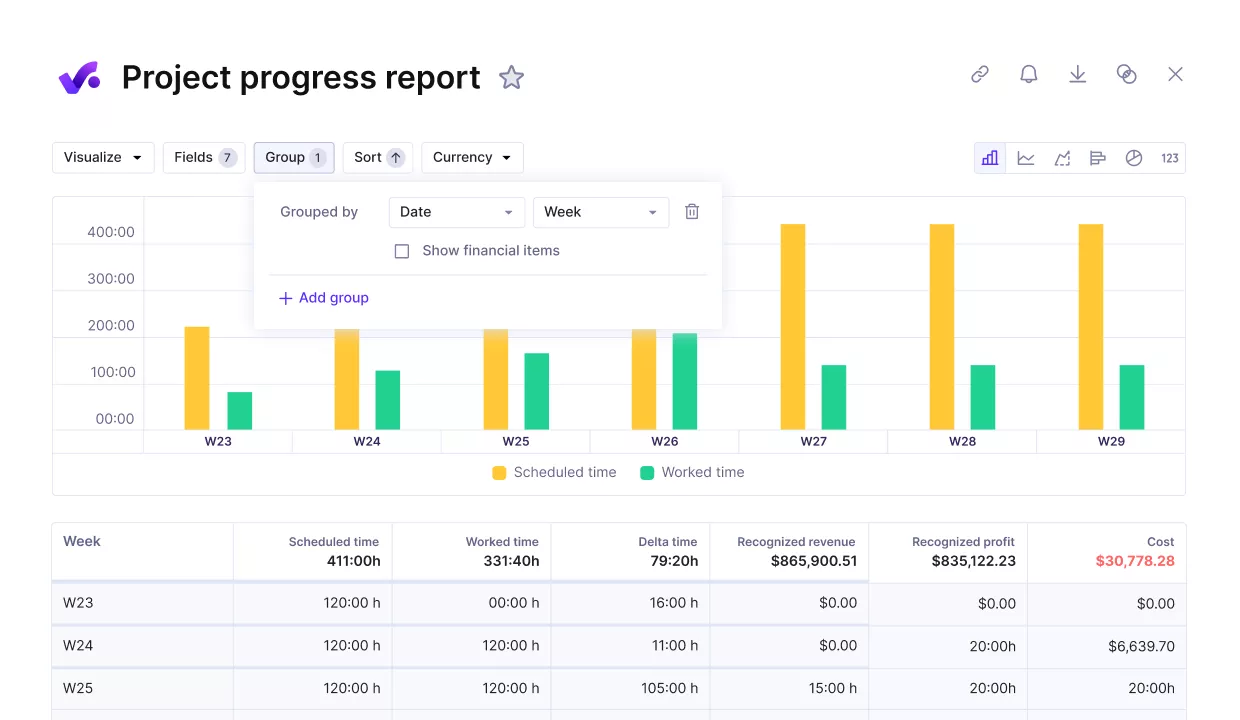
Compare project progress against your KPIs.
In Productive, tasks, logged hours, billable rates, and invoicing share a single workspace. Productive’s resource planning tools add availability and assignments to the same view.
You open a report, and the figures are already up to date.
Agencies billing with mixed models (time and materials, fixed fee, retainers) see all billing types in the same project view, with no reconciliation between systems.
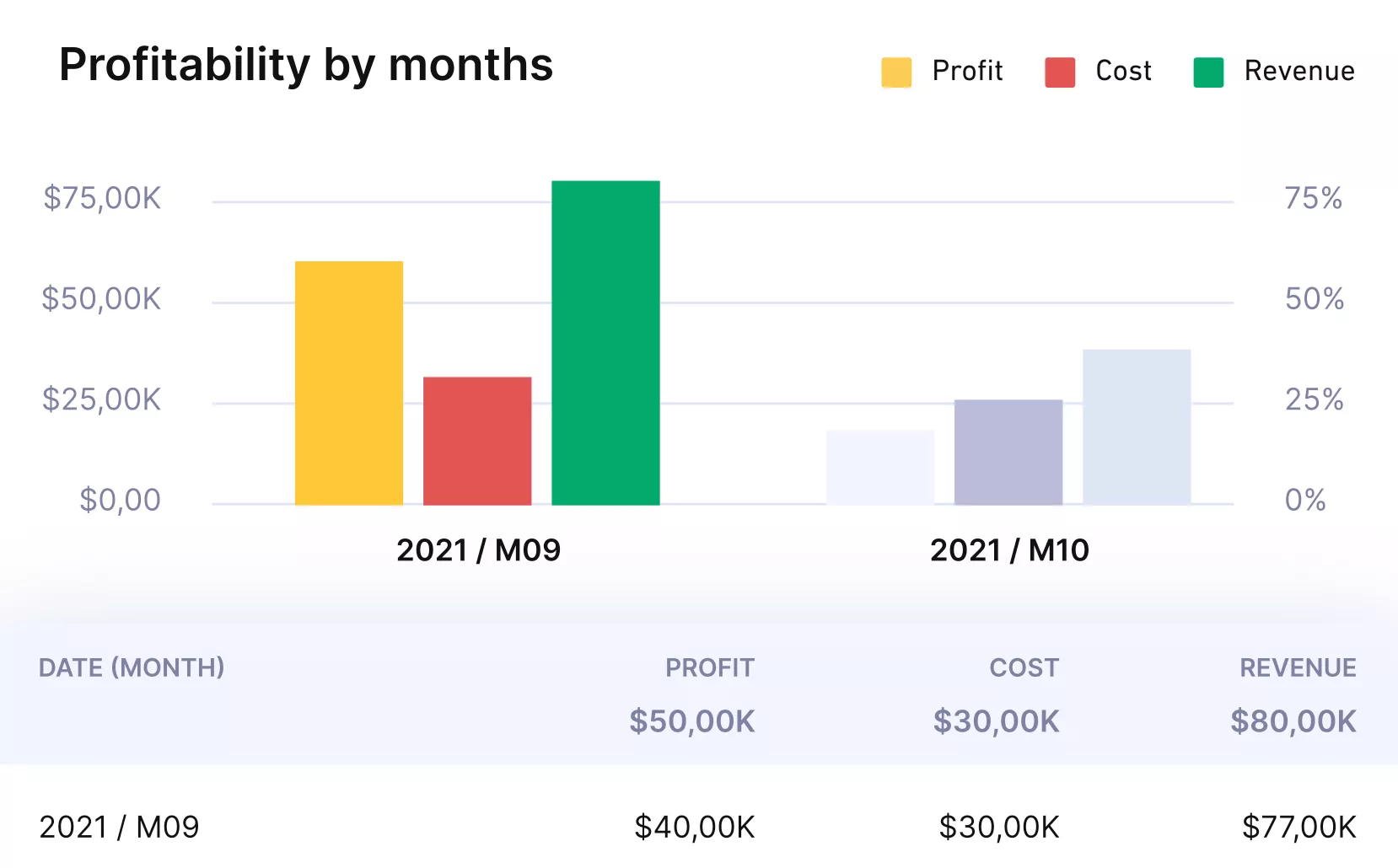
Productive gives you real time updates on project or client profitability.
See Margin and Budget Burn While Work Is Still in Progress
Most teams learn that a project went over budget after the invoice goes out. Productive tracks budget versus actual spend in real time at the project level. You see profit, cost, and margin percentage as hours are logged, not weeks later.
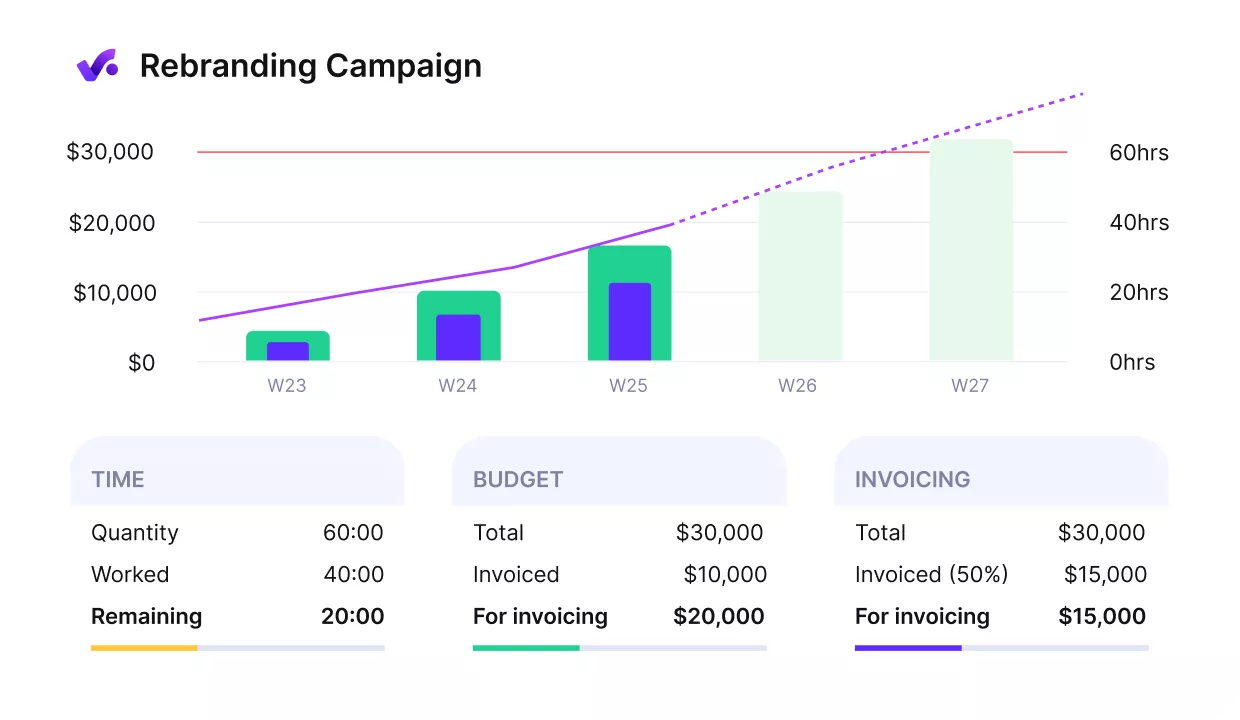
Get early warnings of budget overruns.source: productive
If a project hits 70% of the budget with 40% of the work complete, you know now. Budget alerts flag when spending crosses a threshold you set. Productive’s budgeting and profitability tools support this across T&M, fixed-fee, and retainer models.
You course-correct mid-project instead of writing off the loss after delivery.
Report on Utilization, Revenue, and Delivery From One Source
A utilization report should not require pulling time entries from one tool and project figures from another. Productive generates utilization, revenue, and profitability reports from the platform where your team tracks time and manages delivery.
Group results by client, project, team member, or custom field without exporting anything.
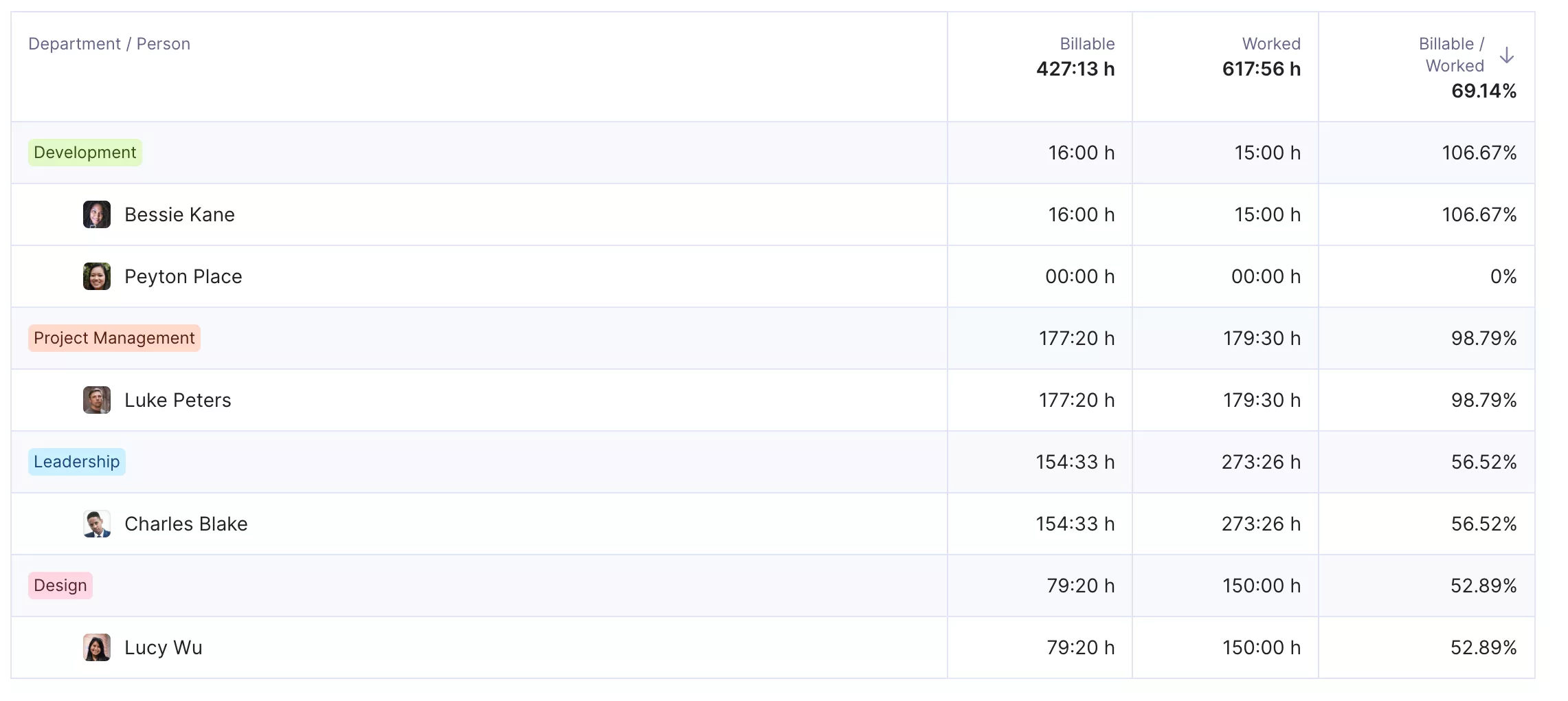
Get real-time utilization reports and prevent overbooking or idle hours.
Need a per-team P&L or a breakdown by billing type? The report pulls from live figures, not a separate export. No waiting for finance to compile a spreadsheet before the Monday review. One source of truth for the numbers leadership asks about.
Productive 5.0 adds AI-generated reports. Describe what you need in plain language, and the assistant builds it. AI agents can also send report summaries to Slack on a schedule. See the full range of Productive’s reporting capabilities across utilization, profitability, and financial views.
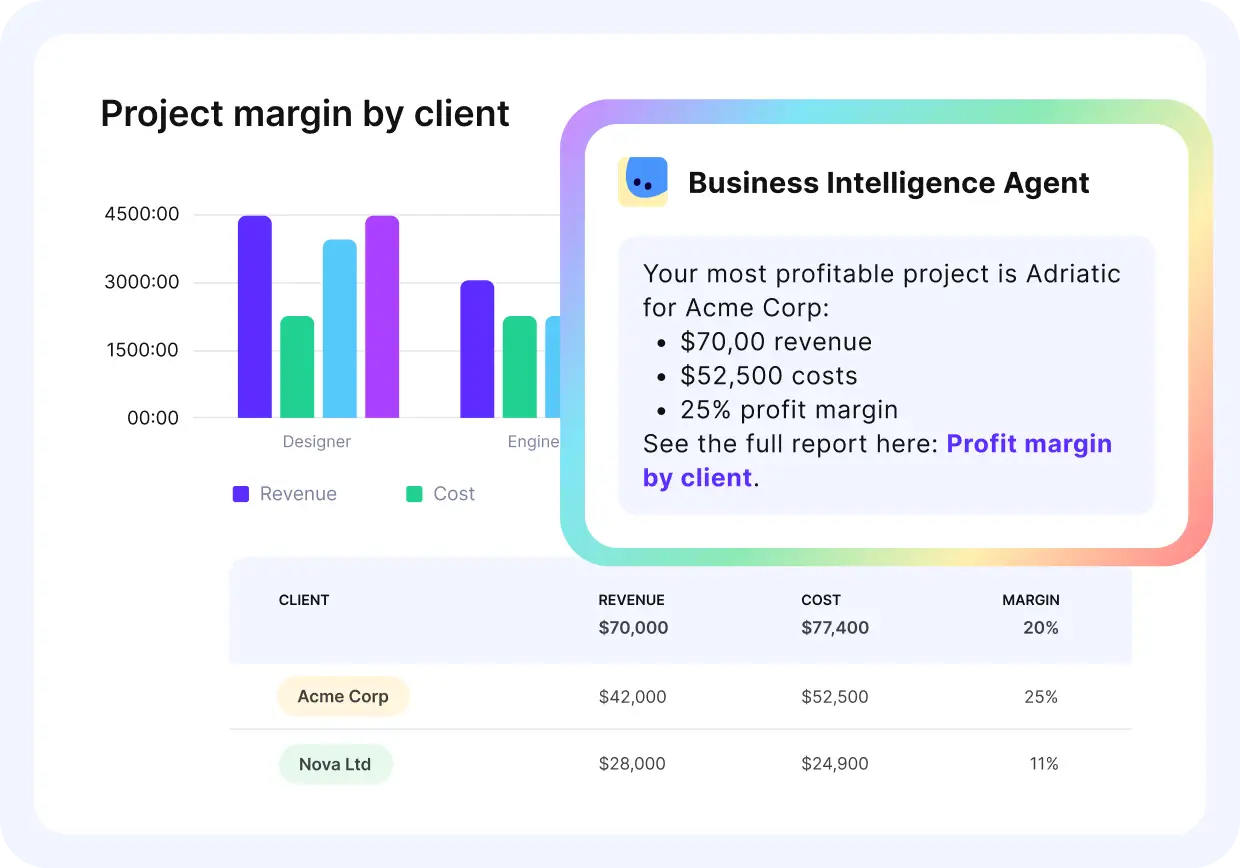
Use Productive’s business intelligence agents to pull out key financial performance metrics.
Pricing
- Plans start with the Essential plan at $10 per user per month, which includes essential features such as budgeting, project & task management, docs, time tracking, expense management, reporting, and time off management.
- The Professional plan includes custom fields, recurring budgets, advanced reports, billable time approvals, and much more for $25 per user per month.
- The Ultimate plan has everything that the Essential plan and Professional plan offer, along with the HubSpot integration, advanced forecasting, advanced custom fields, overhead calculations, and more. Book a demo or reach out to our team for the monthly price per user.
Productive has a free 14-day free trial, so you can try out what the tool can offer to your professional services firm.
Track KPIs Where the Work Happens
Productive connects project delivery, time tracking, budgets, and reporting in one platform. See project margin and budget burn in real time. Build AI-powered reports in plain language with Productive 5.0.

2. monday.com – Best for Tracking KPIs Alongside Project Workflows
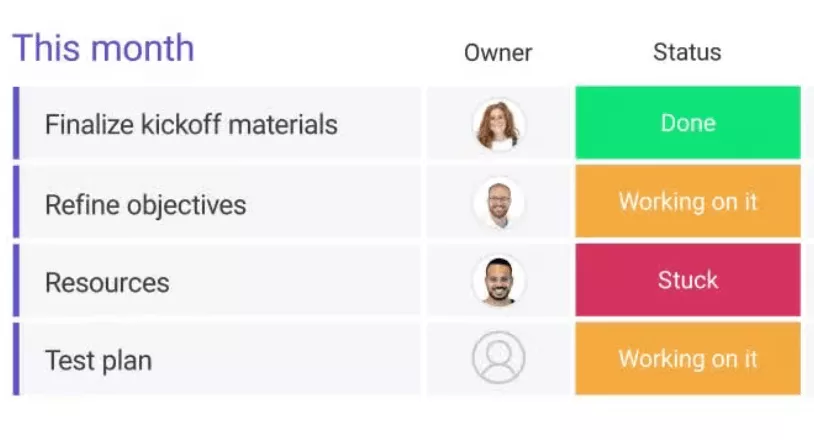
Your project boards become live performance views with monday.com’s 30+ customizable widgets. It fits teams that already manage work in monday.com and want visibility into metrics in the same workspace.
Key Features
- Customizable visual widgets. Over 30 widget types (charts, numbers, battery gauges, timelines) pull live data from connected boards into a single view.
- Formula columns. Build calculated fields directly in boards to track custom metrics like completion rates or budget variance.
- Scheduled snapshot exports. Automate weekly PDF performance summaries sent to stakeholders by email.
- 200+ integrations. Connect Slack, Google Workspace, Salesforce, HubSpot, and other tools to centralize data in one workspace.
SOurce: monday.com
Pros
- Boards adapt to any workflow. You customize columns, statuses, and groups to match your process instead of forcing a rigid template.
- Leadership gets real-time workload visibility. Pull real-time data from multiple boards into one view to see team capacity and project status at a glance.
- Non-technical teams get started quickly. The visual interface is intuitive enough that people with no PM tool experience can onboard in days.
- Multiple views surface the same information differently. Switch between performance views, timelines, Kanban boards, and calendar views without duplicating work.
Cons
- Widget setup takes trial and error. Configuring visuals, connecting the right boards, and testing layouts requires upfront effort before the views are useful.
- Reporting falls short for deeper analytics. High-level overviews work, but the tool lacks depth for complex analysis. For that, you need dedicated analytics solutions.
- Costs escalate as teams grow. Per-seat pricing and feature gating to higher tiers add up when you scale beyond a small team.
- Automation reliability can be inconsistent. Automations occasionally fire late or need a manual trigger during high-load periods.
Who Should Use monday.com?
If your KPIs are financial (margin, utilization, budget burn), monday.com will not generate those numbers natively. It fits teams tracking project delivery metrics like completion rates, workload balance, and throughput in a visual workspace.
For teams that need more, see a comparison of monday.com alternatives with stronger financial tracking.
3. Teamwork – Best for Client-Service Teams Tracking Project Delivery Performance
Most project management tools show you whether tasks are done. Teamwork also shows you whether the project made money, with a profitability panel that tracks margin at the project level.
Key Features
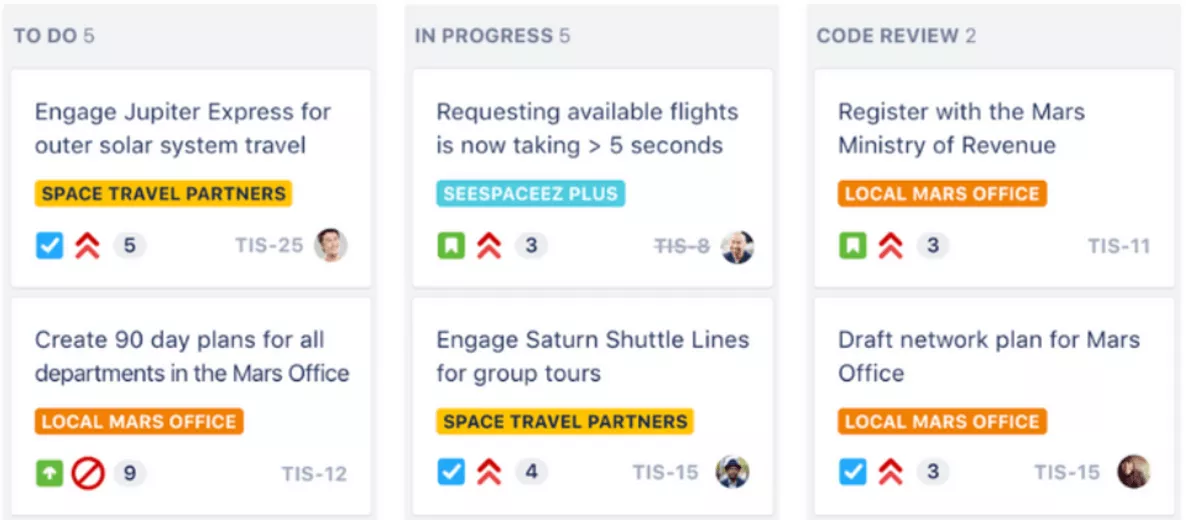
- Project-level profitability panel. See profit, costs, and margin percentage for each project, compared against budget targets, updated in real time.
- Time tracking with billing rates. Log hours with a timer or manual entry. Assign billable and cost rates per team member to connect time to project economics.
- Workload planner with utilization. View team capacity, spot who is overloaded, and balance assignments before deadlines slip.
- Budget alerts at configurable thresholds. Set notifications when a project hits a percentage of its budget so you can act before overruns happen.
SOurce: teamwork
Pros
- Budget tracking lives alongside task management. You set project budgets and see spend against them in the same workspace where you manage delivery.
- Cost tracking ties directly to time spent on tasks. Every logged hour connects to a billing rate, so you know what each task costs against the project budget.
- Team capacity and project health are visible in one place. You can spot who has room, who is overloaded, and which projects need attention without switching tools.
- Automations are accessible to non-technical teams. Workflow rules are intuitive enough that people without coding skills can set them up and save time on repetitive steps.
Cons
- Advanced features take time to discover. The platform has depth, but some capabilities are buried and not obvious from the main interface.
- Navigation gets harder in large projects. When a project has many task lists and subtasks, finding a specific item takes patience and extra clicks.
- Profitability views require higher-tier plans. Cost rate tracking and margin reporting are locked behind the Scale plan, not available on entry-level tiers.
- Completed and active tasks live in separate views. You cannot see finished and in-progress work side by side without switching between screens.
Who Should Use Teamwork?
Teamwork fits agencies under 50 people that bill by project and want profitability numbers without a full PSA platform.
Skip it if you need portfolio-level reporting, advanced resource forecasting, or multi-currency billing. For a deeper look at what those reports should cover, see a guide to project management reports.
4. Kantata – Best for Enterprise Professional Services Firms
Kantata is built for professional services firms that have outgrown lighter PM tools and need financial controls at portfolio scale. It connects resource planning, project accounting, and revenue forecasting in one platform designed for organizations with huge billable staff.
Key Features
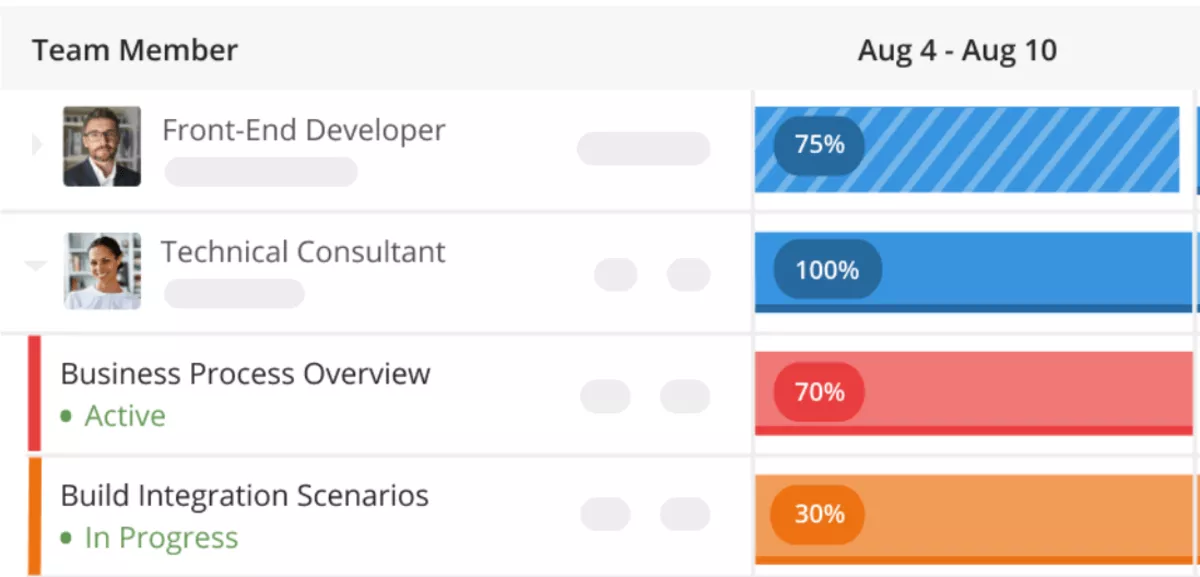
- Resource optimization engine. Match people to projects by skill, availability, and cost rate across your entire organization.
- Project accounting with revenue recognition. Track project financials using milestone-based or percent-complete revenue recognition methods.
- Portfolio-level performance views. Monitor utilization, margin, and project health across all active engagements from a single screen.
- Native Salesforce integration. Sync deals, contacts, and project data between Salesforce and Kantata without middleware.
SOurce: kantata
Pros
- Resource planning and forecasting are purpose-built for professional services. You plan capacity, assign staff by skill and availability, and forecast demand across your portfolio in one system.
- Project, resource, and financial data live in one place. You stop reconciling spreadsheets because delivery, time, and budget numbers share a single source of truth.
- Revenue forecasting connects directly to delivery milestones. You forecast revenue based on project progress, not guesses, which improves accuracy for finance teams.
- Salesforce integration keeps sales and delivery in sync. Deals flow into project plans without manual handoffs between your CRM and your delivery system.
Cons
- The platform feels complex for new or occasional users. Advanced features, configuration options, and layered menus require dedicated admin time to learn and maintain.
- Common tasks require too many clicks. Entry across projects and timesheets involves multiple steps that slow down day-to-day work for consultants.
- Some features lack polish. Smaller UX details (like time tracking on completed tasks or limited estimation scenarios) feel unfinished compared to the core platform.
- The interface feels dated compared to newer tools. The visual design and navigation patterns lag behind more modern PM and PSA platforms.
Who Should Use Kantata?
Kantata makes sense when you manage 500+ billable staff across multiple practices and need portfolio-level profitability reporting. Skip it if your team is smaller than that, your billing model is simple, or you need a tool your team can set up without dedicated admin support.
5. Power BI – Best Dashboard Software for Data-Driven Organizations
Power BI is not a KPI tracker in the traditional sense. It is a business intelligence platform that turns raw data from other systems into data visualization and interactive performance views, which makes it the most flexible option on this list if your team has the technical skills to use it.
Key Features
- DAX formula language. Build custom KPI calculations, ratios, and measures that go far beyond what lighter tools offer natively.
- 200+ source connectors. Pull from SQL databases, Excel, Azure, Dynamics 365, Google Analytics, and hundreds of other systems into one model.
- AI-powered insights. Detect anomalies in metric trends automatically and get plain-language explanations of what changed and why.
- Row-level security. Control who sees which numbers within the same view, so finance sees cost rates, and delivery sees utilization.
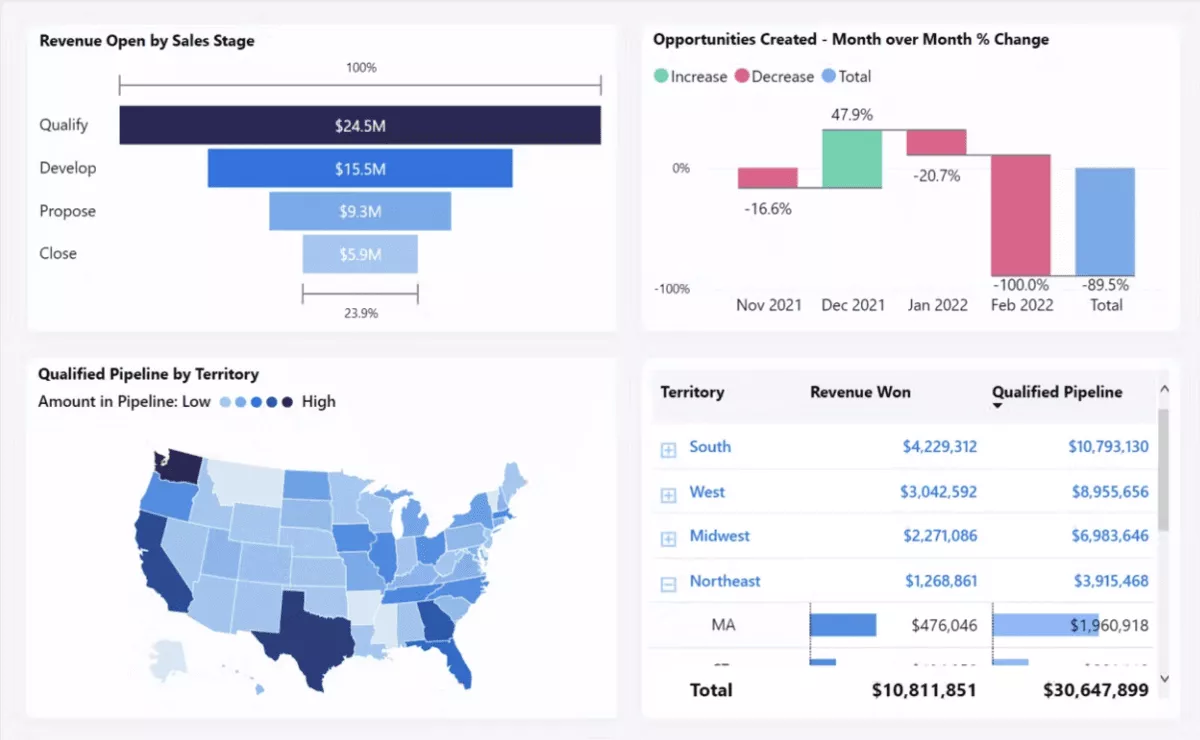
SOurce: Power bi
Pros
- Structured data becomes a working view quickly. Once your connection is set up, building charts, KPI cards, and filters is straightforward.
- Microsoft ecosystem integration is native. If your organization runs on Excel, SharePoint, Teams, and Azure, Power BI fits without friction.
- Multiple sources consolidate into one view. You centralize scattered data into a single performance display instead of building manual summaries from each system.
- The free Desktop version is genuinely powerful. Individual analysts can build full views locally without a paid license, which lowers the barrier to getting started.
Cons
- DAX has a steep learning curve for non-technical teams. Writing custom measures and building models requires training that most business users do not have.
- The desktop app only runs on Windows. Mac users are limited to the web version, which has fewer authoring capabilities.
- Performance degrades with large or poorly optimized datasets. Views slow down noticeably when models grow complex or when queries are not tuned.
- Sharing externally requires premium licensing. Giving clients or partners access outside your organization adds a high cost.
Who Should Use Power BI?
Power BI fits organizations that already have infrastructure and an analyst who can build and maintain views. If you want a system that tracks work and measures performance in the same place, Power BI is the wrong category.
It visualizes metrics but does not generate the underlying numbers.
6. Smartsheet – Best for Spreadsheet-Style KPI Tracking
If your team already thinks in rows and columns, Smartsheet adds visual overlays, automations, and reporting on top of a format you already know. You can import existing Excel files on day one and start tracking metrics without learning a new interface.
Key Features
- Grid-based tracking with formulas. Build sheets that work like spreadsheets but support cross-sheet references, conditional formatting, and summary fields for KPI rollups.
- Performance widgets. Pull charts, metrics, and summaries from multiple sheets into a single visual overview for stakeholders.
- Automated workflows. Set rules that trigger notifications, update statuses, or move rows when conditions are met, reducing manual follow-up.
- 100+ integrations. Connect to Microsoft 365, Google Workspace, Slack, Jira, Salesforce, and Tableau to keep data flowing between systems.
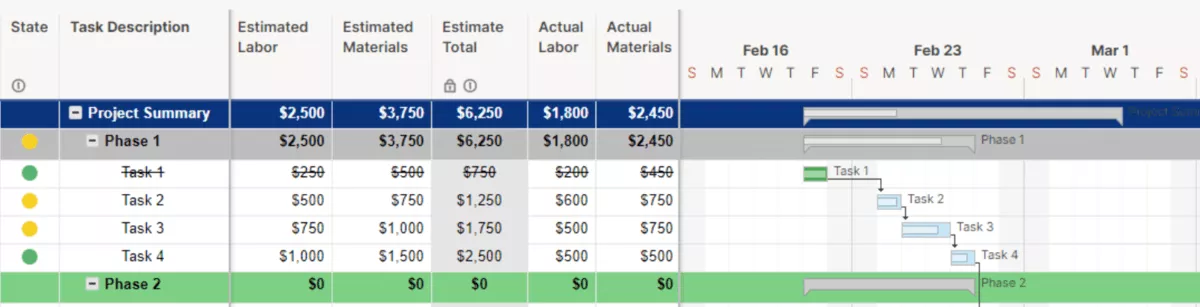
SOurce: smartsheet
Pros
- The spreadsheet layout makes onboarding fast. Anyone who has used Excel or Google Sheets can start working in Smartsheet without training.
- Sheet summaries roll up metrics into visual overviews. You pull high-level numbers like completion rates or budget totals into a summary row that feeds directly into widgets.
- Automations reduce repetitive manual work. Workflow rules handle status updates, reminders, and row movements so you spend less time on admin tasks.
- Integrations with Microsoft and Google ecosystems are smooth. Teams already using these tools avoid silos without complex middleware setup.
Cons
- Complexity grows fast with large projects. Advanced formulas, cross-sheet references, and nested hierarchies become harder to manage as sheets scale up.
- Performance slows down with big datasets. Large sheets and complex views take noticeably longer to load and refresh.
- Visual overviews feel limited compared to dedicated BI tools. You get high-level summaries, but drill-down, dynamic filtering, and advanced data visualization are restricted.
- Metrics can display incorrectly in widgets. Numbers sometimes fail to render properly, which undermines confidence in what appears on screen.
Who Should Use Smartsheet?
Smartsheet fits teams that have outgrown spreadsheets but are not ready for dedicated KPI software or a BI tool. Skip it if you need real-time multi-source views, pre-built KPI templates, or analytics depth beyond what a structured spreadsheet can offer.
7. Coupler.io – Best for Automating KPI Reports From Multiple Data Sources
Coupler.io replaces the manual exports that eat up reporting time every week. It pulls data from 400+ apps into spreadsheets, BI tools, or warehouses on a schedule you set, so your performance views stay current without anyone copying numbers.
Key Features
- 400+ no-code connectors. Pull from Google Ads, HubSpot, Shopify, QuickBooks, Facebook Ads, Salesforce, and hundreds of other sources without writing code.
- Scheduled automatic refresh. Set refresh intervals from every 15 minutes to monthly so your views always show current numbers.
- Transformation and blending. Filter, aggregate, join, and apply custom formulas to clean your data before it reaches the destination.
- Multiple export destinations. Send data to Google Sheets, Excel, Looker Studio, Power BI, Tableau, BigQuery, or PostgreSQL.
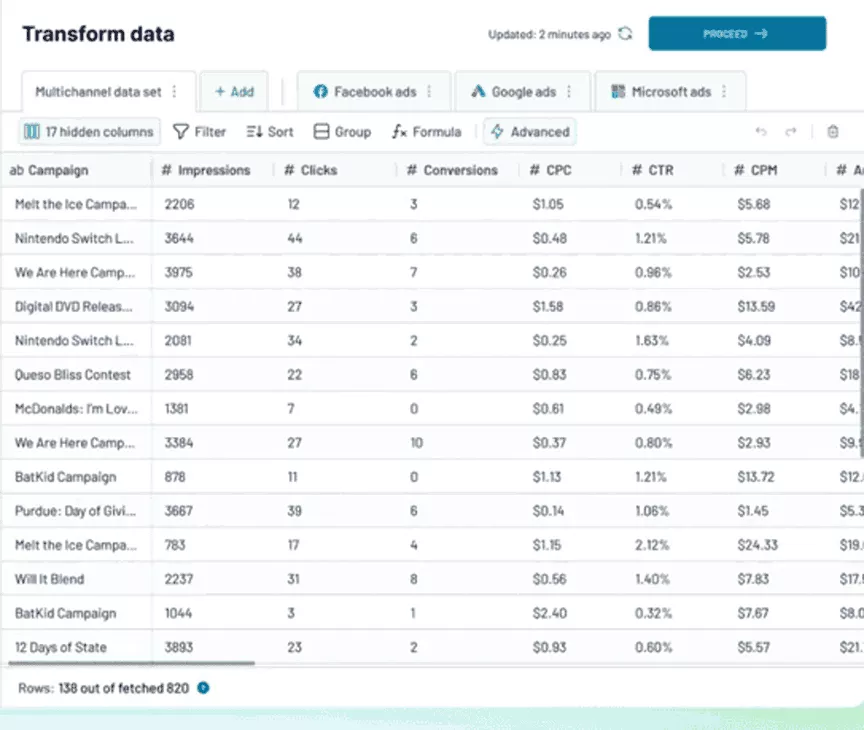
SOurce: coupler.io
Pros
- Setup takes minutes, not days. Connecting a source and establishing a sync is fast enough that non-technical teams can do it without tutorials.
- The connector library covers nearly every popular SaaS tool. You rarely hit a dead end when looking for a source, which reduces the need for custom API tools or middleware.
- Built-in transformations clean data before it lands. You filter, format, and blend inside the pipeline instead of doing it manually in the destination spreadsheet.
- Source merging consolidates fragmented views. You combine data from multiple platforms into one destination, so your performance view draws from a single table instead of five.
Cons
- Duplicate detection is weak for database destinations. Append mode does not check for already-imported rows, which can lead to duplicates that require manual cleanup.
- Some connectors lack depth for complex data models. Broad coverage does not always mean full coverage. Specific relationships (like HubSpot associations) may not sync cleanly.
- The free plan is too limited for real use. One source, one destination, manual refresh only, and a 100-row cap make it useful for testing but not for ongoing work.
- Connection counts add up quickly on multi-channel setups. Each account from each source counts separately, so a team tracking five ad platforms can hit plan limits faster than expected.
Who Should Use Coupler.io?
Coupler.io fits teams that already have a visualization tool but waste hours manually feeding it from scattered sources. Skip it if you want a single platform that tracks work and displays metrics in the same place.
8. Databox – Best KPI Dashboard Tool for Marketing and Sales Teams
Databox gets a working performance view running faster than any other tool on this list. It connects to 100+ marketing and sales platforms with pre-built templates, so you go from setup to live metrics in minutes, not days.
Key Features
- 100+ native integrations. Connect Google Analytics, HubSpot, Salesforce, Shopify, Facebook Ads, Stripe, and dozens more without writing code.
- Pre-built dashboard templates. Choose from a library organized by use case and source to skip the blank-canvas problem.
- Goal tracking with automated alerts. Set KPI targets and receive Slack or email notifications when performance crosses a threshold.
- Mobile app with push alerts. Get real-time insights on your phone and notifications when something needs attention. All paid plans include unlimited users.
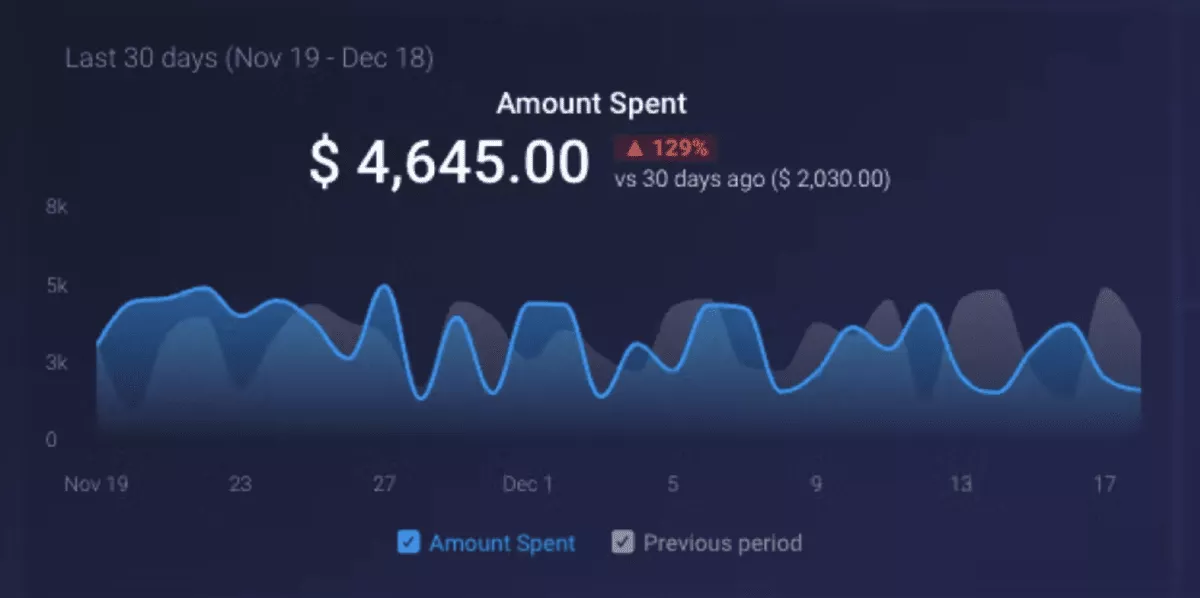
SOurce: databox
Pros
- The template library makes first views instant. You pick a template, connect a data source, and see numbers within minutes. No design or configuration work needed for standard metrics.
- Marketing and sales numbers are centralized cleanly. Campaign data, pipeline figures, and other business metrics from separate platforms appear in one view without manual exports.
- Unlimited users on every paid plan. You share views across the team without worrying about per-seat costs scaling your bill.
- Goal tracking turns passive views into active tools. You set targets for any metric and see real-time progress, so the view drives action instead of just displaying numbers.
Cons
- Layout flexibility is limited. Views look polished inside the grid system, but you cannot customize layouts the way you would in a slide deck or BI tool.
- Custom metrics can be buggy under load. Calculated fields and cross-source metrics occasionally lag or produce errors when editing complex formulas.
- Source limits push costs up fast. The Professional plan includes only 3 sources despite 100+ integrations being available. Adding a fourth means upgrading.
- Analytics depth is shallow compared to BI tools. Databox is built for monitoring metrics at a glance, not for multi-variable analysis or deep exploration.
Who Should Use Databox?
Databox fits marketing and sales teams that need multi-source metric views without BI complexity.
Skip it if your KPIs are operational or financial (utilization, project margin, budget burn), because its integrations and templates are designed for campaign and pipeline metrics, not delivery economics.
9. Looker Studio – Best Free KPI Dashboard for Google-Ecosystem Users
Looker Studio is the only fully free option on this list. It works best when your data already lives in Google’s ecosystem, because that is where its connectors are strongest.
Key Features
- Native Google connectors. Pull from Google Analytics, Google Ads, Google Sheets, Search Console, and BigQuery without configuration or middleware.
- Drag-and-drop builder. Build interactive views with charts, tables, filters, and date controls without coding.
- Community connectors for non-Google sources. Access 800+ third-party connectors built by partners for platforms like Facebook Ads, HubSpot, and Salesforce.
- Shareable live views. Send stakeholders a link to a view that updates automatically with the latest data and viewer permissions.
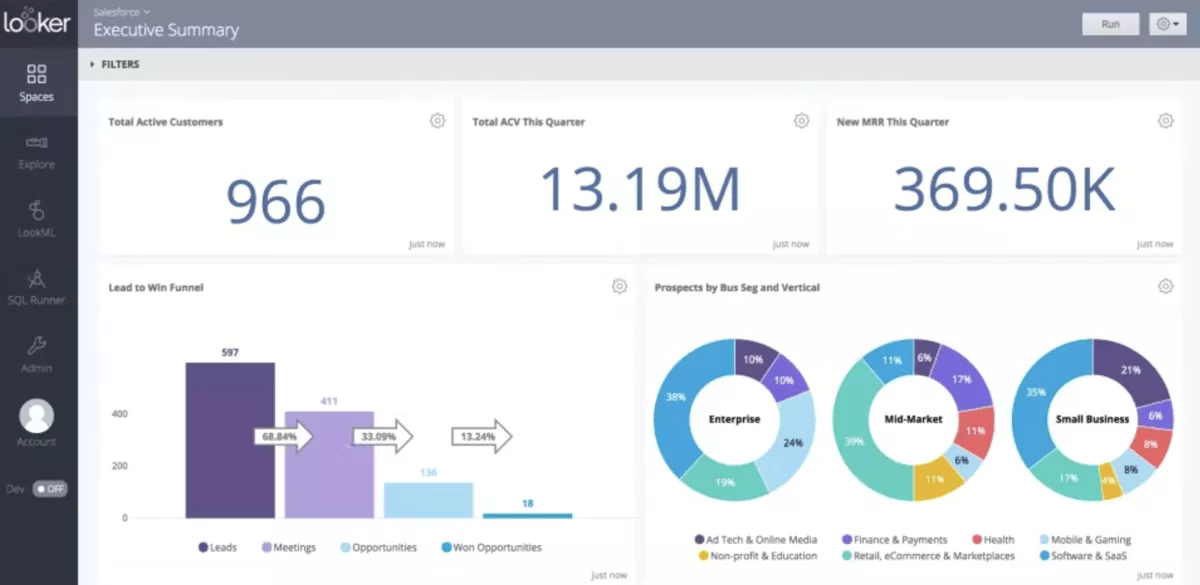
SOurce: Looker Studio
Pros
- It is completely free with no feature gating. You get the full platform without paying anything, which makes it the lowest-risk option to try.
- Google sources connect in seconds. Analytics, Ads, Sheets, and BigQuery integrations work natively with no setup friction.
- Views are interactive and shareable. Filters, date controls, and drill-downs let viewers explore the numbers themselves instead of requesting new summaries.
- The drag-and-drop interface is accessible to non-technical teams. Building a basic view from a Google source takes minutes, not hours.
Cons
- Performance slows down with large datasets. Complex views with multiple data sources take noticeably longer to load and can become clunky to navigate.
- Advanced modeling is limited. Calculated fields and blending capabilities are restricted compared to dedicated analytics tools.
- Non-Google connectors can be unreliable. Third-party community connectors vary in quality, sometimes break, and often add hidden costs on top of the free platform.
- There is no built-in customer support. When something breaks, your options are Google forums and community threads, not a support team.
Who Should Use Looker Studio?
Looker Studio fits budget-conscious teams whose metric sources already live in Google Analytics, Ads, or Sheets. If your critical data comes from systems outside Google’s ecosystem, you will spend more time wiring unreliable connectors than reading views.
10. Klipfolio – Best for Building Custom Real-Time KPI Dashboards
Klipfolio gives you more control over how your performance views look, behave, and refresh than any other tool on this list. It splits into two products: Klips for pixel-perfect custom views and PowerMetrics for a standardized KPI catalog with AI-powered insights.
Key Features
- 250+ source connectors. Connect to marketing platforms, CRMs, databases (MySQL, PostgreSQL, BigQuery), and any tool with a REST API or SQL endpoint.
- Pixel-perfect editor. Build Klips (custom widgets) with full control over layout, styling, and data formatting for each element.
- White-label and embedding options. Brand views with your logo, colors, and custom domain for client-facing reporting.
- PowerMetrics AI insights. Ask questions about your metrics in natural language and get auto-generated explanations, anomaly detection, and trend summaries.
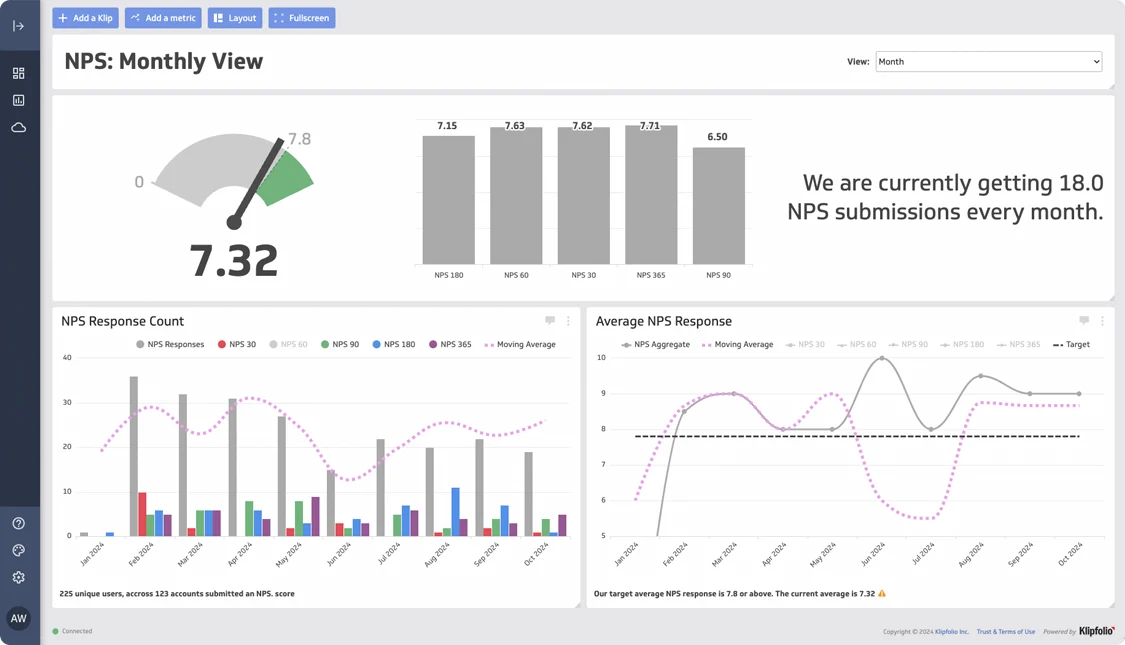
SOurce: klipfolio
Pros
- White-label views make client reporting professional. Agencies can brand the entire interface so clients see the agency’s identity, not Klipfolio’s.
- Source coverage is among the widest in the category. REST API and SQL connectors fill gaps where pre-built integrations do not exist, which means fewer dead ends.
- Layout control goes deeper than template-based tools. You position, style, and format every element instead of working within a rigid grid.
- Real-time displays work well on office screens. Views designed for TV or monitor display update live without manual refresh.
Cons
- Custom views require developer-level skills to build. Basic Klips are straightforward, but anything beyond a simple chart needs familiarity with formulas, SQL, or JavaScript.
- Performance degrades with multiple large data sources. Views slow down when many connectors refresh simultaneously, and query timeouts are common.
- Agency-level features require expensive plans. Full white-labeling, custom themes, and SSO start at the Pro tier, which costs significantly more than the entry plan.
- Fewer chart types than full BI tools. Visualization variety is narrower than dedicated analytics tools, so teams needing diverse chart formats may feel limited.
Who Should Use Klipfolio?
Klipfolio fits agencies that need branded client views and teams that want granular control over every visualization. Skip it if your team wants a fast, template-driven setup with minimal configuration.
The depth is the product, but it is also the cost of entry.
What Are the Key Features of KPI Dashboard Software?
The key features are real-time views, integrations, custom KPI formulas, automated alerts, goal tracking, export and sharing, role-based access, and AI-powered analytics.
Not every feature matters to every team, and not every KPI software includes all of them. The table below maps each one to the buyer type that needs it and shows which KPI tools support it.
| Feature | What It Does | Who Needs It | Which Tools Have It |
|---|---|---|---|
| Real-time views | Display real-time data without manual refresh | Any team tracking daily business metrics | All 10 tools |
| Integrations | Pull data from apps, databases, spreadsheets | Teams with data in multiple systems | All tools (depth varies by platform) |
| Custom KPI formulas | Calculate metrics not available as defaults | Teams tracking ratios like margin or utilization | Power BI, Klipfolio, Databox, Smartsheet |
| Automated alerts | Notify when a KPI crosses a threshold | Managers who need early warning signals | Databox, Productive, monday.com, Teamwork, Power BI |
| Goal tracking | Set targets and measure progress over time | Teams using metrics to drive action, not just monitor | Databox, Kantata, Productive |
| Export and sharing | Generate scheduled or on-demand summaries | Teams reporting to leadership or clients | monday.com, Productive, Databox, Looker Studio, Klipfolio |
| Role-based access | Control who sees which numbers | Orgs separating finance and delivery views | Power BI, Kantata, Productive |
| AI-powered insights | Detect anomalies, forecast trends, answer natural-language questions | Teams that want tools to flag problems proactively | Power BI, Productive, Databox, Klipfolio PowerMetrics |
The difference between a useful KPI dashboard and a vanity dashboard is whether you track metrics you can act on. Project margin, utilization rate, and conversion rate support data-driven decisions.
Total logins do not. For a deeper look at how these features work in practice, see a guide to building project dashboards.
How to Choose the Right KPI Tracking Solution for Your Team?
Choose the right KPI software by starting with the metrics you already review, then working backward to the tool category that fits. We’ve included a practical four-step guide below.
Step 1: Write Down the Five KPIs Your Team Reviews Every Week
Look at where those numbers come from. If most performance metrics come from client work (margin, utilization, budget burn), you need an all-in-one platform.
These tools generate financial figures from delivery and time tracking.
If most come from campaigns (CAC, ROAS, conversion rate), a dashboard aggregator with ad-platform connectors is enough. This one question eliminates half the tools on any list. If your KPIs point to the dashboard category, a guide to project dashboard software can help you narrow further.
For example, a 30-person agency reviews utilization rate, project margin, billable ratio, revenue per client, and on-time delivery. Four of five KPIs come from project delivery and billing.
That rules out standalone KPI tools and points to the all-in-one or PSA category. For help identifying the right metrics, read this guide to professional services KPIs.
Step 2: List Every System Where Your KPI Numbers Live Today
Open a document and write down each tool you pull figures from: PM tool, time tracker, accounting software, CRM, spreadsheets, and ad platforms. Count them. Two or three Google-native sources mean Looker Studio can work.
Five or more scattered systems means you need an all-in-one that replaces several, or a pipeline tool like Coupler.io feeding a dashboard layer.
Step 3: Hand the Tool to the Least Technical Person Who Needs the Views
Ask them to find which project is over budget. If they cannot answer within 60 seconds, the tool is too complex for daily use. This test catches the gap between a polished vendor demo and what your team actually experiences.
A tool your analyst loves but your account managers ignore is not solving the problem.
Step 4: Run a Two-Week Parallel Test Before Cutting Over
Keep your old method running alongside the new tool. Compare the numbers at the end of each week. If they match, you can trust the new system. If they do not, you found a gap before it affected a real decision.
Only deprecate the old method after two clean weeks.
How to Roll Out a KPI Management Platform?
A successful rollout starts with auditing where your numbers live today and ends with a review cadence that keeps your views useful after launch.
Before you configure any KPI software, list every source your team uses for KPI reporting. For each one, confirm the new platform connects natively or through an API.
Do not assume “100+ integrations” means your integrations. Set up each connector and verify that the data comes through correctly. This audit prevents the most common rollout failure: a view that looks great but pulls from incomplete data.
Start with five to seven KPIs. Pick the metrics your team already reviews weekly and build views for those first. A focused launch builds trust in the numbers.
For help choosing the right setup, see a comparison of reporting tools that fit different team structures. You can add more metrics later once the team relies on the tool daily.
Configure views for the launch set. Assign one person per department to verify that the numbers match your old method. Run both systems in parallel for at least two weeks before cutting over.
Migration Checklist
Before
- List every source the team currently uses for KPI reporting
- Confirm the new tool has a native connector or API for each source
- Choose five to seven launch KPIs your team already reviews weekly
- Export historical figures from old tools as a comparison baseline
During
- Set up each connector and verify numbers match the old source
- Build views for the launch KPIs only, not everything at once
- Run old and new systems in parallel for at least two weeks
- Train the team on reading views and who to contact when numbers look wrong
After
- Schedule a weekly 15-minute KPI review for the first month
- After 30 days, identify which views are used and which are ignored
- Remove or rebuild unused views based on team feedback
- Deprecate old spreadsheets and tools once the team trusts the new data
Final Thoughts – What Should You Use to Track Performance?
The strongest KPI visibility comes from keeping work and financial data in one platform. When projects, time tracking, budgets, and performance views share a single system, you stop reconciling numbers across tools.
The best KPI software is not the one with the most widgets. It is the one where the numbers are already there because the work happens inside it.
If your team delivers client work and you want KPI visibility without stitching tools together, book a demo of Productive.
Connect With Agency Peers
Access agency-related Slack channels, exchange business insights, and join in on members-only live sessions.
