7 Best Workflow Approval Software Tools for 2026, Compared

The best workflow approval software tools in 2026 are Productive, Wrike, Kissflow, Process Street, Jotform, DocuWare and Filestage. We compared them by which approvals they handle and what each approval workflow updates, from budgets to published files.
Each tool gets key features, the teams it fits, review-based pros and cons, and clear skip signals. You also get a comparison table, AI’s role in approvals, a six-step shortlist test and an FAQ.
What Is the Best Approval Workflow Software in 2026?
In 2026, the best approval tools are Productive, Wrike, Kissflow, Process Street, Jotform, DocuWare and Filestage. Each workflow approval software tool here suits different teams, so the shortlist pairs every tool with its best fit.
| Tool | Approvals it handles | Who approves | Steps and rules | If an approver is away | Reminders | Outside approvers | What an approval changes | Free plan or trial |
|---|---|---|---|---|---|---|---|---|
| Productive | Time entries, expenses and time off | Manager, budget owner, PM or named people, set by policy | Several approvers, with time-off rules by team, category or duration | “Any one” approver option for time off, and admins can approve | Notifications and an approval inbox | No, team members set by policy | Budget usage, profitability reports and resource-plan availability | 14-day free trial |
| Wrike | Tasks, projects, files and request forms | Approvers picked for each approval or status | Chains of approvers, and every approver must decide | The creator can finish the approval manually | Through automation rules only | Yes, as guest reviewers | Item status can change automatically | Free plan lacks approvals |
| Kissflow | Purchase, invoice and IT requests | People or roles set per step | Conditional steps, and you set how many must approve | Out-of-office task delegation | Step deadlines with reminder emails | Through portals, on Enterprise | The request moves to its next step | Free trial |
| Process Street | Approval tasks inside checklists | Assigned people, groups or roles | Sequential, parallel or multi-step, with conditional logic | Assign the approval to a group, not a single person | Due-date emails, and approvals from email, Slack or mobile | Not covered in its docs | Next tasks open, and rejections return with comments | Free trial |
| Jotform | Form submissions | Named approvers or an email field on the form | Group approvals with completion rules and if-else branches | Escalation to a backup after a set time | Automated reminder emails | Yes, from email | Submission status updates in Inbox and Tables | Free plan includes approvals |
| DocuWare | Invoices and stored documents | Requester or cost center, with approval limits | Multi-level, and amounts over a limit go up a level | Substitute approver when someone is out | Due date tied to the invoice, and late tasks escalate | Need a DocuWare license, such as Workflow User | Invoice data exports to accounting | Free trial |
| Filestage | Videos, designs, PDFs and websites | Reviewer groups for each review step | Several review steps, with more reviewer groups on higher plans | Not covered in its docs | Due dates and reminders on paid plans | Yes, no account needed | File marked Approved, sent to the next reviewer group | Free plan and 14-day trial |
How We Chose These Tools
We picked tools that fix the approval problems teams hit most, from billable time to contracts and creative files. The list spans project management platforms, form builders, document systems and proofing tools, because approval workflows differ by team.
We read the help docs and pricing page for every approval workflow software tool on the list. We checked how approvals route, who can approve, what changes after a yes, and which free option exists.
Pros and cons come from themes repeated across recent G2 reviews. Nothing was tested hands-on.
1. Productive: Best for Approving Time, Expenses, and Time Off Against Budgets
Productive is an all-in-one platform where agencies and consultancies run project management, budgets, time tracking, resource planning and billing. Time, expenses and time off are approved against the budget and resource plan they change.
Manage approvals with Productive
Check Every Timesheet Before It Reaches the Client Invoice
Unchecked timesheets turn into invoice errors. Entries arrive without notes or task links, and client-approved extra hours end up in a spreadsheet.
In Productive, time approval holds each entry until an approver reviews it. Only approved time counts in budget usage and profitability reports, or becomes billable to the client.
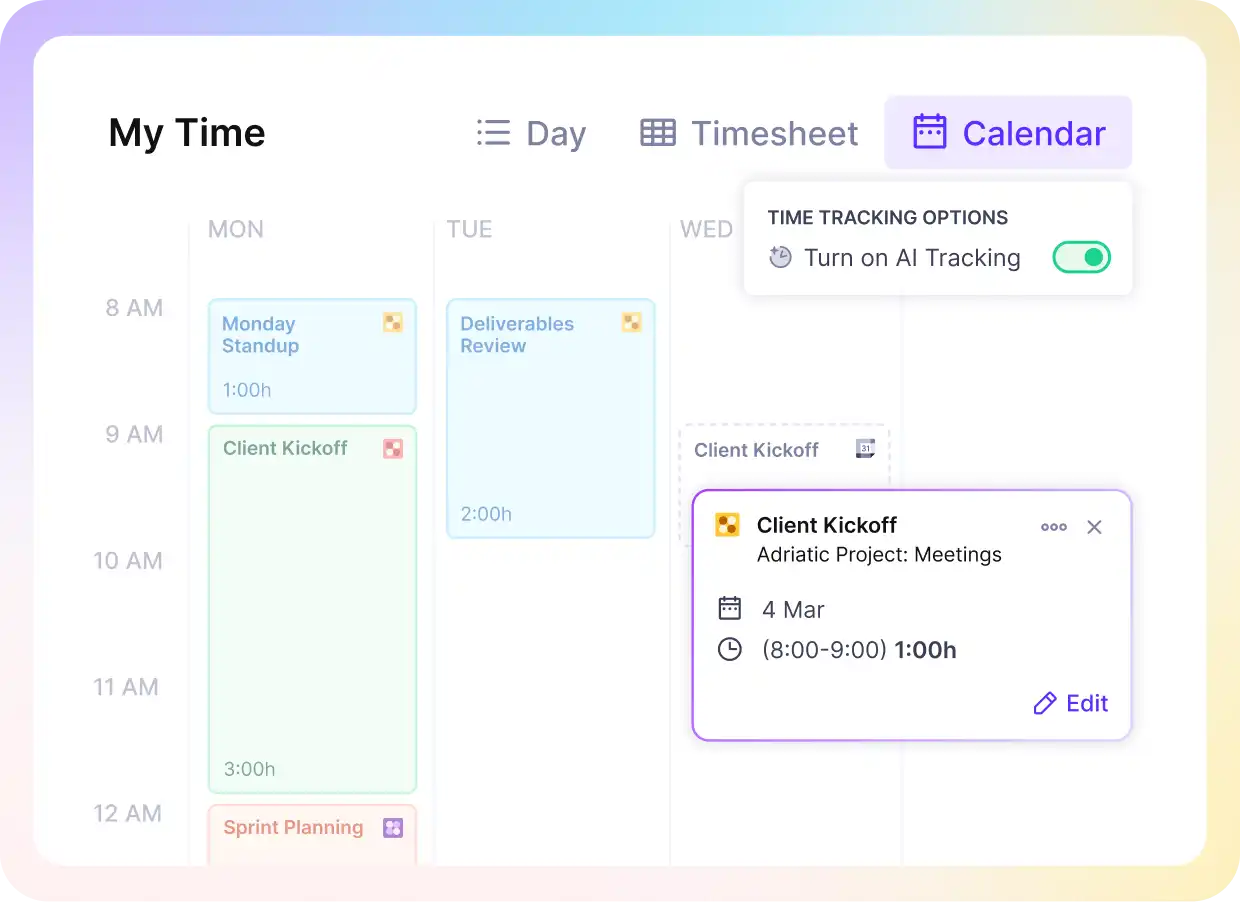
Convert calendar events into time entries with Productive’s AI.
People submit their week through Productive’s time tracking features, and managers can see who hasn’t submitted yet. Admins can set who approves time by each person’s role on the budget. Once approved, an entry stays fixed until a manager un-approves it, so billed hours match what was checked.
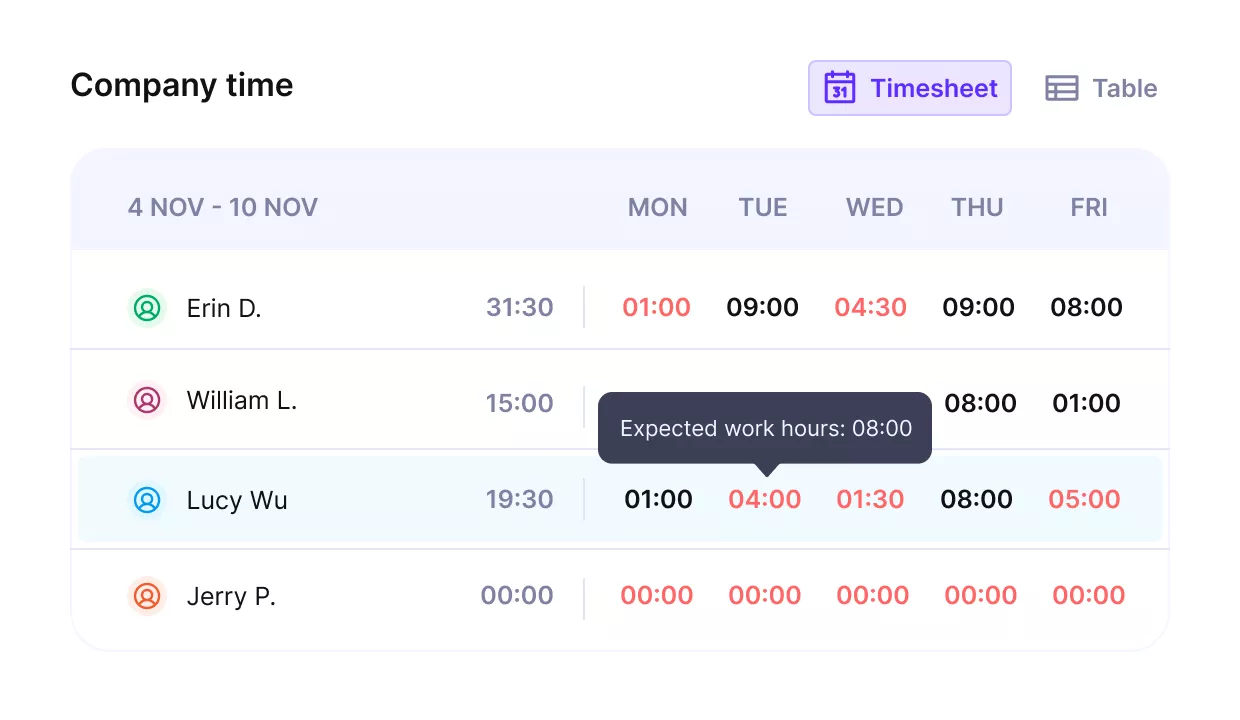
Get instant time sheets and send reminders to team members.
Route Every Expense to the Right Approver on Each Budget
Spend requests that travel by email stall the approval process the moment the only approver goes on holiday. With expense approval, the approver gets notified and can approve, reject or edit each expense in their approval inbox.
If changes are needed, the submitter edits the expense and resubmits it. Admins can still approve from the budget’s Expenses tab, so an absent approver doesn’t hold up spend.
Approval policies apply the same rules across many budgets, assigned individually or in bulk. Each policy can make the submitter’s manager, the budget owner or the project manager the approver.
Approve Time Off With Several Managers and Update the Resource Plan
In matrix teams, a single leave request can need approval from several managers and still clash with booked work. In Productive’s time off management, each absence category can have several approvers.
You decide whether all or any of them must approve, so a manager on holiday doesn’t stall the request. Approval policies set these approval chains by team, category or duration, then apply in bulk.
A pending request shows in the resource plan as an unconfirmed booking. The approver can open the person’s schedule from the approval inbox, and Productive flags any scheduling conflict. Once approved, the absence is confirmed in the resource plan, where planners see it before booking.
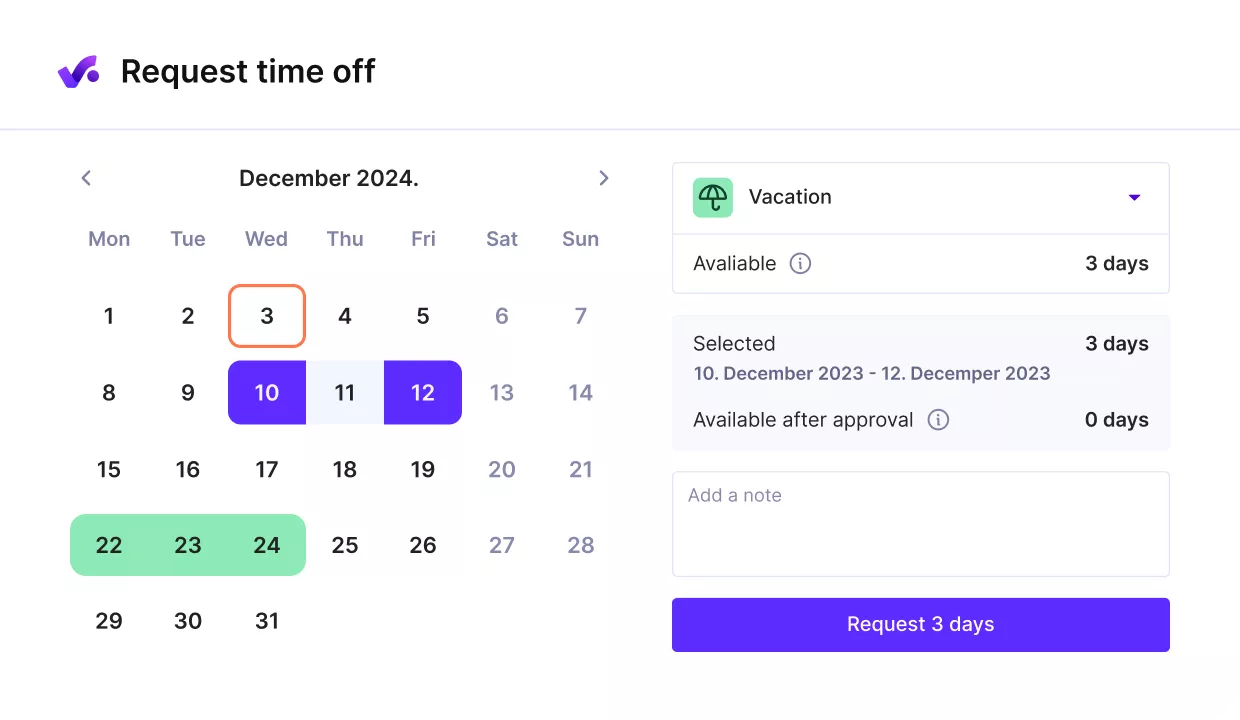
Capture a pending time off request in the approval inbox with the person’s schedule open
Who Should Skip Productive?
Skip Productive if your approvals don’t touch tracked time, project budgets or a resource plan. Those are what its approval process checks.
Freelancers and tiny teams approve their own work, so a queue only adds a step. Agencies on fixed fees that don’t track time or expenses against budgets leave those approvals nothing to check.
Teams whose approvals are mostly files, contracts or company-wide request forms need tools built for those. Filestage suits creative files, DocuWare suits contracts and invoices, and Kissflow or Jotform suit request forms.
Pricing
- Plans start with the Essential plan at $10 per user per month, which includes essential features such as budgeting, project & task management, docs, time tracking, expense management, reporting, and time off management.
- The Professional plan includes custom fields, recurring budgets, advanced reports, billable time approvals, and much more for $25 per user per month.
- The Ultimate plan has everything that the Essential plan and Professional plan offer, along with the HubSpot integration, advanced forecasting, advanced custom fields, overhead calculations, and more. Book a demo or reach out to our team for the monthly price per user.
Productive offers a 14-day free trial, so you can see what it can do for your project’s financial health.
Manage Work and Approvals in Productive
Replace a patchwork of tools with a single platform for delivery, budgeting, finance and approvals.

2. Wrike – Best for Approvals Inside Project Plans
Wrike is a project management platform that adds approval steps to tasks, files and request forms. An approver reviews the task or proof, and the decision can move the item to its next status automatically.
Key Features
- Approvals on tasks, projects and files
- Proofing with guest reviewers
- Approvals in request forms and workflows
- Status change when an approval finishes

Source: Wrike
Pros
- Approvals come built into each project. Blueprints (reusable project templates) can hold the approval tasks, so nobody wonders when to ask or who decides.
- Requests arrive with the details approvers need. Dynamic request forms adapt to each answer and create the task with that information attached.
- Pending reviews stay visible. Reviews and open actions are tracked from start to finish, which cuts manual follow-up across teams.
Cons
- Someone has to design the structure first. Folders, access rights and approval workflows need an owner up front, or new people create a mess.
- Notification volume runs high. A reassigned item can keep alerting the person who created it.
- Key features sit on higher plans. Approvals and resource management both start on the Business plan.
Who Should Skip Wrike?
Teams where any one manager can clear a request, or where late approvals need automatic chasing, should skip Wrike. Every assigned approver has to decide and overdue approvals send no built-in alert, so requests wait until someone notices.
3. Kissflow – Best for Standardizing Approvals Across Departments
Kissflow is a low-code platform for building request forms and the approval workflows behind them. Each request moves step by step, with conditions picking the route and a set number of approvers agreeing.
Key Features
- Drag-and-drop workflow builder
- Conditional steps based on form data
- Set how many approvers must approve
- AI workflow suggestions from a process name
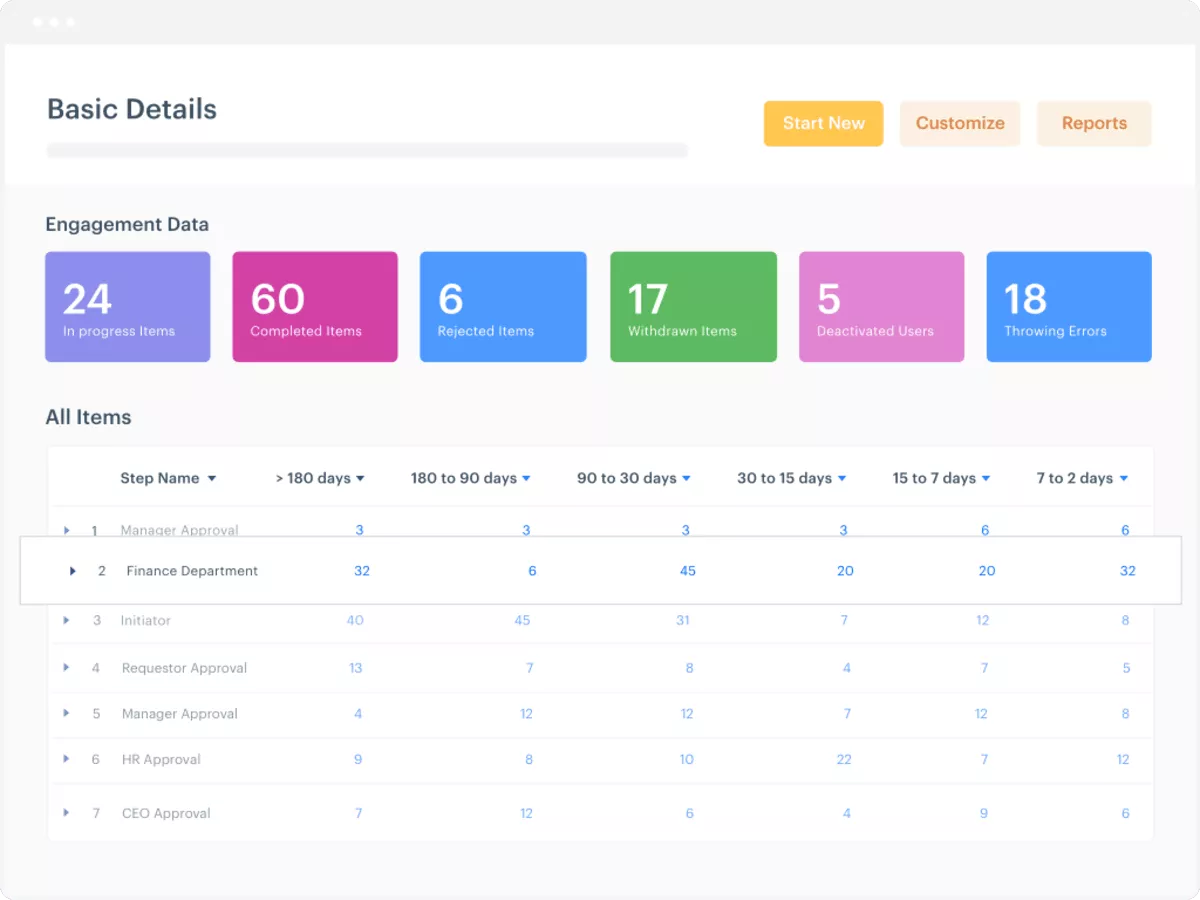
Source: Kissflow
Pros
- Flows get built without waiting on IT. As process automation software, it lets business teams design and change flows on their own.
- Purchase approvals run end to end. Requisitions, approvals, purchase orders and vendor payments move through a single approval workflow platform, with each request’s status visible.
- Every decision leaves a record. Each step shows who approved what and when, which supports internal and external audits.
Cons
- Outside integrations need vendor help. Admins can’t change connections to other systems themselves, and failed syncs can leave a request stuck.
- Process data is shared by default. Each process has to be marked private by hand, and permissions behave inconsistently in places.
- Reporting is basic. Custom reports are hard to configure, and the analytics stay limited.
Who Should Skip Kissflow?
Kissflow is the wrong pick for legal and creative departments that edit documents inside the approval. Reviews and edits still happen in Word, email or Slack, so the approval record misses the agreed changes.
4. Process Street – Best for Checklist-Driven Approvals
Process Street is a workflow tool where teams run recurring procedures as step-by-step checklists. An approval task pauses the checklist until the approver accepts the work or sends it back with comments.
Key Features
- Single, sequential or parallel approval routes
- Conditional approval logic for spending thresholds
- Approve from email, Slack or mobile
- AI-built workflows, approvals included

Source: Process Street
Pros
- Approvals fit at the key steps. Approval tasks can go anywhere in a checklist and chain from reviewer to reviewer.
- Late approvals get chased. Due dates send reminders by email or Microsoft Teams, so a pending approval doesn’t go quiet.
- Cover is simple when someone is out. A colleague can pick up the same checklist and finish the step without relying on memory.
Cons
- Complex branching takes trial and error. Basic checklists come together quickly, but multi-condition logic often needs several attempts.
- Template edits ripple into live runs. Editing one of the templates can push outdated assignments into inboxes, and a single client’s change means rebuilding.
- Pages sometimes stall. Long editing sessions or newly assigned tasks can need a page refresh before they work again.
Who Should Skip Process Street?
Companies where most approvers only act now and then should pass on Process Street. Each of them needs a paid seat, because free guest accounts can do very little inside a workflow.
5. Jotform – Best for Free Form-to-Approval Routing
Jotform is an online form builder, and its Workflows product turns form submissions into approval requests. Each submission routes to its approver, who approves or denies it from an email or the Jotform inbox.
Key Features
- Approval forms built from existing form fields
- Conditional routing with if-else branches
- Group approvals with completion rules
- More than 200 workflow templates

Source: Jotform
Pros
- Only requests that need a yes reach an approver. Conditional logic sends a submission to approval or skips it, based on the submitter’s answers.
- Submitters can check where their request stands. Applicants see their status, while the approver can approve, deny or pass it to a coworker.
- The free plan goes a long way. Small teams can run real approval flows without upgrading.
Cons
- Big flows are hard to debug. Once conditions and approvers pile up, finding the step that misfired takes a lot of testing.
- Approvers can’t ask questions in the flow. There’s no chat or comment box for querying the submitter before a decision.
- AI suggestions need checking. The built-in assistant can propose changes that aren’t right, so each flow needs a test run.
Who Should Skip Jotform?
Finance and HR teams clearing dozens of similar requests a day will find Jotform slow going. Each submission has to be approved or denied on its own, because there is no bulk action.
6. DocuWare – Best for Invoice and Contract Approvals
DocuWare is a document and approval management system for invoices, contracts and other stored records. Storing an invoice starts its approval, which routes by cost center or amount and sends approved data to accounting.
Key Features
- Document approval workflow triggered on storage
- Routing by cost center and approval limits
- Substitute approvers and late-task escalation
- Approved invoice data exported to accounting

Source: DocuWare
Pros
- Invoices move faster once it’s set up. After the workflow is configured, invoice approvals speed up and teams drop much of the manual work.
- Access stays tightly controlled. Permissions and version control decide who can view, change or act on each document, keeping the audit trail clean.
- It fits into an existing stack. Direct compatibility with many other platforms makes it easier to connect to the systems you already run.
Cons
- Some functions are buried. Reaching certain settings takes many clicks through specific menus.
- Offline access is limited. Not every feature works offline, so approvers on the move need a connection.
- Text capture can miss. OCR doesn’t always read scanned documents correctly, so some fields need fixing by hand.
Who Should Skip DocuWare?
If your approvals are mostly time entries or leave requests with no document attached, DocuWare adds little. Its strength is capturing, indexing and archiving files, and those approvals have nothing to file.
7. Filestage – Best for Creative File Sign-Off With External Reviewers
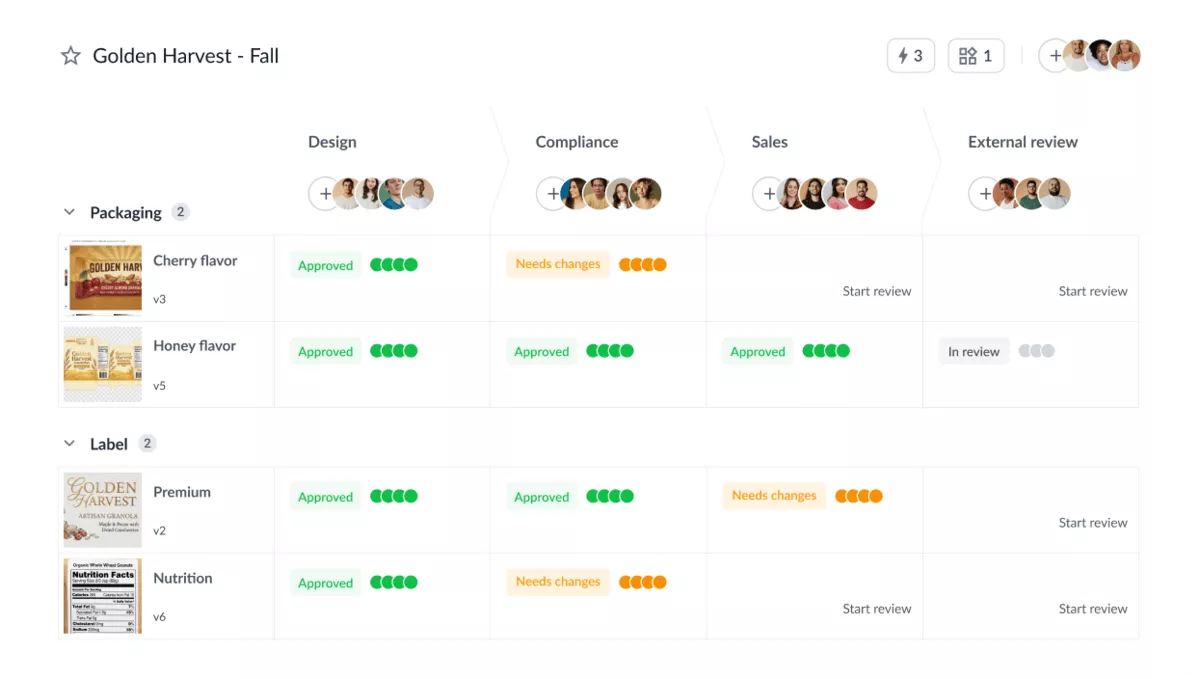
Filestage is a content approval platform where videos, designs, PDFs and websites are approved on the file itself. Each reviewer group comments, requests changes or approves, and an approval moves the file to the next group.
Key Features
- Markup on video, image, PDF and websites
- Reviewer groups for each approval stage
- Version control with side-by-side comparison
- AI agents that check regulatory requirements
Source: Filestage
Pros
- A comment never counts as an approval. Comments, change requests and approvals are separate actions, so informal feedback never passes as a yes.
- Version comparison catches small edits. Side-by-side views and automatic text comparison flag changed prices or disclaimers before a client sees them.
- External approvers need no account. Clients and partner teams open a link and review creative assets without signing up.
Cons
- Near-duplicate setups pile up. Per-client reviewer groups and templates multiply, and little help exists for spotting and merging duplicates.
- New reviewers may need a walkthrough. People joining an approval for the first time often need training before the tool feels intuitive.
- File setup isn’t always clear. Setting up a file for review can be confusing.
Who Should Skip Filestage?
Skip Filestage if you want content approval and project tasks in one tool. It handles review only, so delivery runs in a separate tool like Jira and status splits in two.
Which Type of Approval Software Fits Each Approval?
Pick workflow approval software by what a yes changes, not by the length of its feature list. A time entry, a purchase order and a design file each need a different approval workflow system.
Each yes updates something else: a budget, committed spend, or what gets published.
| Approval | What a yes changes | Tool type | Tools in this list |
|---|---|---|---|
| Time entries | Billable time and budget usage | Project and delivery platform | Productive |
| Expense requests | Spend charged to a budget | Project and delivery platform, checklist tool | Productive, Process Street |
| Time off | Availability in the resource plan | Project and delivery platform, checklist tool | Productive, Process Street |
| Purchase requests | Committed spend, before any purchase orders go out | Low-code process platform, document management | Kissflow, DocuWare |
| Content approval for creative files | What gets published | Proofing tool, project and workflow management platform | Filestage, Wrike |
| Contracts and invoices | What gets paid and archived | Document management, low-code process platform | DocuWare, Kissflow |
| Cross-department requests, such as onboarding or IT access | Work handed to another team | Low-code process platform, checklist tool, form builder | Kissflow, Process Street, Jotform |
Most teams run two or three of these approval workflows, so shortlist tools covering the two you run most. If billable time is one of them, our list of agency time tracking tools compares the options in depth.
For approvals on project tasks, our Wrike vs ClickUp vs Productive comparison shows how those platforms differ.
How Is AI Changing Approval Workflows?
AI is taking over the preparation of an approval, not the decision. The record still has to show which person said yes. Before a request reaches the approver, AI agents can check that required fields and attachments are there.
They compare the request against validation rules, such as a missing cost code or a date in the past.
They can also summarize what is being asked and chase an approver when a request waits too long. That cuts back-and-forth in the approval workflow.
Automated approvals suit low-risk requests that match a rule exactly, like a software renewal at last year’s amount.
- They compare the request against validation rules, such as a missing cost code or a date in the past.
- They can also summarize what is being asked and chase an approver when a request waits too long. That cuts back-and-forth in the approval workflow.
- Automated approvals suit low-risk requests that match a rule exactly, like a software renewal at last year’s amount.
When to Use AI for Approvals?
Keep a person in charge of any approval process that changes a client invoice, a contract or someone’s schedule. Start with workflow automation for routing, and allow automated approvals only where the policy leaves no judgment call.
Among the approval workflow tools in this list, Filestage’s Review Agents give first-round feedback on brand and regulatory rules. Kissflow and Process Street can draft a whole workflow from a process name or short instruction.
Productive’s AI agents run on a schedule or a trigger. They create tasks, update records and follow up on items, within the permissions you give them.
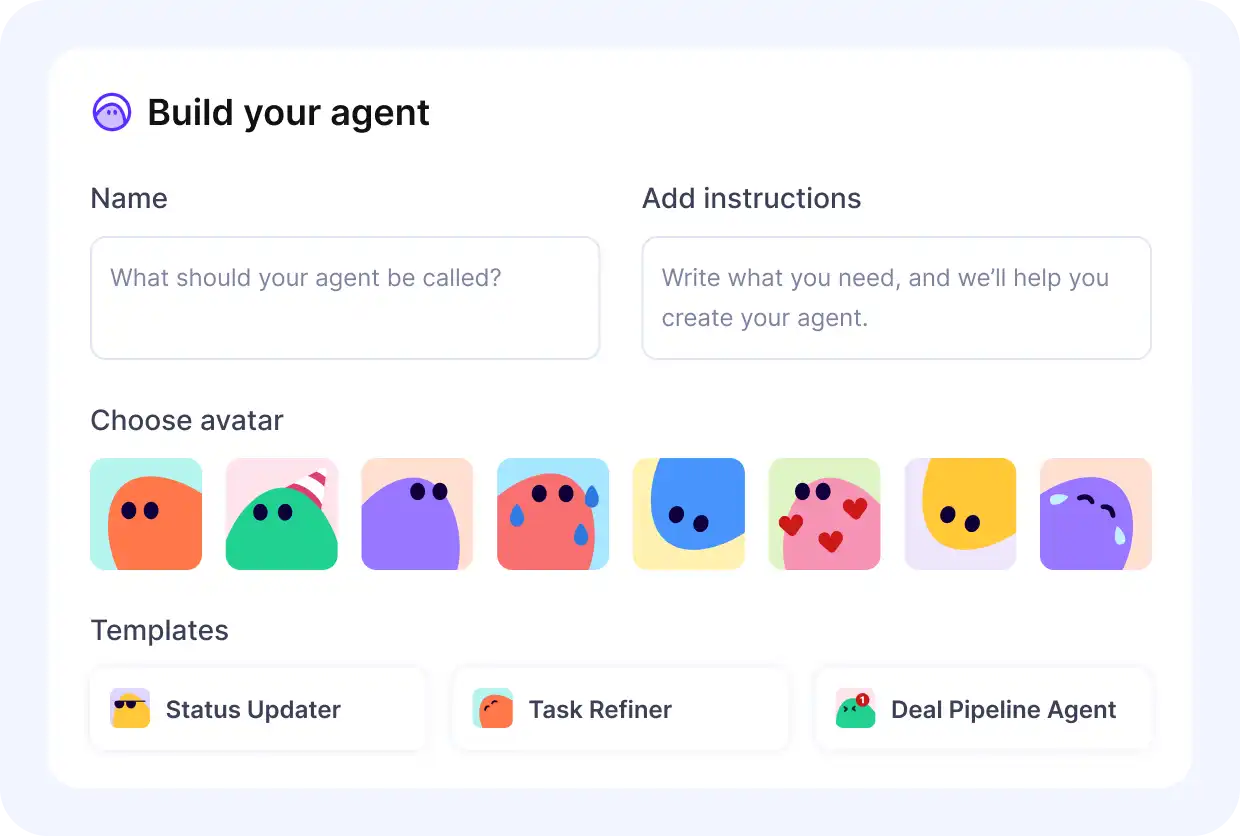
Productive’s Build your agent form with name, instructions, avatar and starter templates
Before you switch on AI agents, have your teams write down which approvals stay human.
Features to Test Before You Buy Approval Software
Seven features decide whether the software fits: routing, cover, escalation, outside approvers, the record, integrations and AI help. Treat each as a test: a feature counts only if it handles your own approval workflow in the trial.
| Feature | What to test in the trial | Pass condition |
|---|---|---|
| Approval paths with several approvers | Send one request that needs two approvers in a set order | The second approver sees it only after the first decides |
| Backup approvers | Mark the first approver as away, then submit a request | The request reaches the backup without anyone rerouting it |
| Escalation rules | Leave a request untouched past its deadline | A reminder or escalation fires on its own and shows in the record |
| External approvers | Send a content approval, such as a design, to a client without an account | The client decides from a link, and the record names them and the date |
| Audit trail | Export the history of a finished approval | The export lists every decision, approver and timestamp |
| Integrations | Approve a request that should update another system through workflow automation | The other system shows the change with no retyping |
| AI assistance | Submit a request with a required field left blank | The AI flags the missing field, and automated approvals never skip the human decision |
Shortlisted tools that fail a row your approval workflows depend on come off the list, whatever other teams say.
How to Choose Approval Workflow Software
Choose workflow approval software by testing it on your own approvals, in six checks that each pass or fail. You finish with a shortlist of approval workflow software that has already handled your real requests.
1. Sort Last Month’s Requests by Type
Pull 30 days of requests from email, chat and forms into a single sheet, a row per request. Tag each row with an approval type from the matrix, then count rows by type. Include requests settled in a hallway, since they’re part of the approval process too.
Pass: you can name your two most frequent types and roughly how many requests each had.
2. Time Five Recent Requests From Submit to Decision
Pick five requests from the sheet. For each, note the hours from submit to decision and the number of handoffs. More than two handoffs, or no clear approval sequence, marks where your approval workflow breaks.
Pass: you can name one bottleneck the new tool must remove.
3. Match Your Top Two Types to a Tool Type
Take your two types to the matrix and read off the tool type for each. If both point to one type, compare tools of that type only. If they point to two types, try a tool that covers both before buying two.
Pass: a shortlist of three tools or fewer.
4. Write Five Must-Pass Tests
From the features table, copy the five rows your top two approval workflows depend on. Add your spend threshold to the first test, such as anything over your per-item limit needing a second approver. Keep the audit trail row if auditors or clients check your approvals. If contracts are in scope, add a test for digital signatures.
Pass: a tool clears all five, and any failure removes it.
5. Run Two Real Requests per Type in the Trial
In each trial, run two real requests of each top type, start to finish, with your actual approvers. Use the approval process your teams follow today, not a demo version.
Pass: all four reach the right approver with no manual forwarding, and the approval system records every decision.
6. Check What Changes After Approval
After approval, the item should update a budget, invoice, calendar, file version or project management tool. Open that place for each trial request.
Pass: the item shows up there with no retyping, so the approval workflow ends where the work continues. Any manual copy is a fail, because that copy is where the next error starts.
How to Write Your Approval Rules
Write your approval process down as a rules table before configuring any tool, so every setting has a source. This approval matrix takes about an hour for your two most frequent approval types.
| What gets approved | Who approves | When a second approver joins | Who covers when the approver is away | Decision deadline |
|---|---|---|---|---|
| Example: expenses over the per-item limit | Budget owner | Finance joins over the limit | Named deputy | Two working days |
| Example: time off longer than five days | Team lead | Project manager joins if dates overlap booked work | Deputy lead | A week before the start date |
| Example: client-facing design file | Account lead | Client approves second | Another account lead | One working day |
Replace the example rows with your own before your teams start the trial. Each row then becomes a setting in the approval system and a test from the features table.
Frequently Asked Questions
What Is Approval Workflow Software?
Approval workflow software turns an approval request into a set route. It sends the request through an approval sequence and records who decided what, and when.
Can AI Approve Requests on Its Own?
Yes, for low-risk requests that match a written policy exactly, but not for invoices, contracts or schedules. AI agents can prepare the request, but the approval process still needs a named person on the record.
Are There Free Approval Tools?
Yes: Jotform’s free plan includes approvals, and Filestage offers a free plan for file reviews. Free plans usually cap submissions, flows or seats, so a free approval tool suits a pilot.
How Is Approval Software Different From Workflow Automation?
Approval software decides who must say yes and in what order, while workflow automation moves data between steps. Workflow software built for request management usually combines both, with workflow automation handling the handoffs.
Can Clients Approve Without an Account?
Yes, in tools with guest or link-based reviewers: Filestage and Jotform both let outside approvers decide without an account. Before teams rely on it, check that the record names the client and the version they approved.
How Do Approval Workflows Hold Up in an Audit?
Approval workflows hold up when the audit trail shows who approved what, when and on which version. They also need segregation of duties (the person who requests never approves the same request). For contracts, add digital signatures on top of the approval workflow record.
Final Thoughts: Approve Where the Work Gets Measured
Approve where the work gets measured, because an approval is only as good as the thing it updates. Of the tools here, pick the workflow approval software whose yes lands where your teams measure work.
If your approvals are billable time, project expenses and time off, book a Productive demo. It shows how approved time and expenses reach budgets, and how approved time off updates the resource plan.