Top 10 Toggl Alternatives (Paid & Free) – Buyer’s Guide 2026

If you’re having a hard time with billing and reporting, this might be your sign to look at Toggl Alternatives.
In this decision guide, we’ll cover 10 tools with best-fit use cases, core features, and pros and cons based on patterns from real G2 and Capterra reviews.
You also get a shortlist and a comparison table so you can narrow options fast without assuming. By the end, you will know what to switch to and how to replace Toggl with a tracker that matches your time management workflow and has a user-friendly interface your team will actually use.
What Are the Best Toggl Alternatives in 2026?
The best Toggl alternatives in 2026 are Productive, Jibble, Clockify, Harvest, Kimai, MeisterTask, My Hours, RescueTime, Timely, and TimeCamp. We picked this shortlist by grouping tools by the workflow they fix, checking repeated experiences in G2 and Capterra reviews, and verifying core capabilities on official pages.
List of the top Toggl Track Replacements
Toggl Alternatives Buyer’s Comparison Tables
| Clockify Substitute | Best for | Free version available | Standout features | Platforms (Desktop, Web, iOS, Android) | Timesheet approvals | Auto capture |
|---|---|---|---|---|---|---|
| 1. Productive | Agencies and professional services teams that need time logged against budgets and billing | No | Budgets + profitability views, approvals, invoicing workflow | Desktop, Web, iOS, Android | Yes | Yes |
| 2. Jibble | Clock-ins, attendance, and shift based teams | Yes | GPS clock in, kiosk mode, offline mode | Desktop, Web, iOS, Android | Yes | No |
| 3. Clockify | Free team rollout with upgrades later | Yes | Auto tracker, browser extension, approvals | Desktop, Web, iOS, Android | Yes | Yes |
| 4. Harvest | Billable work with straightforward invoicing | Yes | Invoices from hours, expenses, client reports | Desktop, Web, iOS, Android | Yes | No |
| 5. Kimai | Self hosted control and data ownership | Yes | Self hosting, plugins, data control | Web | No | No |
| 6. MeisterTask | Task boards with built in time at the task level | Yes | Kanban boards, task timers, automations | Desktop, Web, iOS, Android | No | No |
| 7. My Hours | Simple tracking and clean reports | Yes | Approval workflow, budgets, exports | Desktop, Web, iOS, Android | Yes | No |
| 8. RescueTime | Automatic personal tracking and focus insights | No | Activity capture, focus time, insights | Desktop, Web, iOS, Android | No | Yes |
| 9. Timely | Automatic capture for teams that hate end of week timesheets | No | Memory tracker, auto suggestions, team reporting | Desktop, Web, iOS, Android | No | Yes |
| 10. TimeCamp | Automatic tracking options plus timesheets and reporting | No | App and website tracking, invoicing, monitoring options | Desktop, Web, iOS, Android | No | Yes |
1. Productive – Best for Time Tracking Connected To Profitability & Project Management
Productive is an all-in-one platform for agencies and professional services teams that bill clients and need time tracked against projects and budgets.
If you are replacing Toggl Track because you track hours in one tool and manage budgets in another, Productive brings those workflows (and their approvals) together. As a result, our users act on the numbers sooner (and smarter).
Try out the best Toggl replacement
Track hours against budgets so you spot overruns earlier
In Productive, you track hours directly on budgets and services, not in a separate silo. That means budget owners can see budget burn as the week happens, not after someone exports a spreadsheet at month’s end.
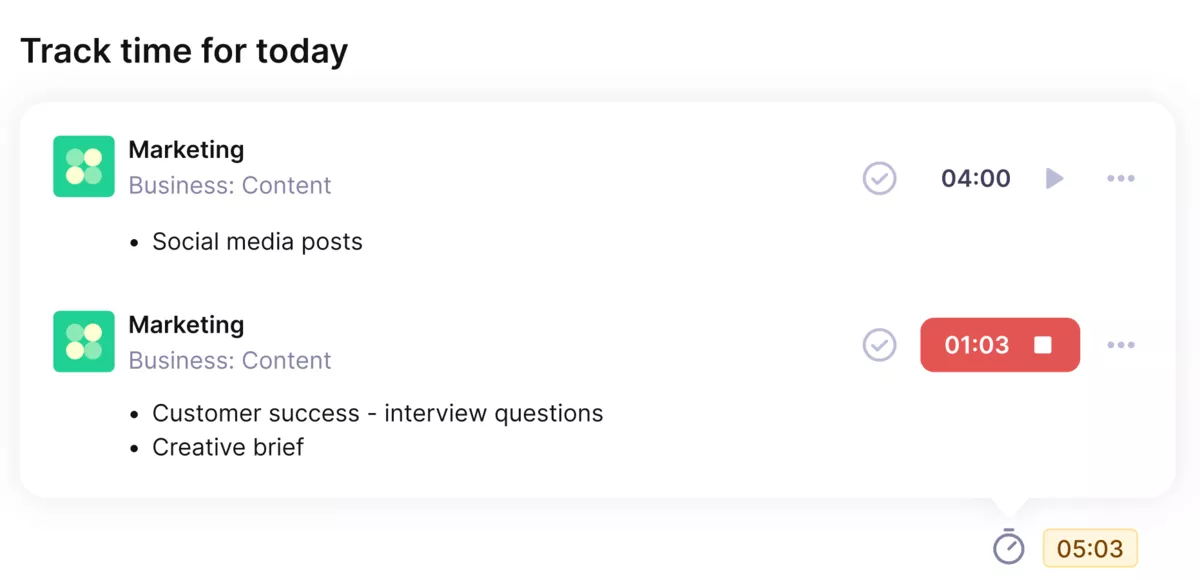
Track billable hours directly on tasks and automatically update the remaining budgets.
When scope starts creeping, you have a chance to adjust delivery, move work, or reset expectations before the budget is gone.
Use tracked time to understand profitability while work is in progress
When billable hours are tied to budgets, you can see which services are running hot and which accounts are drifting away from the margin you expected. Instead of assuming whether a retainer is profitable, you can compare what was sold to what is actually being delivered.
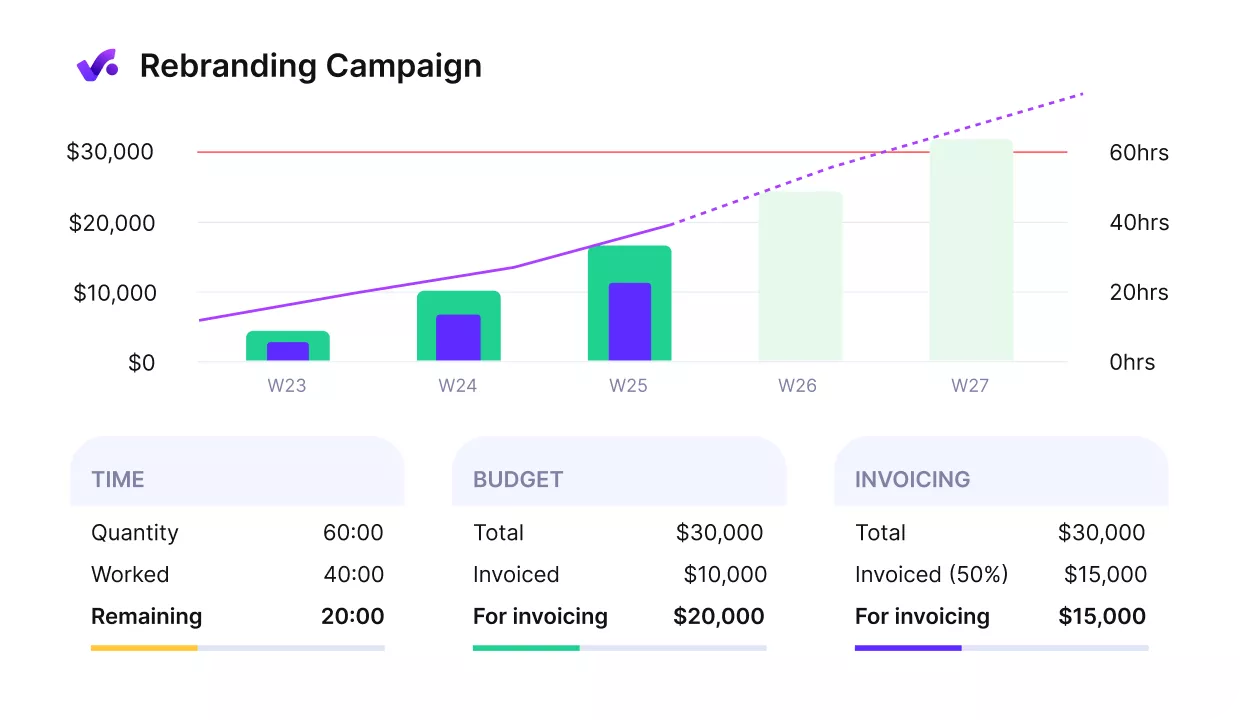
Get early warnings of budget overruns.
This is also a practical way to improve estimating. When you can analyze planned versus actual (logged) hours, you get faster feedback on where your estimates are consistently off.
Plan capacity using real numbers, not end-of-month assumptions
When teams delay logging, staffing discussions turn into opinions. Productive helps you base those discussions on what the team actually delivered. You can use time data to plan capacity & resources based on where work is piling up, which roles are overloaded, and whether you need to reassign work or add support.
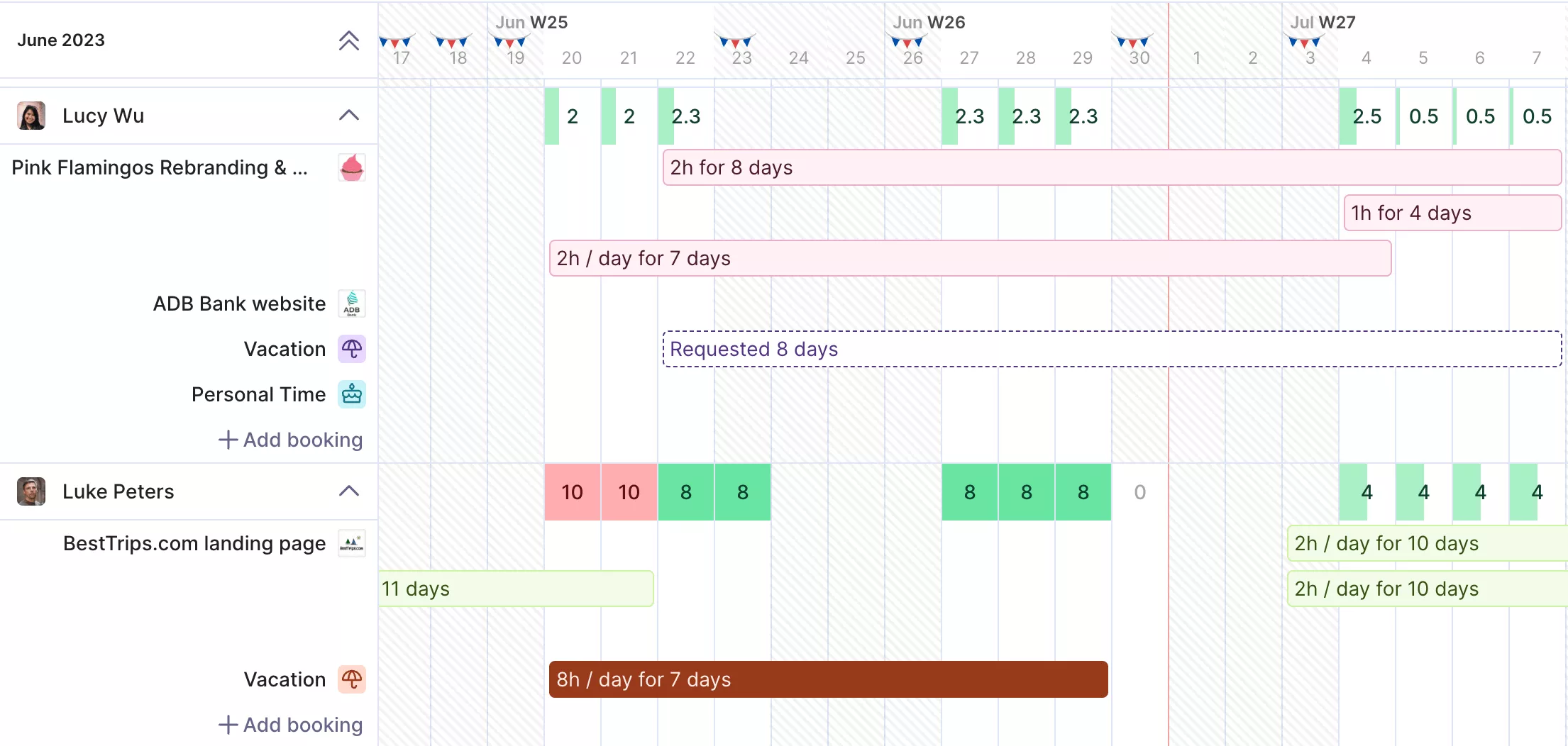
Use productive’s resource planner to allocate your team’s hours based on real-time data.
This matters most for agencies with mixed work, like client delivery plus internal time. If you do not separate those clearly, you never get a real view of capacity.
Bill faster with approved entries, not manual handoffs
If you invoice from tracked work, the slow part is usually reconciling what happened across tools. Productive keeps tracked time, approvals, and billing workflows connected, so you don’t have to rebuild the same story in spreadsheets. Once entries are reviewed, invoicing becomes a faster step because you are billing from approved data.
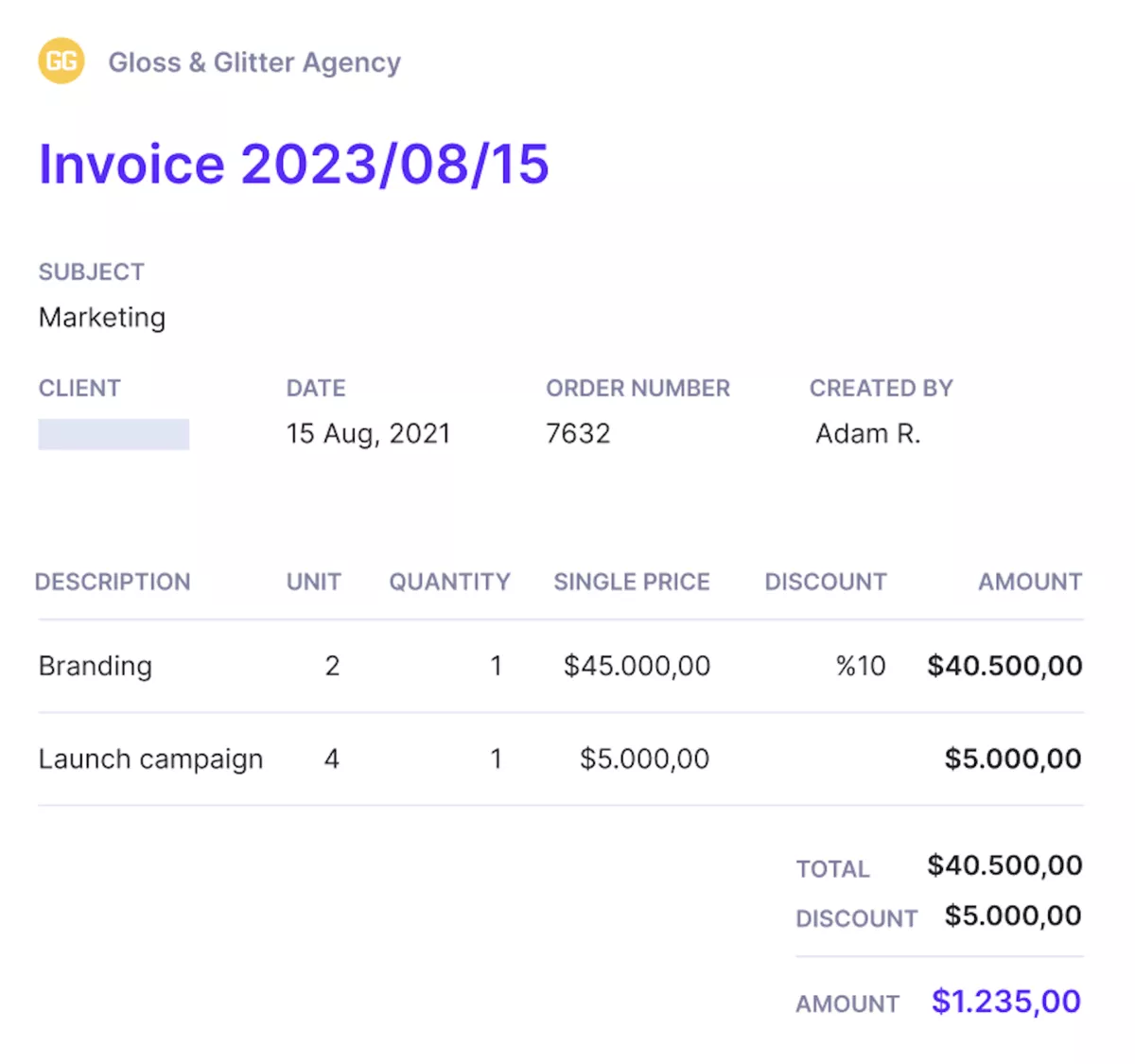
Send invoices directly from Productive.
Core time tracking features
- Log hours to projects, budgets, and services so you do not have to reclassify work later when finance asks what was billable and what was not.
- Submit timesheets, then review them with Time Approval when it is enabled, so budget owners can catch wrong services, missing notes, or obvious mistakes before hours go into client reports.
- Mark work as billable or non-billable so you can separate client delivery from internal time, which makes utilization and capacity conversations more honest.
- Use reporting to compare planned budgets to logged actuals, so you can spot overruns early and explain scope changes with numbers rather than guesswork.
Pricing
- Plans start with the Essential plan at $10 per user per month, which includes essential features such as budgeting, project & task management, docs, time tracking, expense management, reporting, and time off management.
- The Professional plan includes custom fields, recurring budgets, advanced reports, billable time approvals, and much more for $25 per user per month.
- The Ultimate plan has everything that the Essential plan and Professional plan offer, along with the HubSpot integration, advanced forecasting, advanced custom fields, overhead calculations, and more. Book a demo or reach out to our team for the monthly price per user.
Productive offers a 14-day free trial, so you can see what it can do for your project’s financial health. If you’re running an agency, maybe it’s better to head over to our list of agency time trackers.
Replace Toggl with Full Budget and Time Visibility
If you are tired of exporting hours, cleaning reports, and reconciling budgets, Productive keeps time and delivery data in the same place.

2. Jibble – Best for Clock-Ins and Attendance
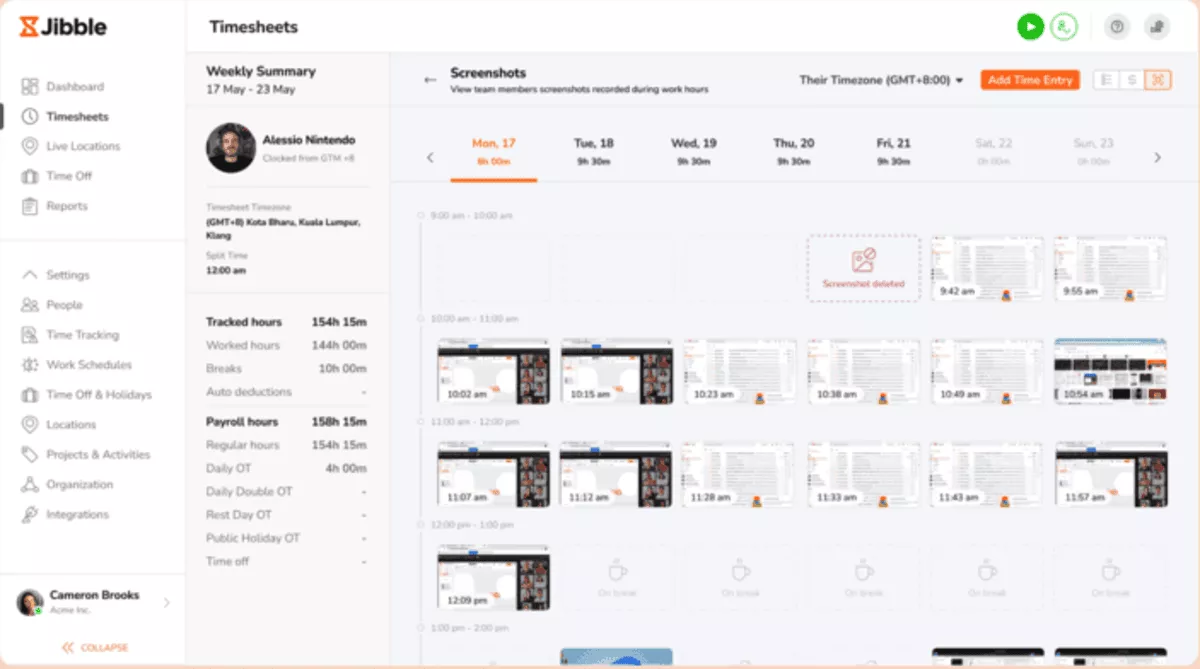
Choose Jibble when you run shifts and need attendance records you can trust, but skip it if your priority is client billing and project budgets. Teams often set up a shared kiosk on a tablet, then let staff clock in with GPS or offline mode when coverage is spotty.
Core Features
- Kiosk modes with face, NFC, or PIN clock-ins.
- GPS and geofencing for location-based attendance.
- Offline clock-ins on mobile, then sync later.
- Pay periods plus timesheet approvals for payroll.
SOurce: jibble
Pros
- Reviewers often mention that the interface feels simple to learn.
- Many teams praise the generous free plan for basic attendance.
- Kiosk and geofence options help reduce buddy punching.
- Reviewers often highlight quick setup and fast rollout.
Cons
- A common complaint is limited report customization for exports.
- Some reviewers mention glitches, sync issues, or login friction.
- GPS accuracy can be inconsistent for some field staff.
- Some features are gated on paid tiers as teams scale.
Final Verdict
Jibble is not a match for agencies that need client-ready billing reports, budgets, and profitability views. It works best for shift teams that want fast clock-ins, kiosk options, and a clean approval step before payroll.
If you rely on highly customized exports, you may hit reporting limits sooner than you expect.
3. Clockify – Best for Free Team Time Tracking
Clockify works best for teams that want a free tracker for client projects, but it can feel busy if you care about a polished interface and custom reporting. You can mix timers and manual logs, submit weekly timesheets, and export basic reports for billing.
If you’re already considering Clockify, head over to our big list of Clockify alternatives and expert advice for choosing.
Core Features
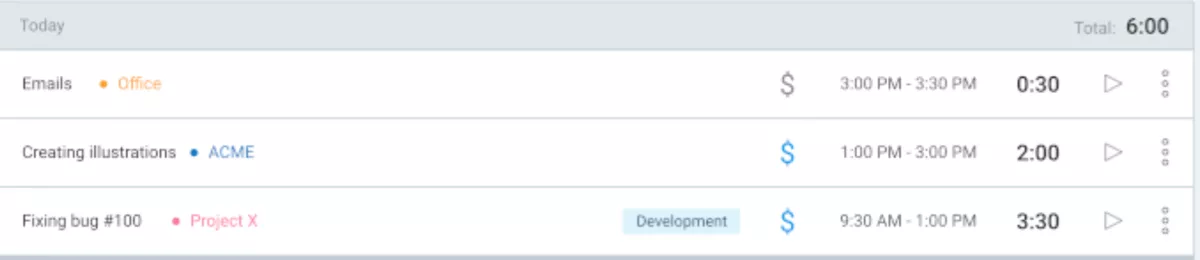
- User-friendly interface with Pomodoro timers, manual logs, and a weekly timesheet view.
- Timesheet submission and approvals on higher tiers.
- Basic reports and exports for clients and internal review.
- Offline support for mobile logging.
SOurce: clockify
Pros
- Reviewers often mention that it is easy to adopt and quick to roll out.
- Many users praise the value of the free plan for team tracking.
- Reports and exports get positive mentions for basic client needs.
- Offline support helps teams that travel or work onsite.
Cons
- A common complaint is that the interface feels cluttered as workspaces grow.
- Some reviewers mention performance lag or mobile sync issues.
- Reporting customization can feel limited without upgrades.
- Some admin controls are locked behind paid tiers.
Final Verdict
Clockify is not for teams that want advanced approvals and admin controls without upgrading. It is a solid option for a free team rollout, especially when you need offline support and basic exports for client billing.
Once your workspace grows and reporting needs get stricter, expect to move up a tier or choose a more governed tool.
4. Harvest – Best for Billable Work and Invoicing
Pick Harvest when you want a direct path from tracked client work to invoices, but skip it if you need automatic capture or deep, customizable reporting. It suits freelancers and small service teams that log hours and expenses, then invoice from the same data.
Core Features
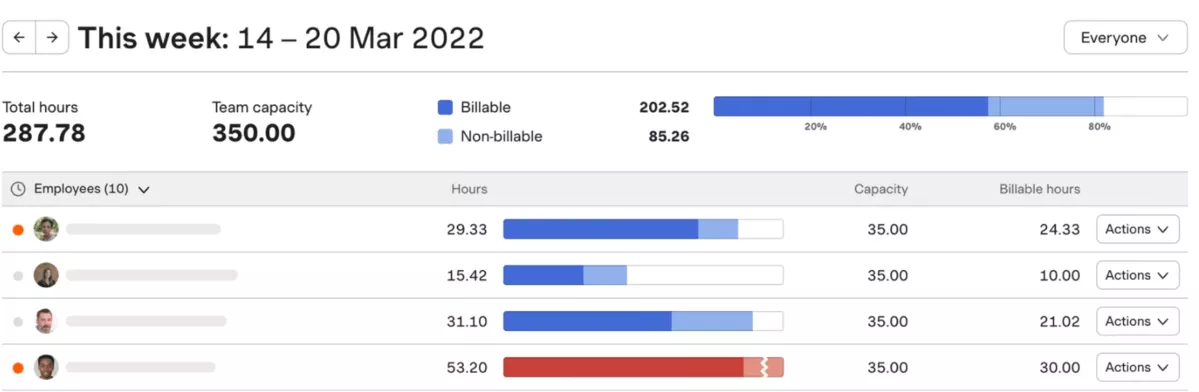
- Timers and manual entries are organized by client and project.
- Expense tracking connected to clients and projects.
- Invoices are generated from tracked work and expenses.
- Integrations and accounting sync for invoice workflows.
SOurce: harvest
Pros
- Reviewers often mention that the interface feels clean and easy to learn.
- Invoicing from tracked work is frequently praised as straightforward.
- Integrations get positive mentions for reducing copy-paste work.
- Reliability is a recurring theme for daily use.
Cons
- A common complaint is the cost increases quickly as your team grows.
- Some reviewers want deeper reporting and more flexible exports.
- Teams that need broader delivery workflows can find it limiting.
- Some users want stronger custom reminders or smarter entry support.
Final Verdict
Harvest is not ideal for larger teams that need deeper reporting, governance, or broader delivery workflows around time. It fits freelancers and small service teams that want to invoice directly from tracked work with minimal admin overhead.
Keep an eye on per-seat cost as you scale, because pricing is a common reason teams switch later.
5. Kimai – Best Self-Hosted, Open Source Time Tracking
Kimai is an open source option for teams that want to run their own timesheet system, but skip it if you prefer a plug-and-play SaaS with a modern UI and lots of integrations. It is a sound choice when you need project-based timesheets, exports, and the option to customize via plugins.
Core Features
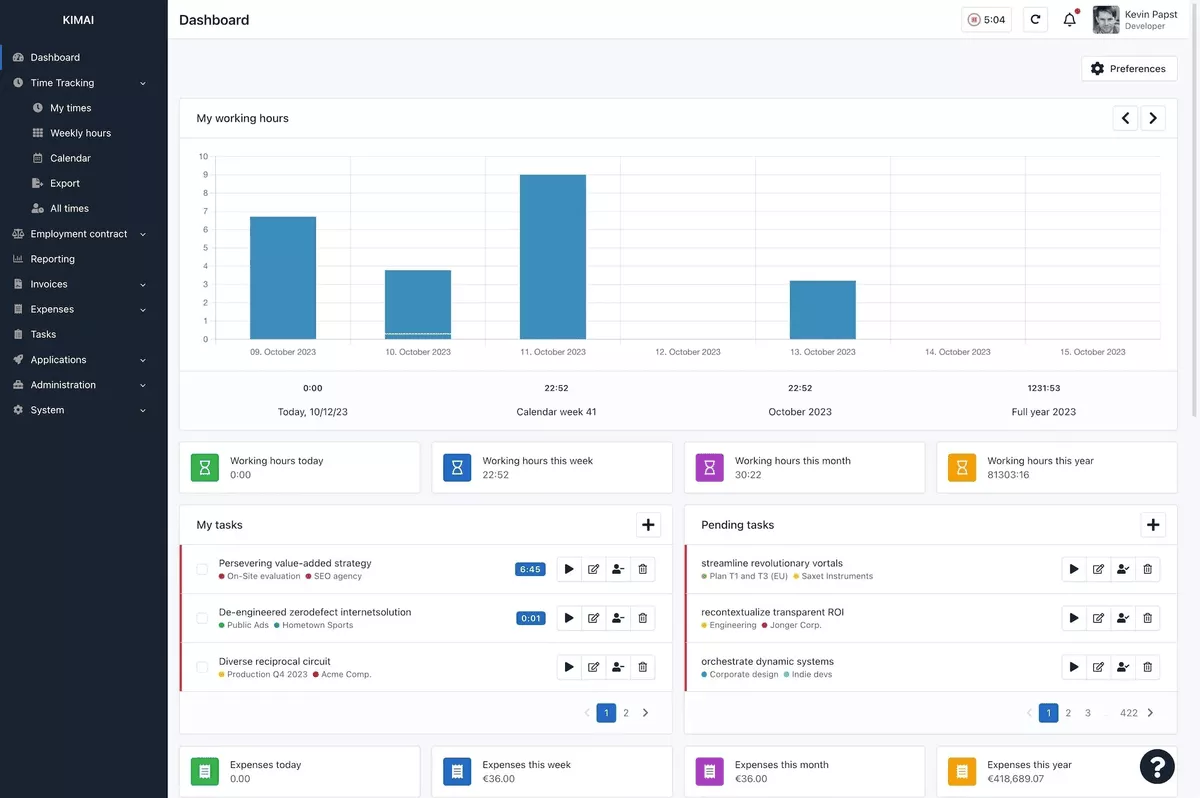
- Project and activity-based timesheets for multiple users.
- Exports in common formats, with optional invoicing support.
- Role-based permissions plus plugin and API support.
- Self-hosting with a cloud alternative.
SOurce: kimai
Pros
- Reviewers often mention it is straightforward to install and run.
- Reliability is a repeated theme once it is set up.
- Exports are a common highlight for monthly reporting.
- Many teams like the control and customization via plugins.
Cons
- A common complaint is that the UI can feel dated.
- Some reviewers find the customer and activity structure rigid.
- Integrations can be limited compared to SaaS ecosystems.
- Self-hosting adds maintenance work for updates and backups.
Final Verdict
Kimai is not for teams that want a polished SaaS experience with zero maintenance. It is a good fit if you have IT support and want project-based timesheets with full data control. Budget time for updates, backups, and plugin maintenance if you self-host, because that work does not go away.
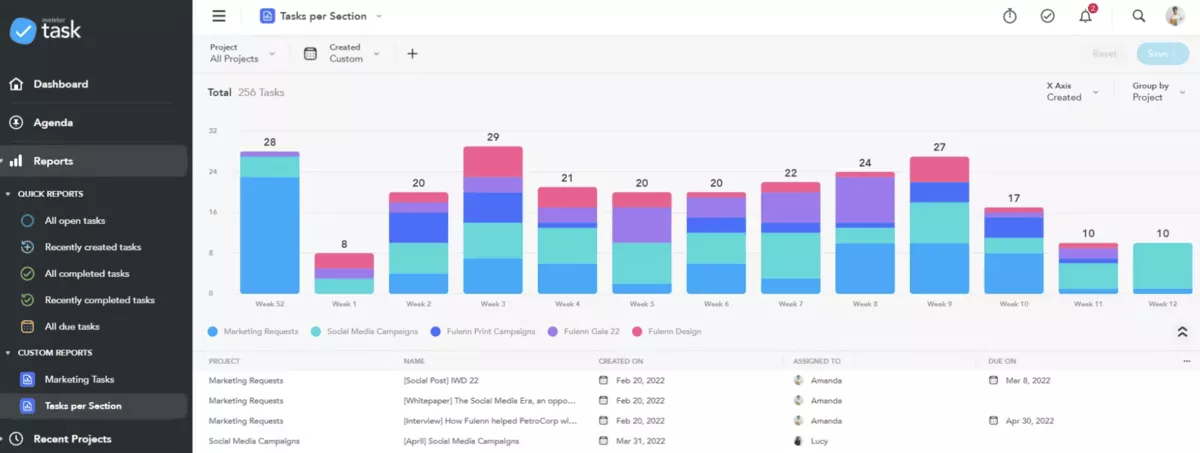
6. MeisterTask – Best for Task Boards with Time Tracking
MeisterTask is a streamlined solution for teams that already manage projects on Kanban boards and want a simple way to log effort on tasks, but look elsewhere if you need formal timesheets and approvals. You can start a timer on a card, add a manual entry, and review totals in a weekly check-in.
Core Features
- Task-level timers and manual time edits.
- Basic team views for tracked hours on paid plans.
- Exports for tracked hours on higher tiers.
- Integrations and automations for task workflows.
SOurce: meistertask
Pros
- Reviewers often mention the interface feels clean and easy to learn.
- Boards and collaboration features work well day to day.
- Many users like having task timers without adding another tool.
- Mobile and desktop access is convenient for quick updates.
Cons
- A common complaint is key features are limited on the free plan.
- Some reviewers mention notifications can be inconsistent.
- Time reporting and exports can feel basic unless you upgrade.
- Some teams want deeper controls for timesheets.
Final Verdict
MeisterTask is not for teams that need invoice-ready timesheets, approvals, and deep reporting. It suits small teams that already live in Kanban boards and want task timers without adding another system.
If you need robust time reports and flexible exports, you will likely outgrow it.
7. My Hours – Best for Basic Time Reports
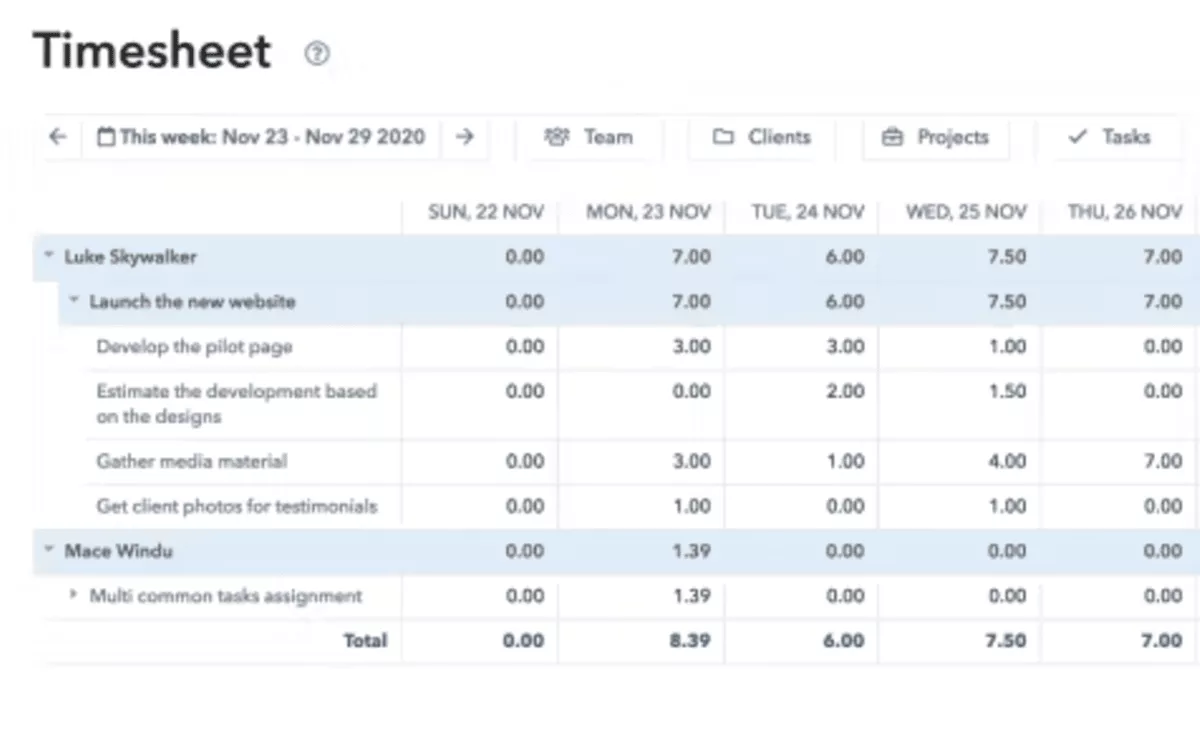
My Hours is a sound choice when you want clean timesheets and client-ready reports without spending days on setup. It fits freelancers and small service teams that bill hourly and need to split work by client, project, and task.
Core Features
- Timesheets with billable and non-billable labels.
- Project budgets and alerts to flag when hours are close to the limit.
- Timesheet submission and approvals, with an audit trail.
- Custom reports with filters, plus exports like PDF and XLS.
SOurce: my hours
Pros
- Reviewers often mention it is easy to learn and use day to day.
- Customer support gets repeated praise for being responsive.
- Many users highlight strong value for money and “just enough” features.
- Reports and filters are frequently mentioned as helpful once set up.
Cons
- A common complaint is wanting more depth in invoicing and related workflows.
- Some reviewers say reporting filters take time to get used to.
- A few users mention the UI can feel crowded when there are many clients and projects.
- Some teams run into integration limitations compared to bigger ecosystems.
Final Verdict
My Hours is not for teams that need advanced invoicing workflows and deep customization. It’s a solid pick for small teams that want simple logging, approvals, and client-friendly reports without a heavy rollout.
8. RescueTime – Best for Automatic Personal Tracking
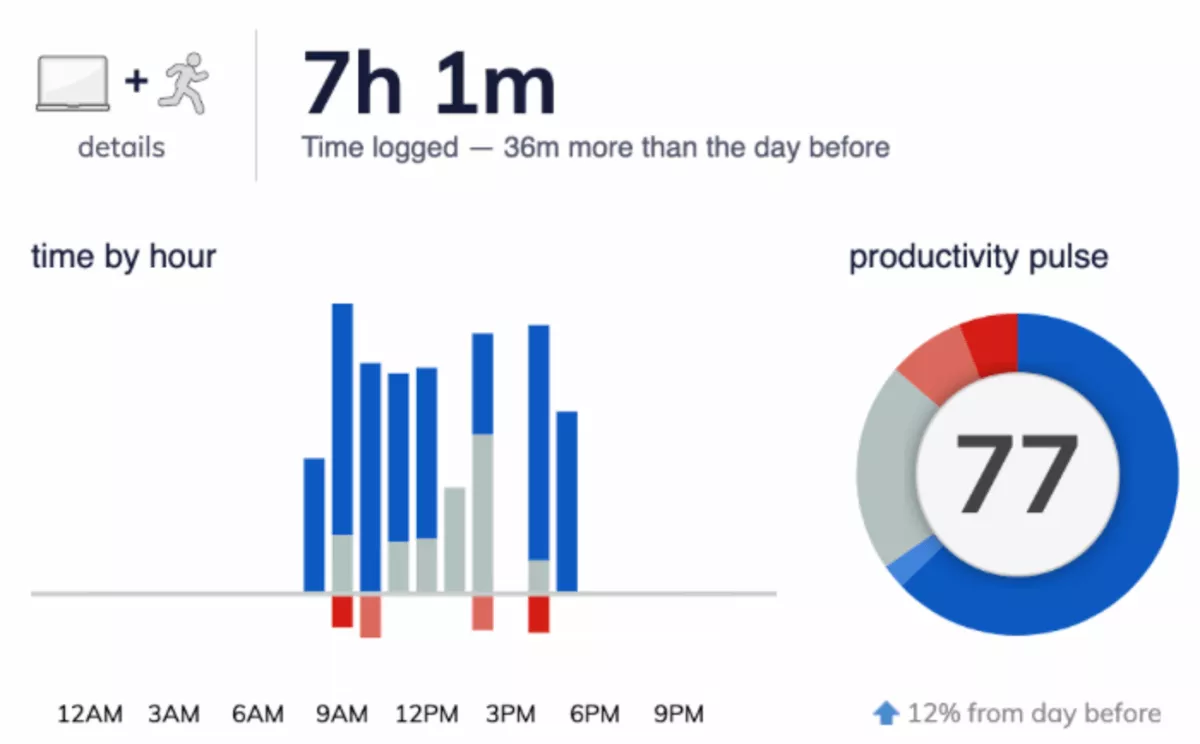
RescueTime gives you an objective view of where your day goes by recording app and website activity in the background, then summarizing it in reports. It is useful for solo workers who want to spot distractions, build better habits, and run focused work blocks without starting timers.
Core Features
- Background app and website activity logging with categorization.
- Goals, alerts, and weekly summary reports.
- Focus Sessions with distraction blocking and post-session summaries.
- Multi-device data collection and team visibility options.
SOurce: rescuetime
Pros
- Reviewers often mention it feels hands-off and does not require manual timers.
- Weekly summaries and reports help people spot patterns and regain focus.
- Many users like the depth of data across apps and websites.
- Focus features, like distraction blocking, are a frequent highlight.
Cons
- Some reviewers feel uneasy about how much activity data is recorded.
- Offline work and meetings can be missed, which affects accuracy.
- Customizing reports and categories can take time to learn.
- It can be hard to attribute time to specific client projects or files.
Final Verdict
RescueTime is not for client teams that need project-based timesheets, or for orgs that are sensitive about activity monitoring. It is best for individuals who want better focus habits and clearer visibility into how their day is split across apps and websites.
Converting that data into billable client work still takes manual sorting.
9. Timely – Best for Automatic Time Capture
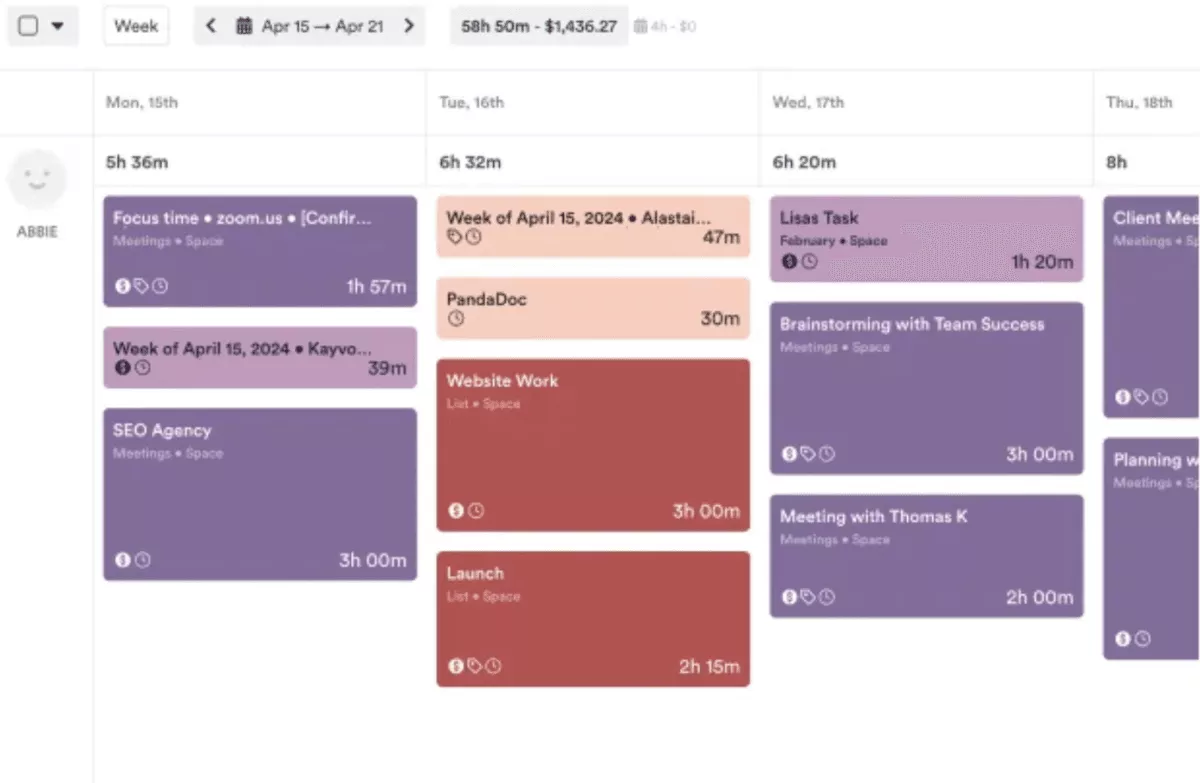
Timely is designed for teams that want less end-of-week chasing, but skip it if your team will not install a background tracker. Its Memory tracker builds a private timeline of activity you can turn into entries, which helps reduce guesswork when people context switch all day.
Core Features
- Memory timeline that suggests entries you can assign to projects.
- Team timesheets with project and client reporting.
- Tags, notes, and billable settings for cleaner invoices.
- Integrations and exports to share data with other systems.
SOurce: timely
Pros
- Reviewers often mention that the workflow feels frictionless once the Memory Tracker is running.
- Many users like having a reliable “backup” for days with lots of context switching.
- Reports are a repeated highlight for turning logs into client billing data.
- Setup and onboarding are often described as fast for small teams.
Cons
- Some reviewers report that the Memory Tracker can stop or miss activity at times.
- Lack of a simple on-off control is a recurring frustration in reviews.
- Bugs like double-counting or merged events come up in negative feedback.
- A few teams feel dashboards and deeper features lag behind more mature tools.
Final Verdict
Timely is not for teams that need perfect capture or strict control over what is recorded at all times. It works well for services teams that miss hours and want faster timesheets with suggested entries from background activity.
Plan for occasional cleanup when the tracker misses context or merges events.
10. TimeCamp – Best for Automated Capture on a Budget
TimeCamp is a streamlined solution when you want multiple ways to record work, plus reports and invoicing support, and you are willing to spend a bit more time setting things up. It works well for teams that want timers, manual logs, and activity capture in one place.
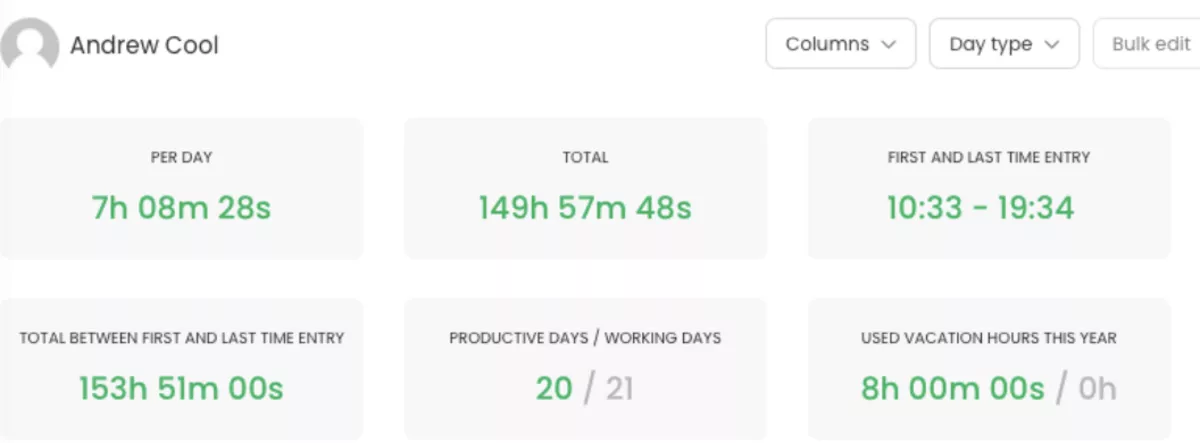
Core Features
- Timesheets with timers and manual entries.
- App and website activity capture to help fill gaps.
- Reports for projects, people, and billable work, plus exports.
- Invoicing features, rates, and a browser extension for starting timers inside web tools.
SOurce: timecamp
Pros
- Reviewers often mention it is easy to use and quick to adopt.
- Reports get repeated praise for being detailed and straightforward.
- Many users like the mix of tracking methods and integrations.
- Value for money is a common theme, especially for small teams.
Cons
- Sync issues and bugs are a recurring complaint in reviews.
- Some teams run into integration reliability problems, including browsers and third-party tools.
- Editing and reporting flexibility can feel limited unless you upgrade.
- Customer support feedback is mixed, with some users wanting faster help.
Final Verdict
TimeCamp is not for teams that want a minimal setup and flawless syncing across every device and integration. It is a fit for small teams that want multiple tracking methods plus reporting and invoicing support in one place.
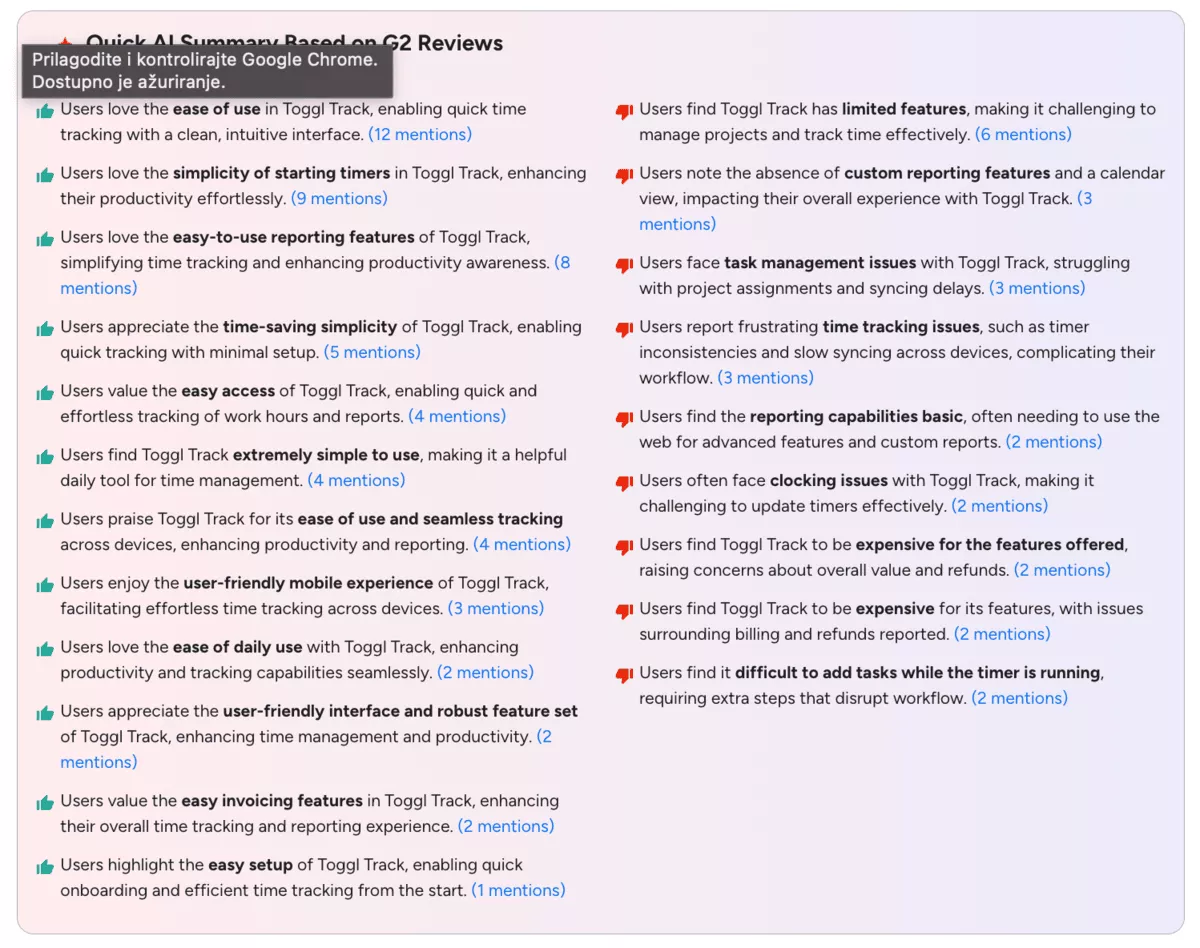
Why Are Teams Looking for Toggl Track Alternatives?
Most teams look for Toggl Track alternatives because they need cleaner timesheets, smoother billing workflows, or less friction in how hours get captured and approved.
- Some teams are tired of manual time and the weekly scramble to remember what happened, especially when work is split across tools and meetings. Others hit limits with manual time entry, where small gaps add up to missing billable work and uneven reporting.
- A common trigger is weak governance. Without approvals and clearer ownership, timesheets get submitted late, edited after the fact, or challenged by finance, which slows invoices and creates internal noise.
- Reporting is another driver. Teams want core features that turn logs into client-ready summaries, not a pile of exports that still need cleanup in spreadsheets.
- Automation expectations are also changing. Some teams want automatic tracking that captures activity in the background so nothing gets forgotten, while others want automatic time tracking that suggests entries but still lets people confirm what gets billed.
- Focus and habit support matter more than most teams expect. For some workflows, idle detection also helps keep logs honest by flagging long gaps or inactive periods before timesheets get submitted.
SOurce: Toggl track G2 reviews
What Are the Key Features of Alternative tools to Toggl Track?
The key features of alternative tools to Toggl Track are simple capture, trustworthy timesheets, and reporting that turns logged work into accurate billing and team decisions.
In case you need extra food for thought, check out our time management tools list.
Feature 1: Time capture and timesheets
Look for flexible capture so people can log work the way they actually operate, then roll it into a weekly submission. In a trial, test how fast it is to create time entries, how easy it is to edit mistakes, and whether time logging can happen from tasks, calendars, or a clean timesheet view.
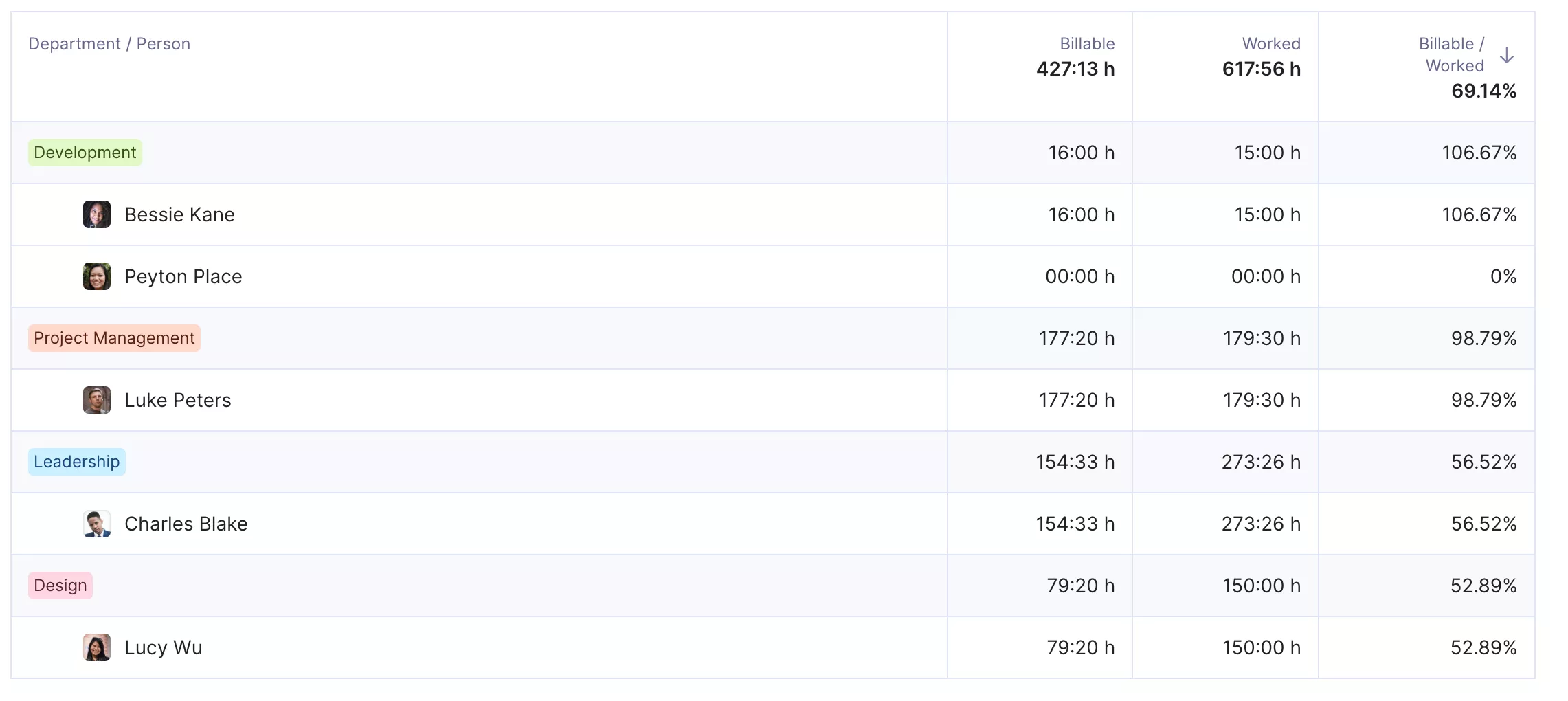
Get real-time updates on your team’s utilization.
Feature 2: Billing, rates, and reporting
If you bill clients, verify rate setup, rounding rules, and how work is marked billable versus internal. Then generate one client report and one invoice export from a real week of work to see if the workflow holds up without cleanup.
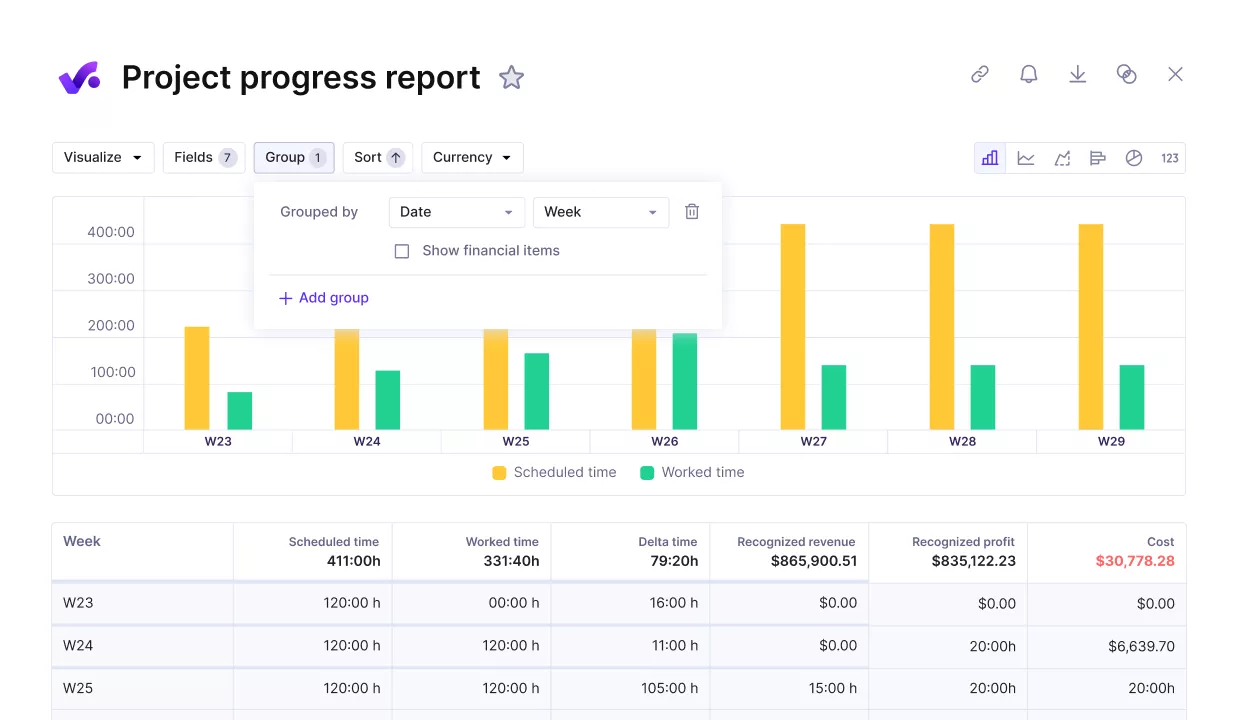
Compare project progress against key performance metrics.
Feature 3: Platform support and usability
Platform support matters because it determines whether people actually log hours daily or wait until Friday and guess. Treat this like a quick workflow test, not a feature check.
First, confirm the core flow works on a computer where admins and leads do most setup.
| Desktop, Web check | Why it matters | How to check it (fast test) |
|---|---|---|
| Desktop, Web: Start a timer, add a manual entry, and submit a weekly timesheet. | If this flow is clunky, people delay logging and your week ends in guesswork. | Create a test project, start a timer for 2 minutes, stop it, then add a 0.5h manual entry. Submit the weekly timesheet and confirm you can edit a mistake without hunting through menus. |
| Desktop, Web: Create a client report and export it in the format you actually send. | Reporting is where tools fail in real life, because finance needs a clean export, not a screenshot. | Run a report for one client and one week. Export to the exact format you use (CSV, PDF, XLS). Check if billable vs non-billable is clear and if totals match the on-screen report. |
| Desktop, Web: Check whether managers can review and approve hours without workarounds. | Approvals protect billing accuracy and stop late edits after invoices are drafted. | Create a second user as a manager. Submit a timesheet from the contributor account, then approve or reject it from the manager account. Confirm what gets locked and what can still be edited after approval. |
| Desktop, Web: Stress-test navigation with multiple clients, projects, and users. | A tool can feel fine in week 1, then slow down when your workspace grows. | Create 5 clients and 10 projects, then try filtering reports and switching between projects. If basic actions take too many clicks or search feels unreliable, adoption will drop. |
Feature 4: Monitoring and privacy
Decide early how you feel about employee surveillance, because employee surveillance features can change team trust fast. Some tools position employee surveillance as a productivity lever, while others avoid it and focus on self-reported work.
If a vendor offers employee surveillance, ask what is collected, who can see it, and how it is stored.
If your org needs employee performance monitoring, keep it explicit and policy-led, not a surprise setting turned on later. If you enable Automated Screenshots, document the reason, scope, and retention, and make sure employees understand what is captured.
GPS tracking can help with attendance and field work, but GPS tracking is rarely relevant for knowledge work and can feel invasive if it is always on.
How To Choose a Toggl Track Alternative?
Choose a Toggl Track alternative by matching the tool to the workflow you need to fix, then validating it with one real week of work before you switch.
Start by writing down your must-haves in plain language. For example, “We need weekly submissions with manager review” or “We need project-based billing reports without spreadsheet cleanup.”
Then score your shortlist from 1 to 5 on each criterion below and eliminate anything that scores under 3 on a must-have.
1. Your tracking feature and capture style. Decide whether your team will use timers, quick manual logs, background capture, or a mix. Red flag: the tool forces one method, and people avoid it.
2. Approval and governance. If managers need to review and test timesheet approvals with two roles: a contributor and a reviewer. Red flag: approvals exist, but are too easy to bypass.
3. Reporting depth. Generate detailed reports for one client and one internal category, then export them in the format your finance team expects. Red flag: you can see the data on screen, but exports lose structure or require manual cleanup.
4. Billing fit. Check rates, rounding rules, and how work becomes billable hours on a client report. Red flag: billable classification is inconsistent across reports.
5. Privacy and compliance. If your team is sensitive to monitoring, set boundaries up front and make sure they fit local labor laws and your company policy. Red flag: the vendor positions monitoring as the default rather than an opt-in setting.
6. Budget and scaling. Compare enterprise pricing and what features are gated behind higher tiers, so you do not get surprised after rollout.
7. Scheduling and staffing needs. If you run shifts or field work, confirm the tool supports employee scheduling and that mobile capture works in real conditions.
A quick 30-minute trial checklist: create one client project, log a week’s worth of sample work, run a client report, export it, and simulate a manager review and submission.
Free Toggl Migration Checklist
Switching tools goes smoother when you treat it like a mini implementation, not an app swap.
- Define the rules you will carry over. List clients, projects, tags, roles, billable rules, rates, and rounding so your new tool matches how you invoice today.
- Export from Toggl Track and validate the data. Spot-check a full week and a full month to confirm totals by client and person match what you billed.
- Map your structure in the new tool. Recreate clients and projects, set permissions, and set defaults that reduce friction, like a small set of required fields.
- Run a 7-day pilot. Pick one team, one client, and one billing cycle. Agree on daily logging, a mid-week check, and a Friday submission and review.
- Set cutover rules. Decide who reviews, when timesheets lock, and what changes after week 2, such as stricter submission deadlines or fewer allowed edits.
- Communicate the new habit. Tell the team what “done” looks like every week, where to ask for help, and what happens when logs are late.
Final Thoughts
The best Toggl Track alternatives are the ones that fit how you bill, review, and report work today, not the ones with the longest feature list.
Alternatives to Toggl Track also include tools that go beyond logging, especially when budgets and billing need to stay connected. If that is your world, Productive is the option to evaluate once you are ready to tie tracked work to budgets, approvals, and invoicing in one place.
Book a short demo and get started today.
Connect With Agency Peers
Access agency-related Slack channels, exchange business insights, and join in on members-only live sessions.
