Top 5 TeamGantt Alternatives (Paid & Free) – 2026 Review

The hard part of searching for a real TeamGantt alternatives is finding a tool that can actually replace your scheduling workflow, provide full financial visibility and real-time reports.
The easy part is reading this article.
Stick with this guide for a tight shortlist of tools like TeamGantt their key features, review-grounded pros and cons for the top picks, a buyers comparison table, a step-by-step way to choose the right project management and management software, and a migration checklist so your next gantt chart setup stays intact.
What Are the Best Gantt Alternatives in 2026?
The best Gantt alternatives in 2026 are Productive, Microsoft Project, Smartsheet, GanttPRO, and GanttProject.
Each pick can support real project timelines and is a solid fit when TeamGantt starts to feel too limited. However, they differ in their core features and focus areas.
If your problem isn’t a single chart tool, but rather a complete end-to-end workflow, start with Productive.
Shortlist of the Best Gantt Alternatives
How Did We Choose These Tools?
We built this list for small business owners, agencies, professional service teams, and product businesses who want clear tradeoffs, not vague descriptions and feature lists.
For each tool, we reviewed repeated themes in user reviews on trusted software review sites like G2 and Capterra.
We also used Reddit and YouTube to sanity-check switching experiences and day-to-day workflows, without treating them as feature proof.
Finally, we cross-checked key claims, including customization options and plan limits, against vendor documentation so the article reflects what the tools actually support.
Gantt Alternatives Buyers Comparison
| Tool | Use this tool if | How it compares to TeamGantt | Skip this tool if | Free option available |
|---|---|---|---|---|
| TeamGantt | You mainly need simple project timelines and a clean Gantt chart for internal planning. | – | You need to see budget burn while work is happening, or you need connected resource management, planning and reporting. | No |
| Productive | You want one system that connects project timelines, time tracking, budgets, resource management, and reporting. | Keeps Gantt planning, budget burn, and capacity in one workflow, so schedule changes are based on real availability and financial impact. | You truly only need a timeline view and do not want an all-in-one management tool. | No |
| Microsoft Project | Your biggest pain is dependency-heavy scheduling and you need stronger control over task dependencies and planning logic. | Deeper scheduling engine than TeamGantt, but it is not built to solve the “where is the budget and time data?” problem on its own. | You need quick team-wide adoption and lightweight updates, not a specialist scheduling tool. | No |
| Smartsheet | Your team lives in spreadsheets and wants flexible reporting plus shareable project timelines. | More flexible dashboards and reporting than TeamGantt, with Gantt as a view on top of grid data. Budget and resourcing still depend on how you build your setup. | No one will own the sheets, templates, and permissions long term. | Yes |
| GanttPRO | You want a dedicated gantt chart software experience with dependencies and easy exports for stakeholders. | More focused Gantt workspace than TeamGantt for building and adjusting schedules, but it will not replace a finance and capacity stack. | You need a broader work hub with deeper operations visibility beyond the schedule. | No |
| GanttProject | You want a lightweight, offline desktop option for basic Gantt planning. | Simpler than TeamGantt for collaboration, but useful for personal scheduling and quick project timelines on a budget. | You need real-time collaboration, stronger permissions, or fewer desktop edge cases. | Yes |
1. Productive – Best for Teams That Need Gantt with Delivery & Financial Visibility
Productive is the best all-in-one TeamGantt alternative for teams that have outgrown “timeline only” planning. It keeps your Gantt plan, time tracking, budgets, resource planning, and reporting in one place, so you can make schedule decisions with the numbers and capacity in front of you.
Try the best all-in-one TeamGantt replacement
Catch Budget Burn Early While You Can Still Fix It
A timeline can look perfect and still be heading toward an overrun. In Productive, each project can have one or more budgets that outline revenue, costs, and profit. As your team logs time, budget consumption updates automatically.
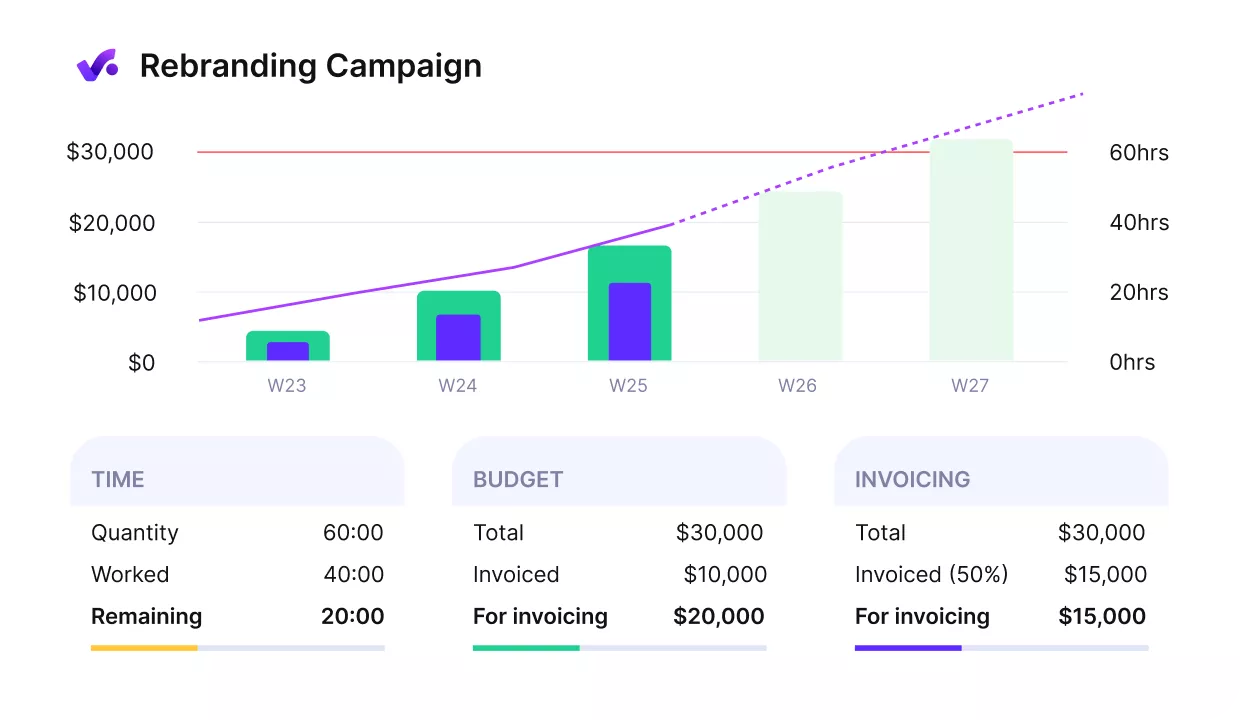
Get early warnings of budget overruns.
You can also use forecasting and profitability charts inside each budget to monitor budget burn in real time and spot trends while work is still moving. That makes it easier to spot scope creep early and react, instead of discovering the damage after delivery.
Plan the Timeline Against Real Capacity
TeamGantt can show when tasks should happen, but it does not help you answer “who can actually do this next week?” Productive includes a Resource Planner that gives you capacity views by person or by project. It is a practical way to handle resource management, or team workloads without keeping a second spreadsheet.
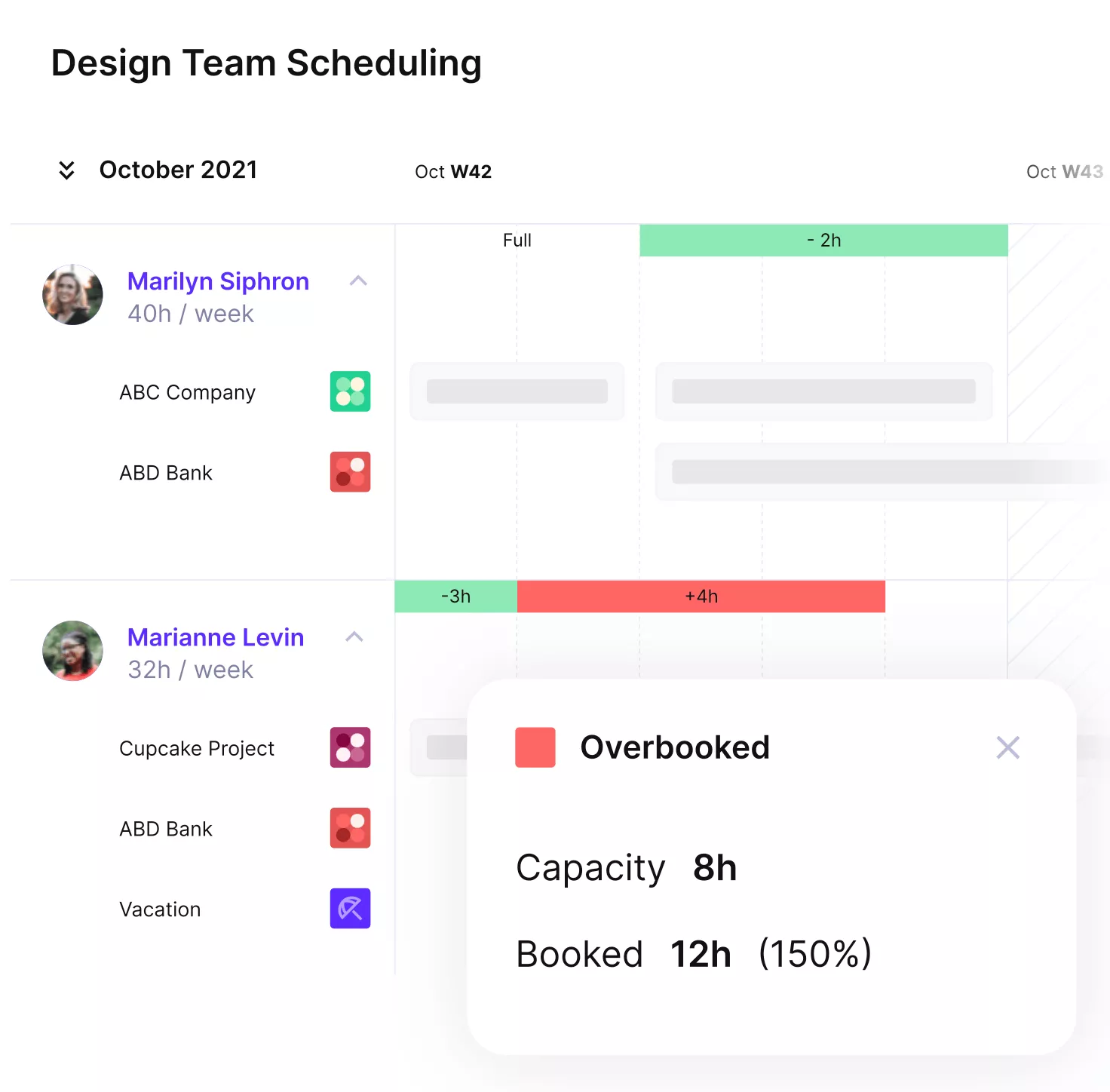
See your team’s workloads and plan capacity in real time.
You can schedule work around time off and rebalance the workload before the plan breaks. For service teams, this is the difference between a timeline that looks good and one that reflects actual availability.
Stop Reconciling Time, Plans, and Budgets in Spreadsheets
A common TeamGantt setup is a Gantt chart plus separate time tracking, plus a spreadsheet to connect the dots. Productive reduces that manual work because time tracking is native and tied to project budgets.
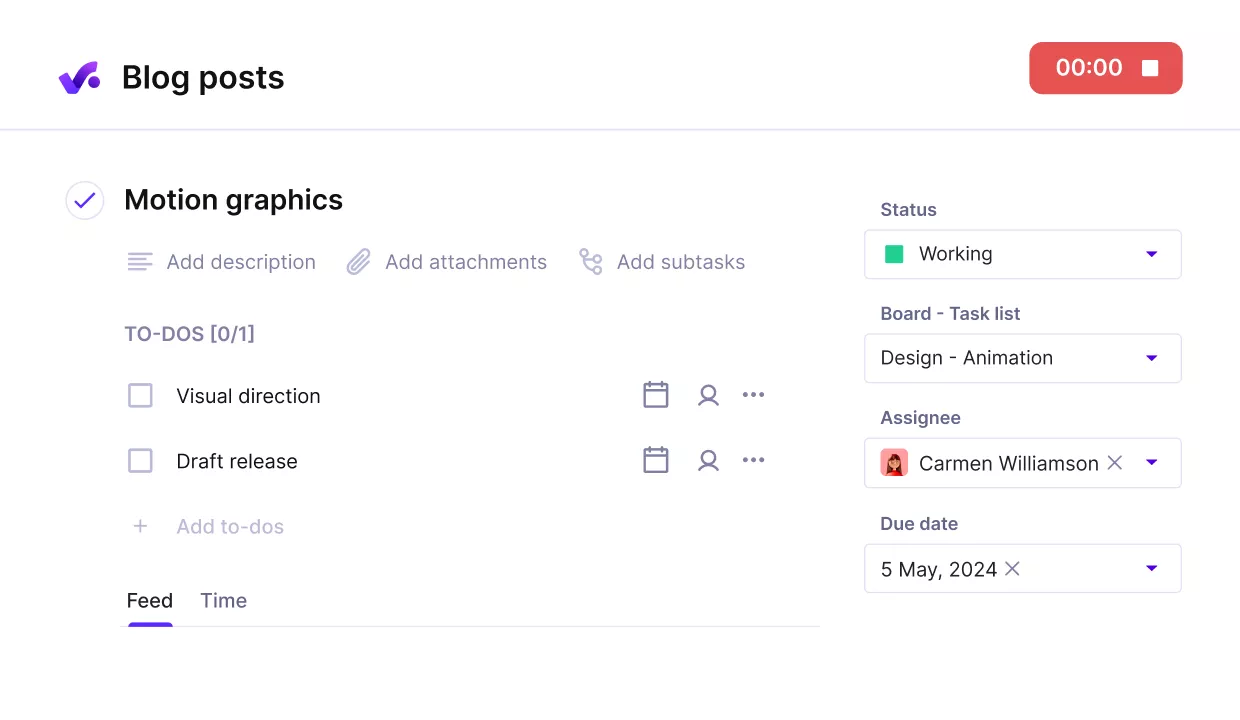
source: Track time directly on tasks and tie it to budgets.
People track time against specific services within a budget, and scheduled bookings from Productive’s Resource Planner show up as suggestions. When that data is connected, it is much easier to compare estimated work to actuals and keep budget tracking reliable without constant exports.
Keep Dependencies Accurate When Dates Change
Most schedules change. The real question is whether the tool makes change easy or painful. Productive’s Gantt layout supports automated task dependencies.
You can create Blocking or Waiting on relationships between tasks, and when you enable Move Dependent Tasks, a shift in one task automatically adjusts the rest of the chain. That keeps gantt charts and task dependencies consistent when a review cycle slips or a handoff happens late.
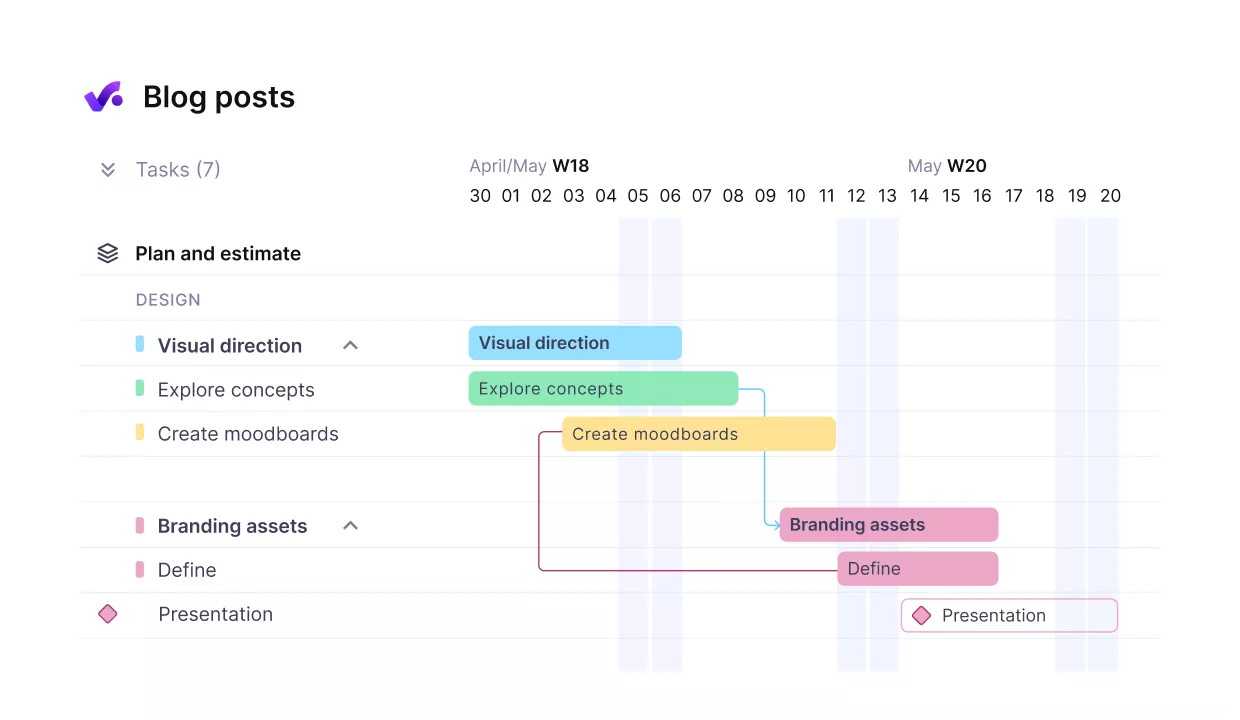
Set up connected tasks with dependencies and milestones.
Make Retainer Work Visible Month to Month
If you run retainers, the pain is not planning a timeline. It is knowing what is used, what is left, and what rolled over. Productive supports recurring budgets for retainer work, so you can track consumption by period without creating a new project every month.
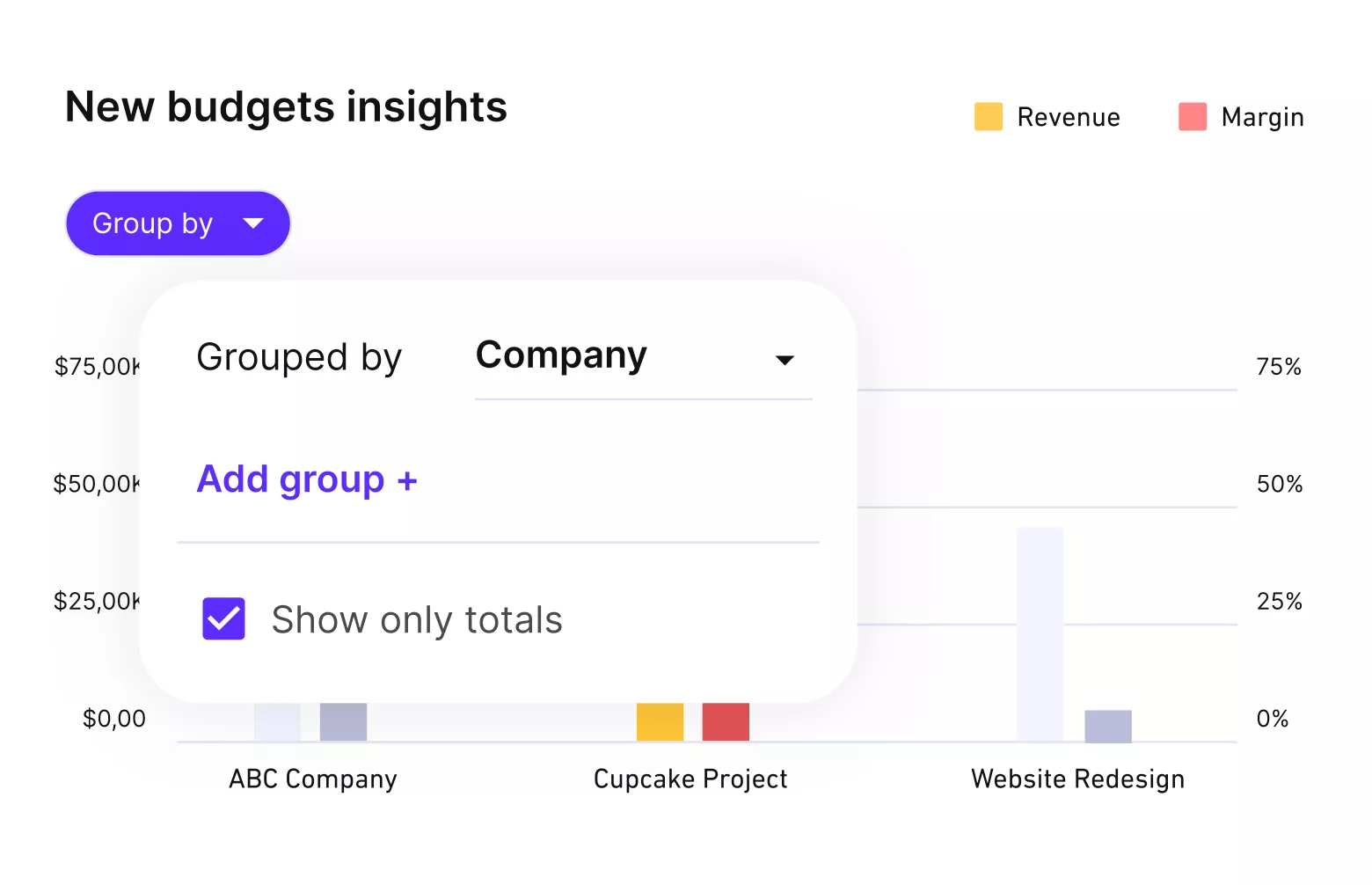
Get real-time project, or client profitability updates with Productive.
If you use Retainer Hours Rollover, unused or overused hours can carry into the next billing period, which keeps the picture clear for both delivery and invoicing.
Get Reporting Without Rebuilding It Every Week
Productive includes built-in reporting on project and financial performance, and you can create custom reports from data sources including budgets. Instead of pulling data into Google Sheets to answer basic questions, you can review a consistent view of burn, forecast, and delivery status from the same system.
If you are still mapping the category before you switch, our guide to Gantt chart software can help you compare what matters beyond a timeline view.
Pricing
- Plans start with the Essential plan at $10 per user per month, which includes essential features such as budgeting, project & task management, docs, time tracking, expense management, reporting, and time off management.
- The Professional plan includes custom fields, recurring budgets, advanced reports, billable time approvals, and much more for $25 per user per month.
- The Ultimate plan has everything that the Essential plan and Professional plan offer, along with the HubSpot integration, advanced forecasting, advanced custom fields, overhead calculations, and more. Book a demo or reach out to our team for the monthly price per user.
You can go for a free 14-day trial before you decide to check out a paid plan.
Try Productive as a TeamGantt Replacement
Book a demo to walk through one real project and see how budgets, time, resourcing, and your timeline can live in the same workflow.

2. Microsoft Project – Best for Dependency-Heavy Scheduling
Microsoft Project is built for schedules where task dependencies, baselines, and the critical path actually matter. It also works well when one person owns the plan and the rest of the team needs a clear timeline they can follow.
Key Features
- Task dependencies and scheduling logic
- Baselines to compare plan vs actual
- Resource calendars and schedule-leveling workflows
- Gantt chart views and schedule reporting
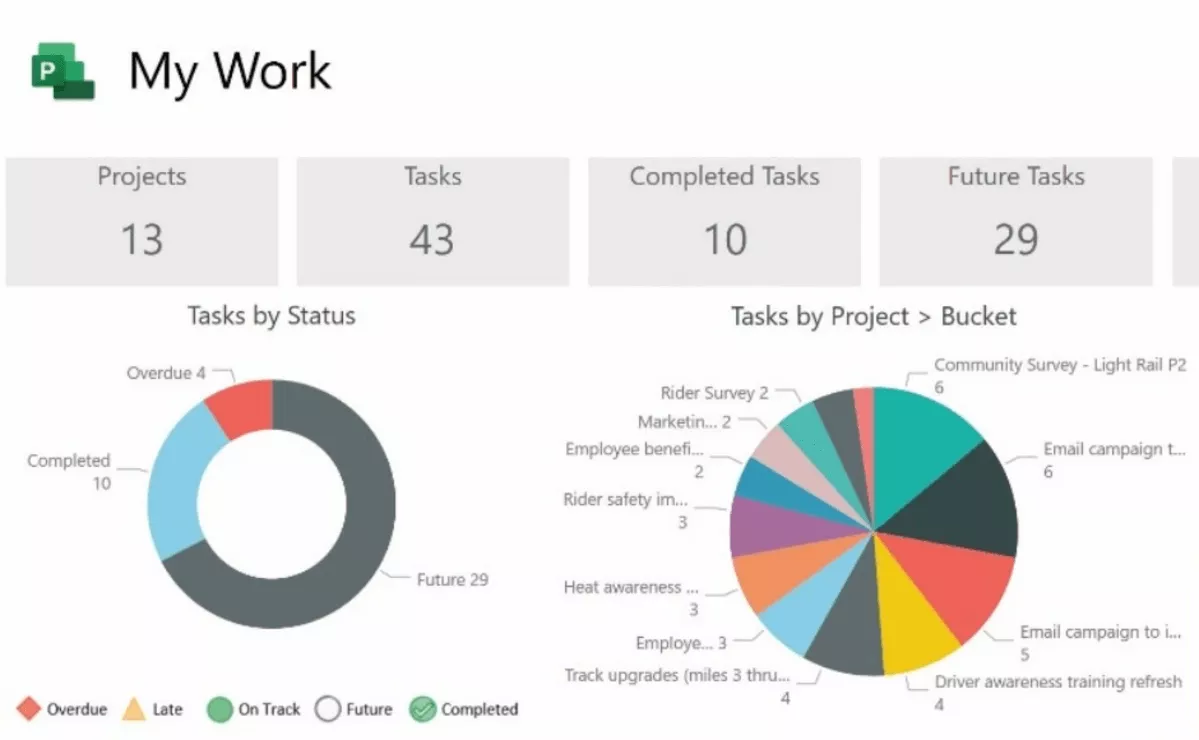
SOurce: microsoft project
Pros
- Handles complex project plans without your dependency chain turning into manual cleanup.
- Strong Gantt charts for visualizing timelines and sequencing work.
- Familiar fit for teams already standardizing on Microsoft tools.
- Solid reporting options for tracking progress against the plan.
Cons
- Steeper learning curve if people only touch the schedule occasionally.
- Can feel heavy for simple plans or fast-moving teams.
- Mobile experience is a common weak spot.
- Cost can be hard to justify for small teams.
Final Verdict
Microsoft Project is worth it when your schedule is a system of record and someone is accountable for keeping it accurate. That is the tradeoff: you get serious scheduling control, but you pay for it in complexity and adoption effort.
If your success depends on reliable dependencies and critical path updates, it is a solid TeamGantt alternative. If you need a lighter tool that everyone updates daily, you will usually get better follow-through with a simpler Gantt setup.
3. Smartsheet – Best for Spreadsheet-Style Project Management (Free Option Available)
Smartsheet is a grid-first planning tool that feels like a spreadsheet, with a Gantt view when you need to see timing. It is a good TeamGantt replacement when your team likes to update plans fast in a spreadsheet-like interface and prefers a clean interface.
If Smartsheet is close but not quite, you can also compare it to other spreadsheet-style options in our guide to Smartsheet alternatives.
Key Features
- Grid-based task management with a Gantt view and dependency support
- Dashboards, reports, and project reporting for stakeholder updates
- Automated workflows and reminders for routine follow-ups
- Sharing, comments, and forms to collect inputs and keep work moving
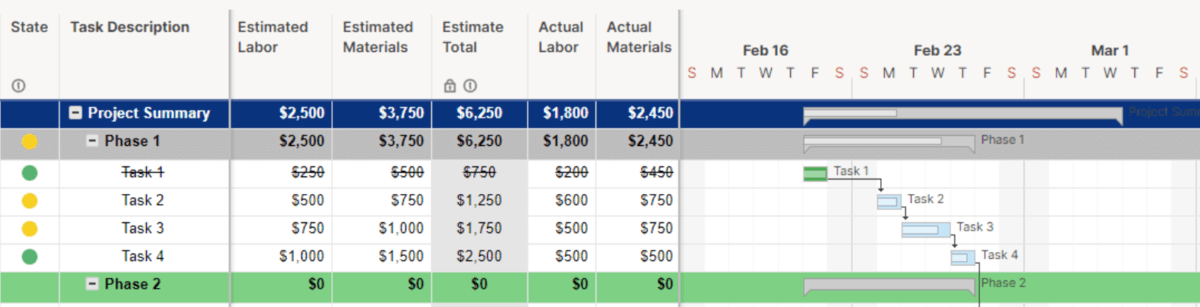
SOurce: smartsheet
Pros
- Keeps remote teams aligned when schedules get detailed and fast-moving.
- Cuts down on chasing people with workflows, reminders, and live updates.
- Turns sheet data into exec-ready snapshots with dashboards and reports.
- Feels like a collaborative Excel, plus forms and dashboards when you need more structure.
Cons
- New users often need onboarding before they can safely edit intricate sheets.
- Pricing and billing changes can be hard to absorb if budgets are tight.
- Working with large files and previews can feel clunky.
- Support responsiveness is inconsistent for some teams.
Final Verdict
Smartsheet works best when someone owns the system: templates, columns, and permissions stay consistent across projects. It suits teams that want a spreadsheet-like interface with better reporting options.
In that setup, it replaces TeamGantt and gives you flexible scheduling and reporting in one place. If ownership is unclear, the sheet becomes a maintenance project, and the pricing tradeoffs sting more. Also, double check what the free plan can and cannot do before you build your workflow around it.
4. GanttPRO – Best for a Dedicated Gantt-First Experience
GanttPRO is gantt chart software for teams that want a clean timeline with dependencies, autoscheduling, and quick exports, plus an intuitive interface for day-to-day planning. It works well as a TeamGantt alternative when your main workflow is building and maintaining a schedule, not running every part of delivery inside one platform.
Key Features
- Drag-and-drop gantt charts with dependencies and auto-scheduling
- Milestones and progress updates when you shift dates
- Workload view for balancing assignments across people
- Export timelines to formats like PDF or PNG for sharing
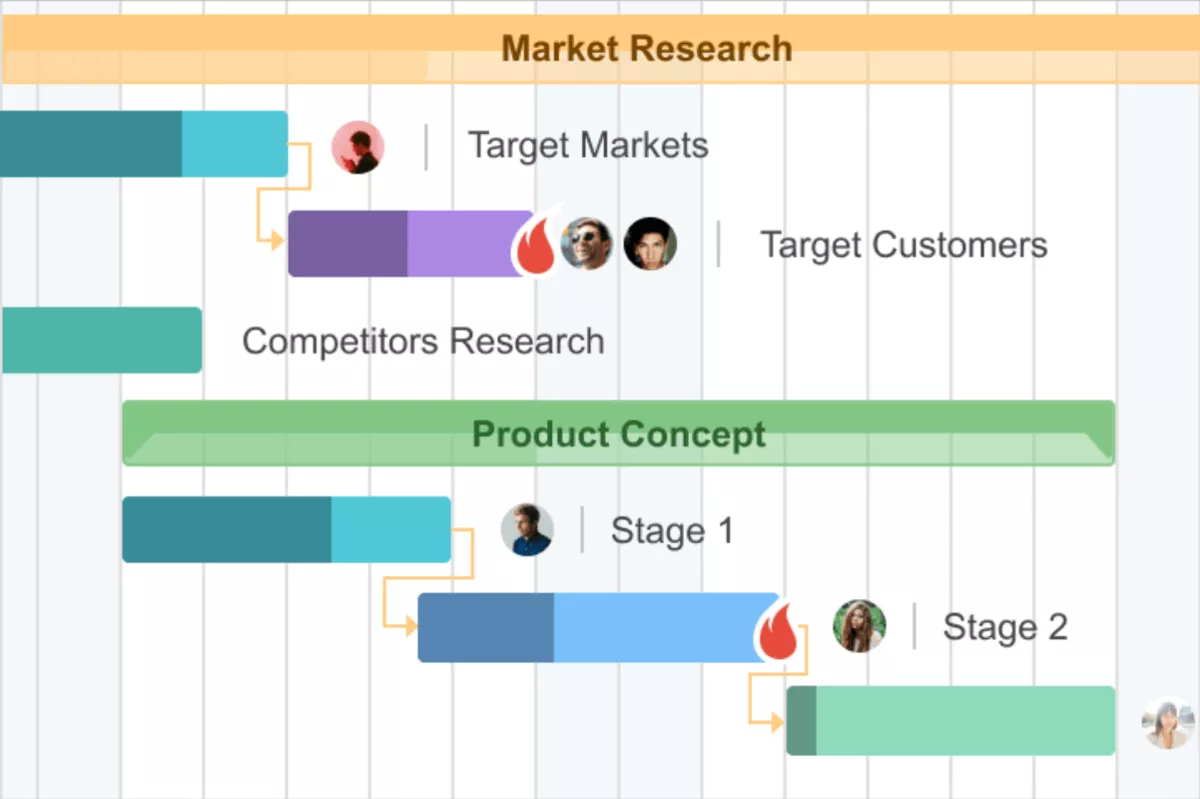
SOurce: ganttpro
Pros
- Minimal learning curve for first-time users who need to build a timeline quickly.
- Dependency links behave predictably, so schedule changes do not turn into manual cleanup.
- Exports are easy to use in decks and status updates.
- Collaboration stays attached to tasks with files and in-context updates.
Cons
- The trial can feel too short if you need to build and validate a longer plan.
- Small UI quirks can slow down detailed edits.
- Mobile access is limited for real schedule work.
- Some schedule editing can feel restrictive, especially around summary tasks and subtasks.
Final Verdict
GanttPRO is a good fit if you want a dedicated Gantt workspace that stays visual as plans change. Choose it when you want gantt chart software first, and everything else second.
The tradeoff is depth: it stays focused on scheduling, so teams that want heavier customization, a stronger mobile workflow, or a deeper work hub may outgrow it.
5. GanttProject – Best for a Simple, Free Desktop Gantt
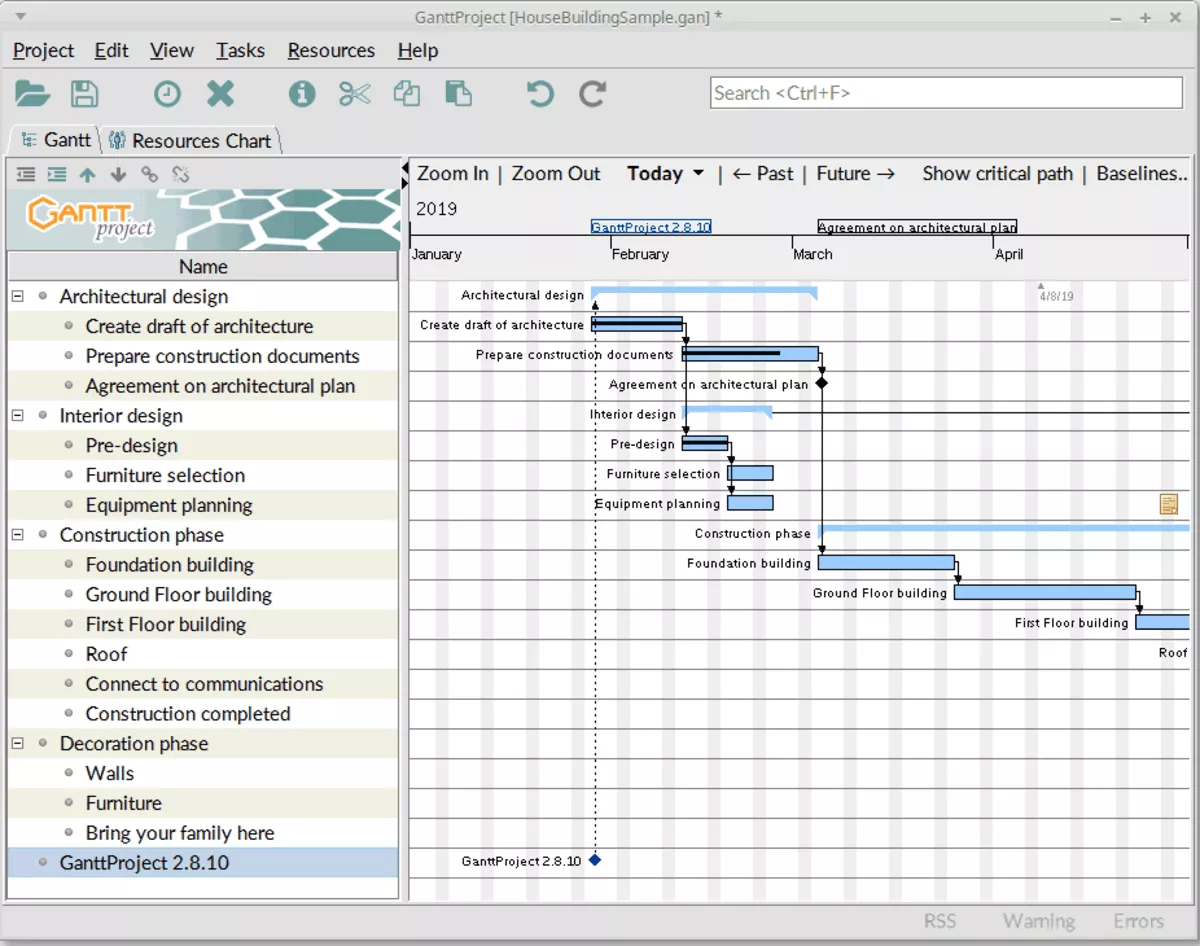
GanttProject is a lightweight desktop chart maker for building gantt charts with tasks, dependencies, and milestones. It is a free option available when you need an offline schedule and can live without built-in collaboration.
Key Features
- Task hierarchy, dependencies, milestones, and baselines
- Resource load chart for basic allocation checks
- Exports to formats like PDF and PNG for sharing
- Import and export options for Microsoft Project and spreadsheets
SOurce: ganttproject
Pros
- Does the core job well when you only need to map tasks on a timeline.
- Simple UI with a friendly interface design that stays usable for basic project planning.
- Lightweight desktop experience that does not require a full platform rollout.
- Good value for teams that want a capable tool without subscription pressure.
Cons
- Collaboration and cloud workflows are limited, which can block larger teams.
- Some schedule changes can feel awkward when you need to rework dates.
- Imports can be frustrating if you rely on strict file formatting.
- Stability can be an issue for some users on longer sessions or bigger files.
Final Verdict
GanttProject works best as a personal or small-team scheduling tool where one person owns the plan. Once you need shared updates, stronger permissions, or fewer edge-case bugs, you will want a more modern TeamGantt alternative.
Why Are Teams Looking for Alternatives?
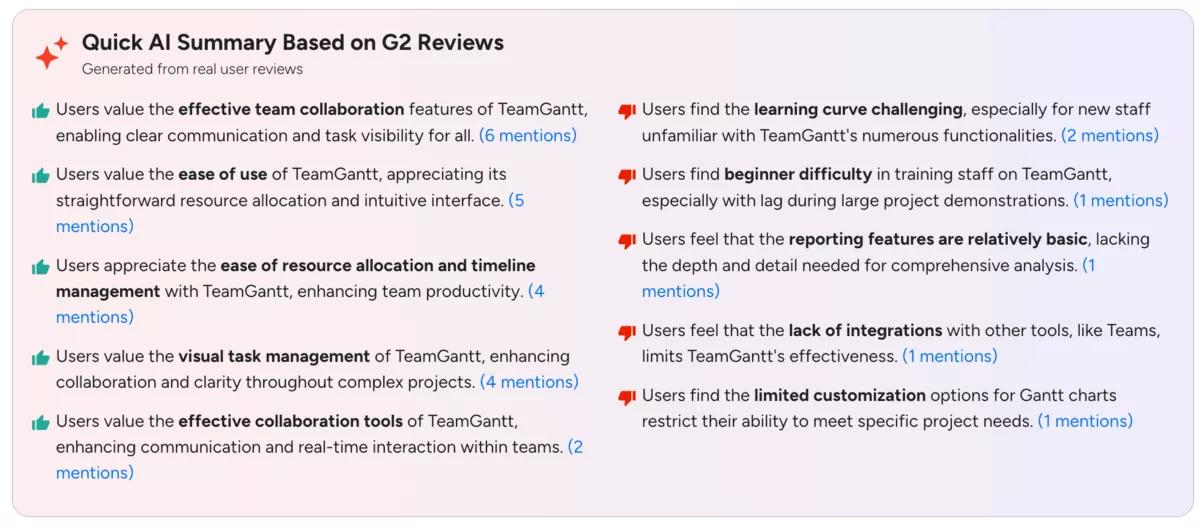
Teams are looking for TeamGantt alternatives because they hit limits once schedules get more complex and more people need to work in the same plan. Across software review platforms, the same pain points come up again and again.
- Reporting feels basic when you need stakeholder-ready updates beyond the timeline.
- Onboarding can take longer than expected, especially when new people need to edit schedules safely.
- Integrations can be a blocker if your team relies on tools like Microsoft Teams and expects tighter connections.
- Mobile use is less practical for real schedule work, so updates get delayed until people are back at a desk.
Source: g2
How to Choose the Best Gantt Alternative? (Step-by-Step Guide)
Choose a TeamGantt alternative by writing a one-page scorecard first, then running each tool through it. If estimates are part of your scoring, borrow a few checks from these project estimation techniques so you are testing the tool against real planning assumptions, not best-case timelines.
Start by listing your non-negotiables in plain sentences, like “moving one task updates all dependent dates” and “clients can view a read-only timeline,” then score each tool on those exact checks using the steps below.
Step 1: Write Down Your Non-Negotiables from TeamGantt
List the three things you cannot lose on day one. For most teams, that is a clear timeline view, predictable date changes, and safe sharing. Write them as pass or fail statements, like “a stakeholder can view the schedule without editing it” or “moving a task updates every downstream date without surprises.”
Step 2: Stress-Test a Dependency Chain in a Real Project Plan
Recreate one real project with 15 to 30 tasks, then add task dependencies and two milestones. Now break the plan on purpose: move a milestone, insert two tasks mid-stream, and shift the start date by a week.
- Pass means the schedule updates cleanly and stays readable.
- Fail means you are fixing links and dates by hand.
Step 3: Check How the Tool Handles Rescheduling and Ongoing Updates
Test the weekly reality workflow. Mark five tasks as done, adjust three estimates, and reassign two owners. Then check the impact on resource planning and capacity planning. You want quick edits that do not create hidden work.
If the tool needs constant cleanup to stay accurate, adoption will drop even if the chart looks great.
Step 4: Validate Collaboration and Stakeholder Sharing
Share the schedule to someone outside the core team and ask them to comment on a milestone. Confirm permissions are clear, comments stay tied to the right work, and notifications do not spam everyone.
If you share schedules externally, check whether the tool supports public access through a read-only link, and whether it fits your Google Workspace flow, including Google Docs attachments.
If your team depends on workload management conversations, also check whether you can discuss conflicts in context without creating side spreadsheets.
Step 5: Confirm Reporting, Exports, and Buyer-Ready Summaries
Generate the outputs you send every week. Export a PDF timeline for stakeholders, create a one-page status snapshot, and capture a simple project roadmap you can paste into an update.
- Pass means you can do this in minutes without reformatting.
- Fail means the tool looks good on screen but slows you down at reporting time.
Step 6: Run a Short Pilot and Score the Decision
Pick one active project and run it in the new tool for two weeks. Track three signals: how often people update tasks, how often dates stay accurate after changes, and how easy it is to produce a stakeholder-ready timeline.
This is the quickest time management check for whether the tool will stick. If the plan goes stale or ownership becomes unclear, that tool is not a real TeamGantt replacement for your team.
How to Migrate from TeamGantt?
Migrate from TeamGantt by exporting a reference snapshot, rebuilding one pilot project, and only then moving the rest. The checklist below walks you through saving a baseline timeline, recreating dependencies and permissions in the new tool, and confirming your gantt charts still match the original schedule before the full switch.
Practical Migration Checklist
- Export your current projects, tasks, dates, and assignees from TeamGantt, and save a PDF snapshot of the timeline as your reference.
- Make a short list of what will not migrate cleanly, such as dependencies, custom fields, and sharing permissions.
- Pick one pilot project and rebuild it in the new project management tool, including milestones and dependencies.
- Recreate roles, access rules, and any public access share links before you invite stakeholders to review anything.
- Rebuild any templates you rely on, so new projects do not start from scratch after the switch.
- Compare the new schedule against your reference snapshot, and confirm key dates and gantt charts still tell the same story.
- Run the pilot for a short period, fix what breaks, then migrate the rest only after the schedule stays stable.
Key Takeaways
If you only need a clean Gantt chart, you will probably be happiest with a Gantt-first tool like GanttPRO or a simple desktop option like GanttProject. If your bigger pain is running projects profitably, look at all-in-one platforms like Productive, where budgets, time tracking, resource planning, and reporting sit next to the timeline.
If you want to see how that feels with your own workflow, book a demo and walk through one real project with your schedule, budget, and resourcing in the same place.
Connect With Agency Peers
Access agency-related Slack channels, exchange business insights, and join in on members-only live sessions.
