Top 10 Smartsheet Alternatives (Paid & Free) Guide for 2026

If you’re looking for Smartsheet alternatives because your sheets are getting harder to manage, report on, and keep consistent, the search is over.
This decision guide compares 10 options, with best-for notes, core features, project management fit, pros, and cons, based on G2 and Capterra reviews.
By the end, you will know which tools to shortlist, what to test first, and how to migrate safely.
What Are the Best Smartsheet Alternatives in 2026?
The best Smartsheet alternatives in 2026 for agencies and professional service teams are Productive, Stackby, Baserow, Bonsai, Airtable, Microsoft Project, Notion, Basecamp, Monday.com, and Unito.
This list is based on real user reviews and how well each tool can replace Smartsheet in everyday work. Below is a quick overview list with “best for” positioning and free option notes:
Best Smartsheet Alternative Tools Comparison Table
| Smartsheet Competitors | Best for users that are… | Tool type | Free plan | Good fit if you… | Not ideal if you… |
|---|---|---|---|---|---|
| 1. Productive | Running projects, resources, and budgets in one place | All-in-one project management platform | No free plan | You want one system for sales, delivery workflows, time entry, and financials | You only need a light Smartsheet style grid and are not ready to change your workflows |
| 2. Stackby | Keeping the spreadsheet feel with more structure | Spreadsheet style database | Yes (limited) | You want to replace a few key sheets with more flexible tables and views | You need deep resource management, reporting, or financial tracking in the same tool |
| 3. Baserow | Owning their data and hosting | Open source database | Yes (self hosted) | You have technical support and want full control over how and where your data is stored | You prefer a fully managed SaaS tool with out of the box templates and support |
| 4. Bonsai | Combining simple projects and billing | Lightweight project and client management | Yes (limited) | You are a freelancer or small studio that wants projects, time, and invoices together | You run a larger team that needs detailed resource planning or complex permissions |
| 5. Airtable | Building custom workflows on a spreadsheet like base | Database style spreadsheet | Yes (limited) | You want flexible, template driven bases for content, campaigns, or client work | You prefer opinionated project management tools with ready made processes |
| 6. Microsoft Project | Classic project scheduling with strict timelines | Enterprise project scheduling | No free plan | You manage complex projects with dependencies and need detailed gantt charts | Your team finds traditional project tools heavy and you need fast onboarding |
| 7. Notion | Blending docs, wikis, and simple projects | Knowledge and workspace platform | Yes (limited) | You want one place for documentation and light project tracking | You need robust reporting dashboards or advanced workflow automation |
| 8. Basecamp | Keeping communication and tasks simple | Communication first project hub | No free plan | You care most about messages, to dos, and simple schedules in one place | You need granular task structures, resource management, or financial features |
| 9. Monday.com | Visual boards for tracking work across teams | Visual work management | Yes (limited) | You want colorful boards, quick setup, and templates for different teams | You expect advanced resource planning or deep financial reporting in the same tool |
| 10. Unito | Connecting Smartsheet and other tools during or after a switch | Integration and sync platform | No free plan | You need to sync data between Smartsheet and other apps without manual updates | You want a full Smartsheet replacement rather than an integration layer |
1. Productive – Best for All-in-One Project Management
Productive is an all-in-one agency management and work delivery platform that replaces the patchwork of Smartsheet, spreadsheets, separate timesheet tools, and invoicing systems for agencies that need more than a basic Smartsheet alternative.
Where Smartsheet gives you a flexible grid, Productive gives you projects, budgets, resource scheduling, time entry, CRM, and billing in one place so you see the full picture of your business instead of reconciling data across tools.
Try Productive as your Smarsheet replacement
Replace disconnected tools with one source of truth
Many teams use Smartsheet alongside Salesforce, Jira, NetSuite, HubSpot, Slack, and several spreadsheets. Every handoff creates manual work. Every change in one system needs to be copied into two or three others.
And that’s where budget management drifts, and reports stop matching reality.
Our users avoid all that mess because they run the whole lifecycle in one platform. Here’s how Productive’s Budgeting replaces this messy patchwork and makes your projects, teams, and whole business run smoother:
- You track deals in a pipeline, turn a won opportunity into a project, plan people on that work, and track time and costs against the same budget.
- You do not need to rebuild data in a separate spreadsheet just to answer basic questions like how much time you spent or how far a budget has moved.
- Because projects, people, and money are in the same place, you get a single source of truth instead of stitching together five to seven separate tools.
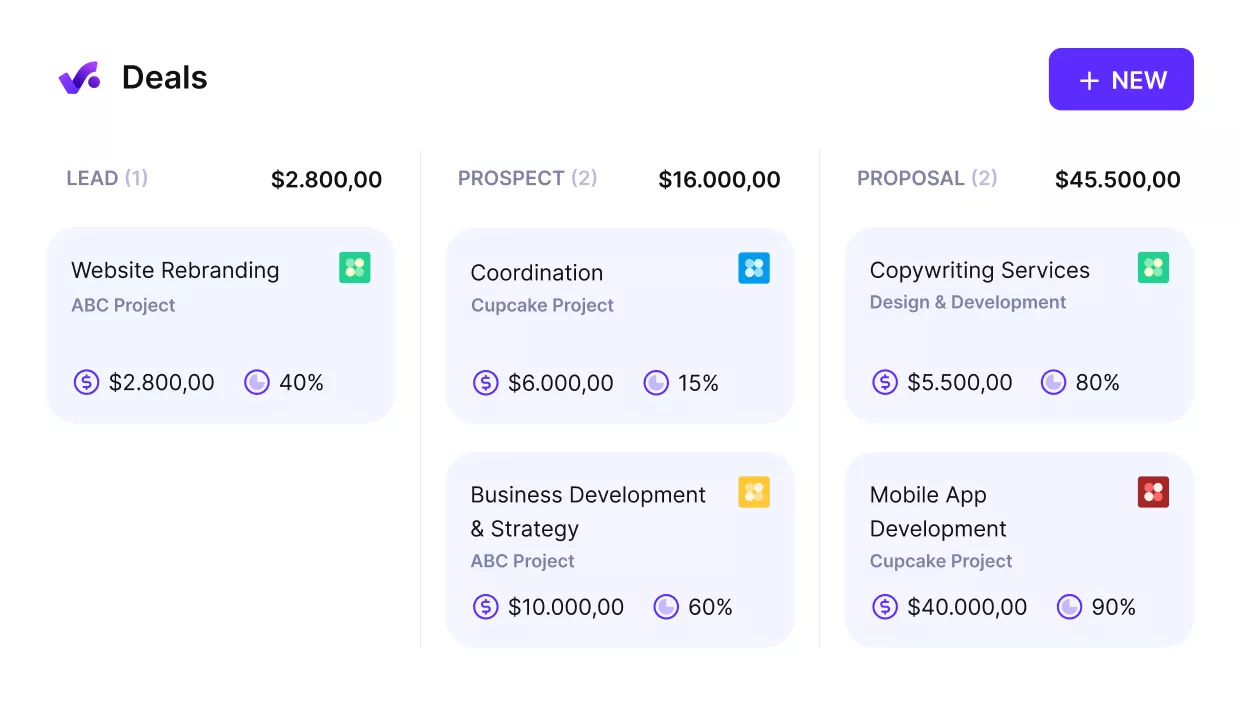
Convert won deals into planned and delivered projects.
Get real resource planning and forecasting, not just a scheduling grid
Smartsheet and similar legacy tools help you draw schedules, but they do not give you reliable demand planning or future visibility. When someone takes a vacation, you update a sheet by hand. When new work comes in, you assume which teams can take it.
You only see over servicing when it is already hurting margins.
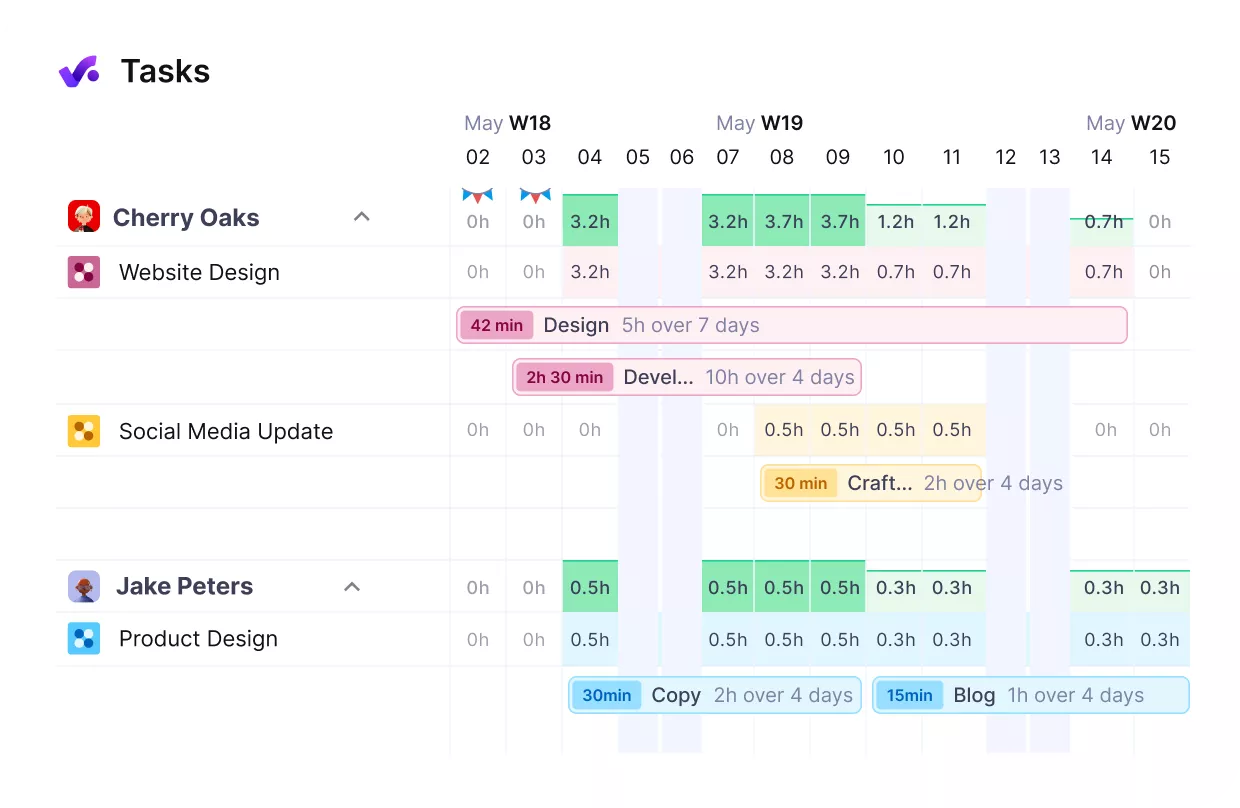
get real-time overviews of your team’s workloads.
Productive adds proper planning on top of your projects and budgets. You plan who works on which projects, for how long, and at what cost.
Time off is built into the dynamic resource planner, so vacations and sick leave are part of the same view instead of living in a separate Excel file.
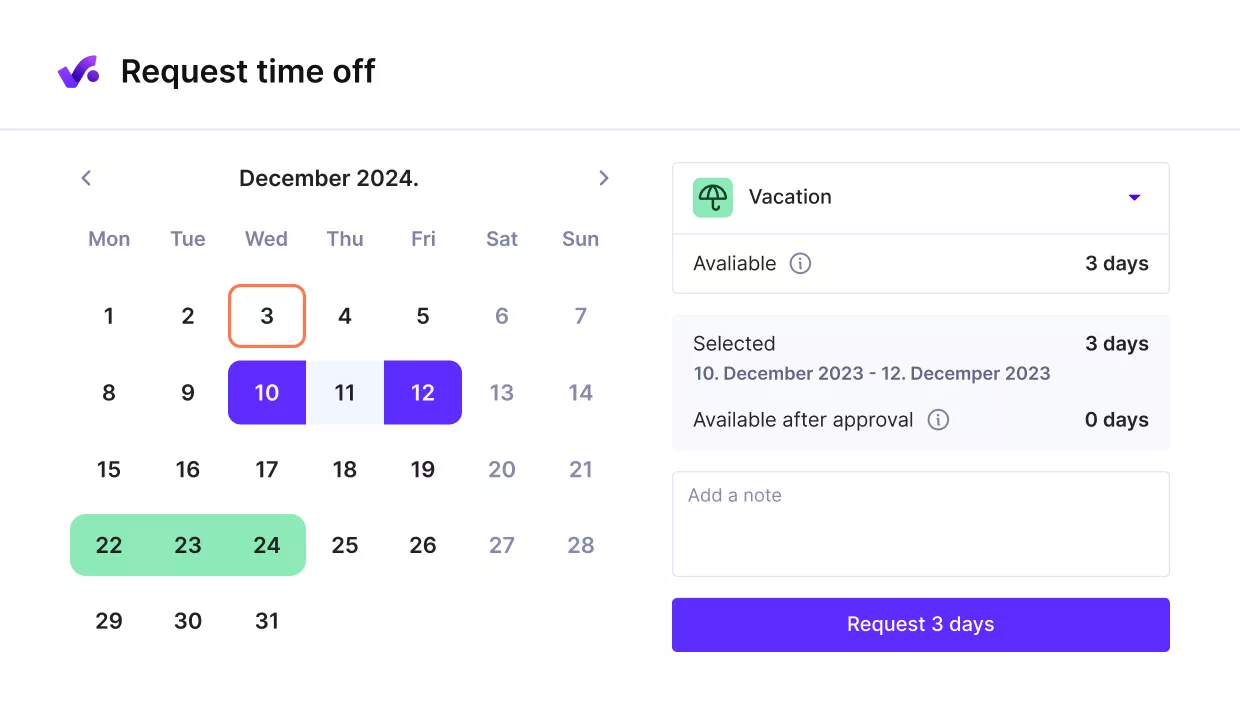
Manage employees’ workloads, sick leave, or PTO directly in Productive.
On top of that, Productive keeps historical planning data and gives you projections. You can see where you are likely to over service, which roles will be overbooked, and where you have free capacity before it turns into a problem.
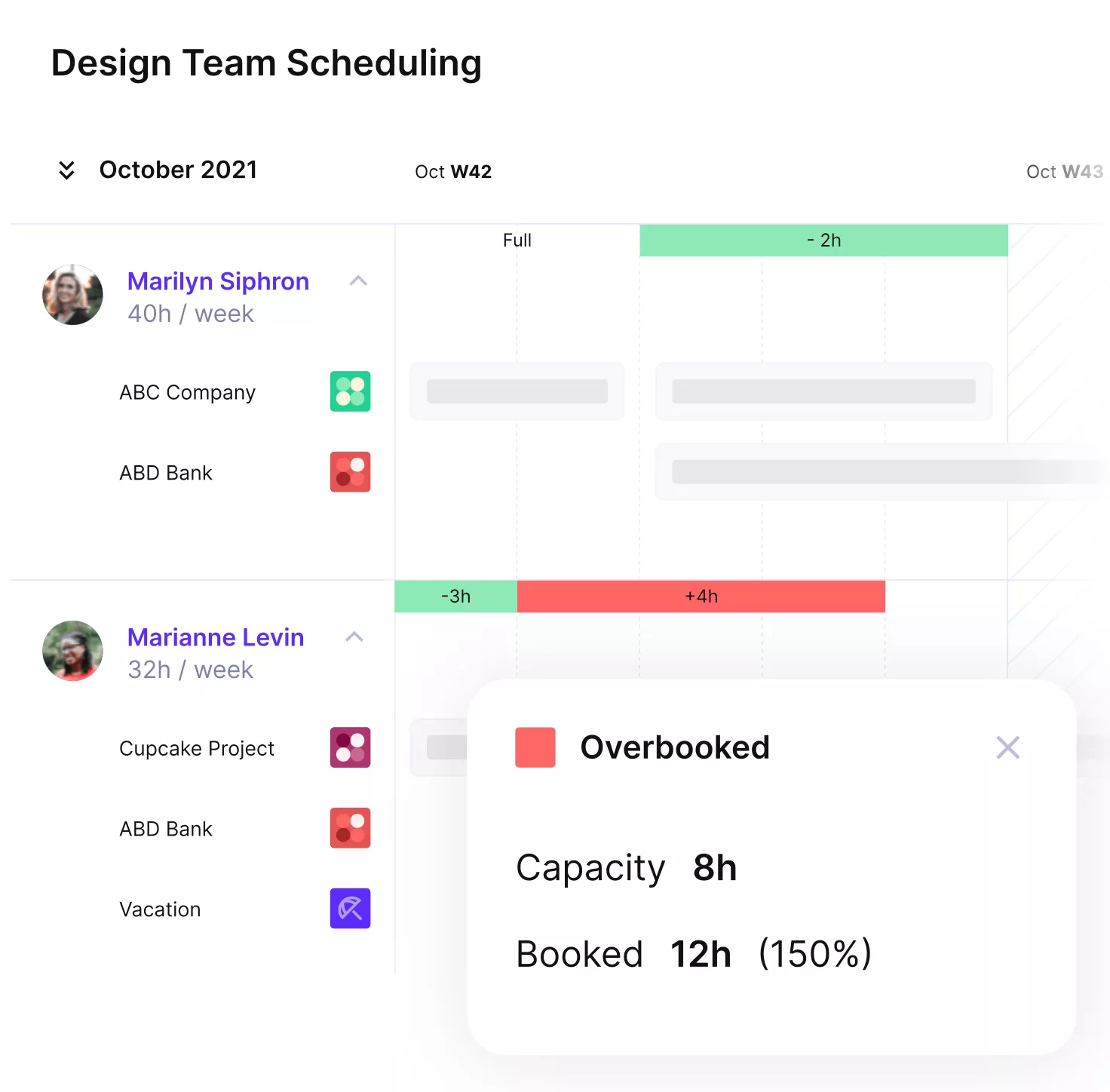
Avoid overbookings or idle hours with Productive’s scheduling.
Link project plans, time, and costs to profitability
In Smartsheet, project plans, timesheets, and invoicing are usually done with tools. People log time in Excel or a free app, budgets live in a sheet, and invoices are created in accounting software with yet another copy of the data.
There is no simple way to see if a project is profitable while it is still running.
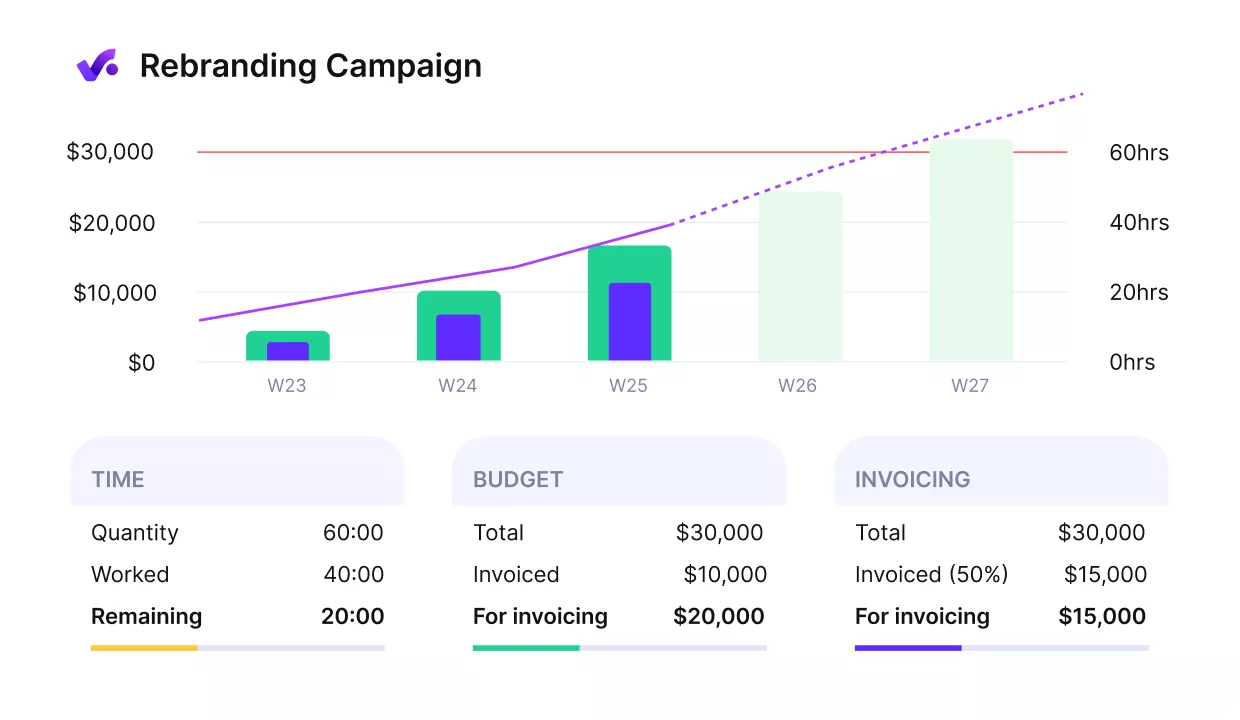
Get early warnings of budget overruns.
Productive connects these pieces. People track time directly on projects and services. That time feeds into budgets and shows budget burn in real time. You can see how much of the budget is used, how much is left, and whether you are over- or underserving a client.
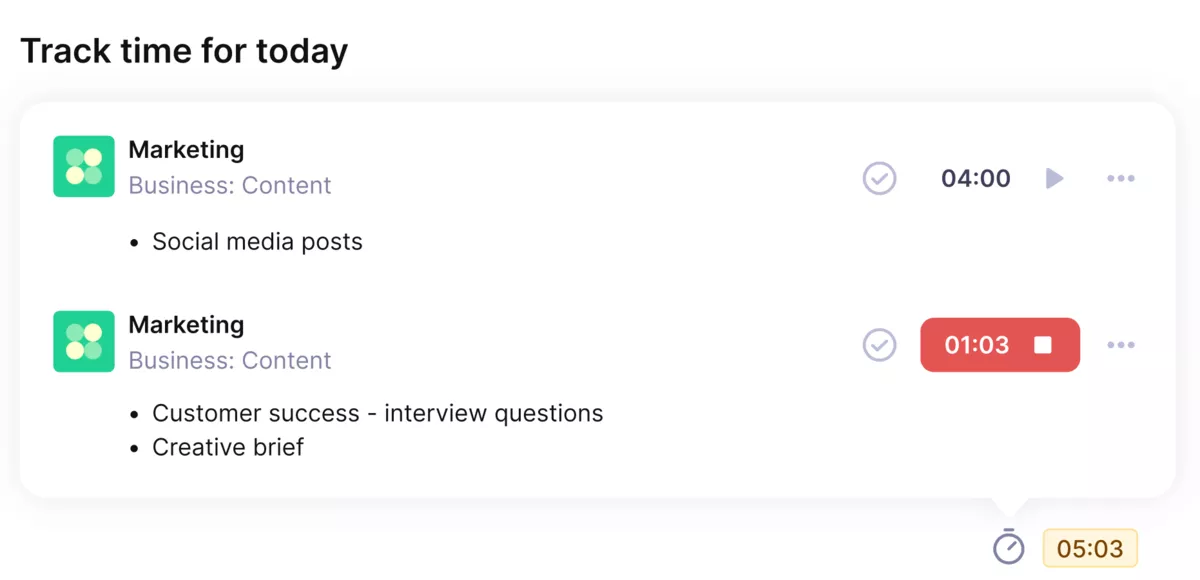
Track time directly on tasks with Productive’s automatic time tracker.
Internal costs, external vendor invoices, and pass-through expenses are part of the same project budget. You do not need a separate spreadsheet to keep track of what you owe partners versus what you bill clients.
Profitability is visible by project, client, and service, and invoicing pulls straight from approved time and costs instead of manual calculations.
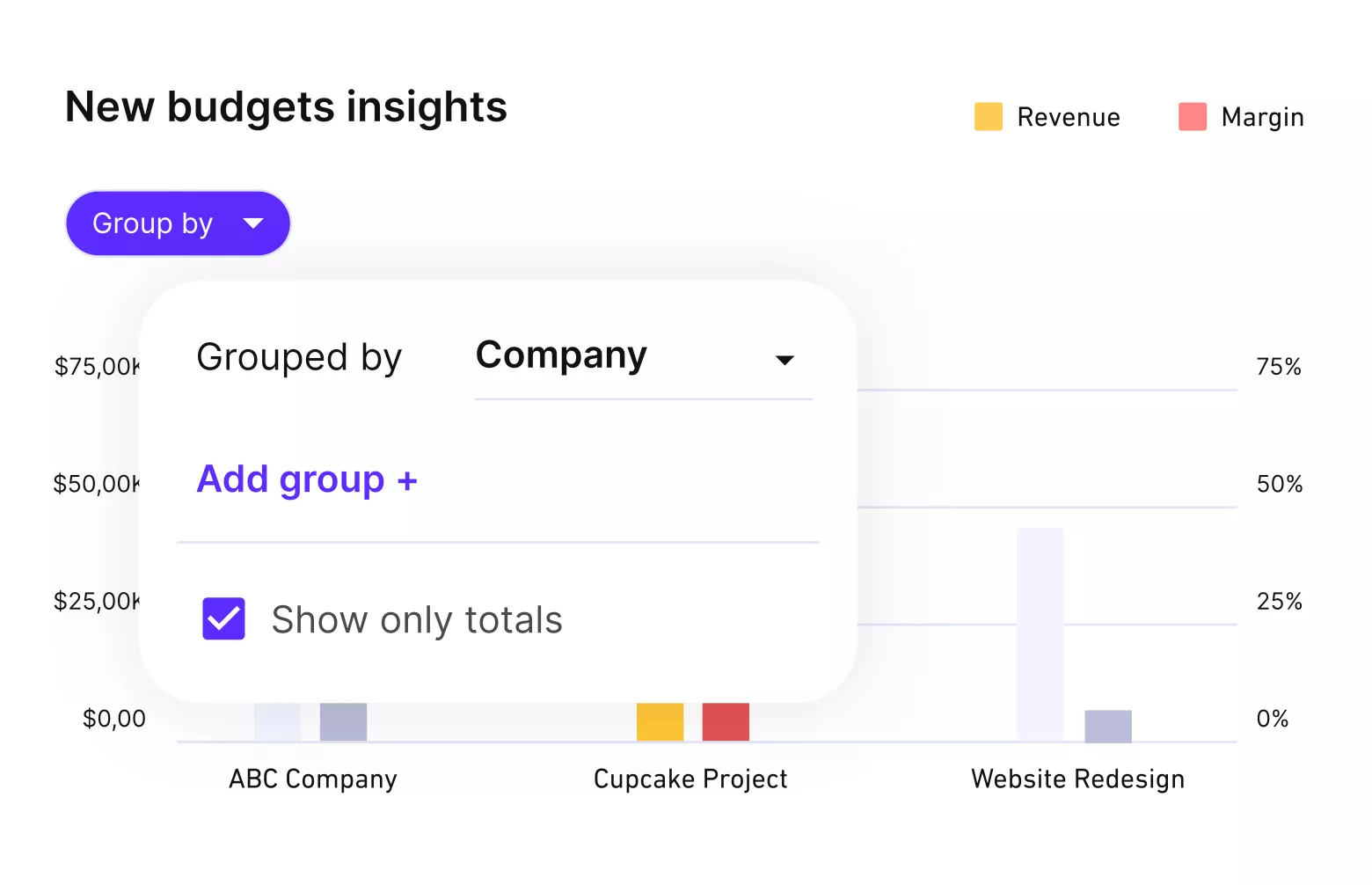
Get real-time budget and profitability updates.
Scale project delivery without losing control
Teams running hundreds or even thousands of projects in parallel often hit the limits of Smartsheet and older tools. Performance slows down, reporting becomes unreliable, and there is no clear roadmap for improvements.
You end up with a system that feels abandoned and a portfolio that is too big for spreadsheets.
Productive is built for teams that handle a large volume of concurrent projects. The platform is designed to work with big datasets, frequent updates, and complex portfolios without forcing you back to manual work.
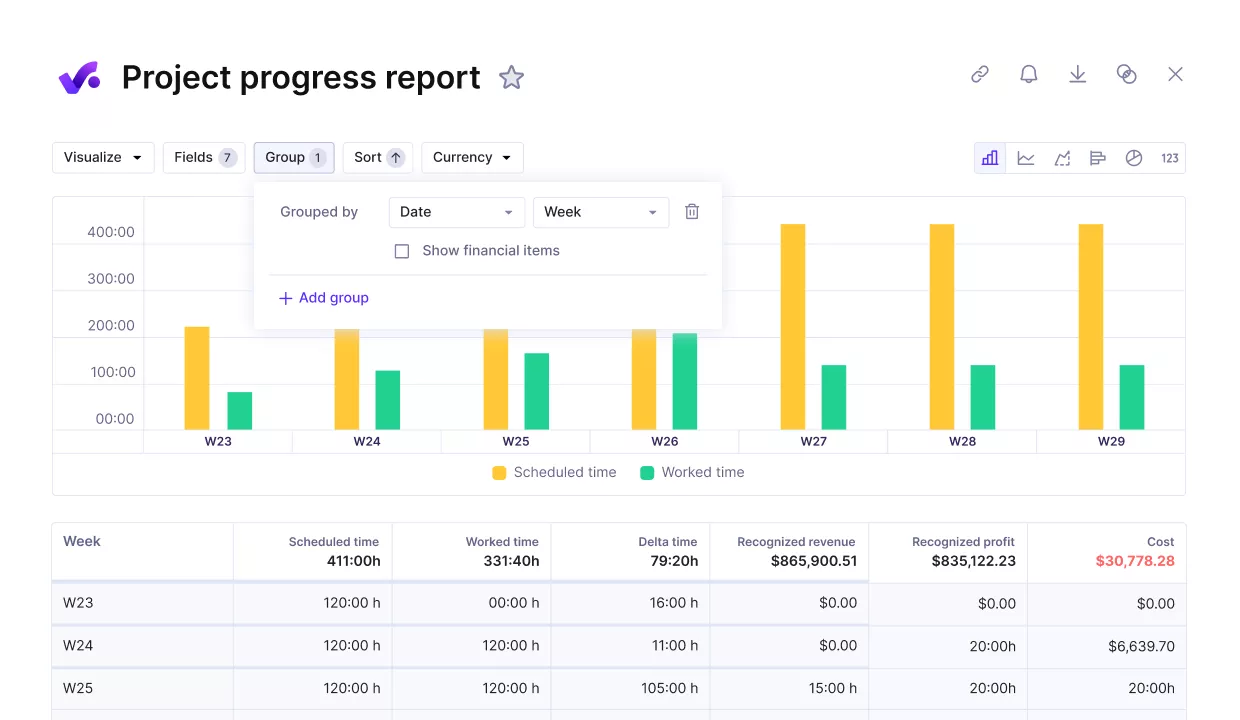
Review the progress of your projects against key performance metrics.
Regular product updates keep the tool moving forward instead of standing still while your business grows. At scale, this means you can keep one structured way of working across teams instead of every department inventing its own workaround.
Manage clients and teams in one place
Smartsheet does not give you a real CRM or a central place for contact management. Partners and account managers often keep their own lists, and there is no clean link between contacts, deals, and live projects.
In Productive, contacts, companies, and deals live next to projects and budgets. You track a sales pipeline, convert a closed deal into a project, and keep the full history of work and profitability for each client in one system.
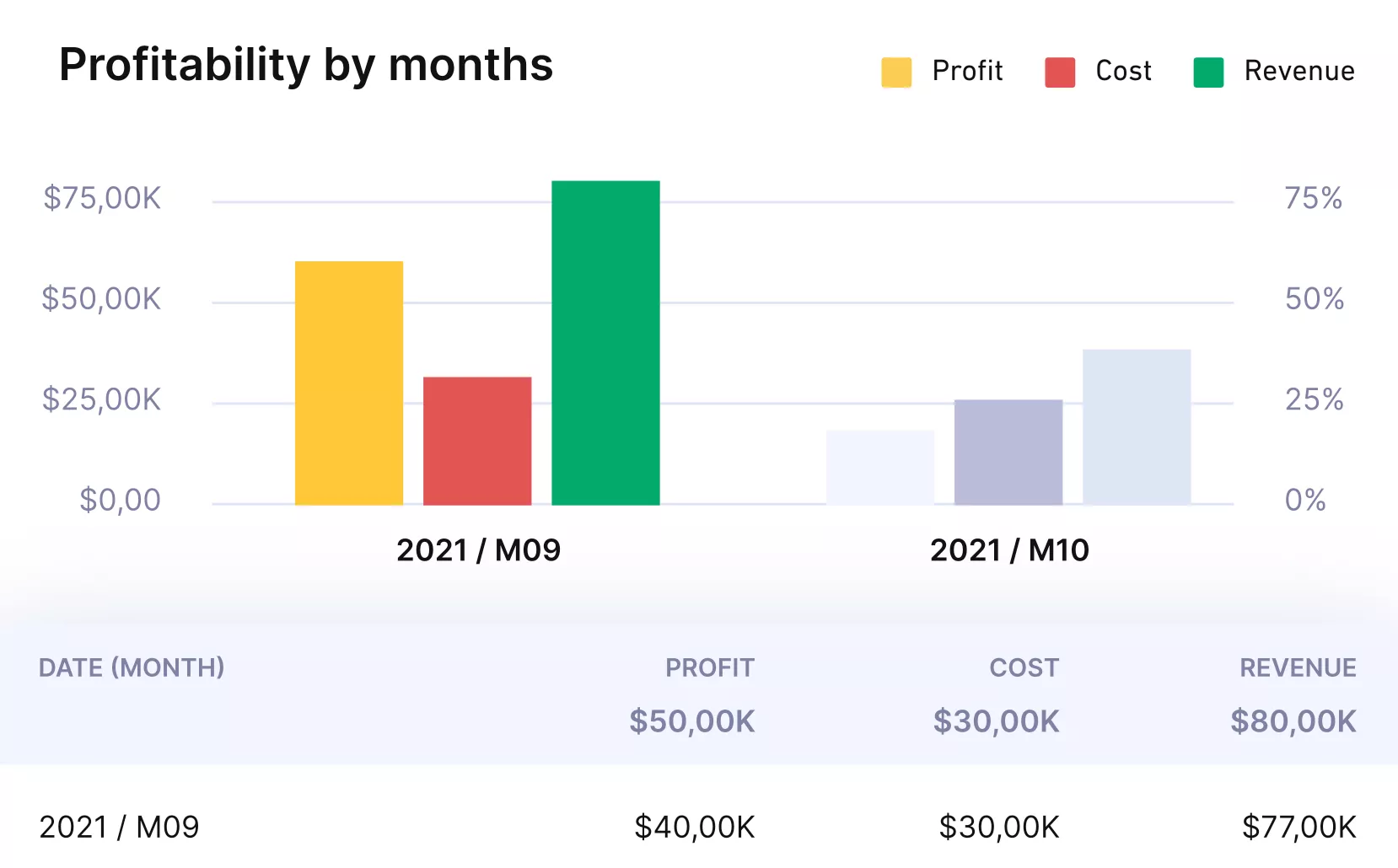
Get real-time profitability updates by client, project, or service.
Built-in time off management shows who is available and who is away directly in the resource planner, so you do not schedule work on people who are on leave.
Workflow automation and notifications reduce manual follow-ups. Budget alerts, approval flows, and scheduled reports help managers react when something needs attention instead of living inside sheets all day.
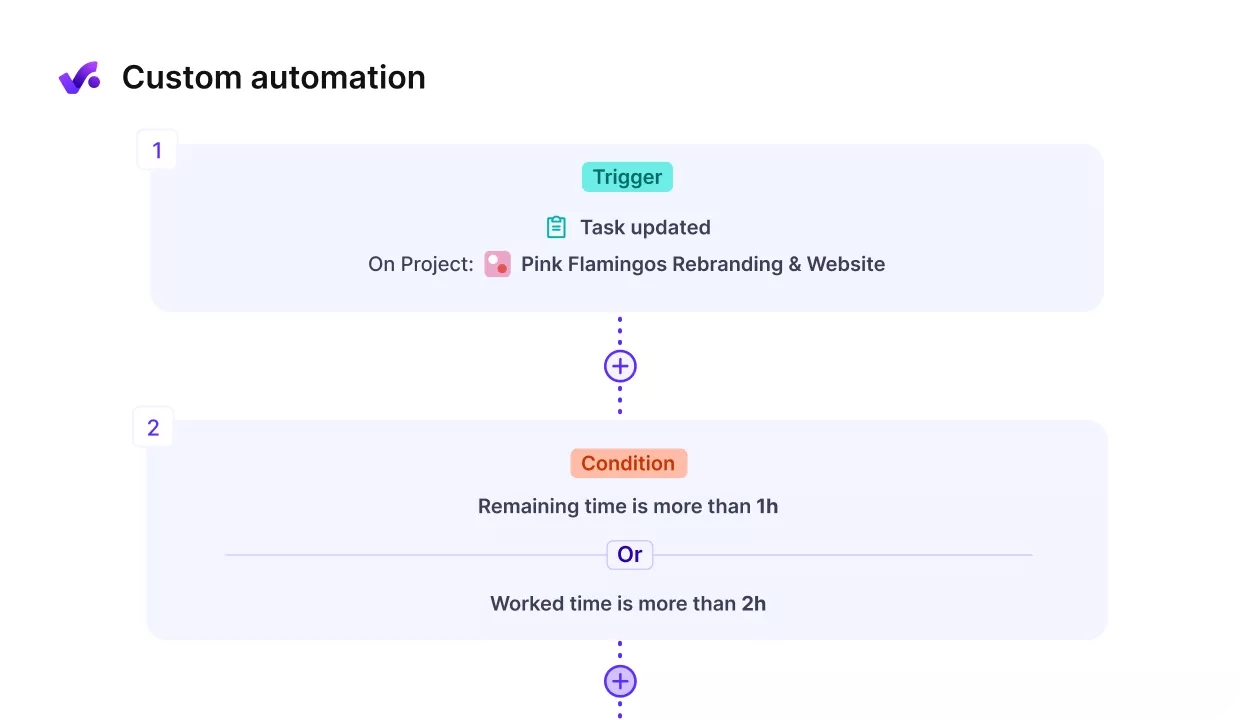
Automate routine tasks and cut down repetitive manual work.
Pricing
- Plans start with the Essential plan at $10 per user per month, which includes essential features such as budgeting, project & task management, docs, time tracking, expense management, reporting, and time off management.
- The Professional plan includes custom fields, recurring budgets, advanced reports, billable time approvals, and much more for $25 per user per month.
- The Ultimate plan has everything that the Essential plan and Professional plan offer, along with the HubSpot integration, advanced forecasting, advanced custom fields, overhead calculations, and more. Book a demo or reach out to our team for the monthly price per user.
Productive offers a 14-day free trial, so you can see what it can do for your project’s financial health.
Replace Smartsheet with One System Built for Client Work
Book a demo and see how to plan capacity, track budgets, and report on profitability without reconciling data every week.

2. Stackby – Best for Customizable Spreadsheet Style Project Workflows
Stackby is a Smartsheet alternative for teams that like a spreadsheet-like interface but want more structured task management and basic workflow management.
It combines spreadsheet-style tables, flexible column types, and database-style data management so that you can keep work, assets, and small project templates in one place instead of scattered files.
Core Features
- Spreadsheet-style project tables
- Built-in automations
- Kanban boards and calendar views
- API connectors and integrations
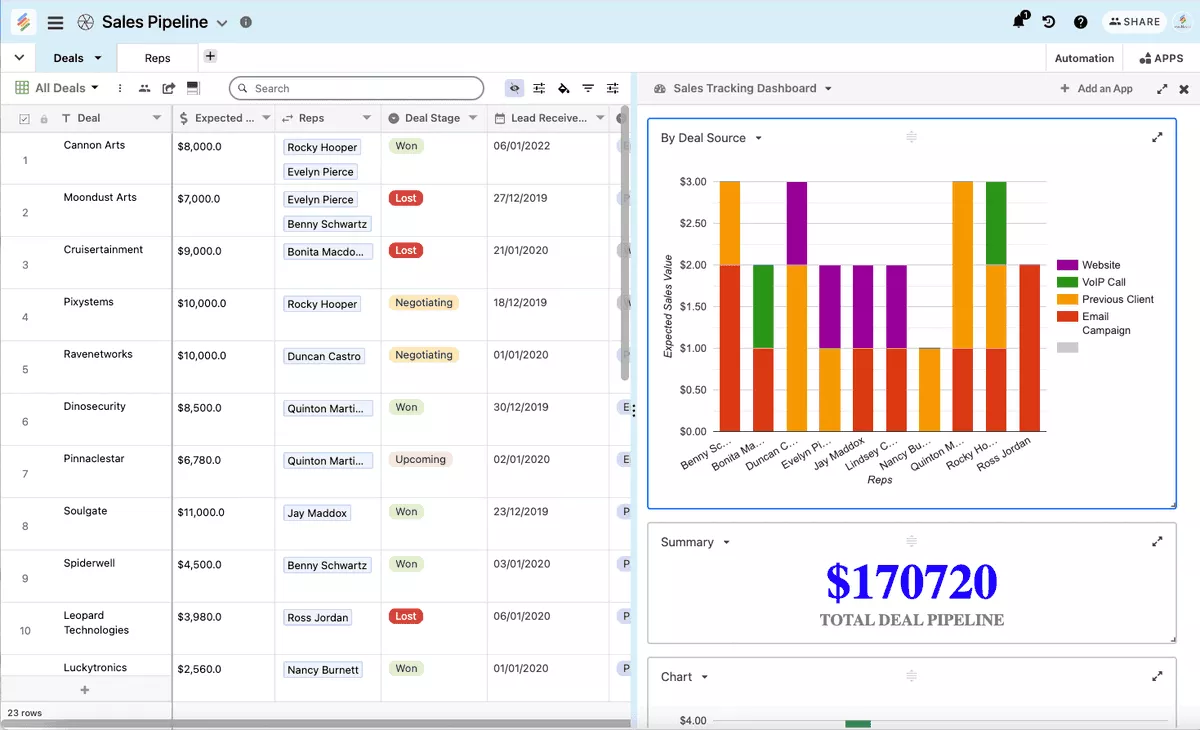
SOurce: stackby
Pros
- Easy for spreadsheet native users to learn, since the layout feels familiar but adds more structure on top.
- Highly customizable for small teams that want to build their own mini databases without writing any code.
- Often praised in reviews for good value for money compared with bigger database and project tools.
- Templates and ready-made stacks make it faster to launch new setups for campaigns, content, or client work.
Cons
- Fewer native integrations and a smaller ecosystem than leading competitors, so you may rely more on API connectors or third party automation tools.
- Complex setups can take trial and error, and tables can get messy if everyone edits structures without clear owners.
- Reporting views and resource planning are lighter than in full scale project management platforms, so larger agencies may still need another system for capacity and profitability.
- Community resources and documentation are growing but still behind the biggest players, which can slow down more advanced builds.
Final Verdict
Stackby is worth testing if you want to keep the spreadsheet feel but add structure, views, and basic automation.
Skip it if you need strong reporting, consistent governance across many teams, or anything tied to budgets and profitability. In those cases, it works better as a stopgap than as your long-term system.
3. Baserow – Best for Open Source Database Style Collaboration
Baserow is an open source tools platform for building no-code databases that some teams use as a Smartsheet alternative when they want more control over hosting and data.
It gives you spreadsheet style tables backed by relational databases so you can structure work and data management without writing code.
Core Features
- Self-hosted or cloud deployment
- Tables, relationships, and views
- Permissions and real-time collaboration
- REST API and automation connectors
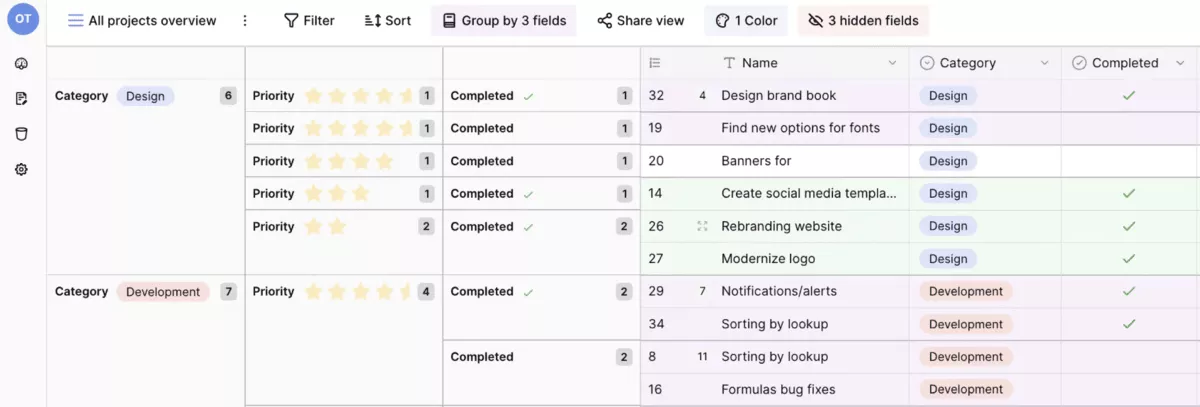
SOurce: baserow
Pros
- Open source and self-hosted option that helps teams avoid vendor lock-in and keep control over their data.
- Easy to create databases and manage information without SQL, with many users calling the interface intuitive.
- Strong customization and extensibility so you can tailor tables and workflows to your exact needs.
- Works well with automation tools and other systems through its API, webhooks, and integration options.
Cons
- Still behind Airtable and similar tools on some features, which can make it feel like something is missing for power users.
- Performance and load times can dip on heavier setups if the hosting environment is not tuned.
- Smaller ecosystem and fewer ready-made templates than more established competitors.
- Configuration and hosting can be technical, so that non-technical teams may need outside help or internal support.
Final Verdict
Baserow is a good pick if you want an open-source database you can host and shape around your own data model.
Skip it if your team does not have technical support for setup and maintenance, or if you want polished templates and guided onboarding out of the box. It is a strong builder tool, not a plug-and-play replacement for how most teams run day-to-day work.
4. Bonsai – Best for Freelancers and Small Studios That Need Simple Projects, Billing, and a Basic CRM
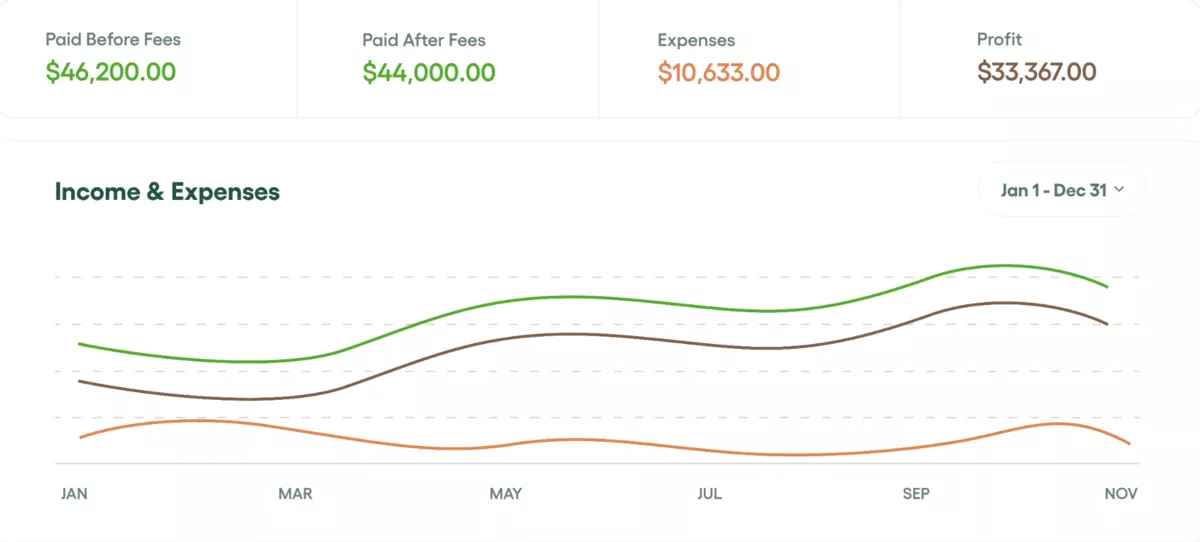
Bonsai is a Smartsheet alternative built for freelancers and small studios that want simple task tracking tied to billing and contracts. It is best when you need structure around client work, not a complex system for big teams.
Core Features
- Projects and tasks
- Timesheets for billable hours
- Invoicing and payments
- CRM for leads and clients
SOurce: bonsai
Pros
- Easy to set up and use for freelancers who want one workspace for client work.
- Strong templates for proposals, contracts, and invoices that make you look professional with minimal setup.
- Having projects, billing, and client communication in a single tool means you do not have to juggle as many apps.
- Many users say Bonsai helps them get paid faster and keep cash flow visible.
Cons
- Pricing can feel high as you add features or move to higher tiers.
- Task tracking and calendar features are basic for larger teams that need deeper control.
- Some screens and workflows feel confusing at first, especially for more advanced scheduling needs.
- Not designed for complex multi-team agencies that need detailed reporting or resource planning.
Final Verdict
Bonsai makes sense if you are a freelancer or small studio and want projects, billing, and client admin.
Skip it if you run a multi-team delivery org and need shared visibility into workloads, approvals, or detailed reporting across many clients. It is built for solo and small team workflows, not scaled operations.
5. Airtable – Best for Database-Style Spreadsheets and Flexible Workflows
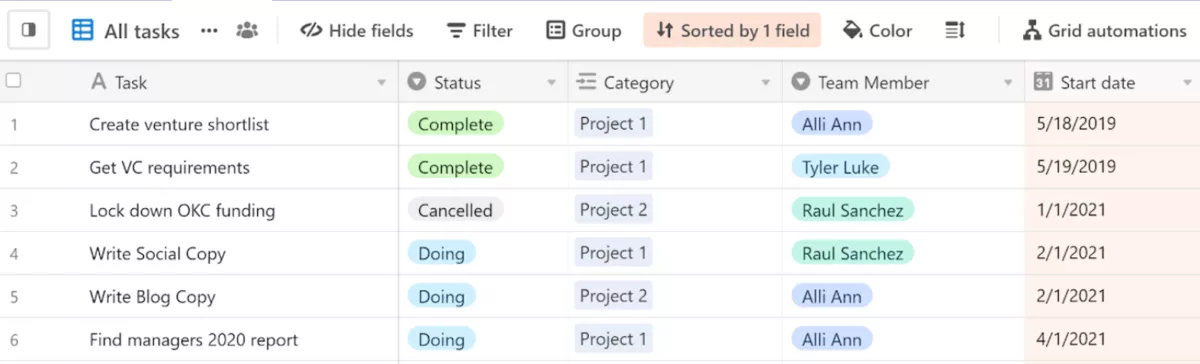
Airtable is a cloud-based database and project tracking tool that many Smartsheet users choose when they want more flexible views and linked records.
It layers a spreadsheet interface over relational databases so non-technical teams can build custom workflows for content, projects, or client work without writing code.
Core Features
- Linked records
- Multiple views (grid, board, calendar, gallery)
- Automation workflows
- Templates and integrations
SOurce: airtable
Pros
- A very flexible structure that lets teams design their own bases for many use cases.
- A familiar spreadsheet feel that makes it easier for new users to get started.
- Strong collaboration features with real-time updates, comments, and shared views.
- Large selection of templates and integrations that help teams stand up workflows fast.
Cons
- Pricing and record limits can become expensive as teams scale to bigger bases and more users.
- Advanced setups bring a learning curve, and messy bases are common without clear conventions.
- Reporting features are lighter than in dedicated work management tools and can require extra tools.
- Permissions, admin controls, and performance for very large datasets can feel limited compared to enterprise systems.
Final Verdict
Airtable is a strong choice if you want to model work as structured data and build custom workflows with flexible views and automation.
Skip it if you want ready-made processes, strict governance, or advanced reporting without spending time designing and maintaining your bases. It shines with an owner, but gets messy fast without one.
6. Microsoft Project – Best for Enterprise Style Project Scheduling and Structured Timelines
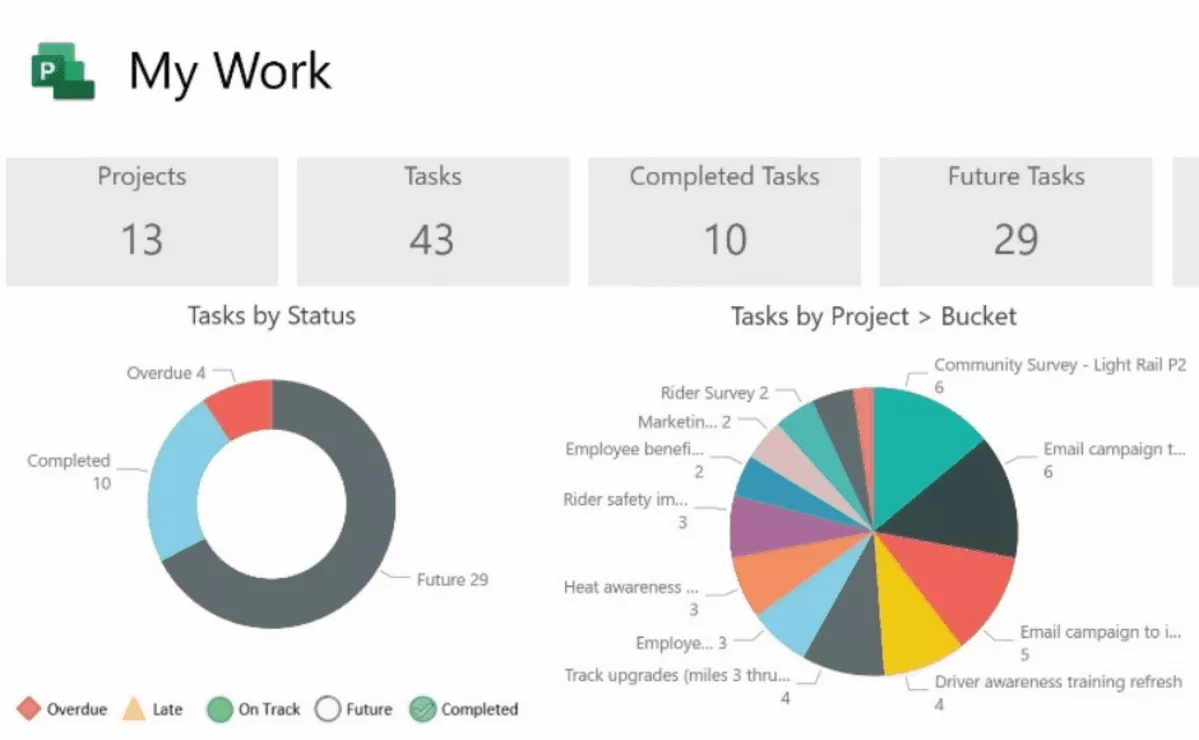
Microsoft Project is a classic scheduling tool for detailed scheduling and project timelines in larger organizations. Many Smartsheet users consider it when they need stricter Gantt charts, dependencies, and formal reporting.
It fits best in teams with experienced project managers and an existing Microsoft 365 stack.
Core Features
- Gantt charts and dependencies
- Milestones and baselines
- Resource allocation and leveling
- Microsoft 365 integrations
SOurce: Microsoft Project
Pros
- The depth of scheduling features makes it easier to plan and track large projects.
- Integration with Microsoft 365 helps teams that already work in that environment.
- Resource views help project managers see workloads and balance assignments.
- Widely adopted in enterprises, so many project managers already know the tool.
Cons
- Steep learning curve and complex interface, especially for people new to formal planning.
- Licensing and training costs can be high for smaller teams.
- Collaboration can feel rigid for casual contributors who only need simple task updates.
- Less suited to agile teams that prefer lightweight boards instead of detailed schedules.
Final Verdict
Microsoft Project is a good fit if you have trained project managers and need strict scheduling, dependencies, and timeline control. Skip it if most of your team needs lightweight collaboration, fast onboarding, and flexible ways to track day-to-day work.
It works best if your team already uses Microsoft 365 and is comfortable with the Microsoft Project way of planning.
7. Notion – Best for Knowledge Centric Teams That Want Pages, Docs, and Lightweight Project Tracking
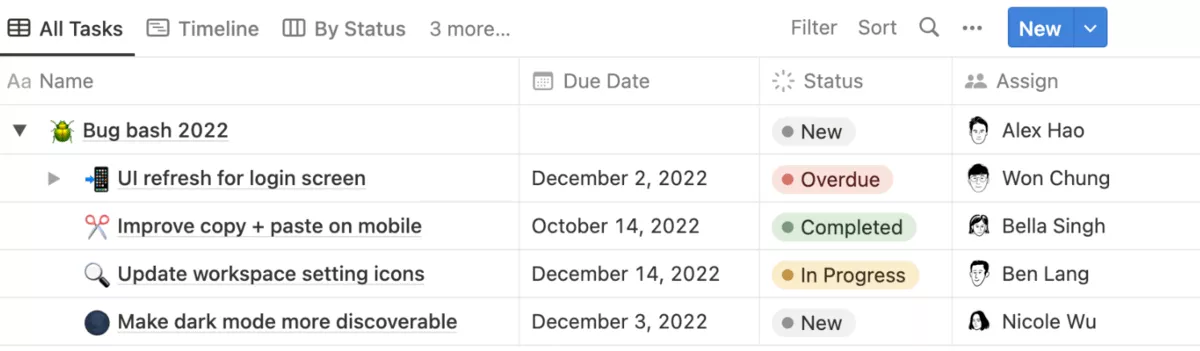
Notion is a doc-and-wiki-first workspace that some teams choose instead of Smartsheet when they want pages, databases, and tasks together. It works well for knowledge-centric teams that need document creation, light task tracking, and shared context in one place.
Core Features
- Pages and docs
- Databases and views
- Linked databases
- Comments and mentions
SOurce: notion
Pros
- Very flexible workspace that lets teams blend documentation, tasks, and simple projects.
- Strong templates and community resources that help teams get started faster.
- Works well as a central knowledge hub, reducing scattered docs across different tools.
- Real-time collaboration and shared pages make it easier for teams to stay aligned.
Cons
- Steep learning curve, especially for people who just want a straightforward project management tool.
- Workspaces can get messy without someone owning structure and naming conventions.
- Extensive databases and heavy pages can feel slow compared with more focused tools.
- Limited native reporting and no built-in timesheets, so teams often need extra tools.
Final Verdict
Notion is a good replacement if your biggest gap is scattered docs, specs, and context, and you only need lightweight tracking alongside that knowledge. Skip it if you need structured delivery workflows, reliable reporting, or built-in time and budget controls.
It works best when documentation is the product, not when execution needs tight guardrails.
8. Basecamp – Best for Teams That Want Simple Communication, to Dos, and Project Organization
Basecamp is a communication-first project hub that teams choose instead of Smartsheet when they want one simple place for updates, files, and basic task lists.
It brings discussions, simple coordination, and shared documents into a single app so people do not have to juggle long email threads, chat tools, and separate to-do lists.
Core Features
- Message boards
- To-dos
- Schedules
- Automatic check-ins

SOurce: basecamp
Pros
- Simple interface that makes it easy for non-technical teammates and clients to adopt.
- Clear separation of projects and message boards helps reduce scattered conversations.
- Low overhead compared with heavier work management software, which many users appreciate.
- Works well as a central space for collaboration tools, files, and updates.
Cons
- Limited reporting and no built-in time tracking or advanced resource management.
- Task structures are basic, which makes it hard to model complex workflows.
- Not ideal for teams that need granular permissions, approvals, or formal project governance.
- Many teams still rely on separate tools for financial tracking, forecasting, or capacity planning.
Final Verdict
Basecamp is a good fit if you want a simple hub for communication, files, and to-dos with low setup overhead. Skip it if you need task dependencies, workload planning, or anything tied to billable work, budgets, and reporting.
It keeps people aligned, but it will not run operationally complex delivery on its own. If you’re familiar with Basecamp, you might want to scan our Basecamp alternatives list.
9. Monday.com – Best for Visually Structured Project Tracking Across Teams
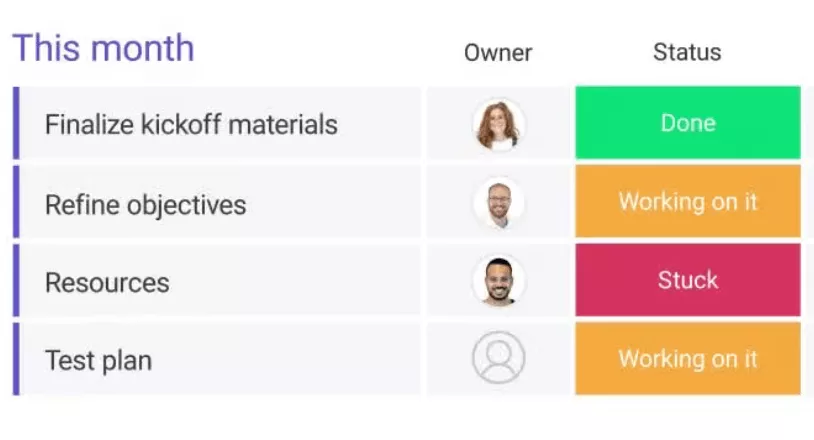
Monday.com is a visual work management platform that many teams choose instead of Smartsheet when they want colorful boards and simple status tracking across projects.
It centers on board-based views where tasks, owners, and statuses sit in one place, which can feel more approachable than maintaining large sheets.
Core Features
- Boards and columns
- Views (timeline, calendar, dashboards)
- Automations
- Templates
SOurce: monday.com
Pros
- Visual layout makes it easy for new users to understand what is happening at a glance.
- Templates help teams get started quickly without designing boards from scratch.
- Many users like how easy it is to customize columns, groups, and basic workflows.
- Works well for cross-functional collaboration when teams want to share a simple view of project status.
Cons
- Pricing can climb quickly as you add more users and boards.
- Automations and integrations can feel limited on lower tiers, which may frustrate heavier users.
- Boards can become cluttered without clear ownership and naming rules.
- Limited native capacity planning and financial reporting, so many teams still need other tools.
Final Verdict
Monday.com is a good fit if you want to set up visual boards for status tracking across teams and client workstreams quickly. Skip it if you need consistent, company-wide reporting, advanced resource planning, or financial visibility without adding other systems.
It is great for basic visibility, but it is not built to be your source of truth for financial decisions. If you’re considering Monday, it might be smarter to head over to our list of Monday.com alternatives.
10. Unito – Best for Connecting Smartsheet With the Rest of Your Stack
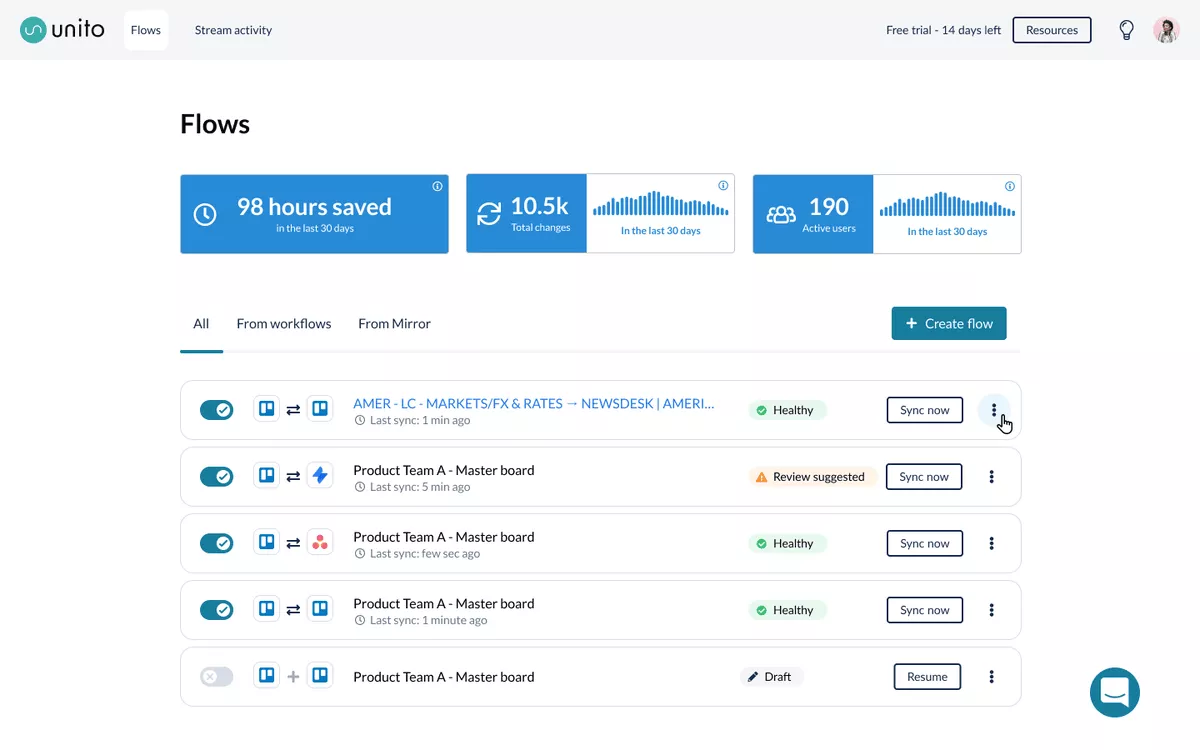
Unito is an integration and sync platform that helps you connect Smartsheet with the rest of your tools rather than replace it outright. It is useful when your main problem is that work is spread across multiple apps, and people are copying updates by hand.
Core Features
- Two-way sync between tools
- Field mapping
- Multi-step workflows
- Prebuilt connectors
SOurce: unito
Pros
- Reduces duplicate data entry by automatically keeping tools in sync.
- Flexible mappings let teams decide which fields sync, in which direction, and when.
- Supports many third-party integrations, which helps when different teams prefer different tools.
- Helpful during transitions, allowing you to test new platforms without abandoning Smartsheet immediately.
Cons
- Configuration can feel complex at first, especially for non-technical users.
- Pricing can add up as you increase the number of flows and connected tools.
- Does not solve underlying process or data quality issues if workflows are not clearly defined.
- It is not a work management tool on its own, so you still need a solid system on each side of the sync.
Final Verdict
Unito is useful if you need to keep tools in sync during a transition or you have teams that refuse to work in one system.
Skip it if your goal is to simplify your stack, because it adds an integration layer rather than replacing anything. It works best when you already have a clear target system and clean fields to sync.
Why Are Teams Looking for Smartsheet Alternatives?
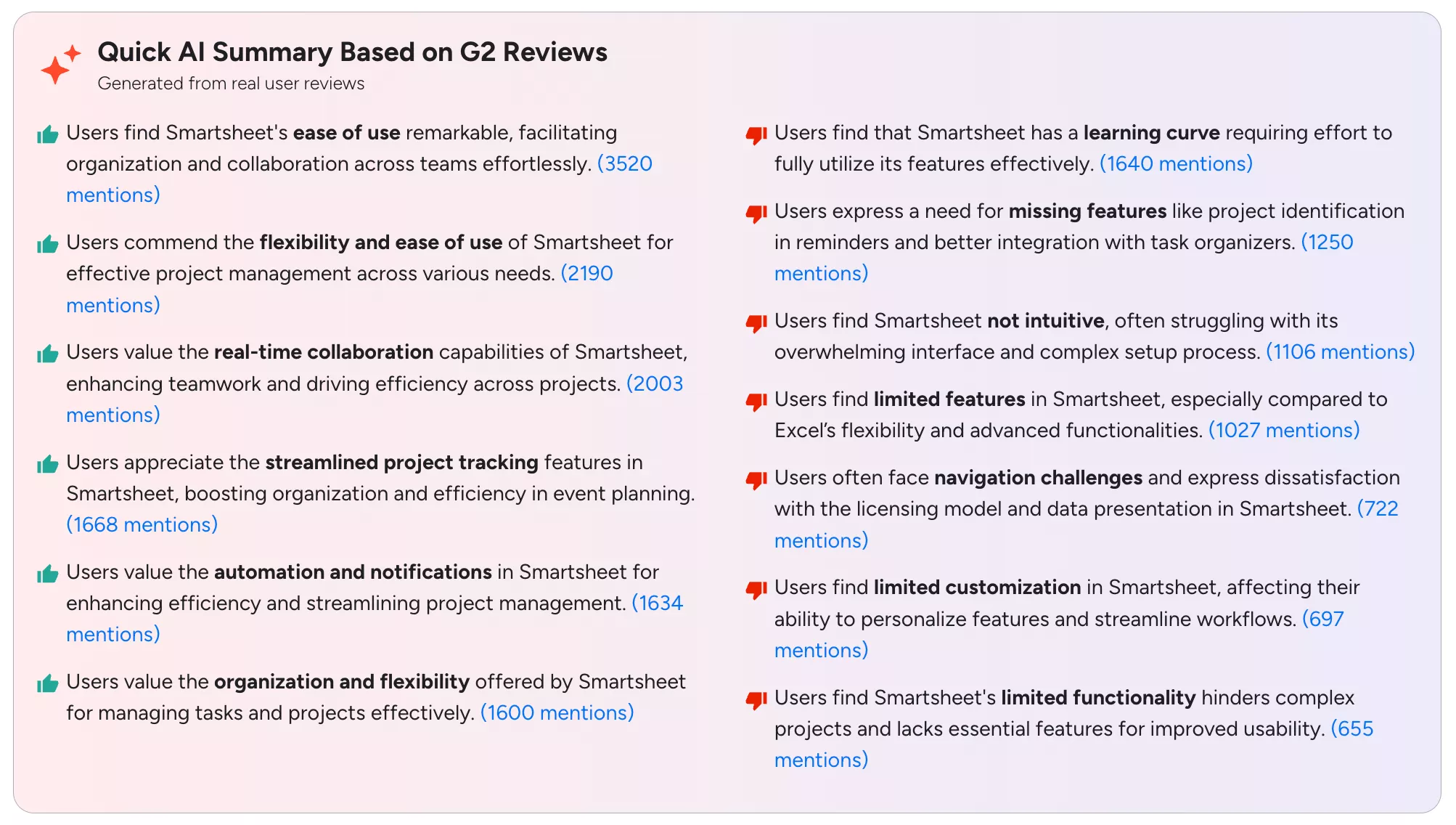
Teams are looking for Smartsheet alternatives because the tool can start to feel harder to scale once work needs a tighter structure, cleaner reporting, and fewer workarounds. If you need extra advice, check out out guide to choosing your project management software.
Common reasons include:
- The learning curve can be steep, especially around formulas, dashboards, and building reports.
- Some users say the user interface does not feel intuitive, and they miss basic spreadsheet behavior or simplicity for everyday tasks.
- Formatting and customization limits show up when you try to standardize sheets across many teams.
- Reporting can feel harder than it should, especially when you need consistent dashboards across multiple sheets and stakeholders.
- Many teams export data to Excel or Google Sheets to finish reports or presentations.
- Pricing can feel harder to justify for smaller teams as usage grows.
- Small admin issues add up, like sorting settings that do not stick and need to be reset.
- Permissions and sharing can create overhead, like unexpected access issues or edits that should not happen.
Smartsheet G2 review
How To Safely Migrate from Smartsheet?
To migrate from Smartsheet, you need to first identify which sheets and reports are actually in use, choose a replacement that supports those workflows, and then move your work in small batches so nothing breaks mid-delivery.
Below we break down this migration process into six straightforward steps.
Project Management Software Buyer’s Guide
Download our template to guide your decision-making process with feature lists and dynamic scoring & ranking.

Step 1: Audit what you use today, not what exists
Open your Smartsheet workspace and make a short list of only the assets that drive weekly work.
- 10 to 20 active sheets your team updates every week
- Any dashboards, leadership, or clients should be checked regularly.
- Recurring reports (status, overdue tasks, approvals, budget rollups)
- Automations and alerts that trigger reminders or approvals
- Integrations (Slack, Microsoft 365, Google Workspace, CRM)
For each item, write one sentence: “We use this to ___.” If you cannot name the owner and the purpose, do not migrate it.
Step 2: Choose your best alternative using a scorecard
Pick three tools from the shortlist and score each category from 1 to 5. Then total the score.
- Work structure: grid, boards, timelines, dependencies, templates
- Reporting: dashboards and exports your team can build without manual cleanup
- Capacity and budgets: workload, time, profitability, or cost tracking if you need it
- Integrations: the systems that must connect on day one
- Admin and governance: permissions, change control, and how easy it is to keep the setup consistent
Rule of thumb: if you run client delivery and need budgets, time, and resourcing in one place, eliminate tools that cannot connect work to money.
Step 3: Map your Smartsheet data to the new system
Before you export anything, decide what each Smartsheet element becomes.
- Rows and subrows: tasks, items, or records
- Columns: status, owner, dates, tags, custom fields
- Attachments: file storage rules and access permissions
- Comments: what you keep (key decisions) versus what you drop
- Formulas: what becomes a calculated field versus a report
Also, decide which columns are mandatory. This prevents a messy import.
Step 4: Export and clean one workflow before you touch everything
Start with one complete workflow, for example, a client project template.
- Export the sheet to CSV.
- Standardize status values (for example, open the CSV in Google Sheets and remove five versions of “In progress”)
- Fix dates and remove empty columns
- Split multi-value cells into separate fields when needed
- Decide how you will handle dependencies (keep, simplify, or drop)
Import that single workflow into the new tool and verify three things: owners, dates, and status changes behave the way your team expects.
Step 5: Rebuild one template and one report, then lock the rules
Do not rebuild everything at once. Create one template that your team will reuse.
- Naming conventions for projects and tasks
- A standard set of statuses
- Who can edit the structure versus who can only update tasks?
- One reporting view your team uses weekly.
If the new setup cannot reproduce your most important report or dashboard, you picked the wrong tool, or you need to simplify the process. For more practical advice, there’s a detailed reporting guide on our blog.
Step 6: Run a two-week pilot, then migrate in waves
Run one real project in the new system for two weeks. Keep Smartsheet read-only during the pilot if you can. Capture the friction points and fix the template once.
Then migrate in waves:
- Active work first (the projects that need visibility now)
- Repeatable templates next
- Old archives last, or skip them entirely and keep them exported.
If teams must stay split during the transition, use a sync layer like Unito to reduce manual copy-paste until the move is complete.
Final Thoughts
Smartsheet can work when you only need a flexible grid for basic planning. But once you manage many clients, multiple teams, and regular reporting, it can turn into a lot of manual upkeep.
If your goal is to simplify your stack, look for all-in-one work management tools that connect work, resourcing, time, and reporting in one place. That is how you reduce handoffs and keep one source of truth as you scale.
If you deliver client work and want to see budgets and capacity next to your projects, book a Productive demo and test it on one live project.
Connect With Agency Peers
Access agency-related Slack channels, exchange business insights, and join in on members-only live sessions.
