Top 7 Karbon HQ alternatives (Paid & Free) – 2026 Guide

KarbonHQ alternatives are tricky to shortlist because most reviews are long, generic lists that do not match how accounting firms run practice management, workflow management, and accounting workflows day to day.
To bing some clarity and actionable advice, we’ve written this curated list that gives you real options, with best-fit notes, key features, review-based pros and cons, and an early buyer comparison table.
You will also get a step-by-step way to choose the right replacement and a practical “how to migrate” section with a copy-paste checklist.
What Are the Best KarbonHQ Alternatives in 2026?
The best KarbonHQ alternatives in 2026 are Productive, TaxDome, Canopy, Financial Cents, Jetpack Workflow, Xero, and Wave. The shortlist below includes jump links and a buyer’s comparison table so you can narrow down options fast.
Shortlist of the Best Replacements
Buyer’s Comparison Table
| Tool | Best for | Skip this tool if | Best use case | Free version |
|---|---|---|---|---|
| Productive | Accounting firms that want delivery, resourcing, and financial visibility connected in one system | You only want a lightweight workflow tool and do not need budgets, resourcing, or profitability views | Standardize recurring workflows, improve data capture with forms, connect time tracking to budgets, plan capacity, and use real-time reports for profitability without exports | No |
| KarbonHQ | Firms that want practice management built around client engagements and internal workflows | You need deep resourcing, budget tracking, and financial visibility connected to delivery in one place | Managing client engagements, task management, and internal workflows in a workflow system | No |
| TaxDome | Tax and CAS firms that want a portal-style workflow with pipelines and templates | You need a fast rollout with minimal setup, or you want broader operations planning beyond practice management | Intake, document collection, recurring workflows, and client collaboration in a structured pipeline | No |
| Canopy | Teams that want client requests, documents, and engagement work tracked in one hub | You rely on heavy reporting, or you need very smooth document workflows at scale | Centralizing client requests and document chasing, plus basic workflow and billing in one platform | No |
| Financial Cents | Teams that want lightweight practice management for recurring client work | You need deep customization or advanced reporting without exports, or pricing is a dealbreaker | Running monthly bookkeeping and recurring deliverables with clear job status and ownership for bookkeeping teams | No |
| Jetpack Workflow | Deadline-driven tax work where templates and due dates matter most | You want a broader platform that also covers CRM and client collaboration | Busy-season workflow templates and deadline tracking for recurring tax processes | No |
| Xero | Replacing QuickBooks-style accounting and cleaning up bookkeeping and invoicing | You expect it to replace Karbon-style workflow and task management | Core accounting: bank reconciliation, invoicing, expenses, and financial reporting | No |
| Wave | Very small businesses that need free invoicing and basic bookkeeping | You need practice management, multi-client workflow tracking, or dependable live support | Free baseline for invoicing and simple books before moving to a fuller system | Yes |
1. Productive – Best for All-in-One Karbon Replacement
Productive is a strong Karbon replacement when the real issue is not a missing feature or a single workflow. Usually, the problem is in how practice management workflows, time tracking, resourcing, and financial visibility get split across tools.
Productive connects those pieces, so accounting firms can run recurring deliveries with less admin and fewer blind spots.
Try the best all-in-one Karbon replacement
Stop Stitching Tools Together and Get One Source of Truth and Data
If your team is bouncing between a CRM, a delivery tool, accounting software, and spreadsheets, it becomes hard to trust what is happening with a client. In Productive, projects can keep the context in one place: tasks for delivery, budgets for guardrails, and Docs and Forms for client data and documentation.
Forms help with cleaner data capture during onboarding and recurring work. Templates can also standardize how work moves by pre-defining task lists, dependencies, and a task status workflow.
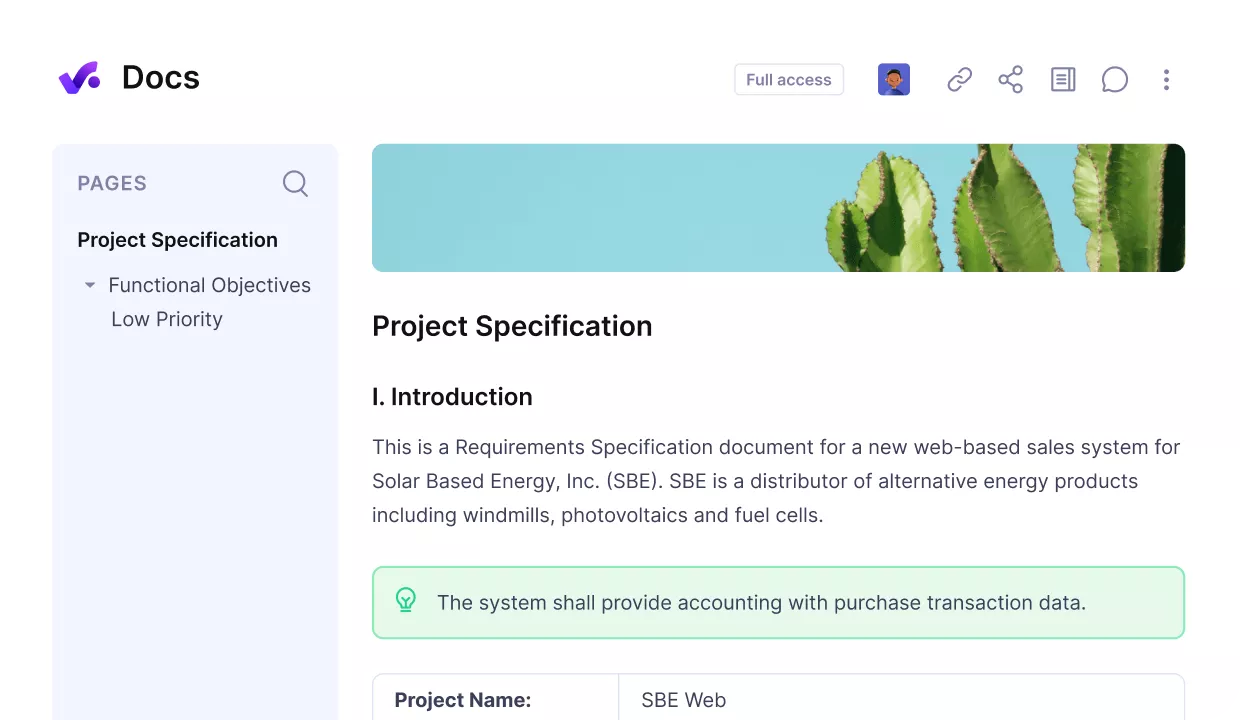
Centralize all documentation and forms in a single platform.
The same setup supports capacity planning too. Productive’s Resource Planner works like a Work Scheduler, so you can plan workload and schedule around time off in the same view.
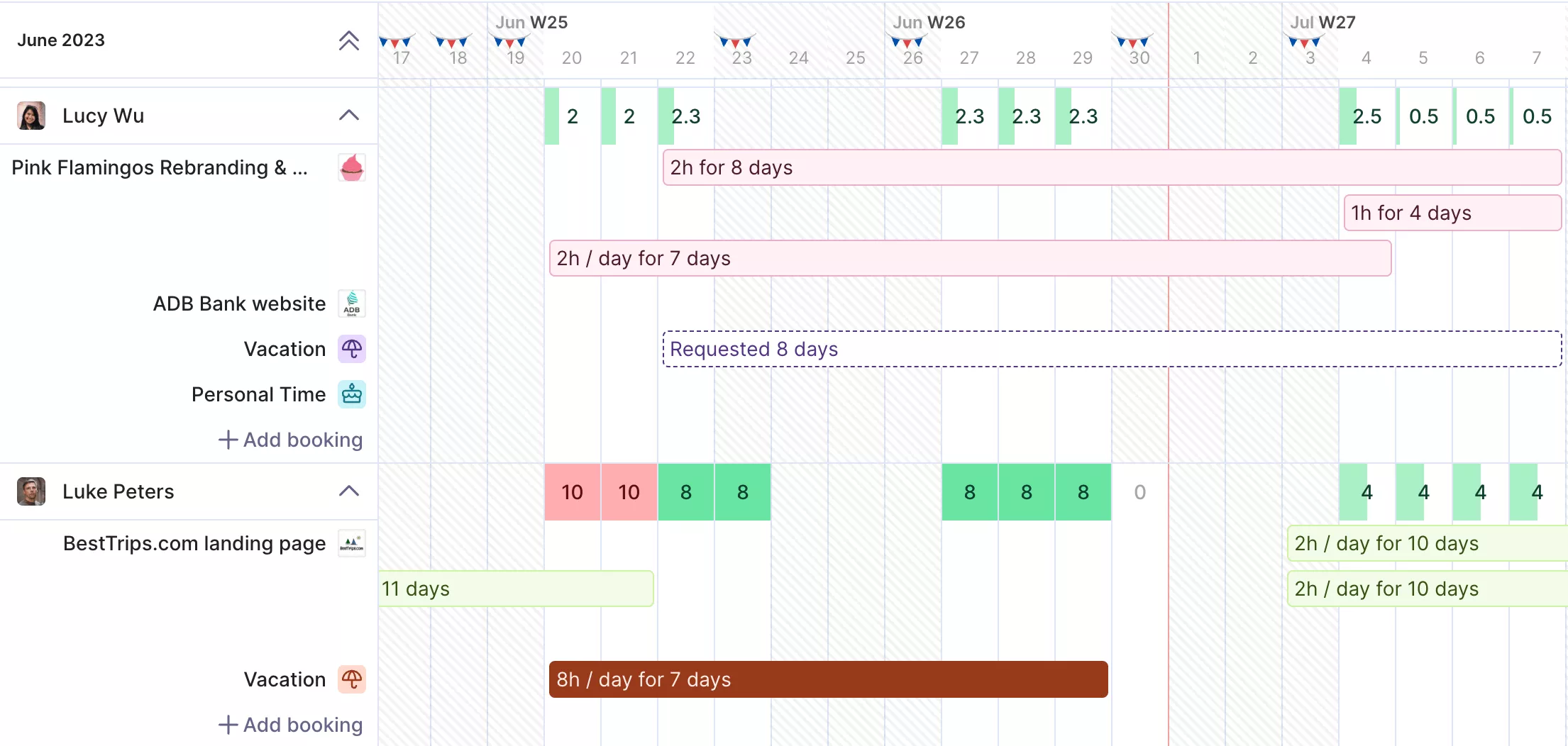
Make and adjust your resource plans in real-time.
Make Recurring Work Predictable With Templates and Automations
Recurring workflows break down when someone has to rebuild the same checklist every month for dozens of clients. Productive helps you standardize repeatable services with Project Templates, so new projects start with the right structure from day one.
If workflow automation matters, Productive Automations can trigger actions based on events, like a deal closing or a task being completed. Start with a few rules that remove the most recurring admin tasks.
These automation features are most useful when they reinforce your process, not when they create busywork.
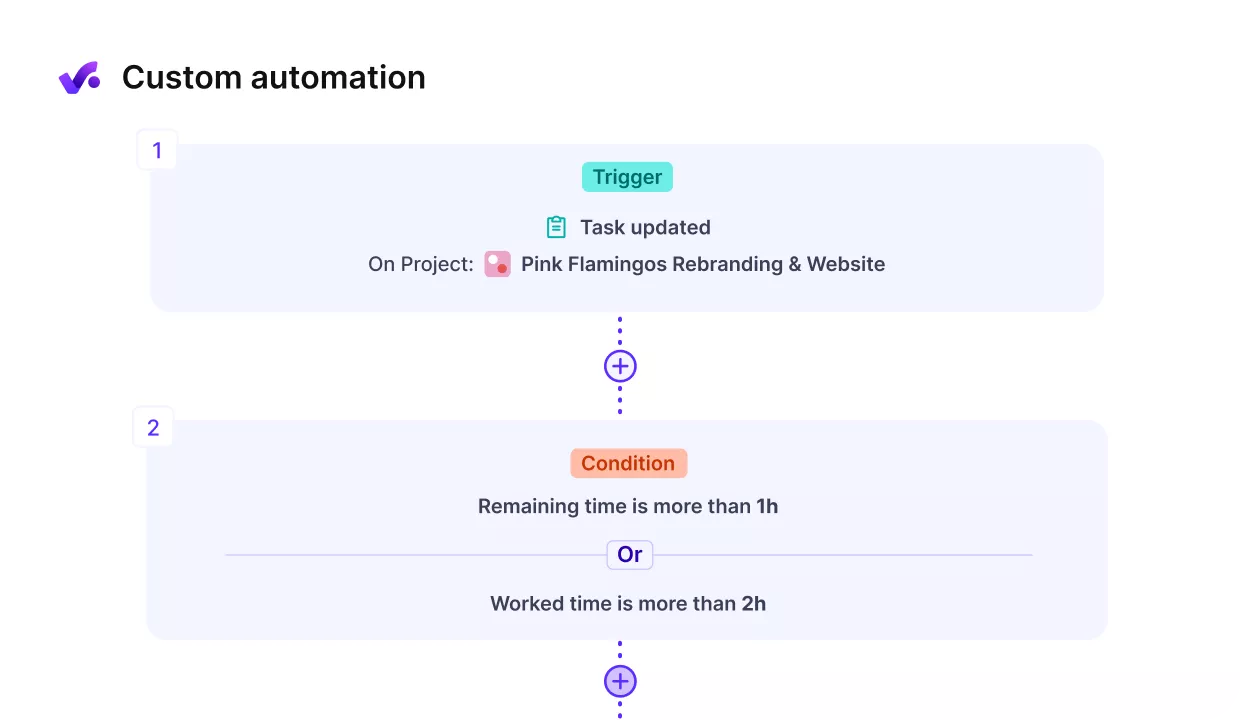
Cut out repetitive admin work with Productive.
Track Budgets in Real Time So Scope Creep Is Visible
If you run retainers or fixed-scope packages, you need a live view of burn, not a month-end surprise. In Productive, you can track time and expenses against budgets as work happens and set budget threshold alerts to catch overruns early.
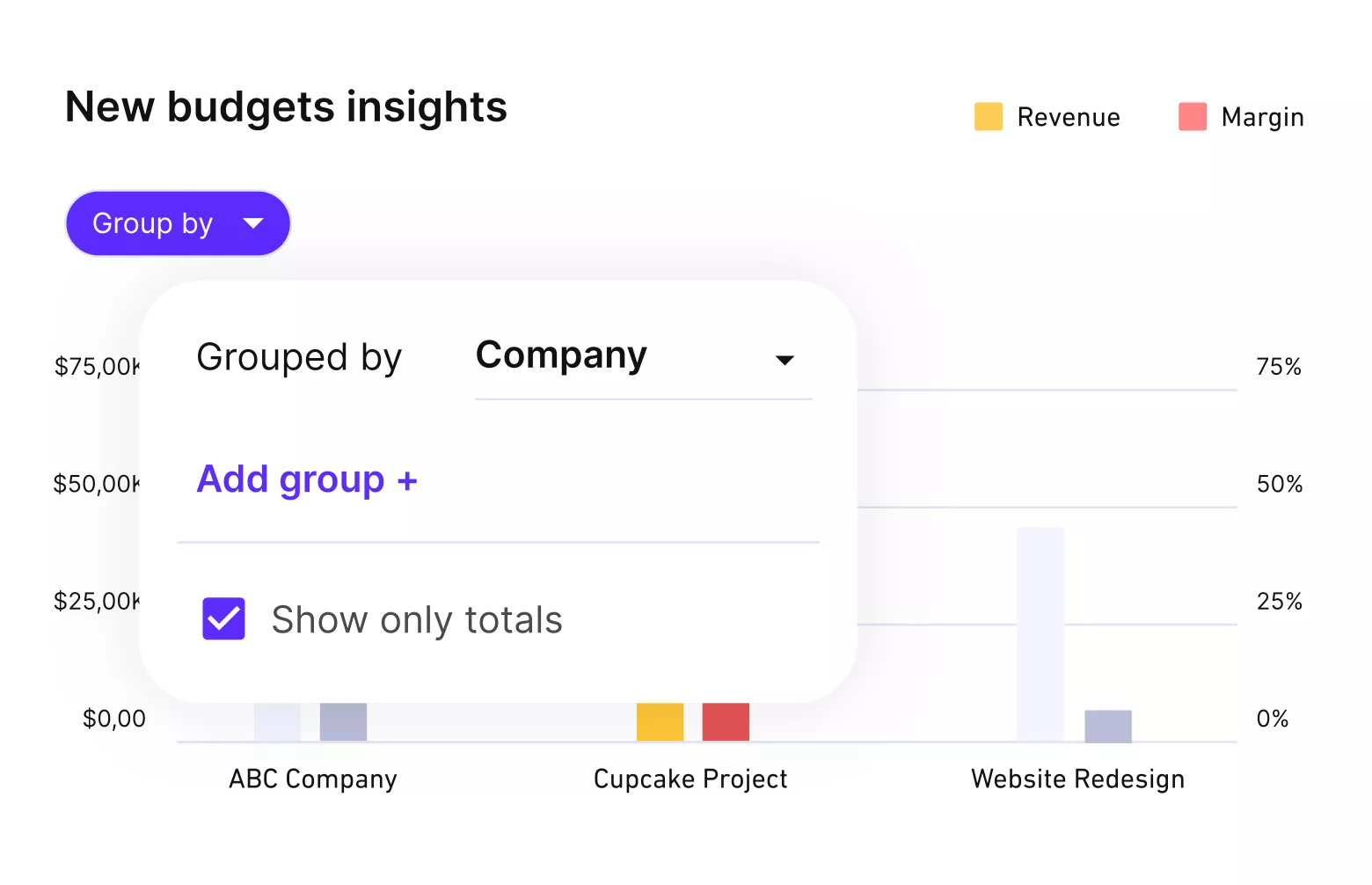
Get real time updates on your profitability and budgets.
This is where Productive budgeting helps. You can see burn and margin trends without waiting for month-end. For longer engagements, Scenario Builder can support profitability forecasting so risks show up earlier.
Separate Retainer Work From Ad-hoc Requests so Extras do not Disappear
Ad-hoc work is where revenue leaks, especially when recurring billing is involved. “Quick questions” and one-off requests often get handled, then forgotten, because they are not tracked to the right bucket.
In Productive, a single project can include multiple budgets. That makes it easier to keep retainer work separate from extra work, and to log time against the right service and billing type. The result is a clearer boundary between what is included and what should be billed as an add-on.
Handle Multi-Currency Without Manual Conversion Workarounds
If you work across contract and invoicing currencies, rigid setups force manual workarounds. Productive supports multi-currency operations by letting you set an organization default currency while creating budgets and invoices in different currencies.
Exchange rates are automatically applied based on the entry date, which supports cost and profit tracking without manual conversions.
Produce Client-Ready Reporting Without Rebuilding It Every Month
When reporting is slow, teams fall back to exports. Productive includes a reporting library for core metrics like profitability by client, team utilization, and new time entries.
Real-time reports matter because partners can answer “what is stuck” without rebuilding a view each time.
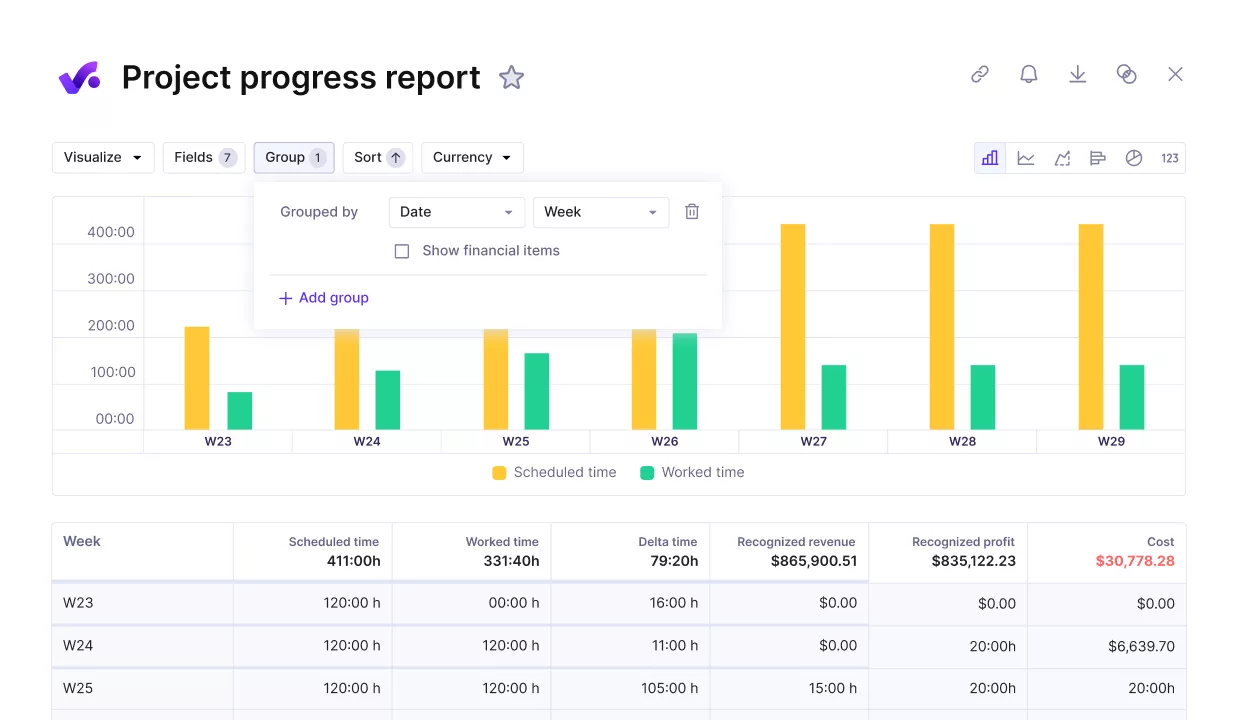
Measure progress agains key performance metrics.
Pricing
- Plans start with the Essential plan at $10 per user per month, which includes essential features such as budgeting, project & task management, docs, time tracking, expense management, reporting, and time off management.
- The Professional plan includes custom fields, recurring budgets, advanced reports, billable time approvals, and much more for $25 per user per month.
- The Ultimate plan has everything that the Essential plan and Professional plan offer, along with the HubSpot integration, advanced forecasting, advanced custom fields, overhead calculations, and more. Book a demo or reach out to our team for the monthly price per user.
You can go for a free 14-day trial before you decide to check out a paid plan.
Try the All-in-One KarbonHQ Alternative for Accounting Firms
Keep task management, capacity planning, and profitability reporting connected, so nothing slips at month-end close.

2. TaxDome – Best for Client Portals and Tax Workflows
TaxDome is a strong fit for tax and CAS firms that want client messaging, documents, and repeatable workflows in one place, but it can take real time to set up well. Many accounting firms use it to keep client communication and document requests tied to the same workflow.
Key Features
- Client portal for document exchange, messages, and signatures
- Workflow automation using pipelines, tasks, and templates
- Document management and requests tied to client records
- Proposals, invoicing, and payments inside the same platform
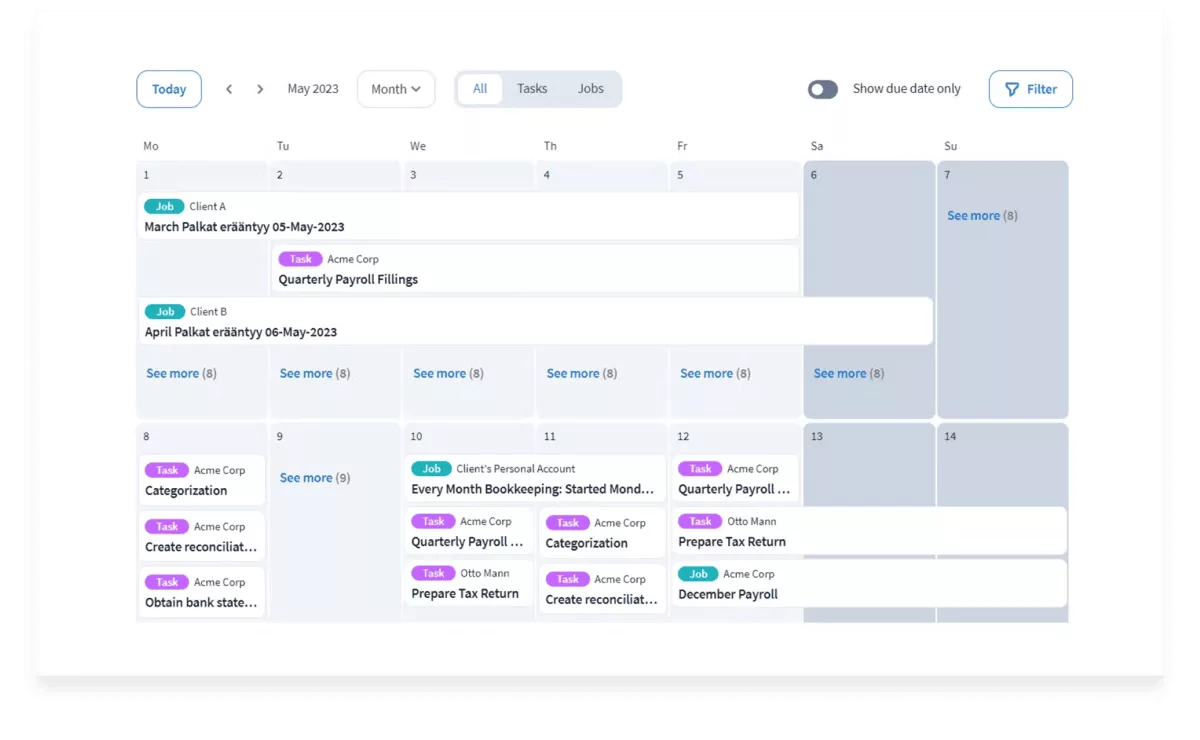
SOurce: taxdome
Pros
- The portal tends to reduce back-and-forth since requests, uploads, and signatures stay in one place
- Automation and templates help standardize recurring work so staff do not rebuild the same checklists every month
- Having projects, client data, and communication in one system helps reduce scattered updates across tools
- Support is frequently praised, which matters during onboarding and workflow setup
Cons
- Setup can feel heavy at the start, especially if you need to build multiple pipelines and templates during a busy period
- Some teams hit limitations or friction in billing workflows and payment handling, depending on how they invoice clients
- If clients self-register, firms report occasional duplicate accounts that create cleanup work
- Feature depth can be uneven across modules, so you may still keep a specialist tool for a few edge cases
Final Verdict
TaxDome is not the right pick if you need a tool you can roll out in a week with minimal configuration and still get consistent workflow results. It pays off when you invest in pipelines and templates, but that upfront build effort is hard to avoid.
3. Canopy – Best for Client Requests and Document Tracking
Canopy works well when you want client requests, documents, and task handoffs to live inside a single workflow hub, not scattered across inboxes and shared drives. It is a practical option for accounting firms that want stronger client management around requests and documents.
Key Features
- Secure client access for document sharing
- Workflow and task tracking for recurring work
- CRM-style client management and profiles
- Time & Billing with payments support
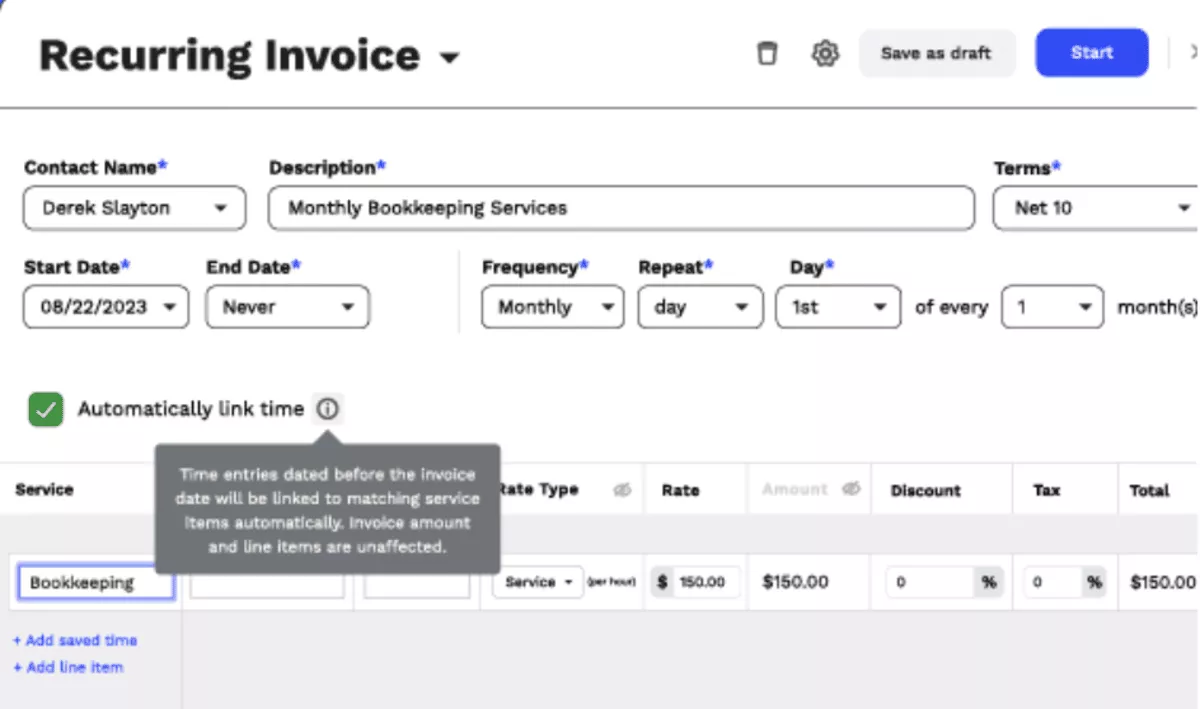
SOurce: canopy
Pros
- Centralizing client updates, tasks, and documents can cut down on “where is that file” follow-ups
- The workflow automation tools help standardize recurring jobs across staff without reinventing checklists
- The interface feels approachable, which can lower training drag for new hires
- The platform covers a lot of firm operations in one place, so fewer systems need to be stitched together
Cons
- Document workflow can feel clunky for some teams, especially when editing or working with attachments
- Initial setup and migration may take longer than expected if you are rebuilding templates and client records
- Performance complaints come up in reviews, like slow navigation or lag when moving between screens
- Reporting and insights can be limiting for firms that want deeper, partner-ready views without exports
Final Verdict
Canopy is a poor match if you need fast, polished document workflows and heavy reporting from day one. It shines when you want a single place to run client management, practice management workflows, and collaboration, and you can live with a few rough edges.
4. Financial Cents – Best for Lightweight Practice Management
Financial Cents is built for accounting firms and bookkeeping teams that run recurring work and want a single place to see what is due, what is stuck, and who owns it. It is a practical pick when you want lightweight practice management without a long setup project.
Key Features
- Workflow templates for recurring bookkeeping and tax services
- Tags and status views to track progress across clients
- Client access for document requests, uploads, and reminders
- Gmail and Outlook email integration to turn emails into tasks
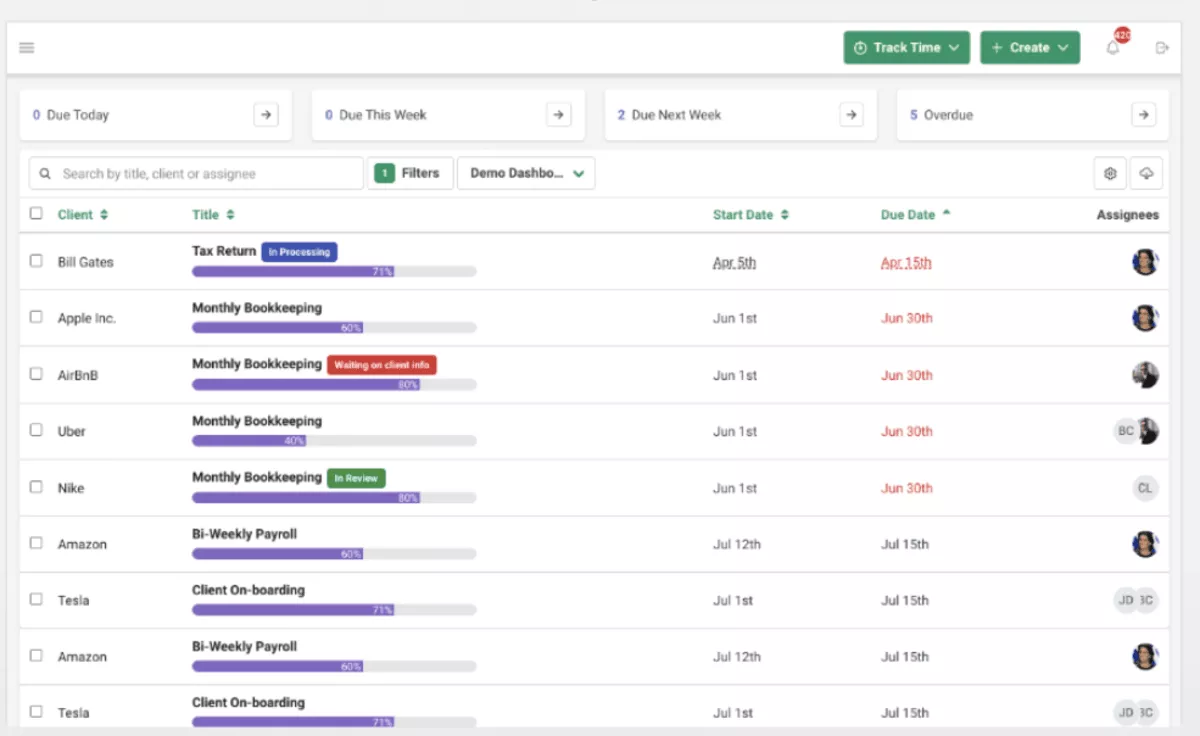
SOurce: Financial Cents
Pros
- Tags and workflow views make it easier to spot blocked work before deadlines pile up
- Templates help standardize repeatable processes, so staff are not rebuilding checklists every month
- Email-to-task workflows can reduce ad hoc requests getting buried in personal inboxes
- Support and onboarding get strong praise, which matters if you are changing how the whole firm tracks work
Cons
- Pricing can feel steep for smaller firms, and some functionality is positioned as an add-on
- A few users mention bugs or rough edges that show up when the team is moving fast
- Email features are not always a full replacement for a dedicated shared inbox, depending on how your firm triages messages
- Reporting depth may not satisfy partners who want more advanced insights without exporting data
Final Verdict
Financial Cents is not the right tool if you want deep customization or partner-ready reporting without extra layers. It is a strong workflow backbone for recurring work, but the cost can be hard to justify if you only need a simple checklist tool.
5. Jetpack Workflow – Best for Deadline-Driven Tax Work
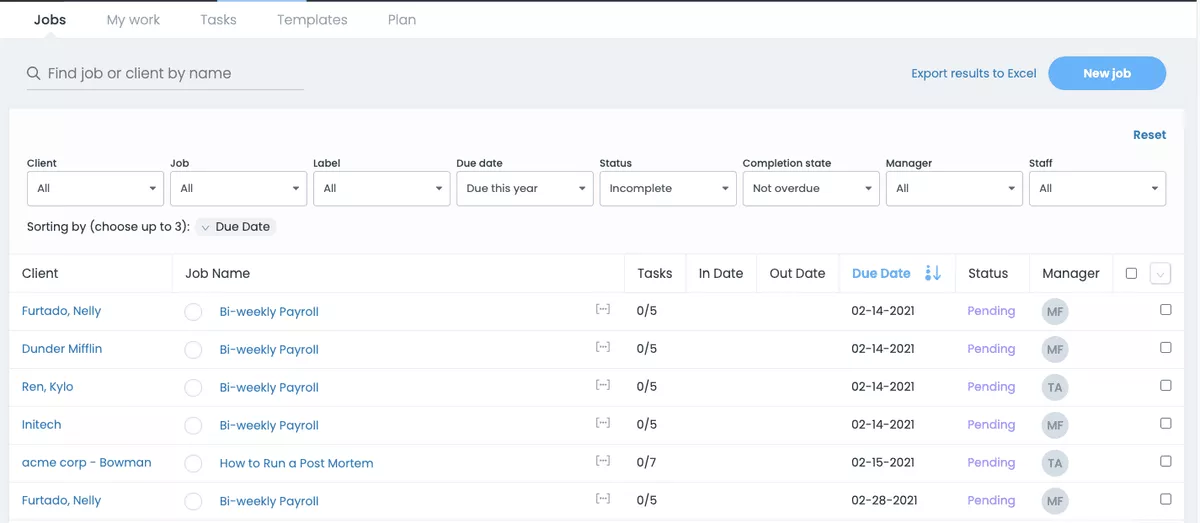
Jetpack Workflow is a focused system when deadlines, repeatable templates, and keeping work from slipping through the cracks matter most. It is quick to learn, but it stays in a narrow lane, so many teams pair it with other tools for client updates and broader practice management.
Key Features
- Workflow templates for recurring services and deadlines
- Repeating jobs so a process can auto-create future work
- Views for past due work, due this week, and upcoming work
- Client list with custom fields and bulk project creation
SOurce: Jetpack Workflow
Pros
- Setup usually feels quick, which helps when you need to train staff before busy season
- The interface feels straightforward for day-to-day deadline tracking during busy season
- Tags and accountability features help teams stay aligned on what is due and who owns it
- Customer support is often called responsive and helpful
Cons
- Some teams outgrow it once they need CRM-style workflows, shared email visibility, or deeper reporting
- Template flexibility can feel limited if your processes vary a lot by service line or partner preference
- If you need a dedicated mobile app experience, some reviewers say it does not meet that expectation
- It is more internal work tracking than a full client-facing experience, so you may need another layer for client coordination
Final Verdict
Jetpack Workflow is not a great fit if you want one platform for workflow, CRM, and client coordination, or if you expect heavy customization. It works best as a simple, deadline-driven engine for recurring work.
6. Xero – Best for Replacing QuickBooks-Style Accounting
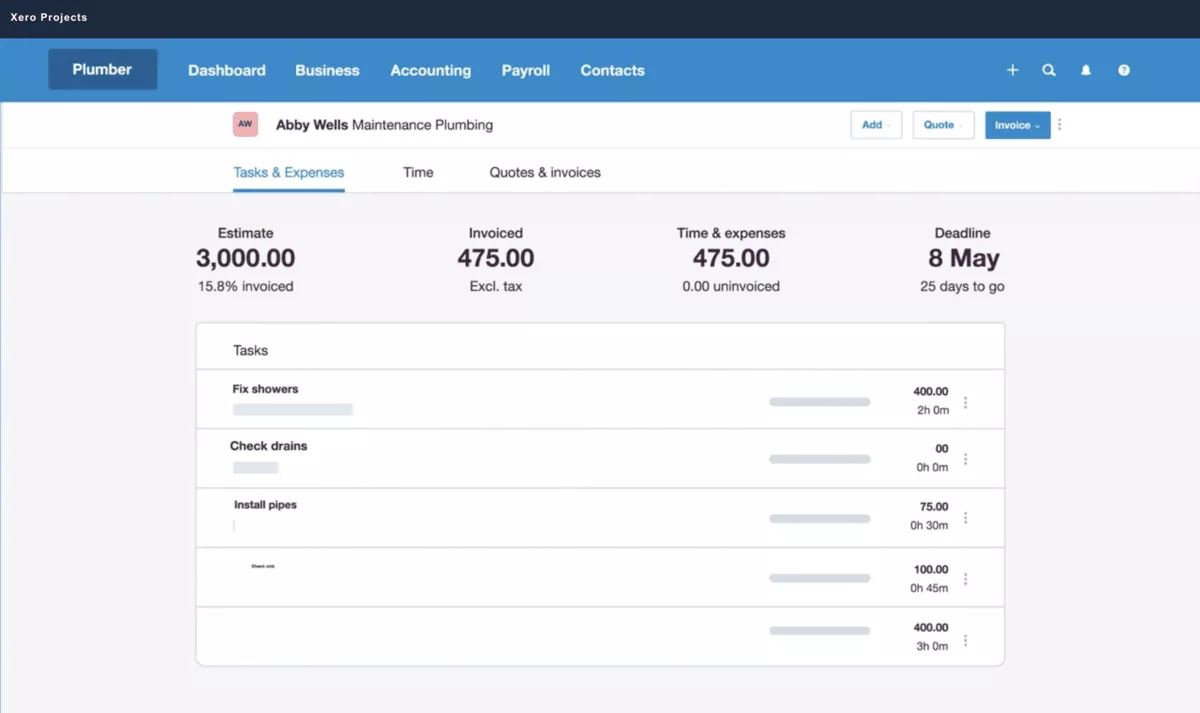
Xero is accounting software you pick when the real goal is to replace QuickBooks and clean up your bookkeeping, invoicing, and bank reconciliation. It will not cover Karbon-style workflow tracking, so treat it as the accounting layer, not your practice management hub.
Key Features
- Bank feeds and bank reconciliation to match transactions against invoices and bills
- Online invoicing with reminders and payment options
- Expense claims with receipt capture in the mobile app
- Financial reporting, such as profit and loss and balance sheet
SOurce: Xero
Pros
- Bank reconciliation is a strong point, especially if you work from daily bank feeds
- Day-to-day navigation tends to feel simpler than QuickBooks once you are set up
- Invoicing, payment tracking, and expense tracking are straightforward once the chart of accounts is set up
- Collaboration with an accountant or bookkeeper is a common bright spot for teams that do not want email-only handoffs
Cons
- Navigation can feel awkward if you do not open pages in new tabs, and some users describe getting “lost” and having to backtrack
- Reporting date filters and dropdowns come up as clunky in reviews, especially when you need quick, repeatable reporting runs
- Import limits and formatting requirements can create extra admin work when you are cleaning up data or posting journals
- It does not solve workflow tracking for client work, so you may still need a separate practice management system
Final Verdict
Xero is the wrong choice if your main goal is replacing Karbon’s client workflow and internal work tracking, because it is not built for that job. It is a solid QuickBooks replacement for accounting, but you will still need another tool to run delivery.
7. Wave – Best for Free Accounting Basics
Wave is a free accounting and invoicing option that helps you get invoices out the door and keep simple books without paying for software. It is not a Karbon replacement, and it starts to feel tight once you need multi-client workflow tracking, multiple businesses, or dependable live support.
Key Features
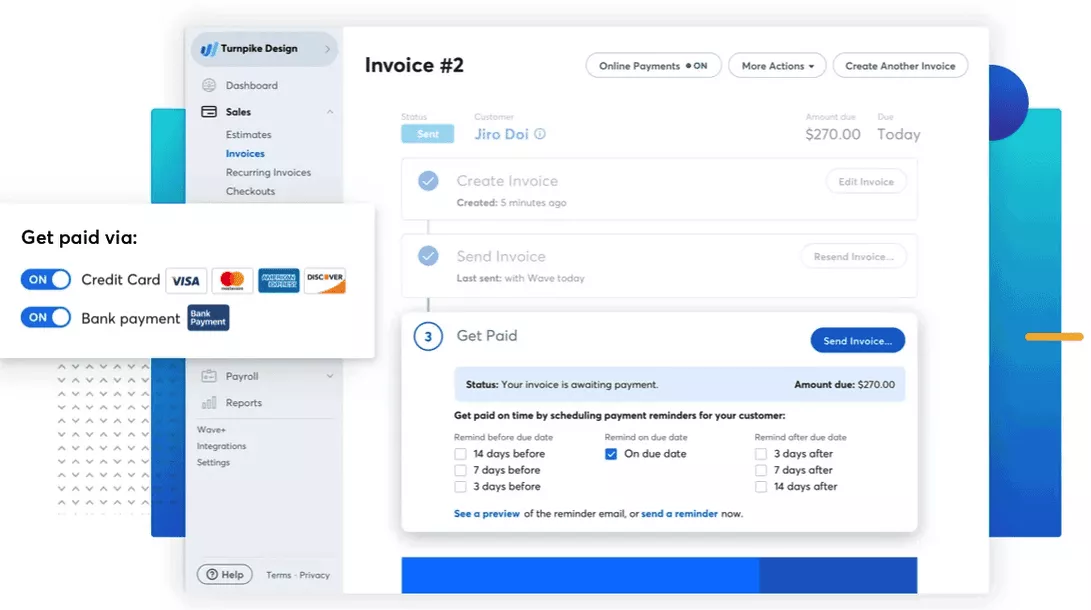
- Create and send invoices, plus estimates, from one place
- Accept online payments from invoices
- Track income and expenses using double-entry accounting
- Scan and store receipts for expense tracking
SOurce: wave
Pros
- The free option is a real starting point, which helps if you want to set up invoicing and bookkeeping before you commit to paid software
- Invoice creation is frequently described as quick, and saved customer info speeds up repeat invoicing
- It covers the basics in one place: invoicing, payments, and accounting reports, without a long onboarding process for small bookkeeping teams
- For solo operators, it can be “good enough” to keep books clean until the business outgrows the setup
Cons
- The free version is often called basic and limiting, especially once you need more advanced workflows or reporting
- Live support is a common complaint for free users, who may be pushed toward self-serve help
- Some reviewers mention account restrictions that can temporarily block invoicing or payments, which is risky if cash flow depends on Wave
- Bank connectivity and syncing get mixed feedback in reviews, so you may need manual cleanup
Final Verdict
Wave is a bad fit if you need workflow tracking for client work or you cannot risk interruptions in invoicing and payments. It works best as a free accounting baseline for very small businesses, then gets replaced or paired as the workload grows.
Why Are Teams Looking for KarbonHQ Alternatives?
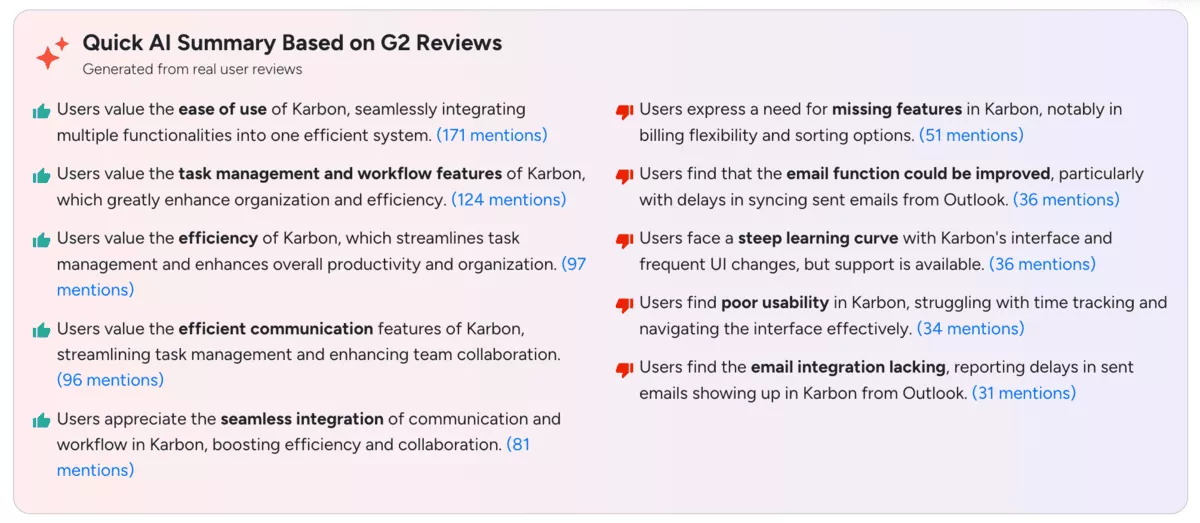
Teams look for KarbonHQ alternatives when the inbox becomes the task list and workflow tools are not keeping accounting workflows contained: staff are forwarding client emails, chasing attachments, and re-asking the same questions because requests and files are not tied to a job with a clear owner and due date.
As the client list grows, partners lose a clear view of what is overdue, what is blocked, and what is at risk next week.
KarbonHQ G2 review
Here are the clearest signals your workflow system is not containing the work:
- Email communication becomes the workflow. Requests, approvals, and “can you resend that” follow-ups live in personal inboxes, so work gets missed when someone is out or busy.
- Document handling creates drag. Files are spread across drives and portals, versions get messy, and staff waste time hunting for the latest attachment instead of moving the job forward.
- Reporting does not answer partner questions fast. When someone asks “what is stuck” or “what is at risk,” you end up exporting to spreadsheets because the view is not clear enough.
- Recurring work is harder to standardize than it should be. Templates feel rigid or inconsistent, so every team member ends up running the same service slightly differently.
- Capacity planning is still guesswork. You can see what is due, but you cannot easily see workload by person, upcoming bottlenecks, or what needs rebalancing before deadlines slip.
How To Choose a KarbonHQ Replacement?
You should choose a KarbonHQ replacement by listing your top two recurring services, writing the exact steps and owners for one real job, then shortlisting tools that can run that workflow end to end (task ownership, due dates, client requests, document workflow, and a status view partners can trust) without exporting to spreadsheets.
Use the steps below to narrow options quickly and focus on workflow optimization instead of a feature comparison rabbit hole. Basically, in the selection process, you’re comparing workflow tools and workflow management, not shopping for the longest checklist.
Step 1: Map One Real Workflow End to End
Pick one repeatable process, such as a 1040, a month-end close, or client onboarding. Use the same test to compare workflow automation, task management, and whether the team can work from a Kanban Board view when needed. Write the steps as they happen today, including who owns each step and where the work usually stalls.
If you do month-end closing for multiple clients, include the exact handoffs where work usually gets stuck. This gives you a baseline to test tools with real workflow components, not vague demos.
Step 2: Decide What Must Live in the System
Be explicit about what you want centralized: task ownership, task management, client records, document management, and a client portal, or only internal work tracking. Decide how client communication will be handled, and what should become a task versus what stays in email. If you rely on Time & Billing, confirm how time tracking connects to invoices and reports.
If you want a quick refresher on common billing setups, use our guide to project billing basics. If the tool cannot keep your core work and client context together, you will fall back to email and spreadsheets.
For a deeper look at time tracking and invoicing options, see our roundup of the best time and billing software.
Step 3: Stress-Test Visibility and Reporting
Open a demo account and try to answer two partner questions in under a minute: what is overdue, and what is at risk next week. Look for real-time reports that let you filter by owner, client, and service without rebuilding the view.
If you cannot get a clear view without exporting, the reporting will not get better after implementation. If you are rebuilding your reporting habits at the same time, our guide to agency accounting fundamentals breaks down the core reports service businesses rely on.
Step 4: Verify Permissions, Integrations, and the Rollout Path
Check user permissions for partners, managers, and staff, and confirm the third-party integrations you actually rely on. If your firm also sells advisory work and wants a CRM baseline, our consulting CRM guide can help you map what should live in the pipeline versus the workflow tool.
Then run a small pilot with two or three people for two weeks to see adoption, template fit, and data capture quality before switching the whole team. Decide what “good data capture” means in practice, like when time is logged, how ad-hoc requests are tagged, and where documents live.
How to Migrate From Karbon HQ?
Migrate from Karbon HQ by treating it as a workflow rebuild of your accounting workflows, not just a data export. If you want to align the rollout with the reports partners actually need, our guide to agency accounting workflows and reporting tips can help you define what should be visible week to week.
For accounting firms, the safest rollout is phased, so the team does not lose track of deadlines mid-month. Start with a pilot team, rebuild your workflow templates first, and move active engagements in phases so you do not blow up busy season.
Migration and Rollout Checklist
- Export client records, open jobs, and any templates you can reuse, then clean up naming so the new system does not inherit chaos
- List your core workflow components for each service line, then choose one standard version to implement first
- Assign an owner for setup, templates, and user permissions so decisions do not stall mid-migration
- Rebuild workflow templates for your top two recurring services, then test them with real work before importing everything
- Set up onboarding workflows and a client-facing access area if you plan to use one, including how you will handle document requests
- Configure email and calendar connections, then define the rule for what becomes a task versus what stays as a message, and how you will handle data capture for ad-hoc requests
- Import active work only, and leave completed history for later, so the team starts with a clean queue
- Run a two-week parallel period where the pilot team tracks work in the new tool and checks results against the old system, including month-end closing deliverables
- Train the wider team using one workflow walkthrough per service line, not a generic feature tour
- Do a post-rollout review after week two, then adjust templates and data capture rules before you migrate the next group
Final Thoughts
The tools we’ve discussed are worth the change if your current system forces too much work into email, hides ownership, or turns reporting into a manual export project.
In most teams, the real win comes from picking a platform that keeps workflow management, time tracking, and reporting connected.
If you want a true all-in-one approach, Productive is the most complete option on this list because it connects delivery, resourcing, and financial visibility in one place.
Book a short demo and get started today.
Connect With Agency Peers
Access agency-related Slack channels, exchange business insights, and join in on members-only live sessions.
