How To Calculate Resource Capacity (+Free Planning Template)

Project managers who plan work only around contracted hours and do not factor in national holidays when considering resource capacity, or sick days and last‑minute changes when assessing availability, rarely get a clear picture of how much time the team can actually work.
In this guide, you will learn what resource capacity is, how to calculate it, and best practices for using it in your resource planning. You will also see which tools can help you keep capacity and workload aligned, and you will receive a free capacity planning template you can use for your team.
Key Takeaways
- Calculate resource capacity with simple inputs: use hours per day, and national holidays to see the total contracted hours each person can work in a week.
- Compare availability with resource demand: line up weekly availability against the billable and non-billable hours you plan to schedule to see who is fully booked, overloaded, or underused.
- Keep an eye on billable utilization: track what share of people’s scheduled hours are billable, so you can balance healthy margins with a sustainable workload for your team members.
- Use tools to manage resource planning: move beyond static spreadsheets and adopt dedicated capacity planning tools to keep capacity, scheduled work, and utilization up to date in one place.
What Is Resource Capacity?
Resource capacity is the total number of working hours your team is contracted to work in a given period, adjusted for national holidays that reduce the working calendar for everyone.
You can express resource capacity as:
- Total hours your team members can work in that period
- The number of people you effectively have available
- FTEs (Full Time Equivalents)
An FTE is a way to combine different working arrangements into a single unit so you can compare people more easily. One FTE equals one full-time person in your company.
For example:
- If full-time is 40 hours a week, someone working 40 hours is 1.0 FTE.
- Someone working 20 hours is 0.5 FTE.
- Two people at 0.5 FTE each give you roughly the capacity of one full-time person.
Simply saying “we have five people on the team” does not tell you much. One person might be on parental leave, another might be working part-time, and another might be a contractor for only three days a week. Resource capacity planning helps you turn that mix into a clear number of hours you can actually plan around.
When you calculate resource capacity correctly, you consider who is available, how many hours they can give you, and how those hours add up over the capacity planning period.
Availability then takes you one step further by showing how many of those hours remain after accounting for individual absences, and that is the number you will actually compare with scheduled work when you plan resource capacity.
In the next section, we will walk through how to calculate capacity and convert it to weekly availability that you can use in your capacity planning strategies.
How To Calculate Resource Capacity?
You calculate resource capacity by multiplying the number of hours a person is contracted to work in a given week by a factor that accounts for national holidays.
Pick the working week you want to plan. For each person, note three simple things that determine weekly capacity:
- How many working days are they scheduled to work that week
- How many hours count as a full working day for them (for example, 8 hours)
- Whether that week includes any public holidays
These three points are everything you need for weekly capacity calculation.
The formula for calculating weekly capacity is:
Weekly Resource Capacity = (Working Days × Hours per Day) − Hours Lost to National Holidays
For example, if someone is scheduled to work 5 days a week, works 8 hours per day, and there is one national holiday that removes 8 hours from the working week:
| Weekly capacity example | Hours |
|---|---|
| Working days | 5 |
| Hours per day | 8 |
| Total contracted hours | 40 |
| National holiday | 8 |
| Weekly capacity | 32 |
How To Calculate Resource Availability?
Once you have calculated weekly resource capacity, the next step is to calculate availability, which shows how many of those hours can actually be used after absences.
Once you know the weekly capacity, the next step is to adjust it for individual absences.
The formula for calculating weekly availability is:
Weekly Availability = Weekly Capacity − Absence (Vacation/Sick Leave)
You already calculated weekly capacity in Step 1. Now subtract absence (vacation/sick leave) to see how many hours they can actually work that week.
For example, imagine someone is contracted for 40 hours a week, and there is one national holiday that reduces working time by 8 hours. If they also take 1 day (8 hours) of vacation:
| Weekly availability example | Hours |
|---|---|
| Contracted hours in week | 40 |
| National holidays | 8 |
| Weekly capacity | 32 |
| Absence (vacation/sick leave) | 8 |
| Weekly availability | 24 |
So, although this person is contracted for 40 hours, once you account for time off, recurring internal work, and a realistic efficiency rate, you end up with around 24 hours of usable capacity for project work that week.
Scale From One Person to the Whole Team
To calculate availability for a team, you repeat the same steps for everyone:
- Work out each person’s weekly availability using the calculation above.
- Put each person in their own row in your sheet with their weekly availability in hours.
- Sum the availability column to get the total team availability for that week.
In Productive, you can take this further by using the responsive resource planner to see real-time availability across teams and projects in one place. You can also use placeholders for future hires or tentative bookings, so you can account for unconfirmed projects before they become firm.
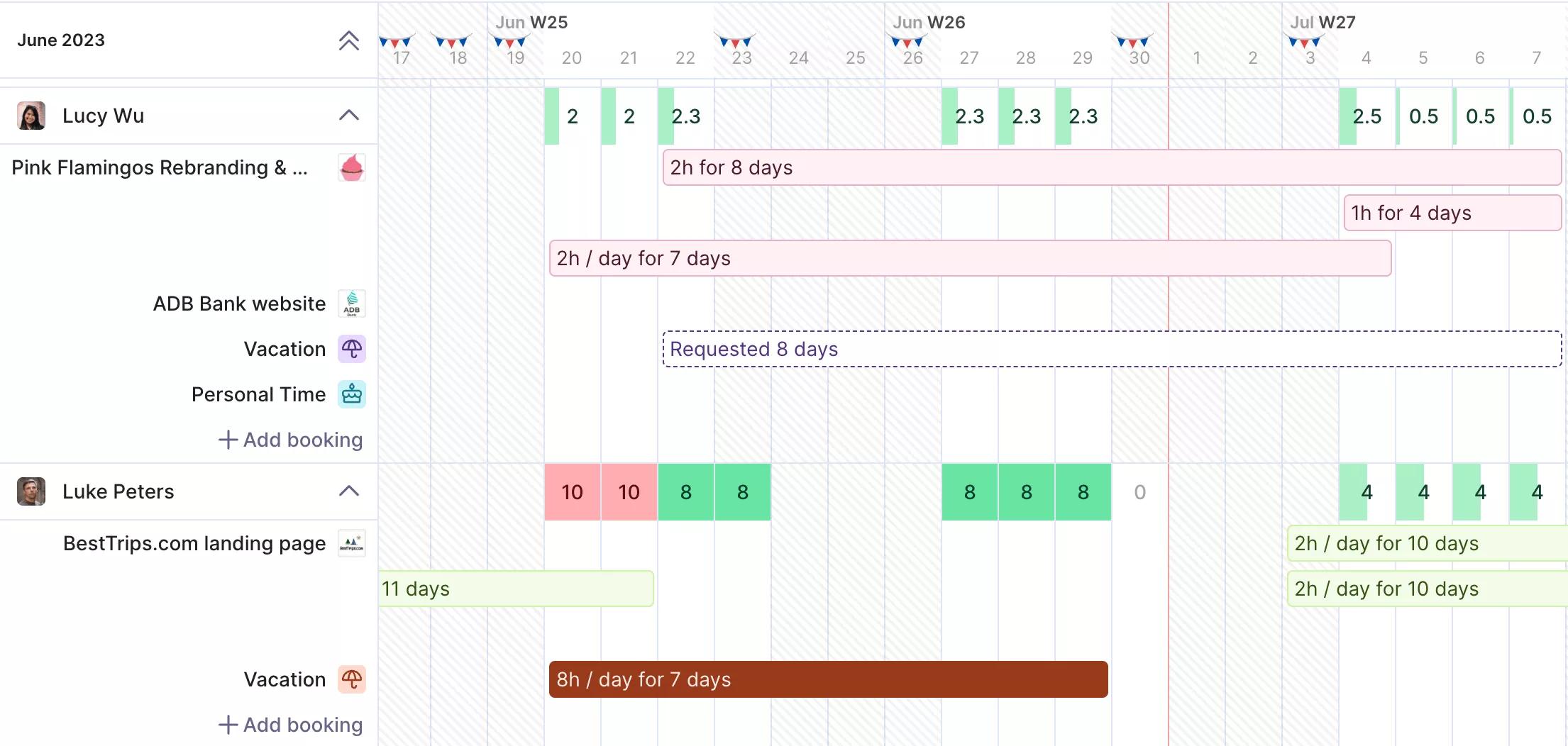
USE PRODUCTIVE TO SEE REAL-TIME AVAILABILITY ACROSS PROJECT PIPELINES.
Plan your team’s availability in Productive
At this point, you have done the core task: you have calculated weekly availability for individuals and for the team. In the next section, you will see best practices for using that availability number in your resource planning.
What Are the Best Practices for Your Capacity Plan?
The best practices for your capacity plan are to compare availability with resource demand, determine billable utilization, and use a capacity planning template.
Together, these practices turn a single capacity number into a practical view of who is busy, who has room, and where resource bottlenecks might appear when the work you have lined up does not fit into the time you have.
In the sections below, we will look at each of these best practices in more detail.
Compare Availability With Resource Demand
Availability on its own only tells you how much time you actually have to work with. To use it in real scenario planning, you need to compare it with resource demand, which is just the scheduled workload for a period. That comparison shows whether the work you want to schedule actually fits into the time you have or will cause overload or underuse.
Resource demand is made up of the billable and non-billable hours you expect each person to spend on client projects and internal work.
Billable hours are the time you can invoice clients, for example, design work for a client’s website or software development. Non-billable hours, as mentioned before, are activities that are not invoiced, such as internal meetings or training you scheduled.
To see how project demand compares to capacity at a weekly level:
- Take the weekly availability you already calculated for each person.
- For the same week, list their scheduled work hours across all project portfolios and internal commitments.
- For each person, subtract total scheduled work from capacity to get the availability vs demand gap.
The formula for calculating availability vs demand gap is:
Availability vs Demand Gap = Weekly Availability – Scheduled Work
Here is a simple example for one person:
| Weekly view | Hours |
|---|---|
| Weekly availability | 24 |
| Scheduled work (billable + non-billable hours) | 20 |
| Availability vs demand gap | 4 |
In this case:
- They have 24 hours of availability and 20 hours of scheduled work.
- With 24 hours of availability and 24 hours of scheduled work, this person is fully booked.
- With 24 hours of availability and 28 hours of scheduled work, you are asking for more than they can realistically deliver in that week.
- With 24 hours of availability and 16 hours of scheduled work, they are clearly underused.
Determine Billable Utilization
Once you know how many hours people have available and how much work you have scheduled, the next question is how much of that work actually earns revenue.
Billable utilization (resource utilization) tells you what share of a person’s total scheduled hours in a period are billable. In other words, it shows how much of their resource demand is actually revenue-generating work.
The formula for calculating billable utilization is:
Billable Utilization = Total Billable Hours ÷ Total Hours (Billable + Non-Billable) × 100
For example, if you schedule 18 hours as billable and 6 hours as non-billable, their billable utilization rate for that week is 18/24, or 75%.
That falls within the typical billable utilization range of 70 to 90 percent for production-level staff and 60 to 80 percent for account management, according to Promethean Research. If resource utilization is too low, you are leaving revenue on the table. If it is too high for too long, people burn out, and quality drops.
Productive visualizes all that data, so you get utilization numbers across different dimensions, such as department, skill sets, or any individual team member.
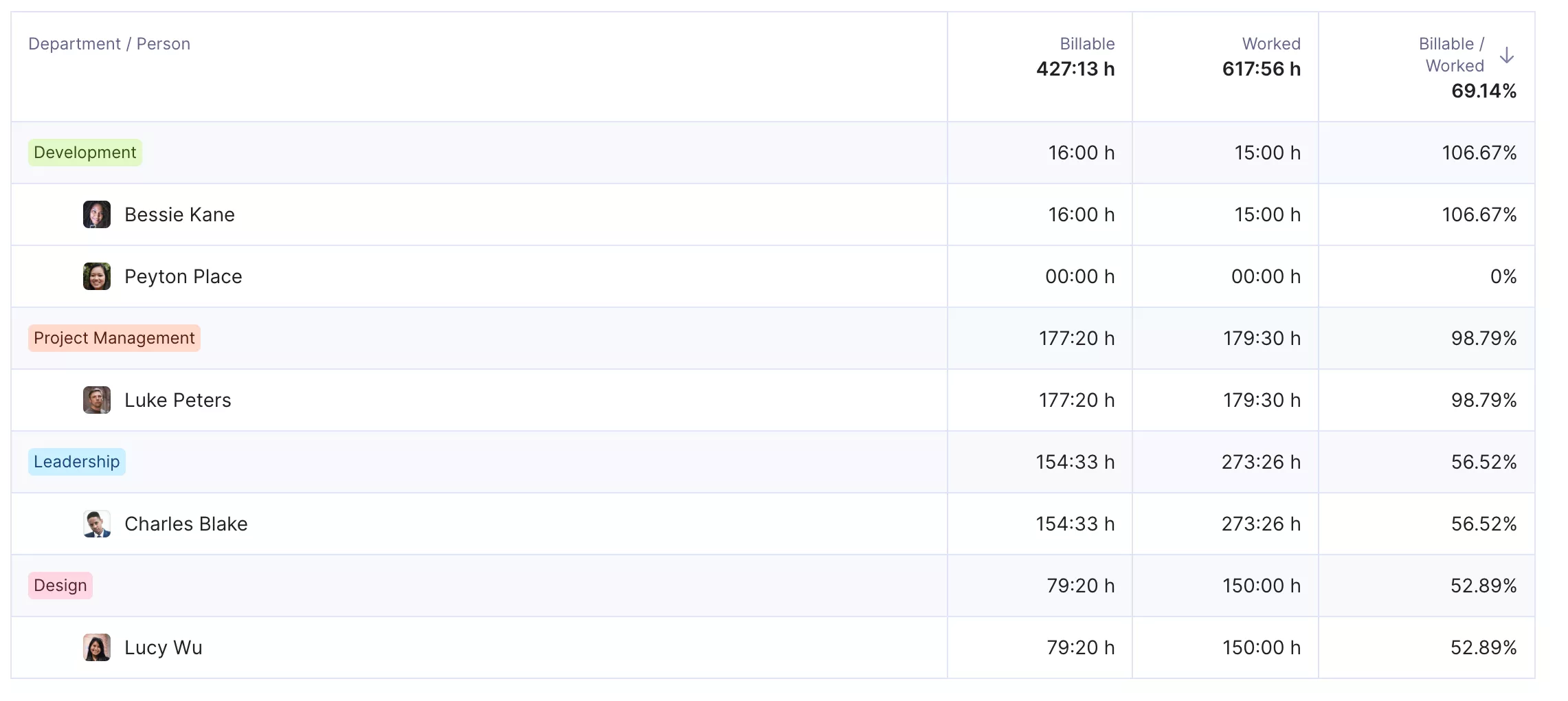
WITH PRODUCTIVE, SEE RESOURCE UTILIZATION ACROSS ROLES.
Within the resource view, you can also forecast resource utilization for any future projects you might have to ensure you can meet project requirements. If you want to see this in practice, read how XWP optimized operations and resource planning with Productive.
Use a Capacity Planning Template
So far, you have looked at capacity utilization and project demand over the entire week. Our capacity planning template uses the same logic, but is broken down by person and day.
Free Capacity Planning Template
Download our template to schedule time for billable vs non-billable tasks, track workloads, and get insights into utilization with preset formulas.

To use the template, you can:
- Enter how many hours each person can work for each day of the week in the Daily capacity column.
- Split each person’s scheduled work for that day into billable and non-billable hours.
Once you fill this out for each person for the month, you can review useful metrics such as total capacity, billable utilization, and team utilization.
Which Tools Can Help With Capacity Management?
Tools that can help with capacity management include all-in-one tools, spreadsheet-style tools, and project management tools.
Most project teams start in a basic spreadsheet because it is familiar and straightforward. That works for a small team and a handful of projects, but it quickly breaks down once you add more people and more work.
Suddenly, there are multiple versions of the same sheet, nobody is sure which one is up to date, and you spend more time updating cells than actual capacity planning. That is when a dedicated capacity planning software stops becoming a nice-to-have tool.
In the sections below, we will explore examples of different tool types that can support capacity management.
All-in-One Tools – Productive
All-in-one tools bring budgeting, project management, time tracking, and resource planning into a single system, so you don’t have to juggle multiple apps.
The best example is Productive, an all-in-one PSA platform that brings capacity planning into the same place as your day-to-day operations.
In the resource planner, you can view overall team availability, then adjust resource allocation with a few simple changes.
You can manage employee time off in the same place, and once a request is approved, it is automatically reflected in your resource planner, so you do not have to update capacity manually.
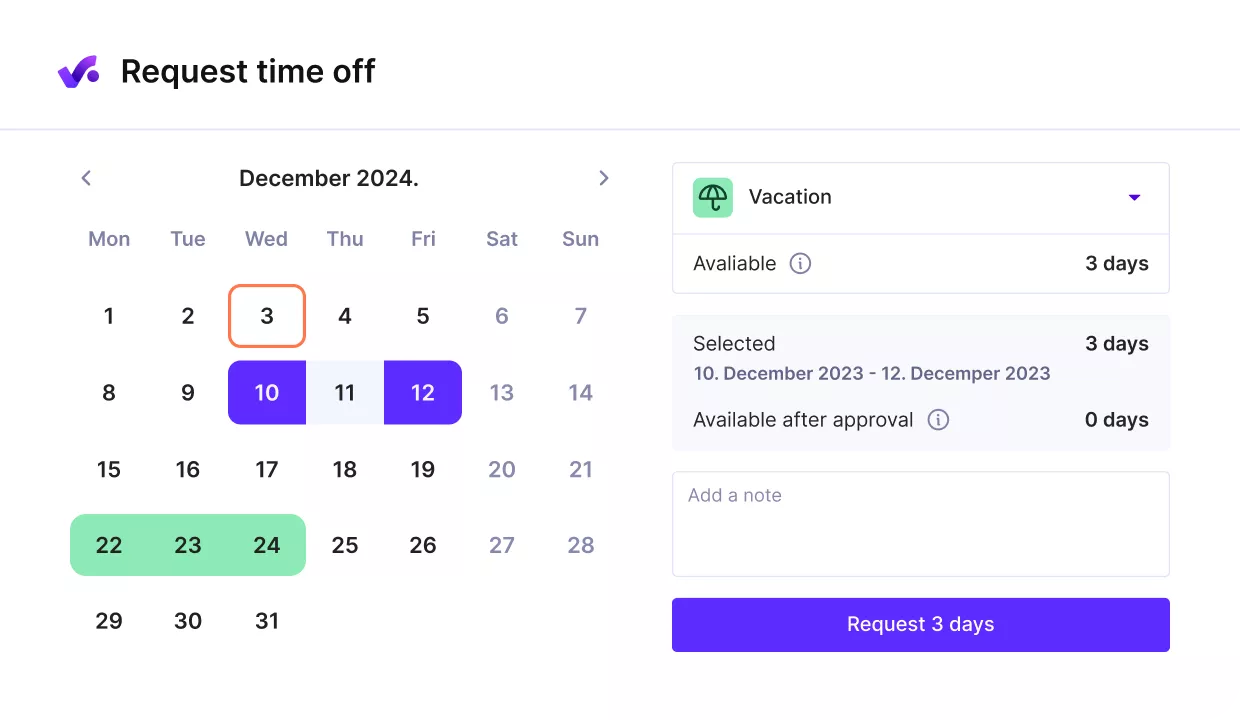
USE PRODUCTIVE TO TRACK TIME OFF AND SEE ITS IMPACT ON availability.
From there, a dedicated time-off view gives you a clear picture of when people are away, making workforce capacity planning for future weeks much more realistic.
Beyond capacity planning, additional features include:
- Budgeting and profitability tracking
- Project management and collaboration
- Integrated time tracking and billing
- Real-time reports with dashboards
- Integrations with industry-standard systems (Google Calendar, Microsoft Outlook, Slack,…)
- No-code automations
Spreadsheet-Style Tools – Smartsheet
Spreadsheet-style tools give you a flexible, grid-based way to organize work and capacity, especially if your team already feels at home in spreadsheets.
Smartsheet is a spreadsheet-like tool with built-in project management features that support basic resource scheduling and capacity planning. You still get the familiar grid layout, but you can layer in project views and portfolio-level capacity planning.
Features include:
- Resource capacity allocation and basic statistical forecasting across projects
- Gantt charts and team timelines
- Real-time collaboration and comments inside sheets
- Built-in reporting and analytics
Smartsheet also includes a library of templates that let you spin up different project setups without starting from a blank sheet each time. The trade-off is that the spreadsheet-like interface can become challenging to manage on very complex projects with many tasks and dependencies.
Project Management Tools – ClickUp
Project management tools are more structured. They are built around projects, tasks, and timelines, making them a natural place to plan who is doing what and when at the team level.
ClickUp is a popular project management tool that can also handle basic resource capacity planning, especially if your team already uses it for day-to-day tasks.
Features include:
- Capacity tracking and resource allocation across tasks and projects
- Custom dashboards, Kanban boards, and workflows
- Collaboration and knowledge-sharing tools
- Time tracking and reporting
ClickUp can define people’s capacity, assign work, and use workload views to see who is overloaded or underused without leaving your central project hub. You can also connect with a wide range of other tools that help keep work flowing across your stack instead of living in silos.
The main limitation is that it does not include in-depth budgeting features, so you will not get advanced financial reporting or forecasting in the same place as your resource capacity planning.
If you want a broader overview of the tool landscape, you can explore our complete list of capacity planning software.
Final Thoughts
Once you know how many hours people realistically have for project work, it becomes much easier to say yes or no to new work, protect your team members from overload, and spot where you still have room in the schedule.
In all of this, resource capacity planning software plays a significant role. These tools can standardize your data, support strategic planning, and simplify your daily workflows.
If you are ready to move beyond spreadsheets and see your capacity in real time, you can book a demo with Productive.
FAQ
What Does Resource Capacity Mean?
Resource capacity means the total number of contracted working hours a person or team has in a given period, minus public holidays. Availability is then subtracted from individual absences, such as vacation or sick leave, to show how many hours can actually be used for project work.
How Do You Measure Resource Capacity and Demand?
Resource capacity is measured by looking at how many hours each person is contracted to work in a given period, excluding public holidays, then summing those hours for the team.
Resource demand is measured by adding up the billable and non-billable hours you plan to schedule for each person across all projects and internal work in that same period.
Is Resource Capacity Derived From FTE or Schedules?
Resource capacity is derived from schedules and working hours, though it can be expressed in either FTEs or hours. FTEs give you a quick way to compare different contracts, while schedules and time off tell you how many hours are actually available in a specific week or month.
Track Team Capacity in Real Time
Productive gives you a single view of capacity, time off, and scheduled work, so you can balance workloads, protect your team, and keep projects profitable.
