Top 9 Glean Alternatives Compared (With Prices & Ratings)

The best Glean alternatives are Productive, ClickUp, Guru, GoSearch, Slite, Microsoft Copilot, Coveo, Notion AI and Bloomfire.
Which fits depends on whether your questions are about live numbers, like budget left, or written policies. To help you pick, we cover features, pros, cons and who should skip each of the nine tools. A comparison table and FAQ follow, so you can cut your shortlist to two tools before booking a demo.
What Are the Best Glean Alternatives in 2026?
The best Glean alternatives in 2026 are Productive, ClickUp, Guru, GoSearch, Slite, Microsoft Copilot, Coveo, Notion AI and Bloomfire. Productive and ClickUp are work platforms whose AI answers from the records they hold. GoSearch and Coveo are enterprise search tools, Copilot is office-suite AI, and the rest are knowledge hubs.
Quick List of Tools Like Glean
How We Chose These Tools
In November 2026, we looked for alternatives to Glean that answer questions from company knowledge or work data. We favored tools that keep answers current in different ways: expert verification, cited sources or live project records.
We ranked them from help docs, pricing pages and recent G2 reviews, without hands-on testing. Productive comes first because it’s our product, and its section still says who should skip it.
Compare Glean Competitors at a Glance
| Tool | Best for | Tool type | Where answers come from | Free plan or trial | Starting price | G2 rating |
|---|---|---|---|---|---|---|
| Productive | Service firms and enterprises wanting one AI workspace | Work platform with AI | Your projects, budgets, time and docs | 14-day free trial | $10/user/mo, billed yearly | 4.7 (106 reviews) |
| ClickUp | All-in-one work management with AI | Work platform with AI | Your tasks and docs, plus connected apps on Enterprise | Free Forever plan | $12/user/mo, billed yearly | 4.6 (15,904 reviews) |
| Guru | Expert-verified company answers | Knowledge hub | Verified cards and connected apps | Not listed | Custom quote | 4.7 (2,345 reviews) |
| GoSearch | Free cross-app search on a small budget | Enterprise search | The apps you connect | Free plan | $8/user/mo | 4.7 (25 reviews) |
| Slite | Writing a team wiki from scratch | Knowledge hub | Your Slite docs | 14-day free trial | $10/user/mo, billed yearly | 4.6 (275 reviews) |
| Microsoft 365 Copilot | Companies already on Microsoft 365 | Office-suite AI | Microsoft 365 files, mail and chats | Add-on to a paid Microsoft 365 plan | $21/user/mo, billed yearly | 4.3 (1,003 reviews) |
| Coveo | Companies with developers to tune AI search | Enterprise search | One index across your business systems | Not listed | Custom quote | 4.3 (141 reviews) |
| Notion AI | Teams already writing docs in Notion | Knowledge hub | Your Notion pages and linked apps | Free plan with an AI trial | €19.50/member/mo (Business, yearly) | 4.6 (14,021 reviews) |
| Bloomfire | Sharing research and training content | Knowledge hub | Your Bloomfire content library | Not listed | Custom fixed quote | 4.6 (521 reviews) |
1. Productive – Best for Service Firms and Enterprises Wanting One AI Workspace
Productive is a platform for agencies, consultancies and enterprise service teams that runs projects, time, budgets, billing and docs. Because everything is in one place, its AI Assistant answers from live records instead of scattered tools.
Try Productive’s AI workspace
Ask About Budgets and Capacity, Get Answers From Live Data
Many questions in service work, like who has room next week, are answered by numbers, not documents.
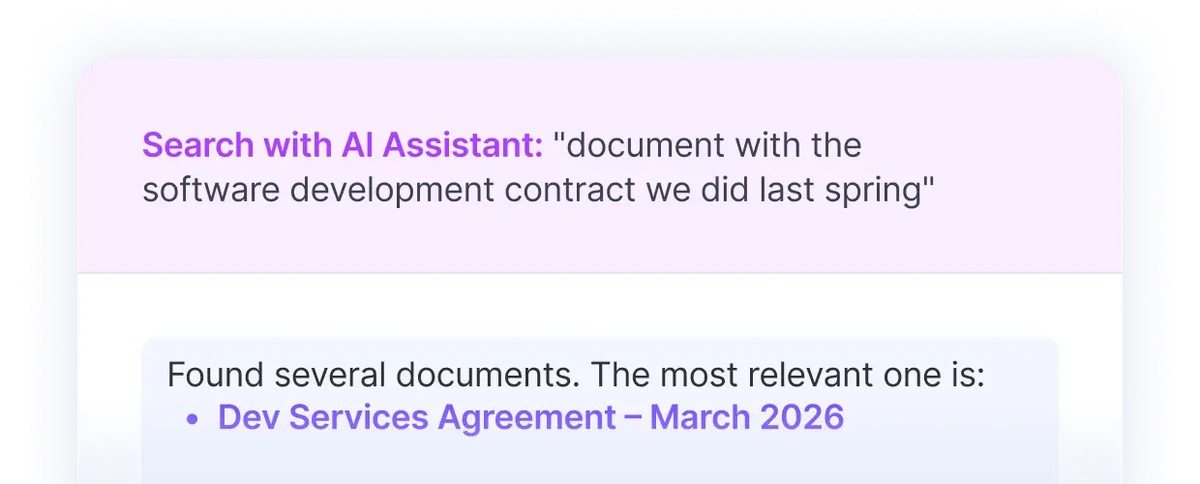
Get instant answers from plain language questions.
You ask the Assistant in plain language, and it searches your docs, tasks, projects, budgets and meetings. It can also build a report from a description, like hours logged per client.
A document about the work goes stale, while the Assistant reads the records the work produces.
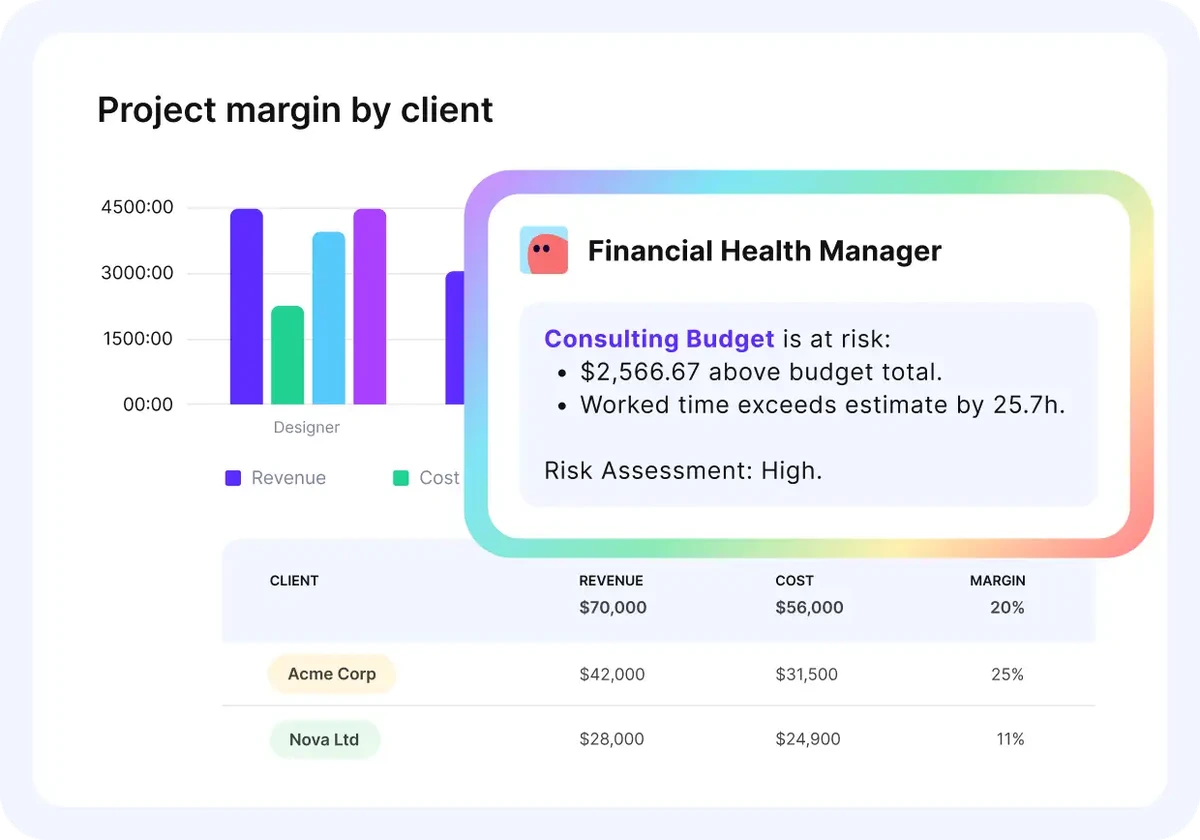
Ask how a project is doing financially and get a summary from live numbers.
AI time tracking also turns calendar events into time entries, so the hours behind each answer stay current.
Hand Recurring Checks to Agents
Chasing task updates and checking budgets by hand eats a manager’s Monday. Productive’s AI agents take over that routine on a schedule or a trigger.
One can tag the budget owner when spending crosses your threshold. Another can ping assignees on tasks nobody updated this week.
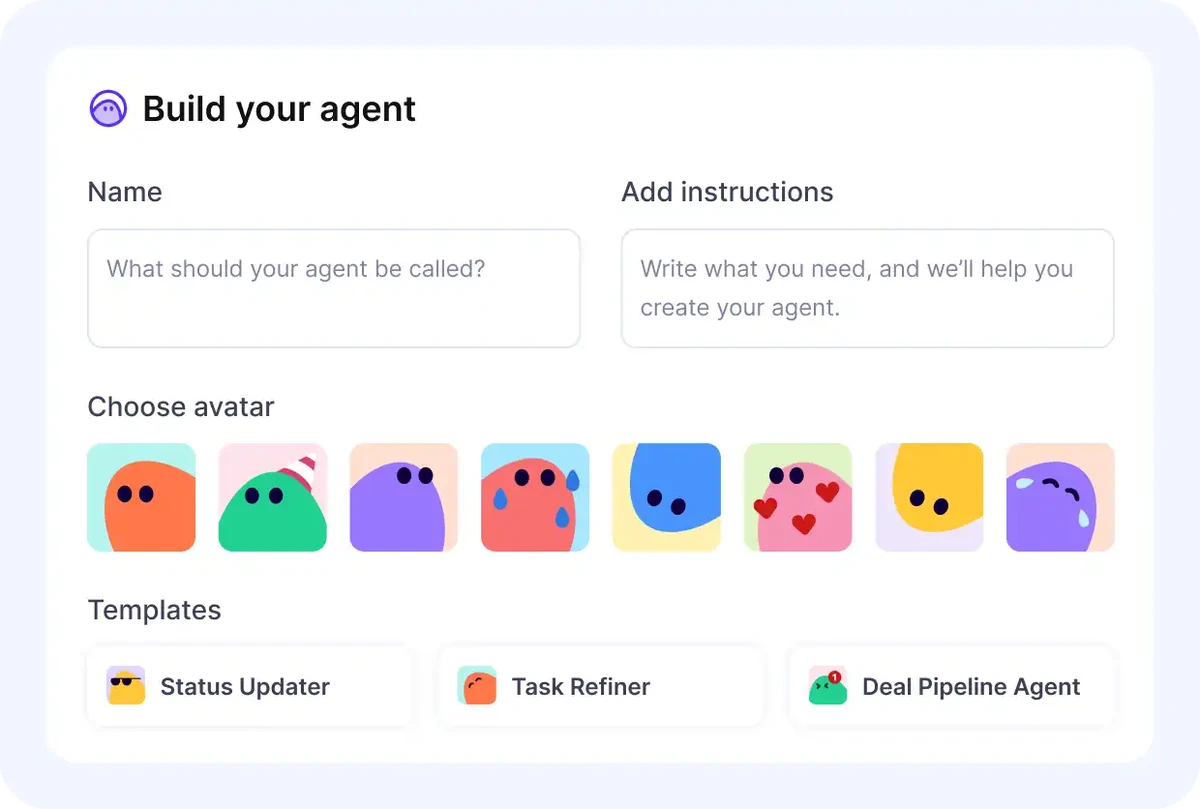
Name an agent, write its instructions, or start from a template.
Turn Meetings Into Tasks With Notetaker
Client-call decisions get lost before anyone writes them down. Notetaker joins the call, saves the full transcript and writes AI notes. It then turns the action items into tasks in the project.
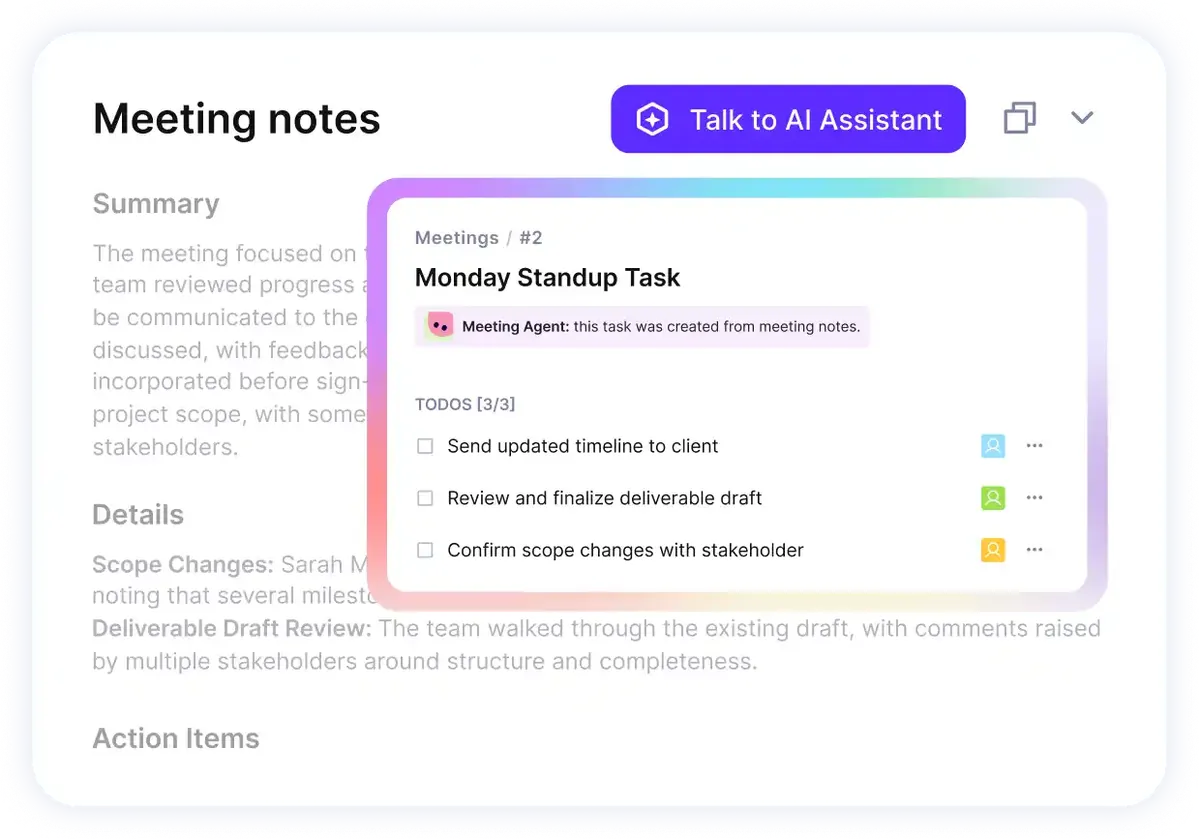
Turn meeting notes into assigned to-dos without retyping them.
Use Productive Inside Claude or ChatGPT
If your team already works in Claude or ChatGPT, you don’t need another chat window. Productive’s MCP server (a standard link between AI apps and tools) lets both read and act on your workspace. Skills save custom instructions you can reuse.
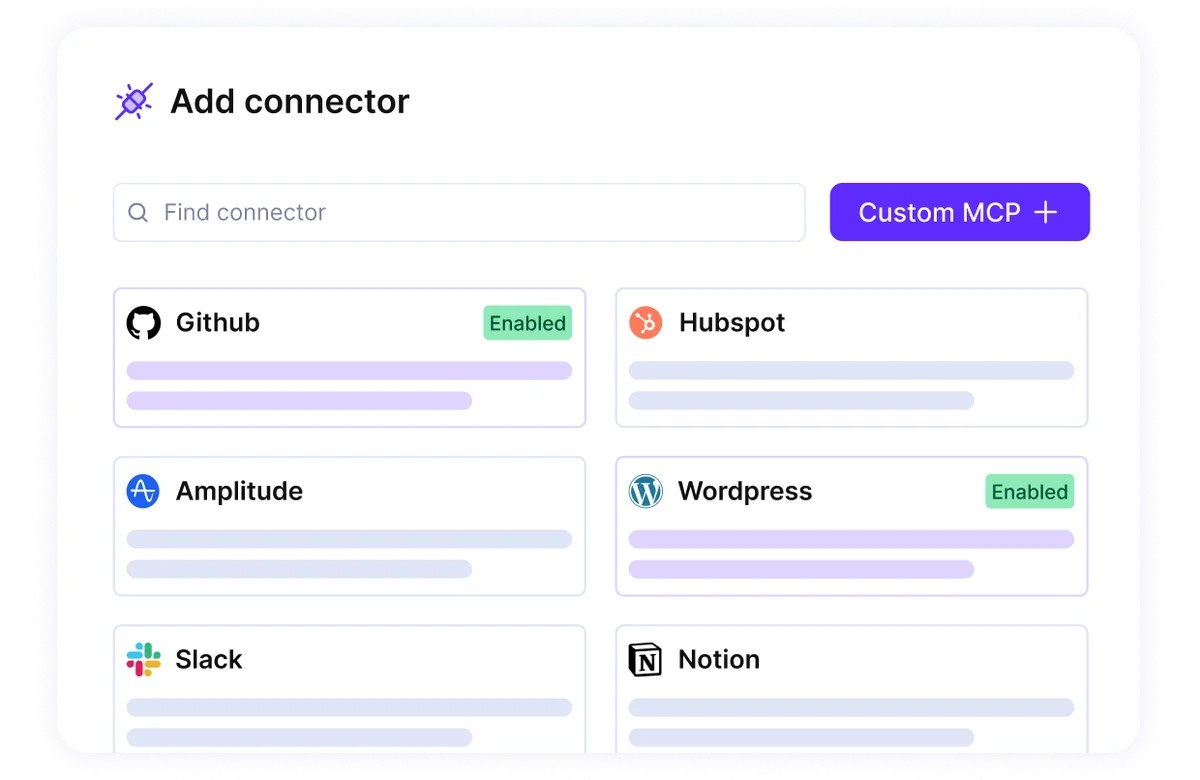
Connect Productive with your AI stack and tools.
Pros
- Projects, time, budgets and billing are connected. One platform replaces the separate time tracker, task tool and spreadsheets many service teams juggle.
- Budget tracking is part of every project. You see hours and costs against the budget as your team logs time.
Cons
- Full setup takes effort up front. Onboarding teams and setting up budgets, rates and workflows takes time.
- Reports take work to customize. Grouping, filters and dashboard layouts are less flexible than some teams want.
G2 Rating
4.7/5 (106 reviews)
Who Should Skip Productive?
If your team doesn’t run client projects, budgets or billable time, Productive is the wrong fit. An internal IT or HR team wanting a policy answer bot would pay for tools it never opens.
Pricing
- Plans start with the Essential plan at $10 per user per month, which includes essential features such as budgeting, project & task management, docs, time tracking, expense management, reporting, and time off management.
- The Professional plan includes custom fields, recurring budgets, advanced reports, billable time approvals, and much more for $25 per user per month.
- The Ultimate plan has everything that the Essential plan and Professional plan offer, along with the HubSpot integration, advanced forecasting, advanced custom fields, overhead calculations, and more. Book a demo or reach out to our team for the monthly price per user.
Get Answers From Live Project Data, Not Old Docs
Ask Productive’s Assistant about budgets, capacity and hours, and set agents to flag projects that cross a budget threshold.

2. ClickUp – Best for All-in-One Work Management With AI
ClickUp brings tasks, docs and chat into one work management platform, with an AI layer called ClickUp Brain. Brain answers from your workspace, and its Connected Search integrations also read Google Drive, Slack, Gmail and Teams.
Key Features
- Brain answers from your workspace
- Connected Search across other apps
- Custom agents for task automation (Super Agents)
- Docs and wikis beside your tasks
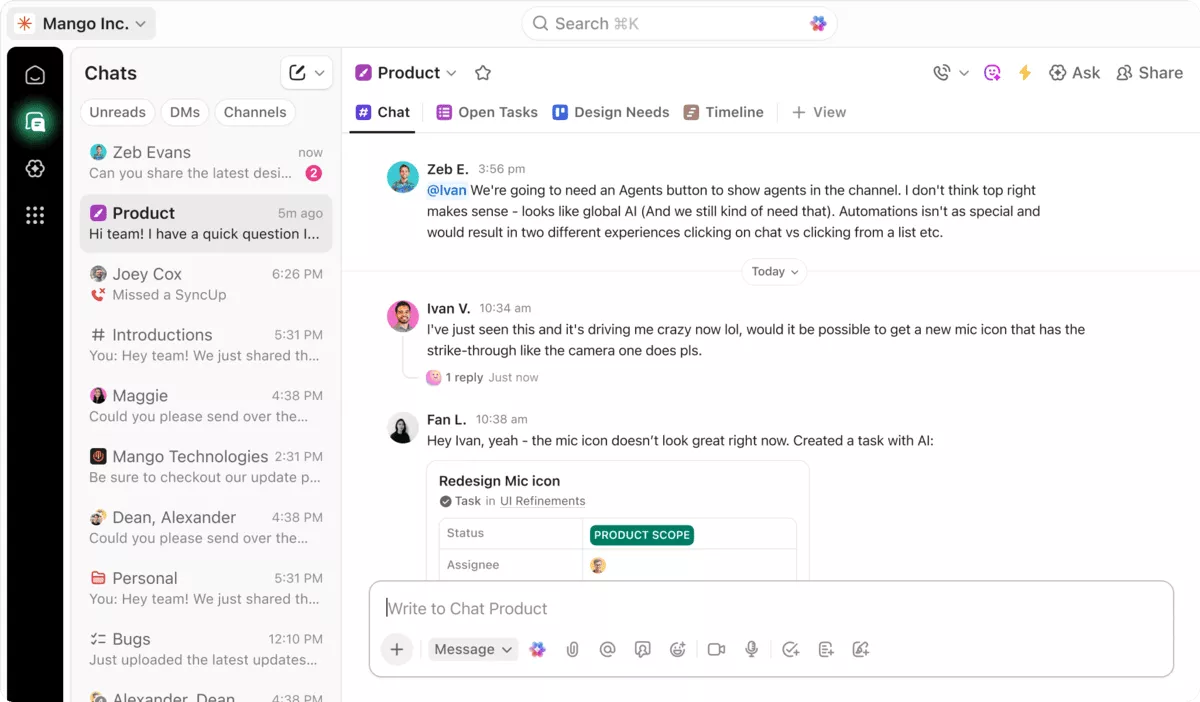
Source: ClickUp
Pros
- Tasks, docs and team chat share one workspace. You stop jumping between a task tool, a wiki and a chat app to piece a project together.
- Brain summarizes threads and runs custom agents. A long comment thread becomes a short update, and an agent you set up handles a repeated job.
Cons
- The number of options overwhelms new people. Menus, views and settings take a while to learn before a team settles on one way of working.
- Heavy AI use costs extra. Brain runs on paid usage credits, so teams that lean on agents and AI answers buy more.
Pricing
ClickUp has a Free Forever plan. Paid plans start at $12 per user per month billed yearly (Core), and Business costs $17. Connected Search and audit logs are listed on the Enterprise plan, which has custom pricing.
G2 Rating
4.6/5 (15,904 reviews)
Who Should Skip ClickUp?
Teams that want AI answers on day one, without building a workspace first, should compare ClickUp alternatives instead. Brain needs structured work to answer from, and building spaces, statuses and permissions takes real setup time.
3. Guru – Best for Expert-Verified Company Answers
Guru stores company knowledge as short cards and uses AI to answer questions on them. Its AI agents give cited answers limited to what each person may see, and experts verify the cards.
Key Features
- Knowledge cards with verification workflows
- Cited answers from Guru’s agents
- Search across 100+ integrations
- Delivery into other AI tools
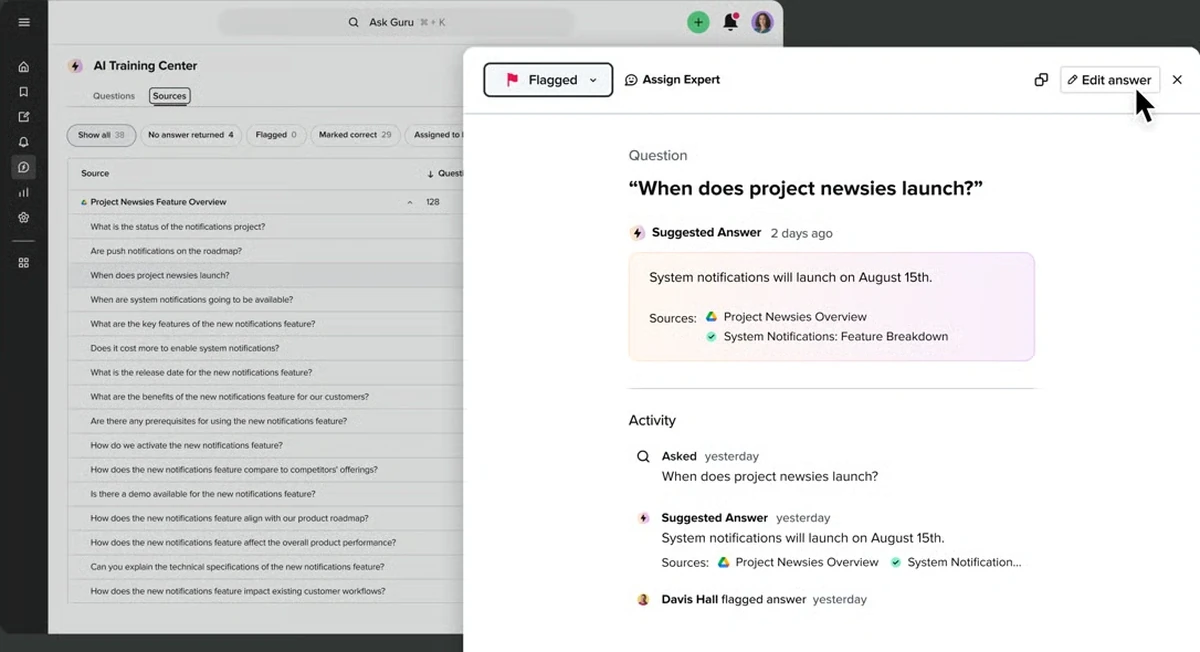
Source: Guru
Pros
- Finding your way around is easy. Cards and collections follow a clear structure that new team members pick up quickly.
- Verified answers show up where you work. You can pull an answer without leaving the tool you’re in.
- Guru AI handles specific questions well. You ask in plain words and get an answer drawn from your cards.
- Expert sign-off keeps content accurate. Verified cards show which content an expert has checked.
Cons
- Search can miss the exact card. A search for a related word sometimes skips the article you need.
- Long cards are hard to scan. Dense pages pack in so much detail that newer people struggle to spot the key point.
Pricing
Guru sells custom packages through its sales team, with no public price list.
G2 Rating
4.7/5 (2,345 reviews)
Who Should Skip Guru?
Skip Guru if most of your team’s questions are about live numbers, like budget left or hours logged. Cards hold written knowledge, so someone would still have to type those figures into a card by hand.
4. GoSearch – Best for Free Cross-App Search on a Small Budget
Built as an enterprise search tool, GoSearch searches your work apps from one bar, with an AI called GoAI. You link apps through its connectors, then search or ask from the web app, browser extension, Slack or Teams.
Key Features
- Unified search across connected apps
- GoAI answers and summaries
- Browser extension plus Slack and Teams apps
- Role-based permissions on Pro
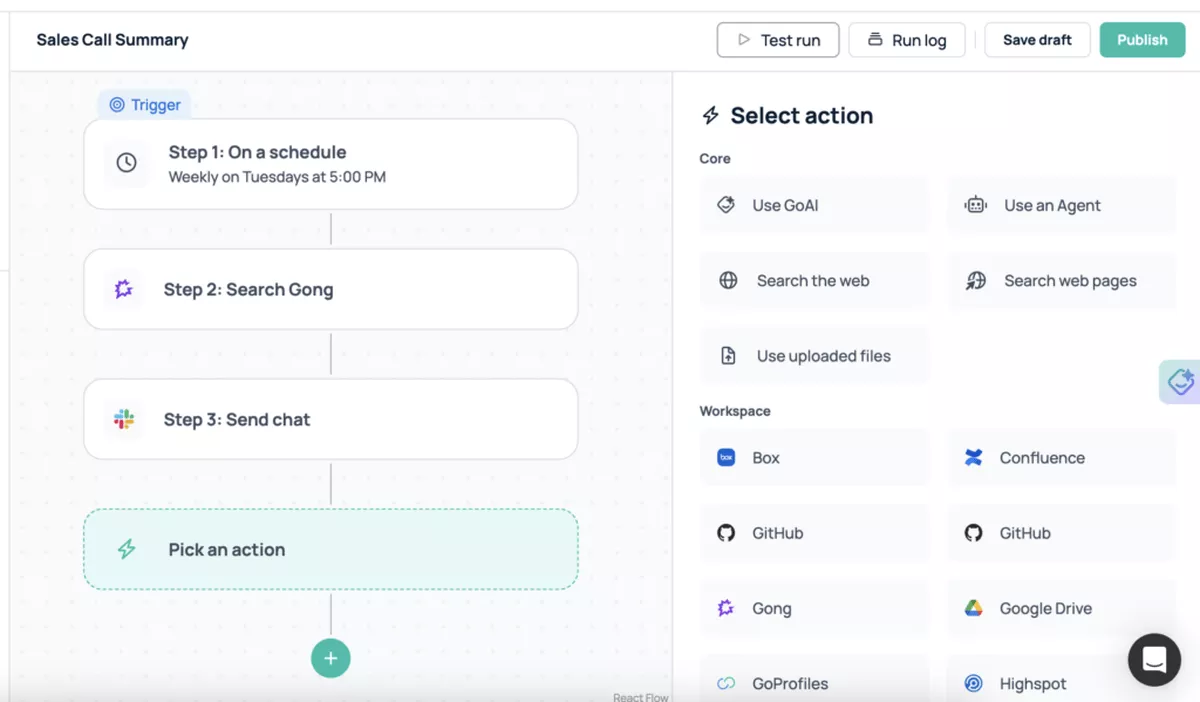
Source: GoSearch
Pros
- One search covers Outlook, Teams, SharePoint and more. A file or thread that used to take a dozen app checks turns up in one query.
- Connecting apps is quick. Linking your existing tools takes little effort, even for a small team.
Cons
- GoAI needs very precise prompts. Vague questions get thin answers, and public chatbots sometimes find what it misses.
Pricing
The free plan includes 10 searches and 3 GoAI queries a day. Starter costs $8 and Pro $12 per user per month. Pro adds advanced LLM models, AI agents and workflow automation. Enterprise adds audit logs and is priced on request.
G2 Rating
4.7/5 (25 reviews)
Who Should Skip GoSearch?
GoSearch’s free plan won’t carry a team that searches all day. Ten searches and three AI questions a day run out fast, so plan on a paid seat.
5. Slite – Best for Writing a Team Wiki From Scratch
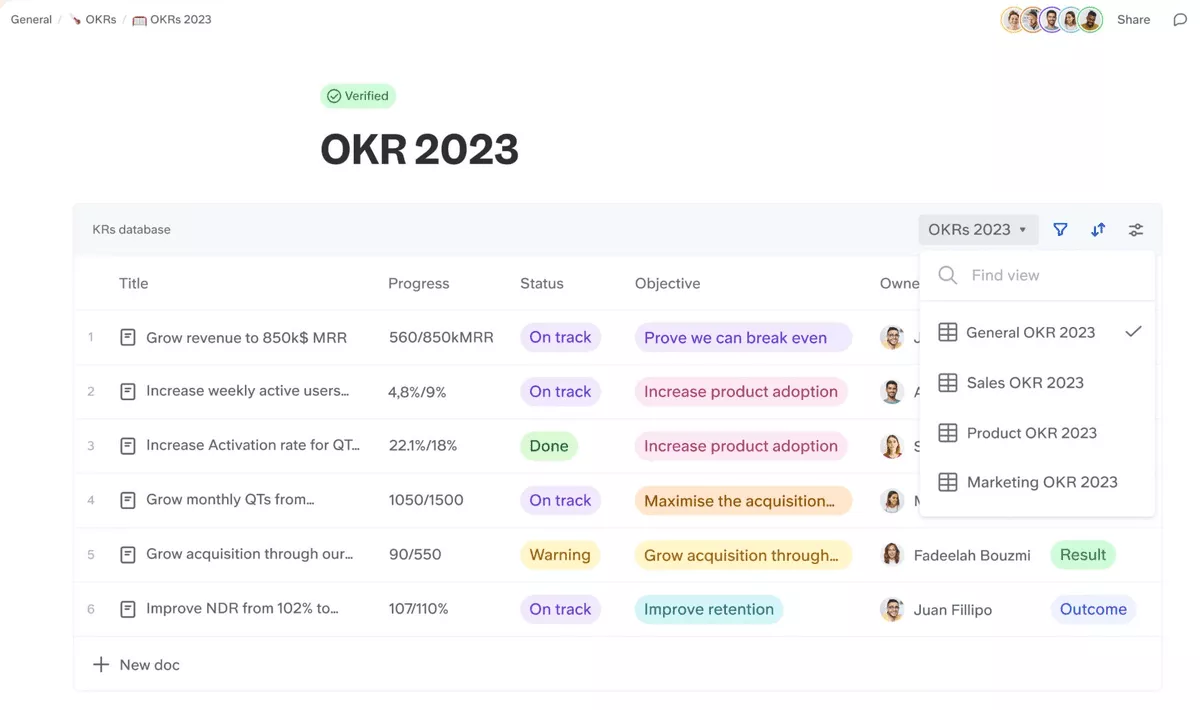
A team wiki with AI answers on top, Slite is where you write and organize your team’s knowledge base. Its AI search, called Ask, answers from your docs, and on Pro an agent updates them on a schedule.
Key Features
- Ask, Slite’s AI search and answers
- Scheduled doc upkeep by an agent
- Doc verification
- Agent access in Slack and other AI tools
Source: Slite
Pros
- Writing docs feels light. The editor is clean, so drafting and editing a page takes little effort.
- Teammates edit the same doc together. Real-time collaboration keeps one version instead of copies passed around.
- Learning it takes little time. The interface is intuitive enough for new teammates to pick up quickly.
Cons
- Tables and formatting are basic. Complex tables are hard to edit and keep up to date.
- There’s no offline access. You need a connection to read or write docs.
- Edits occasionally fail to save. You have to refresh the page, and some changes get lost.
Pricing
Basic costs $10 and Pro $20 per user per month, billed yearly. Slite offers a 14-day free trial, and Enterprise pricing is on request.
G2 Rating
4.6/5 (275 reviews)
Who Should Skip Slite?
For a team with years of docs in another wiki, Slite means a migration project first. Until those docs move over, Slite’s AI search has nothing to answer from.
6. Microsoft 365 Copilot – Best for Companies Already on Microsoft 365
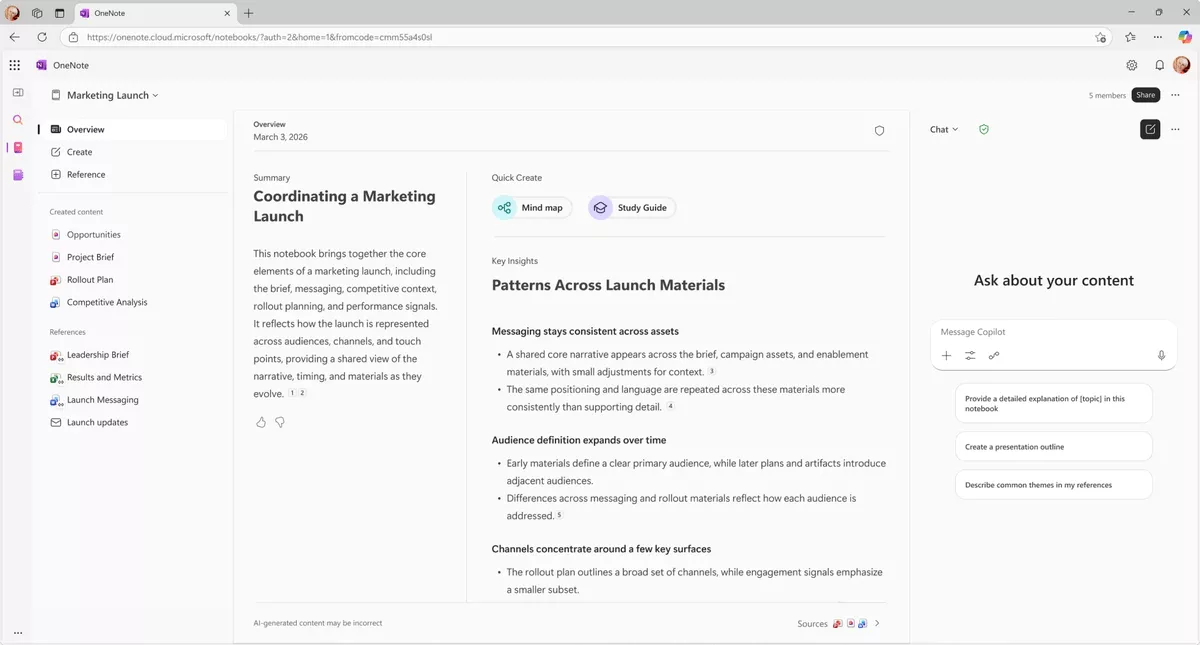
Microsoft 365 Copilot adds AI chat and drafting to Word, Excel, Outlook, Teams and the other Microsoft 365 apps. It answers from your files, mail, chats and meetings, within each person’s existing access controls.
Key Features
- Chat over your work files, mail and chats
- Drafting inside Word and PowerPoint
- Excel, Outlook and OneNote support
- Permission-aware answers
Source: Microsoft 365 Copilot
Pros
- It works inside the apps your team already uses. You draft, summarize and ask questions without leaving Word, Excel, Outlook or Teams.
- Drafts and summaries come quickly. Microsoft Copilot turns a long file or email thread into a short summary you can act on.
Cons
- Answers can miss context in real work. Responses sometimes come back generic or wrong, so you check them before you rely on them.
Pricing
The Microsoft 365 Copilot Business add-on costs $21 per user per month, paid yearly. It sits on top of a Microsoft 365 plan.
G2 Rating
4.3/5 (1,003 reviews, listed on G2 as Microsoft Copilot)
Who Should Skip Microsoft 365 Copilot?
Microsoft 365 Copilot is the wrong pick for teams whose files and chats are mostly in Google Workspace. Most of their questions would point at files outside Microsoft 365, which Copilot is built around.
7. Coveo – Best for Companies With Developers to Tune AI Search
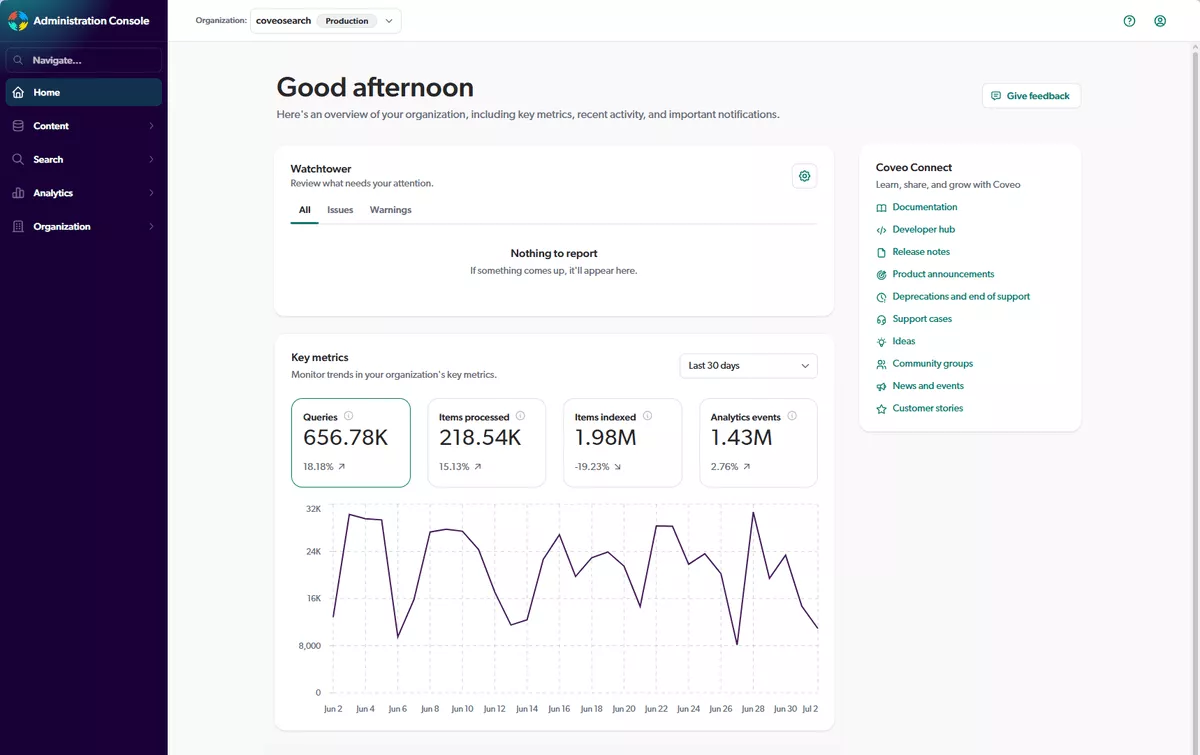
Coveo gives a company one AI search platform that indexes its systems and controls access document by document. Native connectors feed it content from sales platforms like Salesforce, plus SAP and ServiceNow, but AI-written answers cost extra.
Key Features
- Self-tuning AI search ranking
- Paid add-on for AI-written answers
- Enterprise-grade security with per-document access
- Dashboards for search analytics
Source: Coveo
Pros
- Results stay relevant across sources. The AI search ranks content well even when it comes from several systems.
- Onboarding support guides setup. The onboarding team stays involved through rollout, which helps on a complex first deployment.
Cons
- Changes need developer time. Even moderate configuration often requires someone who knows Coveo’s parameters and code.
- Total cost runs high for smaller companies. Small and mid-sized teams find the subscription expensive, and the cost grows with usage.
Pricing
Pricing is on request. Coveo’s pricing model is based on queries and indexed items, with seat-based plans for workplace search. Separate plans cover customer service and website search.
G2 Rating
4.3/5 (141 reviews)
Who Should Skip Coveo?
Unless a developer can own its setup, leave Coveo off your list. Every new source or ranking rule turns into a ticket for someone who knows its code.
8. Notion AI – Best for Teams Already Writing Docs in Notion
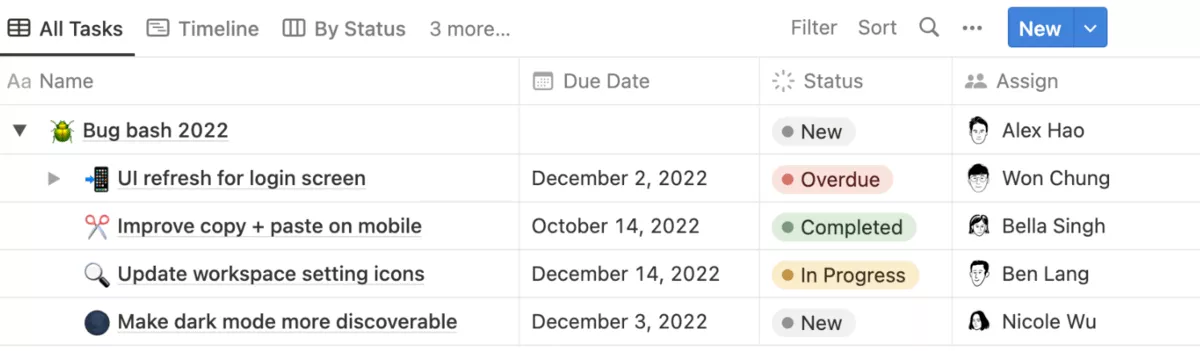
Inside Notion’s docs and wiki workspace, Notion AI drafts, summarizes and answers questions about your pages. Its Enterprise Search feature reads apps linked through Notion AI Connectors, like Slack and Google Drive, and cites sources.
Key Features
- An AI agent for page work (Notion Agent)
- Cross-app search with citations
- AI Meeting Notes
- Summaries and drafts on any page
Source: Notion AI
Pros
- Pages and databases adapt to almost anything. One workspace can hold specs, wikis and trackers in whatever shape your team needs.
- Notes, docs and trackers are kept together. Finding your own work takes fewer app switches.
- A simple workspace is quick to set up. Templates get a basic wiki or tracker running without much planning.
Cons
- Large databases load slowly. Big pages with many entries are slow to open and switch views.
- Notion AI needs a paid plan. Free and Plus include only a trial of the AI features.
Pricing
Plus costs €9.50 and Business €19.50 per member per month, billed yearly (€11.50 and €23.50 billed monthly). Cross-app search, Notion Agent and AI Meeting Notes start on Business.
G2 Rating
4.6/5 (14,021 reviews)
Who Should Skip Notion AI?
Without your docs in Notion, Notion AI has little to draft from or answer about. Its cross-app search also needs the Business plan, at €19.50 per member a month.
9. Bloomfire – Best for Sharing Research and Training Content
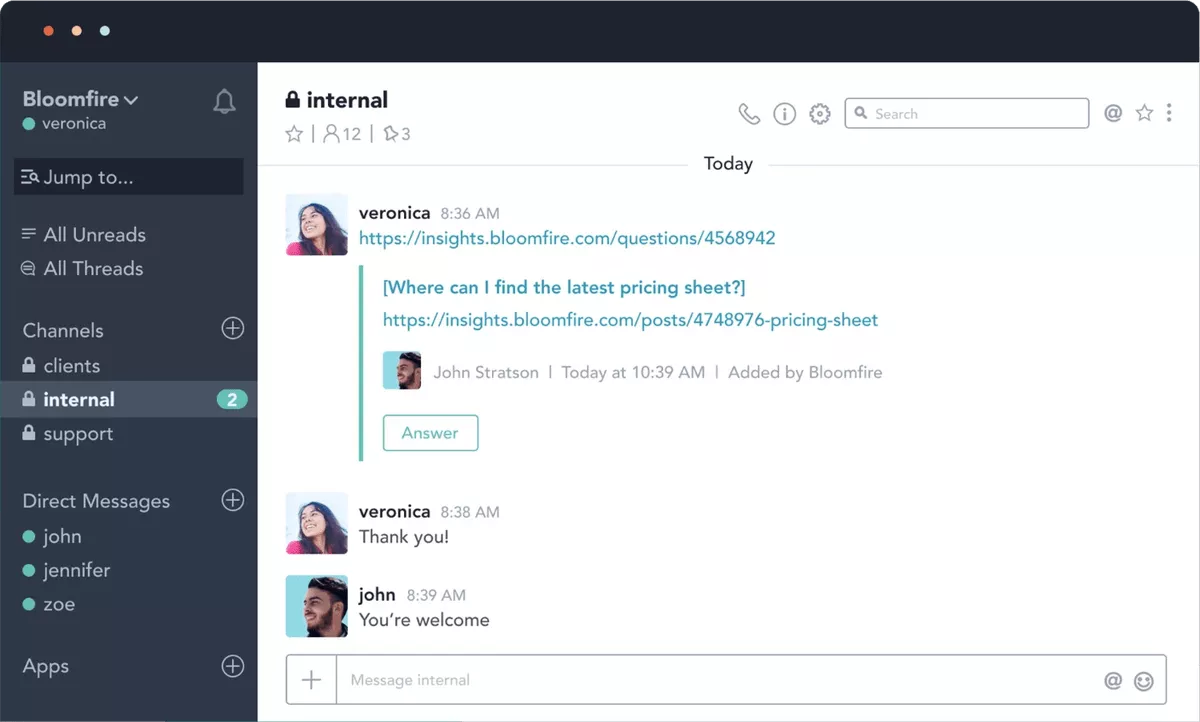
Bloomfire runs a shared knowledge hub where teams publish, find and ask questions about documents, video and other content. Its AI search answers from that library, so people across departments find knowledge without knowing where it was filed.
Key Features
- Library-wide AI search
- Media and document publishing
- Access management and backups
- Integrations with enterprise tools
Source: Bloomfire
Pros
- Sharing knowledge across departments is easy. Teams post, organize and find content in one library.
- People use it without technical help. The interface is simple enough for non-technical teams.
- Plain-language search beats keyword hunting. Typing a normal question replaces guessing the right search term.
Cons
- Editing and page layouts feel rigid. Formatting pages takes more effort than in a modern doc tool.
- Customization and reporting are limited. Branding options and engagement analytics stop short of what larger teams want.
Pricing
Bloomfire quotes a custom fixed price based on scope, with no charges per user or per query.
G2 Rating
4.6/5 (521 reviews)
Who Should Skip Bloomfire?
A team that writes and reformats pages every day will find Bloomfire’s editor awkward. Building and updating content would take longer than in the doc tools it already uses.
Why Do Teams Look for Alternatives to Glean?
Teams look for a Glean replacement for three reasons: hidden pricing, per-user licensing and outdated answers.
- Glean sells through its sales team, and its own pricing docs list no seat price or minimum. That pricing model means you can’t build a budget before a demo. Guru, Coveo and Bloomfire also quote on request, so pricing alone rarely settles it.
- Access is licensed per user, so the bill grows with every person who needs answers. Bloomfire, for example, quotes a fixed price instead of counting seats.
- A search tool’s knowledge retrieval is only as current as the documents it reads. A stale process doc or an old decision can come back as the answer.
Which alternative fits depends on what your team asks most. If the questions are about project status, budgets or hours, pick a work platform with built-in AI. Our roundup of AI project management tools compares more of them. If they’re about policies and how-tos, pick a knowledge hub or a tool that searches your workplace apps.
When Should You Stay With Glean?
Stay with Glean if your company has many apps to search and an IT team to run it. Glean search suits enterprise teams that can pay for every person who needs answers. Teams that already rely on it would also rebuild integrations and retrain people if they switched.
For those teams, our guide to enterprise project management software covers the project side.
How to Pick the Right Tool to Replace Glean?
Compare Glean competitors by sorting real questions, mapping their sources, running a blind test and pricing the team. All four steps use one shared sheet, so build it first.
Below is a step by step guide.
Step 1: Sort Your Team’s Last 50 Questions by Answer Type
Pull 50 real questions from the last two weeks of communication apps like Slack or Teams, plus help requests. Paste them into a sheet with five columns: question, asker, answer type, source app and who may see it.
Tag each one as a document, like a policy or a past decision, or as a record. Records cover budget left, hours logged and questions about team capacity.
If more than half are records, shortlist tools that hold or read those records. If more than half are documents, shortlist knowledge hubs and tools that search your workplace apps. A tool that can’t answer your majority type is out before any demo.
Step 2: Map Each Answer to the App and Permission Rules Behind It
Fill in the source app and who may see each answer. Any app behind five or more of the 50 questions is a must-have. Check that each tool’s integration list in its help docs names every must-have app.
For data privacy on restricted content, like HR folders in Google Drive, confirm the tool runs permission-aware search. That means permission inheritance: it copies user permissions from the source app instead of setting its own.
A missing must-have app, or access rules the tool sets itself, puts it out of the running.
Step 3: Run a Blind Answer Test With Two Permission Traps
During each trial or proof of concept, ask 20 questions from the sheet using the real asker’s account. Paste every answer into the sheet without the tool’s name. A colleague marks each one right, wrong or outdated, so search relevance gets judged without brand bias.
Add two trap questions only managers may see, asked from a non-manager account. Set the pass mark first, for example 16 right out of 20 and no outdated policy answers. One trap leak fails the tool outright.
Step 4: Build a 12-Month Cost Sheet for Every Person Who Asks
Price every role in the asker column, not just the pilot group, on four lines per tool:
- Seats for 12 months at the per-user price
- AI add-ons, credit packs or daily usage limits
- Any plan upgrade your must-have apps or permissions require
- Setup hours times your internal hourly cost
Write your budget figure down before the first demo. A tool over that figure is out. If its required plan has no public price, request a written quote with a deadline. No quote by the deadline means it’s out.
Final Thoughts: Fewer Tools Mean Fewer Places to Search
When projects, docs, time and finances are managed in one platform, client questions have one place to look. Platforms like Glean only search what other apps hold, so an answer can come from an outdated copy.
A budget question gets answered where hours are logged and invoices go out. If you want to see Productive’s Assistant answer budget and capacity questions, book a short Productive demo.
Projects, Money and Answers in One Place
Run projects, budgets, time and billing in Productive, then ask its Assistant about any of them in plain words.

Frequently Asked Questions
How Much Does Glean Cost?
Glean doesn’t publish seat prices or minimums, so you need a quote from its sales team. Build the cost sheet from Step Four to compare that quote with other tools.
Are There Free Glean Alternatives?
Yes, free options exist: GoSearch has a free plan with 10 searches and 3 GoAI queries a day. ClickUp offers a Free Forever plan, and Notion’s Free plan includes only a trial of Notion AI. For daily use across a whole team, plan on a paid tier.
Is There an Open-Source Option for Self-Hosting?
Yes, Onyx is an open-source option you can self-host in a cloud or on bare metal, including air-gapped setups. We left it out of the list because a self-hosted deployment needs engineering time to run.
Can You Use These Tools Inside ChatGPT or Claude?
Productive’s MCP server lets ChatGPT and Claude read and act on your workspace, as part of Productive’s AI features. Guru and Slite can also send their content to those AI chat apps through MCP (Model Context Protocol).