Workback Schedule: How to Create One, With a Worked Example

Your client’s launch date can’t be moved, and the designer you need is booked with other clients. A workback schedule counts back from that deadline to each person’s latest start date, which you then check against their bookings.
In this article, you’ll get the definition, its benefits, when to use one, and a step-by-step build. You’ll also get a worked example, the challenges, weekly habits, and a copyable column template.
Key Takeaways
- A workback schedule is a plan counted back from a fixed due date: You subtract each task’s duration, review window, and buffer to find the latest start day.
- The benefits include justified timelines, double-bookings caught before kickoff, and named owners: You check each start date against bookings and approved leave while you can still swap people.
- The challenges include scope changes, best-case estimates, and manual rescheduling: Added work comes out of buffers, and each late approval means moving dates by hand.
- Software helps once several clients share the same people: A spreadsheet works for one or two fixed-date projects, but it shows other clients’ hours only if typed in.
What Is a Workback Schedule?
A workback schedule, or reverse timeline, is a project plan counted backward from a fixed client deadline. You subtract each task’s duration, review window, and buffer in reverse to find each task’s latest start.
For example, a marketing agency’s paid social campaign has a fixed project deadline, the day the ads go live. Forward planning asks when the ads will be ready if work starts Monday. Backward planning asks when copy, design, and client approval must start.
Counting back this way gives your team three things.
What Are the Benefits of a Workback Plan?
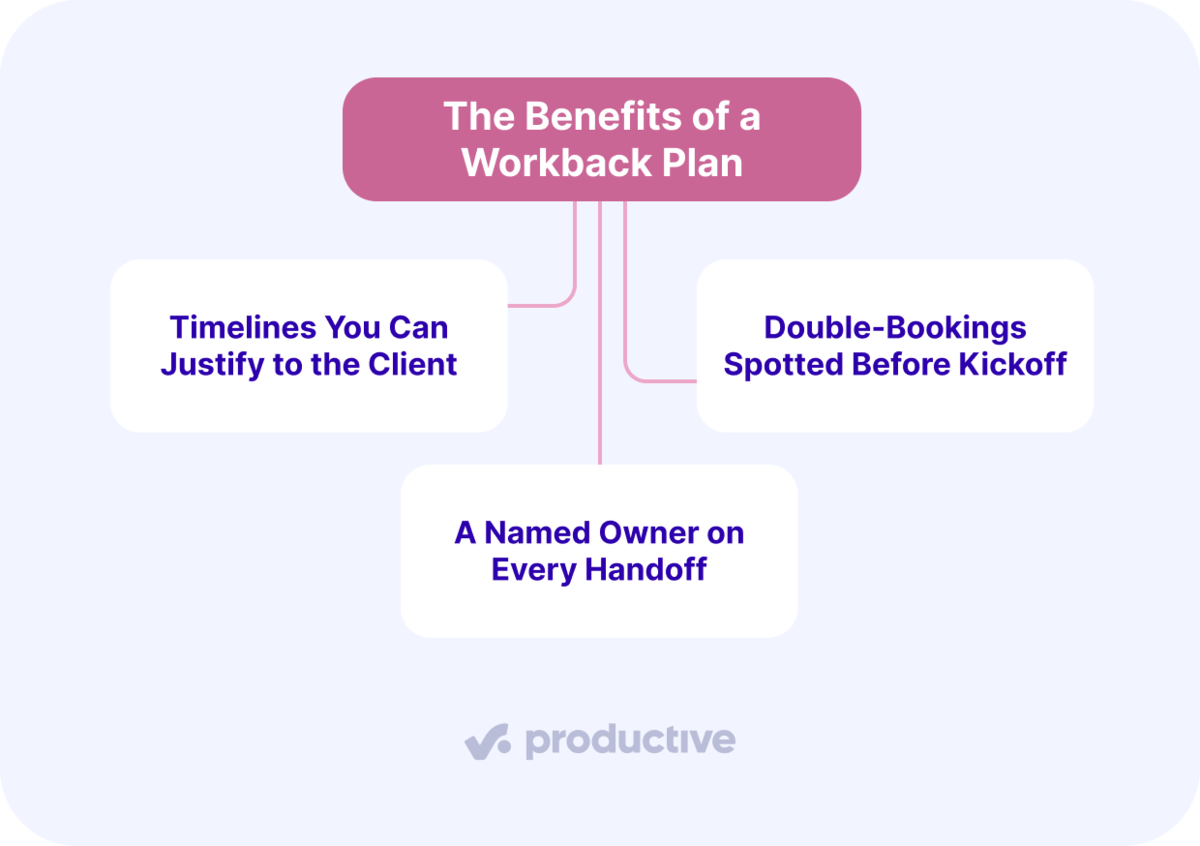
The benefits of a workback plan include timelines you can justify to the client, double-bookings spotted before kickoff, and a named owner on every handoff. The list is our own grouping.
We’ll take a closer look at each.
Timelines You Can Justify to the Client
A backward plan shows every project task, its working days, and each client review in one dated project timeline. When a client asks to pull the deadline forward, you can point to the rows that would shrink.
Say an advertising agency is asked to deliver a product video a week early. It can show whether the week comes from filming or the client’s own review. The client chooses, and the trade-off is in writing.
Double-Bookings Spotted Before Kickoff
You spot double-bookings before kickoff because each start date can be checked against existing bookings and approved leave.
When leave is approved in a separate HR tool, it may never reach the resourcing sheet. A person then stays booked on days they will be away. Checking start dates against leave shows that they clash while you can still swap the owner.
In Productive, approved time off appears immediately in the Resource Planner.
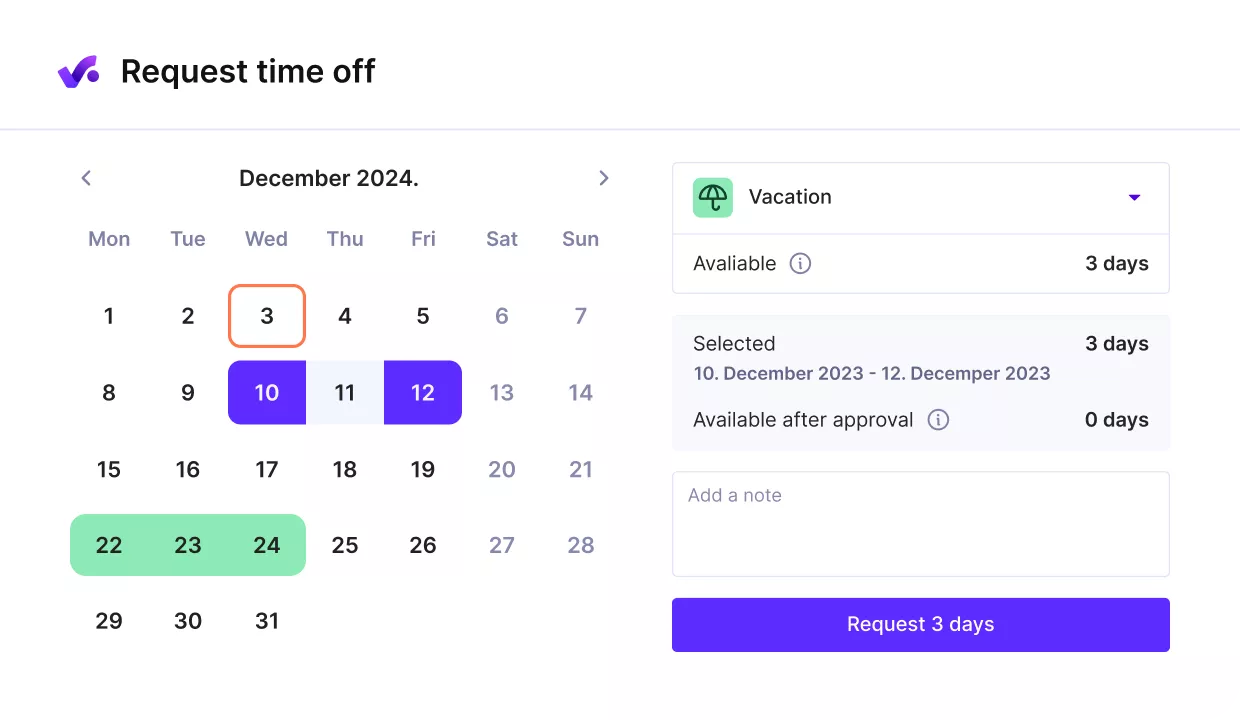
View absences in one place in Productive’s Resource Planner
You can approve time off requests in the same tool and reassign available teammates to cover those days.

We use Productive to track all types of time off, such as vacation, sick leave, maternity leave, or any other category that we might need.
Read the full customer story to see how Productive supports Porsche Digital Croatia’s growth.
A Named Owner on Every Handoff
Each row carries one name and one due date, including people on the client’s side. The copywriter knows the day the draft goes to the designer. The client’s brand manager knows feedback is due on a specific Thursday.
When a handoff is late, the plan shows whose date moved and by how many days.
Whether you need these depends on who sets the end date.
When Should You Plan Backward From a Deadline?
Plan backward from a deadline when someone outside your team sets the end date. It also helps when inputs must arrive in order. These four cases, our own selection, show where it fits:
- Immovable external deadlines. A consultancy preparing a client’s regulatory filing may not get more time from the regulator. Counting back shows when the client’s financial data must arrive.
- Multi-phase deliverables. An annual report moves through research, writing, design, and print. Each project phase waits on the last, so a two-day slip in research delays the print date.
- Cross-functional teams. A rebrand might pull in strategy, design, development, and the client’s legal reviewer. A backward plan gives each group the date its input is due.
- High-stakes launches. A trade-show campaign has to be printed, shipped, and set up before the doors open. The opening day sets when production must start.
Forward planning fits better when no hard end date exists. An open-ended retainer for monthly content or ongoing SEO work runs on available capacity. You schedule from today and adjust each month.
Once a project meets one of these conditions, the build starts at the deadline and works back.
How Do You Create a Workback Schedule?
You create a workback schedule in six steps: anchor the fixed deadline, break the deadline into milestones, estimate each task’s duration, map task dependencies, count back to each task’s start date, and test start dates against team capacity. The steps are our own breakdown.
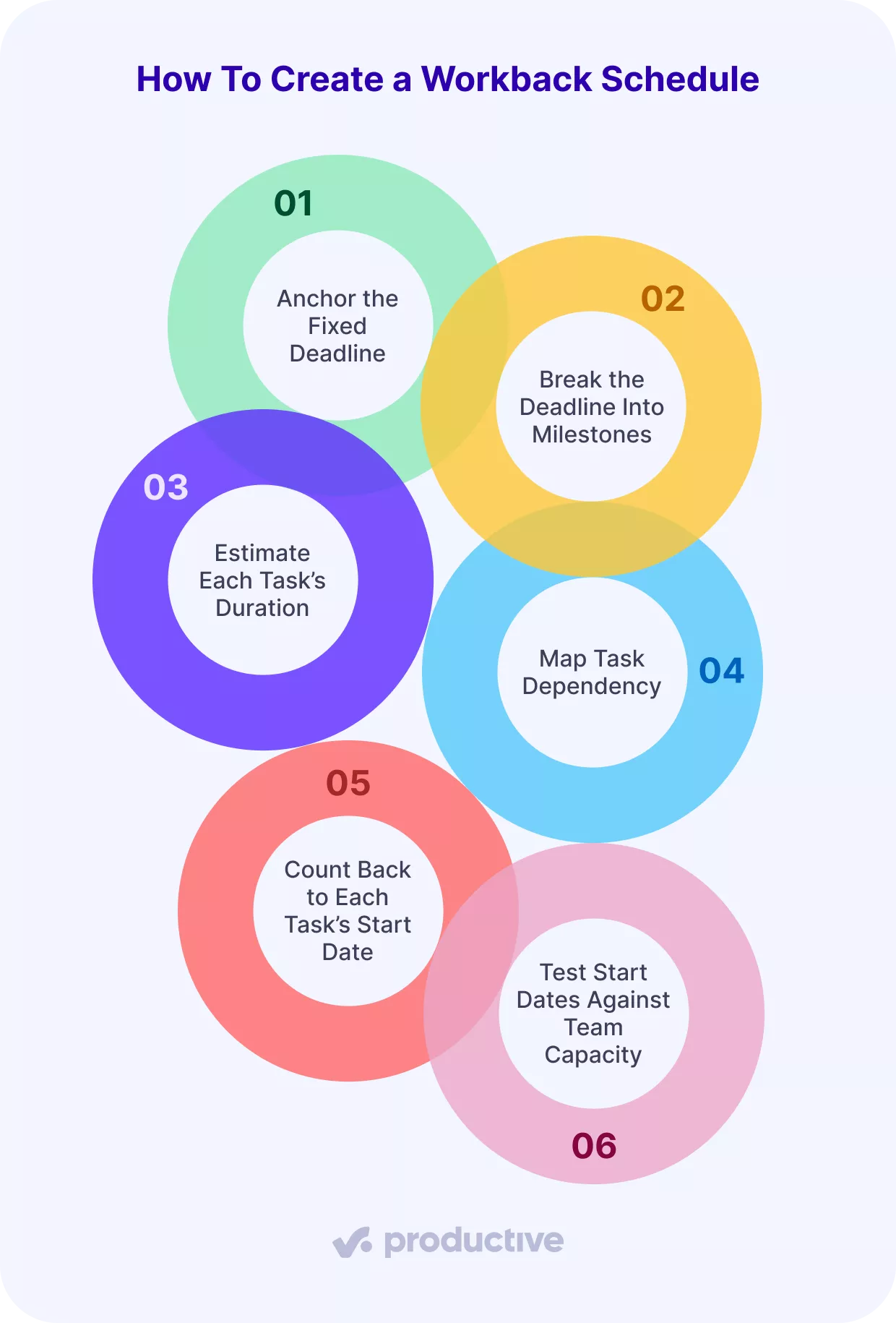
Let’s look at each.
Step 1: Anchor the Fixed Deadline
Anchoring the fixed deadline means taking the due date from the statement of work you are about to sign. A kickoff email doesn’t count. The project lead writes it atop the plan as a date and hour, such as Friday at 5 pm.
Also note whether “due” means delivered to the client or live for the public. Those can be days apart. The step is done when the client’s approver confirms that date and hour in writing.
Step 2: Break the Deadline Into Milestones
Breaking the deadline into milestones means turning each project deliverable in your proposal into a key milestone. Keep the gap between milestones short, such as one to two weeks, so a late sign-off shows up early.
For example, a consultancy writing a market-entry report might set three milestones: research findings, full draft, and final report. The step is done when every milestone has a deliverable and a named client approver. Dates come later, when you count back.
Step 3: Estimate Each Task’s Duration
Estimating each task’s duration means sizing it from timesheets on your last similar project. First, add each project task to the task list under its milestone. Then convert hours to working days at the hours one person gives one client daily, such as six.
If past timesheets show 21 hours for a set of email templates, that’s 3.5 days. Round up to four working days. The step is done when every task row shows hours, working days, and the past project behind the figure.
Step 4: Map Task Dependencies
Mapping task dependencies means writing, for each task, the task that must finish before it can start. The project manager adds client review windows as their own rows, at the length the contract allows.
Mark tasks that can run in parallel, such as copywriting alongside illustration. The step is done when every task but the first has a predecessor and no chain loops back.
In Productive, you can mark tasks as blocking or waiting on each other. The Gantt layout shows those dependencies as arrows.
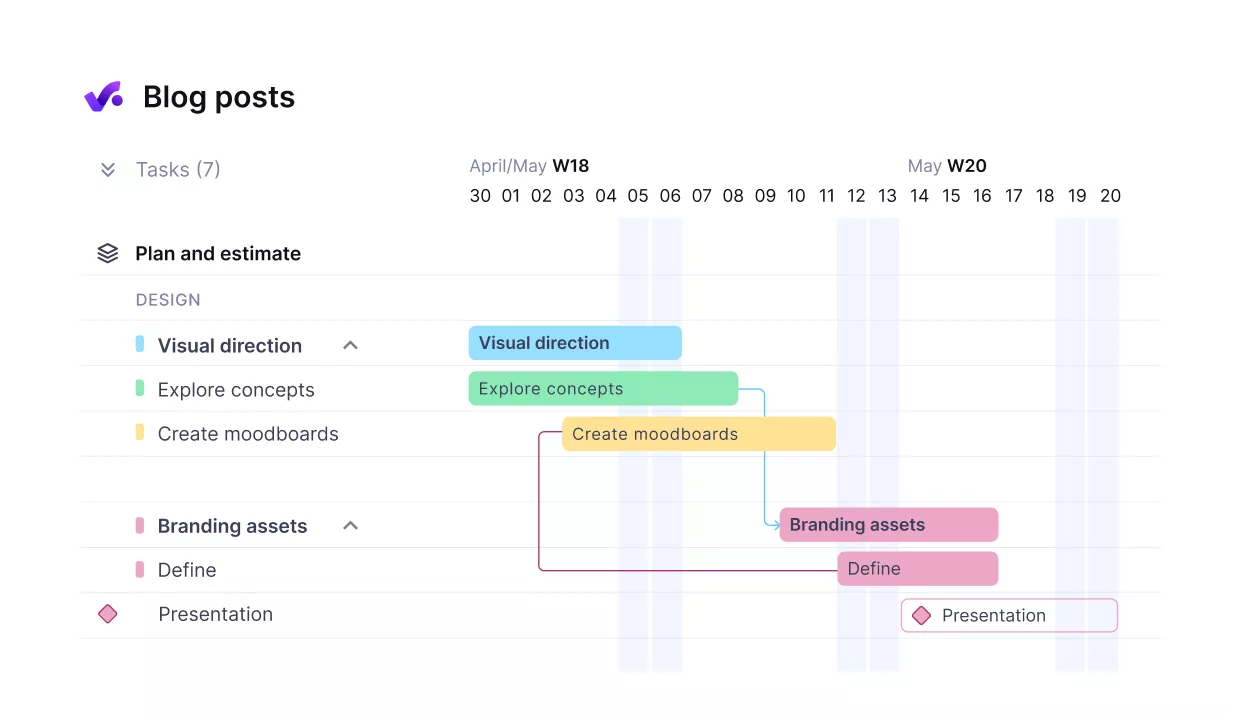
See which tasks block others as arrows in Productive’s Gantt layout
If a client review slips, moving its due date in Gantt can shift the open tasks that follow it. With the Move dependent tasks toggle on, the shift skips weekends, though not holidays or time off.
If you’re comparing tools for this step, see our list of the best Gantt chart software.
Step 5: Count Back to Each Task’s Start Date
Counting back to each task’s start date means dating the rows from the bottom up. The last task ends on the deadline. Count its working days back to find its start.
Each earlier task ends the working day before the task waiting on it starts. Skip weekends, public holidays in every country involved, and days the owner or client approver is on leave.
Place buffer days inside the chain, before client reviews and the deadline, not at the start. The longest chain of dependent tasks, buffers included, sets the first start date. That chain is the critical path in project management. A 22-day chain with two buffer days added runs 24 working days, counting the deadline day.
The step is done when every row has a start and due date on days its owner can work.
Step 6: Test Start Dates Against Team Capacity
Testing start dates against team capacity means comparing each owner’s hours on this plan with their other client bookings. Keep all bookings in one workback calendar, with one row per person and one column per week. Pick a weekly ceiling, such as 32 hours (80% of 40), to leave room for meetings and admin.
Any week above the ceiling is a potential conflict, so move the task’s start or reassign it. It’s the same check as capacity requirement planning: hours the plan needs against hours people have.
The step is done when no owner exceeds the ceiling in any week. The first start date must also fall on or after the planned signing date. If it doesn’t, cut scope, shorten durations with more people, or move the deadline before you sign.
A six-week website launch shows every one of those dates filled in, task by task.
What Does a Workback Schedule Look Like for a Website Launch?
A workback schedule for a website launch looks like a dated task table built up from the launch date. Take a design agency whose client’s site must go live on Friday, June 12, 2026.
The count skips Memorial Day on May 25 and assumes six billable hours per person per day. Counted back from launch, the six-week plan looks like this:
| Task | Owner | Working days | Budgeted hours | Dates (2026) |
|---|---|---|---|---|
| Discovery and sitemap | Strategist | 2 | 12 | May 4 to May 5 |
| Buffer | None | 1 | 0 | May 6 |
| Client sitemap review | Client marketing lead | 2 | 0 | May 7 to May 8 |
| Design of page templates | Designer | 4 | 24 | May 11 to May 14 |
| Page copy (parallel to design) | Copywriter | 4 | 24 | May 11 to May 14 |
| Buffer | None | 1 | 0 | May 15 |
| Client design review | Client marketing lead | 3 | 0 | May 18 to May 20 |
| Development | Developer | 8 | 48 | May 21 to June 2 |
| QA and fixes | QA tester | 3 | 18 | June 3 to June 5 |
| Buffer | None | 1 | 0 | June 8 |
| Client final review | Client marketing lead | 2 | 0 | June 9 to June 10 |
| Buffer | None | 1 | 0 | June 11 |
| Launch | Developer | 1 | 6 | June 12 |
Counting back 29 working days, four of them buffer, puts the first day on Monday, May 4. Page copy runs alongside design, so it adds no days.
đ
Now say the client returns design feedback three working days late. The last two buffers cover two of those days. The third comes out of QA, which then needs a second tester and costs extra hours.
Put two options to the client in writing. Launch on June 12 with no buffer left and agree who pays for the extra hours. Or move launch to Wednesday, June 17 and keep every buffer.
What Are the Challenges of Workback Scheduling?
The challenges of workback scheduling are client-driven scope changes, optimistic task estimates, no logged hours to estimate from, and manual rescheduling after every change. The grouping is our own. We’ll take a closer look at each.
Client-Driven Scope Changes
When a client adds work but the deadline holds, the extra hours come out of buffers and reviews. Say a client asks for a pricing calculator after development has started.
Log every addition as a change request with its hours and a revised date before anyone starts on it.
Optimistic Task Estimates
Tasks sized at best case give a start date later than the work needs. When someone who won’t do the work writes the estimate during the pitch, the real owner hasn’t checked it.
Have each task’s owner review the estimate and sign off on the hours before the client sees it.
No Logged Hours to Estimate From
When you sell a service for the first time, there is no similar past project to size tasks from. Every duration is a guess. Each time you add a new service, the first project runs on untested estimates.
Mark those estimates as unproven and give the plan a wider buffer. Track time per task on that first project, so the next one has real figures.
Manual Rescheduling After Every Change
Manual rescheduling after every change means moving bookings by hand, and one late approval can affect several clients. When the plan and the resourcing sheet are separate files, each move happens twice.
When one client slips, move that client’s rows first and use its own buffer before touching other clients’ bookings. Name one person who updates both files on a fixed day.
Two weekly habits help keep the plan accurate once it’s live.
Which Habits Keep a Workback Plan Accurate Once It’s Live?
Habits that keep a workback plan accurate include a buffer placed before client reviews and a review pass before locking dates. Both are our recommendations. We’ll take a closer look at each.
Buffer Placed Before Client Reviews
Put each day of buffer time directly before a client review, a step your team cannot speed up. On the client side, 47% of enterprise marketers cite “managing workflow issues/content approvals process” as a challenge, per CMI’s 2025 research.
When a buffer gets used, the project lead logs the date, the cause, and the days left.
If half the buffers are gone by the midpoint, raise the risk to the entire project with the client.
A Review Pass Before Locking Dates
A review pass before locking dates happens every Friday. The project lead checks project progress against logged hours and current bookings. Any overdue task, or one past 80% of budgeted hours (our threshold), needs a new date or scope.
Dates are locked when every changed row has its owner’s confirmation, and the client sees that same version.
In Productive, you can set up AI agents that run on a schedule. An agent can, for example, check a project every Monday for tasks without a recent update and ping the assignees.
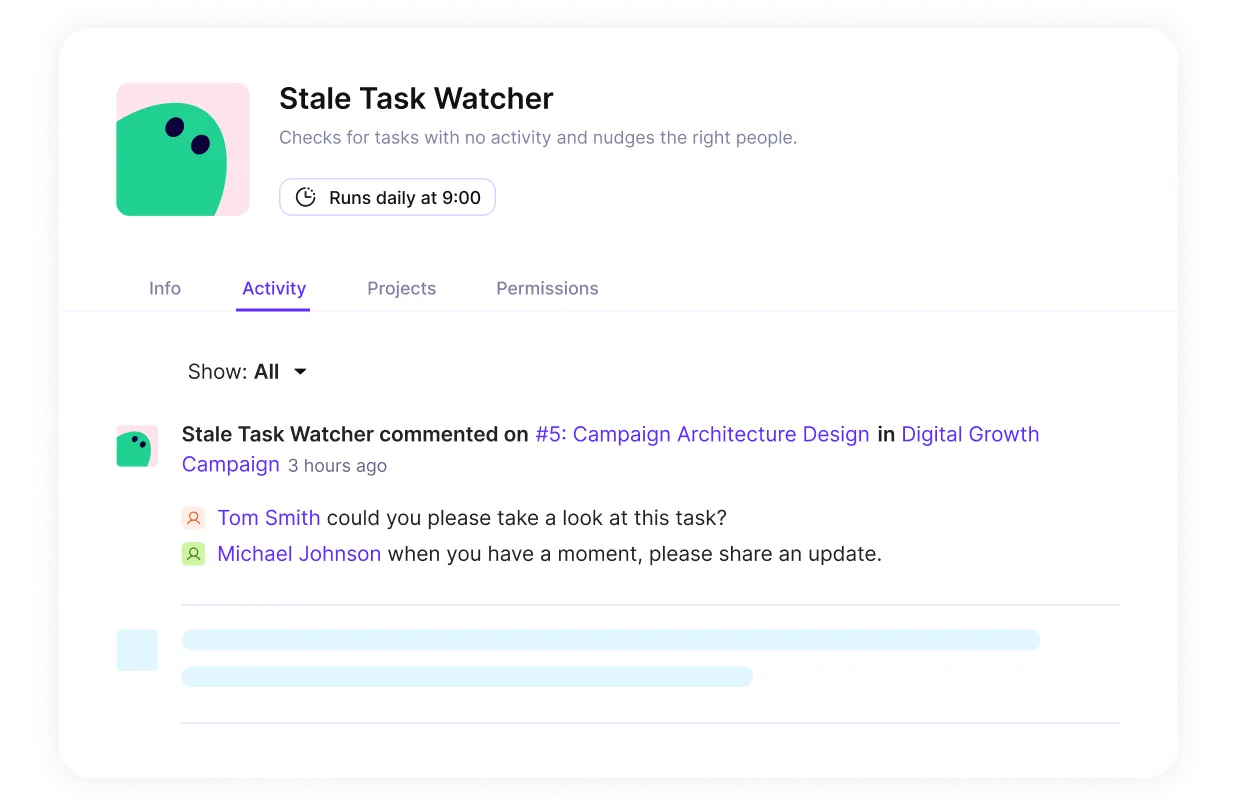
Follow up on tasks with no recent update using an AI agent in Productive
Let AI Agents handle the busywork
How long this weekly upkeep takes depends on the tool that holds the plan.
Should You Build Your Workback Plan in a Spreadsheet or Software?
Build the plan in a spreadsheet for one or two fixed-deadline projects. Move to dedicated software once several workback schedules share the same people.
Spreadsheets, project management tools, and PSA platforms each fit a different setup:
| Tool | Fits | Tradeoff |
|---|---|---|
| Spreadsheet | One planner, few projects | Bookings typed by hand, and hours on other clients only if someone copies them in |
| Project management tool with a Gantt view | Dependency chains on a timeline | Shows dates, but not always hours booked on other clients or leave |
| PSA platform (one system for plans, bookings, time, and budgets) | Concurrent clients sharing staff | Setup time and a subscription fee |
Switch when someone retypes the resourcing sheet weekly, and it still can’t show who is free.
Whichever tool you pick, start from this workback plan template. Copy the header row and delete the example row:
| Task | Owner | Working days | Depends on | Rearview window | Buffer | Start date | Due date | Budgeted hours |
|---|---|---|---|---|---|---|---|---|
| Example: Page design | Example: Designer | 4 | Sitemap review | 3 days | 1 day | May 11 | May 14 | 24 |
Keep Deadlines and Bookings in One Place
Keeping deadlines and bookings in one place matters because a workback schedule holds only when both match. You count back from the client’s date to each person’s latest start day. Then you check that day against their bookings and leave.
That check gets harder when several plans share people, because one slip can move bookings on other clients. Productive is an agentic PSA platform that runs resources, projects, and finances in one place. You check bookings against the plan in one tool, not across separate files.
Book a demo with Productive to see it with your own client deadlines.
Plan deadlines and book people in one tool
Approved time off appears immediately in Productive’s Resource Planner, so you can plan start dates around real availability.
