Top 7 Expense Management Software (Paid & Free) 2026 Review

Choosing the right expense management software is can get super tricky because every tool promises faster approvals, cleaner reimbursements, and better reporting.
In practice, this isn’t usually the case.
To make this huge selection process smoother, we’ve written this guide. Read it to get a curated list of the best tools to manage company spend, with key features, best-fit use cases, user-base fit, pros, cons, and a buyer comparison table.
You’ll also get a practical choosing process, implementation advice, and a rollout checklist that helps avoid extra admin work.
What Is the Best Expense Management Software in 2026?
The best expense management software in 2026 is Productive, SAP Concur, Zoho Expense, Sage Expense Management, BigTime, ClickTime, and Ramp. These tools cover different company workflows, from professional services cost control and enterprise travel to project reporting, card controls, and card-led spend platforms.
A Short List of the Best Software for Managing Expenses
Buyer Comparison of the Best Tools (What Buyers Want to Know)
| Tool | Choose if | Skip this if | Software type | Primary workflow | Project/client cost support | Free plan | Best for |
|---|---|---|---|---|---|---|---|
| Productive | You need costs connected to client work, budgets, approvals, and profitability. | You only need a receipt app or a travel booking platform. | Professional services operations platform | Project and client costs | Yes | No | Agencies and professional services teams |
| SAP Concur | You need enterprise T&E, invoice controls, and governance. | You want a lighter tool with faster setup for a small team. | Enterprise T&E and invoice management | Travel, reimbursements, and invoice control | Limited | No | Enterprise companies |
| Zoho Expense | You want business reporting with project tracking and a verified free plan. | You need deep PSA-style profitability or enterprise travel governance. | Business spend platform | Reports, approvals, mileage, and reimbursements | Yes | Yes | Small and growing companies |
| Sage | You want card reconciliation, receipt handling, policy checks, and project-coded costs. | You need a broader all-in-one delivery platform for projects, budgets, and profitability. | Card and spend control platform | Employee submissions and card purchases | Yes | No | Finance teams using card-led controls |
| BigTime | You need time and costs connected to billing, invoicing, and PSA-style project work. | You want a simple free tool or a card-first platform. | PSA time and cost platform | Project costs with time and billing | Yes | No | Professional services firms |
| ClickTime | You need time and costs together for project reporting. | You need enterprise travel management, AP workflows, or card controls. | Time and project cost platform | Internal budgets, client work, and labor costs | Yes | No | Teams tracking project cost with time |
| Ramp | You want company cards, spend controls, approvals, and finance automation. | You need costs tied deeply to client budgets or PSA delivery workflows. | Card-led spend platform | Card spend and vendor payments | No | Yes | Companies managing card-led spend |
How We Chose These Tools?
We chose these tools based on business fit, category coverage, official product documentation, G2 review presence, and the strength of review-backed pros and cons. The goal was to cover real expense management workflows, not build a long list of similar tools that solve the same problem.
1. Productive – Best All-in-One Expense Tool for Professional Services and Agencies
Productive is best for service businesses that need to track project-related costs, budgets, invoices, and profitability. Most expense management tools are built around employee reimbursement and policy checks. Productive is built closer to the work, so teams can understand what a client or project actually costs.
Manage expenses with Productive
Connect Expenses to Project Budgets Before the Close
The real gap in standalone expense tools is timing: project owners often see expense data only after finance has approved, recoded, and synced it. By then, the project may already be delivered, so the budget view was accurate only for labor, not total cost.
In Productive, costs can be logged against budgets, which keeps them closer to the project they belong to. You can see how this works on Productive’s budgeting page, where budgets connect cost, revenue, and profitability in one workflow.
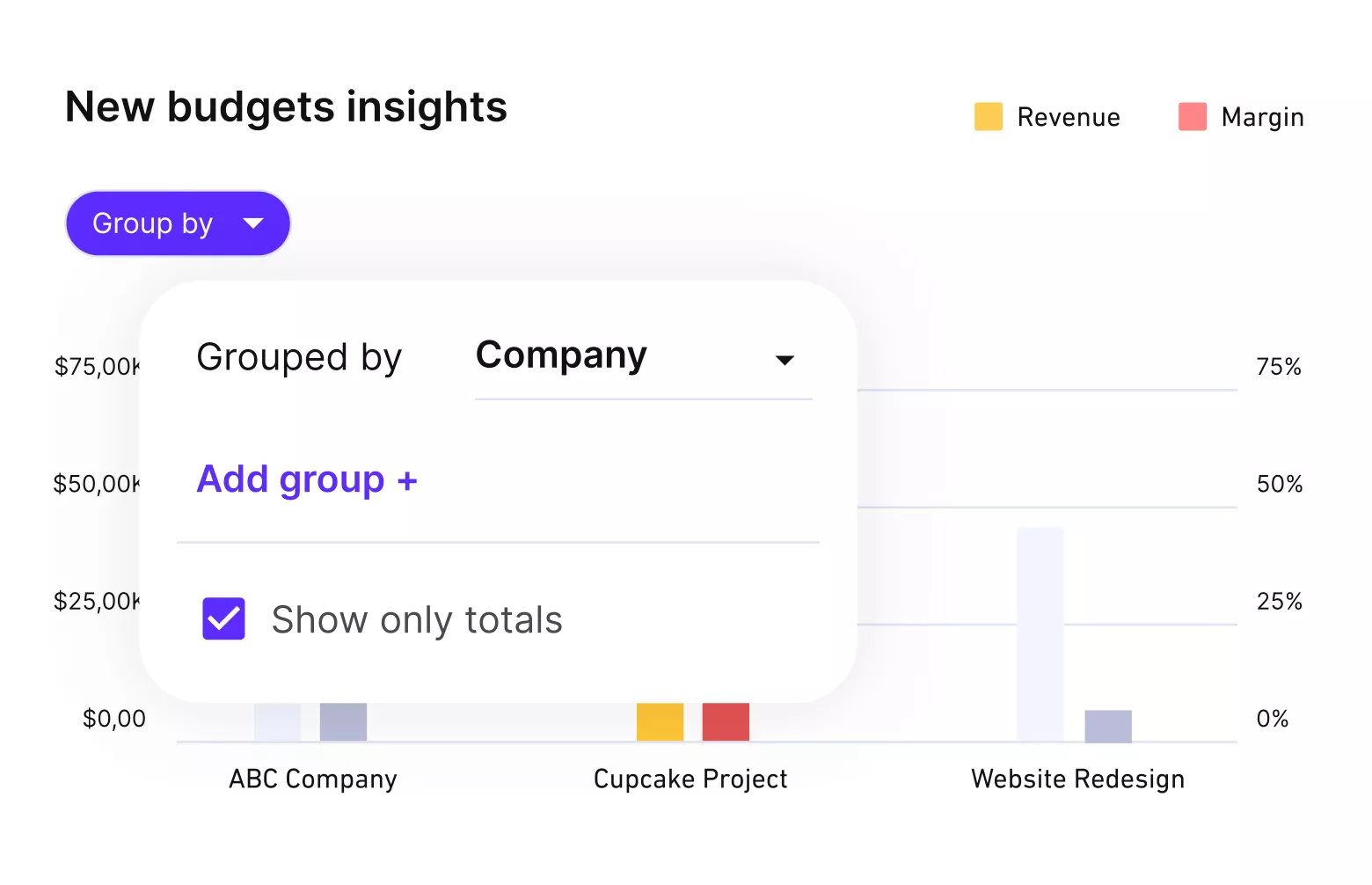
Get real-time updates on budgets and profitability.
Keep Rebillable Costs From Slipping Into Overhead
Rebillable costs are easy to lose when the receipt, project code, billable flag, and invoice backup live in different places. A flight, client dinner, license, or production cost may be valid to pass on, but only if it is coded correctly before invoicing.
Productive supports billable and non-billable expense line items in budgets. Billable expenses can reduce the remaining budget, add revenue, and be included in client invoices. Non-billable expenses still affect profitability, but they do not get passed on to the client.
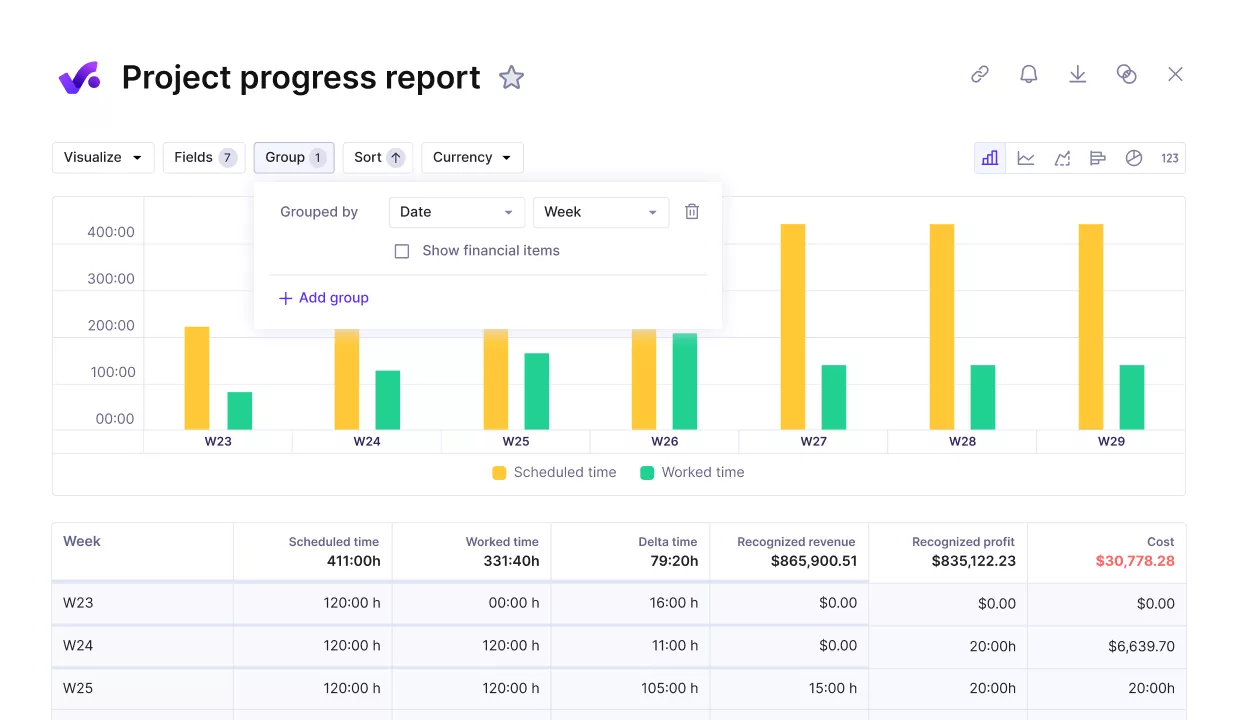
Track project progress agains key performance and financial metrics.
Review Expenses With Budget Context
Policy approval answers a narrow question: does this expense follow the rules? Service teams also need a second answer like: can this project absorb the cost without damaging the budget?
Productive lets teams set time and expense approval policies for budgets. You can learn more about these workflows on Productive’s expense management page, where expenses stay connected to the budgets they affect.
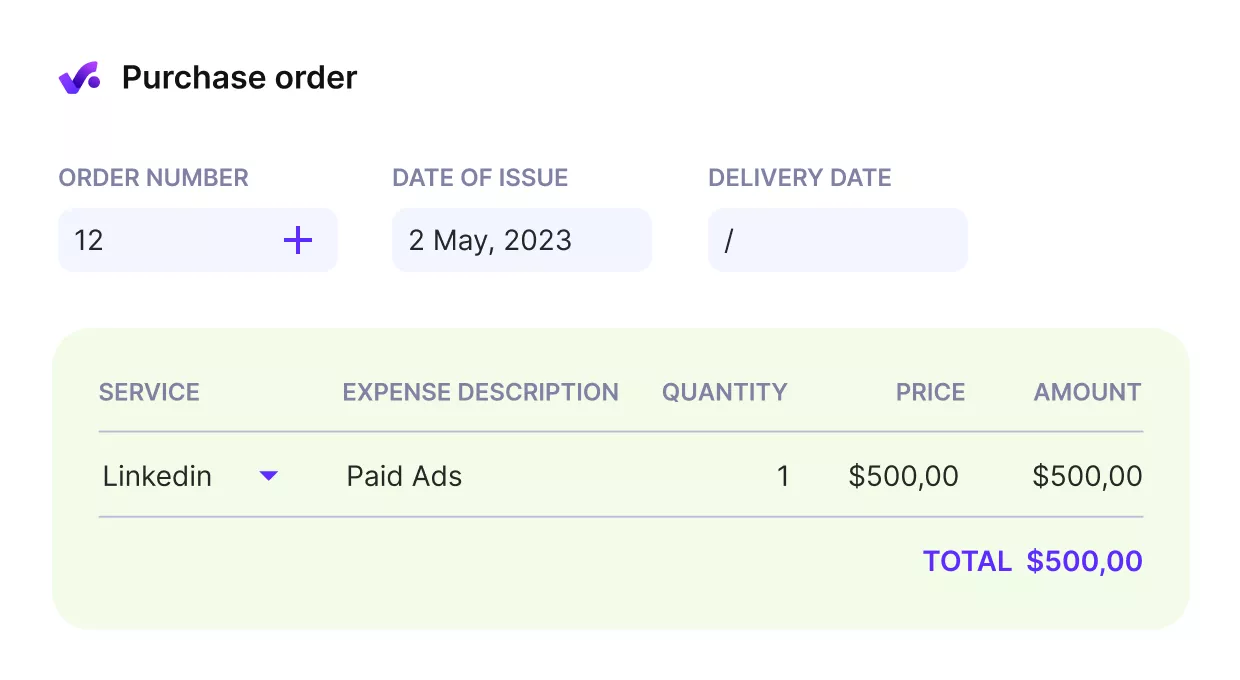
Add purchase orders and track billable and non-billable work.
See Client Cost Without Rebuilding Reports
Employee-based expense reports are useful for reimbursement, but they do not show the full cost of serving a client. To answer that, teams need expenses, time, budgets, invoices, and project data in the same reporting context.
Productive keeps costs closer to the project and client financials, so teams do not have to rebuild client views from exports and spreadsheets. You can learn more about the reporting layers and more on Productive’s reporting page.
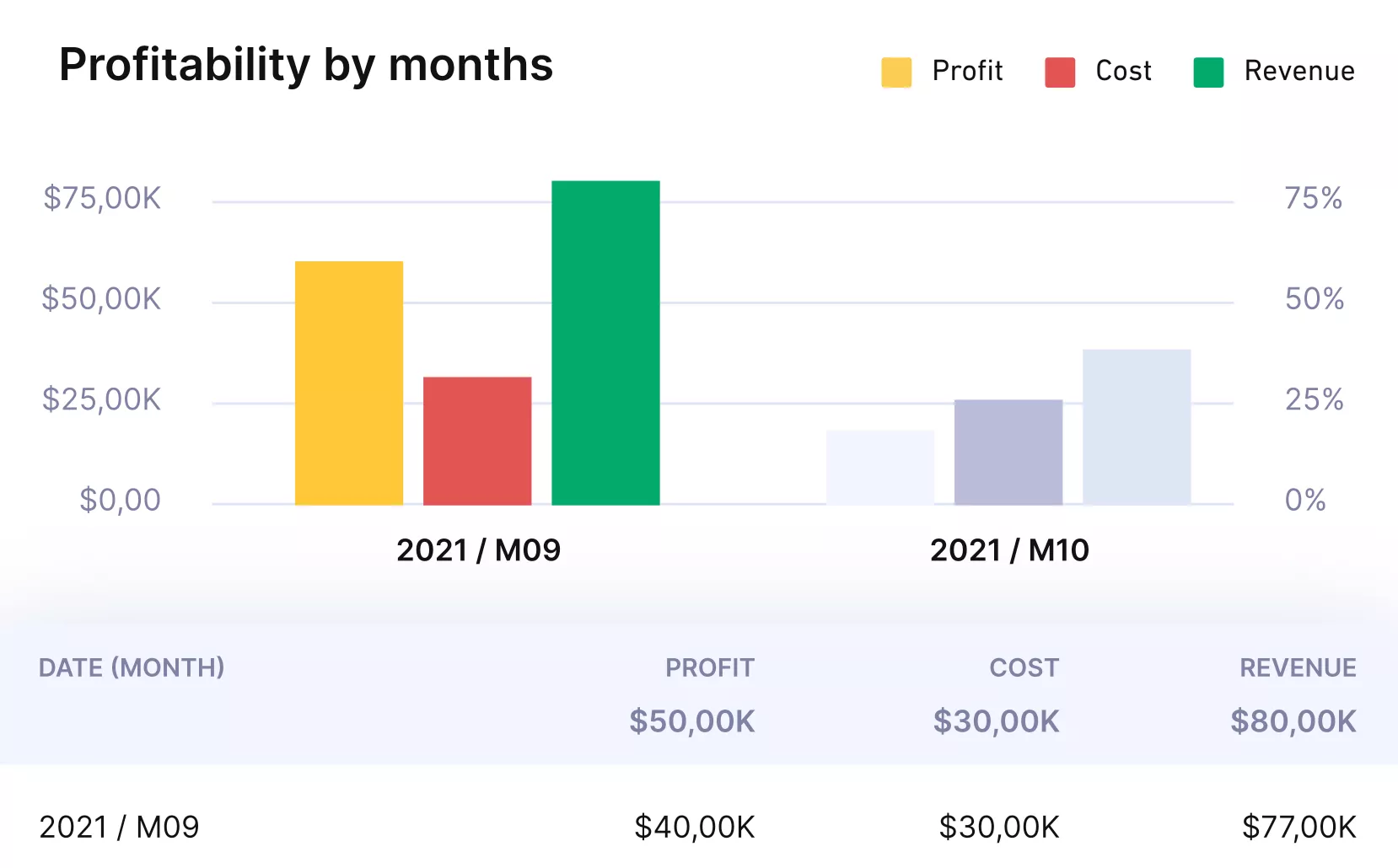
Use Productive’s reports for instant updates on client or project profitability.
Pricing
- Plans start with the Essential plan at $10 per user per month, which includes essential features such as budgeting, project & task management, docs, time tracking, expense management, reporting, and time off management.
- The Professional plan includes custom fields, recurring budgets, advanced reports, billable time approvals, and much more for $25 per user per month.
- The Ultimate plan has everything that the Essential plan and Professional plan offer, along with the HubSpot integration, advanced forecasting, advanced custom fields, overhead calculations, and more. Book a demo or reach out to our team for the monthly price per user.
Productive has a free 14-day free trial, so you can try out what the tool can offer to your professional services firm.
Bring Expense Data Into Your Delivery Workflow
Productive helps agencies and professional services teams connect expenses with budgets, invoices, reporting, and profitability.

2. SAP Concur – Best for Enterprise T&E Governance
SAP Concur is built for larger companies that need travel booking, employee claims, invoice management, and policy controls in one governed system. It belongs on this list because it can support complex T&E and accounts payable workflows, but that depth can also make it heavier than smaller teams need.
Key Features
- T&E workflows for booking trips, submitting claims, and keeping travel costs in the same system
- Mobile receipt upload so employees can attach proof and create an expense report from their phone
- Approval paths and policy controls that help finance teams review spending before reimbursement
- Invoice and ERP-related workflows for companies that need spend, travel, and supplier invoice visibility
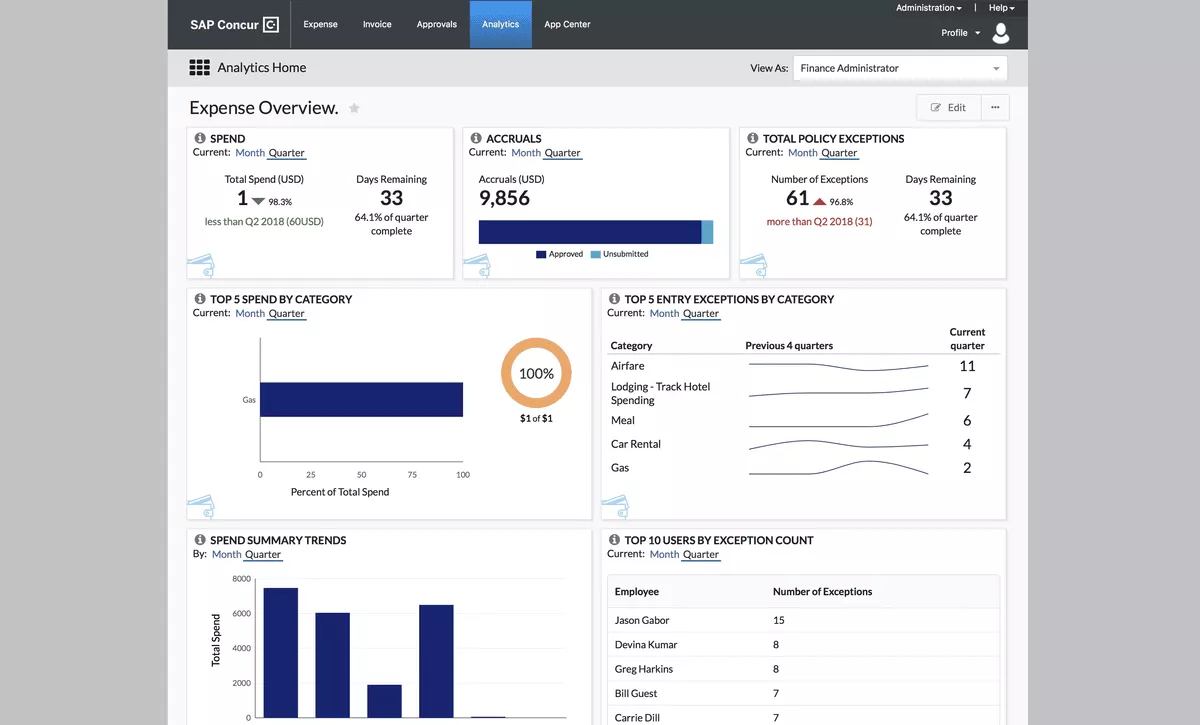
SOurce: SAP Concur
Pros
- Strong fit for enterprise T&E workflows where travel, approvals, and reimbursements need to stay connected.
- Receipt upload and card integrations can reduce manual entry for employees who submit claims often.
- Reviewers often like the visibility into approval status, claim history, and reimbursement progress.
- The platform can support finance teams that need expense report visibility, compliance checks, and ERP-connected spend data.
Cons
- The interface can feel complex for new users, especially when simple submissions require several steps.
- Some reviewers say the mobile app is less capable than the web version for detailed edits and allocations.
- Categories, tax setup, and customization can feel restrictive for companies with unusual spending rules.
- Slow loading, sync delays, or receipt-scanning accuracy issues can create extra review work during busy periods.
Final Verdict
SAP Concur makes the most sense when a company needs enterprise travel, approvals, invoice workflows, and finance controls at scale.
A smaller company that mainly wants quick reimbursements, project-level cost tracking, or a lighter setup will probably find the system more powerful than practical.
3. Zoho Expense – Best Free Business Spend Tool With Project Tracking
Zoho Expense is the strongest free-plan pick for small businesses that need business expense reporting, not a personal receipt tracker. Its free plan includes reports, mileage via GPS, accounting integrations, multi-currency costs, and customer or project tracking, which gives it enough business depth to belong in this list.
Key Features
- Free plan for up to 3 users, with expense reports, personal card cost tracking, and 5 GB of receipt storage
- Mileage tracking via GPS, so teams can record travel costs without rebuilding mileage logs manually
- Accounting integrations and multi-currency costs for companies that need cleaner expense reporting across tools
- Customer and project tracking so that costs can be assigned beyond a generic category
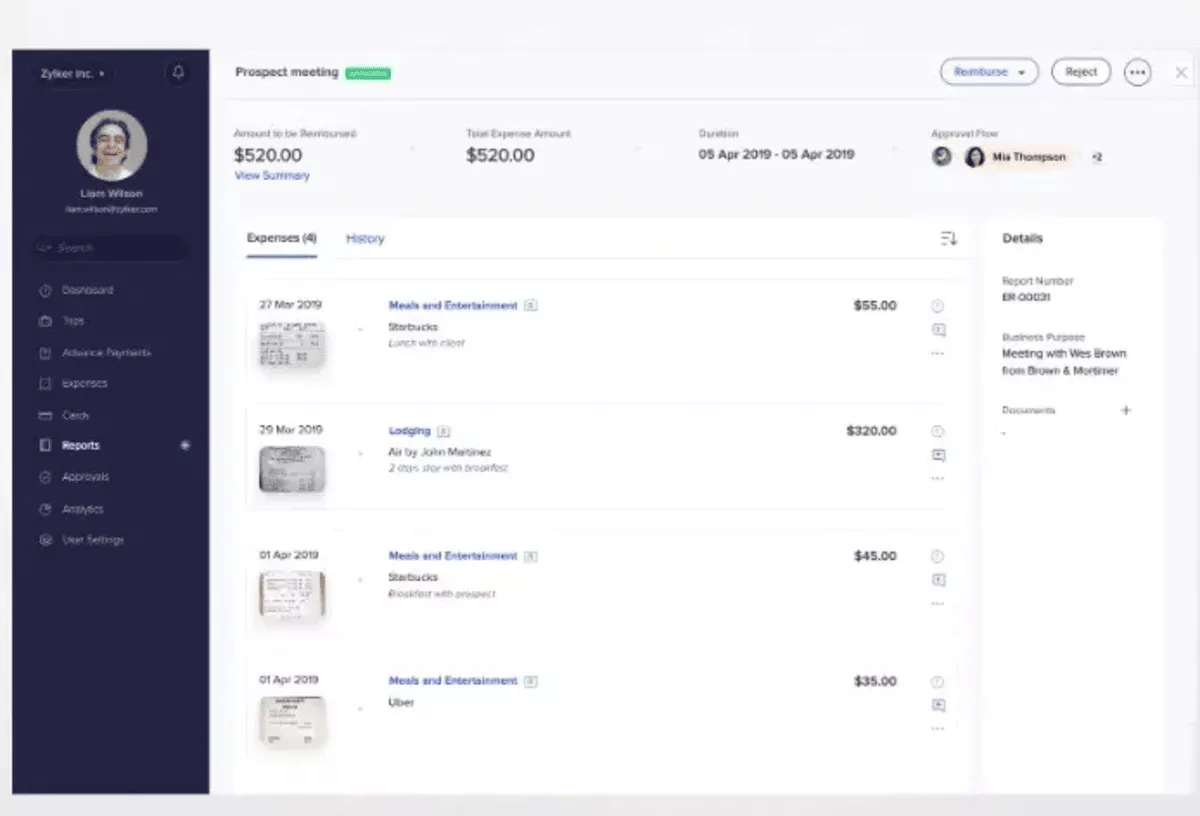
SOurce: zoho expense
Pros
- Zoho Expense is easy for small teams to adopt because the interface and submission flow are simple to learn.
- The free plan makes it practical for small businesses that need structured cost control before they are ready for a paid tool.
- Receipt upload, categorization, and the mobile app help employees record costs before details get lost.
- Zoho users can connect spending with the broader Zoho ecosystem, especially when finance already works in accounting software like Zoho Books.
Cons
- Some reviewers say the setup and advanced features have a learning curve, so it may take time to configure properly.
- Reporting and dashboard customization can feel limited for teams that need more flexible finance views.
- Pricing can become less attractive for companies with multiple countries, entities, or separate Zoho subscriptions.
- The interface can feel clunky for some users, especially when uploading receipts or grouping expenses.
Final Verdict
Zoho Expense is a good choice when you want a low-cost tool with a free plan and enough structure for company spend tracking.
It becomes a weaker fit when costs need to connect deeply with project profitability, client budgets, enterprise T&E governance, or a finance stack that does not already use Zoho products.
4. Sage – Best for Corporate Card Controls and Project-Coded Costs
When finance teams already rely on company cards, the hard part is not just collecting receipts. Sage focuses on corporate card reconciliation, receipt handling, policy checks, review paths, and accounting sync, so card purchases can be reviewed before they become month-end cleanup.
Key Features
- Direct feeds for business cards, including Visa, Mastercard, and American Express transactions
- Receipt collection through mobile, email, text, Gmail, Outlook, Slack, and Microsoft Teams
- Policy checks, review paths, and alerts that help finance teams catch policy violations earlier
- Accounting integrations with tools such as Sage Intacct, QuickBooks Online, NetSuite, and Xero
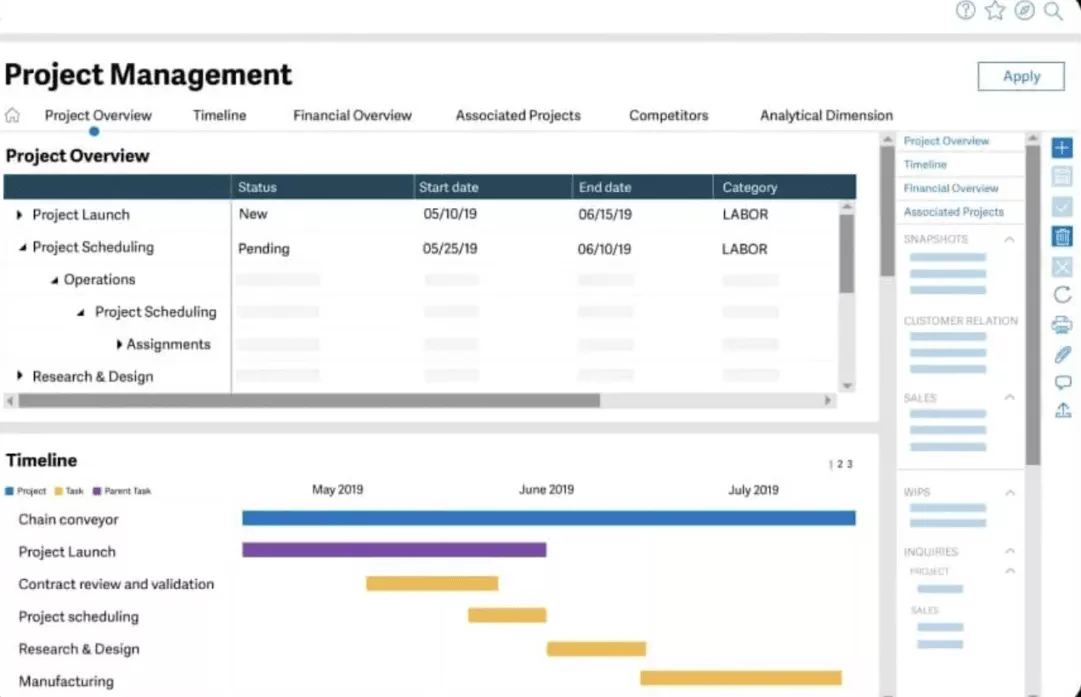
SOurce: Sage
Pros
- Sage is easy for employees to use when they need to submit costs and upload receipts.
- The text and mobile receipt options help teams collect proof closer to the moment of purchase.
- Reviewers like that card activity can be tracked and synced into accounting tools.
- The platform can reduce receipt chasing by giving employees real-time prompts after card purchases.
Cons
- Receipt matching can still miss transactions, which means admins may need to fix matches manually.
- Duplicate or redundant expenses can be hard to clean up when upload flows do not work as expected.
- Some users find the interface or dropdown setup less clear when they do not enter expenses often.
- Approval timing and reimbursement visibility can feel rigid for teams that want more control over individual charges.
Final Verdict
Sage is a strong fit when the expense management problem starts with card spend, receipt collection, and accounting reconciliation.
It is less compelling for companies that need a free plan, enterprise travel booking, or a broader professional services platform where project costs, client budgets, and profitability sit in one workflow.
If budgeting is the bigger problem, compare broader options in our guide to budgeting platforms for businesses.
5. BigTime – Best PSA-Style Time and Cost Tracking for Professional Services
BigTime is built for professional services firms that need time, costs, billing, invoicing, and project work in the same system.
Its cost capture fits teams that want project-related spend reviewed before billing, but it is more of a PSA platform than a lightweight reimbursement app. If you are building forecasts around service work, compare our roundup of tools for financial modeling.
Key Features
- Time and cost tracking for firms that need billed time and project-related costs in one workflow
- Optional cost approvals, with review steps before items are reimbursed or charged to clients
- Billing and invoicing workflows that use approved time and costs as backup for client billing
- Reporting for timesheets, cost reports, project financials, and custom time and cost data
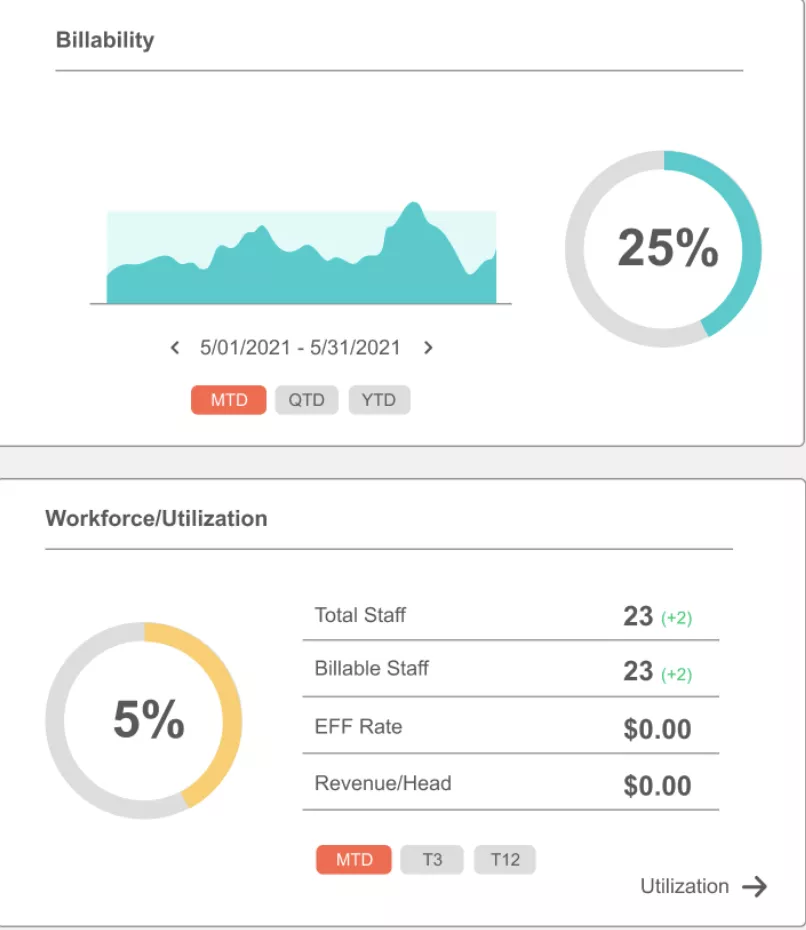
SOurce: bigtime
Pros
- BigTime works well for professional services teams that need time tracking, invoicing, and project management connected.
- Reviewers often like the reporting depth, especially for timesheets, cost reports, and project data.
- The project structure helps teams track time and costs against clients, engagements, tasks, or deliverables.
- QuickBooks integration can reduce duplicate work for firms that already manage accounting there.
Cons
- Setup and rollout can take work, especially when teams need to configure time tracking and project workflows correctly.
- Some users say the interface requires too much back-and-forth clicking for routine admin tasks.
- Receipt uploads can feel unclear when users need to fill out many categories.
- Integrations can create friction when accounting connections are harder than expected to configure.
Final Verdict
BigTime is worth considering when costs are part of a larger PSA workflow with time tracking, project work, billing, and invoicing.
It is not the cleanest choice for companies that want a free tool, enterprise travel management, card controls, or a simpler submission workflow without the PSA layer.
6. ClickTime – Best for Project Cost Tracking With Time and Spend
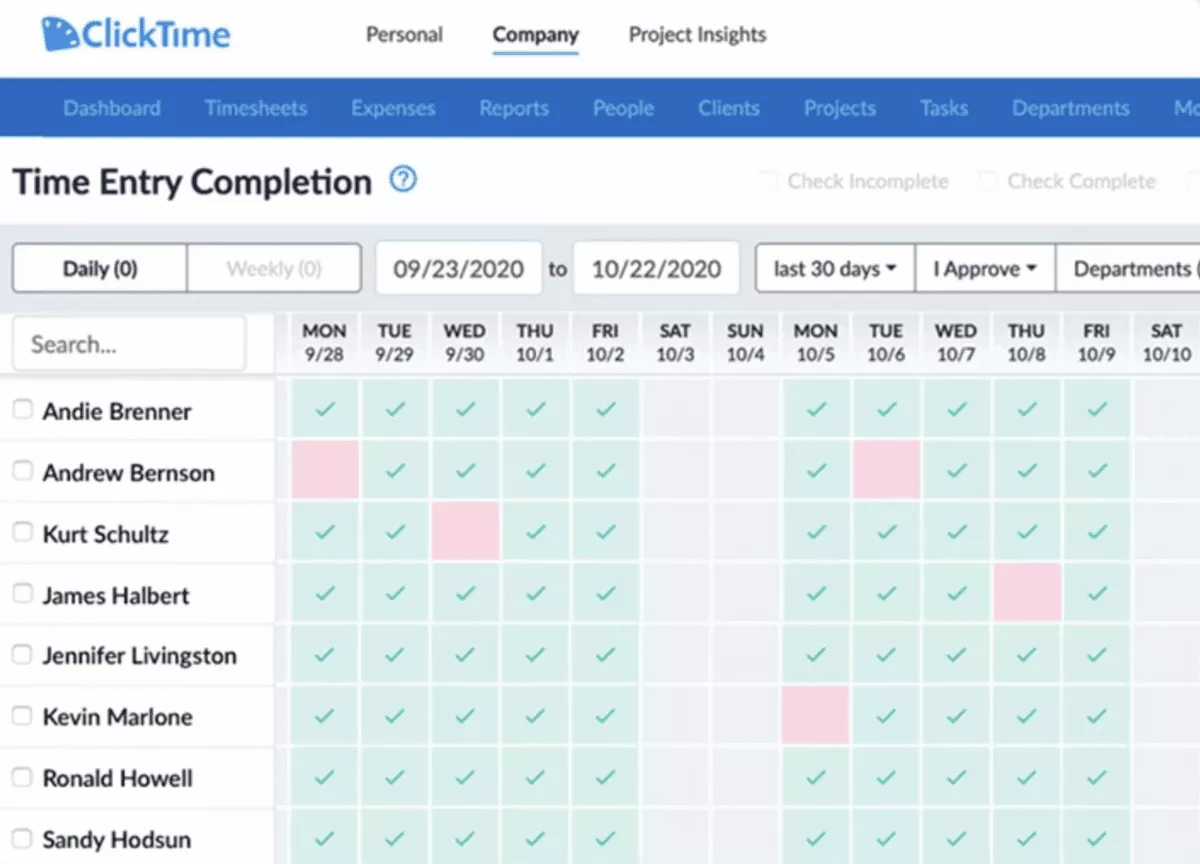
ClickTime is a good fit when expense tracking needs to sit beside time data, project reports, and cost analytics. It is useful for teams that need to manage spend alongside client work or internal initiatives without moving every record into a broader PSA.
Key Features
- Time and cost platform for recording labor, equipment, travel, and materials against projects
- Receipt attachments and cost documentation that help finance document project or initiative spend
- Project cost reporting by project, department, program, or internal initiative
- Budget and reporting views for comparing labor and costs in one place
SOurce: clicktime
Pros
- ClickTime is easy for employees to use when they need to track time, costs, and project activity.
- Reporting helps teams explain project costs with data instead of relying on rough estimates.
- The platform supports job codes, charge codes, and receipts, which help teams split costs across different workstreams.
- Reviewers like that ClickTime can support budgeting and receipt tracking without separating costs from project work.
Cons
- ClickTime can still require manual data entry, so it may not feel automated enough for teams with high transaction volume.
- The mobile app works for basic tracking, but some reviewers say it lacks options from the web interface.
- Billing is not as native as some teams want, which can matter if they expect one platform for tracking, billing, and payroll.
- Some routine admin actions can feel clunky or multi-step, especially around exports or editing entries.
Final Verdict
ClickTime is a weaker match for companies that need enterprise T&E, card controls, AP automation, a free tool, or a broader professional services platform that connects costs with delivery planning and profitability.
If budget ownership is the bigger gap, compare our roundup of tools for managing project budgets.
7. Ramp – Best for Card-Led Spend Management and Finance Automation
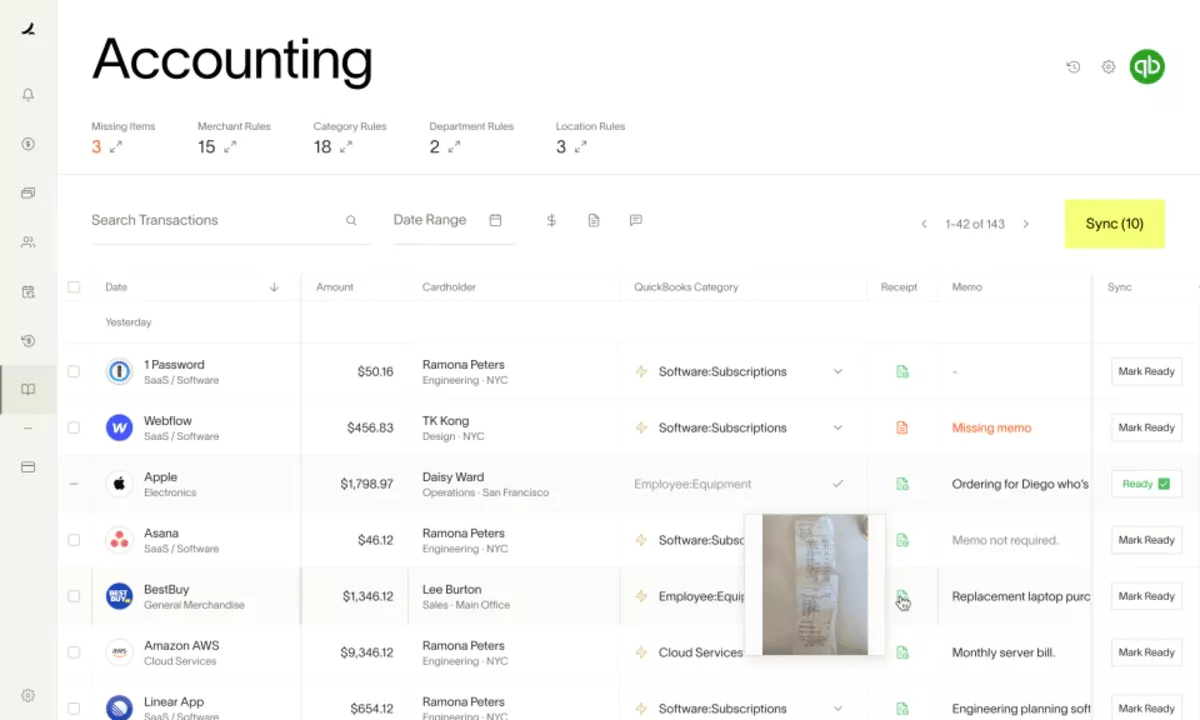
Ramp is the card-led option for companies that want costs to start with controls, not reimbursement cleanup. Its spend platform combines business cards, virtual cards, approvals, bill payments, vendor management, accounting integrations, and real-time spend visibility. Still, it is not built around project or client budget tracking.
Key Features
- Business card and virtual card workflows for controlling employee and vendor spend
- Receipt collection and reimbursement workflows for card and non-card costs
- Bill payments and vendor management for teams that want more finance workflows in one platform
- Accounting integrations and real-time reporting for card transactions, approvals, and spend visibility
SOurce: ramp
Pros
- Ramp is easy to use for employees who need to submit costs, receipts, and reimbursements.
- Business cards and employee cards help teams control spending before charges hit the books.
- Receipt matching and real-time prompts can reduce the finance team’s month-end follow-up work.
- Reporting and spend visibility help managers notice vendor costs, employee spending, and travel costs earlier. If the bigger question is planning future spend, use our guide to forecasting business budgets.
Cons
- Ramp is less useful when the main need is project or client cost tracking rather than card-led spend control.
- Some reviewers mention regional limits, which can create workarounds for global reimbursement workflows.
- Card or platform issues can create extra admin work when subscriptions, vendors, or QuickBooks exports need attention.
- Advanced governance needs may require paid functionality, so the free plan may not cover every finance requirement.
Final Verdict
Ramp is not the best fit when a company needs project-coded costs, client budget tracking, PSA-style delivery visibility, or professional services profitability in the same operating system.
What Are the Key Features of Expense Management Tools?
The key features to look for are receipt handling, submitted cost reports, approval rules, policy checks, accounting integrations, reimbursement status, card support, reporting, and project or client cost tracking.
The exact mix depends on how your company spends money, who approves it, and where the data needs to go after approval. Below is a table overview that covers the key features:
| Feature | What it does | Must-have or use-case specific? | Who should prioritize it | Tools from this list that support it |
|---|---|---|---|---|
| Receipt handling | Lets employees upload proof from mobile, email, or connected apps so finance does not chase missing documentation later. Some tools use optical character recognition to read merchant name, amount, and date. | Must-have | Any company that reimburses employees or manages card purchases | Productive, SAP Concur, Zoho Expense, Sage, BigTime, ClickTime, Ramp |
| Expense reports | Groups submitted costs into a reviewable expense report, usually with receipts, categories, dates, projects, clients, or payment details attached. | Must-have | Companies that need structured review before reimbursement, billing, or accounting export | SAP Concur, Zoho Expense, BigTime, ClickTime, Sage |
| Approval workflows | Routes submitted costs to the right reviewer before they are reimbursed, billed, or reported. This matters when managers, finance teams, or project owners need control before costs become official. | Must-have | Teams with managers, budget owners, finance reviewers, or client-billable costs | Teams with managers, budget owners, finance reviewers, or client-billable costs |
| Expense policies | Compares submitted costs against company rules, such as spend limits, required receipts, allowed categories, or approval thresholds. Automated controls help finance catch issues earlier. | Must-have for larger teams | Companies with repeat spend, policy violations, or audit requirements | SAP Concur, Zoho Expense, Sage, Ramp |
| Reimbursement status | Shows whether employee repayments are submitted, approved, rejected, paid, or still waiting on review. This helps employees avoid status-chasing and gives finance a cleaner payment queue. | Must-have if employees pay out of pocket | Companies with regular travel, mileage, or employee-paid costs | SAP Concur, Zoho Expense, BigTime, Ramp, Productive where reimbursement marking is relevant |
| Accounting integrations | Sends approved records into the finance stack so teams do not re-enter the same data. This is especially important when costs affect month-end reporting. | Must-have for finance teams | Companies that need clean accounting handoff or accounts payable visibility | SAP Concur, Zoho Expense, Sage, BigTime, ClickTime, Ramp |
| Corporate card support | Connects business cards or card transactions to receipts, categories, approvers, and reports. This reduces the gap between the purchase and the month-end statement. | Use-case specific | Companies that manage most spend through cards instead of reimbursements | Sage, Ramp, SAP Concur, Zoho Expense |
| Live cost visibility | Gives managers and finance teams spend visibility before the close cycle. This helps teams spot budget issues, missing receipts, and unusual purchases earlier. | Must-have for growing teams | Companies that need visibility before month end | Productive, SAP Concur, Zoho Expense, Sage, ClickTime, Ramp |
| Project or client cost tracking | Ties costs to projects, clients, budgets, tasks, or internal initiatives instead of leaving them as generic finance entries. This is key when delivery margin or client billing is affected. | Use-case specific | Agencies, consultancies, and project-based companies | Productive, Zoho Expense, Sage, BigTime, ClickTime |
| Audit trail and admin controls | Keeps a record of who submitted, changed, approved, rejected, or exported a cost record. This supports compliance reviews and helps finance investigate exceptions without rebuilding the history manually. | Must-have for controlled finance workflows | Finance teams with approval, compliance, or audit requirements | SAP Concur, Zoho Expense, Sage, Ramp, Productive where approval history is relevant |
| Automation | Uses rules, receipt extraction, review routing, alerts, and syncs to reduce manual admin work. This is useful only when the automation matches the company’s real workflow. | Use-case specific | Teams with high transaction volume or repeatable review rules | SAP Concur, Zoho Expense, Sage, Ramp, Productive |
A good expense management solution does not need every feature in the table. It needs the right features for your workflow.
A company that mostly handles travel reimbursements will evaluate different options than an agency that needs project-coded costs tied to client budgets. If your main gap is scoping before the work starts, use our roundup of techniques for estimating project work.
How to Choose the Right Expense Management System? (Step By Step Process)
You should choose the right expense management system by documenting how costs move through your company, turning that workflow into a vendor checklist, and testing each shortlisted tool with real scenarios.
Do this before comparing feature lists, because the wrong type of tool can still look strong in a demo. Use these steps to narrow the list before you talk to vendors.
Step 1: Map How Costs Start
Start by listing the 5 to 10 most common cost types in your company. For each one, write down what triggers it: an employee repayment, a card purchase, a client-billable item, a travel booking, a mileage claim, a project cost, or an invoice that needs finance review.
Then group those costs by workflow. If most spend starts with card transactions, look at card-led tools like Ramp or Sage. If most costs are tied to client work, compare Productive, BigTime, and ClickTime more closely. If travel booking drives the process, SAP Concur should stay on the shortlist.
Step 2: Write Down the Review Path
Pick three real submissions from the last month and trace each one from upload to final reporting. Write down who submitted it, who checked the receipt, who approved it, who paid it back, and who needed the final record.
Turn that into a simple review map. Include approval limits, backup reviewers, client-billable checks, policy exceptions, and what happens when a receipt is missing.
Share this map with finance teams and managers before demos, so vendors can show the exact review process instead of a generic one.
Step 3: Define What Finance Needs After Approval
Once a cost is approved, decide where the data needs to land. List the accounting system, project platform, PSA, ERP, card provider, or ledger that needs the final record.
For each system in your financial stack, define the required fields. Include category, department code, project, client, tax code, reimbursable status, billable status, payment method, and receipt.
During vendor calls, ask the vendor to show how those fields move from submission into your reporting workflow.
Step 4: Test Project and Client Cost Requirements
If your company works with clients, do not stop at reimbursement flows. Build a test case around one real project and ask each vendor to show how a billable cost would be submitted, reviewed, tied to the project, checked by finance, and prepared for billing or reporting.
Check whether the tool can separate reimbursable, non-billable, internal, and client-billable costs.
Also, check whether managers can see the budget impact before the month-end. This step matters for agencies, consultancies, and service firms where spend data affects delivery margin.
For a broader view of margin, billing, and client profitability, use our guide to managing project financials.
Step 5: Compare Pricing Against Real Usage
Do not compare plans only by headline price. Build a rough usage estimate first. Count monthly repayments, card transactions, mileage claims, travel costs, project costs, reviewers, and people who only submit items occasionally.
Then ask each vendor which pricing model applies. Check whether they use an active user pricing model, per-seat pricing, platform fees, card-based pricing, or usage-based limits. A cheaper tool can become expensive if every occasional submitter needs a paid seat. A higher-priced platform can make sense if it replaces several finance tools.
Step 6: Use Reviews to Build Your Demo Script
Before booking demos, read G2 reviews for each shortlisted tool and list the complaints that repeat. Look for patterns around setup, mobile experience, reporting, sync delays, customer support, customer success, receipt matching, approvals, and exports.
Turn those complaints into demo questions:
- If users mention weak reporting, ask the vendor to build the report you need.
- If users mention sync delays, ask how exports fail and who fixes them.
- If users mention mobile friction, test the mobile flow with a receipt, a mileage claim, and an approval request.
The best tool is the one that handles your real workflow with the least cleanup.
How to Implement Expense Management Software?
You should implement expense management software by cleaning your categories, mapping review rules, connecting finance and project systems, piloting the workflow with one team, and checking the first month-end close for gaps. Treat the rollout as an operations project, not just a software setup task.
The checklist below is written so finance, operations, and project leads can use it together.
Implementation Checklist
- Audit the last 60 to 90 days of spend. Export recent records and group them by category, payment method, submitter, reviewer, project, client, and reimbursement status. Use this to spot duplicate categories, unclear labels, and items that should not follow the same workflow.
- Separate cost types before you configure the tool. Create clear buckets for reimbursable, non-billable, billable, travel, mileage, card, project, client, and internal spend. This makes review rules easier and prevents every submission from following the same path.
- Define who reviews each cost type. Map rules by amount, department, project, client, payment method, or department code. Add backup reviewers for PTO or sick leave, and decide which exceptions should go to finance instead of the direct manager.
- Set the repayment process before launch. Decide when employees are paid back, who checks the queue, and whether payments go through payroll, direct deposit, or another payment process. If the tool requires a bank account connection, confirm who owns the setup and who can access payment details.
- Map records to finance and project systems. Decide which fields need to sync into your finance platform, project tool, PSA, ERP, or ledger. At minimum, map category, project, client, department code, tax code, billable status, reimbursable status, payment method, and receipt.
- Configure finance sync carefully. Test how approved records export, sync, or post into your finance systems. Check whether the sync keeps the right categories, tax fields, projects, and attachments. Do not launch until finance can reconcile test records without manual cleanup.
- Build one real pilot workflow. Pick one team, one manager, and one finance reviewer. Run real examples through the full implementation process: a receipt upload, a card purchase, a mileage claim, a client-billable item, a rejected submission, and a missing receipt.
- Test review rules before inviting everyone. Submit items that should go to different reviewers and confirm they land in the right queues. Include edge cases, such as costs over limits, project costs, policy exceptions, and submissions created by managers.
- Document the rules employees actually need. Write a one-page policy that explains what to submit, when to submit it, which receipt is required, how to code a project cost, how to flag a billable item, and what happens when something is rejected.
- Train by role, not with one generic session. Submitters need to know how to upload receipts, code costs, and check status. Reviewers need to know how to approve, reject, and comment. Finance needs to know how to audit, export, reimburse, and troubleshoot sync issues.
- Check vendor onboarding and support paths. Before rollout, confirm who your vendor contact is, how customer support handles sync errors, and what customer success covers during setup. Save support instructions inside your internal rollout doc.
- Review the first month-end close. After the first close cycle, check missing receipts, rejected items, late approvals, failed exports, duplicate categories, and repayment delays. Use those findings to adjust review rules, finance sync, and employee guidance.
A good implementation process should reduce cleanup after launch. If finance still has to rebuild reports, chase receipts, or recode every item manually, the workflow is not finished yet.
Final Thoughts: Which Expense Management Software Should You Choose?
If costs affect client work, budgets, approvals, reporting, and profitability, choose an all-in-one system instead of stitching together separate tools for receipts, projects, and finance.
For professional services teams and agencies, the stronger choice is usually an all-in-one management software that connects costs with projects, clients, budgets, approvals, reporting, and profitability. That is where Productive fits best, especially when spend is part of delivery work rather than a standalone finance task.
If you want to see how Productive handles expenses in a professional services workflow, book a demo and walk through your current process with the team.
Connect With Agency Peers
Access agency-related Slack channels, exchange business insights, and join in on members-only live sessions.
