New Sales Feature: Create, Send, Get Proposals Signed

You told us that your proposals flow isn’t cutting it: with expensive, fragmented processes, documents lost between multiple tools, and no way to efficiently track proposal status.
Drum roll 🥁
Introducing: Creating, sending, and getting proposals signed in Productive.
Here’s What Updated Proposals Include:
- Customize your proposal document to fit your brand
- Keep track of how your proposal is doing with automatically updating statuses
- Make client access and signing as simple as possible with link sharing or emails
- Keep your proposals easily accessible to preview and download
Product Updates, Delivered
Get monthly updates in your inbox and be the first to find out the latest news in Productive.

1. Customize Your Proposal Document
Before creating your proposal, you’ll want to create your own brand-friendly template.
With Productive’s Document Style Editor, you can choose which information you want depicted, where on your document, and how. Change font, colors, and everything you need to stay brand compliant.
When you’ve got the right look and feel, save the Style as a template that you can quickly select (and switch between) when making a proposal.
2. Tracking Proposal Status
When you’re sending out multiple offers at the same time, it can be hard to keep track of what’s going on with which document—if you’re not constantly digging through emails or Slack messages.
Use proposal statuses to track the entire process of managing proposals: from draft to sent, and sent to accepted (or rejected).
Statuses can be changed manually, but they also update automatically as you work, so you’re effortlessly in the loop.
Tip: To encourage communication, your client won’t be able to reject the proposal via a single button click. However, you can still manually update Proposal status to “Rejected” for record keeping.
How Will I Know My Proposal Is Accepted?
Good question! Productive includes several ways to notify you that your proposal’s good to go, so you’re sure not to miss any crucial updates.
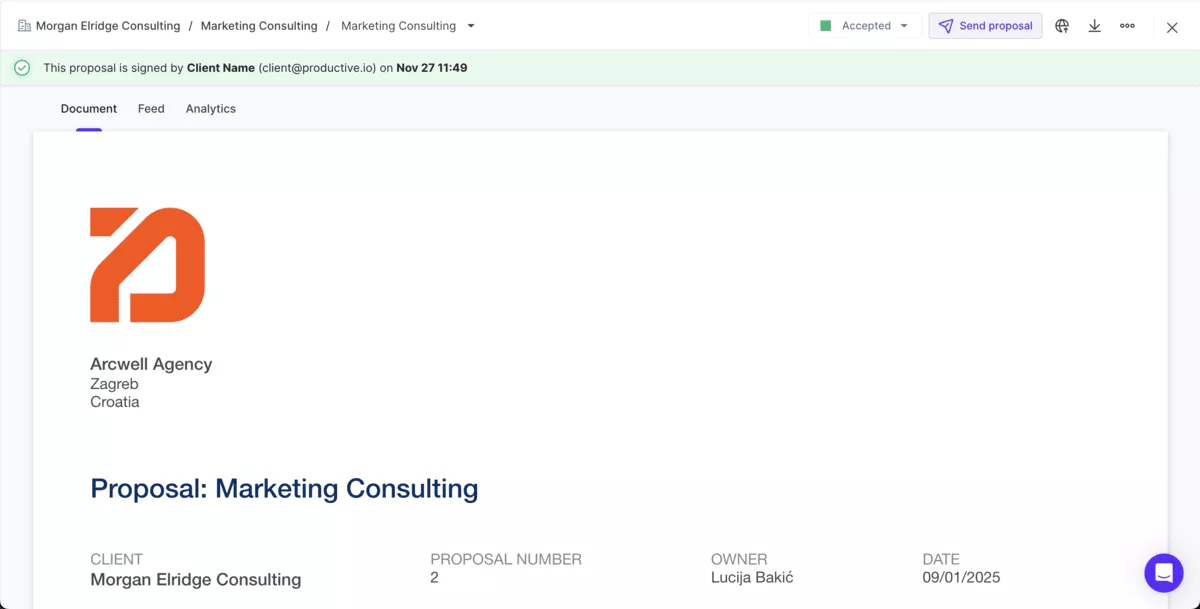
- Your proposal status will change to “Accepted”
- You’ll get a confirmation email
- You’ll see a green banner above your proposal with key details on proposal signing
3. Sending Your Proposal to the Client
Client access can be tricky, so we made it as simple as possible. First, there’s no need to invite potential clients to Productive to get them to sign (though you can do it later, when you’re working on your project).
- If you’d like to share your document without including a link to sign, you can do this by sending an email from Productive.
- Or, you can send an email, and include a link to sign—this will create a banner in your email that clients can click on to complete the process.
- The simplest option is to create a public share link in Productive, which you can copy and paste to any messaging app you prefer.
P.S. You can also add a custom disclaimer to your signing process, if you have additional terms you need clients to review and accept.
How Does Proposal Signing Work?
In case you’re curious about what happens on the client side, here’s a quick overview:
- Clients will receive the proposal, either in an email from Productive, or a public share link
- To sign, they can type their name, draw it, or upload an image
4. Keep Your Proposals in One Place
Each of your deals in Productive has a Proposals tab, where you can check timelines, statuses, and various notes related to the contract.
To keep your documents safe, signed proposal documents can only be deleted by activating a specific permission.
Otherwise, to work on in progress proposals, you’ll need to activate the permission to “Add, edit, and delete deals”. In short, anyone who’s usually working on your sales process will be able to manage proposals.
If you need your document outside the platform, it can be exported without signature, or with signature (and additional signing data) after acceptance.
Looking for Additional Features for Managing Proposal Data?
- Feed tab: Get an overview of the entire timeline of your proposals—handy if something is stuck, or you just want an overview of the entire flow of the process.
- Analytics tab: If you’re waiting on client feedback and you’re wondering if they even opened your contract, you can check this and other engagement metrics.
Quick Tip: Integrate Productive With Gmail
We talk a lot about inboxes for Proposals.
So here are some good news: You can integrate Productive with Gmail to keep all your communications in one place.
- Preview emails in Productive, so you don’t have to switch tabs all the times
- Update and create contacts in the CRM in one click, so details don’t slip through the cracks
- Link communications to your deals feed to keep everyone up-to-date with relevant emails
Learn how to set your Gmail integration up.
What’s Next for Proposals?
Proposal creating, sending, and signing isn’t the ending.
We’re working on making the “creating” part more robust, so stay tuned for additional updates to proposals in the coming months.
Get Up to Speed In Minutes
Every week we deliver new features, fixes, and updates.
