Top 6 BQE Core Alternatives (Paid & Free) – 2026 Guide

If you’re having a hard time comparing BQE Core alternatives, you’re at the right place.
Here, we’ll break down the best potential substitutes along with their key features, pros, cons, and a clear final verdict for each option (based on real user reviews).
You’ll also get a buyer comparison table, a bonus migration checklist, and a step-by-step process to help you pick the right tool for your team.
What Are the Best BQE Core Alternatives in 2026?
The best options in 2026 are Productive, BigTime, FreshBooks, Zoho Invoice, Deltek (Replicon Time), and Kantata.
Below, you will get a quick overview of these core alternatives with key features, pros, cons, and a clear final verdict for each tool based on repeated review patterns on G2 and Capterra.
Shortlist of the Best BQE Core Replacements
Buyer Comparison Table
| Tool | Best for | Skip this tool if | What it does better | Free version |
|---|---|---|---|---|
| BQE Core | All-in-one time, billing, and job costing | You need faster navigation, easier time entry, or a smoother mobile experience | — | No |
| Productive | All-in-one project ops and finance platform for services teams and agencies | You only need invoicing or basic timesheets | Connects projects, time entries, budgets, approvals, and resourcing in one place | No |
| BigTime | Time and billing with job costing | You need a simple setup with minimal configuration | Strong weekly timesheets and job-level billing workflows | No |
| FreshBooks | Simple invoicing and expense tracking | You need deeper project accounting or complex approvals | Faster invoicing workflows with a lighter learning curve | No |
| Zoho Invoice | Free invoicing with basic time capture | You need advanced accounting reporting or specific payment requirements | Free plan with invoicing, reminders, and client payment portal | Yes |
| Deltek (Replicon Time) | Timesheets, approvals, and policy enforcement | You want a lightweight tool and self-serve reporting | Stronger time governance, approvals, and compliance rules | No |
| Kantata | PSA delivery with staffing and utilization | You want a lightweight UI and quick onboarding | Deeper resource planning and utilization visibility for services teams | No |
1. Productive – Best for an All-in-One Replacement
Productive is a business management solution for professional services teams that want project management, time entries and approvals, budgeting, resourcing, and reporting in one system. I
t is a strong fit when you want delivery and finance to work from the same data, while keeping accounting in a dedicated tool through integrations.
Try the all-in-one BQE Core replacement
Keep Project Work, Time Entries, and Budgets Connected in One Place
In many teams, PMs track delivery in one place while finance reviews time and budgets somewhere else. Productive connects tasks, time entries, billing and invoicing, budgets inside the same platform, so you can check project status and budget impact without exporting data.
This is useful when a PM needs to explain progress, scope changes, or budget pressure, because the underlying work and the numbers are tied together.
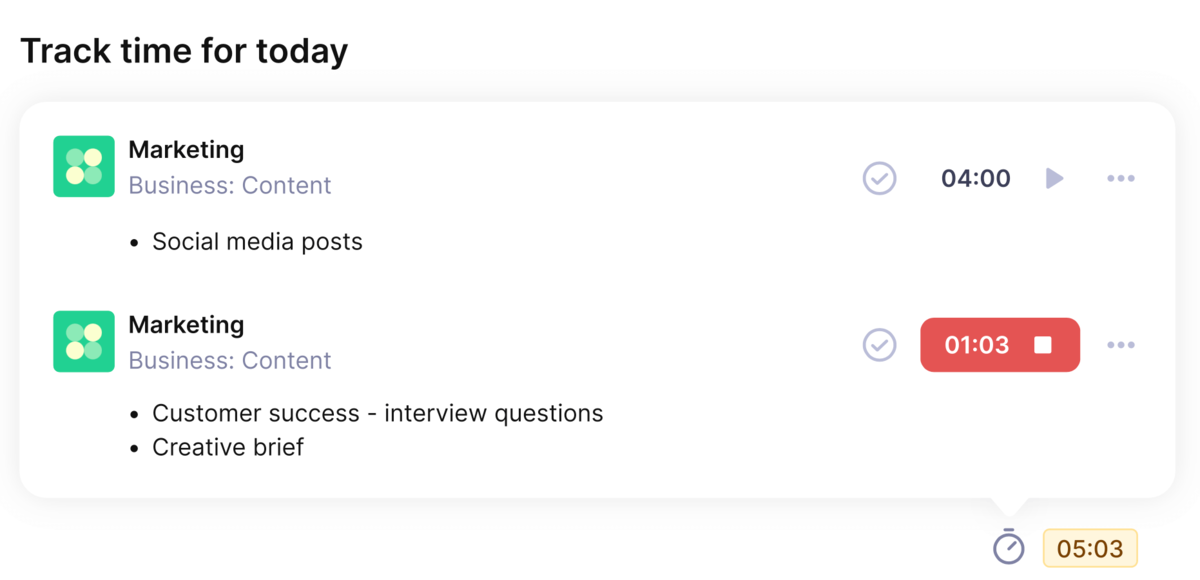
TRACK TIME DIRECTLY ON TASKS WITH PRODUCTIVE’S AUTOMATIC TIME TRACkER.
Review and Approve Time Before It Becomes Official
If time is submitted but not reviewed, reporting and billing conversations get messy fast. Productive supports time approval and time-off management, so budget owners can review time entries before they become official and are reflected in client reporting.
This keeps the time data cleaner earlier in the week, when it is still easy to fix.
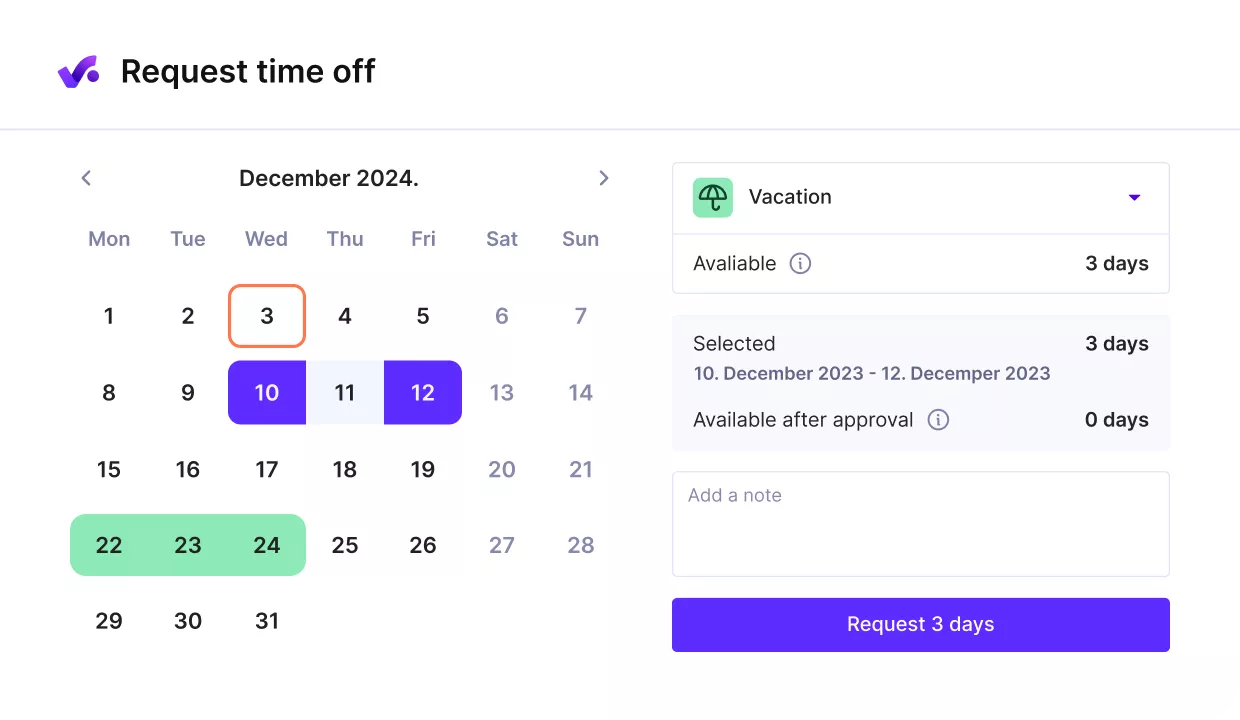
review and approve time off directly from your staff’s work delivery platform.
Approve Expenses on the Budget, with the Right Context
Expenses usually cause problems when they arrive without enough detail or when they are assigned to the wrong budget.
Productive supports expense approval on budgets and deals, so budget owners can approve, reject, or edit expense submissions before they impact reporting.
Review happens in the same place where the budgets are, which makes it easier to keep project costs accurate.
Monitor Budget Burn and Profitability While Delivery Is Running
PMs and delivery leads need early signals, not a recap weeks later. In Productive, budgets stay tied to delivery workflows, so you can check budget burn and financial performance while work is in motion.
You can review financial performance in context, rather than treating budgeting as a separate, finance-only exercise. This supports practical decisions, like adjusting scope, changing staffing, or resetting priorities before overruns stack up.
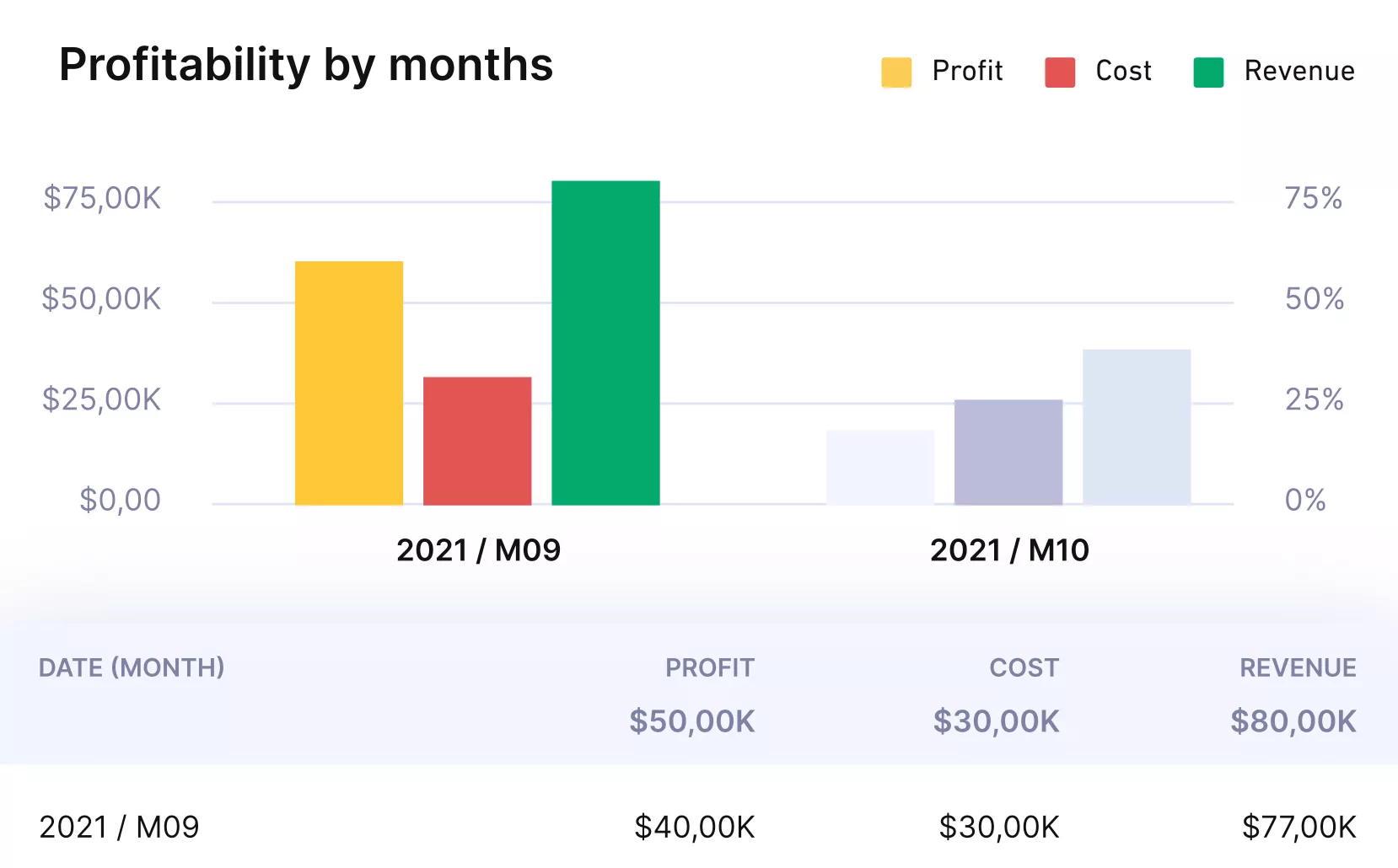
Get real time profitability and budget updates with productive.
Plan Workload with Time Off Reflected in the Same Plan
Capacity planning breaks down when availability data is split across tools, or when time off gets approved but does not show up in the plan.
Time off approval, and approved absences are reflected in Productive’s Resource Planner before schedules are finalized. This helps lead staff projects based on real availability and helps managers spot scheduling conflicts earlier.
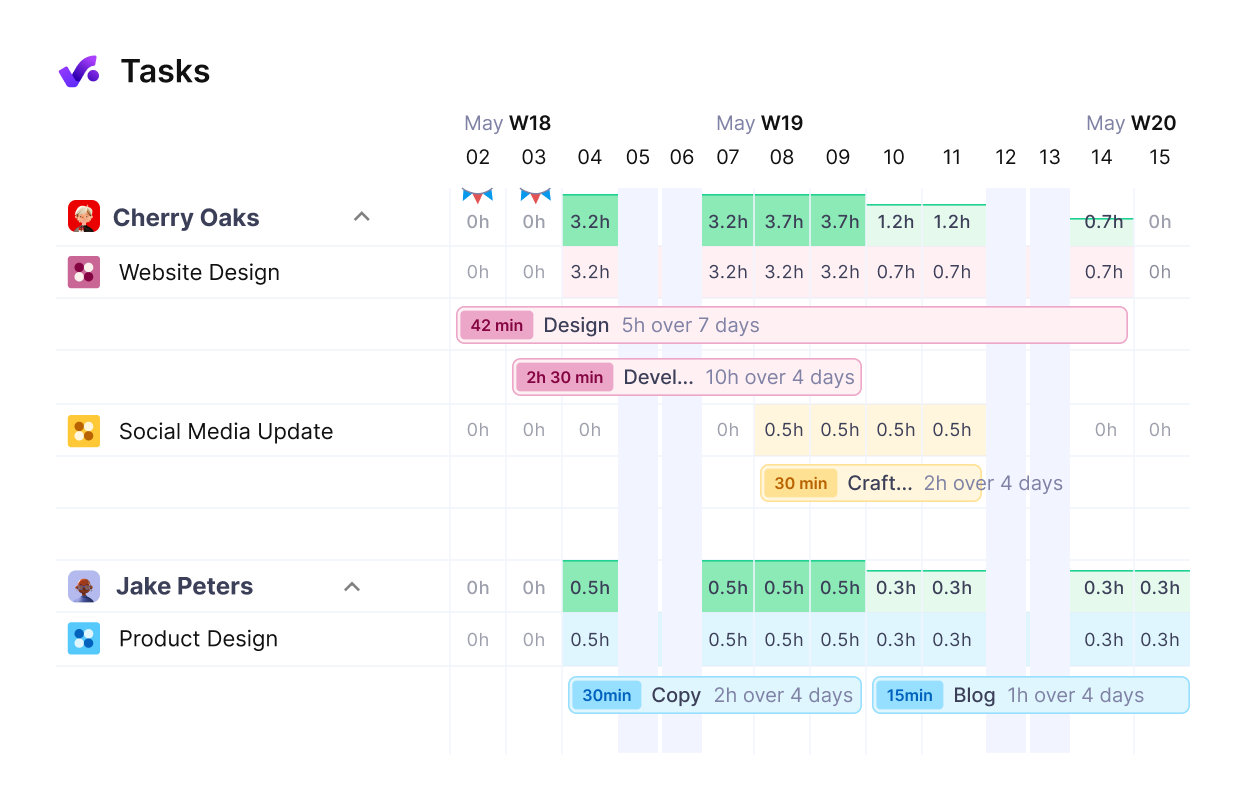
Plan you staff’s workloads and your company resources in the same place.
Connect Delivery Data to Accounting Workflows Without Duplicate Entry
Many services teams want project financial visibility without replacing their accounting system. Productive supports accounting integrations, including QuickBooks, so delivery data can feed downstream finance workflows more cleanly.
The practical benefit is fewer manual handoffs between work logged and finance processing, and fewer mismatches caused by retyping or reconciling the same information across systems.
Build Reporting Views That Match How Your Team Runs Projects
Different roles need different answers. A PM may need a view that highlights progress and budget risk, while finance needs a view that surfaces unapproved time or missing expenses.
Productive supports flexible reporting across projects, time entries, and budgets, so you can build views that answer those questions without rebuilding the same report every week.
This is especially helpful when leadership asks for a breakdown by client, project, or team and you need an answer you can stand behind.
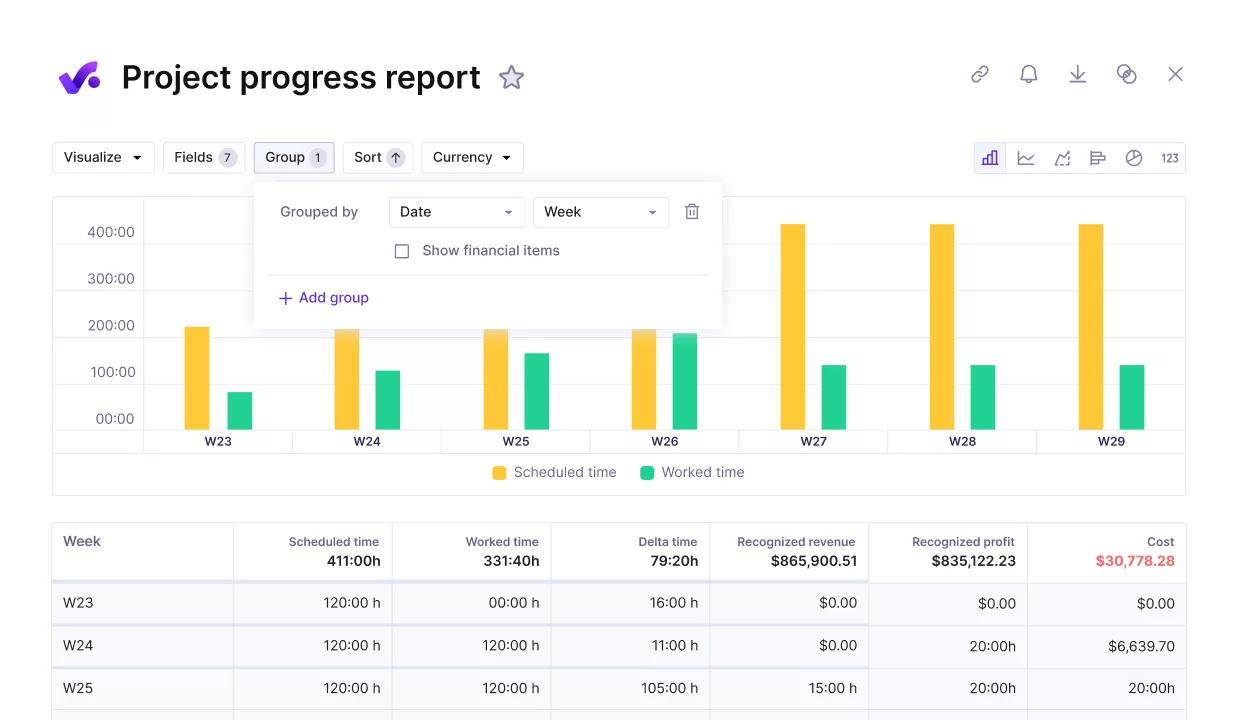
COMPARE PROJECT PROGRESS AGAINS KEY PERFORMANCE METRICS.
Pricing
- Plans start with the Essential plan at $10 per user per month, which includes essential features such as budgeting, project & task management, docs, time tracking, expense management, reporting, and time off management.
- The Professional plan includes custom fields, recurring budgets, advanced reports, billable time approvals, and much more for $25 per user per month.
- The Ultimate plan has everything that the Essential plan and Professional plan offer, along with the HubSpot integration, advanced forecasting, advanced custom fields, overhead calculations, and more. Book a demo or reach out to our team for the monthly price per user.
Replace BQE Core With an All-in-One Platform
Productive keeps project work, time entries, approvals, and budgets connected, so you spend less time reconciling numbers across tools.

2. BigTime – Best for Time and Billing with Project Financials
BigTime is worth shortlisting if your main need is clean time entry, billing, and job-level financial visibility. It fits teams that want project management, weekly timesheets, budgets, and invoices to follow the same project structure.
If you’re considering this tool, you should head over to our best BigTime alternatives comparison.
Key Features
- Weekly timesheets for quick time entry.
- Project budgeting and job costing.
- Invoicing is built from tracked time and expenses.
- Reporting for utilization and job costing.
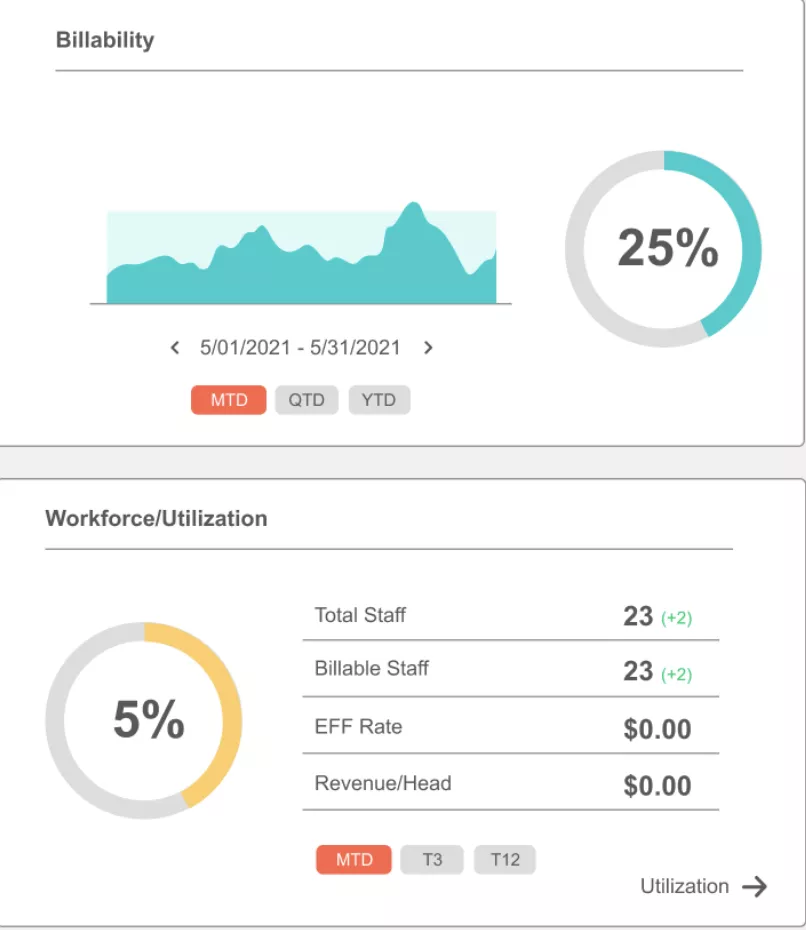
SOurce: bigtime
Pros
- The weekly entry screen is a frequent highlight in reviews, especially for fast timesheet submission.
- Reviewers often mention a clear project and phase structure for billable time, which helps with billing conversations.
- Many reviews note that support is helpful during setup and for workflow questions.
- Firms that track work across multiple projects often mention that the platform helps keep billing organized by job.
Cons
- Some teams say they need time to configure the tool to match their billing rules and internal codes.
- A repeated complaint is that duplicating time from prior weeks is not as easy as they want.
- Some reviewers report occasional bugs, including issues that can reset or duplicate entries.
- A few reviews mention that timesheets can time out or lose an entry if you do not save as you go.
Final Verdict
BigTime is a weaker choice if your team needs a tool that works perfectly with minimal setup, or if reliability issues around time entry would be a dealbreaker.
It is a good fit when you want a time and billing system with job costing, and you can invest in configuration to match how you bill.
3. FreshBooks – Best for Simple Invoicing and Expenses
FreshBooks is a strong pick if you want invoicing and expenses to be easy to keep up with, and you only need basic time capture for billable hours. It is typically a better fit for smaller service teams that want client billing to stay simple.
Key Features
- Customizable invoices, including recurring invoices.
- A timer and manual time entry that can be added to invoices.
- Expense capture with receipt attachments.
- Online payments on invoices, plus a client login for invoice payment and history.
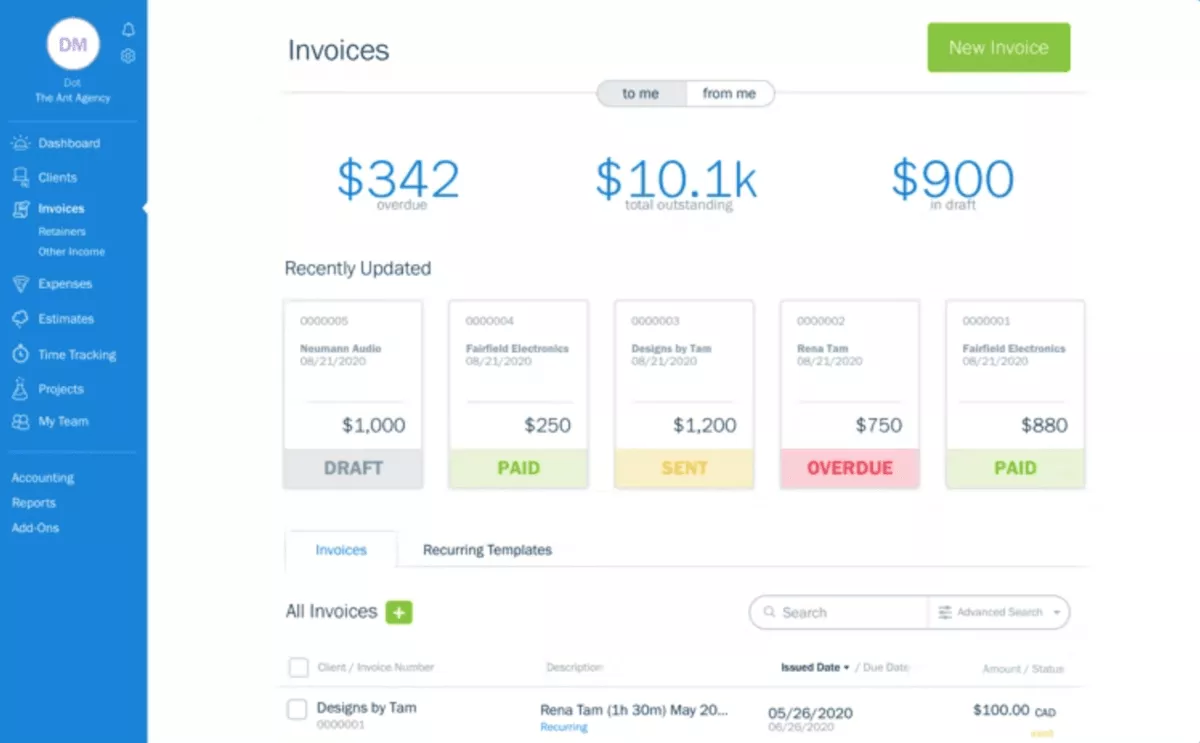
SOurce: freshbooks
Pros
- Reviewers often highlight how easy it is to create and send invoices.
- Expense handling is frequently mentioned as straightforward, especially when you can attach receipts.
- Many reviewers like that the user-friendly interface makes it easier for non-accountants to stay consistent.
- Some reviews mention automation that reduces repetitive admin work.
Cons
- Some reviewers say the mobile app can feel limited compared with the web experience.
- A repeated complaint is that the timer or manual time entry can be inconsistent.
- Some teams report hitting feature limits when they need more advanced accounting workflows.
- A few reviewers want a better way to organize and find older invoices.
Final Verdict
FreshBooks is a tough sell if you need deep project accounting, complex approvals, or a mobile experience that matches the desktop product. If your main goals are to send clean invoices, track expenses, and tie billable hours to client billing, it is a practical option.
4. Zoho Invoice – Best for a Free Invoicing Plan
Zoho Invoice is a practical option if you mainly want invoicing to be simple, consistent, and affordable. It is also a good fit if a free plan is a must, and you only need basic time entry and expense entry.
In case you’re here for the accounting features, you might want to head over to our list of the best accounting tools.
Key Features
- Forever-free plan for invoicing and related basics.
- Invoice templates, recurring invoices, and automated reminders.
- Basic time entry to add billable hours to an invoice.
- Client portal so clients can view invoices, accept estimates, and pay online.
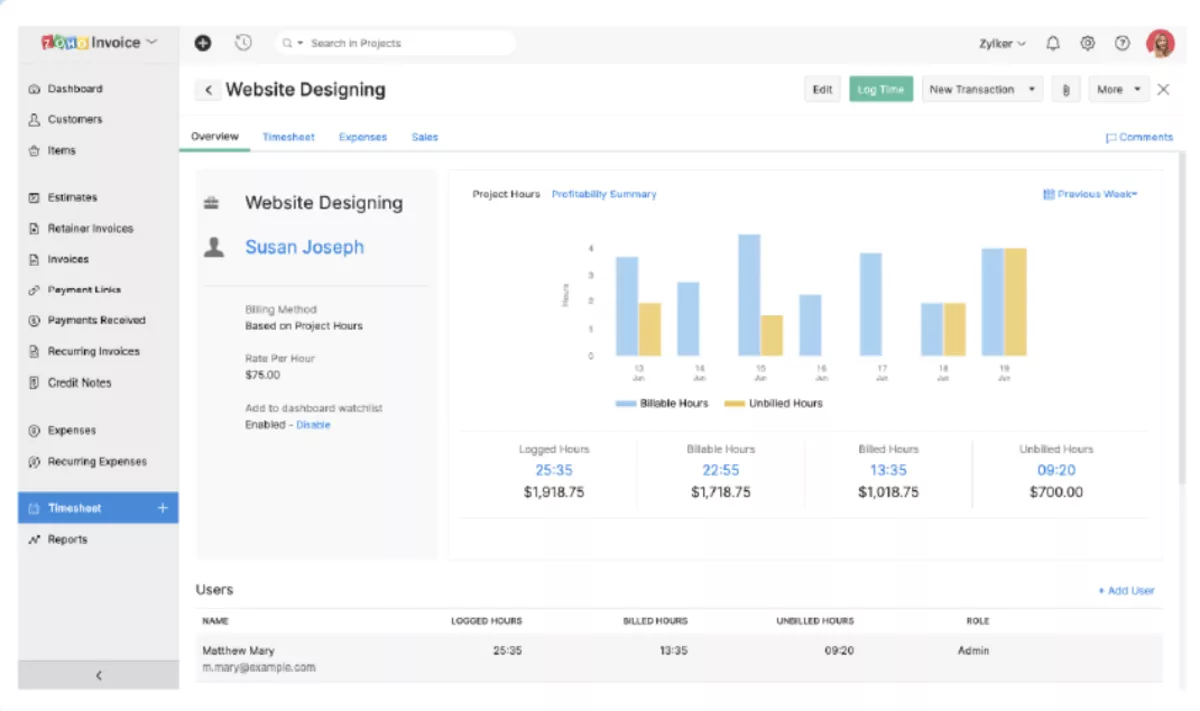
SOurce: zoho invoice
Pros
- Reviewers often mention that it is quick to set up and easy to use, especially for smaller teams.
- The free version is a consistent theme in reviews, and many users see it as a strong value if your needs are simple.
- Reviewers often like that invoicing, reminders, and payment links are in one place.
- Some users call out mobile access as helpful for creating and sending invoices on the go.
Cons
- Some reviewers say it falls short once you need more advanced accounting or revenue reporting.
- A repeated complaint is limited payment gateway options, depending on region and client preferences.
- Some reviews mention that support response times can be slow.
- Email and notification setup can be confusing, especially if you want tighter control over client-facing communication.
Final Verdict
Zoho Invoice is not a great match if you need deeper financial reporting, complex workflows, or very specific payment requirements. It is best when you want a clean invoicing tool with a free plan, plus just enough time capture to bill for client work.
5. Deltek (Replicon Time) – Best for Time Governance and Approvals
Deltek Replicon Time is worth considering if your main priority is disciplined timesheets, approvals, and policy enforcement across a larger team.
It is usually a better fit for organizations that need timesheets to be consistent enough for billing, audits, or compliance.
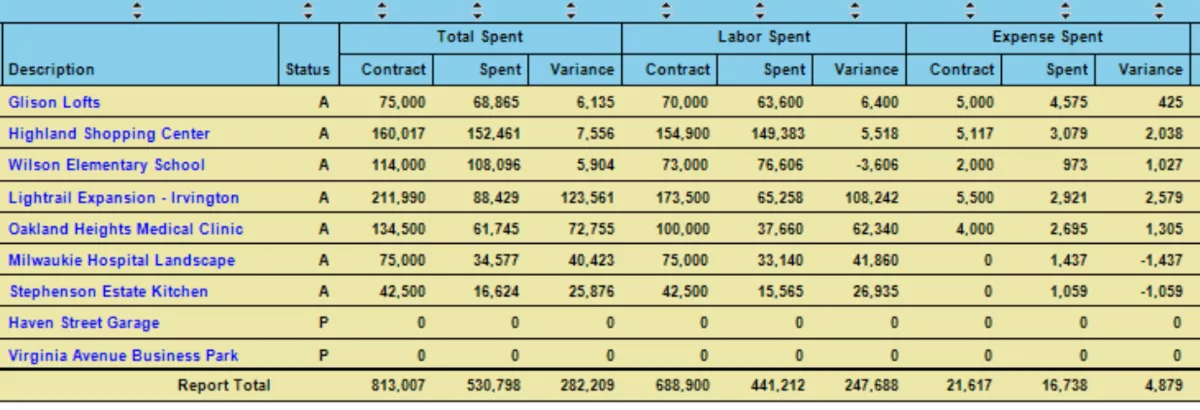
Key Features
- Timesheets tied to projects, clients, or internal activities.
- Configurable approval workflows so the submitted time gets reviewed before processing.
- Rules and validation to support labor compliance and an attendance policy.
- Reporting for audits, project costing, and operational oversight.
SOurce: deltek
Pros
- Reviewers often mention accurate timesheets and the ability to log hours against specific work.
- Approval workflows are a common highlight when teams need supervisors or PMs to review entries fast.
- Many users mention flexibility and customization, especially for reports and different user groups.
- Some teams like that the tool supports policy enforcement for billing discipline and time off tracking.
Cons
- A repeated theme is that reporting can feel complicated, especially when extracting specific data.
- Some reviewers say the interface is confusing at first, which can slow adoption.
- Limited customization in certain areas, such as predefined field names, is a pain point.
- Occasional bugs or lagging issues are mentioned in reviews.
Final Verdict
Deltek Replicon Time is a weaker choice if your team wants a lightweight tool that feels simple out of the box, or if you need reporting to be fast and self-serve for non-technical users.
It is a strong option when you need tight time governance and approvals, and you can invest in configuration to match your policies.
6. Kantata – Best for PSA-Style Delivery and Resource Planning
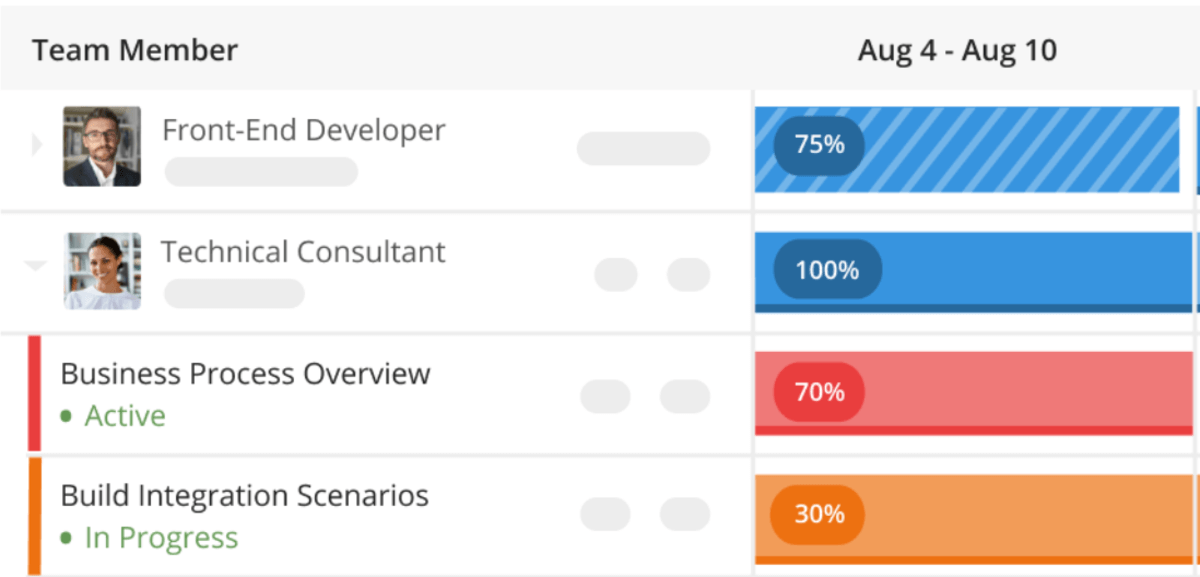
Kantata fits professional service firms that need PSA software for project management, staffing, and utilization reporting. It is built for teams that want one place to plan work, staff projects, track time, and review delivery, plus financial signals together.
Key Features
- Project planning with task management and a Gantt chart view.
- Staffing tools for team scheduling and resource allocation.
- Time and expense tracking tied to projects.
- Reporting for utilization and project financial visibility.
SOurce: kantata
Pros
- Reviewers often mention clearer visibility into project health, resource utilization, and financial performance once the system is in place.
- Some users like that they can quickly see what tasks they are assigned to and find past work without digging through multiple tools.
- Timesheet collection and revenue tracking are practical strengths for teams that bill for tracked work.
- A few reviews highlight depth in reporting and planning, including resource scheduling and built-in budget and expense tracking.
Cons
- Multiple reviews warn about a learning curve. Without training and admin ownership, the system can feel clunky for day-to-day users.
- Some reviewers want a more modern, visually simplified user interface.
- Reporting is a repeated friction point for some teams, especially when they need reports to be easier to customize.
- Some reviewers say comments or tasks can feel easy to miss until you learn where to find them.
Final Verdict
Kantata can be the wrong call if you want a lightweight tool that feels simple on day one and needs little onboarding. It is a strong option when you run services delivery at scale and need staffing, time, and financial reporting to stay connected across projects.
Why Are Teams Looking for BQE Core Alternatives?
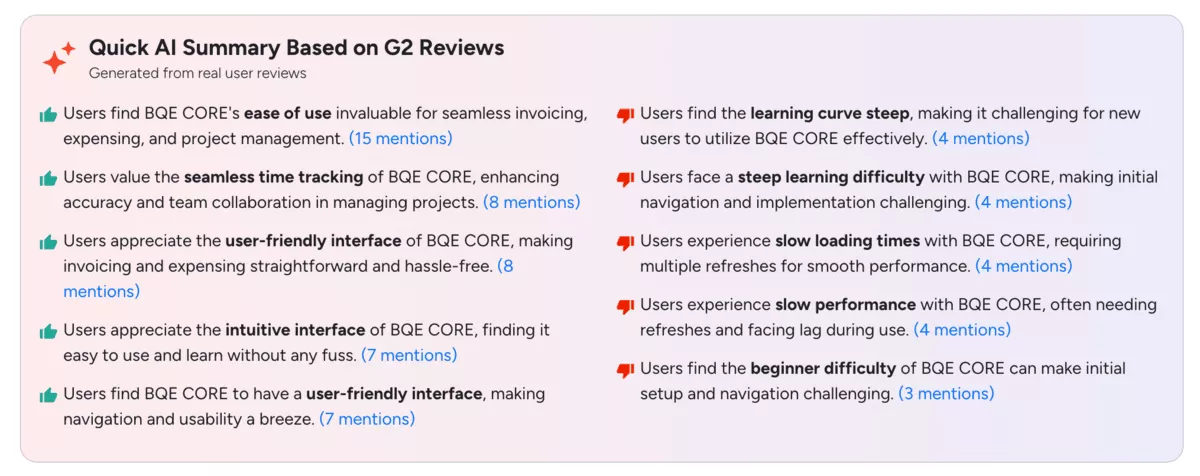
Teams start looking for alternatives because pages load slowly or require refreshes, time entry and edits take too many steps, the user interface is hard to navigate, mobile use feels unreliable, and onboarding new users takes longer than it should.
- Slow loading and lag are recurring complaints, including pages that need refreshes to behave normally.
- New users often need more time to get comfortable, because the learning curve can feel steep at the start.
- Short-time entry actions can feel awkward, like editing or removing an entry, taking extra clicks, or non-obvious steps.
- Some reviewers mention the mobile experience being slower than expected, which gets in the way of logging time away from a desk.
- Even when teams like the breadth of features, day-to-day navigation can take longer than it should until people learn where everything is.
SOURCE: BQE CORE G2 REVIEW
In practice, this usually shows up as slower time entry data capture, more follow-up from managers to get timesheets submitted, and extra admin time spent helping people find the right screens.
How to Choose a BQE Core Alternative?
Choose your replacement by running five checks in order: list the project management and billing workflows you cannot lose, confirm what level of project accounting you need, test reporting with real leadership questions, validate integrations and data flow, then run a two-week pilot with approvers.
If you do this in sequence, you will end up with a shortlist you can defend to finance and delivery leads. We talk a whole lot more about finances in our comprehensive guide on financial management.
Step 1: Start by Listing the Workflows You Cannot Lose
Write down the 5 to 7 workflows that must work on day one, using plain tasks instead of feature labels.
For example: weekly status updates, weekly time entry, timesheet approvals, expense submission to the right project and phase, invoicing that matches how you bill, budget tracking by phase, and a utilization view by role.
Mark each item as must-have or nice-to-have. If a tool fails as a must-have in the trial, cut it.
Step 2: Decide What Level of Project Accounting You Really Need
Pick the lightest setup that still answers your finance questions. If you only need basic billing, prioritize a clean timer, simple rates, and fast invoice creation. If you need project budgeting and margin visibility, make sure you can compare actuals vs plan without exporting data.
If you need deeper project accounting, define the exact outputs you rely on, such as phase-level profitability, retainer tracking, or profitability reporting by client and service.
In case you need to go back to the basics, the best starting point is our project accounting guide.
Step 3: Test Reporting With Real Questions From Leadership
In each trial, answer the same questions using real projects and real-time entries. Start with what leadership actually asks: which projects are at risk this month, which clients are trending over budget, where billable hours are slipping, and what utilization looks like by role.
If you cannot reproduce the same answers twice, with the same steps, reporting will not hold up week to week.
Step 4: Validate Integrations and Data Flow Before You Commit
List the systems that must stay in sync with your project management tool, then verify which actually sync and which do not.
For many teams, that includes QuickBooks Online, CRM, and payroll.
In the trial, check field mapping for clients, projects, invoices, and payments, and look for duplicate records caused by naming mismatches.
Step 5: Run a Two-Week Pilot With Approvers
A pilot only works if it includes the people who approve timesheets and prepare billing. Run a real week of time entry, approvals, and expense submissions in the tool, then review what still needs manual follow-up.
Pick the tool that produces clean data with the least admin work, because that is what keeps timesheets and budgets reliable over the long run.
How To Migrate from BQE Core?
Migrate by moving your data in a controlled order, then running one full billing cycle in parallel so you can confirm timesheets, approvals, and billing and invoicing are working before you fully switch.
The goal is simple: keep client billing accurate, keep approvals moving, and keep reporting consistent while the team learns the new system.
Free Migration Checklist
- Pick an owner and a cutoff date. Done means one person owns the plan, and everyone knows the last day you will submit new time and expenses in the old system.
- Export your source data and lock it. Done means you have clean exports for clients, projects, tasks, or phases, people, time entries, expenses, and invoices, saved in one shared folder with version control.
- Standardize naming conventions before import. Done means clients, projects, phases, and cost categories follow one format, so you do not end up with duplicates like “ACME”, “Acme”, and “ACME Inc”.
- Map fields and IDs across systems. Done means you can point to a simple mapping table showing what becomes what, including client names, project codes, phase names, roles, and any billing codes you use.
- Rebuild your billing rules in the new tool. Done means rates, billing types, taxes, discounts, and invoice templates match how you bill today, not how a default template assumes you bill.
- Recreate approval roles and handoffs. Done means the right people can approve time and expenses, and you have tested a full submit → approve → report flow with two real users.
- Import a small pilot set first. Done means you import 1 to 3 representative projects, validate totals, and confirm that time and expenses land on the right client, project, and phase.
- Run parallel time entry for one week. Done means the pilot team logs time in both systems for the same week, and you compare totals, missing entries, and approval friction.
- Run a parallel invoice run for one cycle. Done means you generate the same invoice in both systems and the totals match, including billable hours, expenses, taxes, and write-offs.
- Validate the reports you rely on. Done means you can reproduce the same weekly views your team uses, such as unapproved time, budget burn, and utilization, using real data.
- Train by role with short job based scripts. Done means time submitters, approvers, PMs, and finance each have a 10 to 15 minute script that shows exactly what they do every week.
- Set a support window and a fallback plan. Done means you have a channel for questions, an owner who can unblock issues daily, and a rule for when you revert to the old system for a specific item.
Final Thoughts: Are These Alternatives Worth the Switch?
If your current system is creating friction in weekly time entry, billing, and reporting, switching is usually worth it, as long as you choose a tool that matches how you actually deliver work and invoice clients.
When projects, time entries, budgets, approvals, and resourcing stay connected, you spend less time reconciling data and more time acting on it.
If you want to see what that looks like in practice, book a Productive demo and walk through one real client workflow end to end.
Connect With Agency Peers
Access agency-related Slack channels, exchange business insights, and join in on members-only live sessions.
