The Best Sprint Planning Software: Top 6 Tools, Pricing + Ratings

The best sprint planning software tools are Jira, Shortcut, Linear, ClickUp, Trello, and Productive. We compared how each one sets up sprints, estimates work, tracks time, and reports on progress.
Every tool gets key features, review-based pros and cons, pricing, a G2 rating, and a pick verdict. You’ll also find a comparison table and a three-step way to test a tool. A final section covers tying sprint work to client budgets.
What Is the Best Sprint Planning Software in 2026?
The best tools for planning sprints in 2026 are Jira, Shortcut, Linear, ClickUp, Trello, and Productive. These sprint planning tools run from sprint-first products to broader project management tools. The order isn’t a ranking. Here’s who each one fits:
Sprint Planning Tools Compared (November 2026)
The six tools differ on how sprints are set up, what you estimate in, and what you pay:
| Tool | How Sprints Work | Estimates | Velocity and Burndown | Built-In Time Tracking | Starting Price | G2 Rating (out of 5) |
|---|---|---|---|---|---|---|
| Jira | Sprints are filled from the backlog and followed on a board | Points or time | Both | Yes | Free for 10 people; Standard $9.70 per user/month ($950 a year for up to 10 people) | 4.3 (8,104 reviews) |
| Shortcut | Iterations are fixed periods of work on a set of stories | Points | Both, with velocity on Team and up | Through integrations | Free for 10 people; Team $10 per user/month ($8.50 yearly) | 4.4 (177 reviews) |
| Linear | Cycles are created automatically | Points | Cycle graph; past velocity sets the capacity estimate | Through integrations | Free plan (250 issues, 2 teams); Basic $12 per user/month ($10 yearly) | 4.6 (129 reviews) |
| ClickUp | A Sprints feature rolls unfinished tasks forward | Sprint Points | Both, on Business and up | Yes | Free plan with 100 uses of Sprint Points; Core $12 per user/month ($9 yearly) | 4.6 (15,941 reviews) |
| Trello | Sprints are boards you set up yourself | Through Power-Ups | Through Power-Ups | Through Power-Ups | Free for 10 collaborators; Standard $6 per user/month ($5 yearly) | 4.4 (14,078 reviews) |
| Productive | Sprints are folders you set up in a project | Hours | No dedicated report | Yes, against the client’s budget | No free plan; Essential $12 per user/month ($10 yearly), 3-seat minimum | 4.7 (110 reviews) |
How We Chose These Tools
We looked for tools with a documented way to plan and run sprints. They range from agile planning tools to broader project management tools, and the list runs in that order. Productive comes last for that reason.
Productive is our tool, so it’s covered in more depth. Features and prices come from each vendor’s own pages, and pros and cons from dated G2 reviews.
Every price and G2 rating was checked on November 25, 2026.
1. Jira – Best for Scrum Teams That Need Velocity and Burndown Reports
Jira is Atlassian’s tool for planning and tracking work, with a Scrum backlog, sprints, and boards. Jira sprint planning starts in the backlog, and estimates are in story points or time.
Key Features
Jira’s main sprint features are:
- Backlog for planning sprints
- Estimates in points or time
- Burndown and velocity reports
- Built-in time tracking
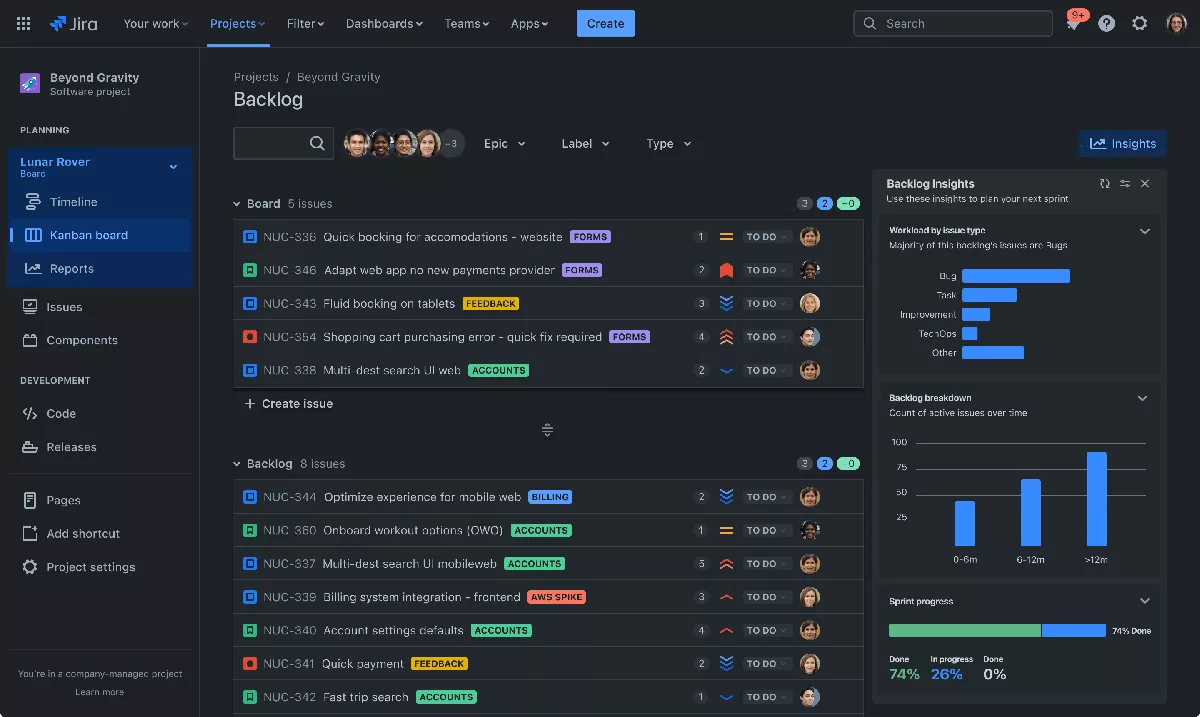
Source: Atlassian
Pros
- Sprints are easy to plan and track. The board shows who is doing what.
- Workflows adapt to your process. Workflows, issue types, and boards can be customized.
- Dashboards and reports show progress. Status is easy to follow and share.
Cons
- Setup and configuration take time. Permissions and workflows can be complicated to set up.
- Advanced search needs query syntax. Advanced searches mean learning the query language.
Pricing and G2 Rating
Jira’s pricing starts with a free plan for up to 10 people. Standard costs $9.70 per user a month on monthly billing, for teams of up to 100 people. The per-user price is lower at larger team sizes. On annual billing, Standard costs $950 a year for up to 10 people, and $1,450 for 11 to 15.
Jira holds 4.3 out of 5 from 8,104 G2 reviews, checked November 25, 2026.
Who Should Pick Jira?
A scrum team that tracks velocity gets the most from Jira. Burndown and velocity reports come with a Jira scrum board.
2. Shortcut – Best for Software Teams That Want a Simpler Setup
Shortcut plans software development work in stories, epics, and iterations, its name for sprints. An iteration is a fixed period of work on a set of stories, with a burndown chart for progress.
Key Features
Shortcut’s main sprint features are:
- Iterations for planning sprints
- Burndown and velocity charts
- Unfinished stories moved to the next iteration
- GitHub and Slack integrations
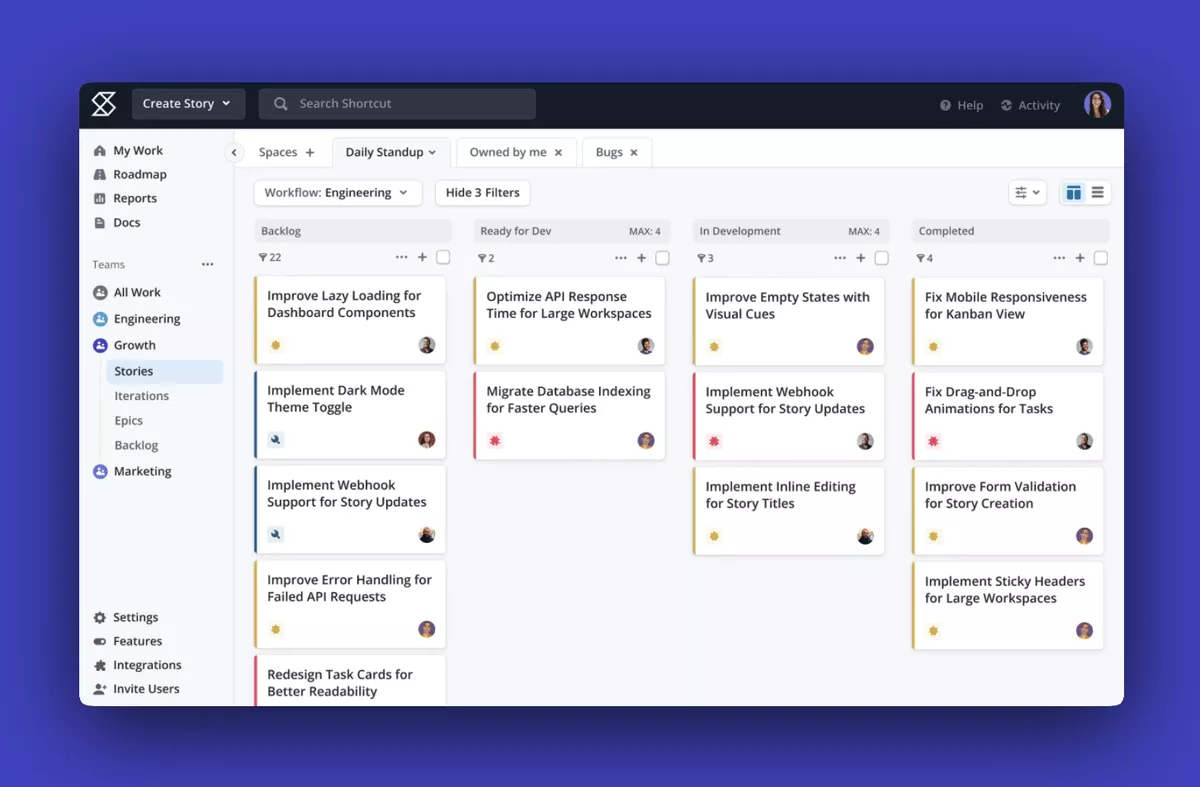
Source: G2
Pros
- The interface is clean and simple. The layout is easy to read.
- Stories and epics give work a clear structure. Moving between them is easy and fast.
Cons
- It has fewer advanced features than tools like Jira. It lacks some of their depth and technical features.
- Reporting options are limited. More reports and more velocity metrics would help.
Pricing and G2 Rating
Shortcut’s pricing includes a free plan for up to 10 people, with iterations. Paid plans start at $10 per user a month on Team, or $8.50 billed yearly. The Reports page, with its velocity chart, starts on Team, and Enterprise has custom pricing.
Shortcut holds 4.4 out of 5 from 177 G2 reviews, checked November 25, 2026.
Who Should Pick Shortcut?
If tools like Jira feel like more than your team needs, Shortcut covers sprints with less to set up. Iterations come with its free plan.
3. Linear – Best for Teams That Want Sprints Created Automatically
Sprints are called cycles in Linear, which is built for planning and building products. Once the feature is on, Linear creates upcoming cycles for your team automatically.
Key Features
Linear’s main features for sprints are:
- Cycles created automatically
- Capacity dial based on past velocity
- Cycle graph of progress
- Point estimates on issues
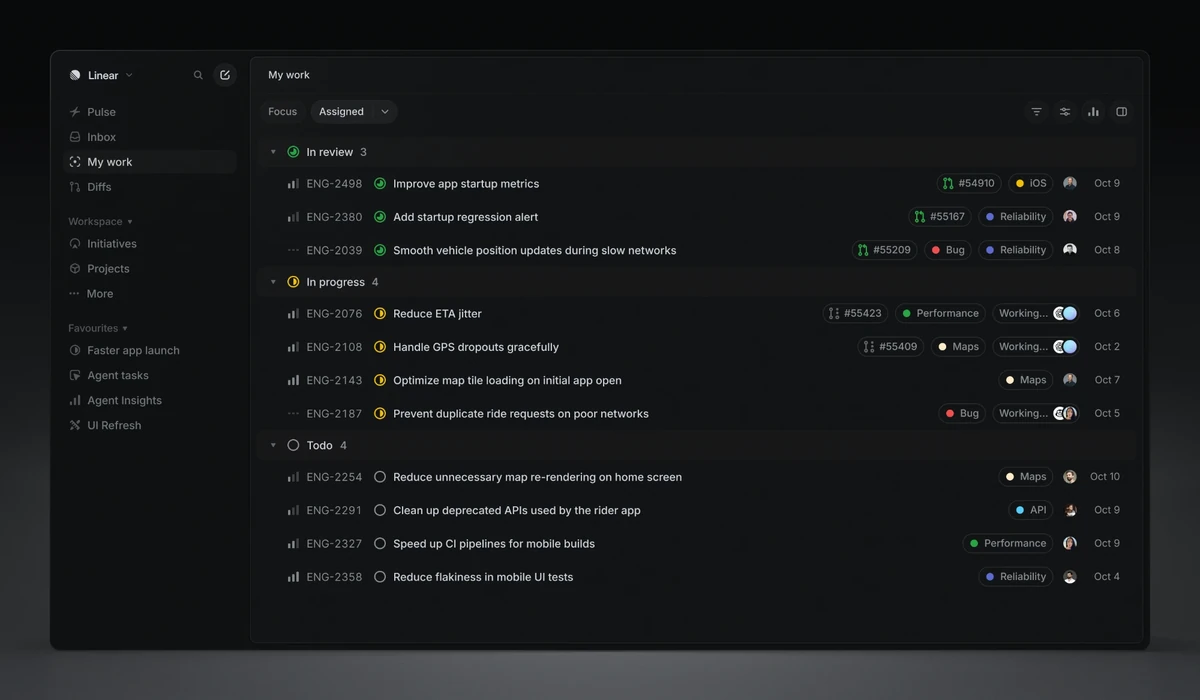
Source: G2
Pros
- The app is fast. Pages load quickly, and the interface stays clean.
- Cycles are easy to run. The built-in cycle model needs little setup.
- Keyboard shortcuts speed up updates. Issues can be created and updated from the keyboard.
Cons
- Some features aren’t obvious at first. Parts of the app take time to find and understand.
- Customization is limited. It feels less customizable than tools like Jira.
Pricing and G2 Rating
Linear’s pricing includes a free plan capped at 250 issues and two teams. Paid plans start at $12 per user a month on Basic, or $10 billed yearly.
Linear holds 4.6 out of 5 from 129 G2 reviews, checked November 25, 2026.
Who Should Pick Linear?
Linear suits teams that don’t want to set up sprints by hand. Upcoming cycles are created automatically, and a capacity dial estimates whether the team will finish them.
4. ClickUp – Best for Mixed Teams That Want Sprints and Other Work in One Tool
ClickUp runs sprints through a built-in Sprints feature, in the same tool as your other tasks. It sizes work in Sprint Points and moves unfinished tasks into the next one.
Key Features
ClickUp’s main sprint features are:
- Sprint Points for sizing work
- Burnup, burndown, and velocity reports
- Automatic spillover of unfinished tasks
- GitHub, GitLab, and Bitbucket sync
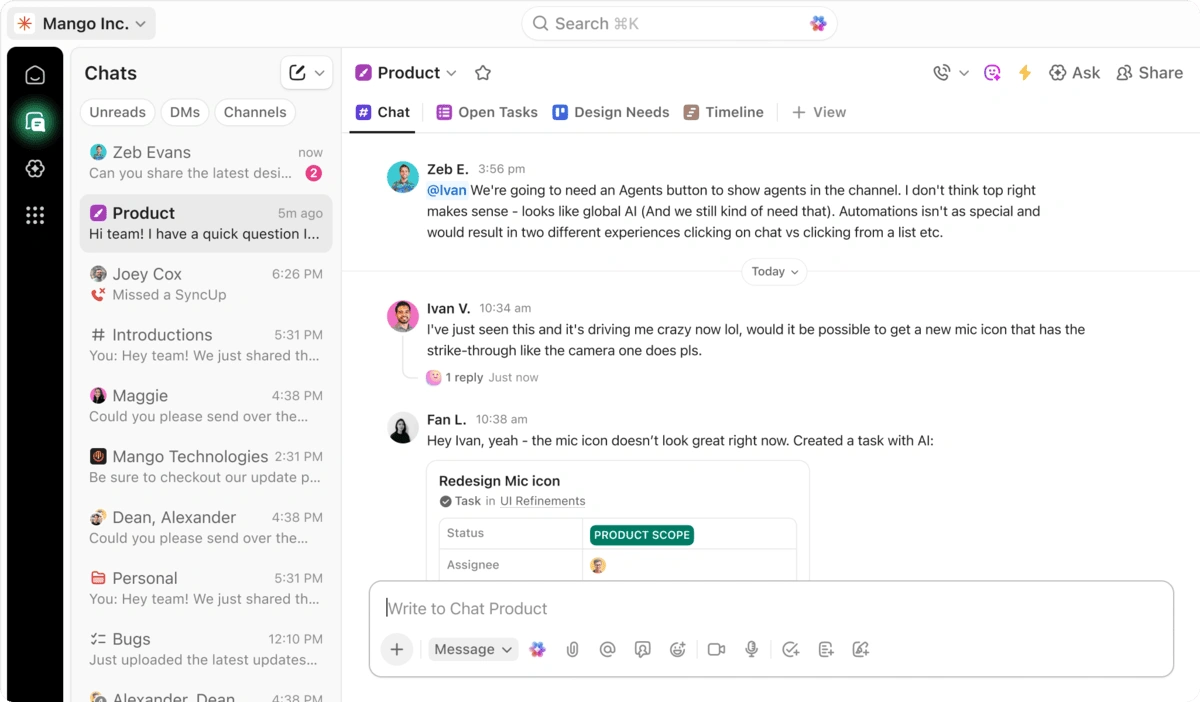
Source: G2
Pros
- Views adapt to how each team works. List, board, and calendar views are easy to move between.
- Tasks and communication stay in one place. Project tasks, updates, and team communication sit together.
- Integrations keep other tools in sync. Files and updates from connected apps stay linked to tasks.
Cons
- So many options can overwhelm at first. The number of features takes getting used to.
- It can slow down in large workspaces. It lags with lots of tasks.
Pricing and G2 Rating
ClickUp’s pricing has a free plan that includes sprint management and Kanban boards. Its Sprint Points are limited to 100 uses.
Paid plans start at $12 per user a month on Core, or $9 billed yearly. Sprint reports and Sprint Automations need Business, at $25 per user a month or $17 billed yearly.
ClickUp holds 4.6 out of 5 from 15,941 G2 reviews, checked November 25, 2026.
Who Should Pick ClickUp?
Teams that mix developers and non-developers in one tool are a fit for ClickUp. Its Business plan adds velocity and burndown reports to its sprints.
5. Trello – Best for Small Teams Running Simple Sprints on a Board
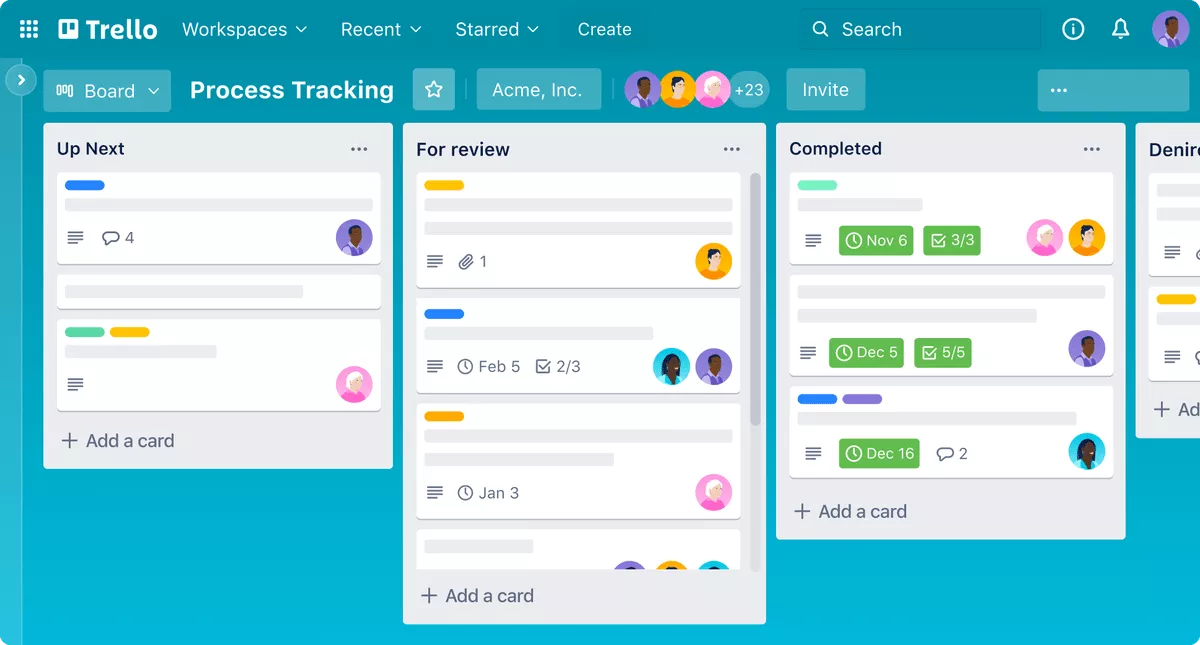
In Trello, Atlassian’s board tool, work moves as cards across lists. Sprints are boards you set up yourself, and Power-Ups connect them to GitHub, GitLab, or Jira.
Key Features
Trello’s main features for sprints are:
- Boards, lists, and cards
- Scrum board and sprint retrospective templates
- Timeline view for following sprints
- Built-in workflow automation
Source: Trello
Pros
- Drag-and-drop makes updates quick. Dragging a card updates its status.
- Teams use it without training. New people start contributing almost right away.
Cons
- Boards get cluttered with many cards. Too many cards on one board make it harder to read.
- Its simplicity limits bigger projects. It suits small projects better than large ones.
Pricing and G2 Rating
Trello’s pricing is free for up to 10 collaborators per Workspace. Paid plans start at $6 per user a month on Standard, or $5 billed yearly. Timeline view comes with Premium at $12.50, or $10 billed yearly.
Power-Ups for estimates, burndown reports, and time tracking come from third-party makers, so check each one’s price first. Past 10 collaborators, a free Workspace’s boards become view-only. On paid plans, a guest on more than one board is billed like a member.
Trello holds 4.4 out of 5 from 14,078 G2 reviews, checked November 25, 2026.
Who Should Pick Trello?
Pick Trello when a small team wants a simple board for its sprints. Boards are free for up to 10 collaborators, with automation built in.
6. Productive – Best for Professional Services Firms Tying Sprint Work to Client Budgets
Productive is a platform where professional services firms run client projects, budgets, and time tracking. It isn’t a dedicated sprint tool, but a folder in a project can stand for a sprint.
Try Productive for sprint work and client budgets.
The task lists in a folder can stand for stages such as Backlog or In Progress. Sprint reporting is a task report you build yourself. Scheduling it to send automatically needs the Ultimate plan.
Track Sprint Time Against the Client Budget
If sprints run in one tool and the budget in another, the hours have to be moved between them. With time tracking on tasks turned on, every task in Productive gets a Time tab.
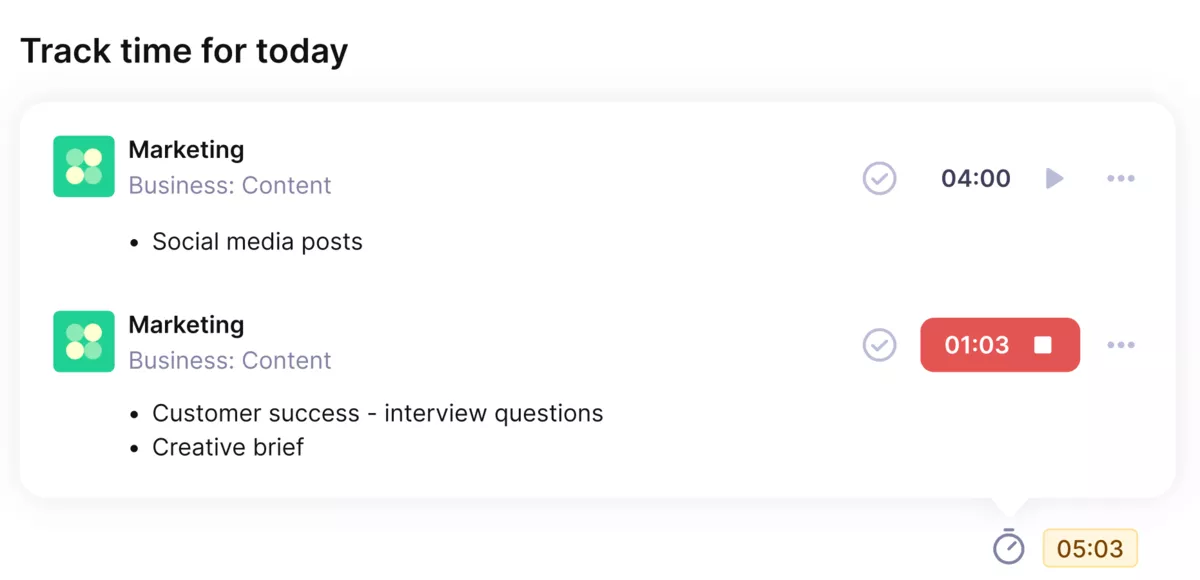
Log time on a task against a service in the client’s budget in Productive.
You log time against the client’s budget without leaving the task. If your organization uses time approvals, an entry counts toward budget usage once it’s approved.
A development team that keeps its sprints in Jira can use the Productive widget there. Time logged through the widget appears on the project’s budget in Productive. Jira’s native time log doesn’t sync.
Check Task Hours Against Each Person’s Availability
If a developer is split across two other clients that week, your sprint planning needs their real hours. Productive’s Workload layout shows each person’s estimated task hours next to their availability.
It covers the projects you manage in Productive where that person has assigned tasks. Availability already accounts for holidays and booked time off.
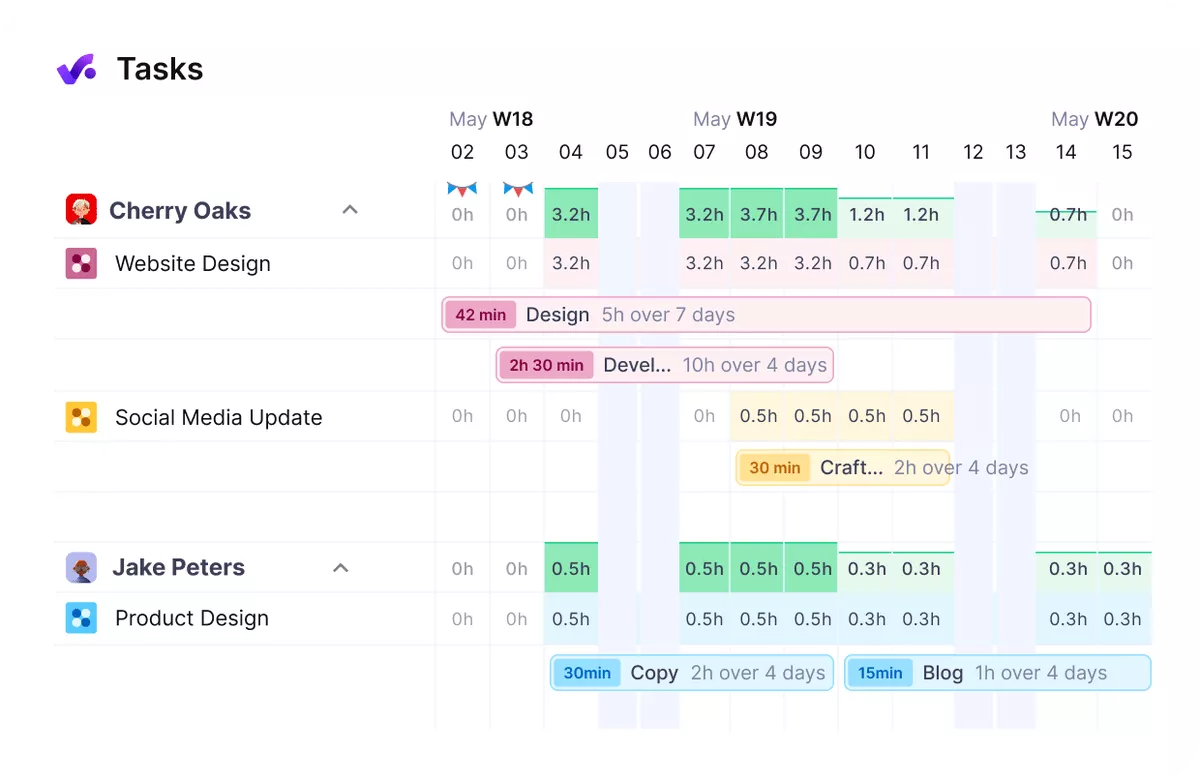
Compare each person’s availability in Productive’s Workload layout.
Workload is organized by date, not by sprint, so set the view to your sprint’s dates. A task needs an assignee and dates to show up, and a time estimate to add hours. The layout comes with the Professional and Ultimate plans.
Turn Sprint Review Feedback Into Tasks
After a sprint review with a client, someone has to turn the feedback into tasks. Productive’s Notetaker joins the call and records it on Zoom, Google Meet, or Microsoft Teams. You get a transcript, AI-written notes, and a list of action points.
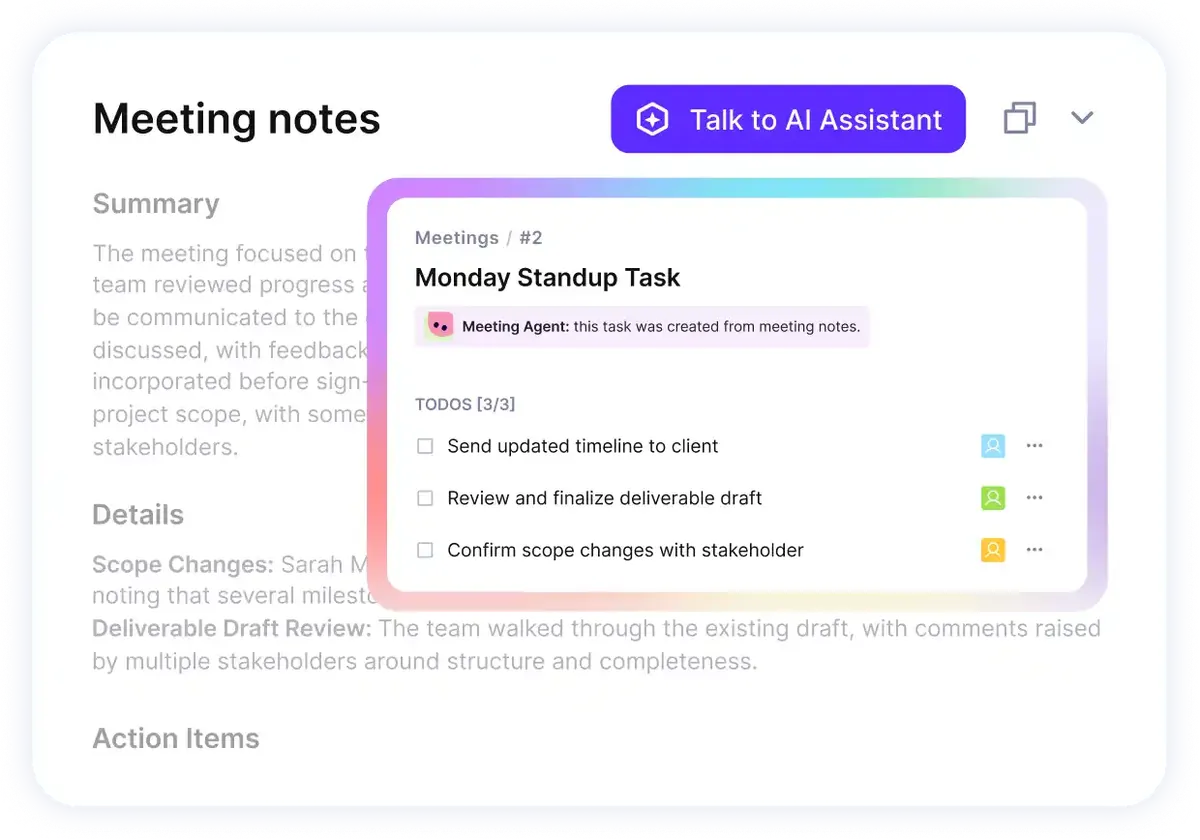
Turn action points from a recorded client call into tasks in Productive.
A button turns those action points into draft tasks in the linked project. Nothing is created until you confirm. The Notetaker comes with every plan, with 10 recording hours a month for your organization. An admin has to turn on Productive AI first.
Productive holds 4.7 out of 5 from 110 G2 reviews, checked November 25, 2026.
Pros
- Time entries show against the budget. You see in real time how logged hours affect a client’s budget.
- Time tracking is quick. Logging hours takes little effort.
Cons
- Sprints are folders you set up yourself. A folder has no start date, end date, or sprint goal of its own.
- Estimates are in hours, not points. The built-in task estimate is time-based.
Both cons are our reading of Productive’s own documentation, not reviewer feedback.
Who Should Pick Productive?
Professional services firms that want projects, time tracking, and client budgets in one tool should pick Productive. Time logged on a task goes against a service in the client’s budget.
Pricing
- Plans start with the Essential plan at $10 per user per month, which includes essential features such as budgeting, project & task management, docs, time tracking, expense management, reporting, and time off management.
- The Professional plan includes custom fields, recurring budgets, advanced reports, billable time approvals, and much more for $25 per user per month.
- The Ultimate plan has everything that the Essential plan and Professional plan offer, along with the HubSpot integration, advanced forecasting, advanced custom fields, overhead calculations, and more. Book a demo or reach out to our team for the monthly price per user.
Keep Sprint Time and Client Budgets in One Place.
Productive logs time from each task against a service in the client’s budget.

Which Features Should You Look For?
The features to look for are a backlog, estimates, capacity checks, sprint goals, reports, rollover, and time tracking. Time tracking matters only if you bill clients. This is our own checklist, and the six sprint planning tools above cover it to different depths:
- A backlog you can rank. The product backlog holds your work in priority order, ready to pull into the next sprint.
- Estimates in your team’s unit. Some tools size work in points and others in hours, and switching units means estimating everything again.
- A capacity check. Before the scrum team commits, the tool shows whether the planned work fits its velocity or available hours.
- A sprint goal and dates. Each sprint needs a start, an end, and a goal the whole team can see.
- Progress reports. A burndown report shows partway through whether the work left fits the time left. A velocity report shows what the scrum team finished in past sprints.
- Rollover of unfinished work. Backlog items that aren’t done move forward without anyone retyping them.
- Time tracking, if you bill clients. Hours logged on tasks need to reach the client’s budget.
How Do You Choose a Sprint Planning Tool?
You choose a sprint planning tool by rebuilding your last finished sprint in it, matching it to how you plan capacity, and following one week of tracked time. The three steps are our own recommendation. Let’s look at each.
Step 1: Rebuild Your Last Finished Sprint
Rebuild your last finished sprint from its real data. Note its sprint goal, then export its product backlog items with estimates and owners. Set it up again in the trial tool, from import to a filled sprint backlog. Then check the result:
- Pass if: Every estimate comes across in the unit your team uses.
- Fail if: You have to retype estimates or change how the team sizes work.
Step 2: Match the Tool to How You Plan Capacity
Match the tool to the way your team decides how much work fits in a sprint. Some scrum teams plan from past velocity, known as velocity-driven sprint planning. Others plan from available hours, known as capacity-driven sprint planning.
When people are split across clients, check their free hours before you commit. Our list of tools for planning team availability covers software for that.
Plan your next sprint in the trial tool with real user stories from your product backlog. Judge it like this:
- Pass if: The tool shows the number your scrum master or product owner already plans with.
- Fail if: You need a spreadsheet beside it to work out team capacity.
Step 3: Follow One Week of Tracked Time
Follow a week of tracked time to see where the hours end up. This step is for teams that report cost or bill clients, and other teams can stop at Step 2.
Track real time for a week on a mix of billable and non-billable tasks. Then follow those hours to where you report cost or bill a client, and count the manual steps. The test is simple:
- Pass if: The hours reach your cost report or the client’s budget with no retyping.
- Fail if: Someone has to export time and enter it again in another system.
If you bill clients, the next question is how sprint work reaches a client budget.
Frequently Asked Questions
What Are Sprint Planning Tools?
Sprint planning tools are software for turning a backlog into a plan for the next sprint. They hold the estimates and owners, and track progress until the sprint ends.
Which Tool Is Used for Sprint Planning?
Tools that agile teams use for sprint planning include Jira, Shortcut, Linear, ClickUp, Trello, and Productive. Dedicated sprint planning tools come with built-in progress reports, while board tools leave the setup to you.
What Is Sprint vs Agile?
Agile is a set of values and principles for software development. A sprint is a fixed-length period in Scrum, when the Scrum team works through its sprint backlog. Our guide to the Scrum framework explains how the two fit together.
What Is Agile vs Jira?
Agile is a set of values and principles, while Jira is software. Agile teams use Jira’s backlog, sprints, and boards to put a method such as Scrum into practice.
Final Thoughts: Pick the Tool That Matches How You Plan and Bill
The best sprint planning tool shows what your team can commit to in the next sprint. Pick the one that plans the way your team already does. If you bill clients, track the hours behind each sprint too.
To see sprint time counted against client budgets, book a demo with Productive.
Plan Sprints Around the Hours Your Team Really Has.
Productive shows each person’s task hours next to their availability, with holidays and booked time off already counted.
