New Way to Plan Work: Schedule People to Work on Tasks

The most popular feature request in Productive’s history is now available: Schedule people to work on tasks. 🎉
Now, you can plan on small, concrete units of work, while keeping full visibility into forecasted budget burn, costs, and profit.
Here’s a Quick Overview:
- Create one or multiple bookings directly from a task in just a few clicks
- Task details automatically prefill your bookings, so there’s no double entry
- Bookings stay aligned with task timelines, ensuring you don’t have to manually keep the two in sync
- Get complete visibility into team capacity and real-time financial forecasting based on future bookings
Product Updates, Delivered
Get monthly updates in your inbox and be the first to find out the latest news in Productive.

Bringing the Gap Between Tasks and Services
The first change is that tasks can now be connected to Services on your Budget. Because of that, scheduling time on tasks works exactly the same like scheduling on services when it comes to reporting and forecasting.
So, when scheduling on tasks, you’ll be able to manage your:
- Scheduled time vs. estimated time on the budget
- Current and future capacity across team members
- Forecasted costs, budget burn, and margins
The difference isn’t what you can track—it’s how you want to plan.
Scheduling on Tasks vs Services
Both approaches lead to the same outcome: better and more predictable insights into your utilization and financials.
The bottom line is: You decide which workflow suits you most. On some projects, one or the other approach might feel better. For example:
- Schedule on a service: When a project has highly predictable work (like a maintenance retainer) and the team knows exactly to deliver.
- Schedule on a task: When a project is more complex and strategically important, and you need the team is always working on the highest priority task to keep full control over timelines.
Scheduling on Tasks: In Practice
Once you decide to schedule on tasks, we’ve made the process of creating your bookings as simple as possible.
Bookings can be created directly on any task, and most of the details are automatically pulled in to save time:
- The task assignee becomes the booking assignee
- The task date range becomes the booking date range
- The task’s time estimate becomes the booking allocation
The only field that isn’t prefilled (for now) is the task’s Service. Once you select it and click Create, the booking is ready.
Keep in mind, these prefilled values don’t limit you. Bookings are as flexible as possible to suit your resourcing needs.
So, you can still:
- Assign a different person to the booking than the task assignee
- Change the booking dates (with safeguards—more on that below)
- Create multiple bookings across different time periods, even if they exceed the original task time estimate
What Happens After You Create a Booking?
Once created, bookings created on tasks behave like any other booking in Productive. You can:
1) View your booking in the Resource planner to balance team capacity and time off
2) Open a booking to see how much time is scheduled compared to the budget estimate, helping you keep costs under control
3) Get forecasted costs, budget burn and profit margins based on your scheduling, for better future planning
How Bookings and Tasks Stay in Sync
A common concern is: If bookings and tasks both have dates, what happens when one changes?
Here’s the simplest way to explain how this works: A booking needs to stay within the parameters of a task’s start or end dates.
Changes that impact this logic will automatically update the task or the booking.
This two-way sync means you can confidently adjust tasks or bookings without worrying about breaking your plan, or having to clean things up manually afterward.
Here are a couple of examples to paint you a clearer picture:
1. Booking Updates the Task
- Task runs from February 11–16
- You create a booking that ends on February 17
- The task’s end date automatically updates to February 17
2. Task Updates the Booking
- A booking runs from February 20 to February 25
- You shorten the task’s timeline from February 25 to February 23
- Any part of the booking outside that range is automatically shortened
Automatic changes will come with a warning, so nothing will update in the background without you knowing about it first.
Quick Tip: Create Time Entries Faster
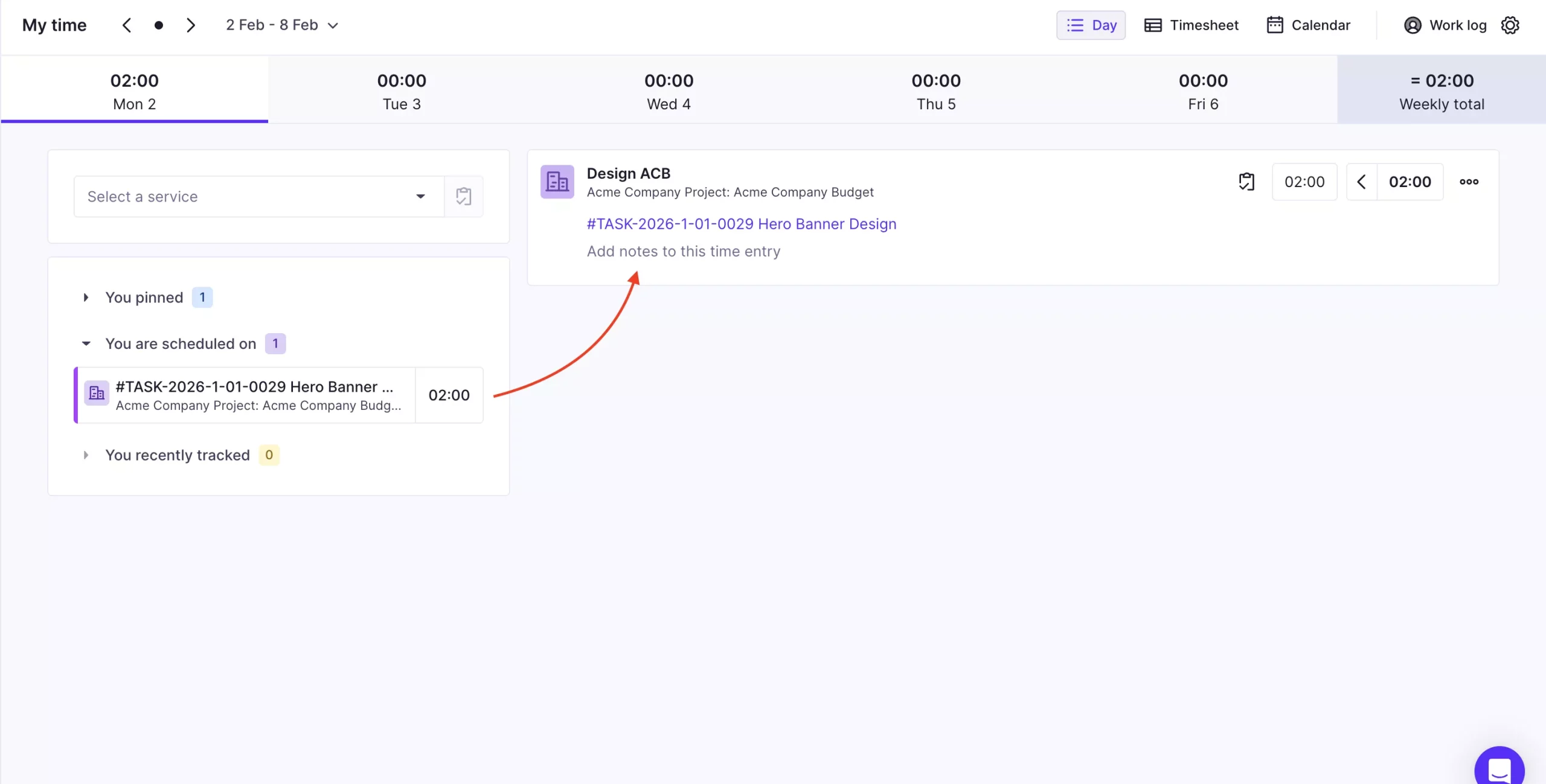
Bookings created on tasks will show up as time tracking suggestions, same as bookings on services. When they’re logged as entries, they’ll be automatically associated with their task.
This makes logging time entries faster and more reliable.
Scheduling on Tasks: Plan Small, See the Big Picture
Scheduling on tasks was created to give teams a new way to plan their work, with all the benefits of Productive’s resource planning.
Additionally, the Workload Chart is still here for those who want to manage capacity alongside project management, but don’t need financial visibility and forecasting.
If you want to explore setup options in more detail, you can find everything in our Help Center: Scheduling on Tasks.
Get Up to Speed In Minutes
Every week we deliver new features, fixes, and updates.
